
Governance Settings
The Governance section of the Profile page holds the governance configuration for your platform. It is visible only to users with the Admin role.Open the Governance Section
- Click the Profile icon and select your user name.
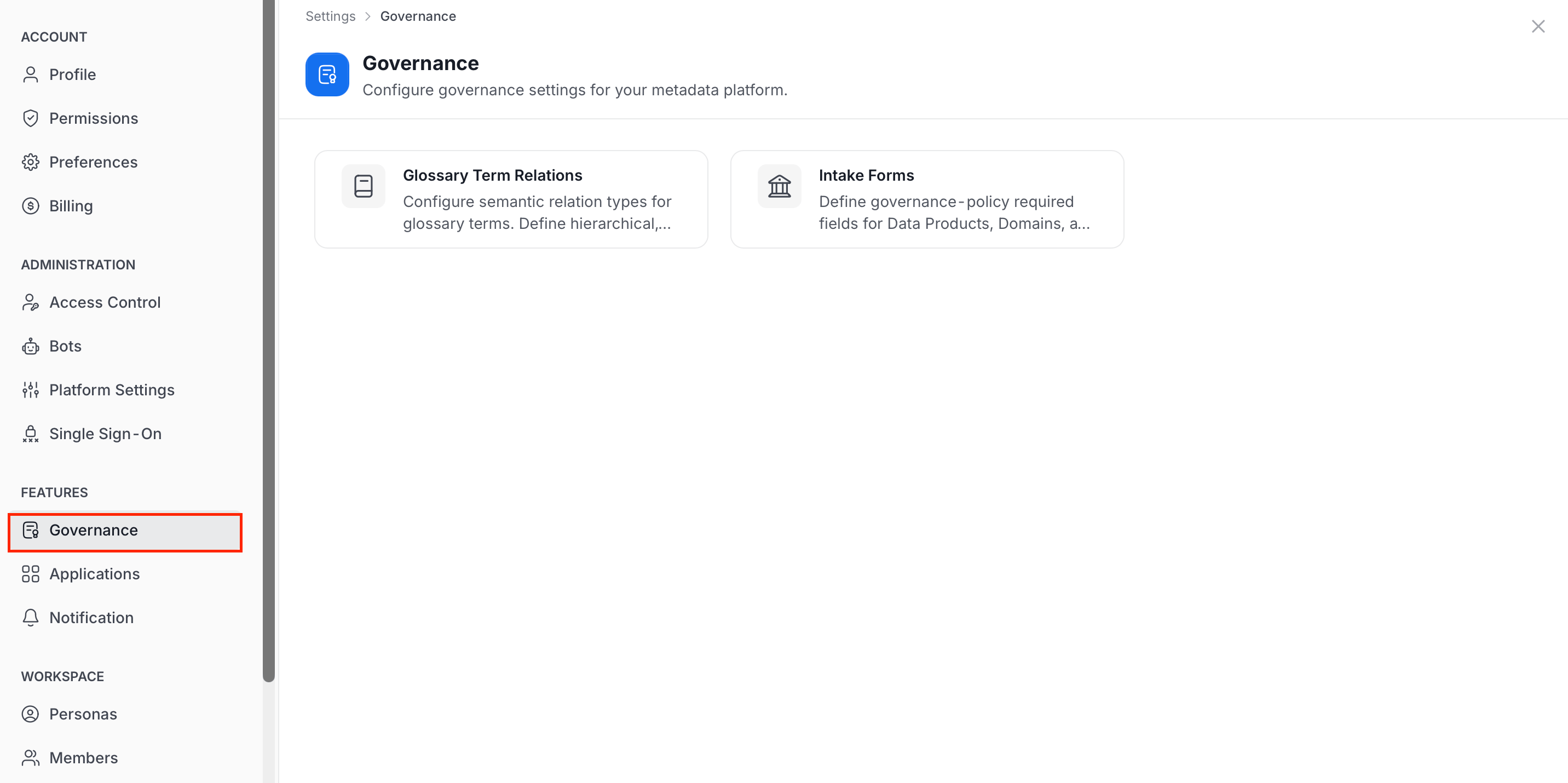
- In the Features group, click Governance.
-
Select a card:
- Glossary Term Relations: Configure the relation types between glossary terms.
- Intake Forms: Define the fields required to create Data Products, Domains, and Glossary Terms.
Glossary Term Relations
Relation types define hierarchical, associative, and equivalence relationships between glossary terms, to build a rich ontology. Click the Glossary Term Relations card to open the list.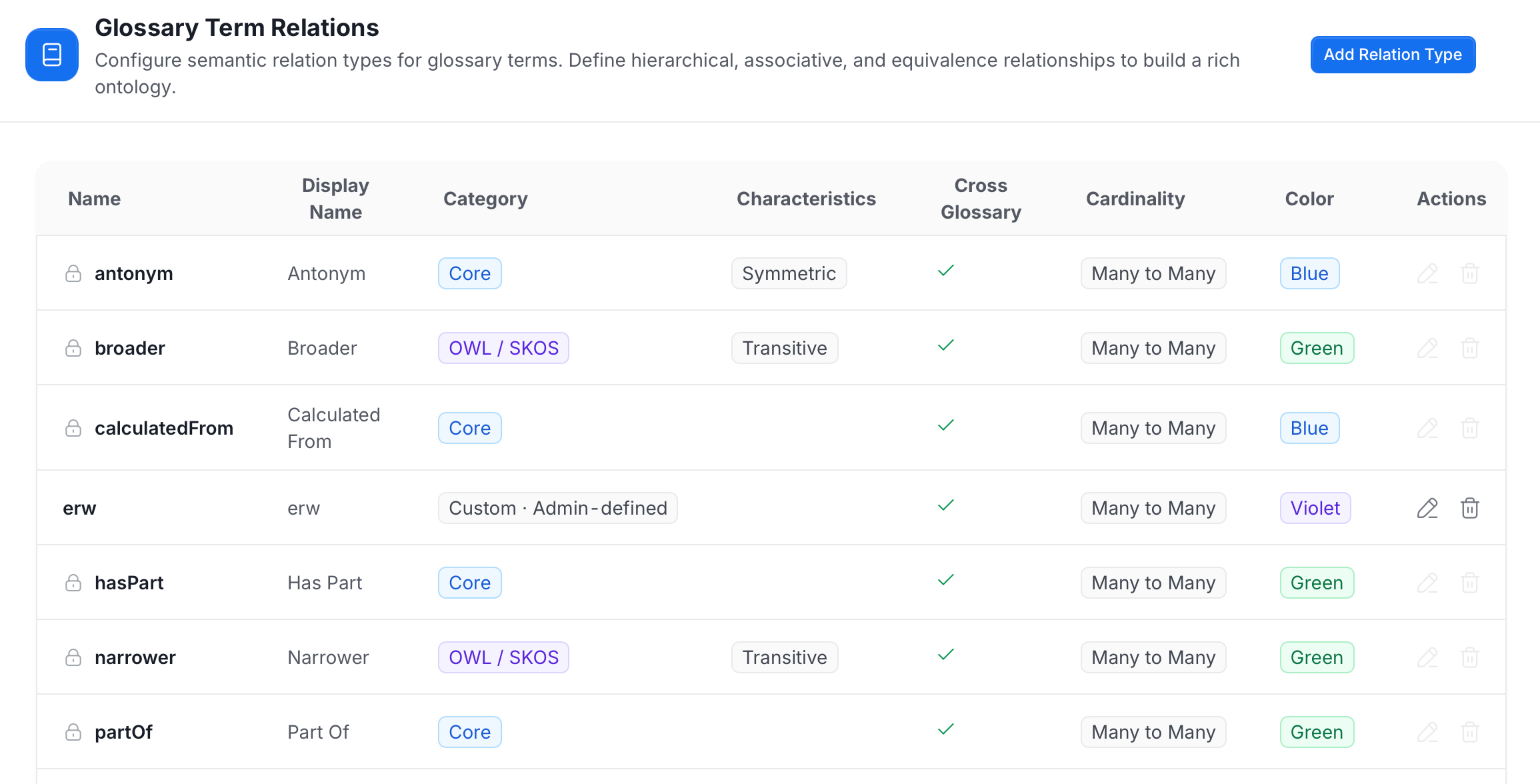
- Name: The technical name of the relation type. A lock icon marks built-in types.
- Display Name: The readable name shown to users.
- Category: Where the type comes from, for example Core, OWL / SKOS, or Custom · Admin-defined.
- Characteristics: Properties such as Symmetric or Transitive.
- Cross Glossary: A check mark means the relation can connect terms in different glossaries.
- Cardinality: How many terms the relation can connect, for example Many to Many.
- Color: The color used for the relation type.
- Actions: Edit and delete icons. They are available for custom types only and unavailable for built-in types.
Add a Relation Type
-
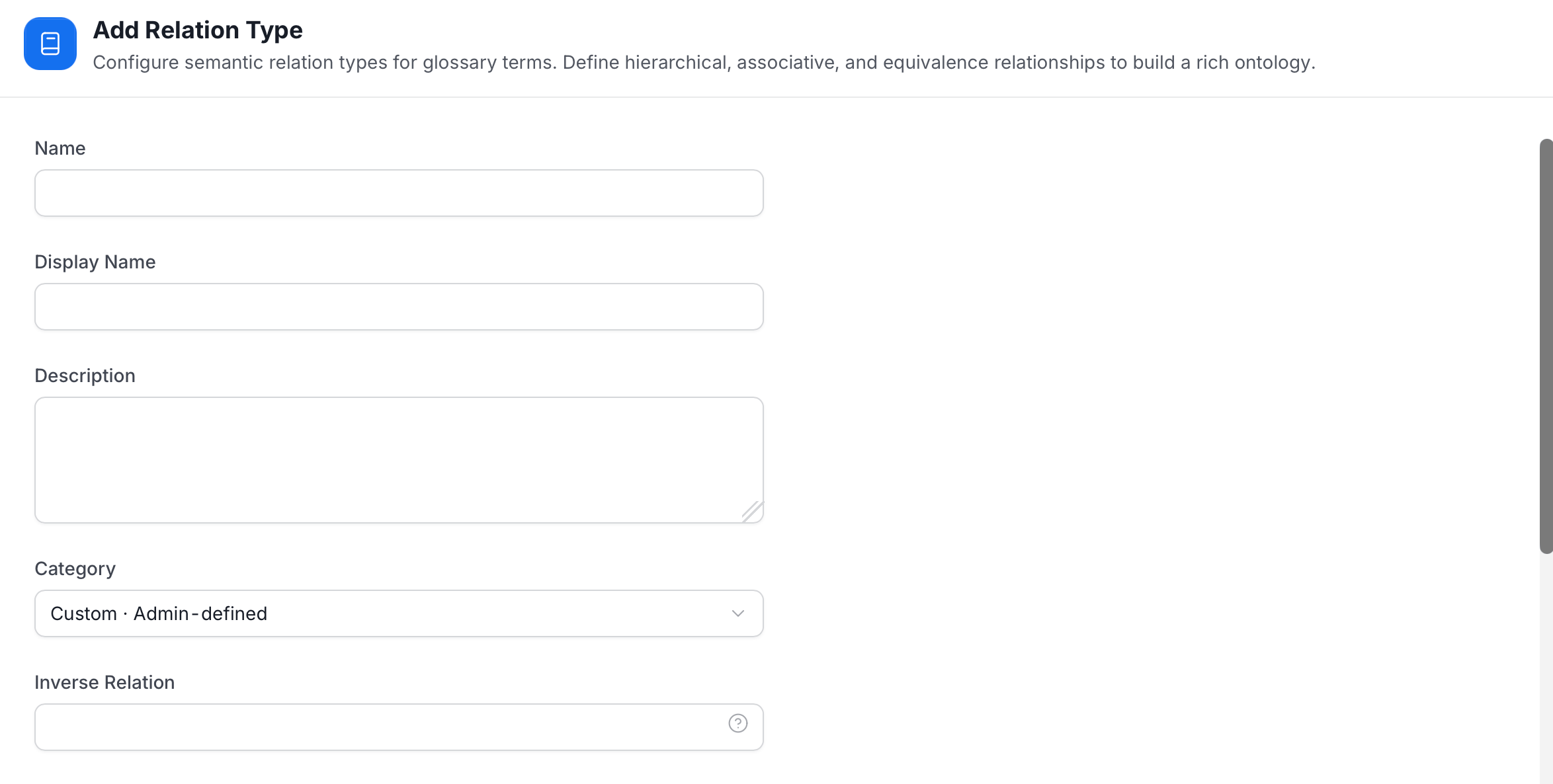
Click Add Relation Type.
-
Enter the following:
- Name: The technical name of the relation type.
- Display Name: The readable name shown to users.
- Description: What the relation means and when to use it.
- Category: The category of the relation type. New types use Custom · Admin-defined.
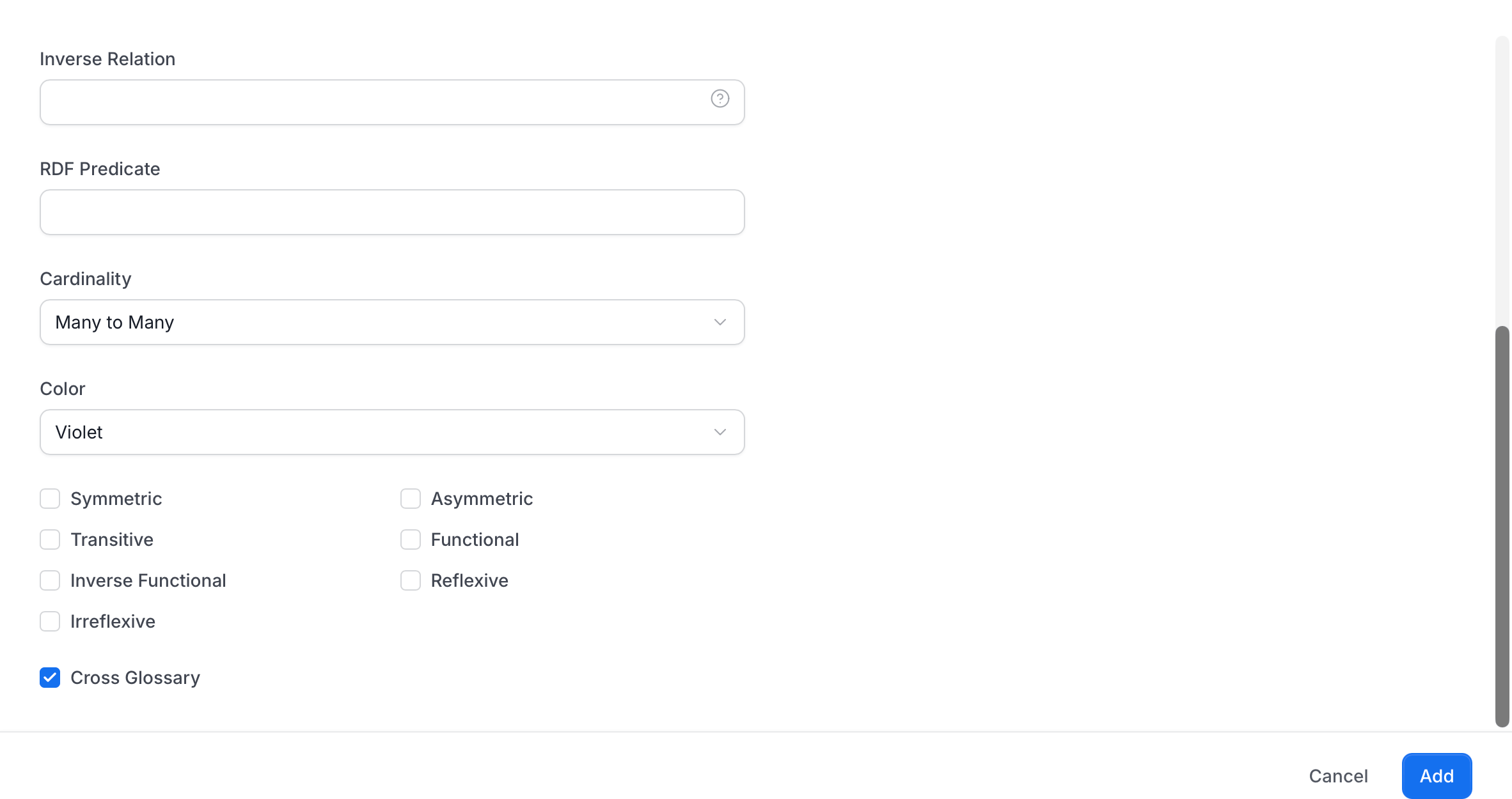
- Inverse Relation: The relation type that represents this one in reverse. For example, the inverse of Broader is Narrower.
- RDF Predicate: The RDF or OWL predicate URI this relation type maps to when RDF indexing is enabled.
- Cardinality: How many terms the relation can connect. The default is Many to Many.
- Color: The color used to show the relation type.
-
Select the characteristics that apply:
- Symmetric
- Asymmetric
- Transitive
- Functional
- Inverse Functional
- Reflexive
- Irreflexive
- Select Cross Glossary to allow the relation between terms in different glossaries. It is selected by default.
- Click Add.
Edit or Delete a Relation Type
- Edit: Click the pencil icon on a custom relation type, change it, and click Update.
- Delete: Click the trash icon on a custom relation type and confirm.
Intake Forms
Intake Forms define the governance-policy fields that must be filled in before a Data Product, Domain, or Glossary Term can be created or updated. Collate enforces them at both the API and UI layers. Click the Intake Forms card to open the list. Only one Intake Form can exist per entity type.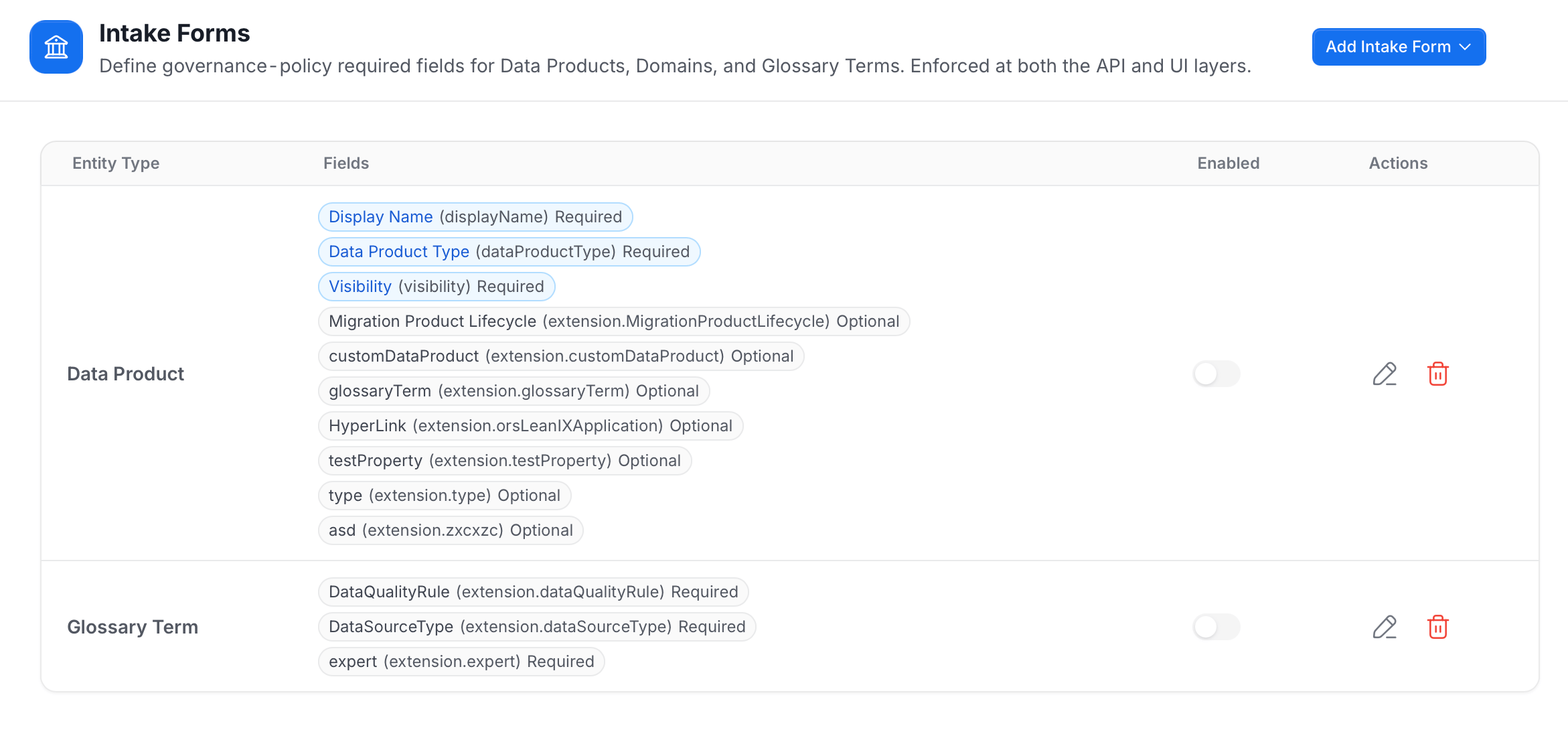
- Entity Type: The entity type the form applies to, for example Data Product or Glossary Term.
- Fields: The fields the form covers. Each field shows its label, its path in brackets, and whether it is Required or Optional. Custom properties use the path
extension.<propertyName>. - Enabled: Turn the toggle on to enforce the form. When it is off, the form is saved but not enforced.
- Actions: The pencil icon edits the form, and the trash icon deletes it.
Add, Edit, or Delete an Intake Form
- Add: Click Add Intake Form and select the entity type. An entity type that already has a form shows as Already configured. Once every type is covered, the message An intake form exists for every supported entity type appears, and you edit an existing form instead.
- Edit: Click the pencil icon, change the fields, and click Save.
- Delete: Click the trash icon and confirm. Deleting a form stops enforcement for that entity type immediately.