
Permissions
The Permissions section of the Profile page shows how your access is built: which roles and policies apply to you, which teams you belong to, and which operations you are allowed or denied. Use it to understand why you can or can’t do something. Admins can use it with the Permission Debugger to inspect other users.Open the Permissions Section
- Click the Profile icon and select your user name.
-
In the Account group, click Permissions.
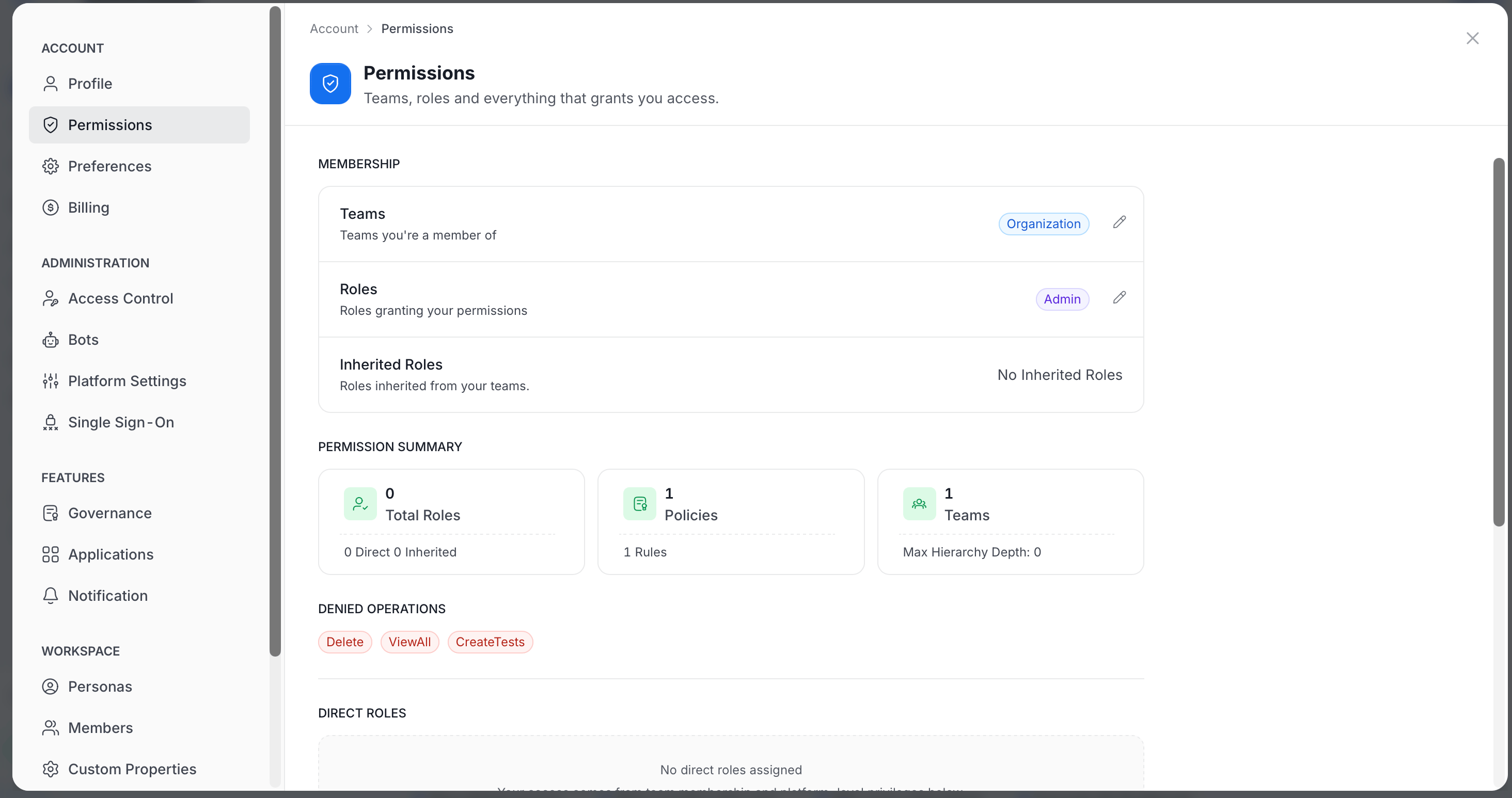
What the Section Shows
- Membership: The teams and roles behind your access. Click the pencil icon on a row to edit it, if you have permission.
- Teams: The teams you are a member of.
- Roles: The roles granted to you.
- Inherited Roles: Roles you inherit from your teams. The row shows No Inherited Roles when there are none.
- Permission Summary: Tiles that count what applies to you.
- Total Roles: How many roles you have, split into direct and inherited roles.
- Policies: How many policies apply, with the number of rules they contain.
- Teams: How many teams you belong to, with your Max Hierarchy Depth.
- Allowed Operations and Denied Operations: The operations you can perform and the ones you are explicitly denied, shown as labels.
- Direct Roles: Roles assigned straight to you. When there are none, the section says No direct roles assigned and explains that your access comes from team membership and platform-level privileges.
- Team Permissions: One card for each team you belong to, showing the team name and its team type.
- Direct Team Policies: The policies attached to that team. Each policy shows its name, whether it ALLOWs or DENYs access, and its number of rules. Click the arrow to expand the policy and see its rules.
- Other Inherited Permissions: Access that doesn’t come from a role or team. For example, an entry of type ADMIN with the text User has admin privileges appears when you are an administrator.