
Overview
Collate’s MCP Server gives technical or non-technical users the ability to interact with your organization’s metadata through natural language conversations via systems such as ChatGPT or Claude.What is MCP?
The Model Context Protocol (MCP) is an emerging open standard (spearheaded by Anthropic and embraced by many industry leaders) that helps AI systems interact with external tools and data in a uniform, secure way. Instead of building one-off integrations or brittle scripts for each data source, MCP works as a “universal translator” between AI assistants (or any LLM-driven application) and the myriad of systems where data and knowledge reside. In technical terms, MCP lets systems expose their capabilities in a machine-readable schema that AI models can understand:- Tools: Functions an AI can call, such as
lookup_customer_by_email. - Resources: Datasets or knowledge bases an AI can query.
- Prompt templates: Predefined prompts that guide interactions.
- A single, consistent protocol lets an AI assistant maintain awareness of business-specific context as it moves between different tools and datasets.
- Just as HTTP standardized how clients talk to servers, MCP standardizes how AI models connect with data sources.
- The result is a simpler, more scalable way to give AI access to the knowledge it needs to produce relevant, accurate results.
Adding an MCP Server to Collate
Even the best LLMs need context to operate effectively. Collate’s MCP Server embeds directly into the platform and exposes rich metadata context from its unified knowledge graph to AI assistants and other MCP clients in real time. This means an AI tool like ChatGPT or Claude can query Collate and get answers grounded in live organizational metadata, for example:- “What is the definition of this metric?”
- “Show me the lineage of data feeding this dashboard.”
- “Who is the owner of this dataset, and when was it last updated?”
Enabling MCP Server
The MCP Server is built into Collate and enabled by default on all Collate SaaS instances. No marketplace installation is required. If the MCP endpoint is not responding on your self-hosted instance, confirm thatmcpConfiguration.enabled is set to true in your server configuration. Contact Collate Support if you need help enabling it.
Authentication
Collate’s MCP Server supports two authentication methods:OAuth 2.0 (Recommended)
Connect using your existing Collate login – the same way you sign in to the Collate UI. No tokens to generate or manage. OAuth works with all supported SSO providers (Google, Azure, Okta, Auth0, LDAP, SAML, and more). This flow requires a browser login, so it’s best suited to clients a person runs interactively (Claude Desktop, Cursor, VS Code). For unattended agents or automation, use a Bot’s JWT Token instead. Learn more about OAuth 2.0 Authentication.Bot JWT Token
For unattended agents, automations, or environments where browser-based login is not available, use a JWT Token generated from a Bot rather than a personal user account. A Bot is a service-account identity built for this purpose: it isn’t tied to a specific person, and it keeps agent access auditable and separate from any individual’s login. Collate rejects Personal Access Token generation for Bot accounts, so the JWT Token is the only credential a Bot can authenticate with. See How to Set Up Bots to create one, generate its JWT Token, and assign it the role-based access policy your agent needs.Personal Access Token
If you only need a quick, personal test connection tied to your own account, generate a personal access token:-
Open
https://<YOUR-Collate-SERVER>. -
Click the Profile icon and select your user name.
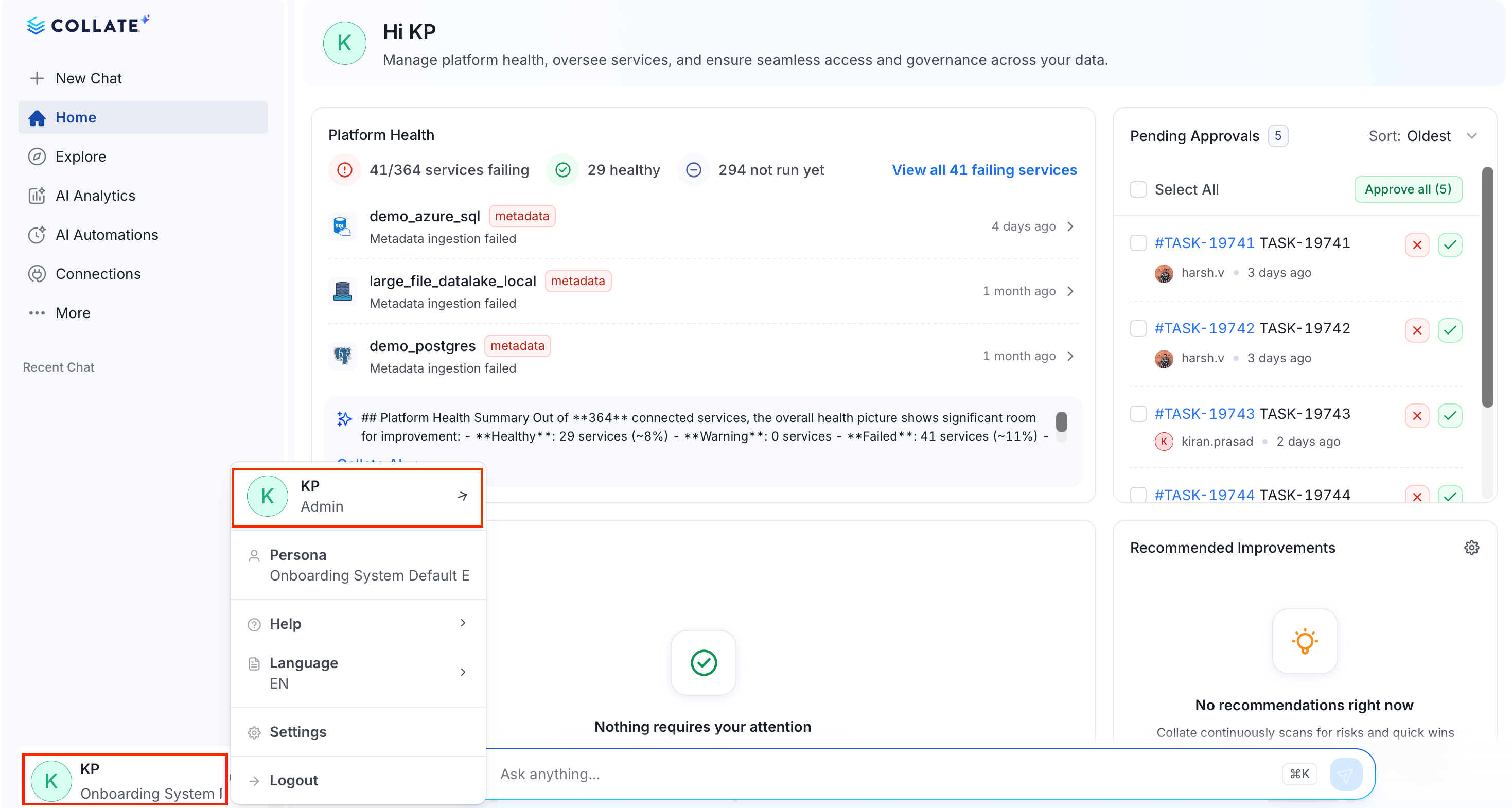
- In the Credentials group, click Access Token.
-
Set the expiry time and click Generate Token.
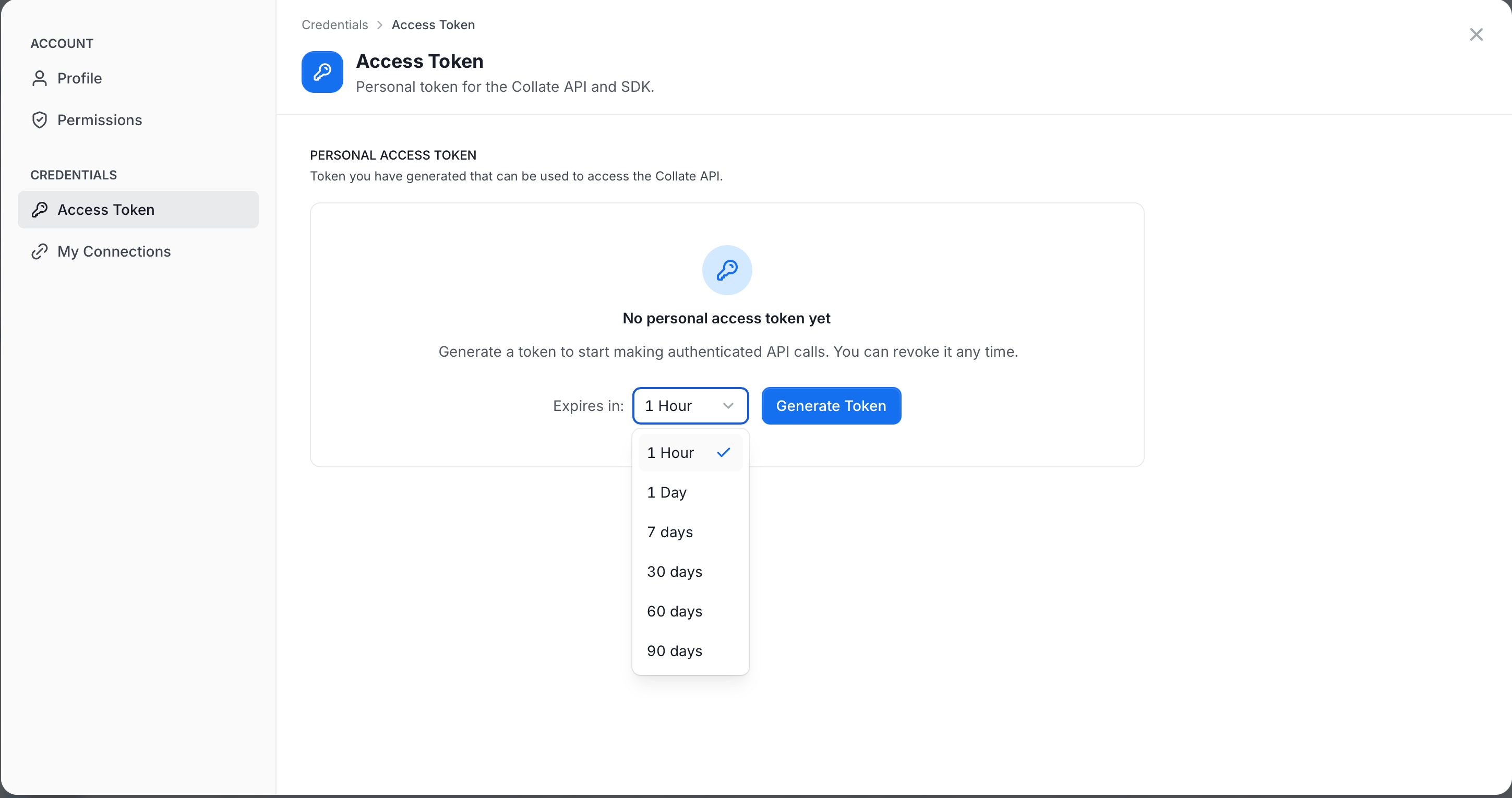
-
Copy and save it for later use.
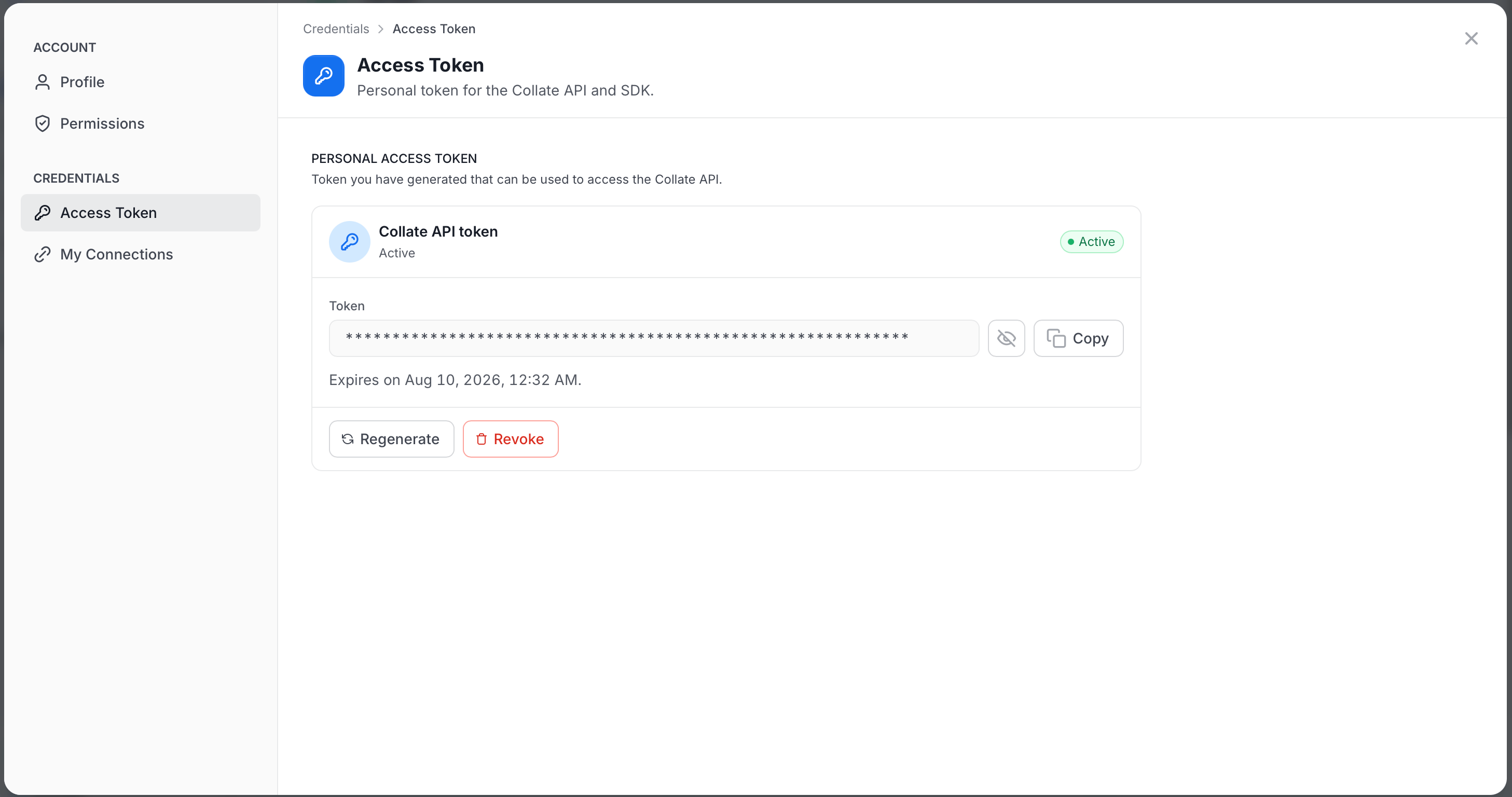 Note: By default, this token gives your AI agent the same role and access policy assigned to you in Collate. For any recurring or production agent use case, create a Bot instead so the agent’s access isn’t tied to your personal account.
Monitoring MCP Usage
Collate tracks every Model Context Protocol (MCP) tool call made on your platform. Use the MCP Requests page to monitor MCP tool usage, identify failed calls, and understand how usage contributes to your bill. To access the page:- Click the Profile icon and navigate to Settings > Billing.
- Click MCP Requests.
Summary Metrics
The top of the page shows four at-a-glance metrics that give you a quick picture of your MCP activity:- Total MCP Calls: The total number of MCP tool calls made across all connected clients and tools. Use this to understand overall platform activity at a glance.
- Successful Calls: The number of calls that completed without error. A high success rate generally indicates that your MCP clients and tools are configured correctly.
- Failed Calls: The number of calls that didn’t complete due to issues such as authentication errors, rate limits, or invalid input. Review failed calls to identify misconfigured clients or tools. Failed calls aren’t billed.
-
Avg Latency: The average response time per tool call, measured in milliseconds. Use this to spot tools that may be responding slowly.
Note: Avg Latency isn’t active yet and will be available in a future release.
Usage Summaries
Below the summary metrics, the page breaks down MCP activity across three views to help you understand usage patterns in more detail:- Daily MCP Calls (Last 30 Days): A day-by-day view of all MCP requests across all clients and tools. Use this to spot spikes in activity or identify periods of unexpectedly high or low usage.
- MCP Calls by Tool: A breakdown of how many requests each individual tool has received. Use this to identify which tools are most frequently used and which may not be providing value.
- MCP Calls by User: A breakdown of MCP requests by user. Use this to understand which users or teams are driving the most MCP activity.
Connect Your MCP Client
With MCP installed, connect your preferred AI assistant to start prompting with Collate:OAuth 2.0 Authentication
Secure, token-free authentication using your existing SSO login.
MCP Server Connection Guide
Connect to your MCP Server.
MCP Tools Reference
Detailed examples and usage patterns for all available Collate MCP tools.
Getting Started with Claude Desktop
Connect Collate to Anthropic’s AI assistant.
Getting Started with Cursor
Connect Collate to Cursor IDE.
Getting Started with VS Code
Connect Collate to Visual Studio Code.
Getting Started with Claude Code
Connect Collate to Claude Code CLI.
Getting Started with Goose
Connect Collate to Block’s open-source AI assistant.