
OAuth 2.0 Authentication for MCP Server
Collate’s MCP Server supports OAuth 2.0 authentication, allowing you to connect AI assistants like Claude, Cursor, and VS Code directly using your existing Collate login. This is the same way you sign in to the Collate UI. No need to generate, copy, or rotate Personal Access Tokens.Why OAuth 2.0?
Note: OAuth 2.0 is recommended for interactive clients (Claude Desktop, Cursor, VS Code, and similar tools a person signs into) because it removes token management for the human user. It requires a one-time browser login and cannot complete without user interaction, so it doesn’t work for headless or unattended processes. For an automated agent or long-running unattended process, use a Bot’s JWT Token instead (see Bot JWT Token and How to Set Up Bots). Collate’s MCP OAuth server supports only the
authorization_code and refresh_token grants; it has no client_credentials (machine-to-machine) grant.How It Works
Connecting via OAuth is simple:- Add your Collate MCP Server URL in your AI client, for example
https://your-collate-instance.com/mcp. - Sign in when the browser window opens, using your usual Collate credentials.
- Start using the connection: tokens are managed automatically in the background.
How the Connection Works (Under the Hood)
Collate’s MCP OAuth implementation uses OAuth 2.0 Dynamic Client Registration (RFC 7591), so MCP clients connect without any manual app setup:- The MCP client fetches Collate’s OAuth discovery document at
/.well-known/oauth-authorization-serverto learn the authorization, token, and registration endpoints. - The client automatically registers itself by posting its metadata to the registration endpoint. Collate issues a
client_idin response — no admin action is required. - The client initiates an Authorization Code flow with PKCE (SHA-256), opening your browser to sign in via your configured SSO provider or basic auth.
- After you sign in, Collate redirects back to the client with an authorization code.
- The client exchanges the code for an access token and a refresh token.
- All subsequent MCP tool calls include the access token. When it expires, the client uses the refresh token to get a new one silently.
Discovery Endpoints
Supported Authentication Methods
The MCP Server inherits the authentication method configured for your Collate instance. Whatever SSO provider your organization uses to sign in to Collate will also be used for MCP connections.
Google SSO
Sign in with your Google Workspace account.

Azure AD SSO
Sign in with your Microsoft / Azure AD account.

Okta SSO
Sign in with your Okta account.

Auth0 SSO
Sign in with your Auth0 account.

Amazon Cognito
Sign in with Amazon Cognito.

Custom OIDC
Sign in with any OIDC-compatible provider.

SAML
Sign in with your SAML identity provider.

LDAP
Sign in with your LDAP / Active Directory credentials.
Session token expiry: If a client authenticates through this login form (or LDAP/SAML) rather than through the OAuth flow described above, the resulting access token expires after 1 hour by default. An admin can change this under Settings > Preferences > Login Configuration for basic auth and LDAP, or through the Token Validity (seconds) field in the SAML Security Configuration under Settings > SSO for SAML. Login also issues a rotating refresh token, so a client that implements the refresh call can renew access silently without a human signing in again. The refresh token itself expires after 30 days of inactivity for basic auth and SAML, or 24 hours for LDAP, after which a human must sign in again. For a process that can’t implement the refresh flow, or needs to run unattended past that window, use a Bot’s JWT Token instead.
Changing Your Authentication Method
The MCP Server automatically uses the same authentication method configured for your Collate instance. To change how users authenticate:- Navigate to Settings in your Collate instance.
- Go to the SSO configuration section.
- Update the authentication provider, for example switching from basic auth to Google SSO.
Token Lifetimes
OAuth tokens are handled entirely by your MCP client with no manual management needed.
Re-authentication is only required when the refresh token expires (30-day inactivity window). To revoke access for an MCP client, an administrator can manage active sessions from the Collate admin settings.
Rate Limits
The MCP OAuth endpoints are rate-limited per IP address to prevent abuse:
These limits are per-server-instance. In clustered deployments, the effective limit is multiplied by the number of instances.
Allowed Origins (CORS)
By default, the MCP Server allows CORS requests only from a small set of local development origins (http://localhost:3000, http://localhost:8585, http://localhost:9090) — it does not allow all origins. Administrators can update this allowlist from the MCP Server application settings:
- Click the Profile icon and navigate to Settings > Applications.
-
Click the MCP Server application.
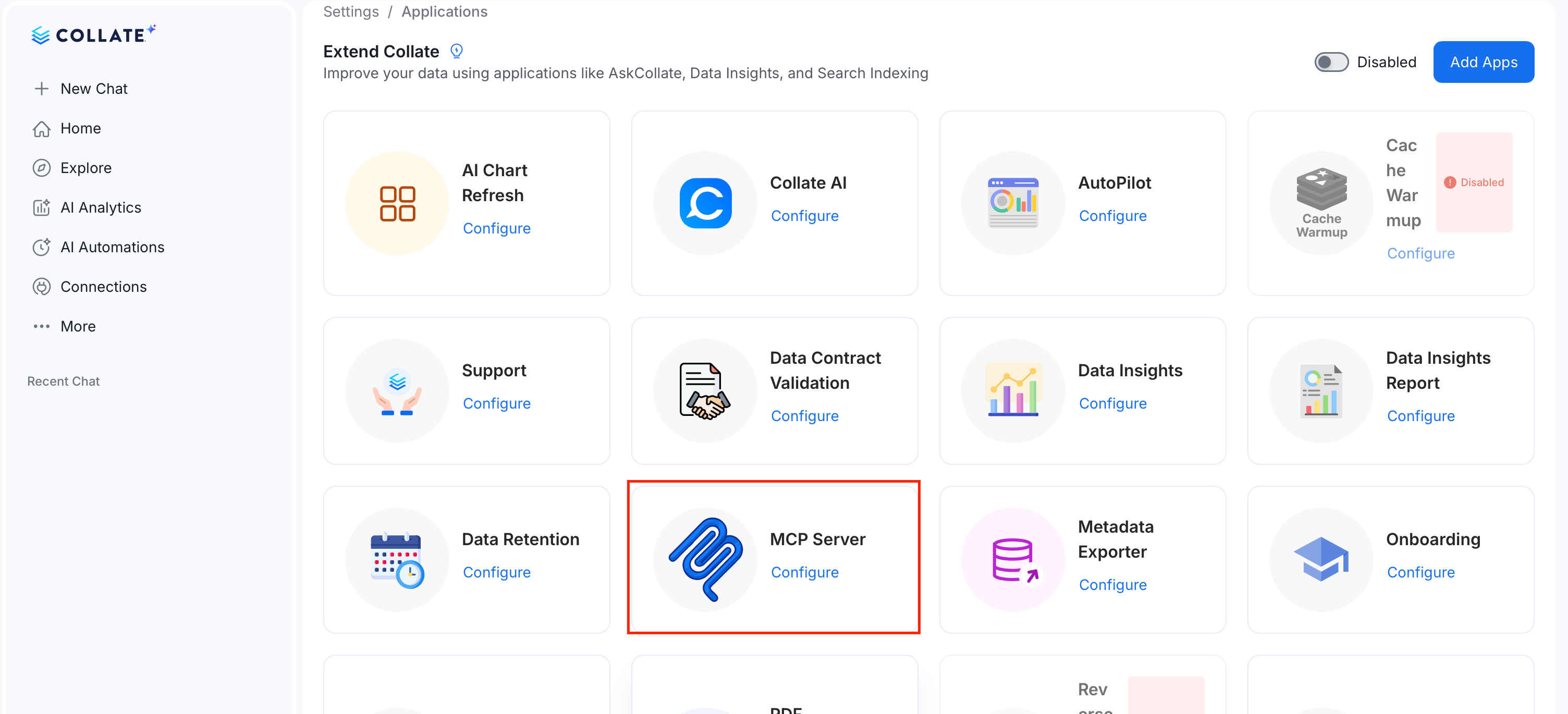
-
In the Configuration tab, add, edit, or remove entries under Allowed Origins.
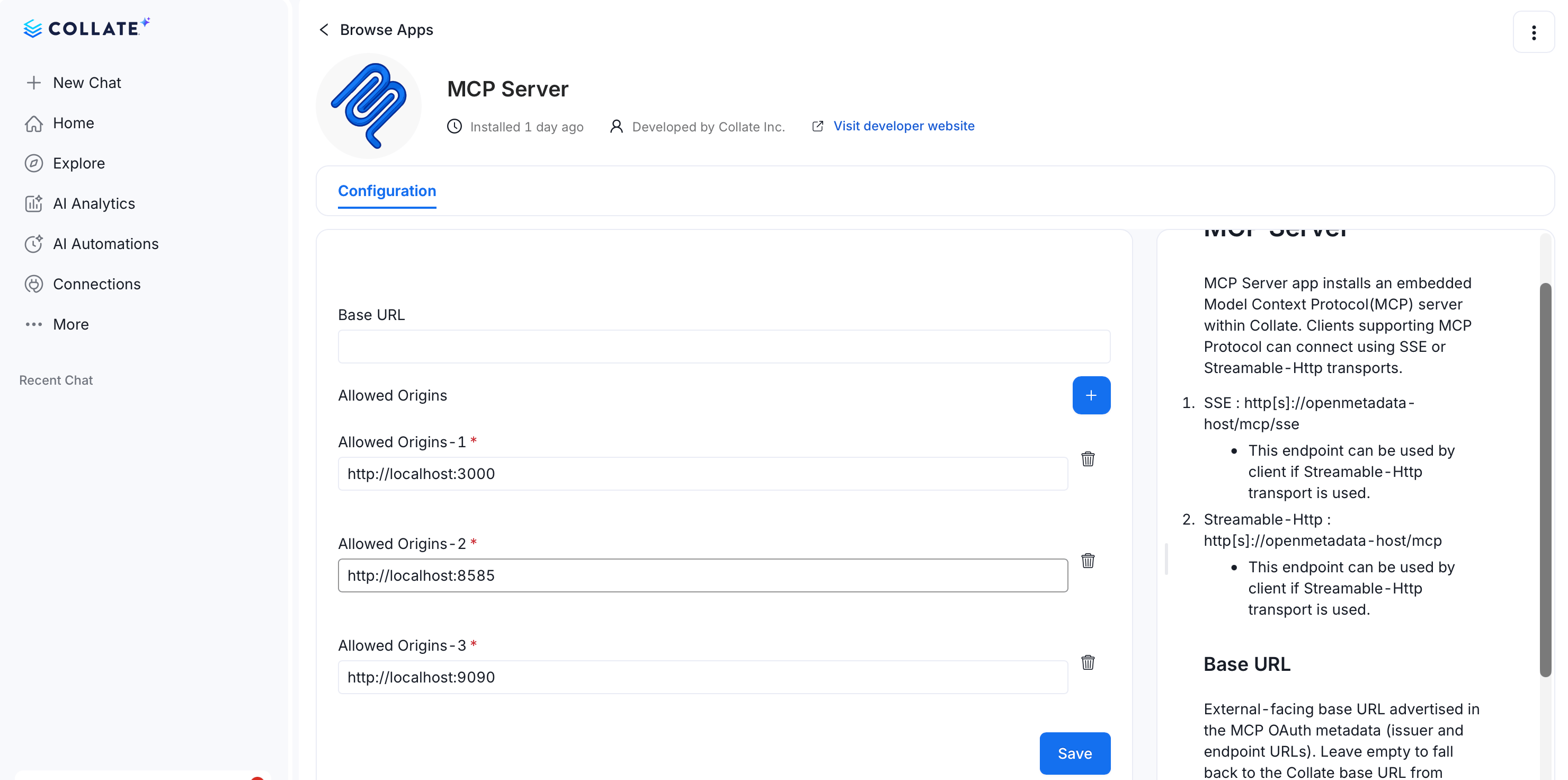
- Click Save.
Origin header exactly matches an entry in the allowlist receive a valid Access-Control-Allow-Origin response header — there is no wildcard or prefix matching. This is relevant for browser-based MCP clients or custom integrations that call the MCP endpoint directly from a web page.
Security
Collate’s MCP OAuth implementation follows industry-standard security practices:- PKCE (Proof Key for Code Exchange): Protects the authorization flow against interception attacks, even on desktop and CLI clients.
- Encrypted token storage: All tokens are encrypted at rest in the Collate database.
- Short-lived access tokens: Access tokens expire quickly, limiting exposure if compromised.
- Automatic token refresh: Clients seamlessly refresh tokens without user interaction.
- Rate limiting: Built-in protection against brute-force attacks and abuse.
- No secrets in config files: Unlike PAT-based auth, OAuth doesn’t require storing any secrets on your local machine.
Supported MCP Clients
Set up OAuth authentication with your preferred MCP client:Claude Desktop
Connect via Anthropic’s AI assistant.
Cursor
Connect via Cursor IDE.
VS Code
Connect via Visual Studio Code.
Claude Code
Connect via Claude Code CLI.
Goose
Connect via Block’s open-source AI agent.