
Data Insights Application
Install Data Insights Application
To Data Insights application, follow these steps:- Select the Profile icon and navigate to Settings > Applications.
- Click Add Apps and click Data Insight application.
-
Click Install and configure the following options:
-
Batch Size
Maximum number of events processed in a single run. Default:
100. - Recreate DataInsights DataAssets Index When enabled, drops and rebuilds the DataAssets index. Use this if you changed a Custom Property type and are seeing errors. Note: recreating the index deletes existing DataAssets data — a backfill will be needed afterward.
-
Backfill Configuration
Enables backfilling historical data for a specific date range:
- Enabled — Turn on to run a backfill.
- Start Date — The date from which to start backfilling.
- End Date — The date on which the backfill ends.
-
Module Configuration
Controls which insight modules run when the application executes:
- Data Assets Module — When enabled, populates Data Asset insights. You can select specific entity types or use All (default). Set Data Retention (Days) to define how long asset insight data is kept before it’s deleted (default:
90days). Optionally, apply a Service Filter to scope data to a specific service type and name. - App Analytics Module — When enabled, populates App Analytics insights (user activity, page views).
- Cost Analysis Module — When enabled, populates Cost Analysis insights.
- Data Assets Module — When enabled, populates Data Asset insights. You can select specific entity types or use All (default). Set Data Retention (Days) to define how long asset insight data is kept before it’s deleted (default:
-
Batch Size
Maximum number of events processed in a single run. Default:
- Schedule and deploy the application.
Troubleshooting
If you are experiencing any of the following issues in the Data Insights Application, follow the steps below to diagnose and resolve the problem.- Insights menu returns no results.
- KPI charts do not display.
- Data Insights reports show no data.
- Filtering by “Yesterday” or “Last 3 Days” yields no results.
Troubleshooting Steps
Verify Data Insights Application Installation
Ensure that the Data Insights application is installed:- Select the Profile icon and navigate to Settings > Applications.
- Check if Data Insights application is listed.
- If not, click Add Apps and install Data Insights application.
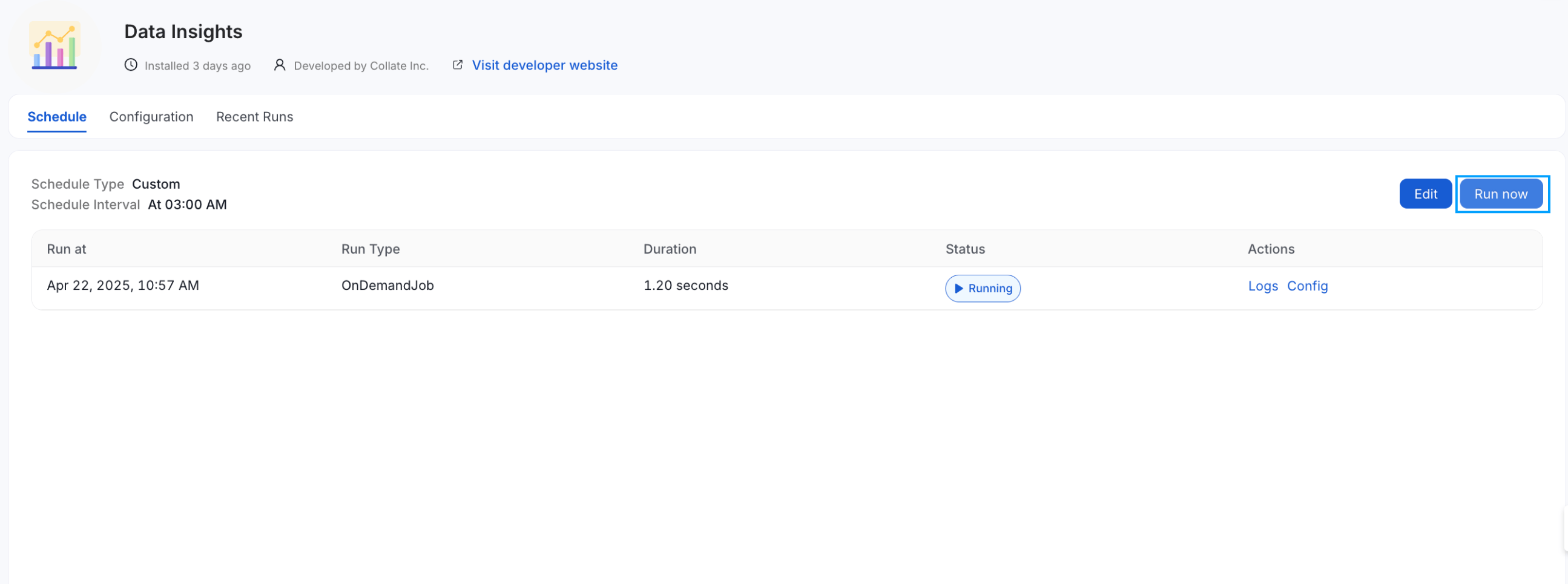
Run the Data Insights Application
- Click Configure to review and update the configuration parameters.
- Click Schedule to define when the application should run.
-
Click Run Now to execute the Data Insights workflow immediately.
Enable Backfill and Recreate Index Options
In the Configuration tab, enable the following options if not already enabled:- Enable Backfill Configuration and set a Start Date and End Date to specify the historical range to backfill.
- Enable Recreate DataInsights DataAssets Index.