Configure SSO in the UI Collate supports Single Sign-On (SSO) integration with various identity providers, enabling secure, centralized user authentication. SSO is configured from the Collate UI at Settings > SSO .
For provider-specific setup instructions (Okta, Azure AD, Auth0, Google, SAML, LDAP, and others), see the SSO guides .
Selecting a Provider
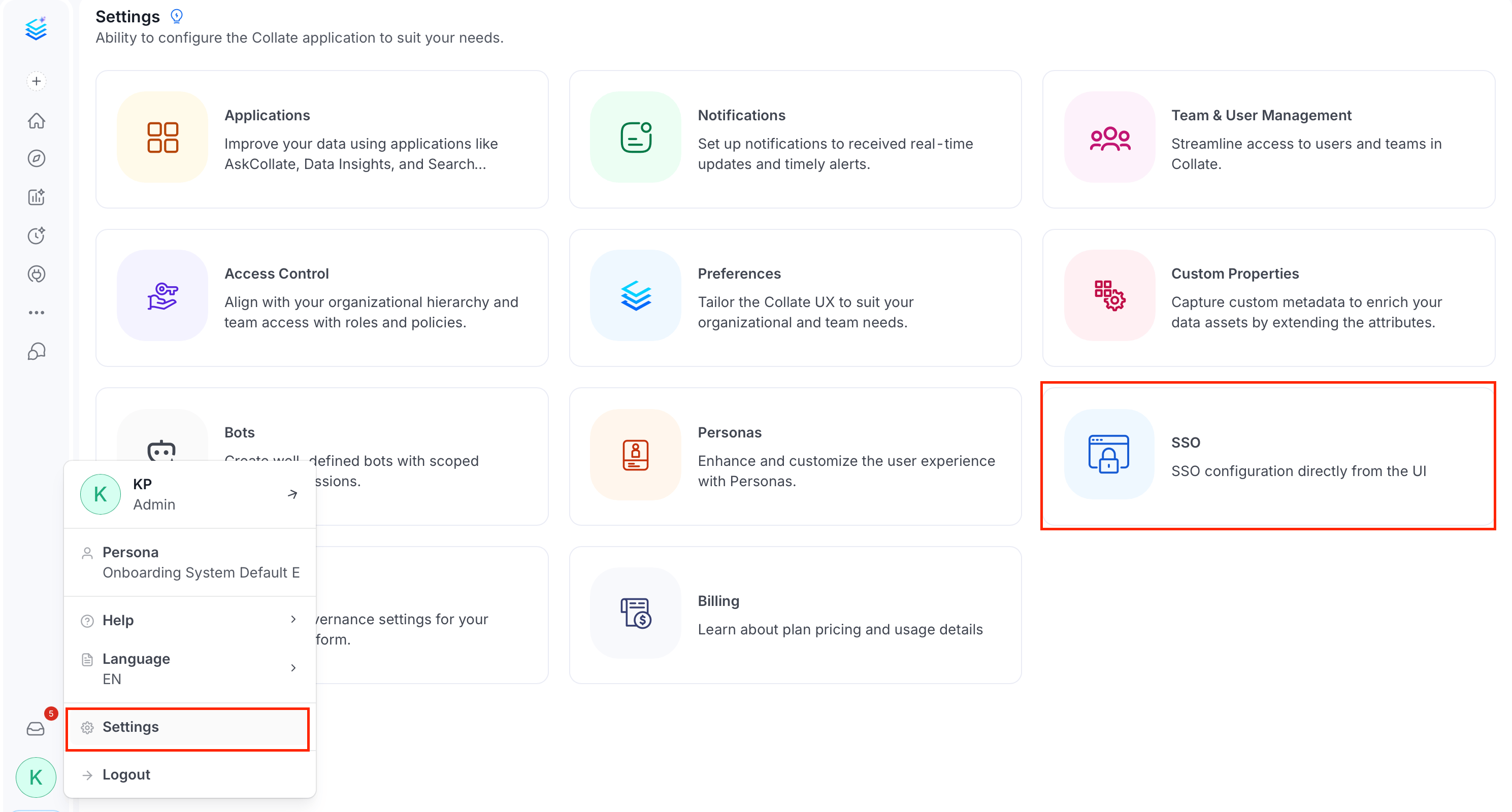
Select the Profile icon, and navigate to Settings > SSO .
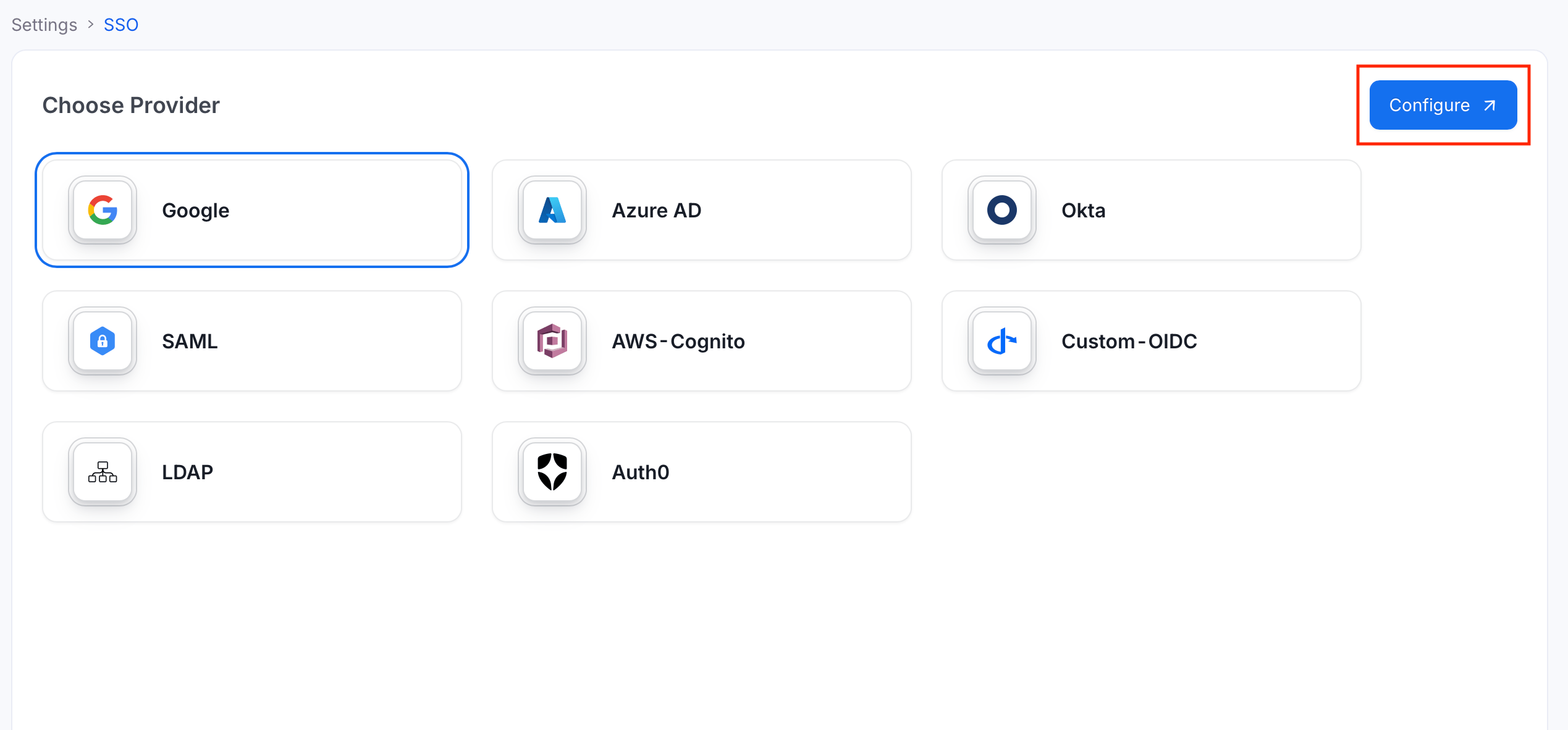
Select your identity provider and click Configure .
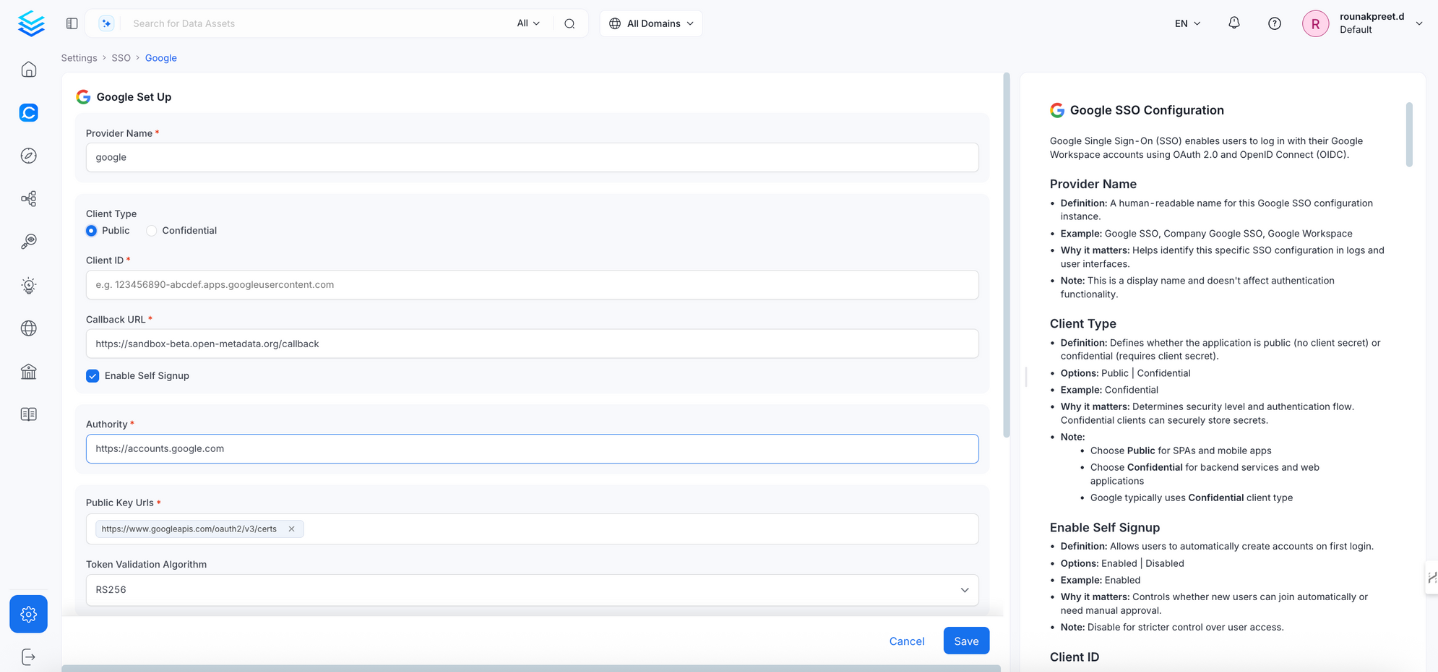
Fill the configuration details and click Save .
For more information about how to configure each SSO provider, see SSO Guides .
Public Client Configuration Use this configuration for Single Page Applications (SPAs) and mobile apps . It does not require a client secret.
Provider Name
A human-readable name for this SSO configuration instance.
Example: Okta SSO, Google Workspace
Used to identify this configuration in logs and the UI. Does not affect authentication behavior.
Client Type
Options: Public | ConfidentialSelect Public for SPAs and mobile apps that cannot securely store a client secret.
Callback URL
The redirect URL where your identity provider sends authentication responses after login.
This field is read-only — Collate auto-populates it as {your-domain}/callback.
Copy this URL and register it as an authorized redirect URI in your identity provider’s application settings.
Always use HTTPS in production.
Enable Self Signup
Options: Enabled | DisabledWhen enabled, users who log in for the first time are automatically created in Collate.
Disable for stricter access control where only pre-provisioned users can log in.
Authority
The OAuth 2.0 authorization server URL for your identity provider.
Example: https://accounts.google.com, https://your-org.okta.com
Specifies where Collate sends authentication requests.
Public Key URLs
One or more URLs where your identity provider publishes its JWT signing keys.
Required to verify the signature of JWT tokens issued by the provider.
Typically auto-discovered via the OIDC discovery endpoint.
Token Validation Algorithm
Options: RS256 | RS384 | RS512Must match the signing algorithm used by your identity provider.
Most providers default to RS256.
JWT Principal Claims
The JWT fields used to identify the user in Collate. The first claim that returns a value is used.
Default: ["email", "preferred_username", "sub"]At least one claim must correspond to the user’s email address.
Important : Incorrect claims will lock out all users including admins. The default values work for most configurations — only change if you have specific requirements.
JWT Principal Claims Mapping
Maps JWT token fields to Collate user profile attributes.
Format: collate_field:jwt_claim
Example: ["email:email", "username:preferred_username"]
From Collate 2.0.6, the session tokens that Collate issues after sign-in carry the username and email that this mapping resolves, so API calls stay authenticated when your provider uses a custom username claim.
Important : Only email and username are valid mapping targets. Using any other key (for example, name, firstName, or lastName) will cause the service to fail on startup. This field is rarely needed — the default JWT Principal Claims handle user identification correctly for most configurations.
JWT Team Claim Mapping
The JWT claim containing team or group information for automatic team assignment in Collate.
Example: department, groups
The team must already exist in Collate for assignment to work. Only teams of type Group can be auto-assigned. Team names are case-sensitive.
Admin Principals
List of usernames (not email addresses) that receive admin access in Collate.
Enter the part of the email before @. Example: for admin@yourcompany.com, enter admin.
Example: ["admin", "superuser"]
Principal Domain
The default email domain used to construct full user identifiers.
Example: yourcompany.com
Helps form complete user emails when the provider returns only a username.
Enforce Principal Domain
Default: falseWhen enabled, only users whose email matches the configured domain can log in.
Adds domain-level access control on top of the identity provider’s own controls.
Allowed Domains
List of email domains permitted to authenticate with Collate.
Example: ["yourcompany.com", "partner-company.com"]
Leave empty if you use a single domain configured in Principal Domain .
Useful when you have multiple domains or want to allow specific external domains.
Use Roles From Provider
Default: falseWhen enabled, roles returned by the identity provider in the token are used to assign Collate roles.
Roles must be included in the token and must match existing Collate role names.
Roles sync on every sign-in. If the token has no roles claim, Collate removes the user’s roles and any administrator access the provider no longer grants. Admins assigned through Admin Principals keep their access.
Default OAuth Role
The default role assigned to new users when they first sign in via SSO self-signup.
Example: DataConsumer
Leave empty to create users without any role. Requires Enable Self Signup to be active. The role must already exist in Collate.
Enable Secure Socket Connection
Default: falseEnables SSL/TLS for secure token exchange and communication.
Must be set to true in production environments.
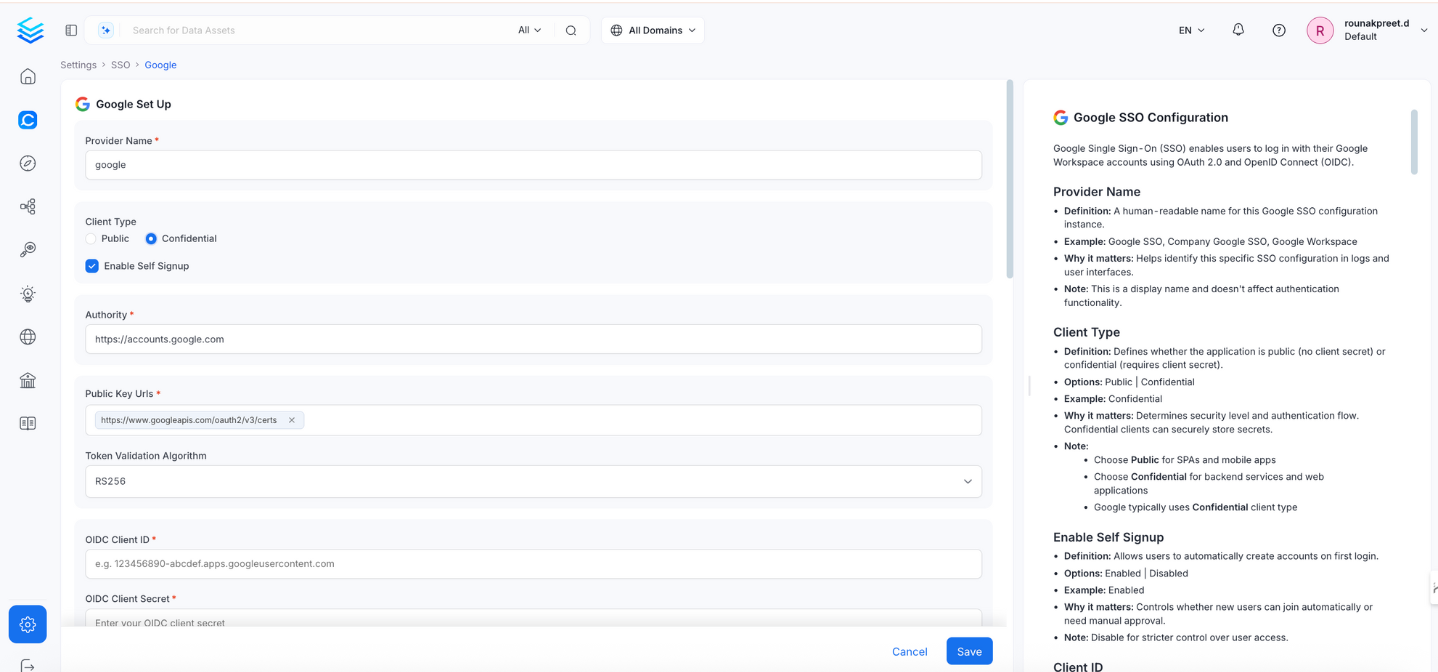
Confidential Client Configuration Use this configuration for web applications and backend services that can securely store client credentials. Requires a client secret.
Provider Name
Same as the Public configuration above.
Client Type
Options: Public | ConfidentialSelect Confidential for backend services and web applications that can securely store a client secret.
Enable Self Signup
Same as the Public configuration above.
Authority
Same as the Public configuration above.
OIDC Client ID
The OAuth 2.0 Client ID issued by your identity provider.
Found in your identity provider’s application or credential settings.
OIDC Client Secret
The confidential key used to authenticate Collate with your identity provider during token exchange.
Store securely and rotate periodically.
OIDC Request Scopes
The permissions requested from the identity provider during login.
Default: openid email profileDetermines what user information is accessible after login.
OIDC Discovery URI
The OIDC metadata URL for your identity provider.
Example: https://your-idp.com/.well-known/openid-configuration
Enables Collate to auto-discover provider endpoints.
OIDC Callback URL
This field is read-only — Collate auto-populates it as {your-domain}/callback.
Copy this URL and register it as an authorized redirect URI in your identity provider’s application settings.
OIDC Prompt
Options: none | login | consent | select_accountControls what the identity provider displays during login:
login: Always prompt for credentials.consent: Ask the user for permission each time.select_account: Display an account picker.none: Attempt silent login — fails if the user is not already authenticated.
OIDC Custom Parameters
Additional parameters to include in OIDC authentication requests.
Example: {"hd": "yourcompany.com", "prompt": "select_account"}
Common uses:
hd: Restrict login to a specific hosted domain (Google Workspace).login_hint: Pre-fill the email address field.
Advanced Configuration The following fields are available under Advanced Config in the UI (collapsed by default):
OIDC Use Nonce
Default: falseAdds a nonce to the authentication request to prevent replay attacks.
OIDC Preferred JWS Algorithm
Default: RS256Must match the token signing algorithm used by your identity provider.
OIDC Response Type
Options: id_token | codeDefault: codeUse code (authorization code flow) for better security.
OIDC Disable PKCE
Default: falseProof Key for Code Exchange (PKCE) adds protection to the authorization code flow.
Keep this set to false unless your provider does not support PKCE.
OIDC Max Clock Skew
Allowed time difference (in seconds) between Collate’s clock and the identity provider’s clock.
Default: 0Increase if token validation fails due to minor clock drift between systems.
OIDC Client Authentication Method
Options: client_secret_basic | client_secret_post | client_secret_jwt | private_key_jwtDefault: client_secret_basicDefines how the client secret is passed to the identity provider during token requests.
OIDC Token Validity
How long (in seconds) a token is valid.
Default: 0 (use the identity provider’s default)
OIDC Max Age
Maximum age (in seconds) of an authentication before re-authentication is required.
Example: 3600 (1 hour)
OIDC Session Expiry
How long (in seconds) a user session remains active.
Default: 604800 (7 days)
JWT Principal Claims
Same as the Public configuration above.
JWT Principal Claims Mapping
Same as the Public configuration above.
JWT Team Claim Mapping
Same as the Public configuration above.
Admin Principals
Same as the Public configuration above.
Principal Domain
Same as the Public configuration above.
Enforce Principal Domain
Same as the Public configuration above.
Allowed Domains
Same as the Public configuration above.
Use Roles From Provider
Same as the Public configuration above.
Default OAuth Role
Same as the Public configuration above.
Enable Secure Socket Connection
Same as the Public configuration above.