
Other Preferences
These Preferences settings control how glossary tags propagate, how data quality is organized, how table columns are ordered, and how timestamps are displayed. Like every setting under Preferences, they apply platform-wide and require Admin access.You can also manage these settings from Platform Settings on your Profile page. See Platform Settings.
Glossary
Purpose and Benefits- Purpose: Choose whether classification tags on glossary terms are applied to the assets those terms are associated with.
- Benefits: Keeps classification consistent across assets without tagging each one by hand, or keeps those tags on glossary terms only when you want that.
How to Configure
-
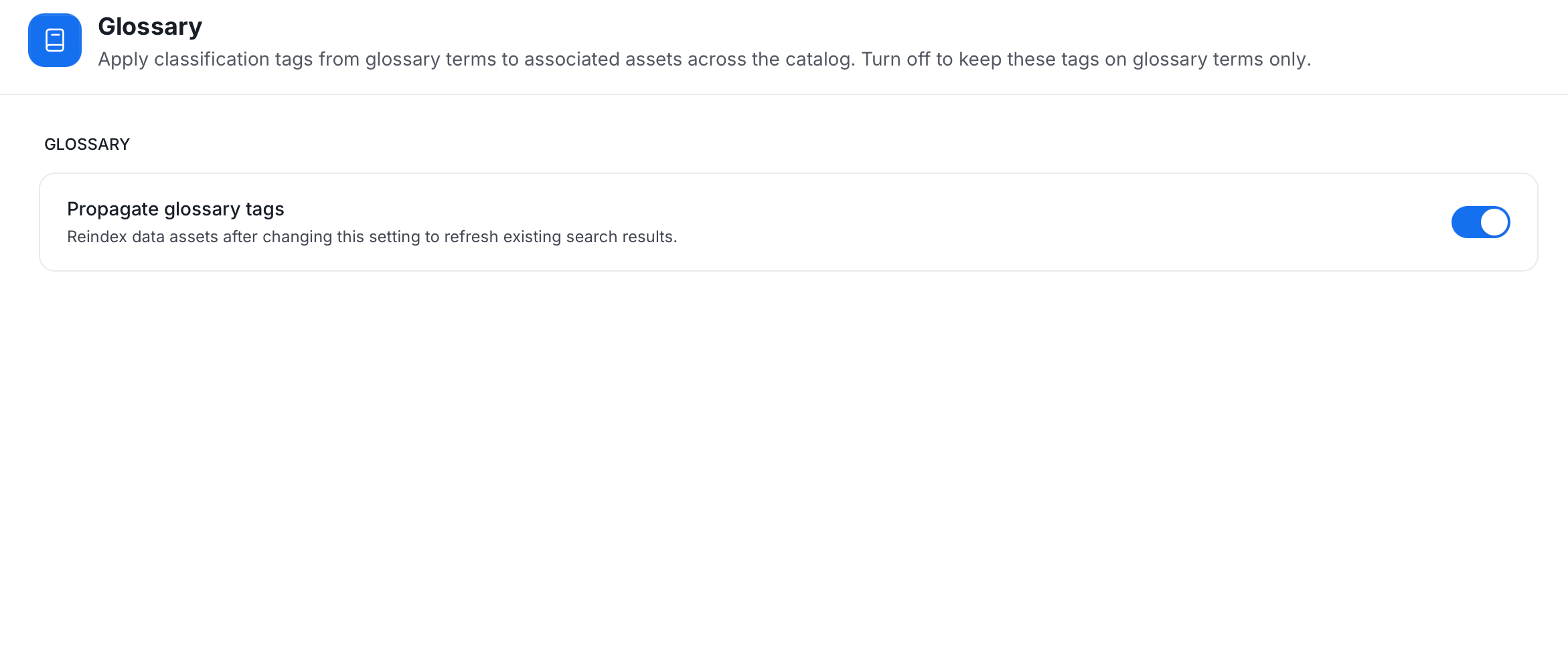
Click the Profile icon and navigate to Settings > Preferences > Glossary.
-
Turn Propagate glossary tags on or off:
- On: Classification tags attached to a glossary term are applied to the assets linked to that term.
- Off: Those tags stay on the glossary terms only.
After you change this setting, reindex the data assets to refresh existing search results. For more information, see Reindexing Search.
Data Quality
Purpose and Benefits- Purpose: View and manage the dimensions that classify what a data quality test checks.
- Benefits: Lets you organize data quality results around the dimensions your organization uses. Test definitions and test cases reference a dimension by relationship, so renaming one updates it everywhere.
View Dimensions
Click the Profile icon and navigate to Settings > Preferences > Data Quality.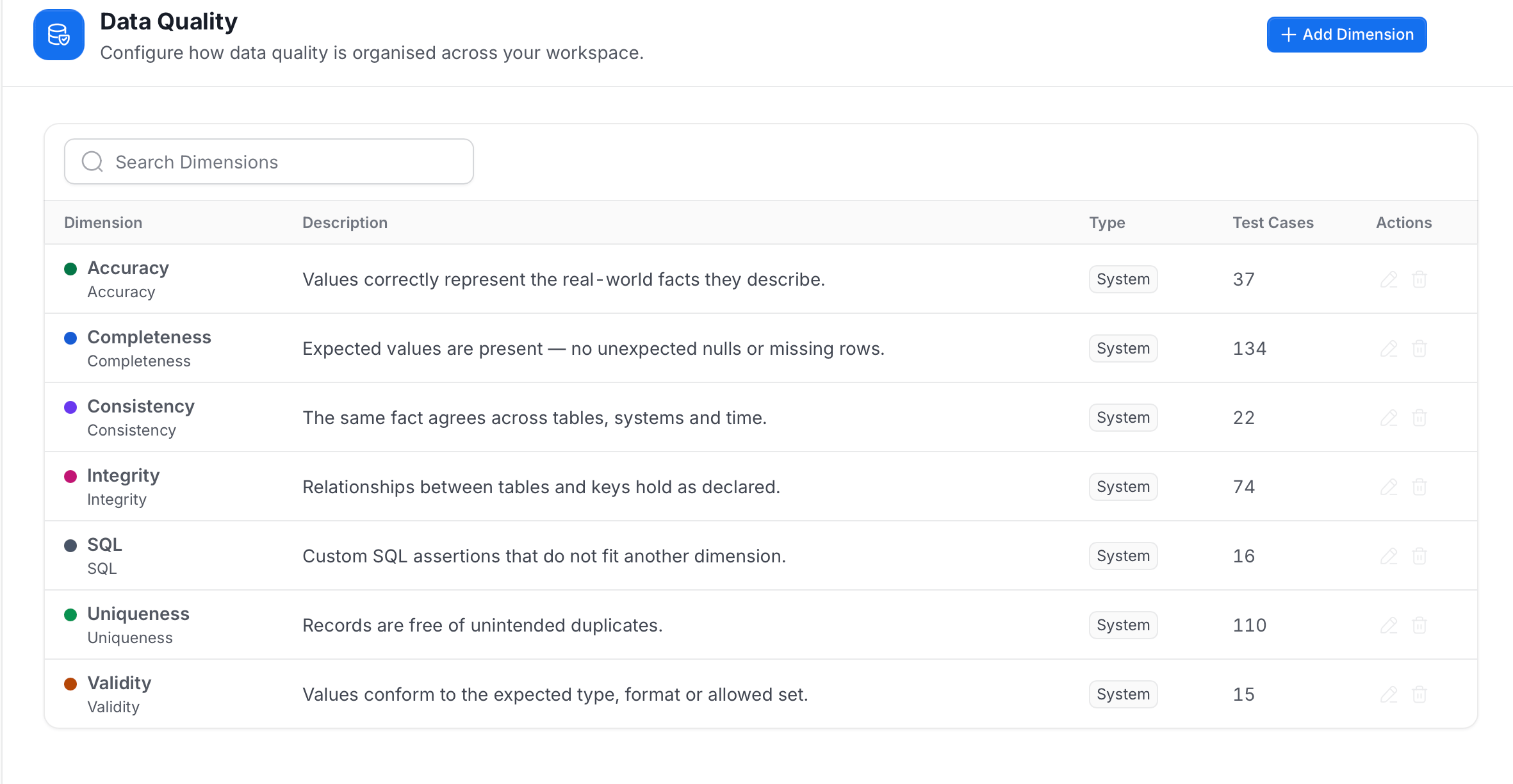
- Dimension: The display name and the technical name.
- Description: What the dimension measures.
- Type: System for the built-in dimensions.
- Test Cases: How many test cases use the dimension.
- Actions: Edit and delete icons. For System dimensions, these are unavailable.
Add a Dimension
- Click Add Dimension.
-
Enter the following:
- Name (required): A unique technical name used in the API. Use only letters, numbers, underscores, and hyphens. You can’t change it after you create the dimension.
- Display Name: The name shown in the test library, dashboards, and the dimension picker.
- Description: What the dimension measures and when to use it.
- Color: Pick one of the color swatches. The Preview section below the form shows how the dimension will look.
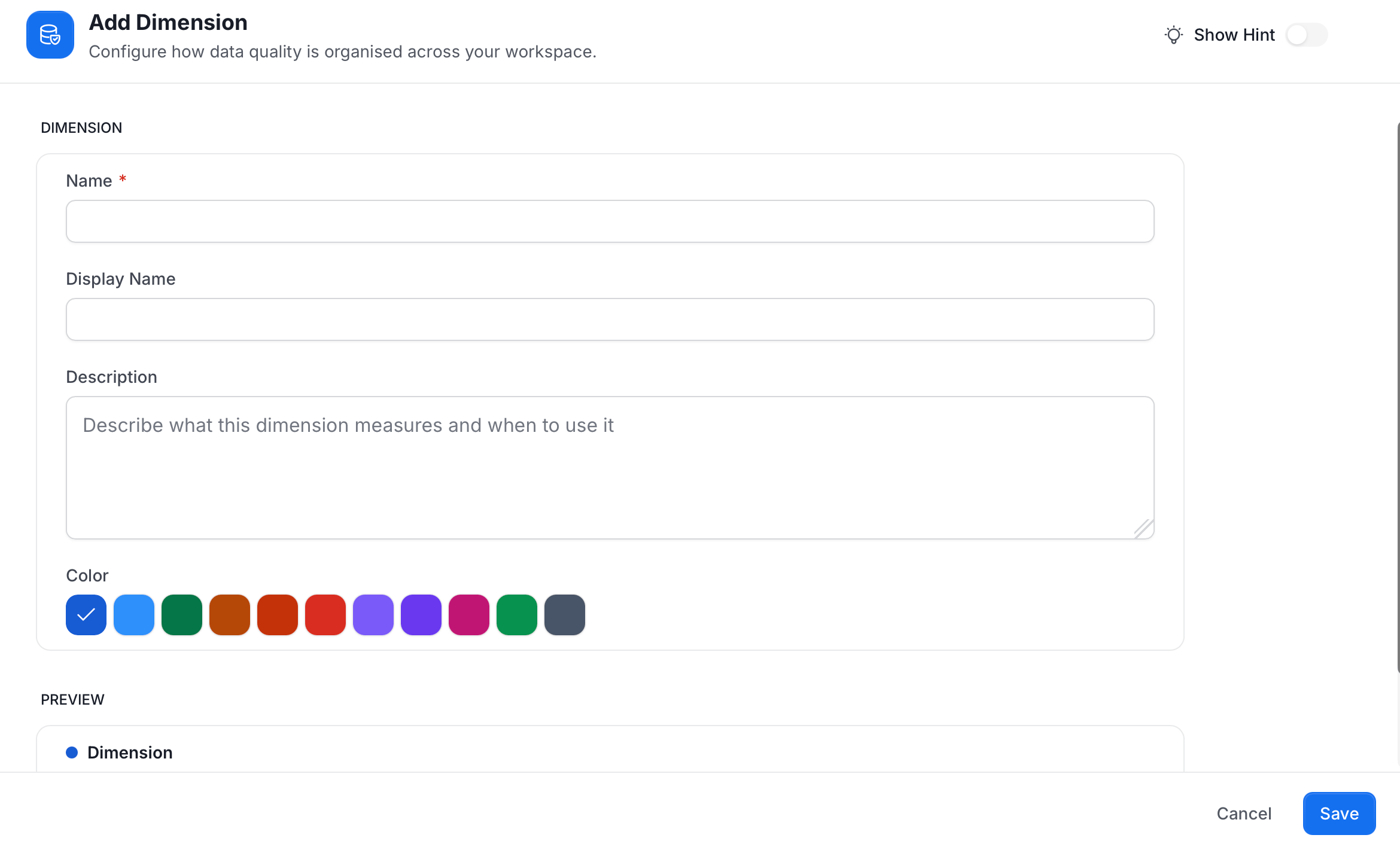
- Click Save. Click Cancel to discard your changes.
Table and Schema
Purpose and Benefits- Purpose: Set the default column order shown in table schema views.
- Benefits: Gives every user the same starting order for columns, whichever data asset they open.
How to Configure
-
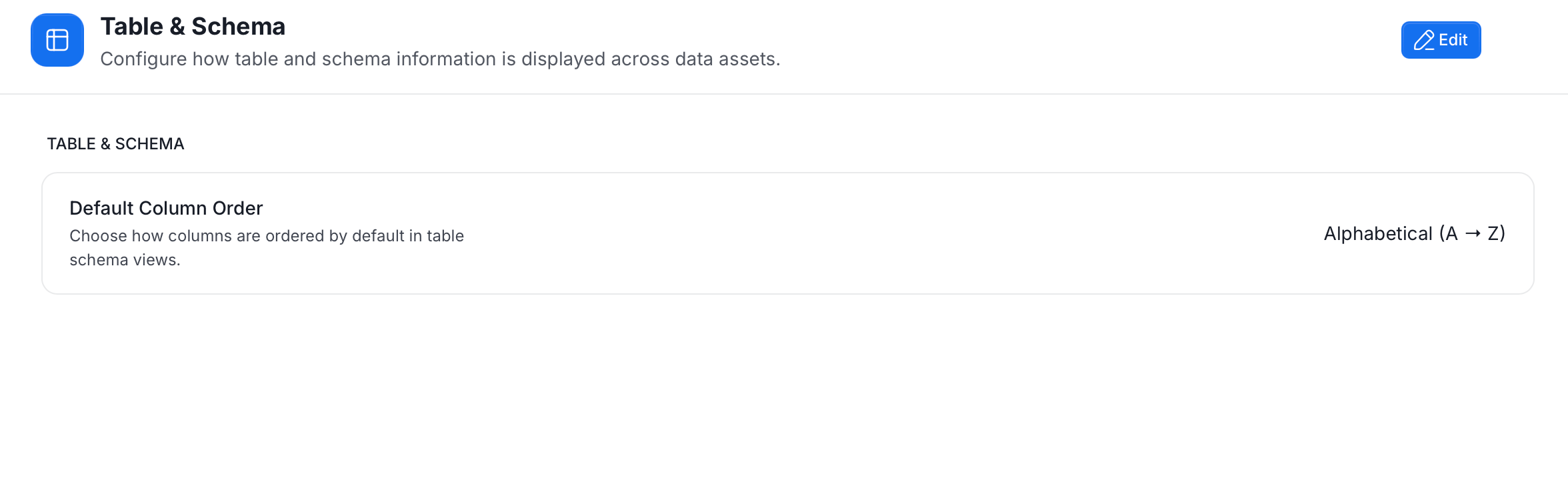
Click the Profile icon and navigate to Settings > Preferences > Table & Schema. The page shows the current Default Column Order.
-
Click Edit.
-
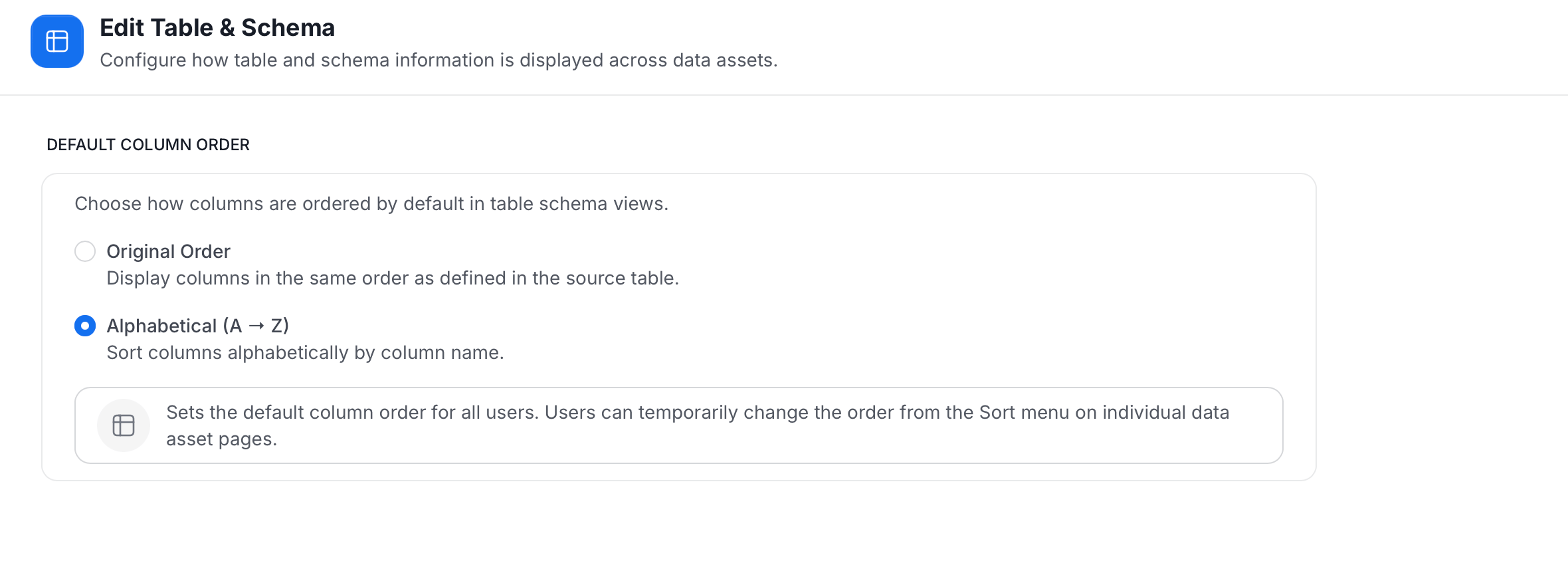
Under Default Column Order, choose how columns are ordered by default in table schema views:
- Original Order: Display columns in the same order as defined in the source table.
- Alphabetical (A → Z): Sort columns alphabetically by column name.
- Click Save.
Default Time Format
Purpose and Benefits- Purpose: Set whether timestamps display in 12-hour or 24-hour format.
- Benefits: Shows every user timestamps in the format your organization expects.
How to Configure
-
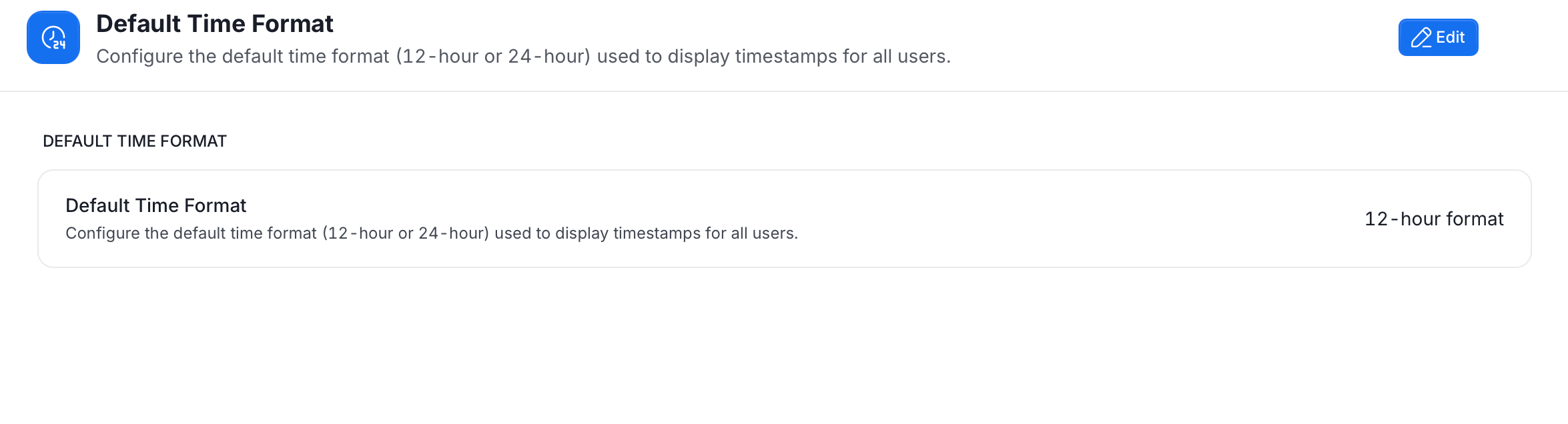
Click the Profile icon and navigate to Settings > Preferences > Default Time Format. The page shows the current format.
-
Click Edit.
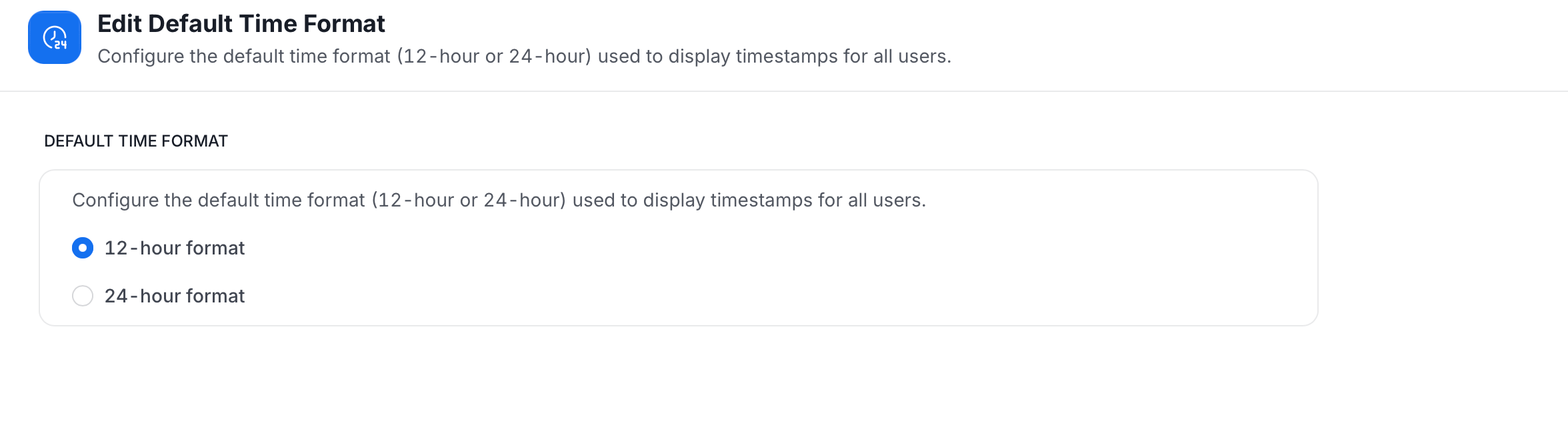
- Choose 12-hour format or 24-hour format.
- Click Save.