
Ingestion Runners
Ingestion Runners lists every Hybrid Runner already registered to your Collate instance. From here you can:- Monitor runners
- Filter the list
- Manage them from the UI, without needing shell or infrastructure access to the runner itself
- Purpose: View and manage every Hybrid Runner registered to your instance: status, logs, and which one is used by default.
- Benefits: Lets you monitor and manage runners from the UI, without needing shell or infrastructure access to the runner itself.
How to Access
Click the Profile icon and navigate to Settings > Preferences > Ingestion Runners.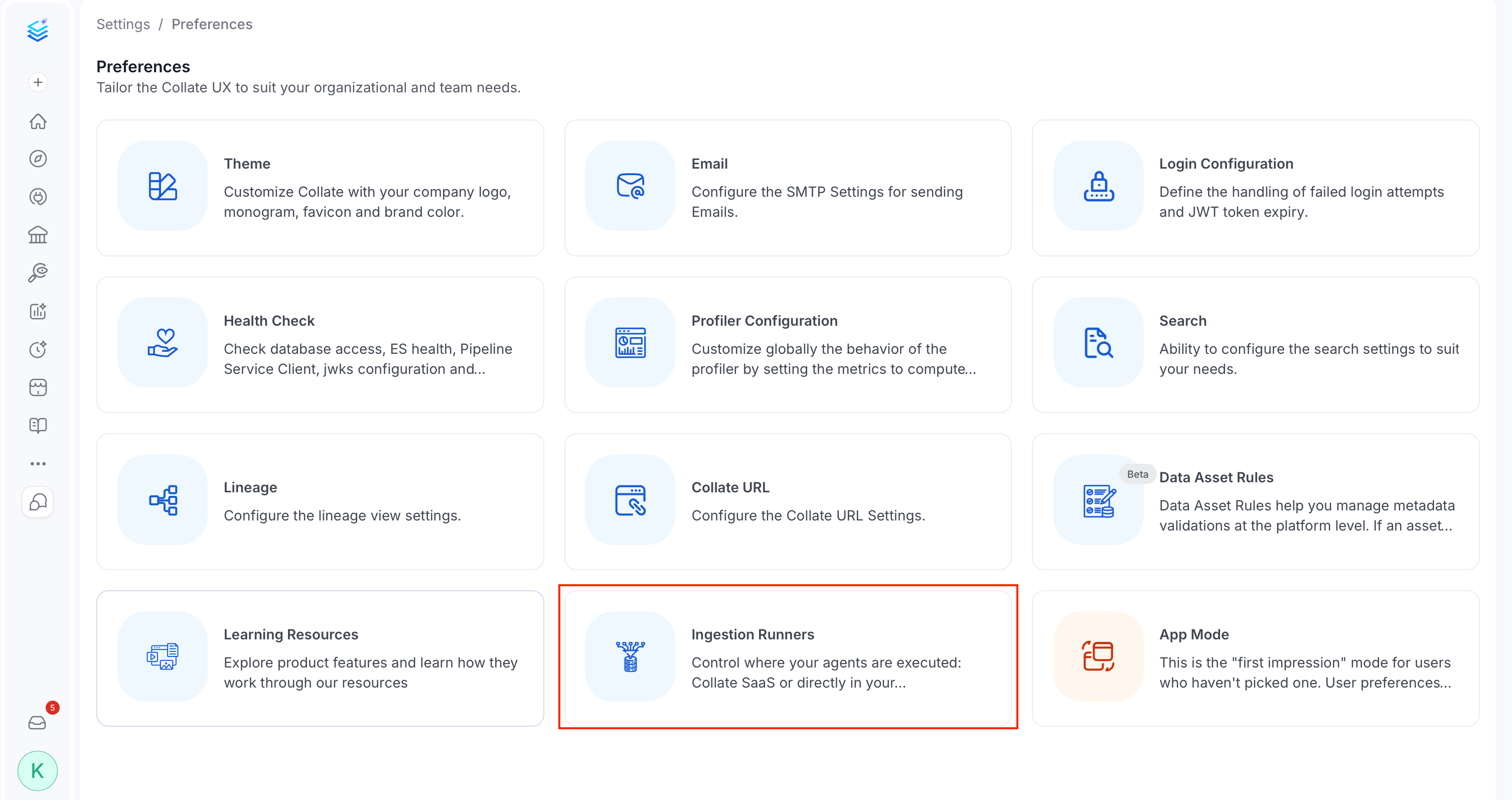
Ingestion Runners Table
The table shows every registered runner and enough detail to tell, at a glance, which ones are healthy and which need attention: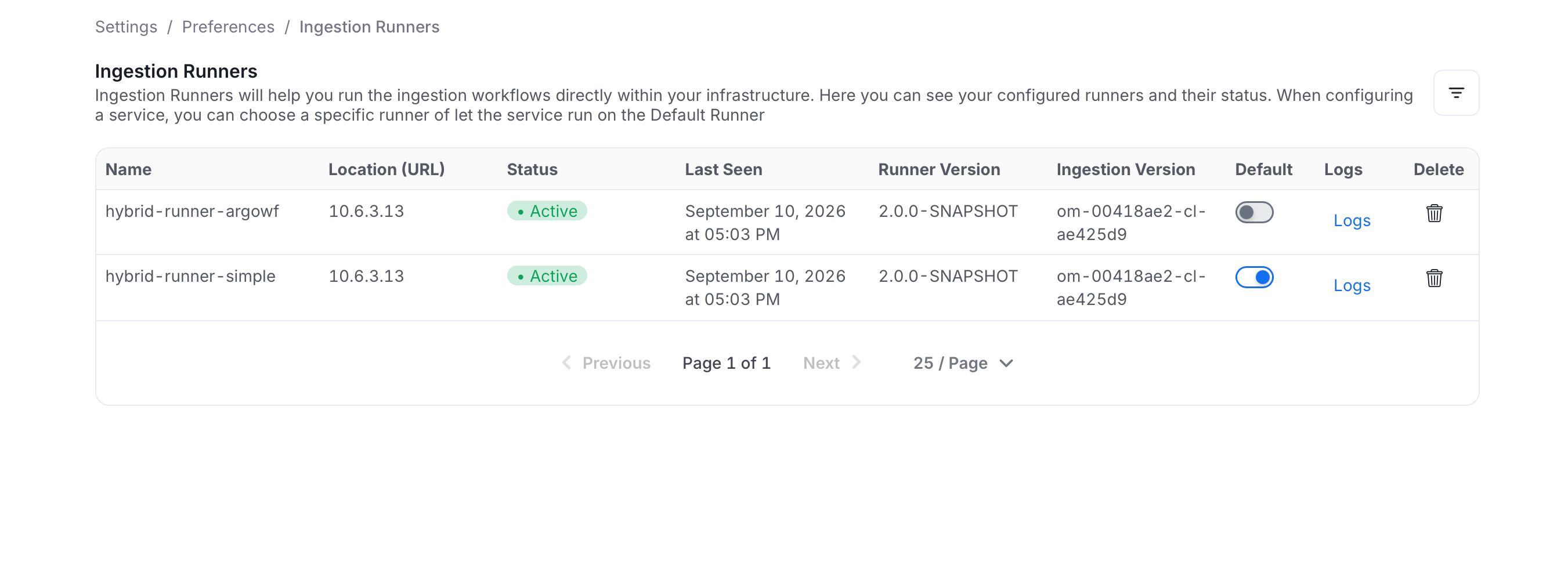
Use the filter icon above the table to narrow the list to All, Active, or Inactive runners, which is especially useful once you have more than a handful registered.
Setting a Default Runner
The default runner is the one Collate pre-fills automatically when someone creates a new connection, so setting it correctly saves every team from having to pick the right runner by hand each time. Toggle Default on a runner’s row to make it the one pre-selected in new connection forms. You can’t set an Inactive runner as the default, and you can’t turn the toggle off directly on the current default. Set a different runner as default instead.Changing the default runner updates which runner is pre-selected in future connection forms only. It doesn’t move or restart ingestion already scheduled on another runner.
Viewing Logs
When a runner shows anError status or an ingestion job behaves unexpectedly, its logs are usually the fastest way to find out why, without needing separate access to the infrastructure the runner is deployed on.
Click Logs on a runner’s row to open its recent log output. This is only available for runners with streamable logs enabled, which requires S3 log storage to be configured. Otherwise the button is disabled with a tooltip explaining why.
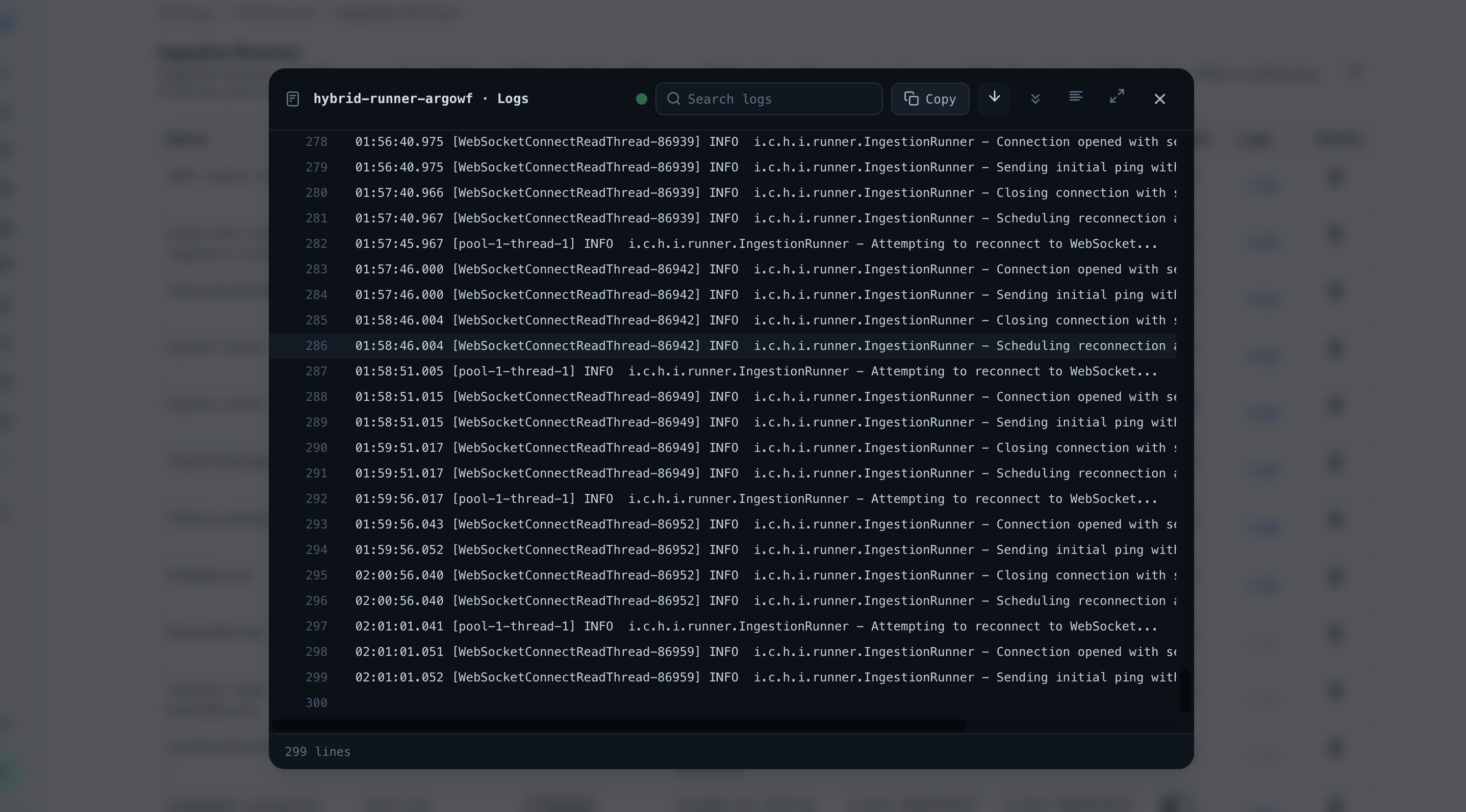
<runner name> · Logs. A green dot next to the title means logs are streaming live. It switches to a reconnecting state if the stream drops and Collate is trying to restore it. Each line is prefixed with a line number and shows the runner’s own log output as-is (timestamp, thread name, log level, logger class, and message), and the footer shows the total number of lines loaded.
The toolbar above the logs gives you: