
My Connections
The My Connections section of your Profile page lists your personal credentials for data sources. Use it to see which database services you have connected to, and to configure your own credentials for the ones you haven’t.Open My Connections
- Click the Profile icon and select your user name.
-
In the Credentials group, click My Connections.
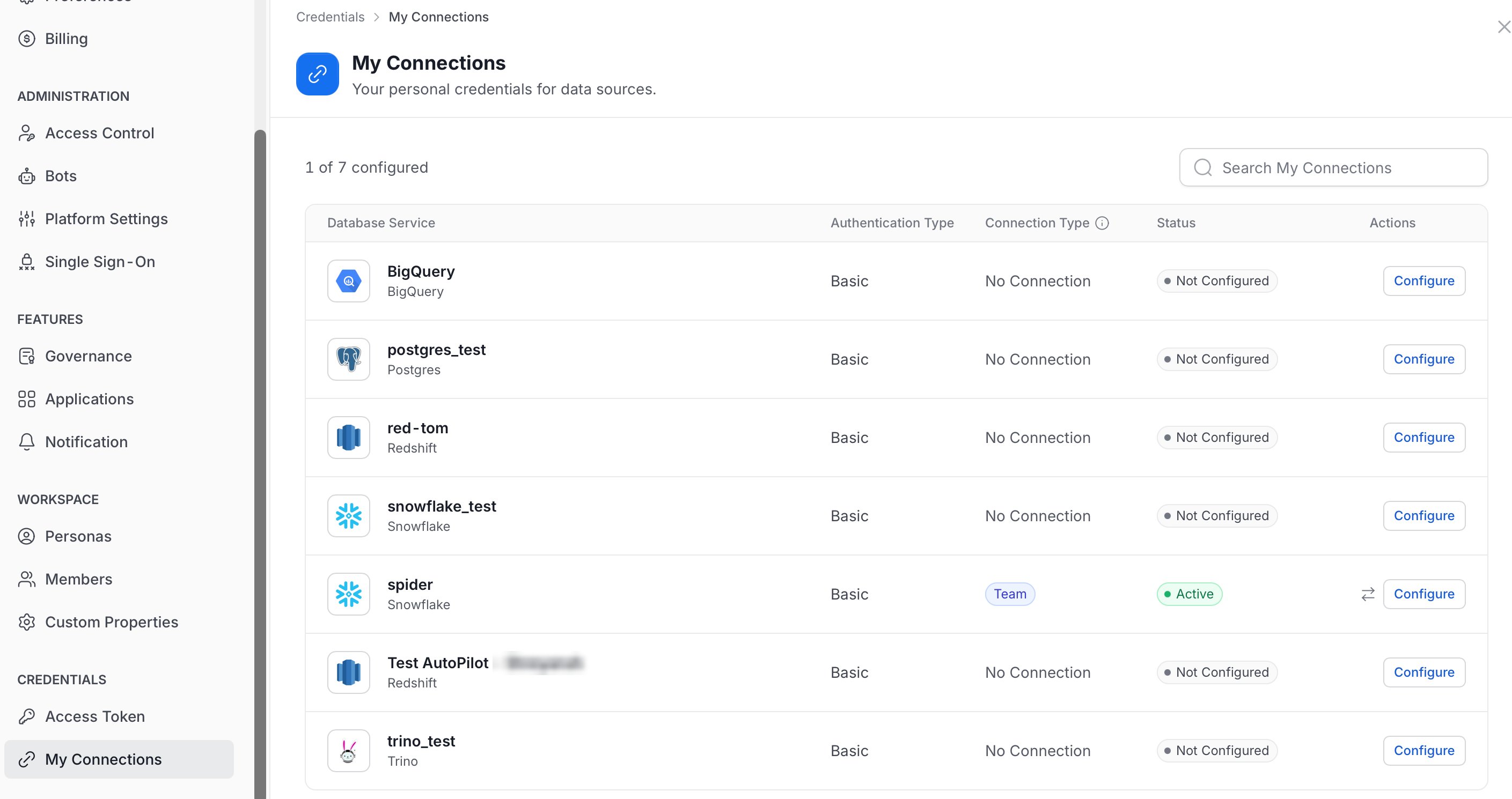
What the List Shows
- Database Service: The service name and its connector type, for example Snowflake or Postgres.
- Authentication Type: How you sign in to the service, for example Basic.
- Connection Type: Where the credentials come from. The information icon explains that it shows whether the connection uses your personal credentials or a team’s shared credentials.
- No Connection: You have no credentials for this service yet.
- Team: A team’s shared credentials cover this service.
- Status: The state of the connection, such as Not Configured or Active.
- Actions: Click Configure to set up your credentials. For a connection that uses a team’s shared credentials, a swap icon also appears next to Configure.
Configure a Connection
- Find the service in the list.
- In Actions, click Configure.
- Enter your credentials. The fields depend on the Authentication Type.
- Save the connection. The Status changes to Active when the connection works.