
Intake Forms
Intake Forms let you require specific fields to be filled in before a Data Product, Domain, or Glossary Term can be created or updated. Use them to make sure every new asset of these types has the ownership, classification, or descriptive metadata your organization needs from the start. This way, reviewers don’t have to catch gaps after the fact. Only one Intake Form can exist per entity type. Collate enforces it at both the API and UI layers, so a required field can’t be skipped by using the API directly either. Fields the entity’s own schema already requires, such as name and description, are always enforced. They aren’t configurable here. An Intake Form only adds further, organization-specific requirements on top of them.Creating an Intake Form
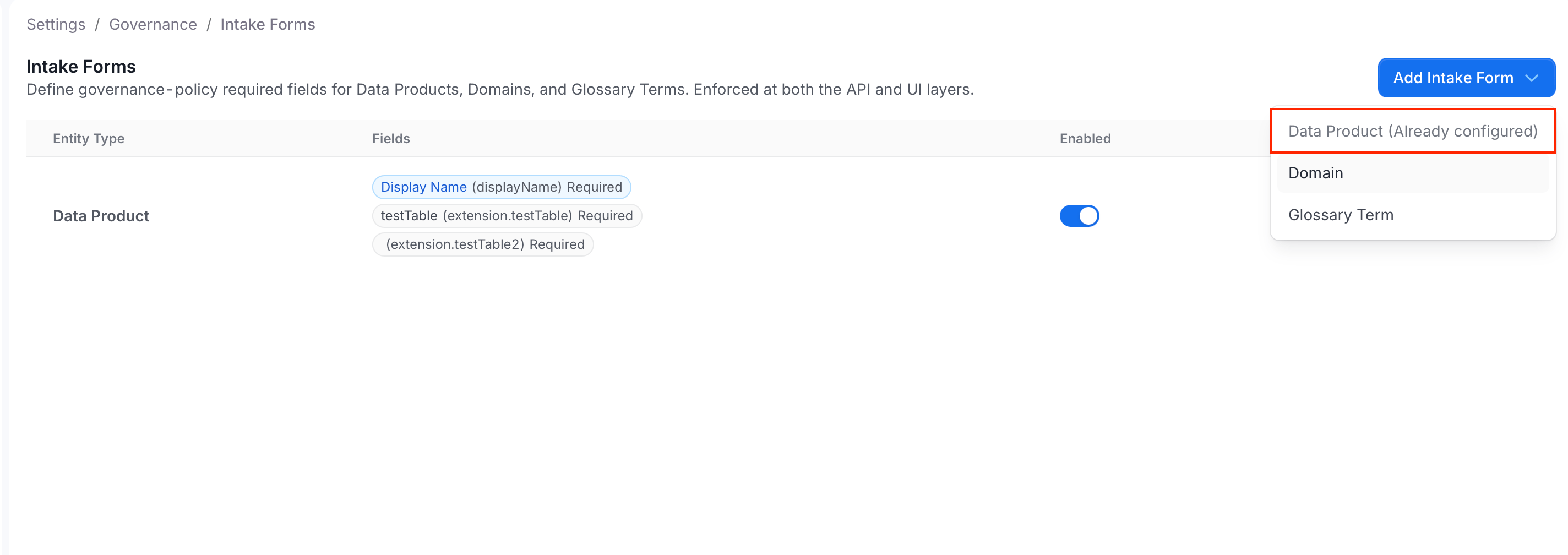
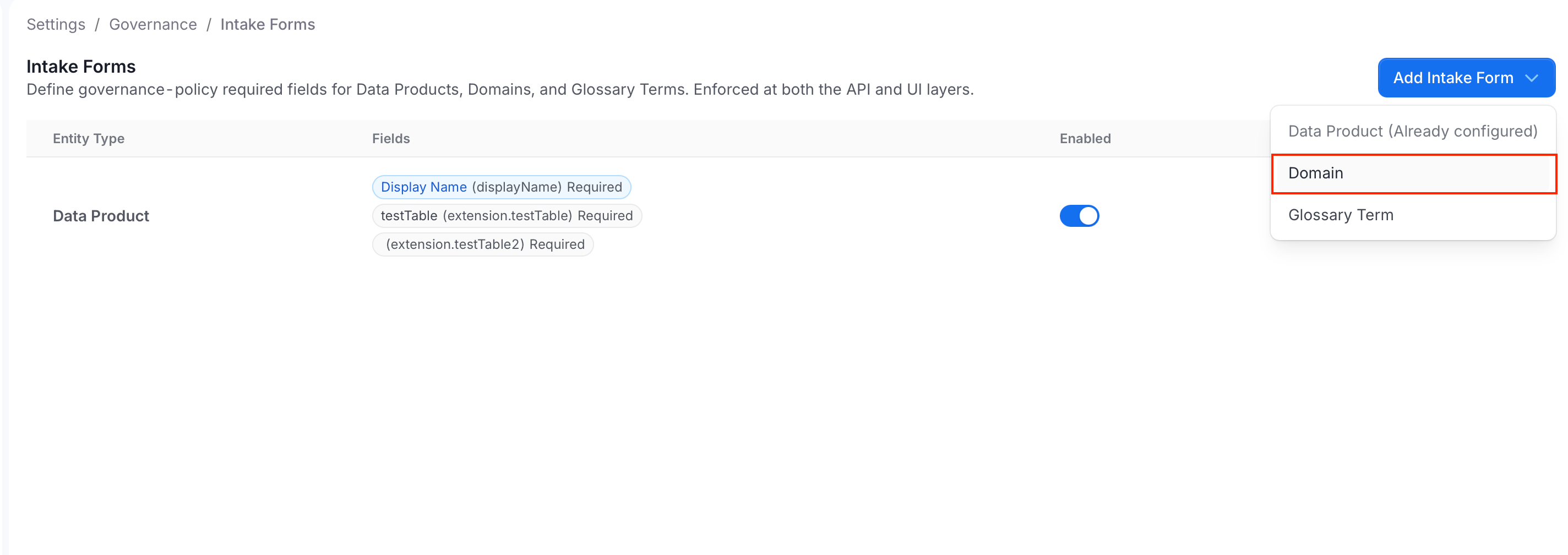
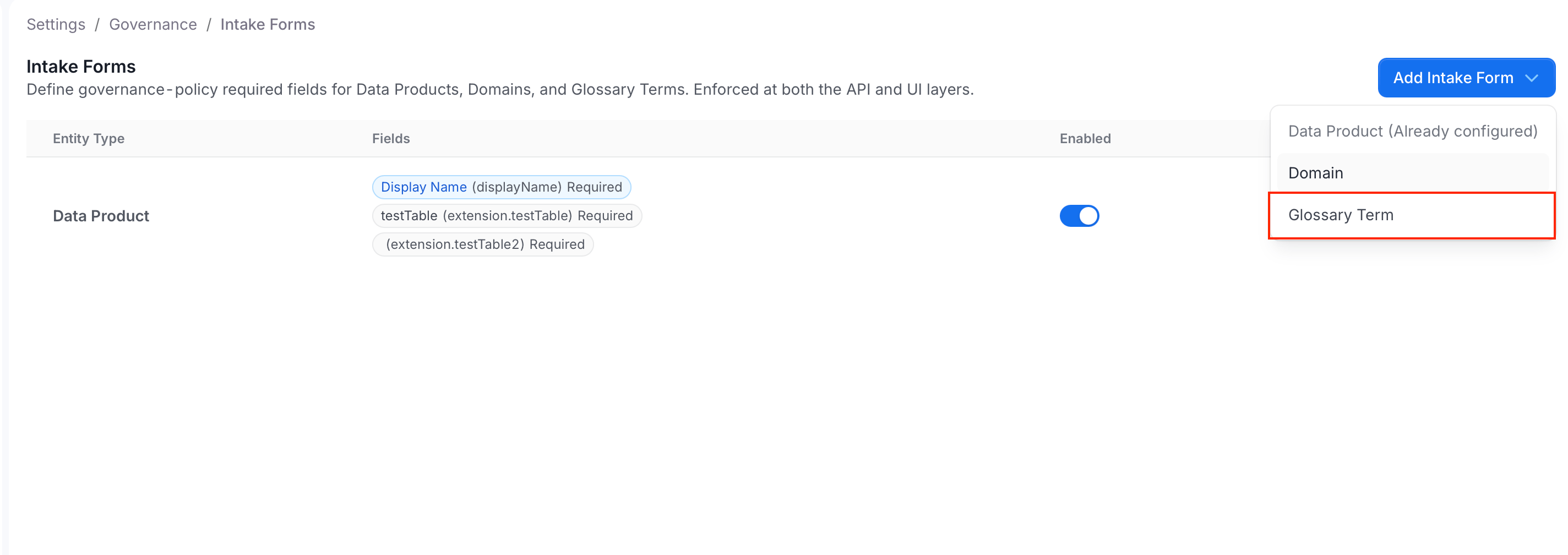
You must have the Admin role to create and manage Intake Forms. Click the Profile icon and navigate to Settings > Governance > Intake Forms. Select the tab below for the entity type you want to configure. An entity type that already has a form shows as already configured and can’t be selected again.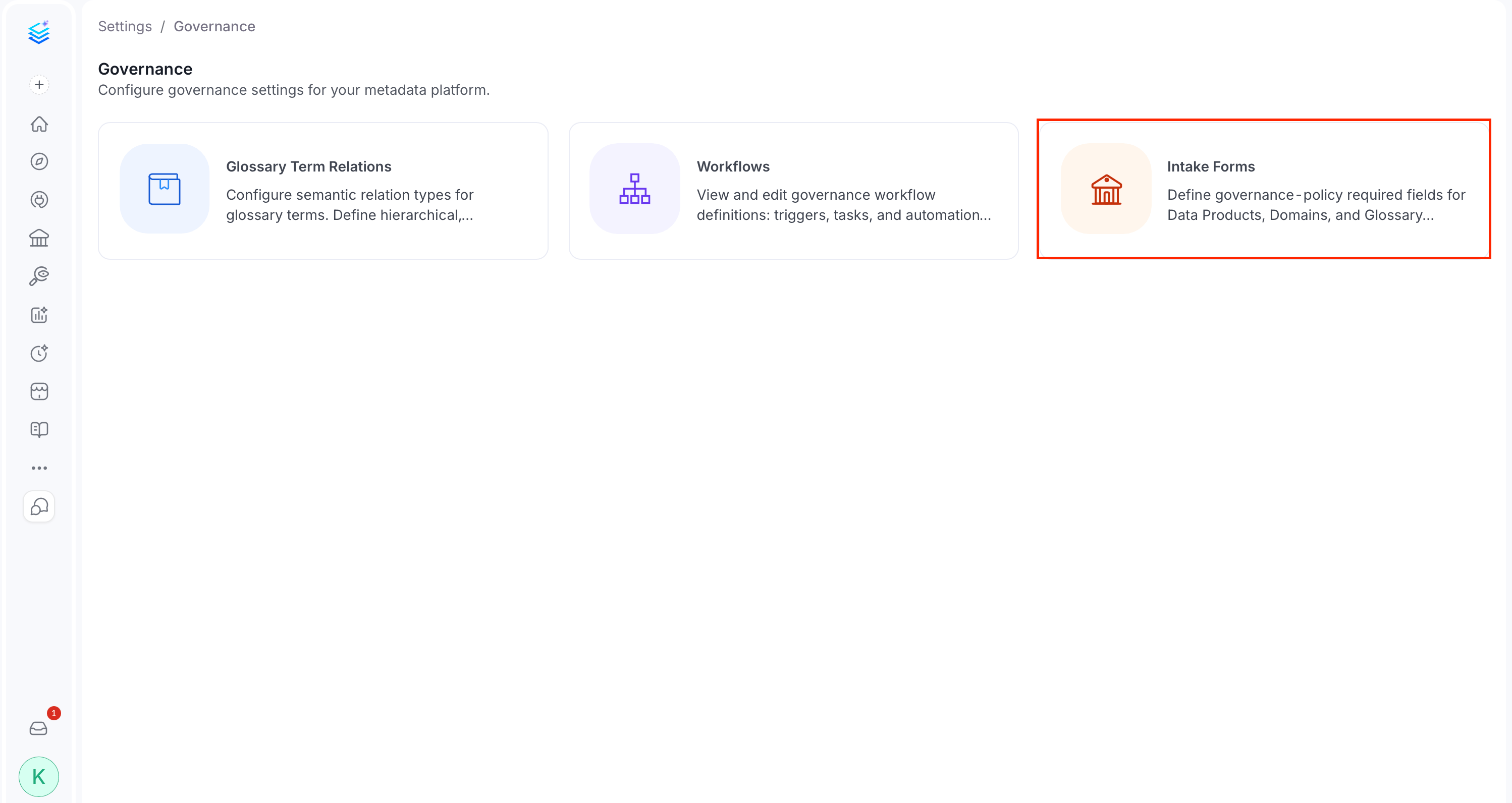
- Data Product
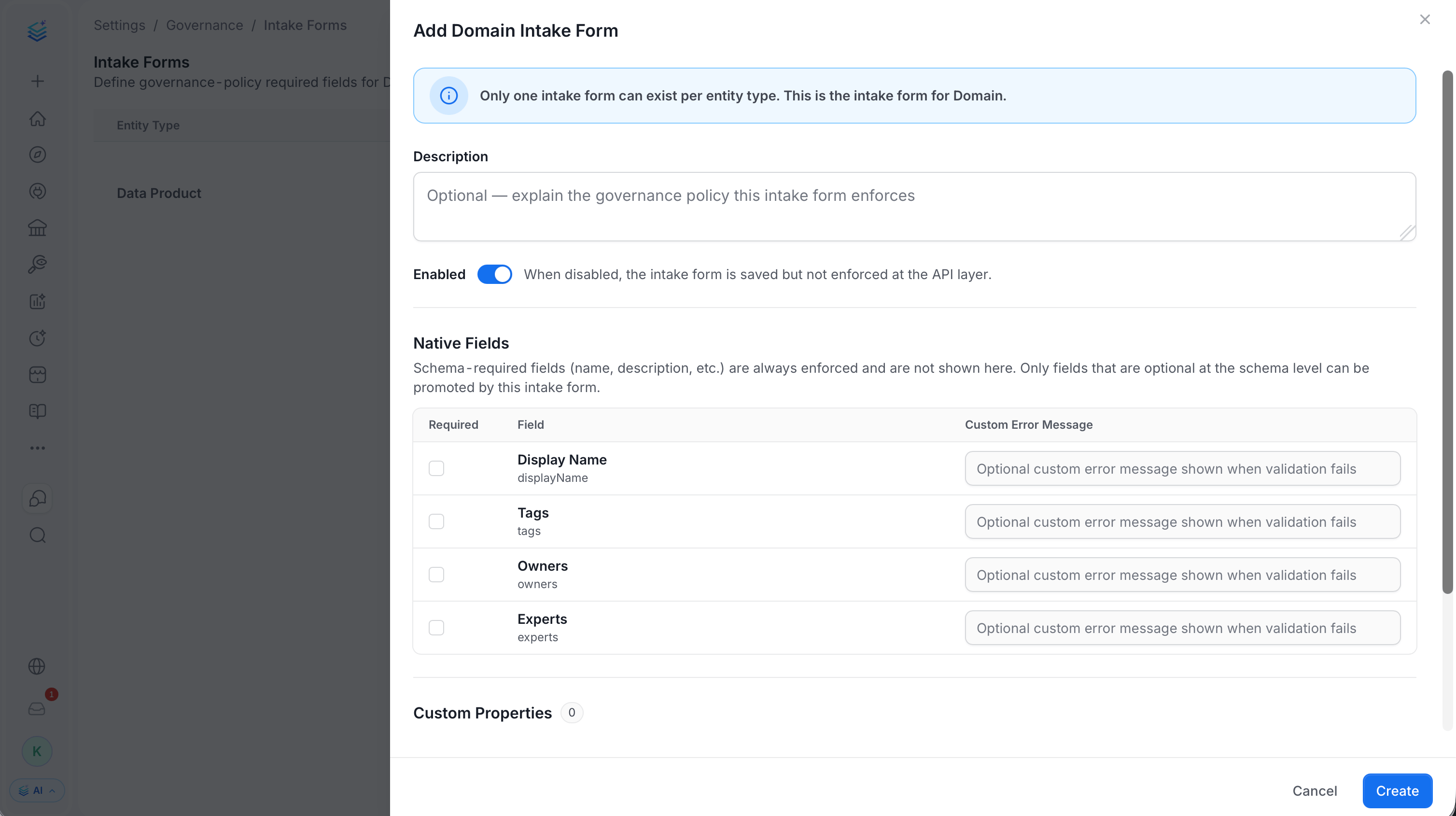
- Domain
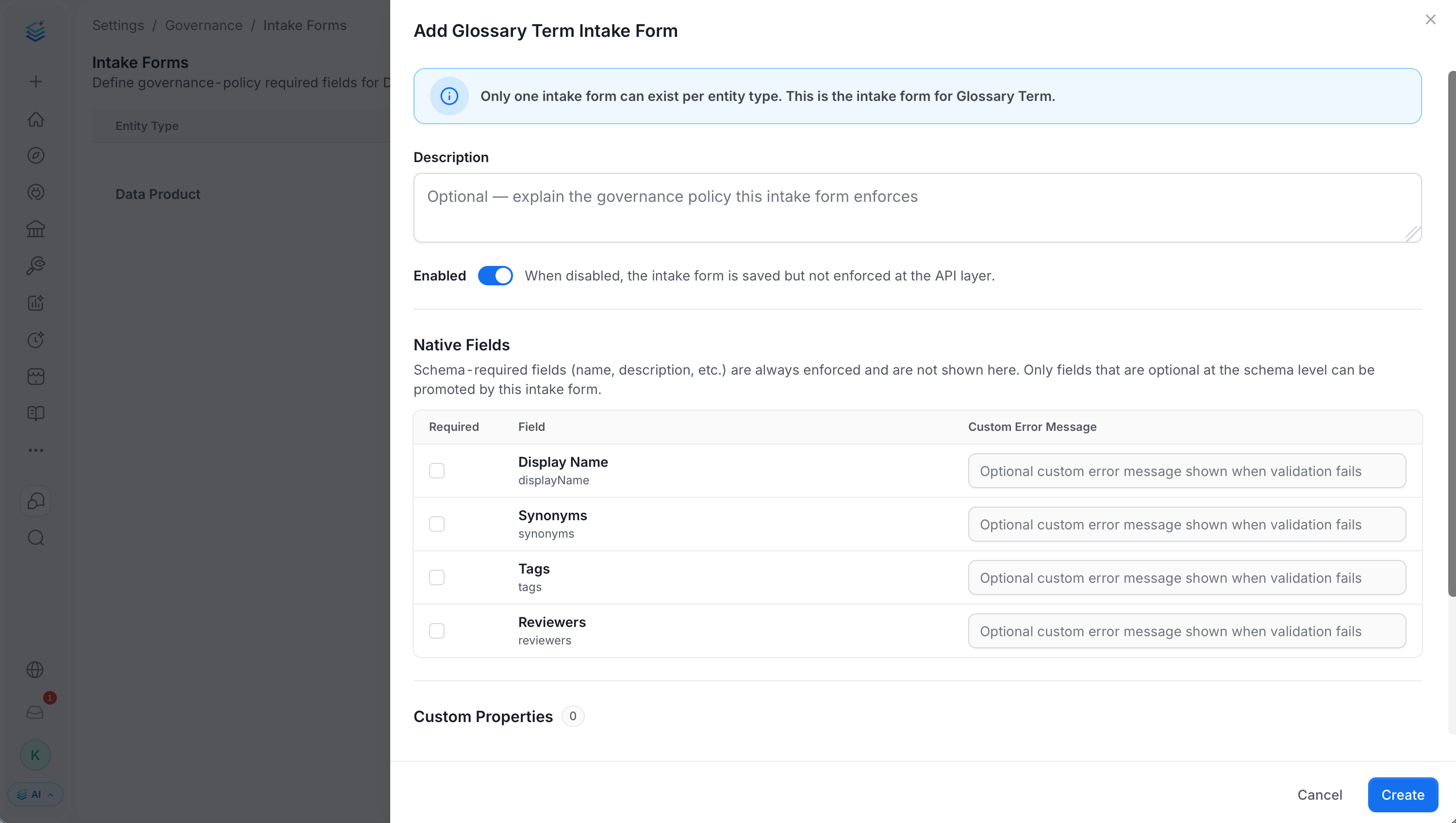
- Glossary Term
-
Click Add Intake Form, then select Data Product.
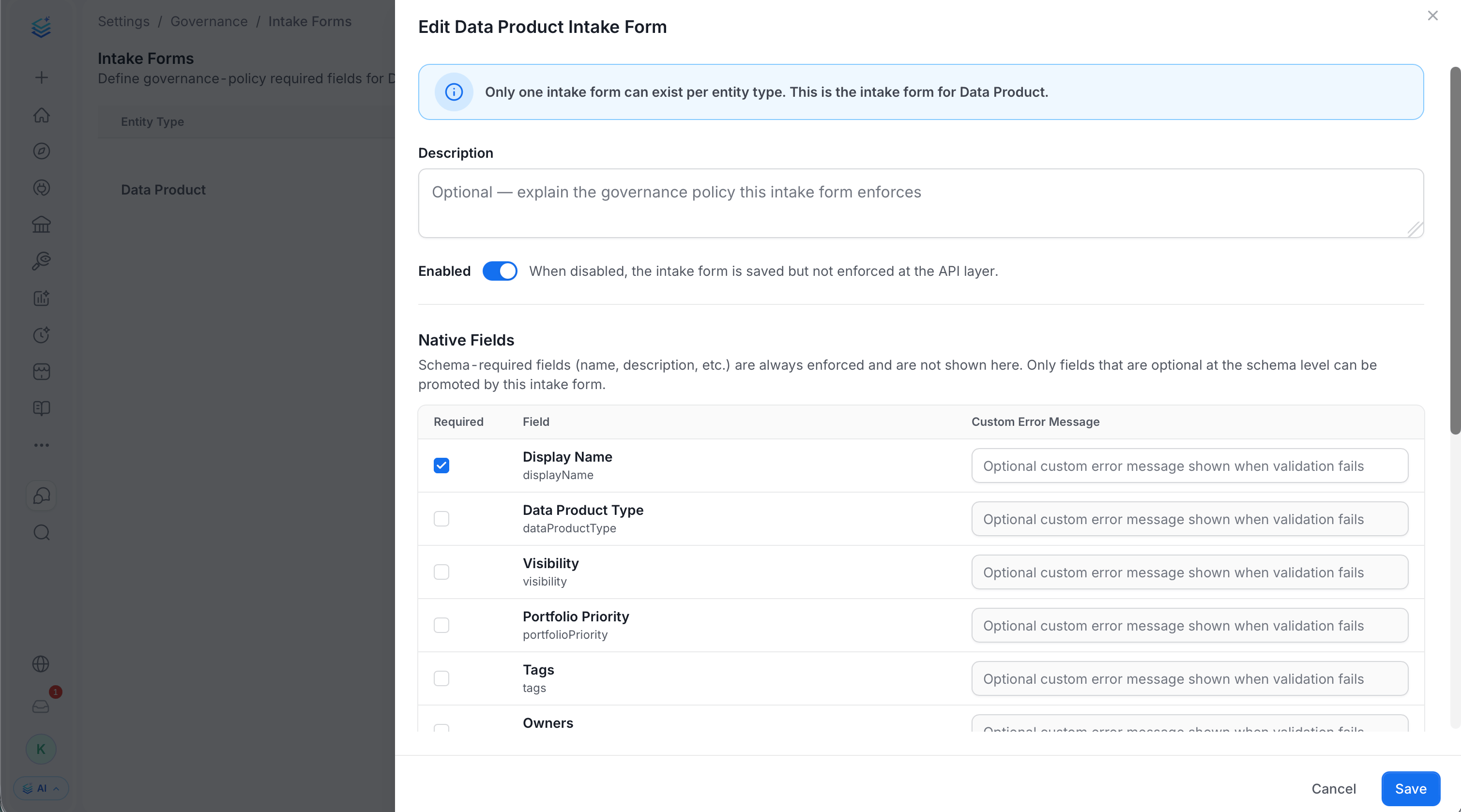
- Optional: Add a Description explaining what this form enforces.
- Optional: Toggle Enabled off to save the form without enforcing it yet. It’s on by default.
-
Under Native Fields, do the following. Only fields that are optional at the schema level are listed here. Schema-required fields such as name and description are always enforced and don’t appear.
-
Check the Required box for any of the following fields you want to enforce.
- Optional: Enter a custom error message for a required field, shown instead of the default message when that field is missing.
-
Check the Required box for any of the following fields you want to enforce.
-
Under Custom Properties, do the following:
- Select Include for any custom property defined on Data Product that you want to add to the form.
- Check the Required box for any included property that must be filled in.
- Optional: Enter a custom error message for a required field, shown instead of the default message when that field is missing.
- Click Create.
Managing Intake Forms
After you add the Intake Form, it appears in the Intake Forms list. From there, do any of the following: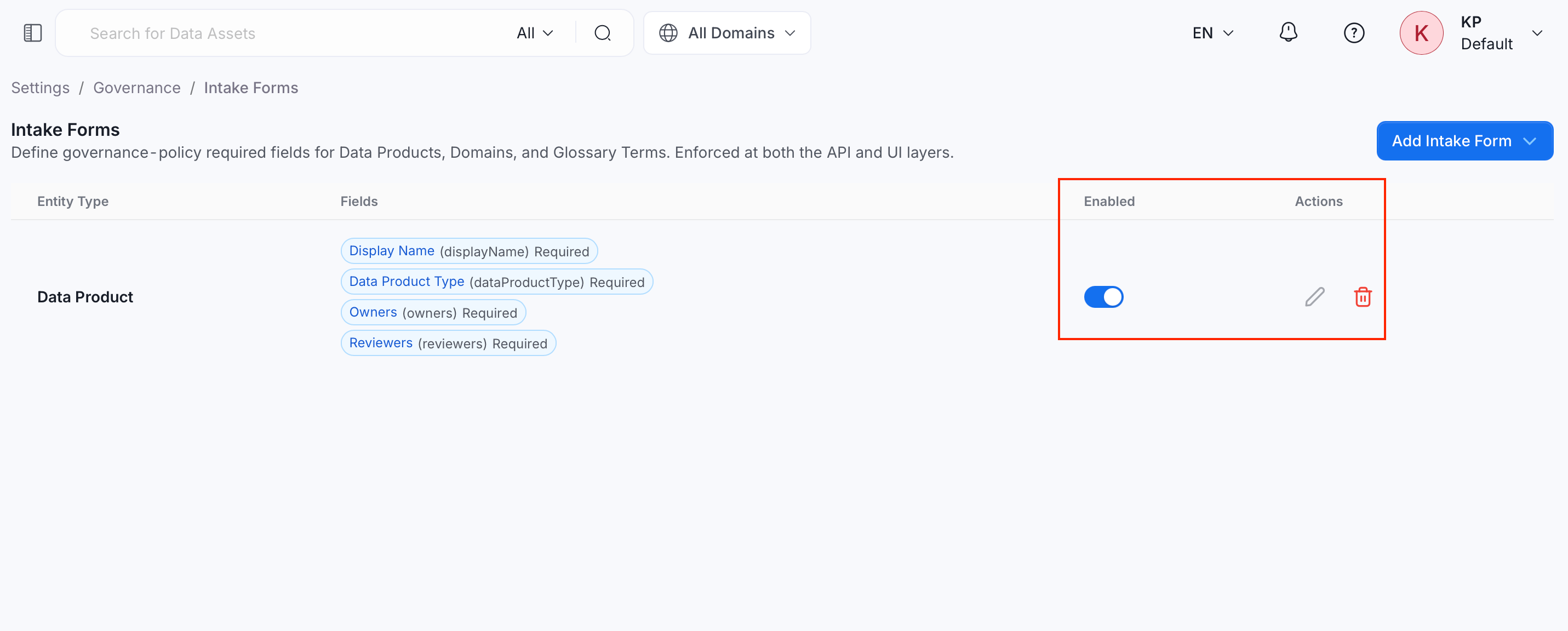
- Enabled toggle: Use this to turn the form’s enforcement on or off without deleting it. A disabled form doesn’t block anything.
- Actions: In the Actions column, do any of the following:
- Edit: Click the Edit icon, modify the details, and click Save.
- Delete: Click the Delete icon, then confirm the deletion in the dialog.