
Manage Members
Admins manage the people in Collate from the Members section of the Profile page. From there, work with teams, users, and admins, see who has been active recently, and set up provisioning from an identity provider.The Members section is visible only to users with the Admin role. If you don’t see it, ask your organization’s Collate Admin for access.
Open the Members Section
To open the Members section, follow these steps:- Click the Profile icon and navigate to Settings.
-
In the Workspace group, click Members.
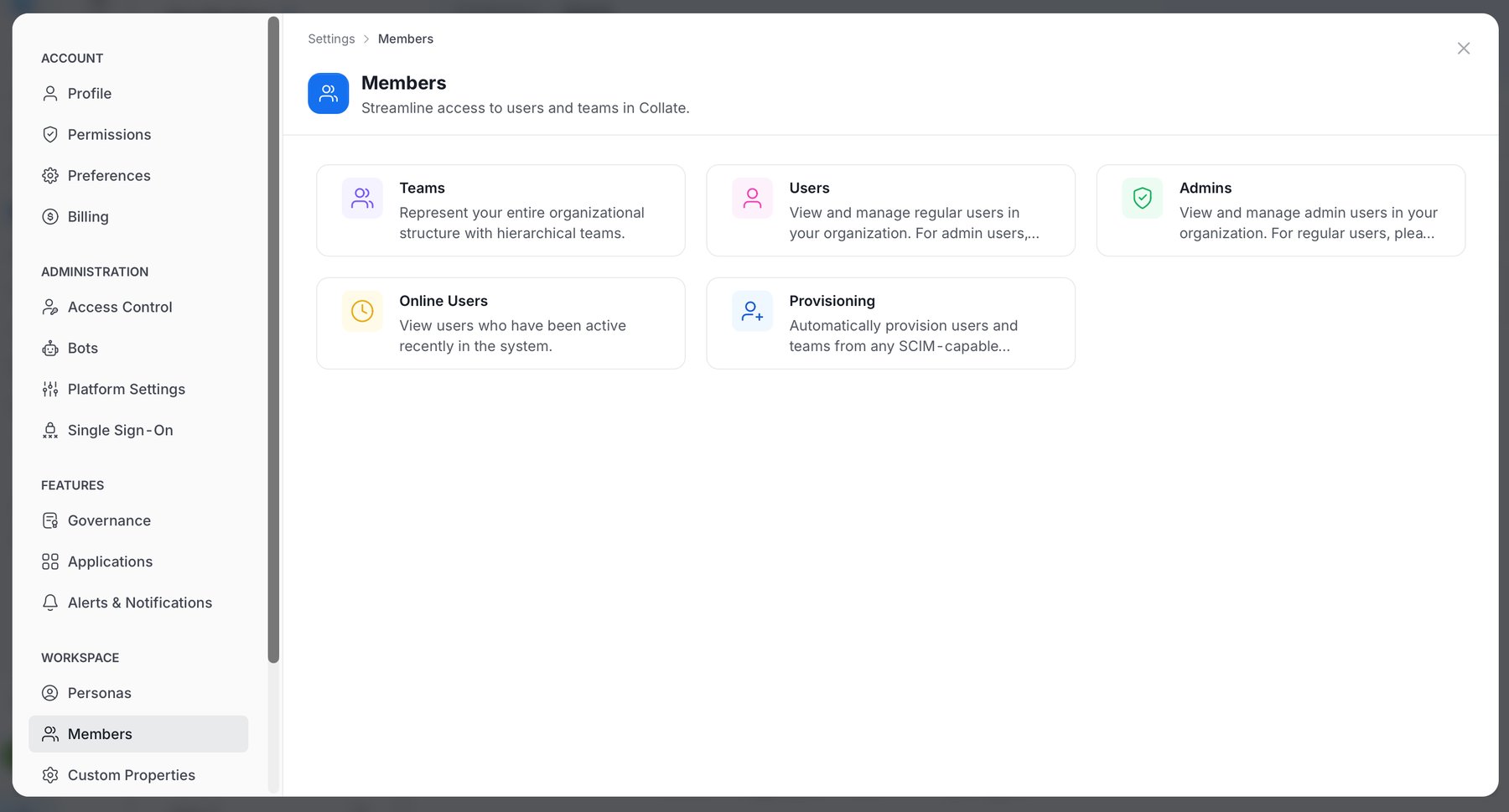
- Teams: Represent your entire organizational structure with hierarchical teams.
- Users: View and manage regular users in your organization. For admin users, use the Admins card.
- Admins: View and manage admin users in your organization. For regular users, use the Users card.
- Online Users: View users who have been active recently in the system.
- Provisioning: Automatically provision users and teams from any SCIM-capable identity provider. This works independently of your SSO login configuration. For more information, see SCIM Provisioning.
Manage Users and Admins
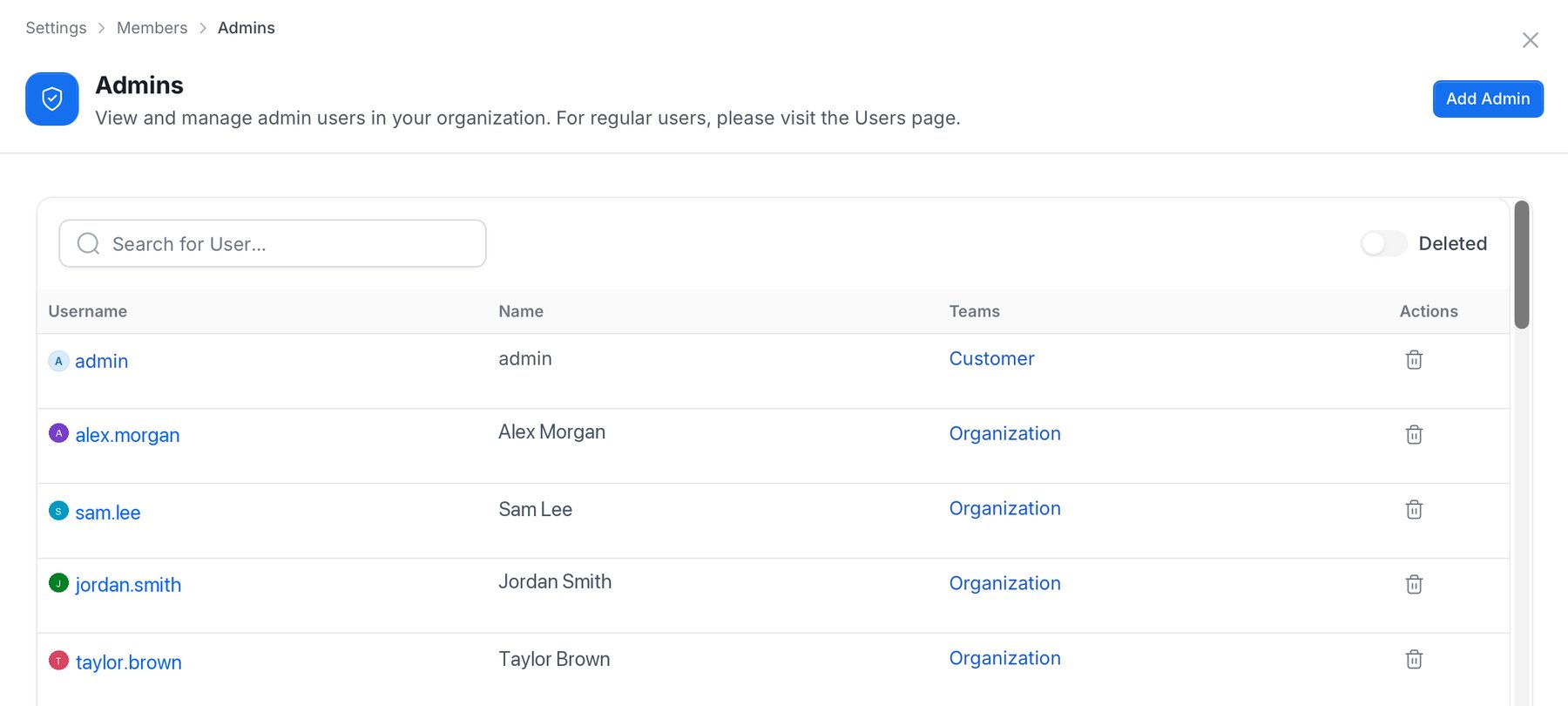
The Users and Admins cards open the same table. The Users card lists regular users, and the Admins card lists admin users. The Users table shows the Username, Name, Teams, and Roles of each user, with an Actions column for each row.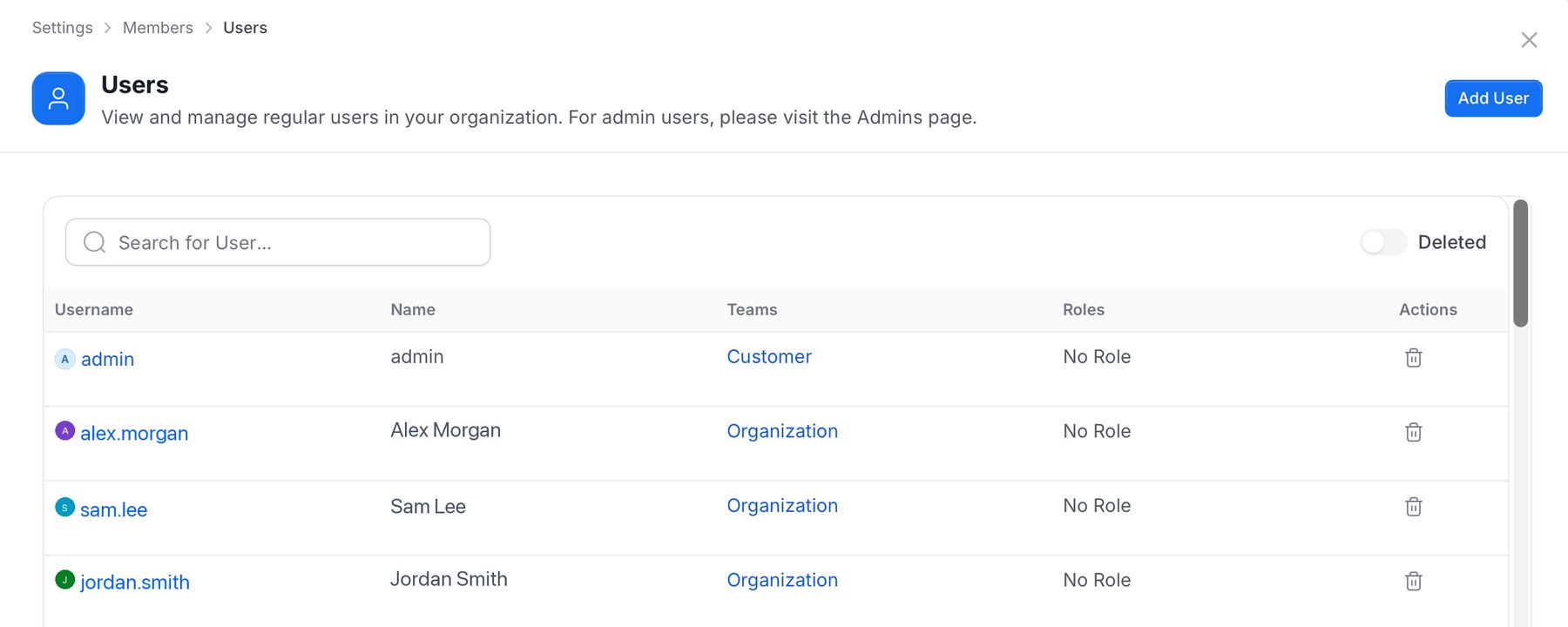
View Online Users
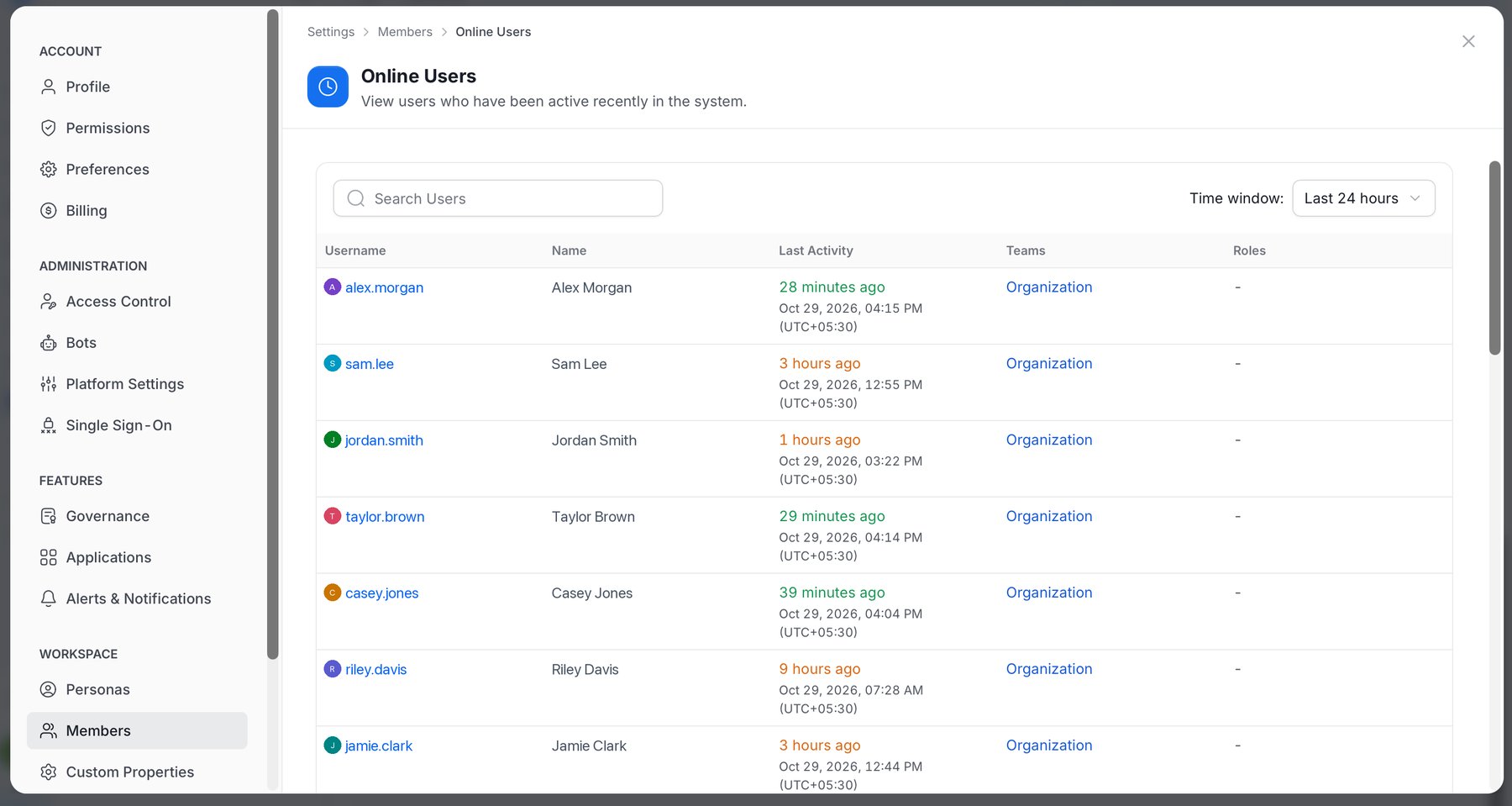
The Online Users card lists the users who were active within a time window. Use the search box to find a user, and select the time window from the list:- Last 5 minutes
- Last hour
- Last 24 hours: The default.
- Last 7 days
- Last 30 days
- All time
Manage Teams
The Teams card opens the Organization team page. Its Teams tab lists the teams under the organization in a table with the columns Teams, Type, Sub Teams, Users, Assets, and Description. Use the search box to find a team, turn on Deleted to include deleted teams, and click Add Team to create one.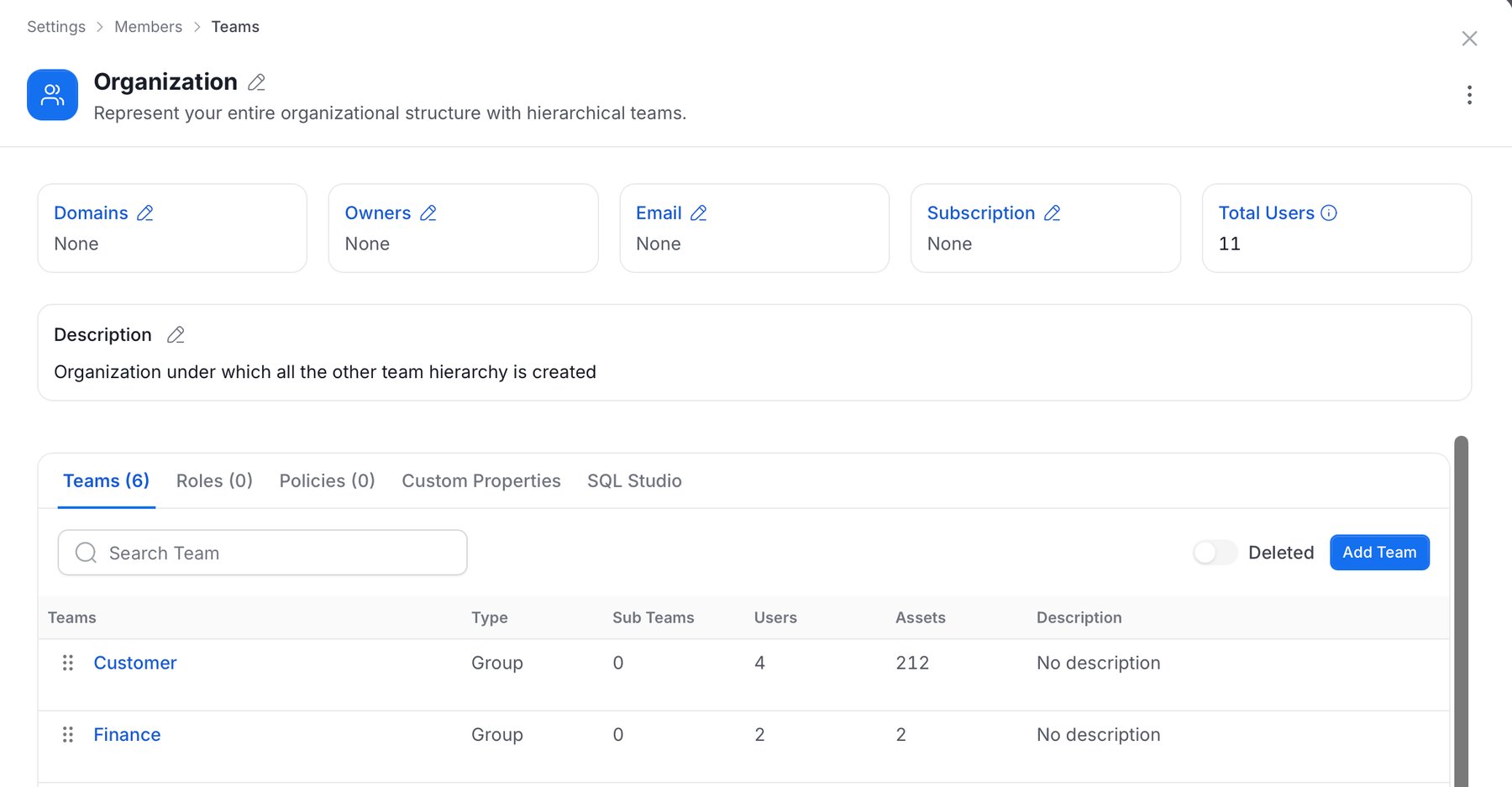
For more information, see Team Structure.