
User Details
The user details view shows everything Collate knows about a single user in one place. Open it from Settings > Members by selecting a user. The breadcrumb reads Settings > Members > Users > the user’s name.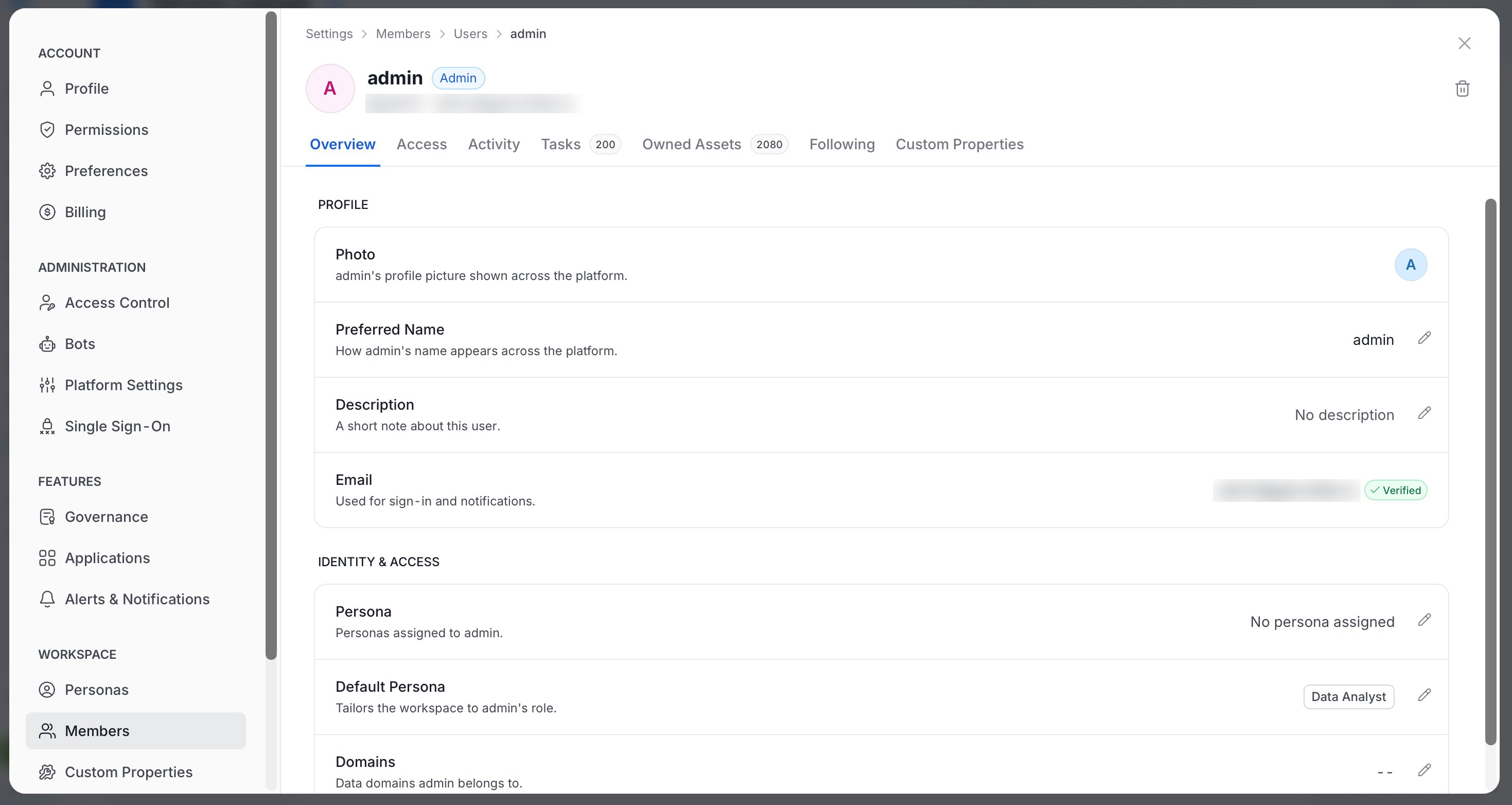
Header
The header identifies the user and shows their status. It contains:- Avatar and name: The user’s profile picture and display name.
- Badges: You on your own profile, Admin for administrators, Bot for bot accounts, and Deleted for deleted users. Bots never show the Admin badge.
- Activity badge: A badge such as Online now or Active recently shows how recently the user was active. Collate hides the badge when the user has been inactive for about an hour.
- Username and email: Shown as
@usernamefollowed by the email address. Collate hides the email when it is masked. - Delete icon: Appears only if you have the Delete permission. For a deleted user, the icon is labeled Delete permanently.
Tabs
The tabs organize the user’s information. Tabs with items show a count badge, and a count of zero is hidden.Overview
The Overview tab groups the user’s details into sections. A pencil icon next to a value edits it, if you have permission.- Profile: Photo, Preferred Name, Description, and Email. The email shows a Verified badge when Collate has verified it.
- Identity & Access: Persona, Default Persona, and Domains.
Access
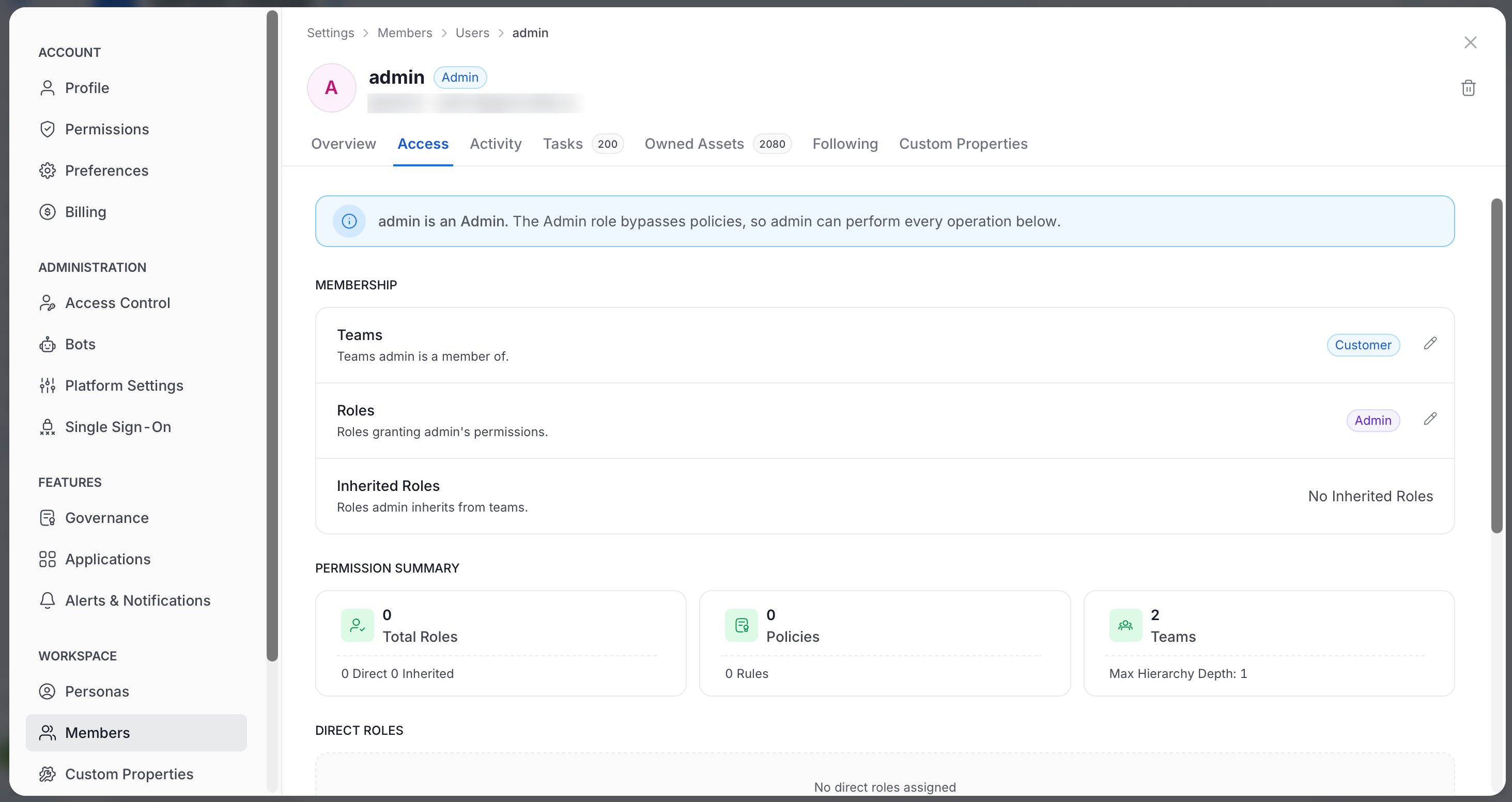
The Access tab shows how the user gets their permissions.- Banner: For an administrator, a banner explains that the Admin role bypasses policies, so the user can perform every operation.
- Membership: Teams, Roles, and Inherited Roles.
- Permission Summary: Cards for Total Roles, Policies, and Teams.
- Direct Roles: The roles assigned directly to the user.
Tasks
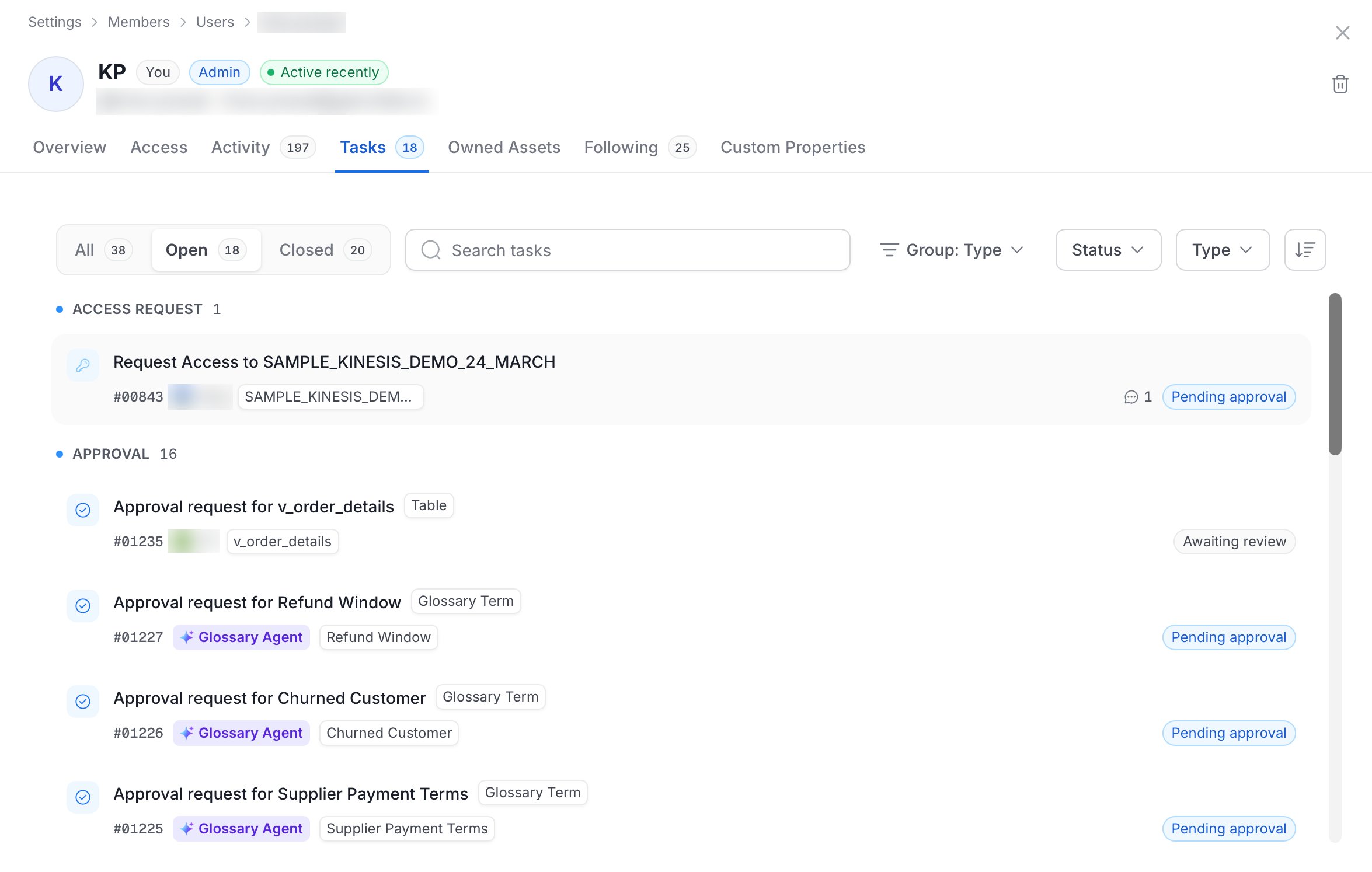
The Tasks tab lists the user’s tasks. Select a task to open it as a full page. The breadcrumb ends with the task ID.- All, Open, and Closed: Switch between task states. Each shows a count.
- Search tasks: Find a task by name.
- Group, Status, and Type: Group the list, for example by Type, and filter by status or task type. Use the sort icon to change the order.
- Task rows: Tasks appear under headings such as Access Request and Approval. Each row shows the task title, ID, requester, the asset it is about, and its status, for example Pending approval or Awaiting review.
Owned Assets and Following
These tabs list assets in the same card layout. Use the controls to narrow the list:- Search assets: Enter text to find an asset by name.
- Type: Filter the list by asset type.
Custom Properties
The tab lists one row per custom property defined for users. For more information, see Set a Value on a User.Change a User’s Password
The Security section on the Overview tab includes a Change Password option. Collate offers it only when all of these conditions are true:- The user is active, not deleted, and not a bot.
- The user signs in with Basic authentication.
- You are viewing your own profile, or you are an admin.
Open a User Directly
Each tab has its own address. Use this form to link to a user:<name>: The username.<tab>: One ofoverview,access,activity,tasks,owned-assets,following, orcustom-properties. An unknown tab opens Overview.<taskId>: Opens a task. It works only with thetaskstab.
users/<name> still open the user.
Permissions
What you can do in the user details view depends on your permissions:- EditAll on the user: Edit the display name, description, persona, and teams.
- Delete: Delete the user.
- Admin only: Assign roles, set the admin flag, and change a user’s domains.
Error States
These messages can appear when Collate can’t load a user.- No User found: The user doesn’t exist.
- Something went wrong: Collate couldn’t load the user. Select Reload to try again.