
Custom Property for a Data Asset
Collate uses a schema-first approach and supports custom properties for all types of data assets. Organizations can extend the default attributes to capture metadata that matters to them — such as business owner, SLA tier, compliance classification, and more. Custom property values can be viewed and edited from the Custom Properties tab on any data asset detail page.Creating a Custom Property
-
Open Custom Properties in one of two ways:
-
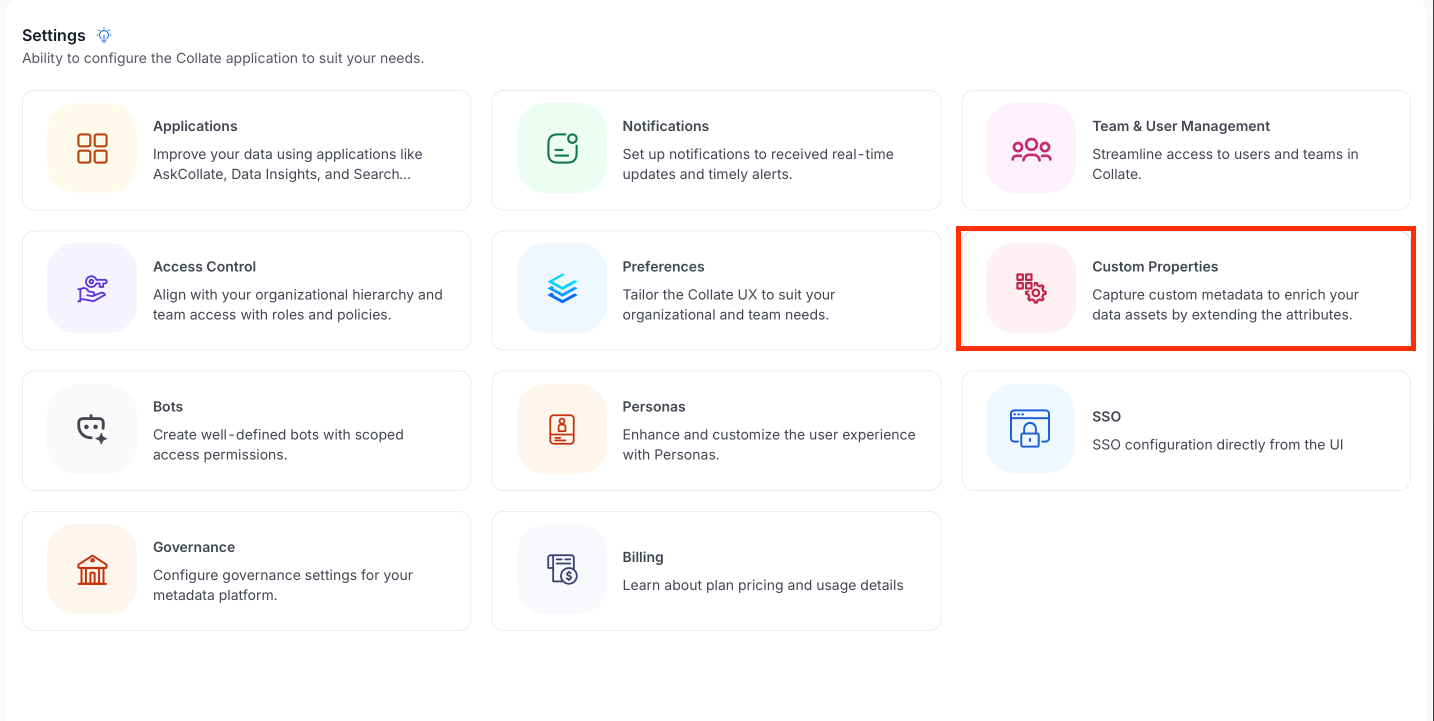
From Settings: Click your Profile icon in the bottom-left navigation and select Settings. Then click Custom Properties.
-
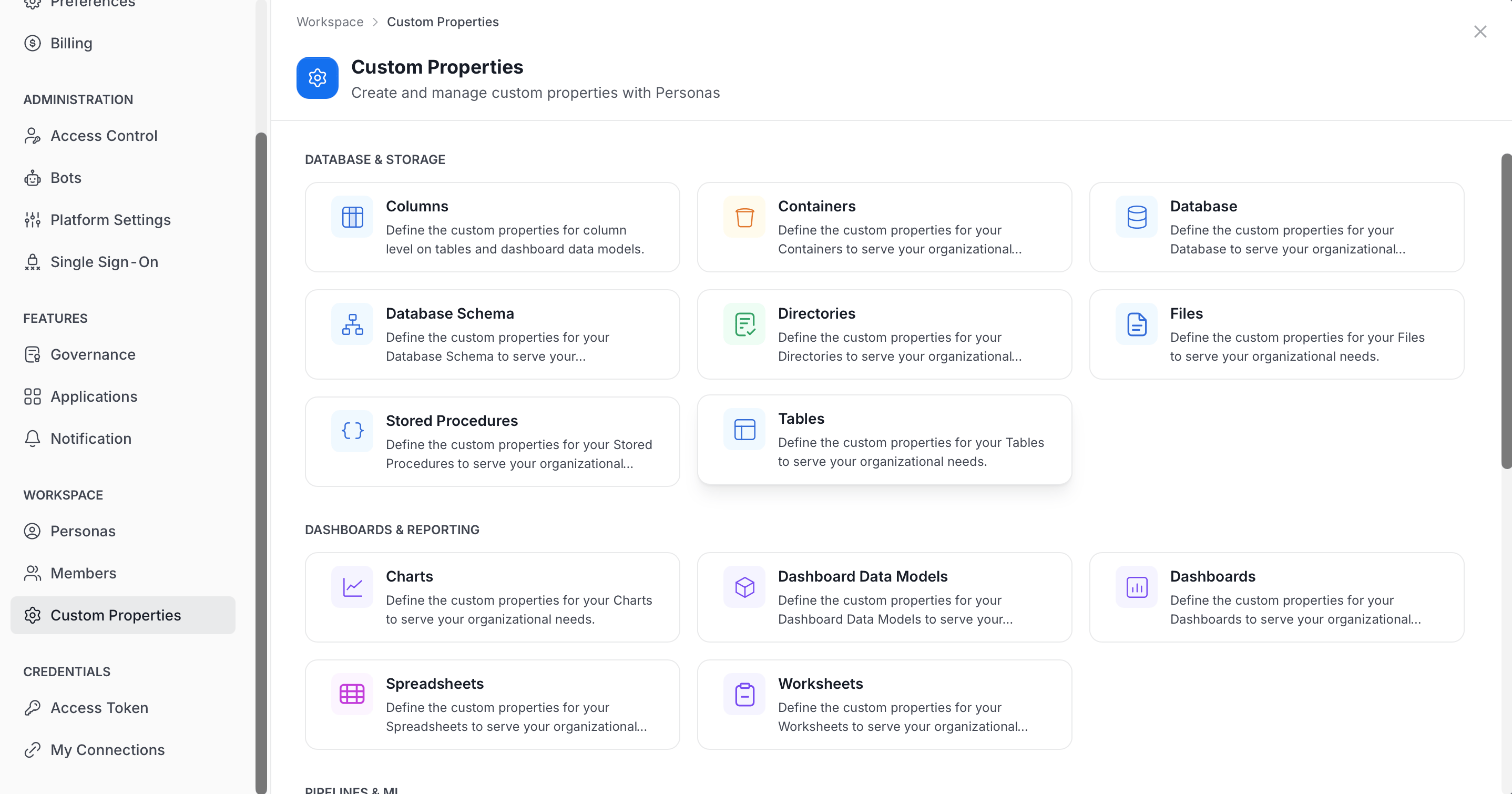
From your Profile page: Click your Profile icon and select your user name. Then, in the Workspace group, click Custom Properties.
-
From Settings: Click your Profile icon in the bottom-left navigation and select Settings. Then click Custom Properties.
-
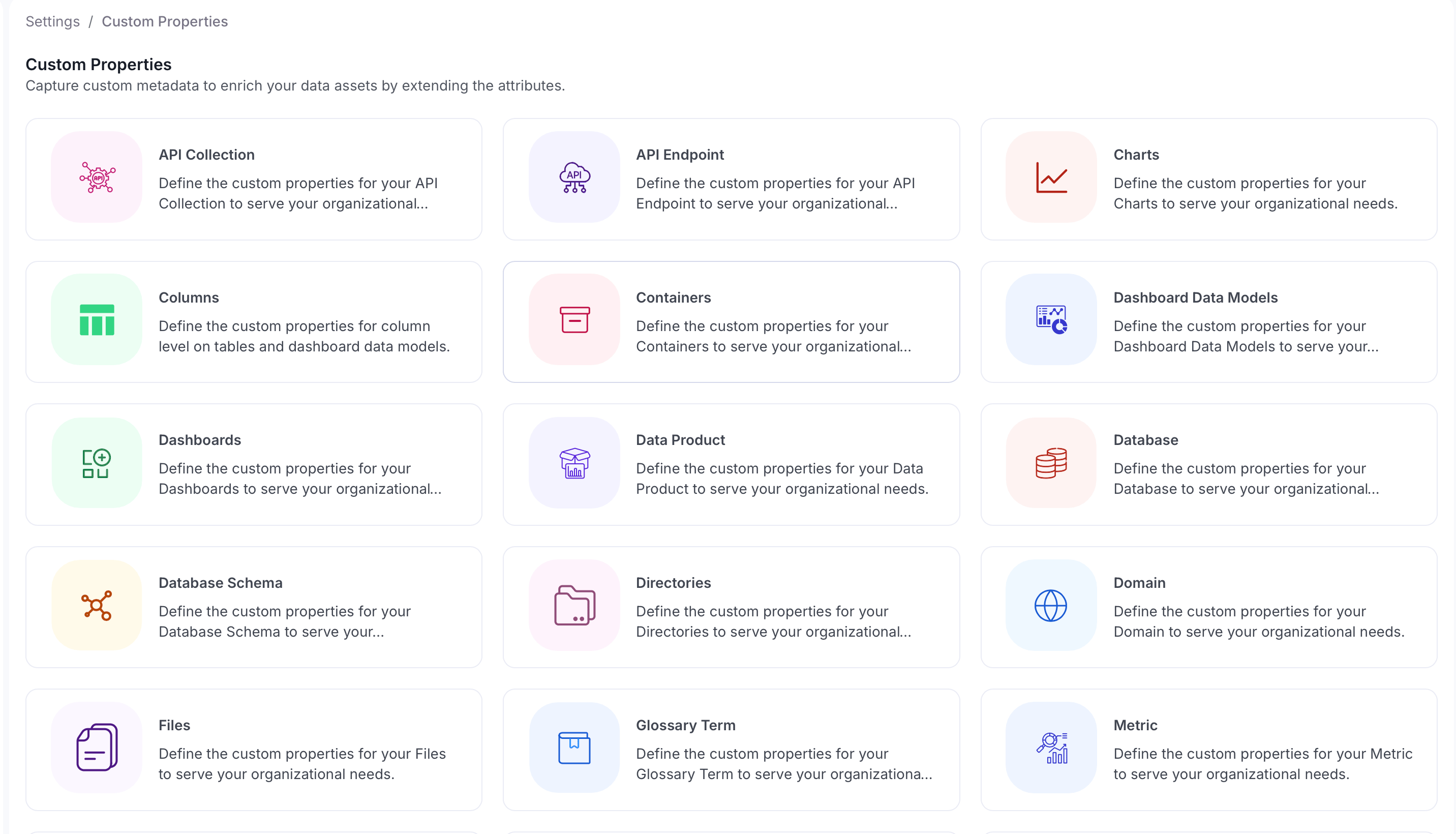
Choose the type of data asset you want to define a custom property for, such as Database, Table, Dashboard, and so on. From the Profile page, the asset types are grouped by category, such as Database & Storage and Dashboards & Reporting. The Teams and Users types are available only from Settings > Custom Properties, not from the Profile page.
-
On the asset type page, click Add Property.
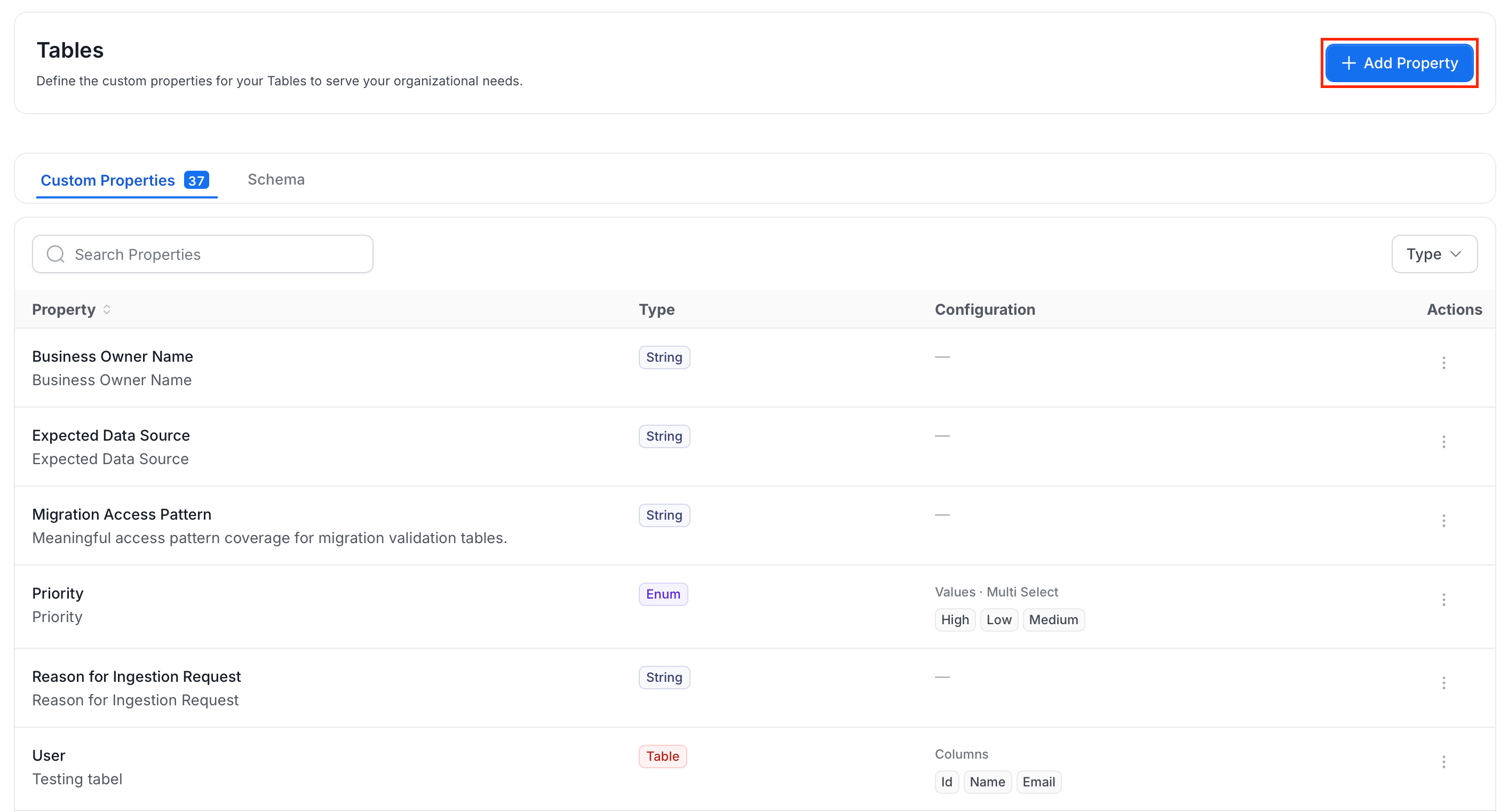
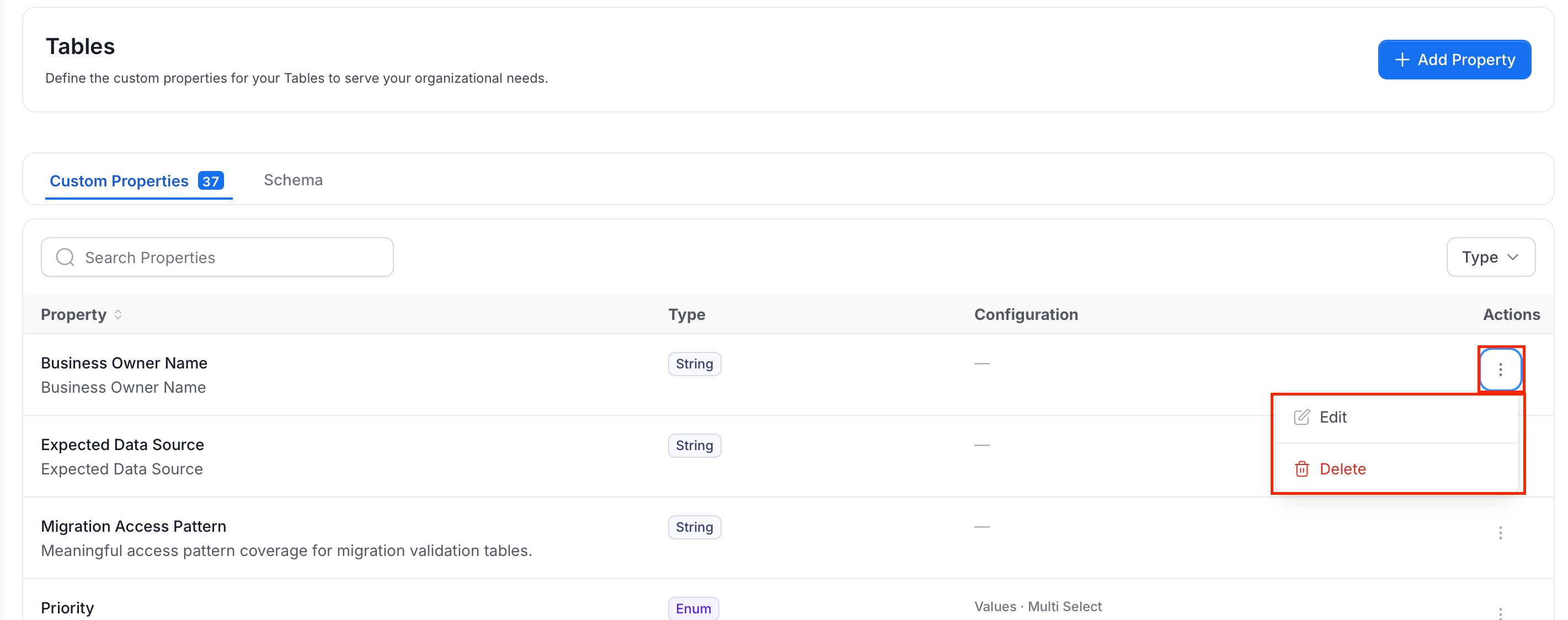
- Custom Properties: The properties defined for this asset type, with a count. Use Search Properties to find one, and the Type filter to narrow the list by property type. The table has these columns:
- Property: The property name and its description. Click the column heading to sort.
- Type: The property type, for example String, Enum, or Table.
- Configuration: The settings of the property. An Enum property shows its allowed values and whether it is Multi Select. A Table property shows its columns. Properties with no extra settings show a dash.
- Actions: The ⋮ menu with Edit and Delete. For more information, see Edit or Delete Custom Properties.
- Schema: The JSON schema of the asset type. Click the copy icon to copy it.
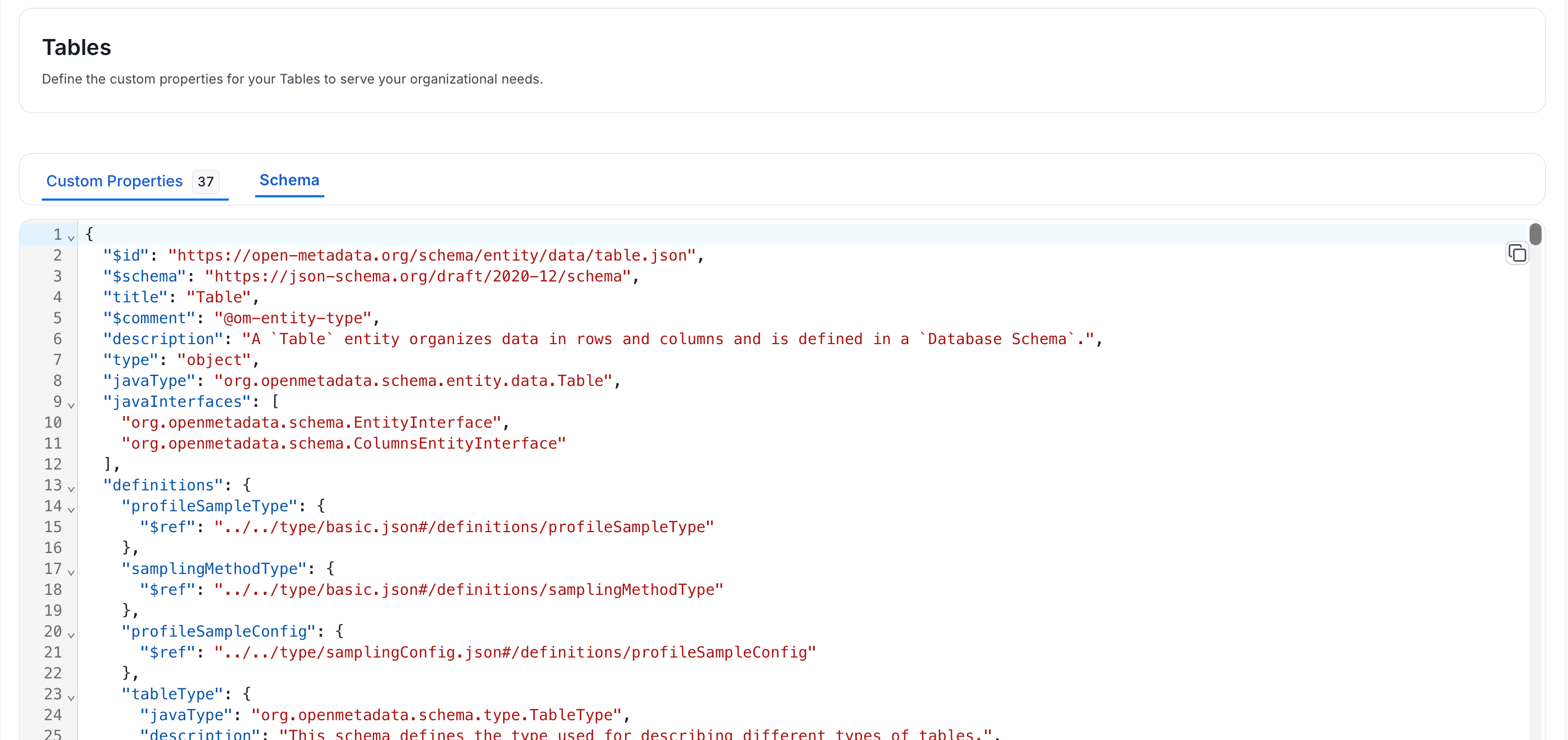
- Custom Properties: The properties defined for this asset type, with a count. Use Search Properties to find one, and the Type filter to narrow the list by property type. The table has these columns:
-
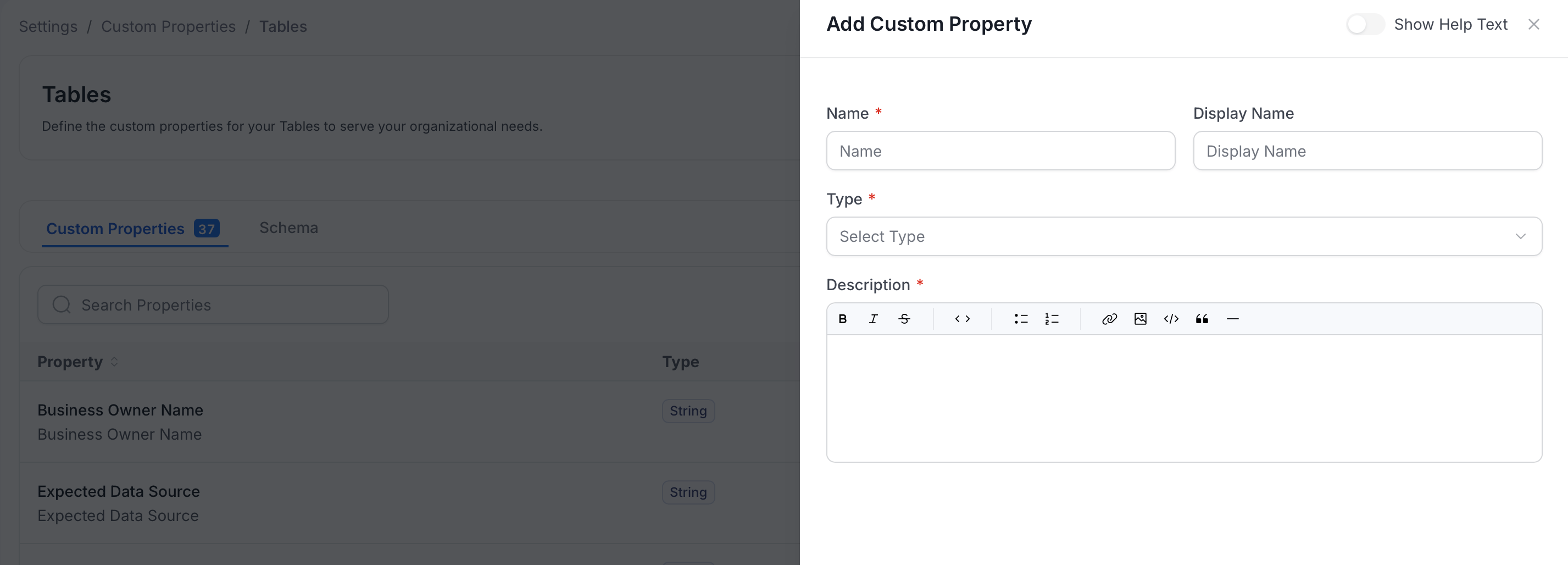
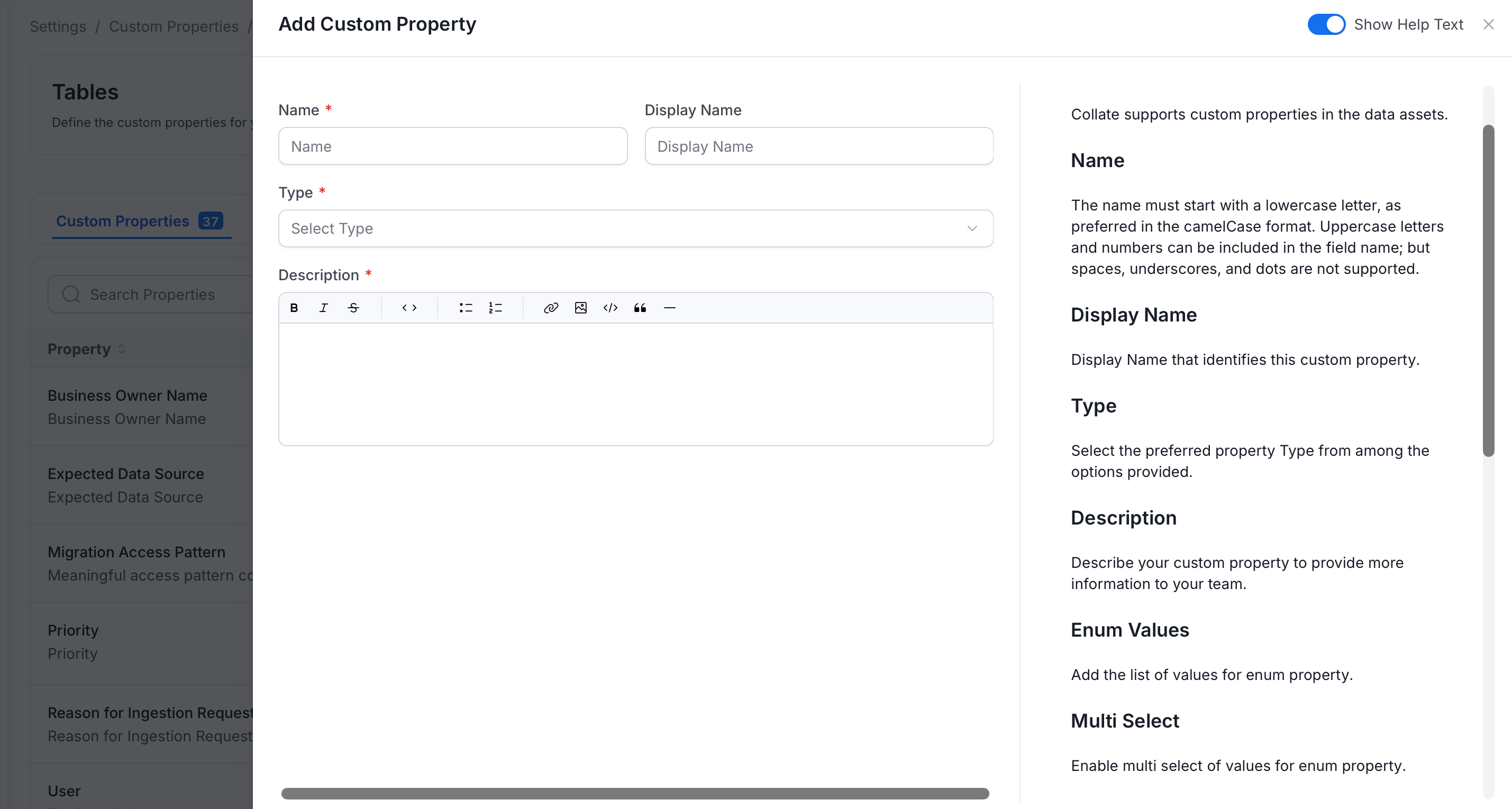
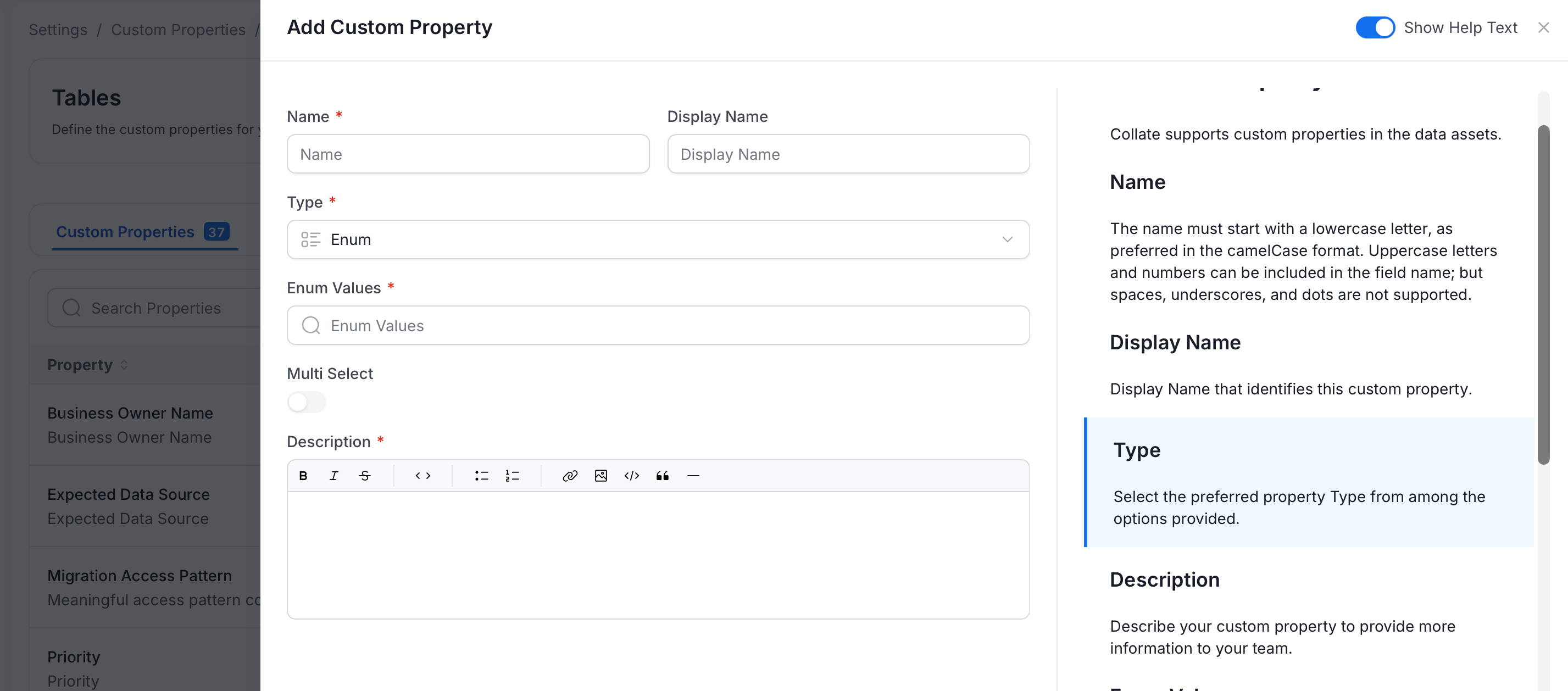
In the Add Custom Property panel or page, fill in the following fields:
- Name (required): Must start with a lowercase letter, preferably in camelCase format. Uppercase letters and numbers are allowed. Spaces, underscores, and dots aren’t.
- Display Name: A human-readable label shown on the data asset page.
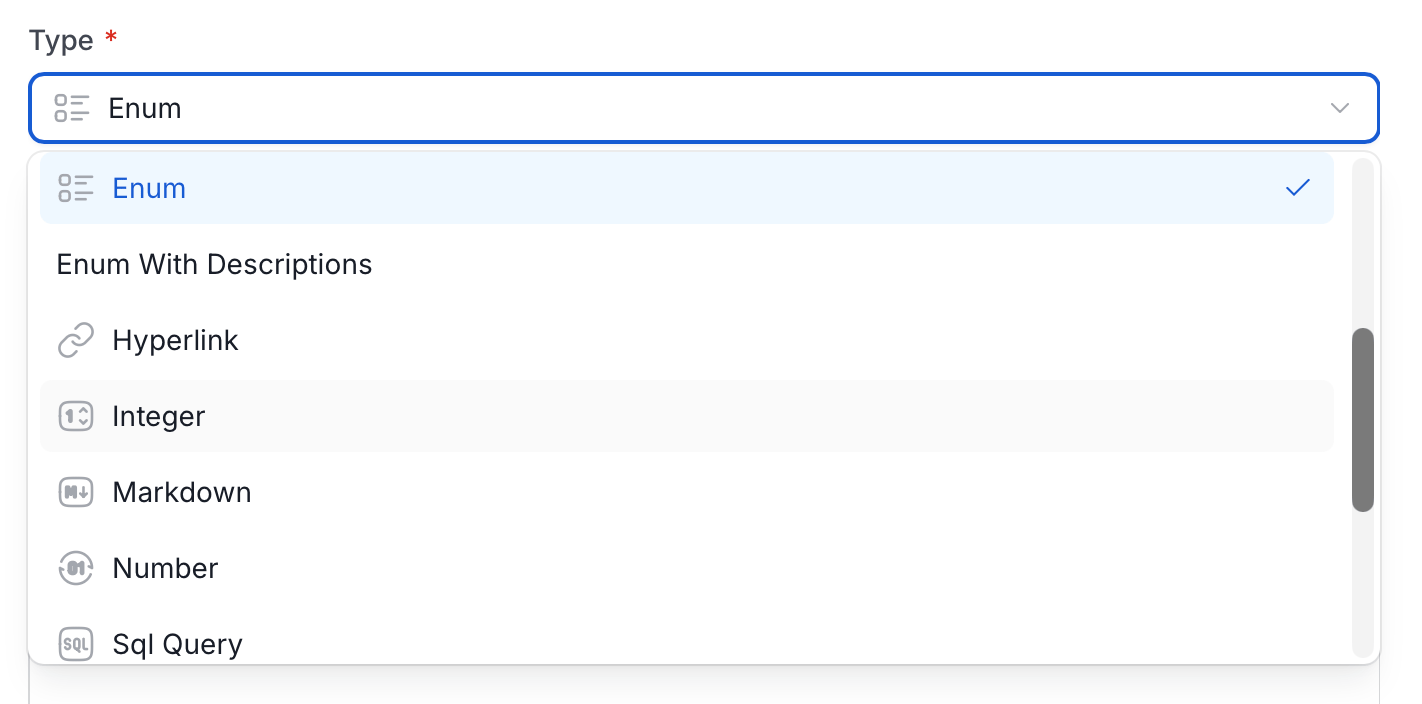
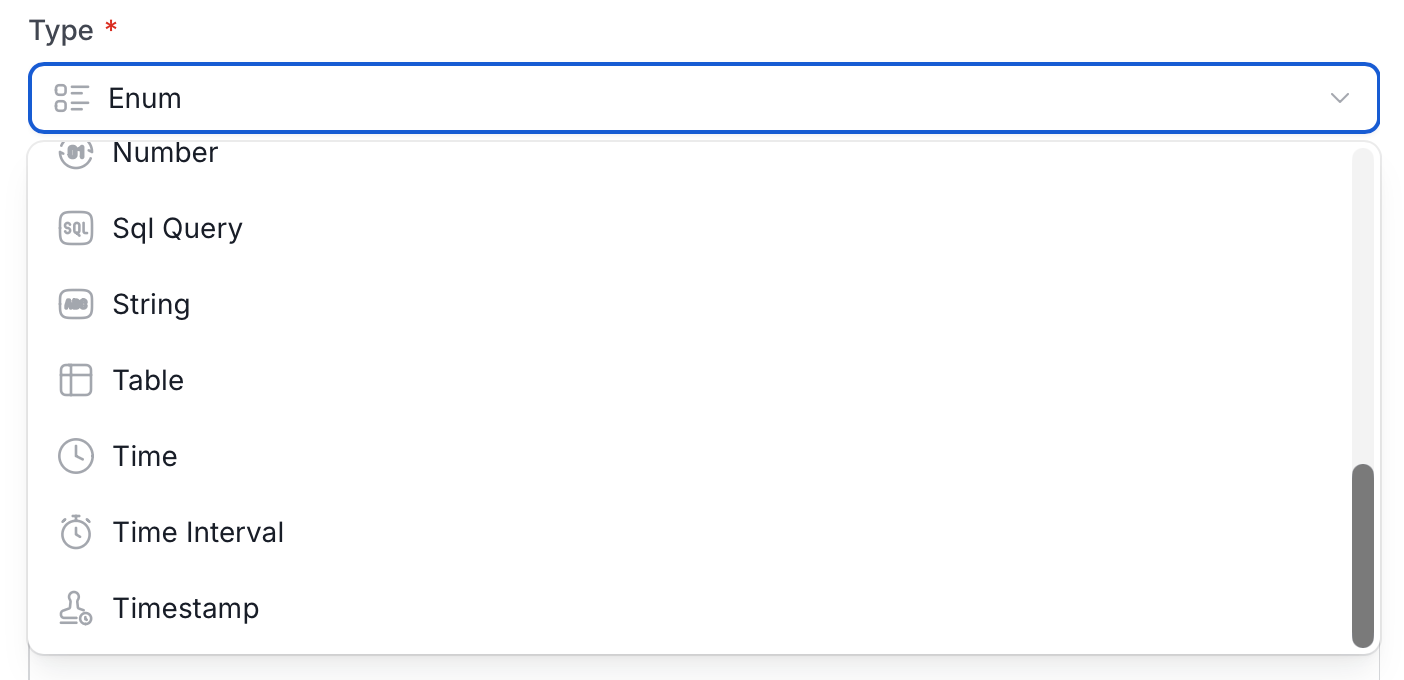
- Type (required): The data type for this property. Select it from the dropdown. For more information, see Supported Property Types.
- Description (required): Describe what this property captures to help your team understand its purpose. The field has a rich text editor.
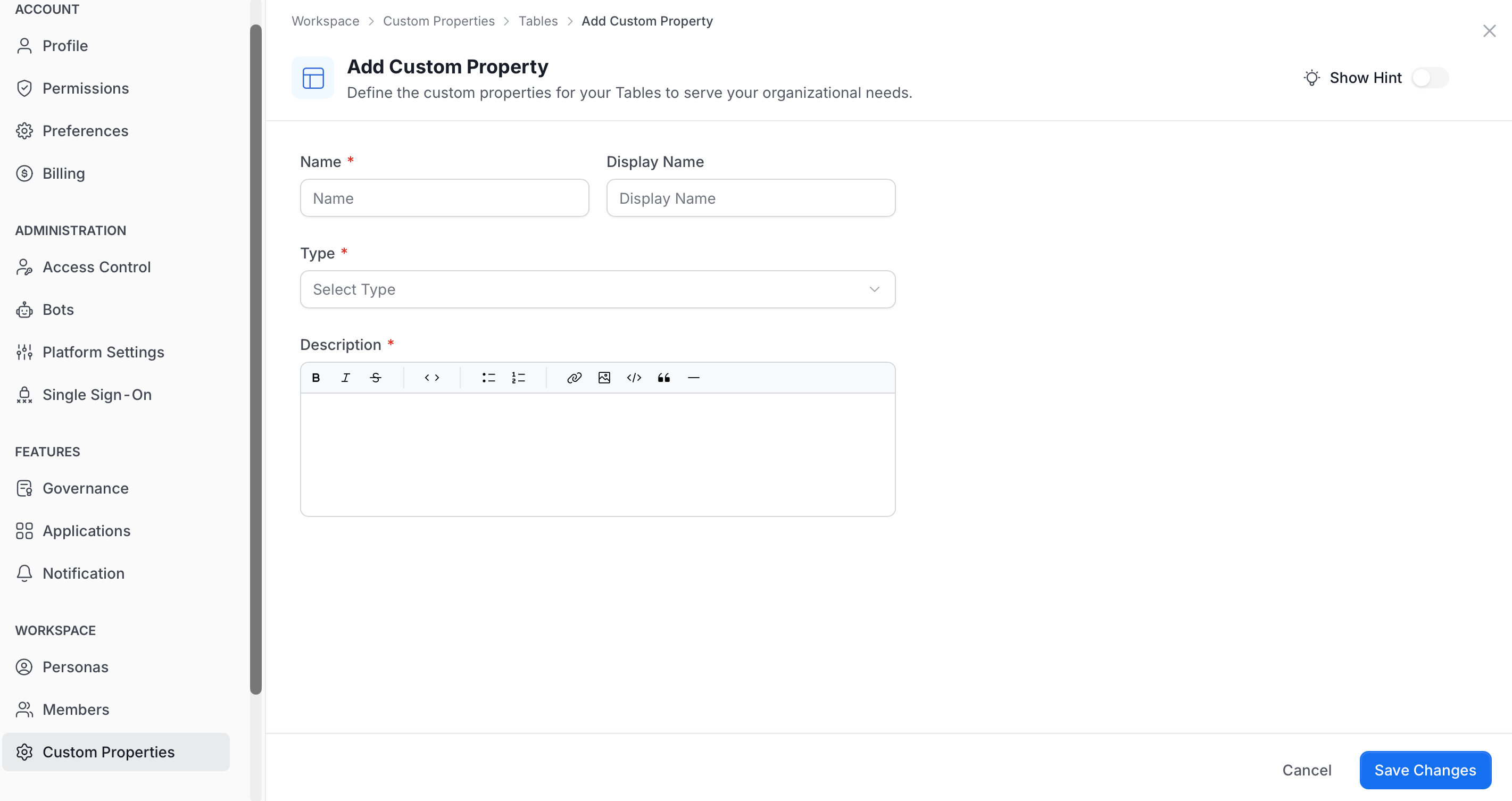
- Save the property. From Settings, click Create. From your Profile page, click Save Changes.
Supported Property Types
When adding a custom property, select one of the types from the Type dropdown. The dropdown is long, so these three images show it from top to bottom. The table after the images describes each type.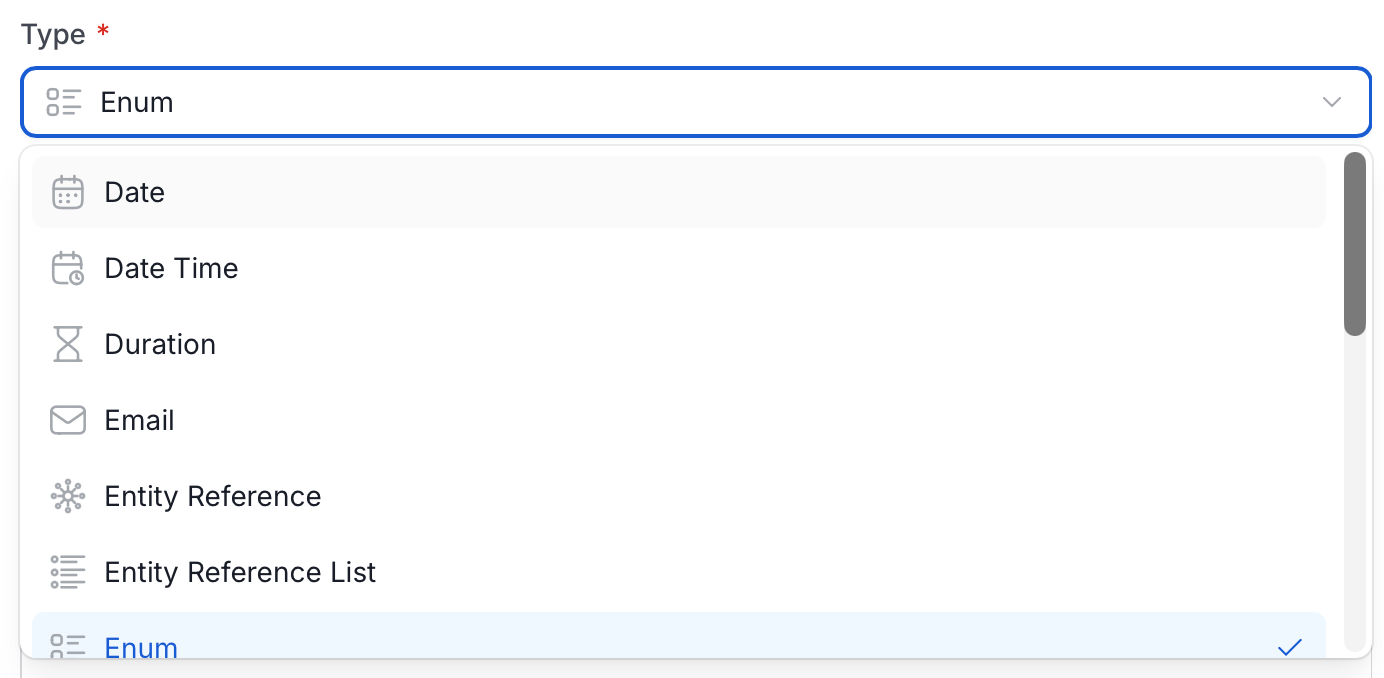
Enum Properties
When you select Enum as the Type, two more fields appear in the panel:- Enum Values (required): The values users can choose from.
- Multi Select: Turn on to let users choose more than one value. It is off by default.
Adding Values to Custom Properties
After a custom property is defined, you can set its value directly from the data asset detail page:-
Open any data asset and click the Custom Properties tab.
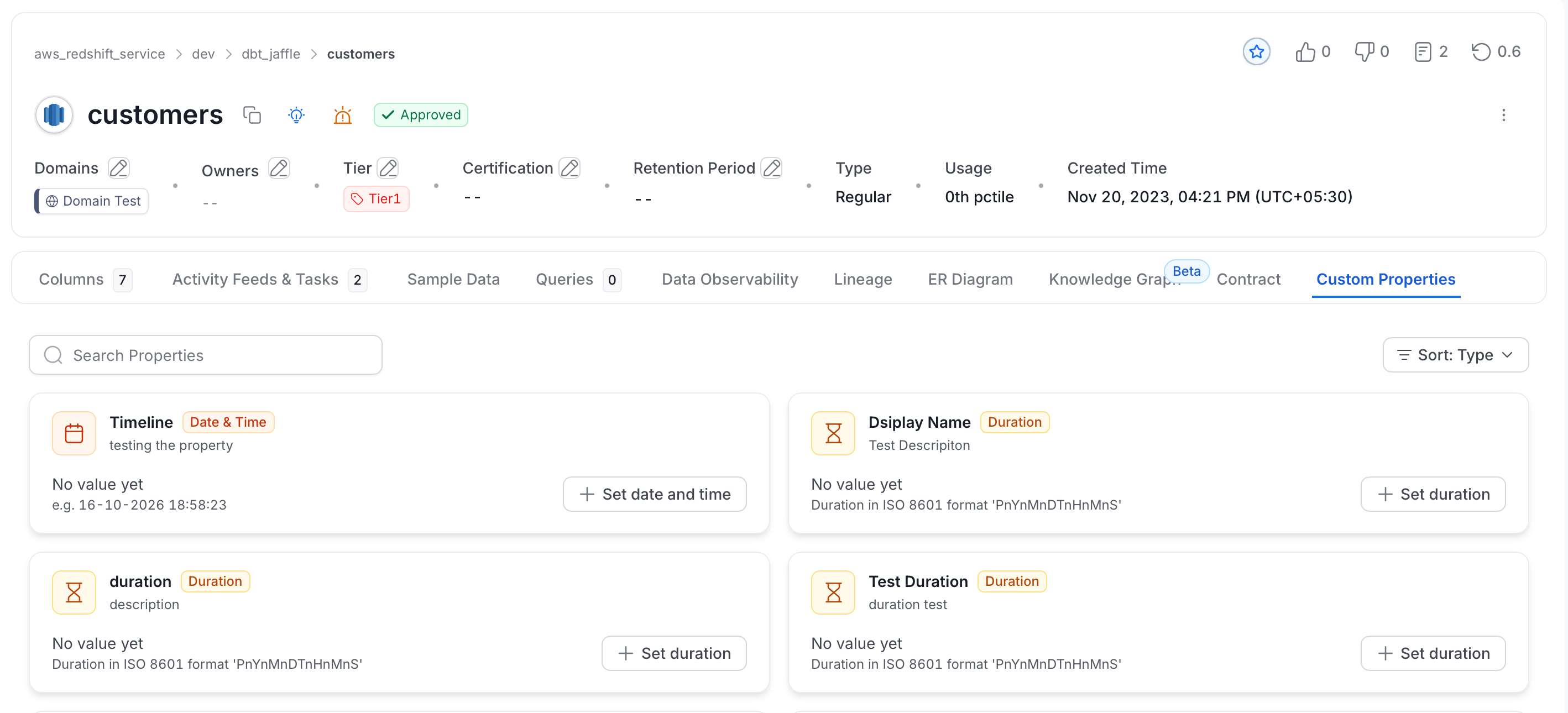
- Name and type: The property name with a badge for its type, for example Date & Time or Duration.
- Description: What the property captures.
- Value: The current value, or No value yet when none is set. A format hint shows the expected format, for example
16-10-2026 18:58:23for a date and time, or an ISO 8601 duration such asPnYnMnDTnHnMnS. - Set button: The action to add a value. Its label matches the type, for example Set date and time or Set duration.
- To find a property, enter its name in Search Properties. Use the Sort menu to change the order. The default is Sort: Type.
- Click the set button on the card of the property you want to update, enter the value, and save.
Custom Properties for Teams and Users
Custom properties aren’t limited to data assets. Define them for Teams and Users as well to capture details such as a cost center or an employee type.Define the Property
- Click your Profile icon in the bottom-left navigation and select Settings. Then click Custom Properties.
- Click the Teams or Users card.
- Click Add Property and fill in the fields as described in Creating a Custom Property.
The Teams and Users cards appear under Settings > Custom Properties only. The Custom Properties section on your Profile page doesn’t list them.
Set a Value on a Team
Open a team from either of these routes. Option 1: From your Profile page- Click the Profile icon and select your user name.
- In the Workspace group, click Members.
-
Select Teams and open the team.
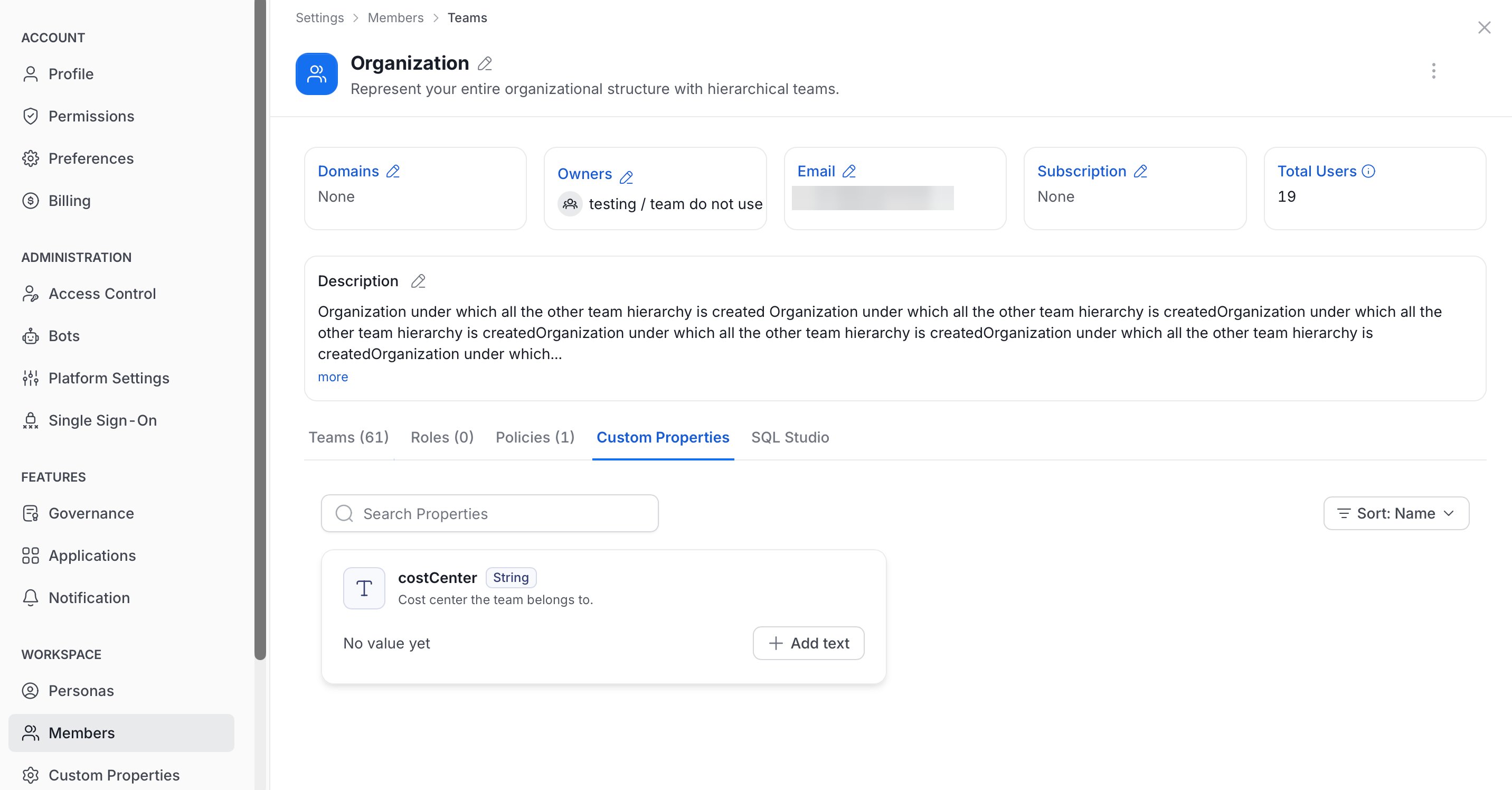
- Click the team’s Custom Properties tab.
-
Click the Profile icon and navigate to Settings > Team & User Management > Teams.
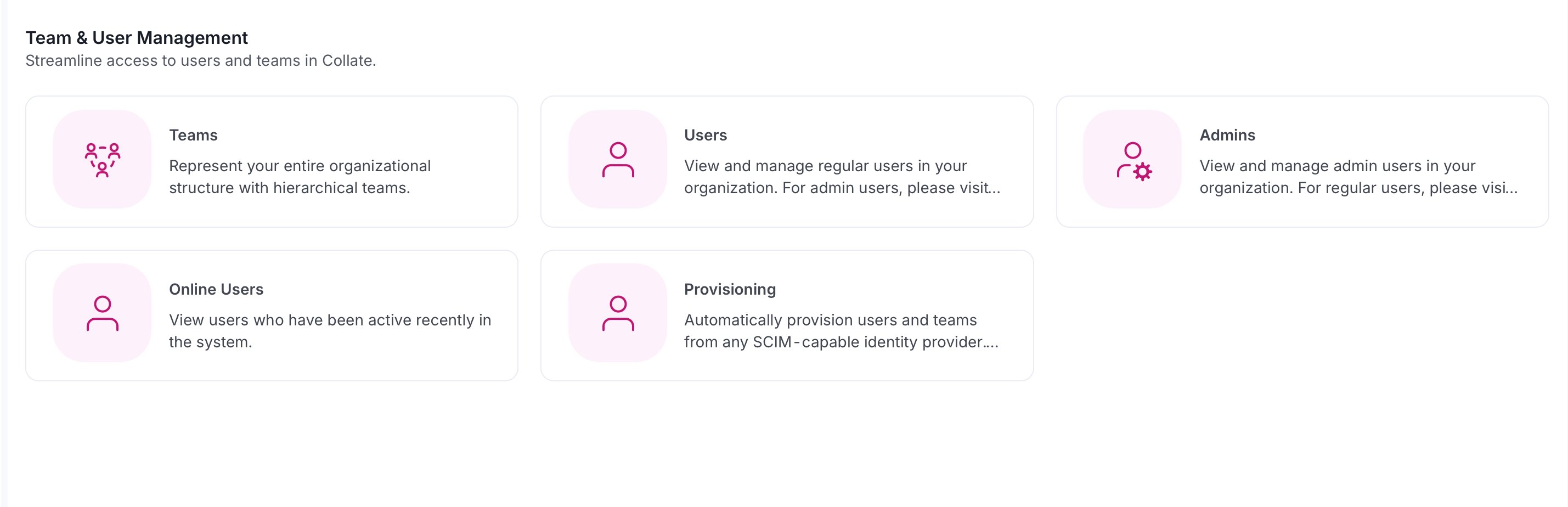
-
Click the team’s Custom Properties tab.
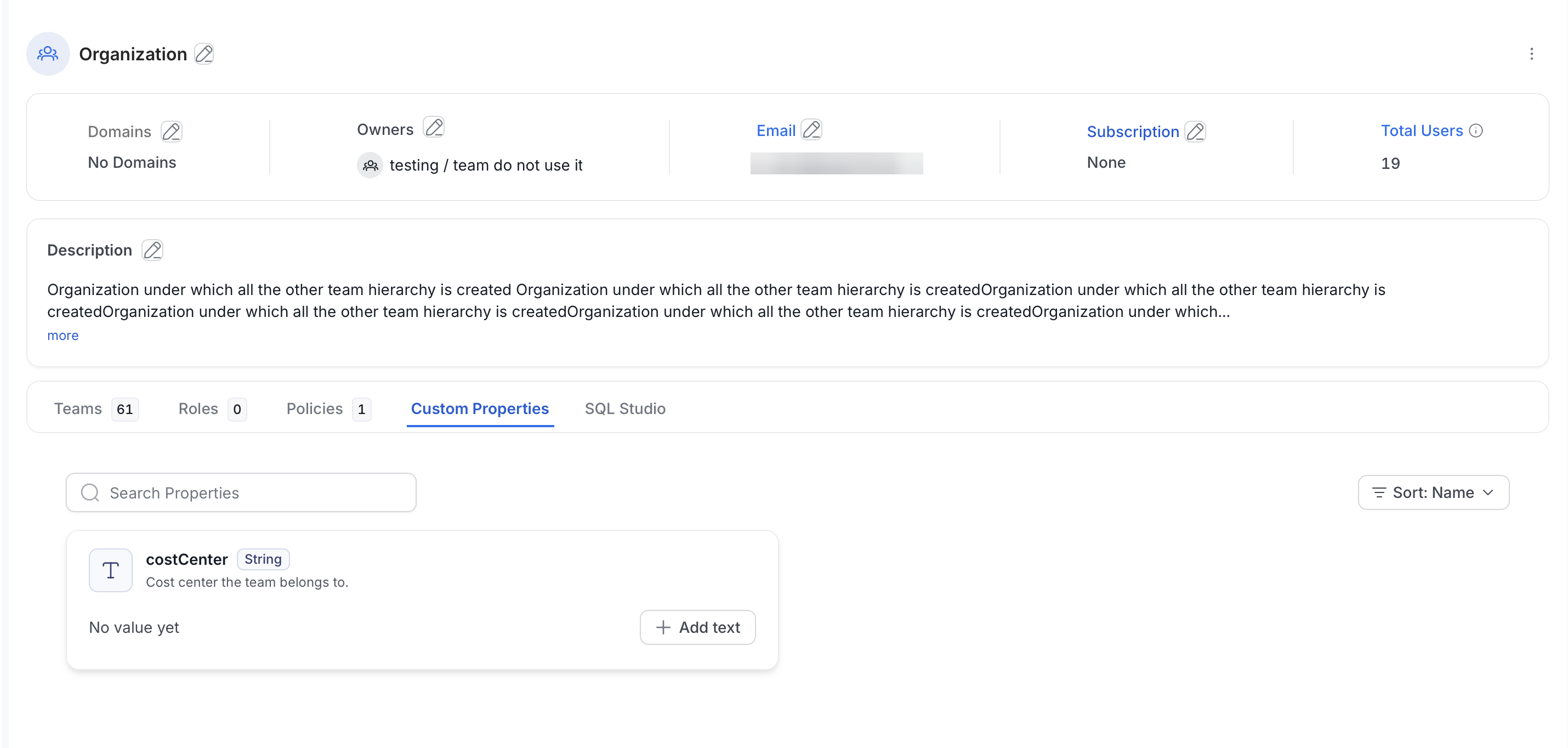
Set a Value on a User
- Click the Profile icon and navigate to Settings > Team & User Management > Users.
-
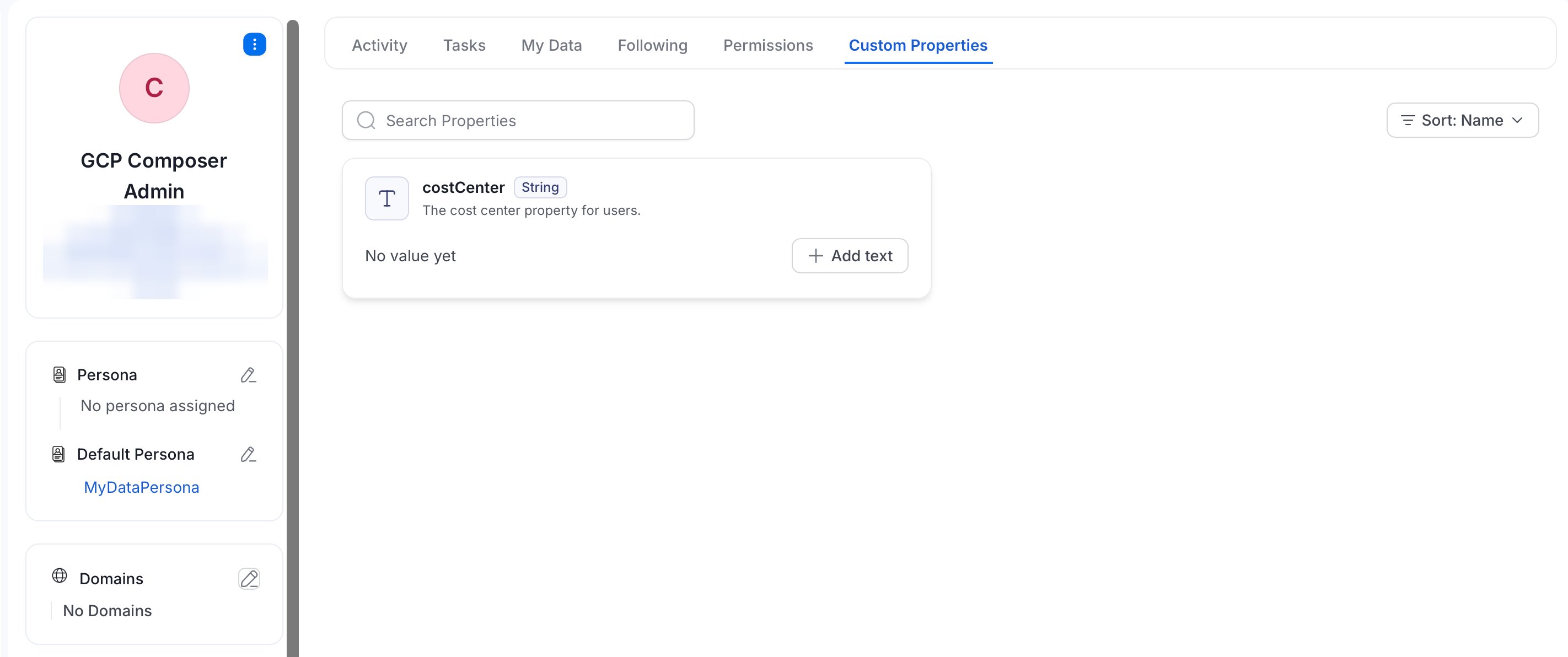
Click the Custom Properties tab.
-
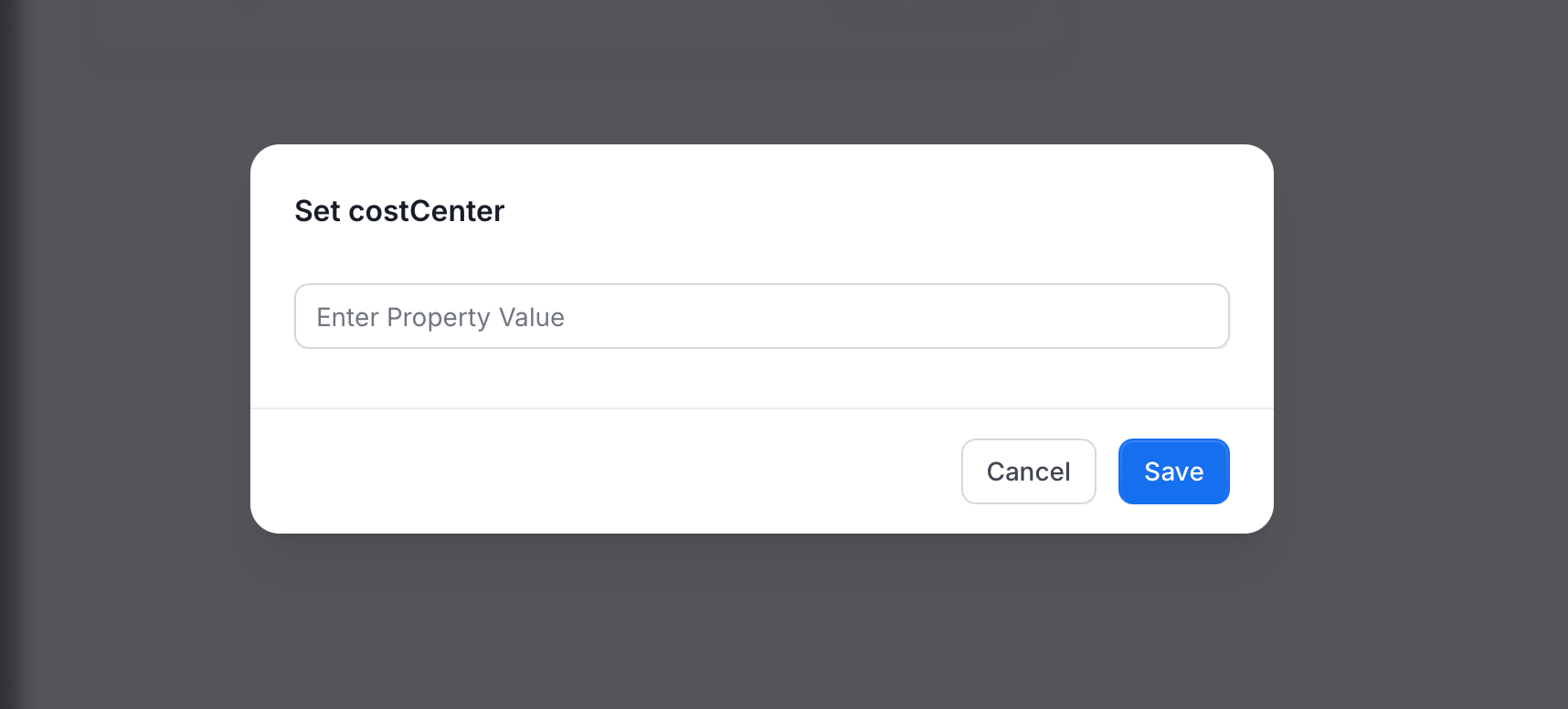
Find the property card and click its button to set a value, for example Add text for a String property.
A Set window opens with the property name in its title, for example Set costCenter. Enter the value in Enter Property Value and click Save. Click Cancel to close the window without saving.
Edit or Delete Custom Properties
To edit or delete a custom property definition:- Open Custom Properties from Settings or from your Profile page, as described in Creating a Custom Property.
- Select an asset type.
-
In the Actions column of the property, click the ⋮ icon and select an option:
- Edit: Open the Edit Property window.
- Delete: Permanently remove the property and all its values.
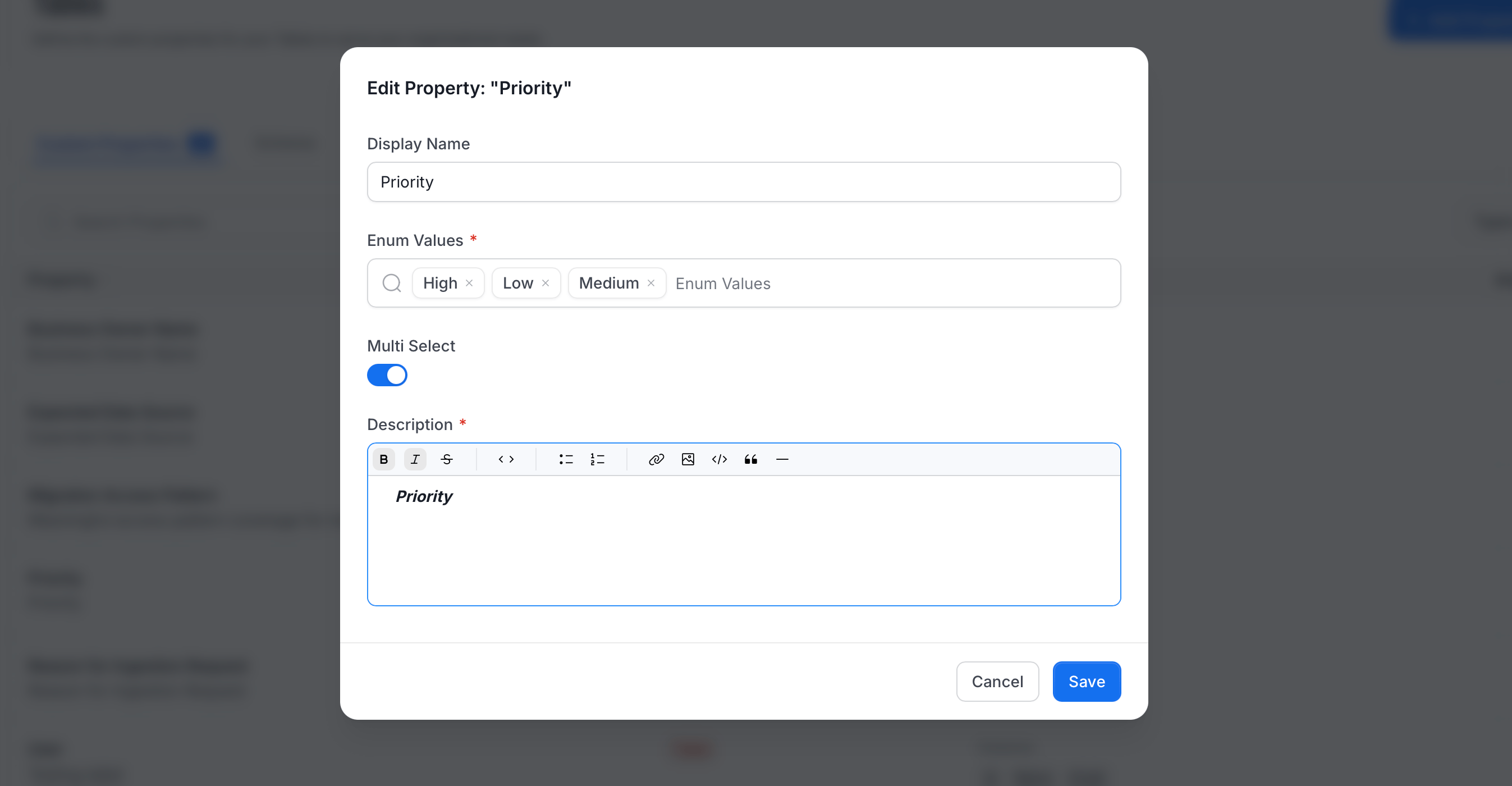
Edit a Property
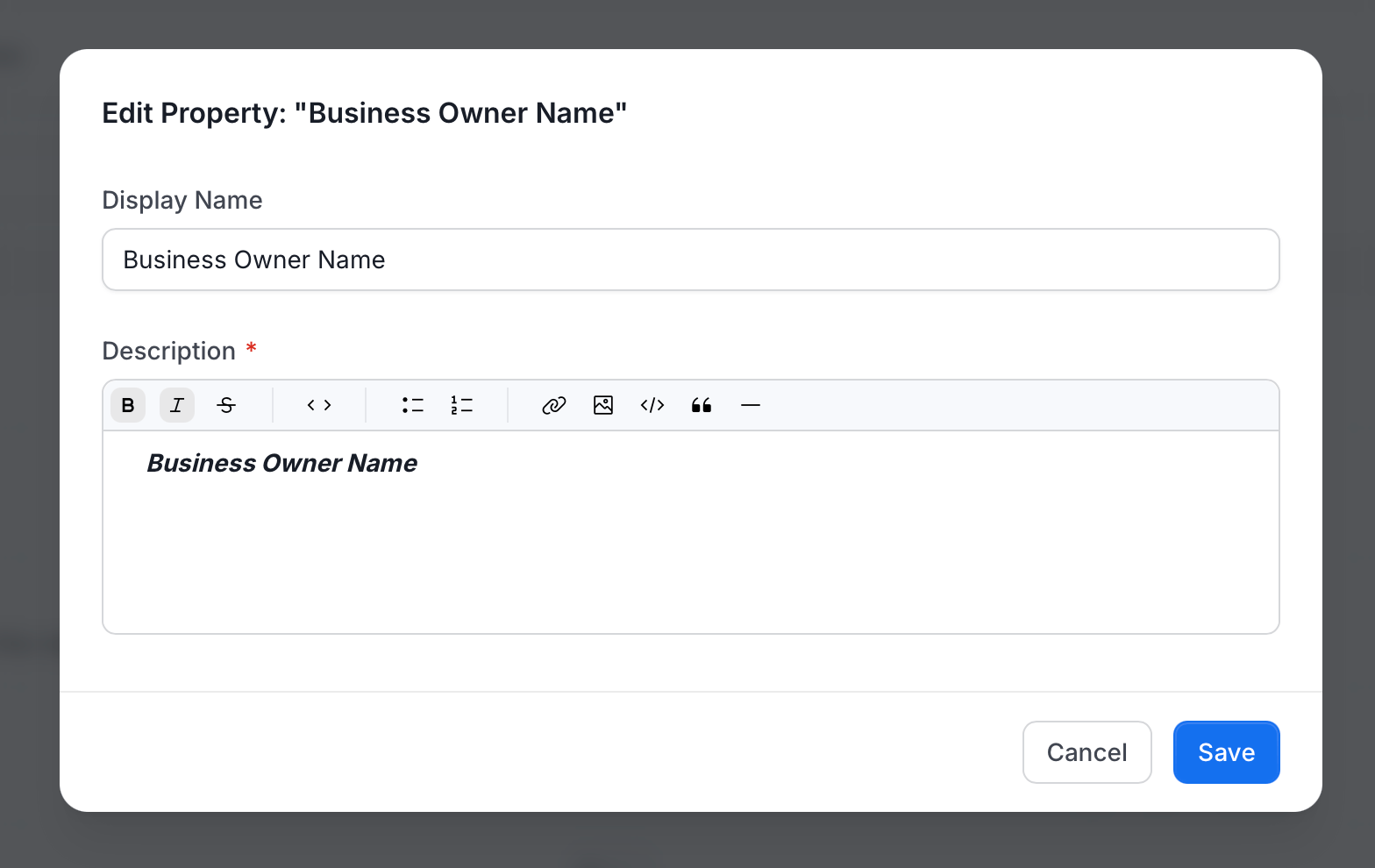
The Edit Property window shows the property name in its title. Change the following:- Display Name: The label shown on the data asset page.
- Description (required): What the property captures.
- Enum Values (required): The values users can choose from. Click the x on a value to remove it, or type to add one.
- Multi Select: Turn on to let users choose more than one value.
Delete a Property
Select Delete from the ⋮ menu. A confirmation window asks whether you are sure you want to delete the property. Click Confirm to delete it, or Cancel to keep it.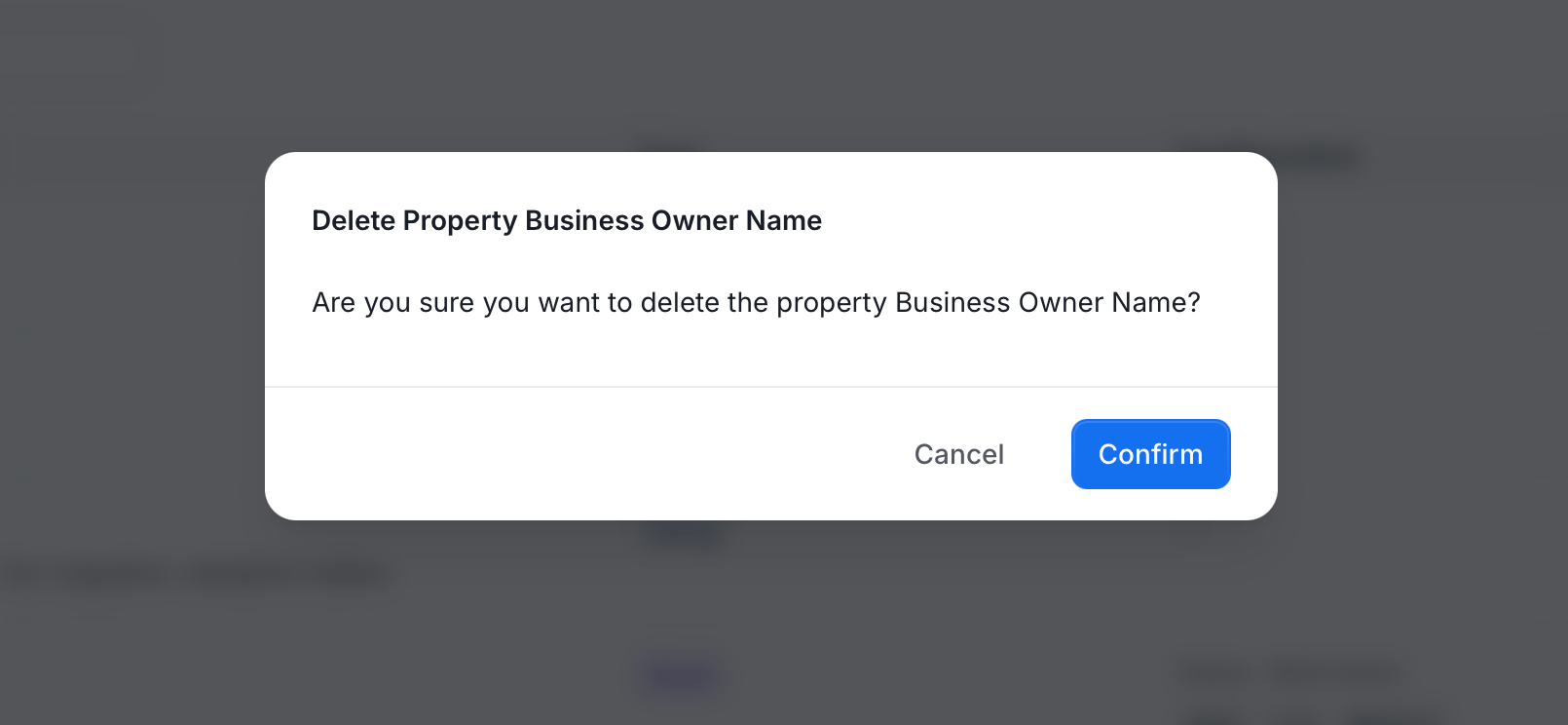
Overview of Announcements
Learn more about the announcements in Collate