
Add Glossary Terms
- On the Explore Assets page, select the data asset in which you want to add glossary terms.
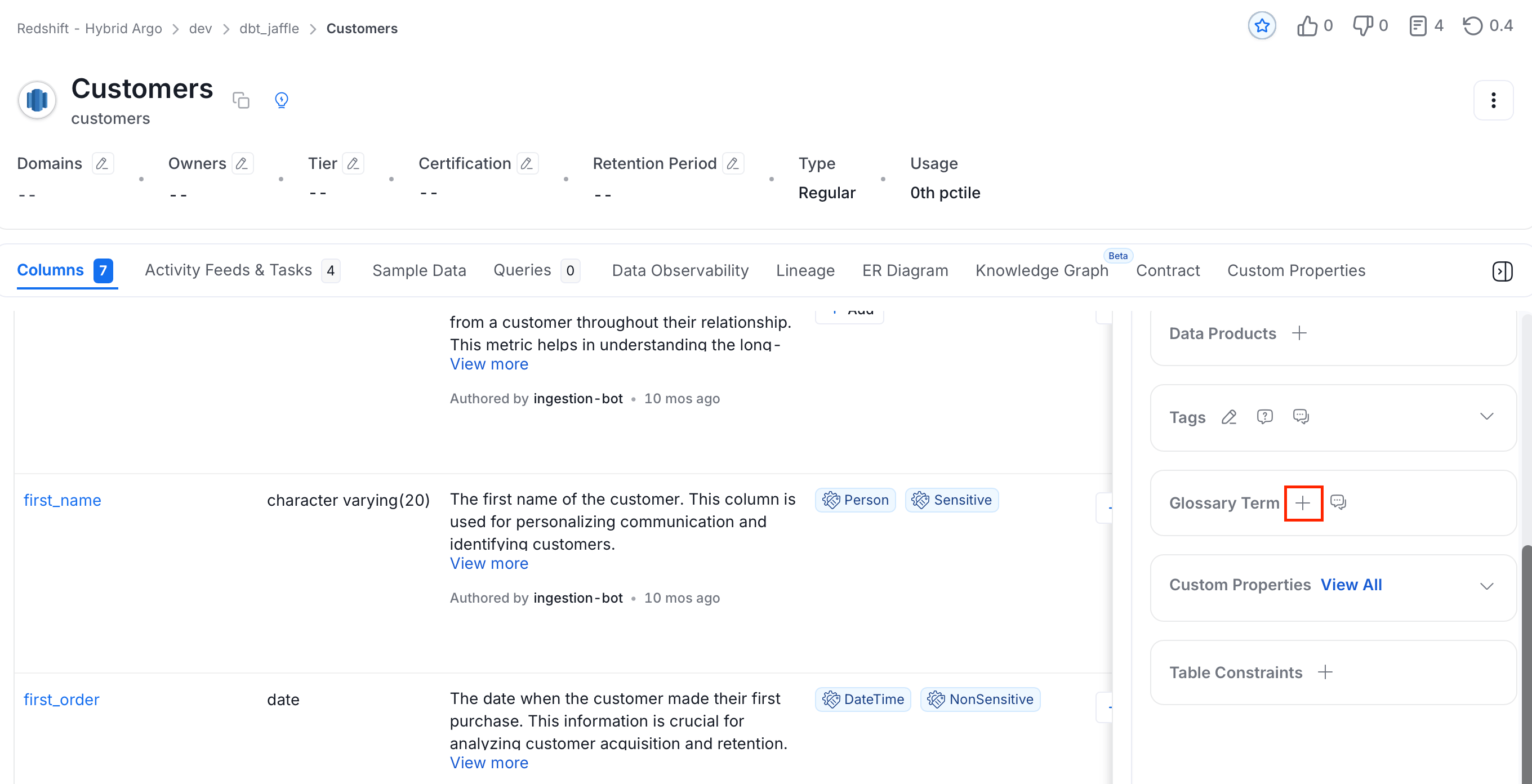
- Click the Edit or + icon next to Glossary Term.
- Search and select the relevant glossary terms. You can either type and search, or scroll to select from the options provided.
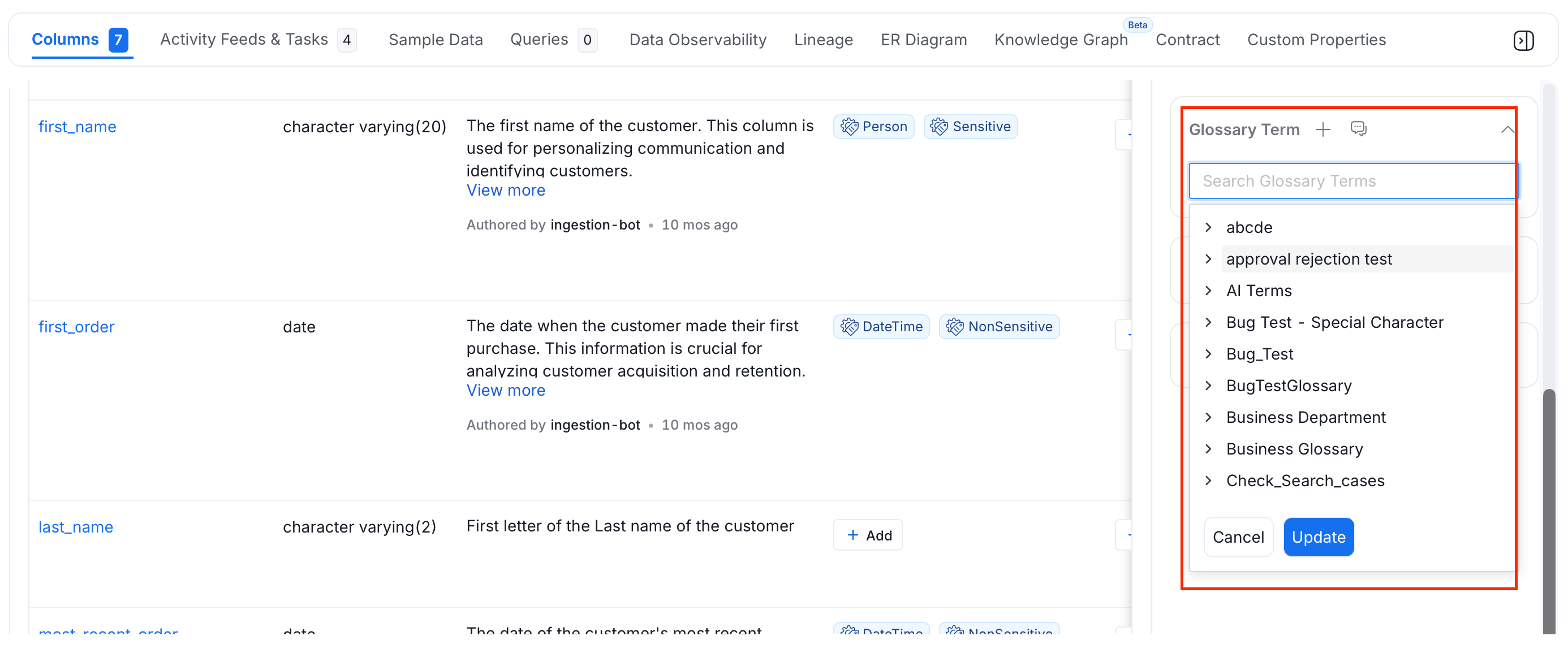
- Click Update to add the glossary terms.
Glossary Terms and Tags
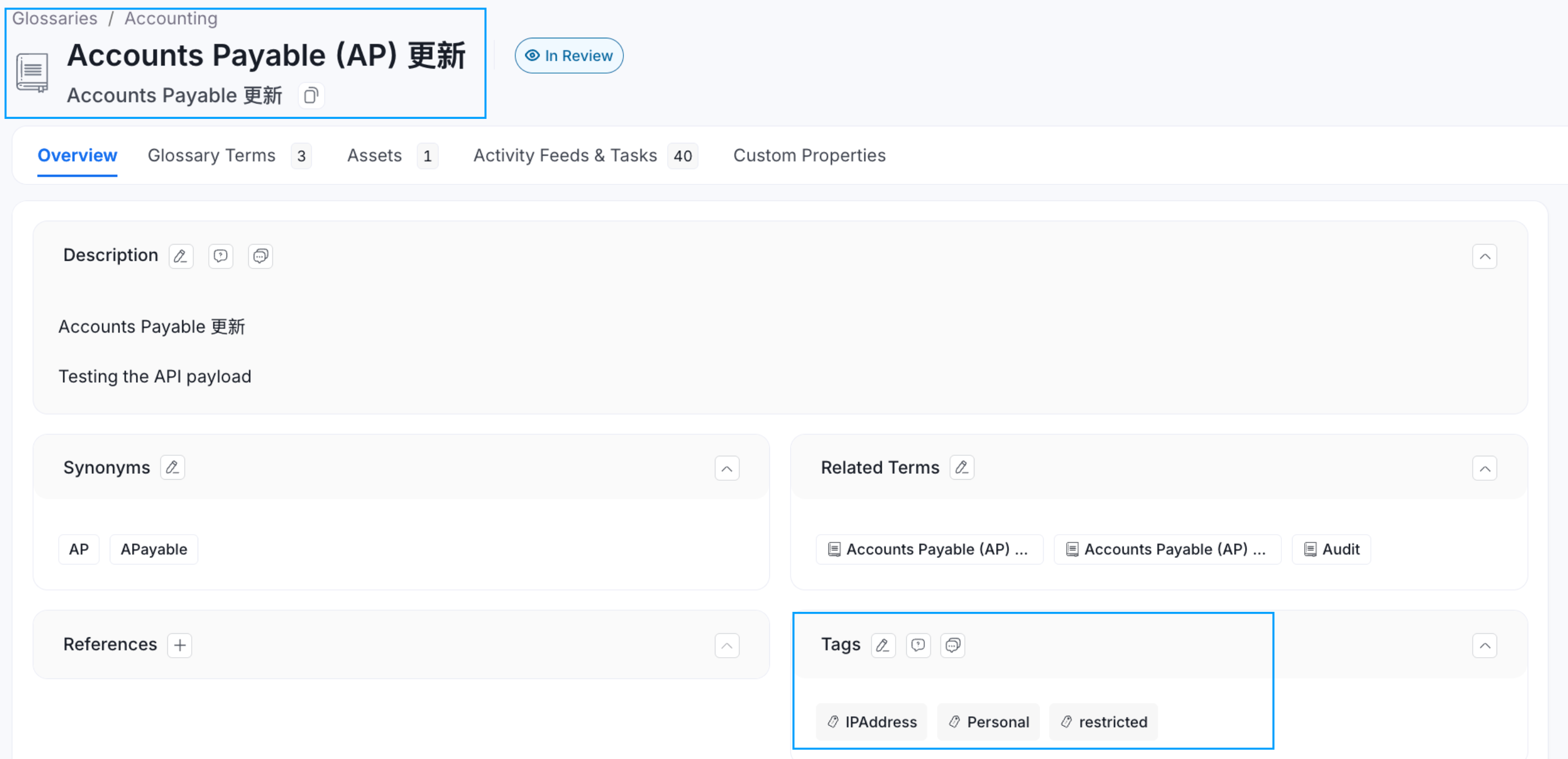
If Tags are associated with a Glossary Term, then applying that glossary term to a data asset, will also automatically apply the associated tags to that data asset. For example, the glossary term ‘Account’ has a PII.Sensitive tag associated with it. When you add a glossary term to a data asset, the associated tags also get added.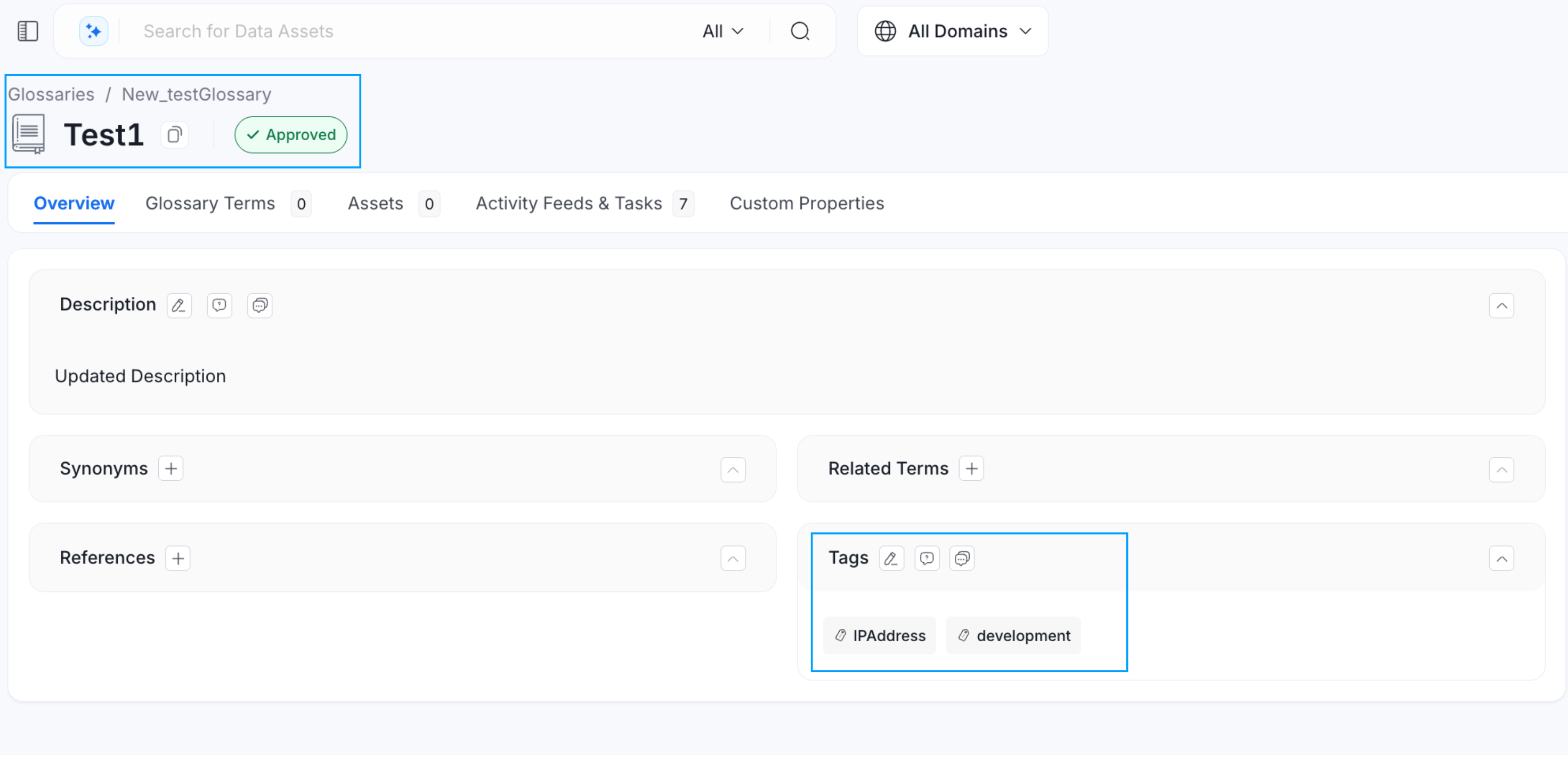
How to Create a Custom Property for a Data Asset
Learn how to create custom attributes for data assets