Credit Usage Alerts
The Credit usage alerts page lets administrators get notified before AI credits run out or when usage looks abnormal. You choose the rules to watch and where to send each notification. Only administrators can open this page.Open the Credit Usage Alerts Page
- Click the Profile icon and select Settings.
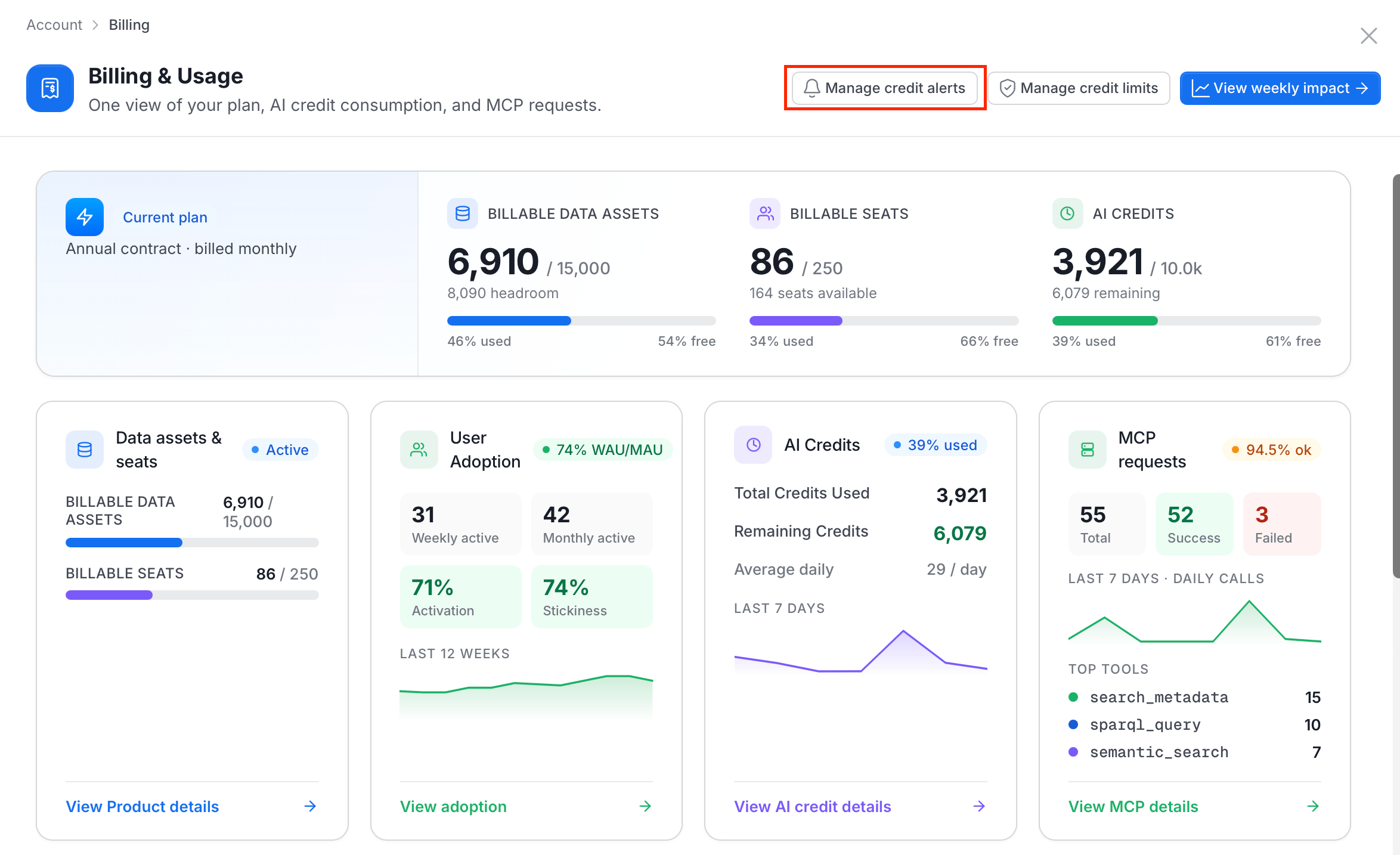
- Under Account, select Billing. The Billing & Usage overview opens.
-
Click Manage credit alerts at the top right.
- On the AI Credits card, click View AI credit details.
-
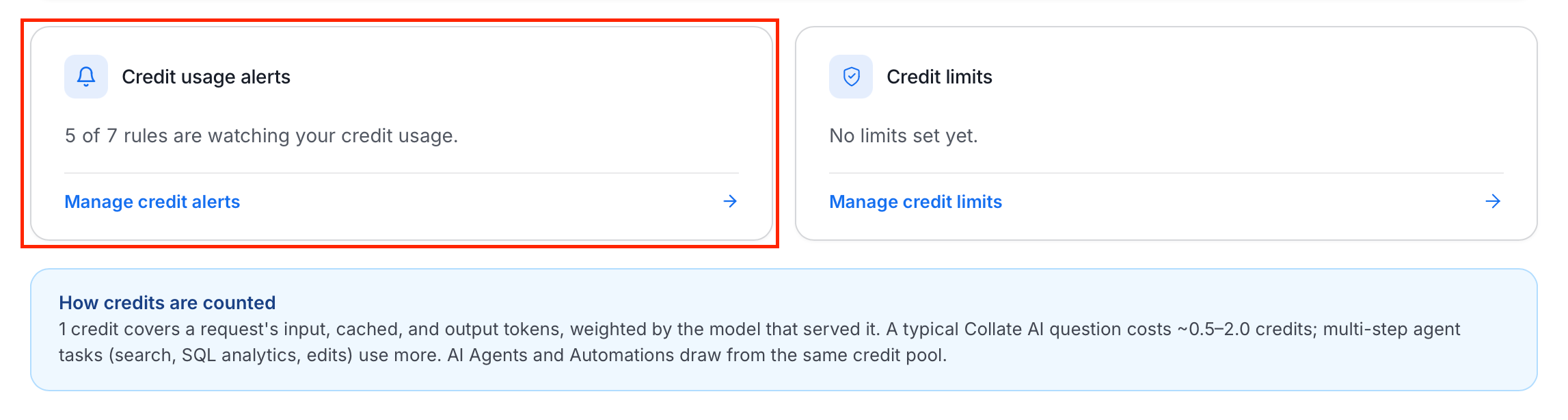
Scroll down and on the Credit usage alerts card, click Manage credit alerts.
How Alerts Work
- Collate checks the rules every 15 minutes.
- Each threshold notifies once, when it is crossed. A rule doesn’t repeat while usage stays above the threshold. A daily threshold can notify again on a later day when that day’s usage crosses it.
- All rules go to the same destinations.
- Each notification names the time of the check. Slack shows it in the reader’s own time zone. Email shows it in UTC, because one email body goes to every recipient.
Rules
On the Credit usage alerts page you can define rules that watch your credit usage. Each rule type can be added once. Until you save an alert, the page starts with only the Pool consumed rule. Each rule you add starts at the value in the Starting value column, and you can change it. Click Add alert to choose between the rule types that aren’t on the page yet. A type that is already added doesn’t appear in the list. In the example below, only Daily spend, per agent and Daily spend, per user are left to add.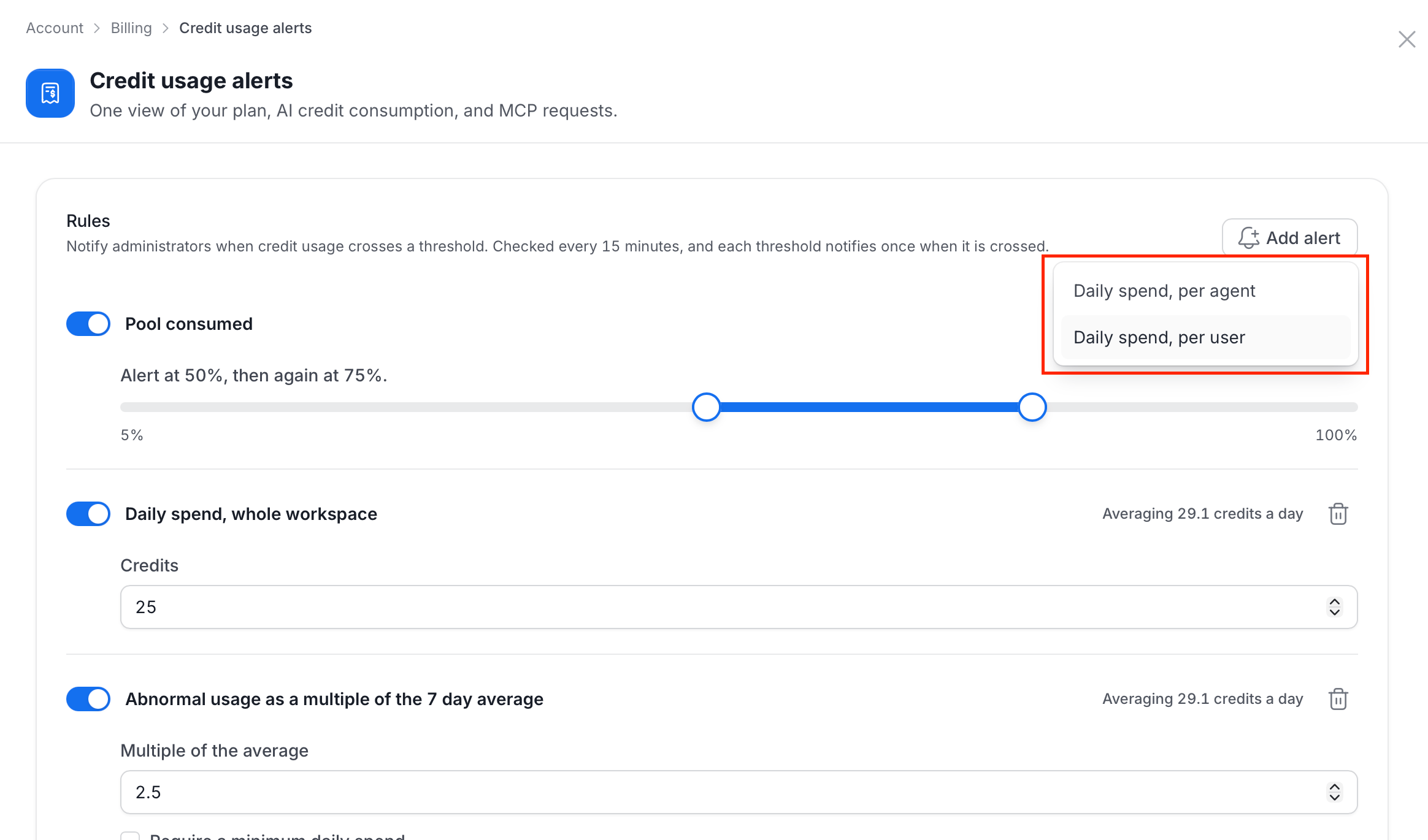
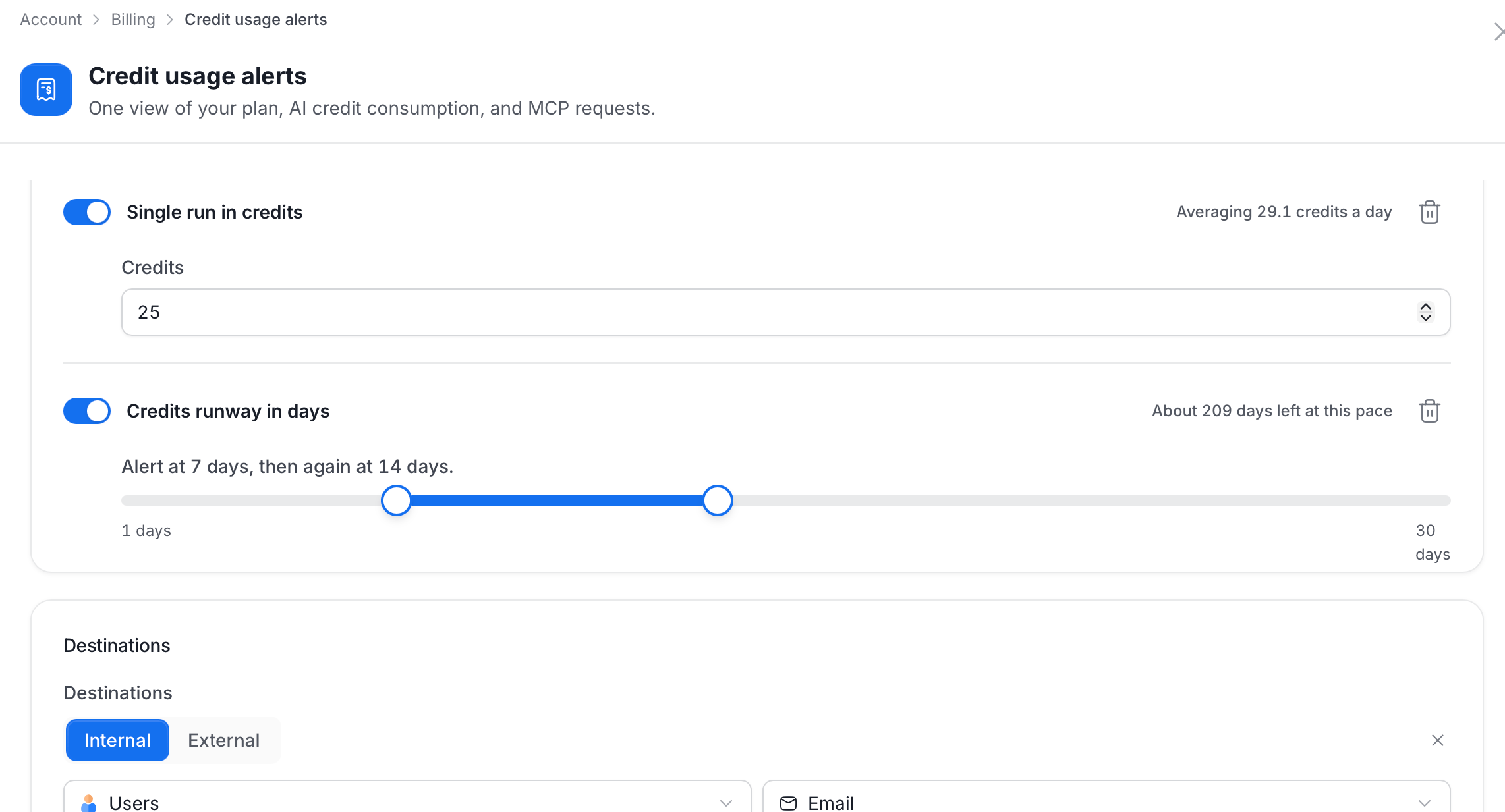
- Daily rules measure the current UTC day.
- Runway and abnormal usage compare against the average of the last seven complete UTC days. The pool and runway rules need a purchased credit pool.
- Abnormal usage stays quiet until at least three of those seven days had spend. It also requires the day to reach a minimum spend. If you leave Require a minimum daily spend off, Collate uses the larger of 50 credits or 0.5% of your pool.
- When a threshold is crossed by several agents or users in the same check, the notification lists each of them.
Destinations
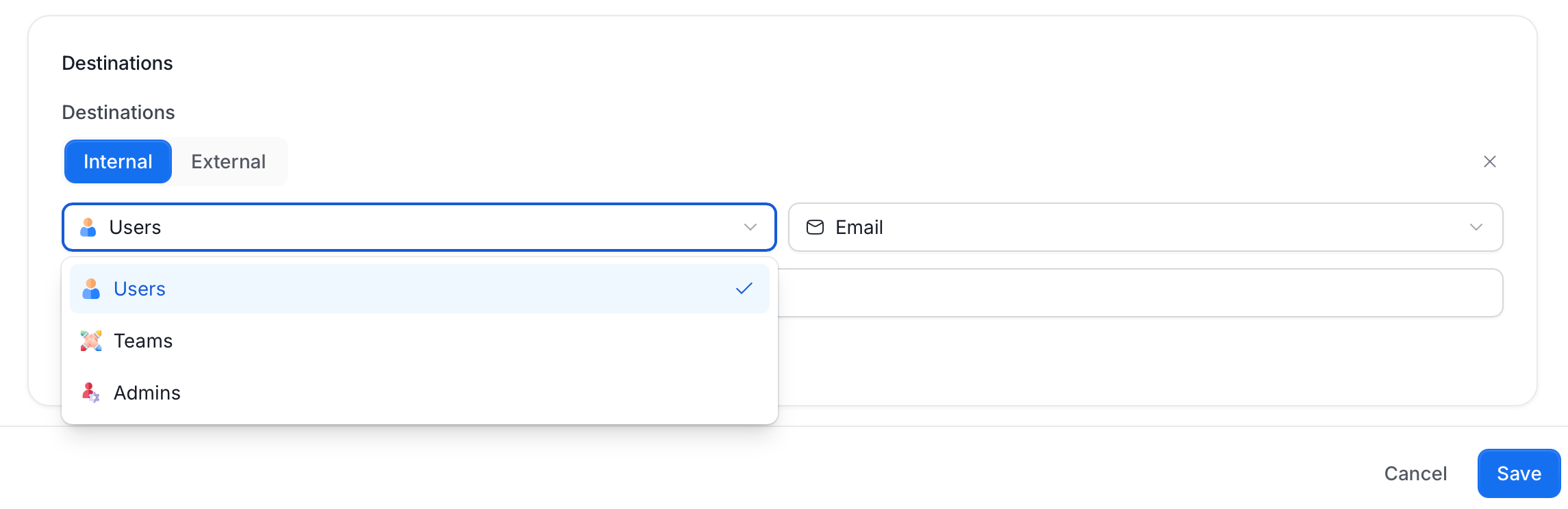
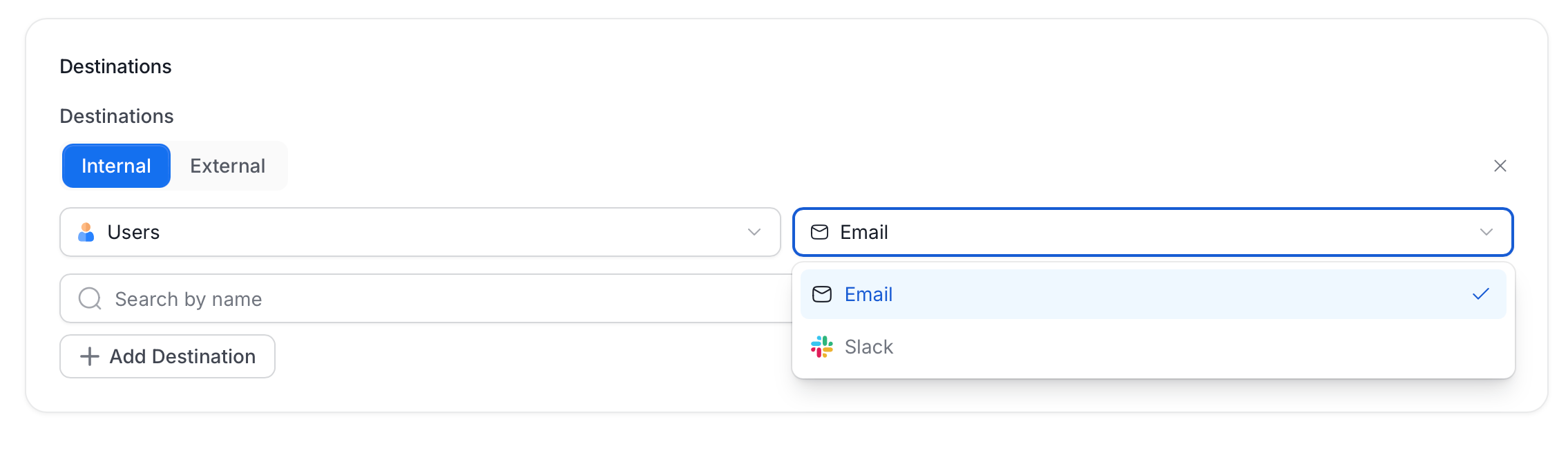
Under Destinations, choose who receives the notification. Select Add destination to add more rows. Each row has these settings:- Internal destinations are people in your workspace. They receive the alert by Email, and the Slack option isn’t available for them:
- Admins: Every administrator. This is the default for the first row.
- Users: Specific users.
- Teams: Specific teams.
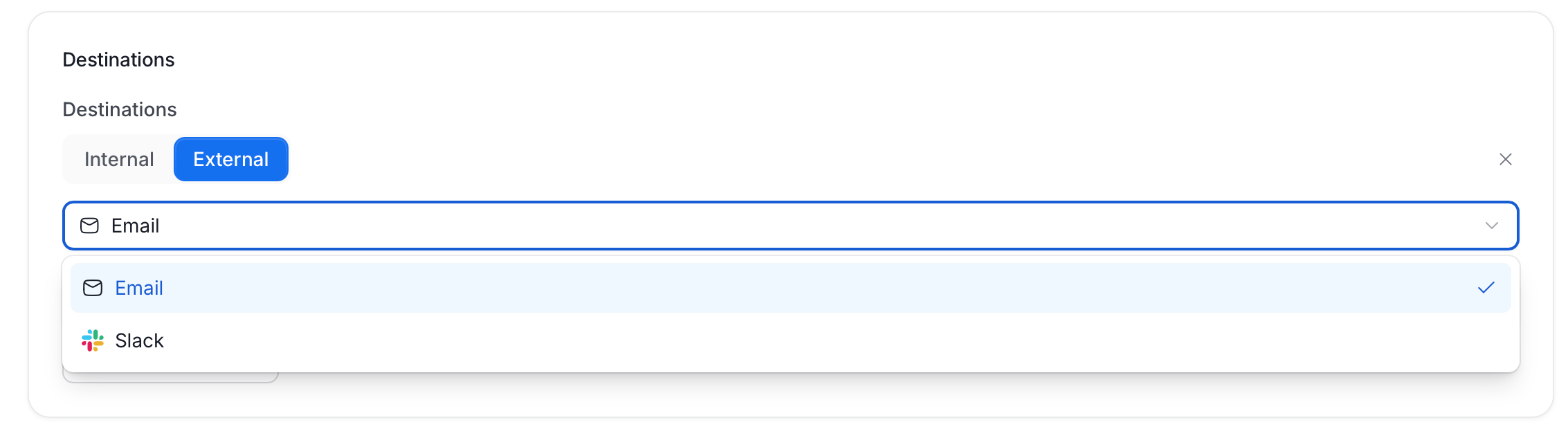
- External destinations are addresses and channels outside your user list:
- Email: Enter one or more email addresses. Press Enter after each address.
- Slack: Enter the name of a Slack channel for Collate’s Slack app to post in.