
Credit Limits
The Credit limits page lets administrators cap how many AI credits the organization, a team, or one user can spend in a day, week, or month. Limits apply in addition to the shared credit pool, so one team, one user, or one busy day can’t use up everything you bought. Only administrators can open this page.Open the Credit Limits Page
- Click the Profile icon and select Settings.
- Under Account, select Billing. The Billing & Usage overview opens.
-
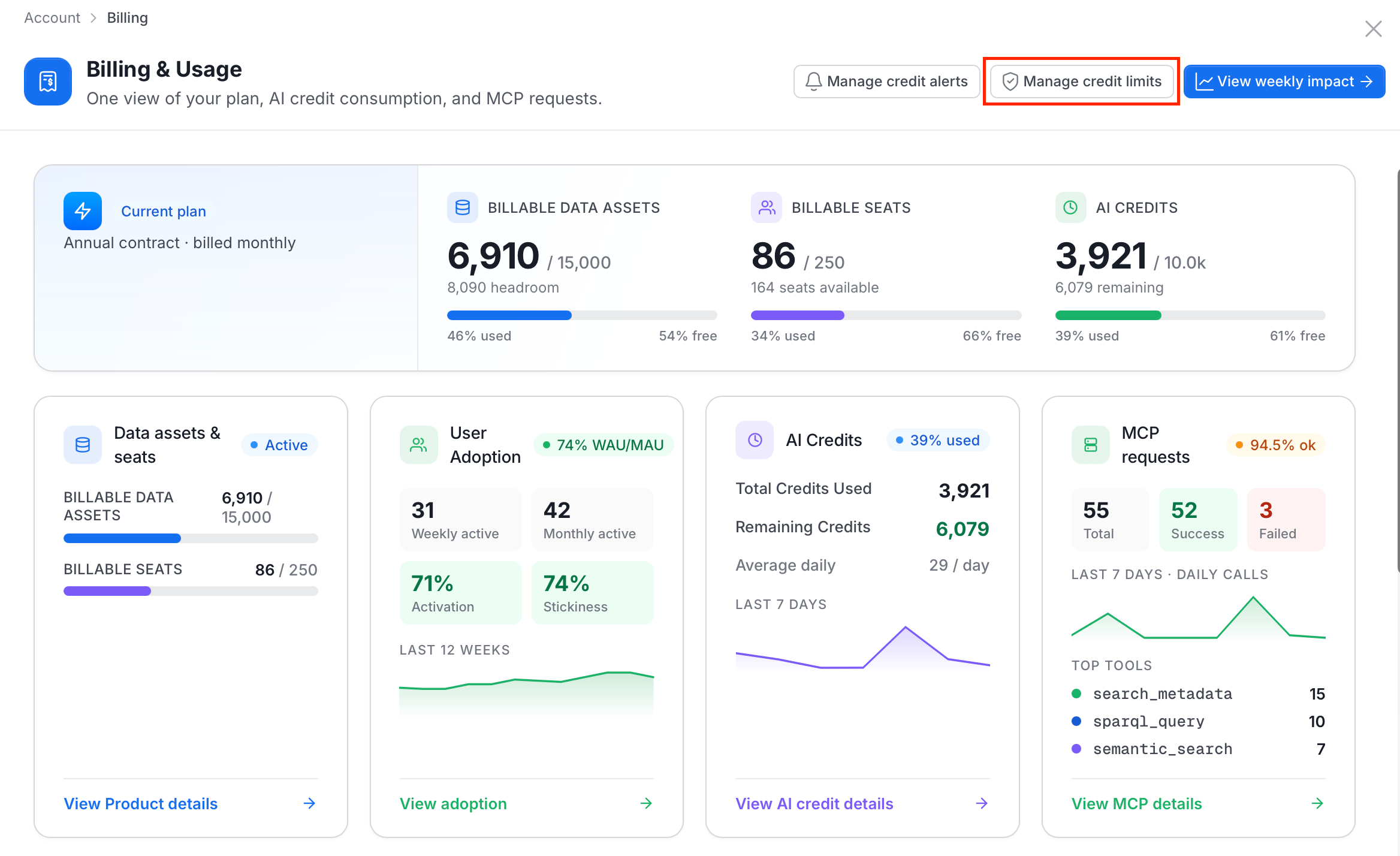
Click Manage credit limits at the top right of the page.
-
From the AI Credits page:
- On the Billing & Usage overview, select View AI credit details on the AI Credits card.
- Scroll to the Credit limits card at the bottom of the page. It shows how many limits are set, for example “No limits set yet.”
- Click Manage credit limits.

-
From the Credit consumption chart:
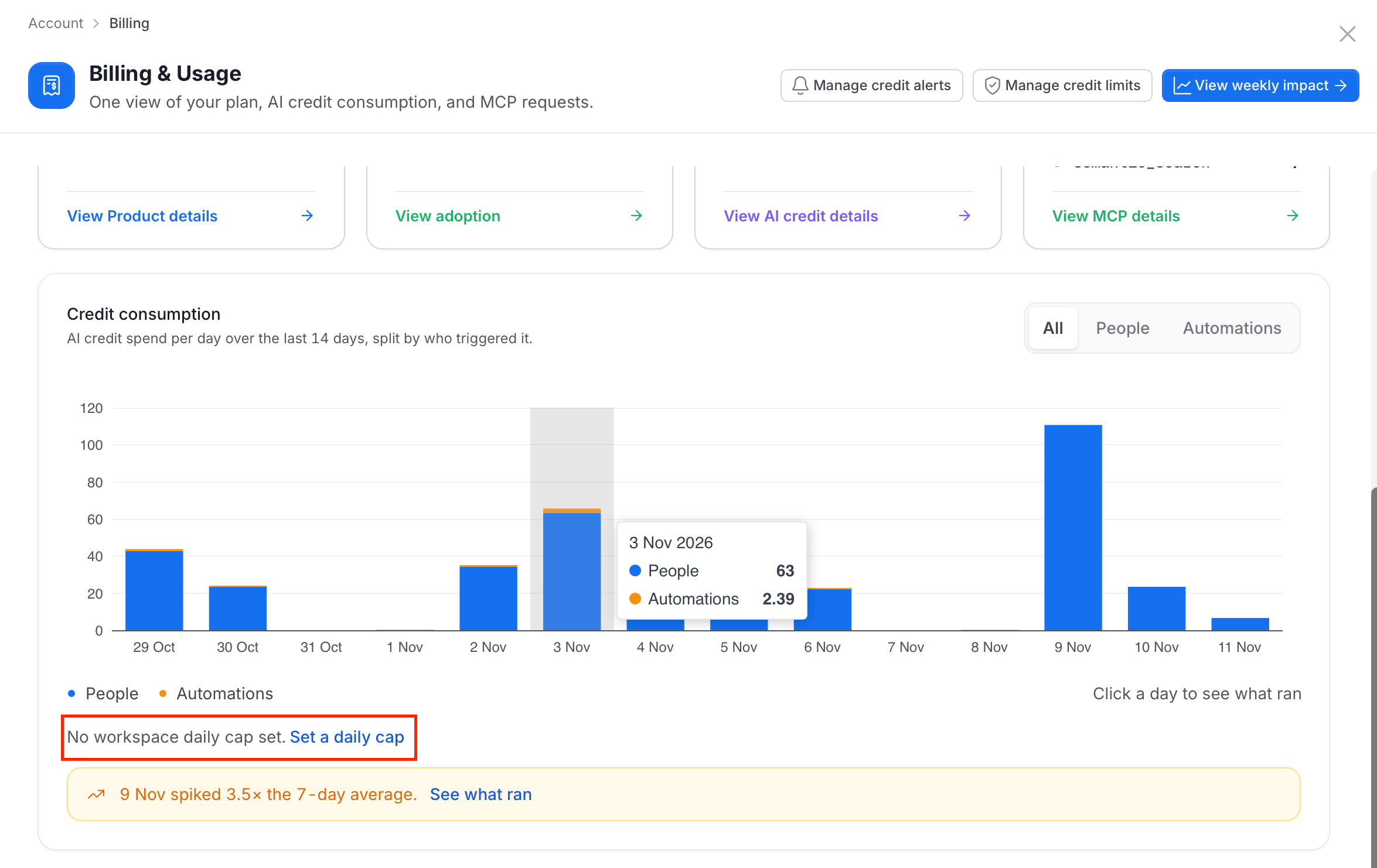
- On the Billing & Usage overview, scroll to the Credit consumption card.
- Below the chart, click Set a daily cap. This link appears only when no workspace daily limit is set.
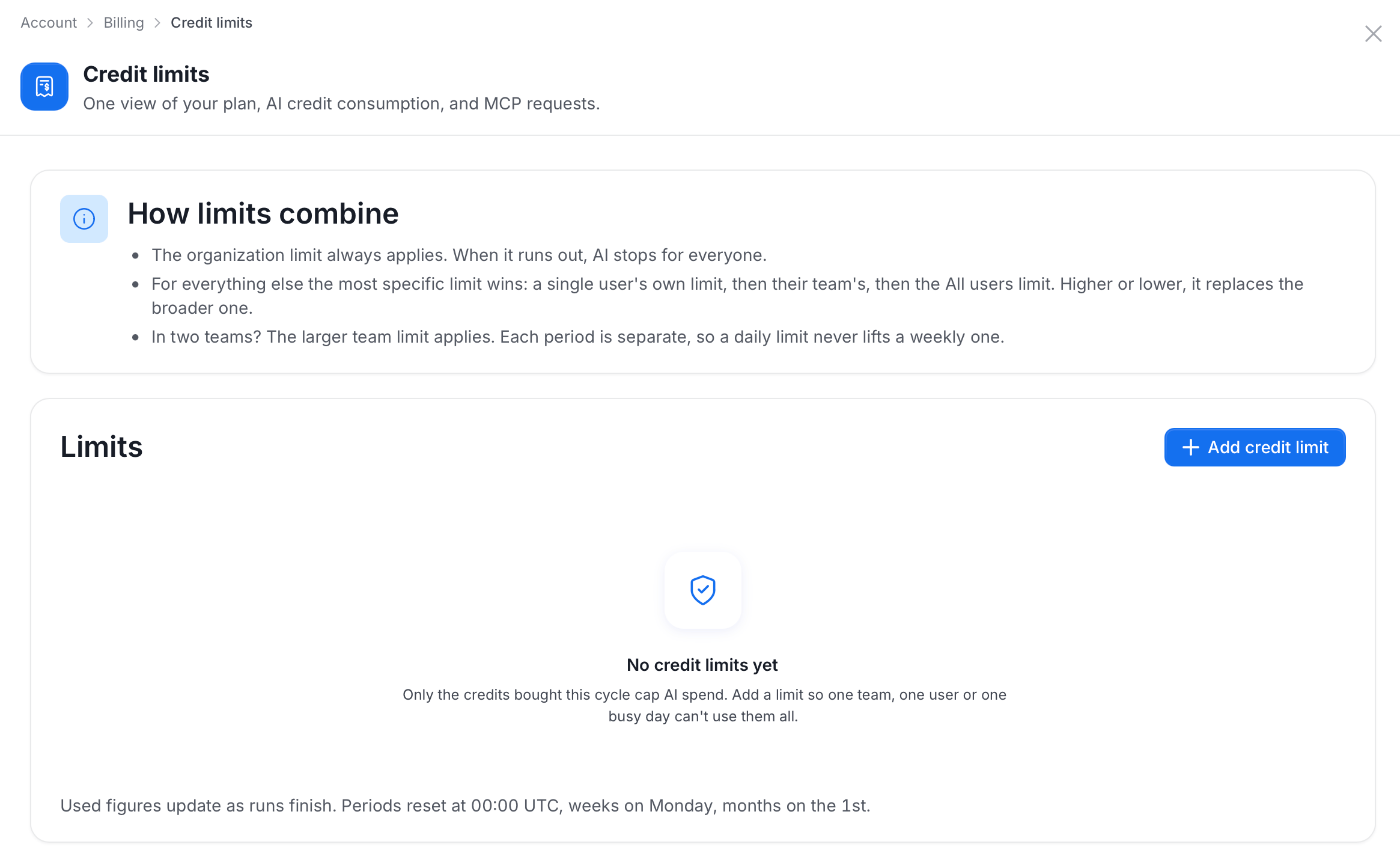
Credit limits don’t need a separate setting to be enforced. Enforcement is on whenever your workspace has purchased credits.
Credit Limits Table
The Limits table lists every limit and shows how much of each has been used. A summary above it shows how many limits are set, how many were reached this period, and how many are above 90%.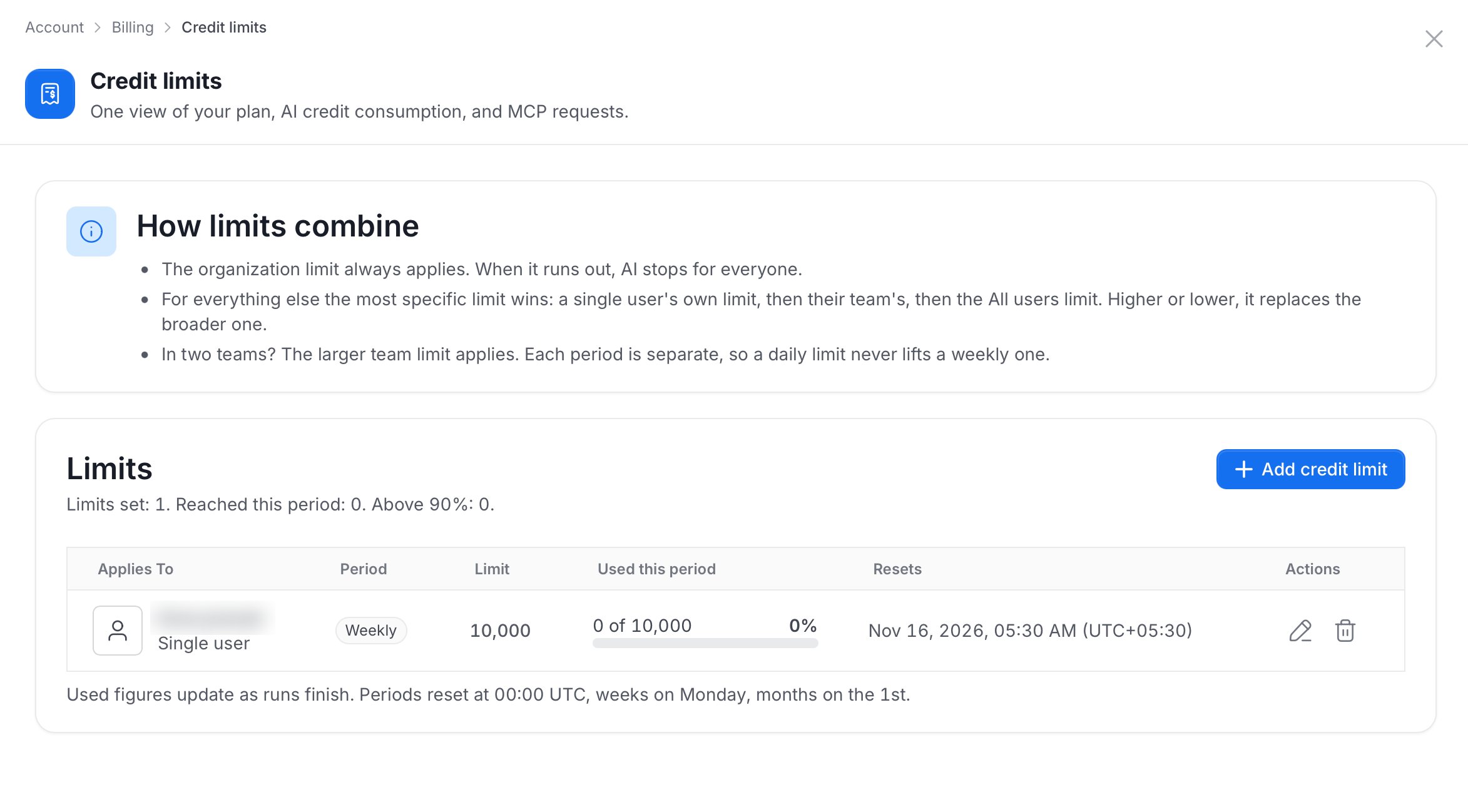
- Applies to: The organization, All users, a team, or a single user.
- Period: Daily, Weekly, or Monthly.
- Limit: The credits allowed in the period. An All users limit shows as ” each”.
- Used this period: Credits used against the limit, such as “120 of 500”, with a progress bar. The bar turns to a warning at 90% and shows Reached at 100%. All users rows read “Tracked per user. No single total.” because each user has their own allowance.
- Resets: When the period resets, in your local time with the UTC offset.
- Actions: Edit or remove the limit.
Add a Credit Limit
- Open the Credit limits page. For more information, see Open the Credit Limits Page.
- Click Add credit limit.
- Under Applies to, choose one of the following:
- Organization: All AI spend in the organization together. When it runs out, AI stops for everyone.
- All users: Each user gets this much on their own.
- Team: Shared by the team and its sub-teams. Select the team. Used shows the whole team’s spend, not one user’s.
- Single user: Just that person. Select the user. Bots can’t be picked.
- Under Period, select Daily, Weekly, or Monthly.
- Under Credits, enter the limit.
- Select Add credit limit at the bottom of the form. Select Cancel to leave without saving.
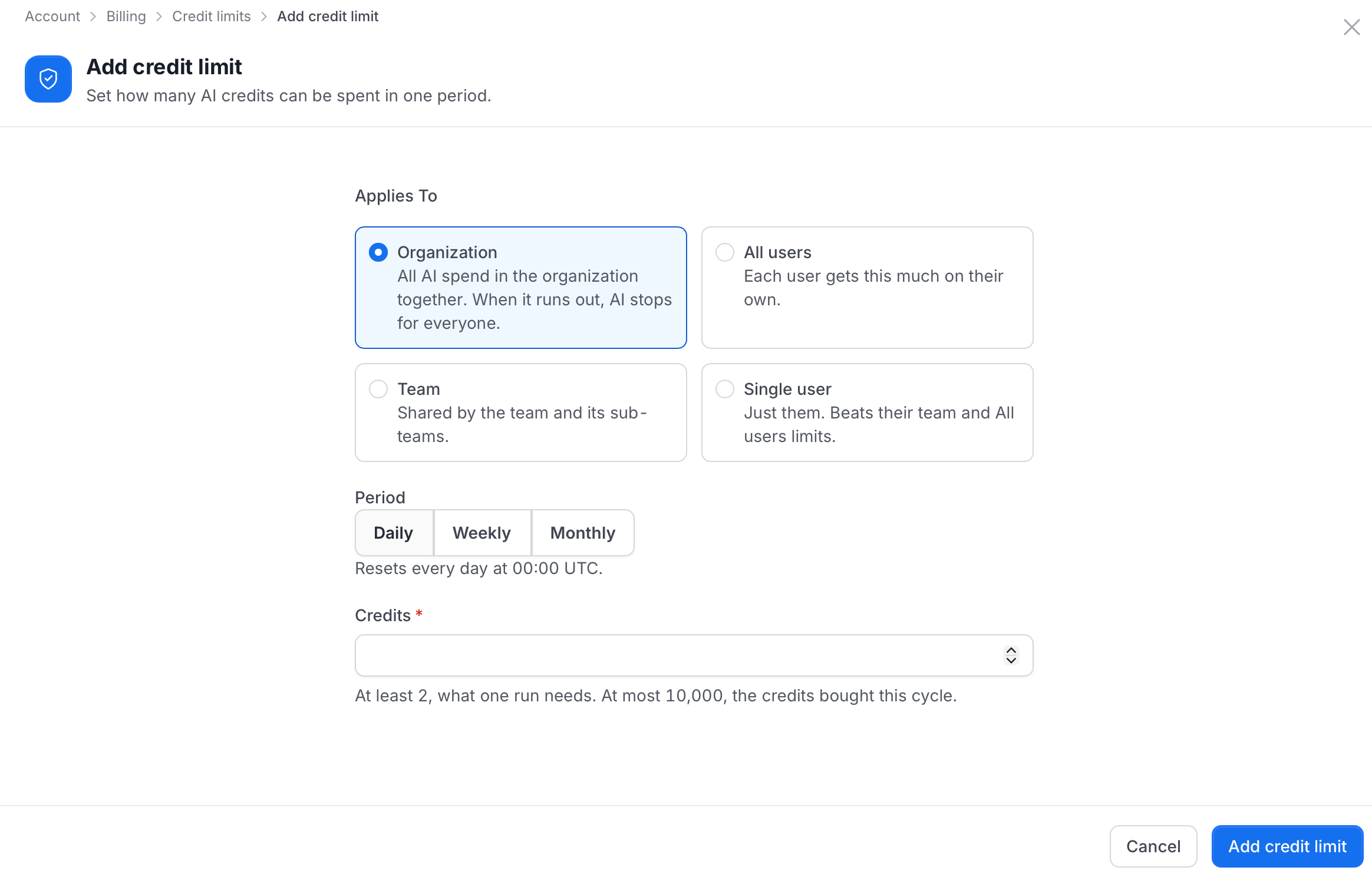
- Minimum: At least 2 credits, which is what one run needs to start. A lower limit would refuse every run.
- Maximum: At most the credits bought this cycle.
- One limit per target and period: You can’t add a second limit with the same Applies to target and Period. Edit the existing one or choose another period.
Edit or Delete a Credit Limit
- To change a limit, select the Edit icon on its row.
- To delete one, select the Delete icon and confirm Remove this limit?. The limit stops applying immediately, and anyone it covered falls back to the next limit that applies.
Reset Times
All periods reset in UTC, and the table shows each reset in your local time:- Daily: Every day at 00:00 UTC.
- Weekly: Every Monday at 00:00 UTC.
- Monthly: On the first day of each month at 00:00 UTC.
How Limits Combine
- The organization limit always applies. When it runs out, AI stops for everyone.
- For everything else, the most specific limit wins: a single user’s own limit, then their team’s limit, then the All users limit. A more specific limit replaces the broader one, whether it’s higher or lower.
- A user in two teams gets the larger team limit.
- Each period is separate, so a daily limit never raises a weekly one.