
Bulk Edit Test Cases
Bulk Edit lets you update several existing test cases at once from an inline spreadsheet-style grid, without preparing a CSV file yourself. Under the hood, it uses the same export and import endpoints as Bulk Export and Bulk Import: Collate automatically exports your current test cases, loads them into an editable grid, then validates and re-imports your changes when you confirm. You can bulk edit test cases for a single table, for a test suite, or across your entire platform.Note: You need EditAll permission on test cases to use Bulk Edit.
What You Can Edit
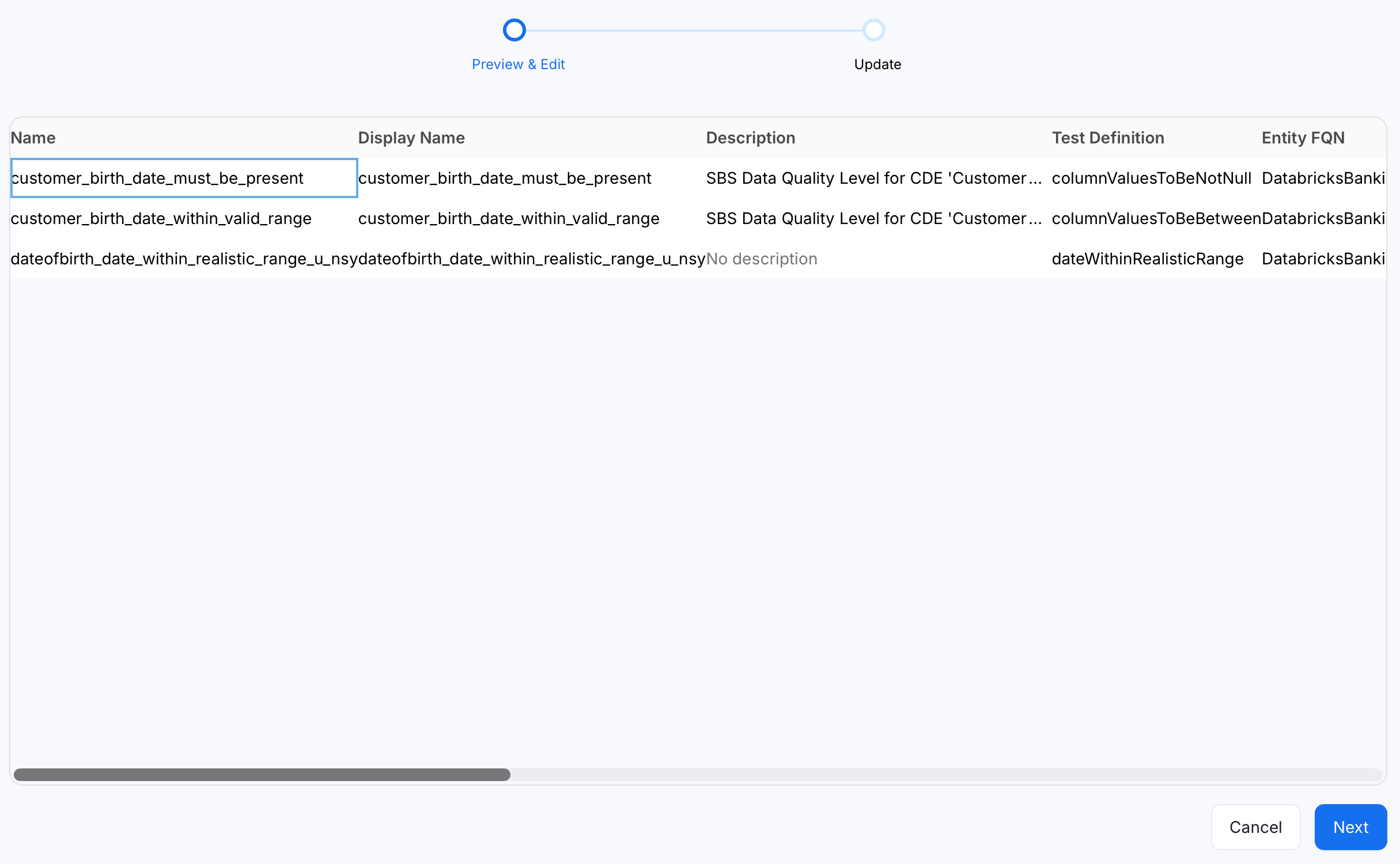
The name, testDefinition, entityFQN, and testSuite columns are locked, since they identify the test case and what it runs against. You can edit:- displayName
- description
- parameterValues
- computePassedFailedRowCount
- useDynamicAssertion
- inspectionQuery
- tags
- glossaryTerms
Bulk Edit Test Cases for a Table
To edit test cases added to a single table:- In the left navigation menu, click Explore, and select the table whose test cases you want to edit.
- Navigate to the Data Observability tab.
- In the Data Quality tab, click Test Cases if not selected.
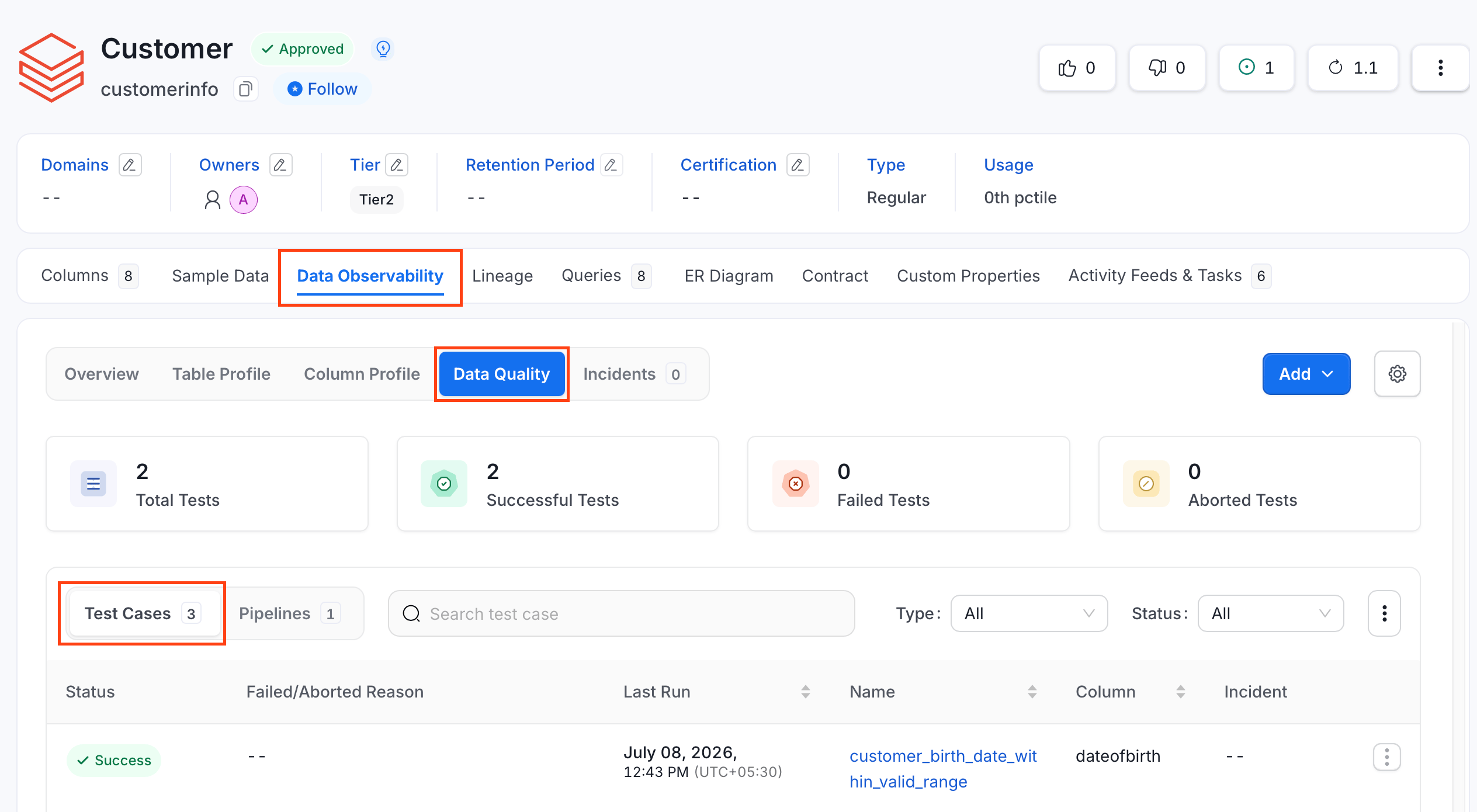
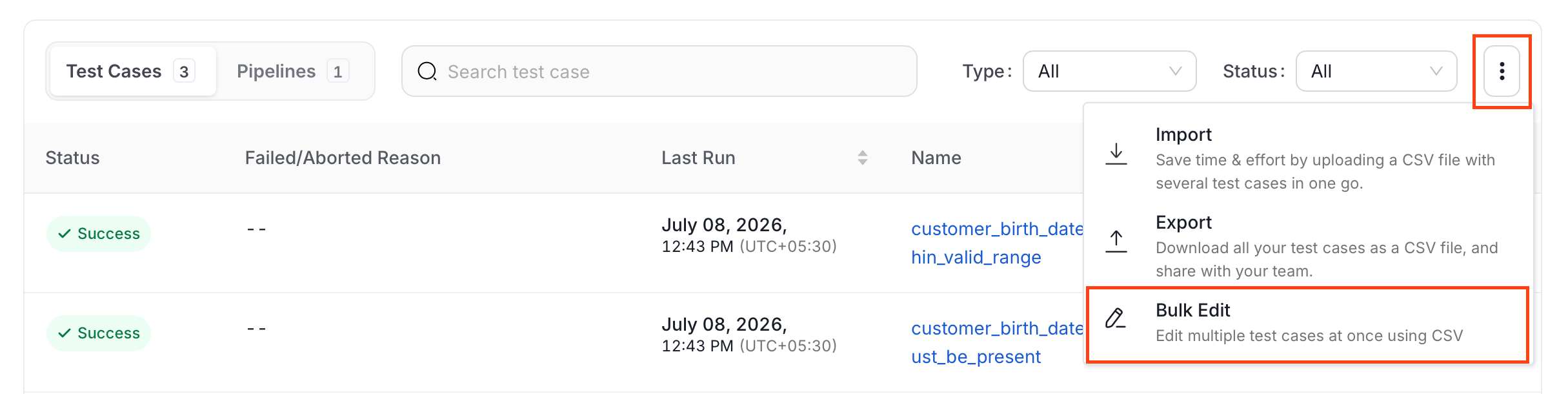
- Click the ⋮ icon and click Bulk Edit.
- Collate exports the table’s current test cases in the background and loads them into an editable grid. Edit or modify data using the inline editor and click Next.
- Validate your changes. A green or red tick in the Status column displays the success or failure of the test cases.
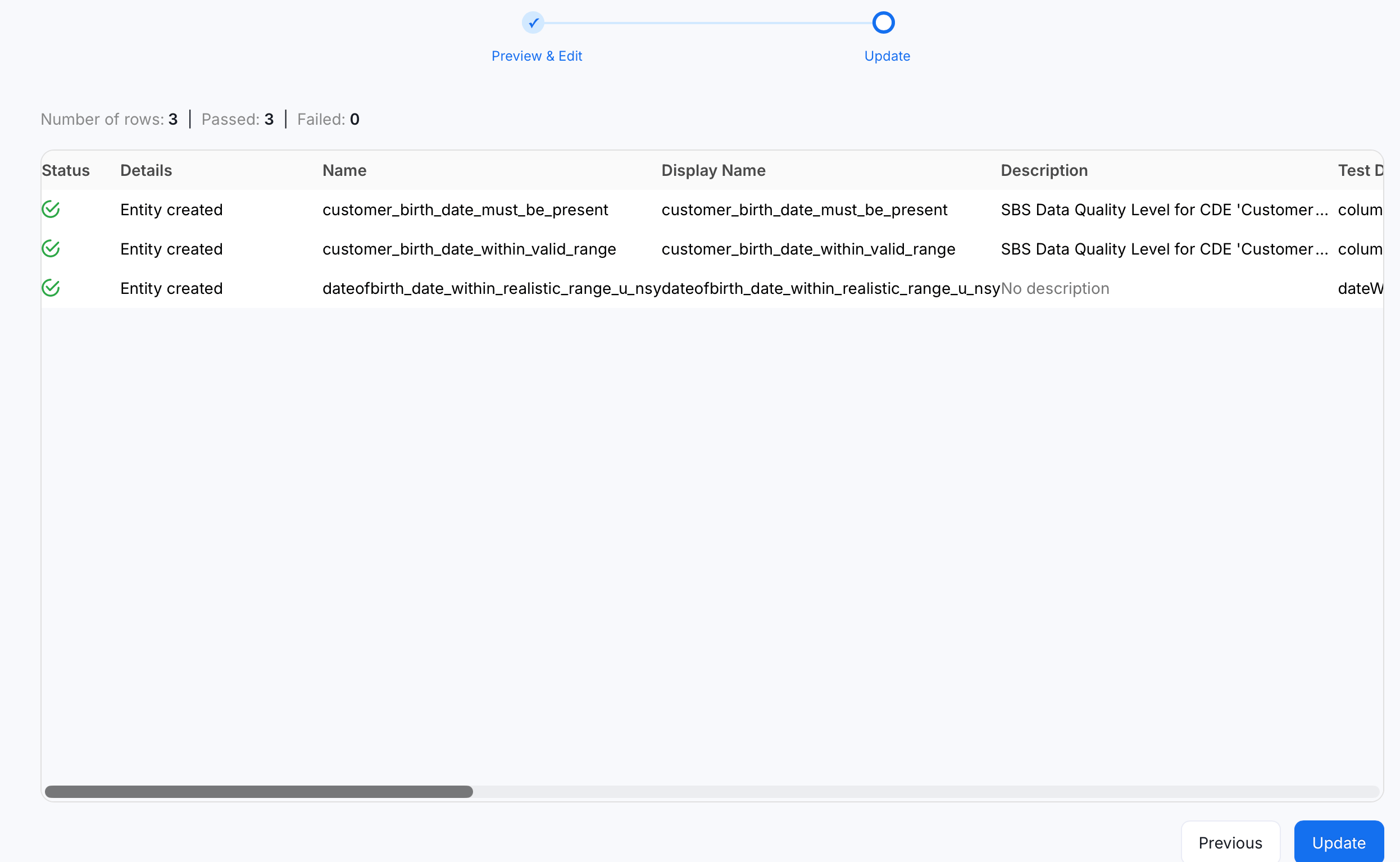
- Click Update again to apply the changes.
Bulk Edit Test Cases in a Suite
To edit test cases scoped to a single test suite:- Navigate to Data Observability > Data Quality.
- Click the Test Suites tab and switch to Bundle Suites.
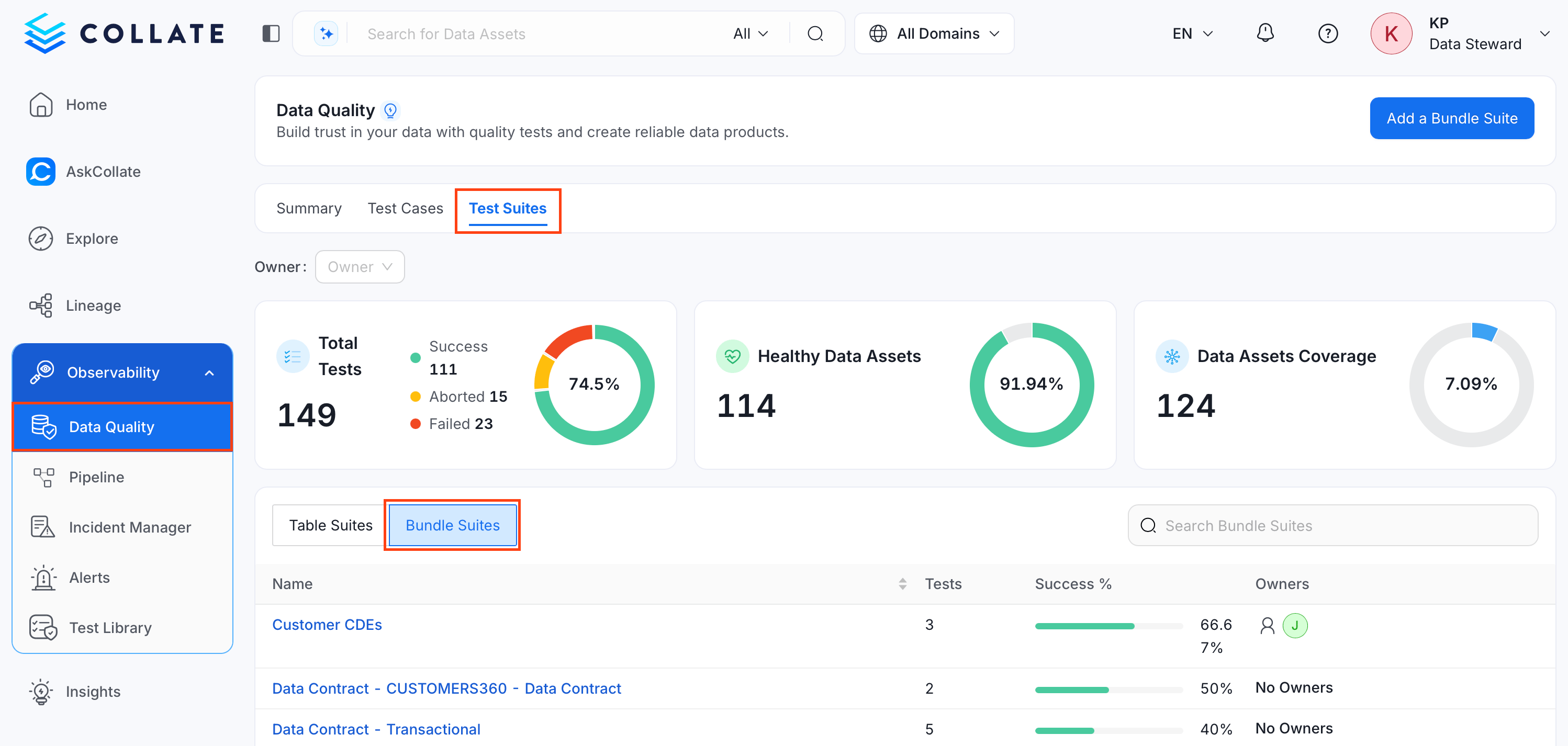
- Search and select the bundle suite whose test cases you want to edit.
- Click the ⋮ icon and click Bulk Edit.
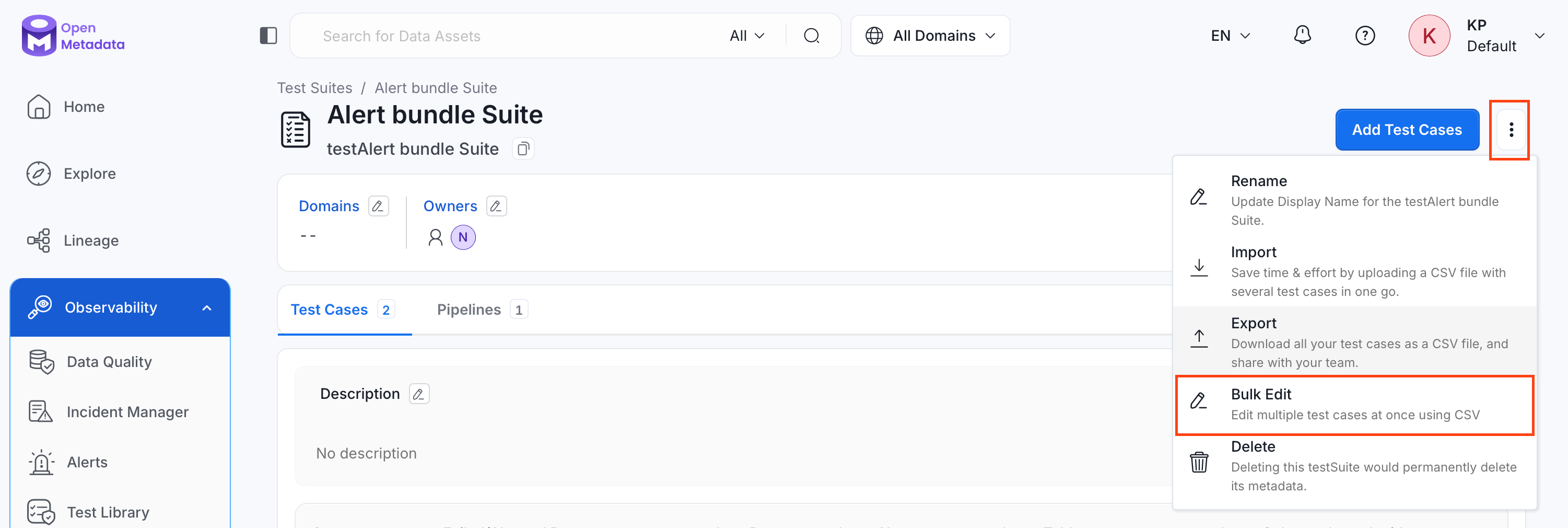
- Repeat steps 5 to 7 from Bulk Edit Test Cases for a Table.
Bulk Edit All Test Cases
To edit test cases across your entire Collate instance:- Navigate to Data Observability > Data Quality, and click Test Cases.
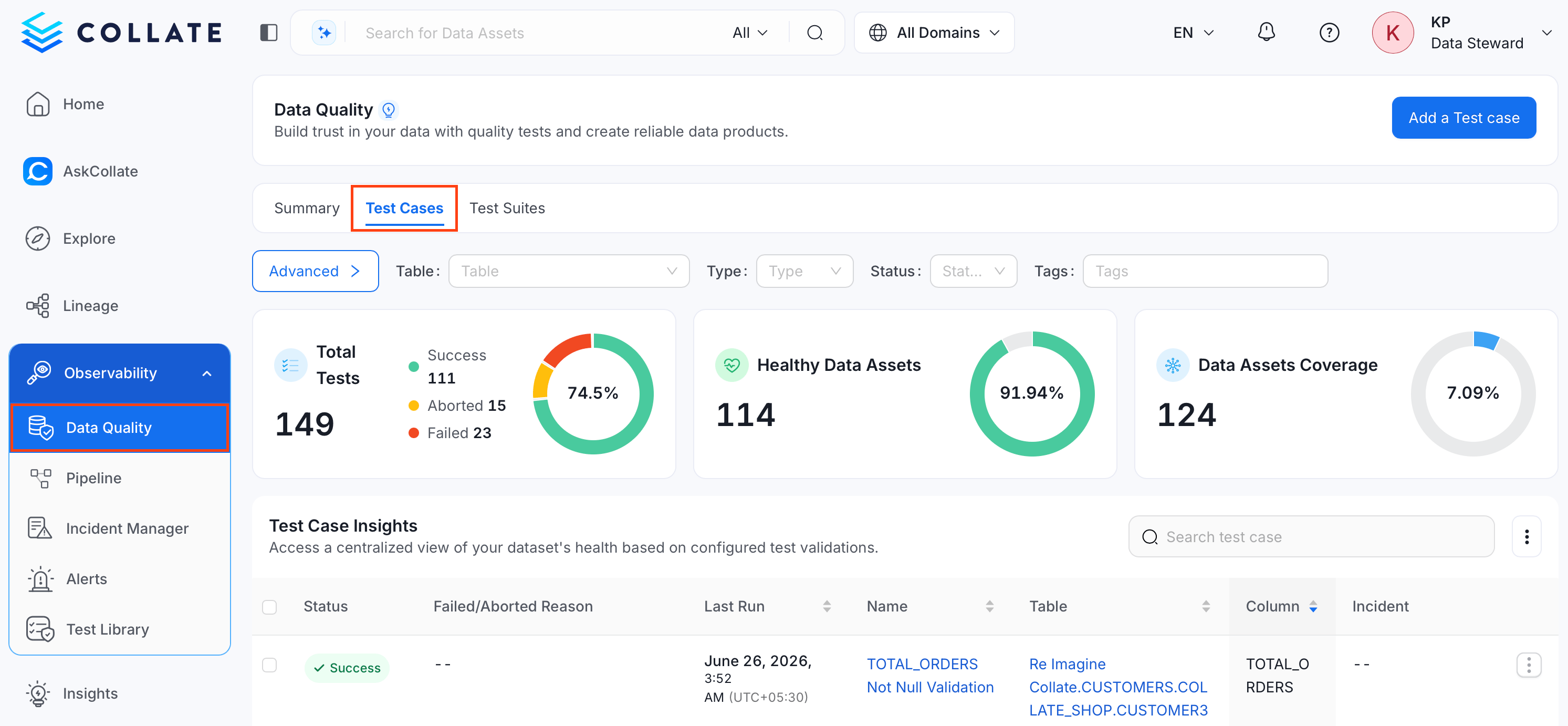
- Click the ⋮ icon and select Bulk Edit.
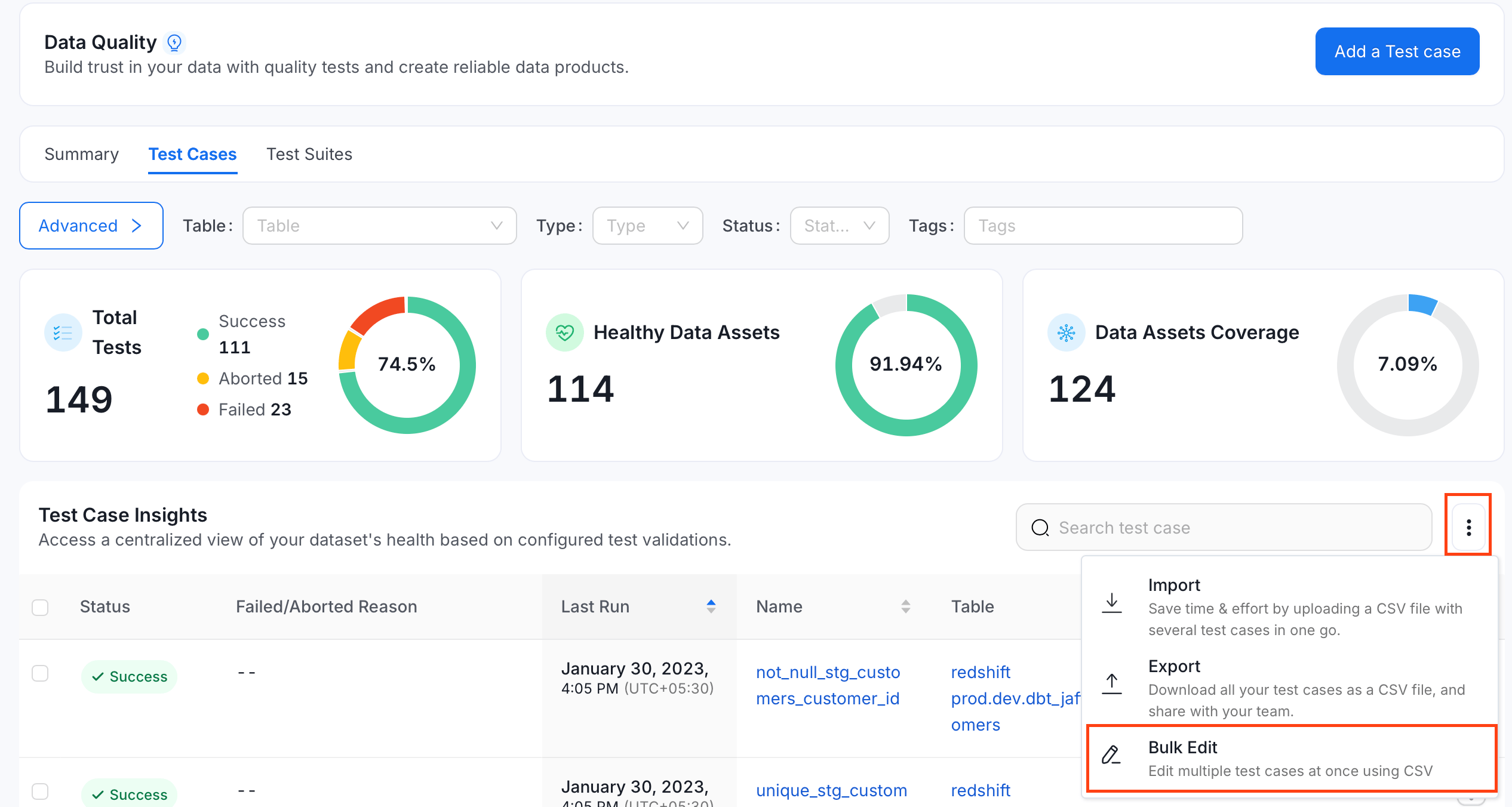
- Repeat steps 5 to 7 from Bulk Edit Test Cases for a Table.
Note: Click Cancel at any point before the final update to discard your changes.