
Test Library
The Test Library lets administrators create custom, reusable data quality test definitions using SQL queries. Define SQL-based validation rules with dynamic parameters that are resolved at runtime. This provides a flexible way to implement organization-specific data quality checks without writing custom code.Key Features
- SQL-Based Test Definitions: Write custom validation logic using SQL queries
- Dynamic Parameters: Use reserved and user-defined parameters that are resolved at runtime
- Reusable Tests: Create test definitions once and apply them across multiple tables and columns
- Table and Column Level: Support for both table-level and column-level validations
- Enable/Disable Tests: Control which test definitions are available for use
Accessing the Test Library
The Test Library is accessible to administrators through the Observability menu. To access, navigate to Observability > Test Library to manage your custom test definitions.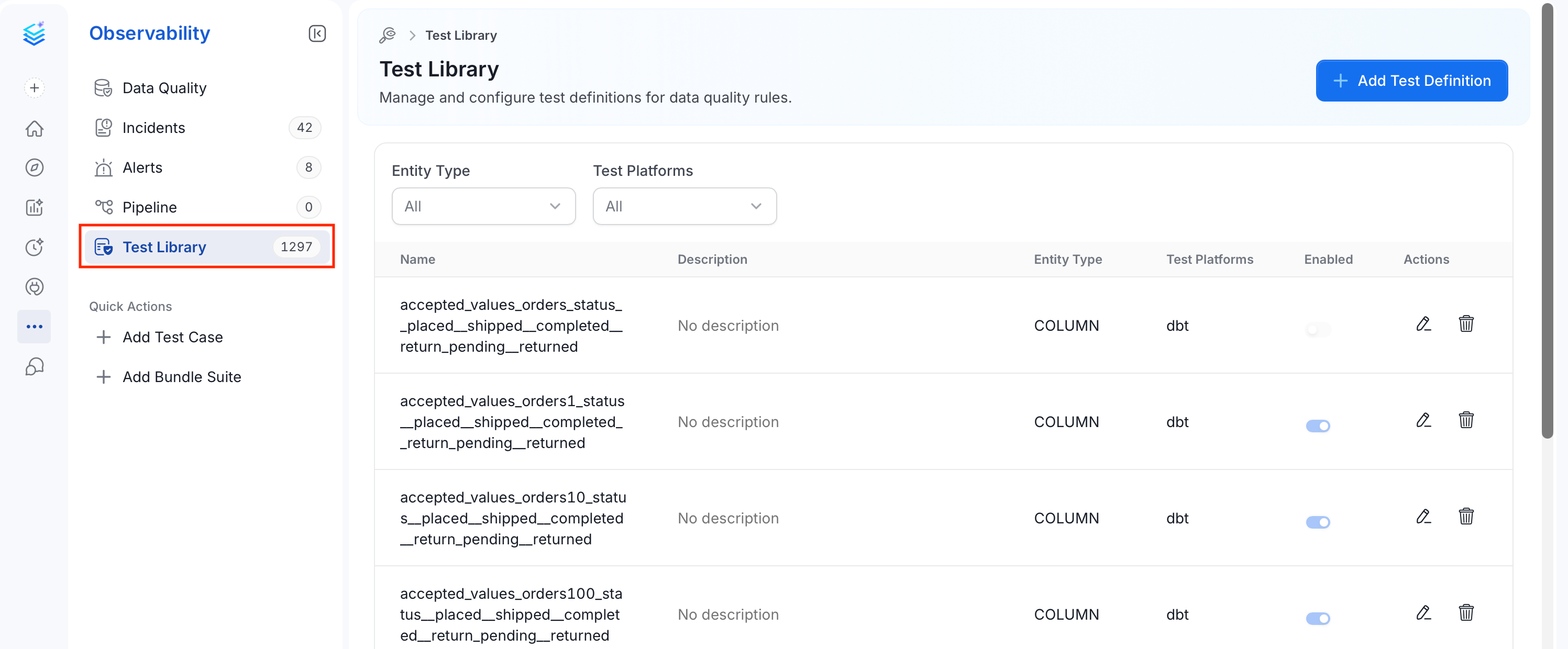
Creating a Custom Test Definition
Follow these steps to add a new test definition to the Test Library.Step 1: Add Test Definition
On the Test Library page, click Add Test Definition.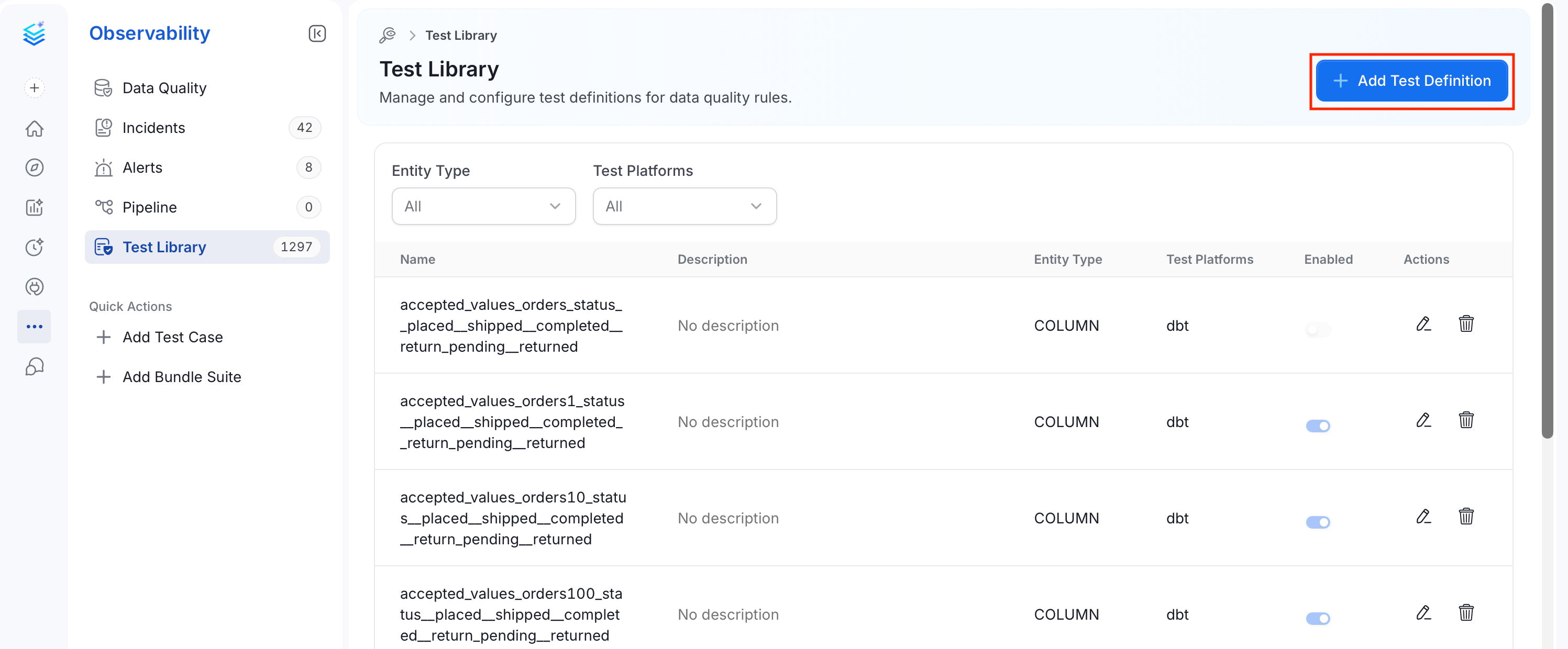
Step 2: Configure the Test Definition
On the Add Test Definition pop-up, enter the following details:Important: If you want the test to run natively within Collate, the Test Platforms field must include
OpenMetadata. Tests configured with other platforms (for example, dbt, Soda, GreatExpectations) are intended for tracking results from external test frameworks and will not be executed by Collate’s data quality engine.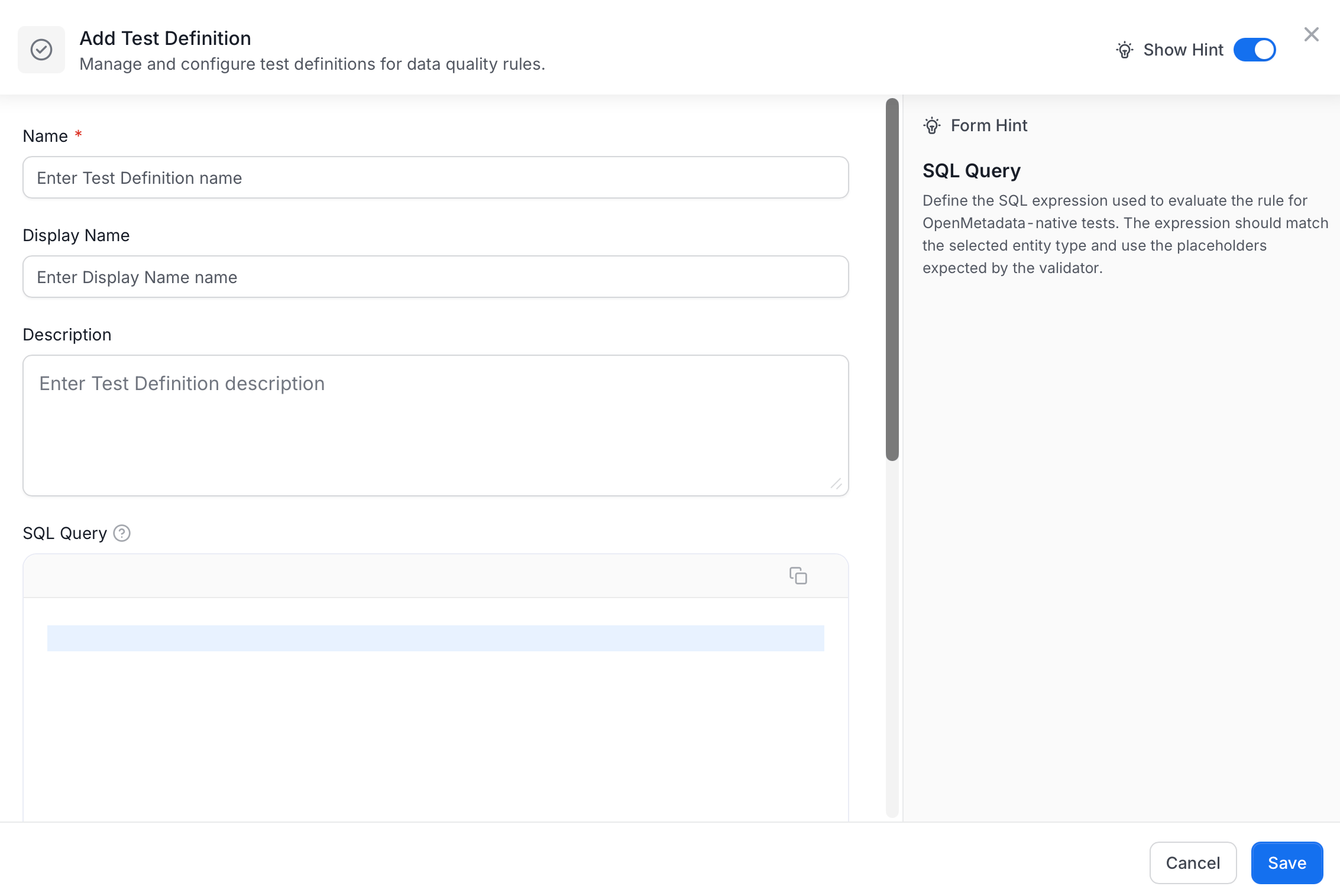
Step 3: Save the Test Definition
Click Save to create the test definition. It now appears in the Test Library and is available for creating test cases.Writing the SQL Query
The SQL expression defines your validation logic. The test fails if the query returns one or more rows.Reserved Parameters
The following parameters are automatically resolved at runtime:User-Defined Parameters
Define custom parameters that users will provide values for when creating test cases. Use the{{ parameter_name }} syntax in your SQL expression.
SQL Expression Examples
The following examples show common validation patterns you can adapt for your own tests.-
Example 1: Column Values Greater Than Threshold
This test validates that all values in a column are greater than or equal to a specified minimum value.
Parameters:
min_value: The minimum acceptable value
min_value = 0to ensure no negative values exist in the column. -
Example 2: Column Values Within Range
This test validates that column values fall within a specified range.
Parameters:
min_value: The minimum acceptable valuemax_value: The maximum acceptable value
-
Example 3: No Null Values in Required Columns
This test ensures a column contains no NULL values.
Parameters: None required (uses only reserved parameters)
-
Example 4: Table Row Count Within Expected Range
This table-level test validates that the row count is within expected bounds.
Parameters:
min_rows: The minimum expected row countmax_rows: The maximum expected row count
-
Example 5: Referential Integrity Check
This test validates that all values in a column exist in a reference table.
Parameters:
reference_table: The fully qualified name of the reference tablereference_column: The column in the reference table to match against
-
Example 6: Date Freshness Check
This table-level test ensures that recent data exists in a date column.
Parameters:
date_column: The date/timestamp column to checkmax_age_days: Maximum age of the most recent record in days
Note: The date interval syntax may vary depending on your database. Adjust the SQL accordingly for your supported data sources.
Defining Parameters
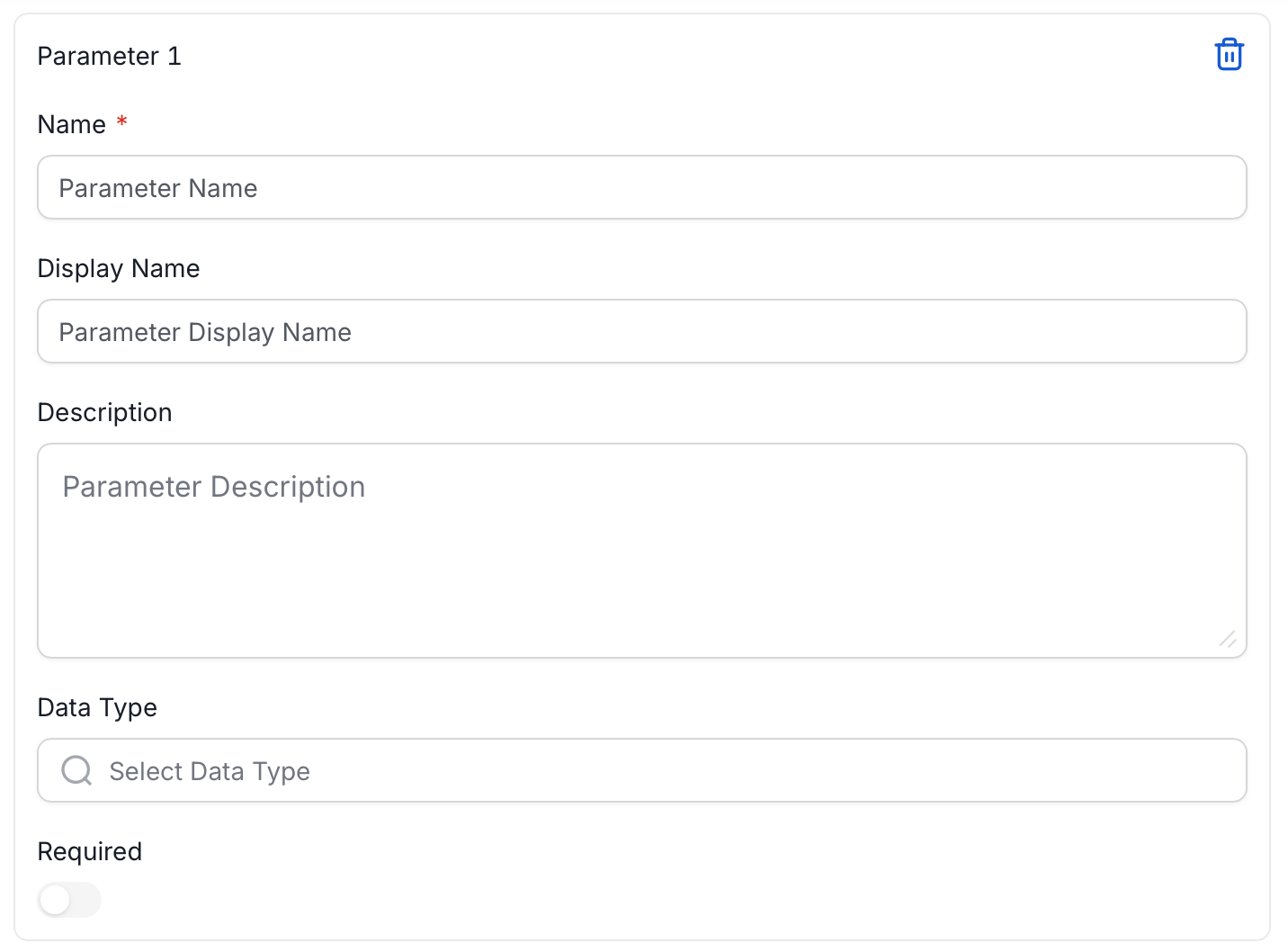
For each user-defined parameter in your SQL query, add a parameter definition:- Click Add Parameter.
- Enter the parameter Name (required). This must match the placeholder in your SQL — for example,
min_value. - Optionally, enter a Display Name — a human-friendly label shown to users when creating a test case.
- Optionally, add a Description to explain what value to provide.
- Optionally, select a Data Type to restrict the values users can enter.
- Toggle Required on if the parameter must be provided when creating a test case.
Managing Test Definitions
After creating test definitions, edit, enable, disable, or delete them from the Test Library.Editing a Test Definition
- In the Actions column, click the Edit icon next to the test definition you want to edit.
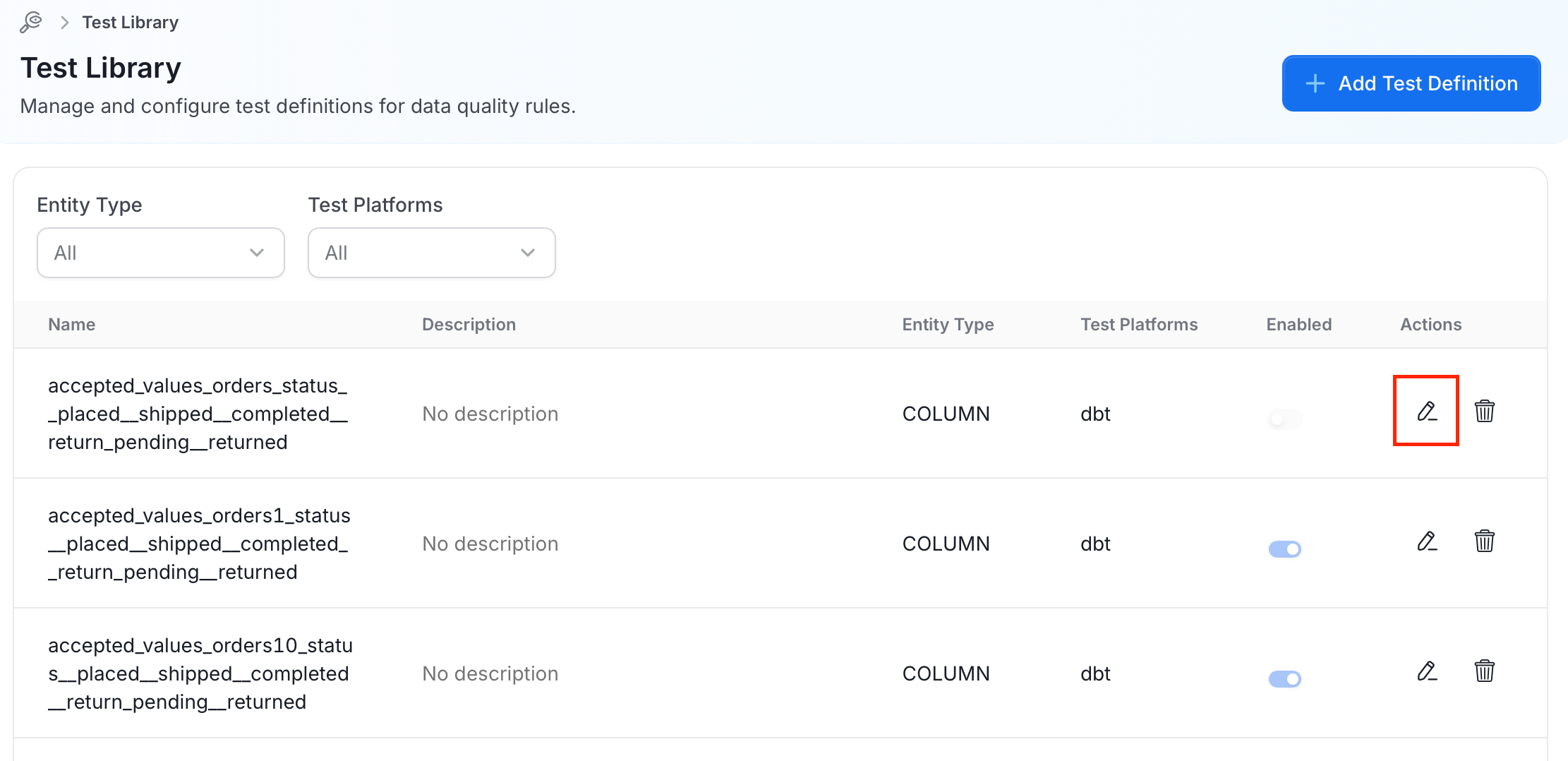
- Modify the fields as needed and click Save.
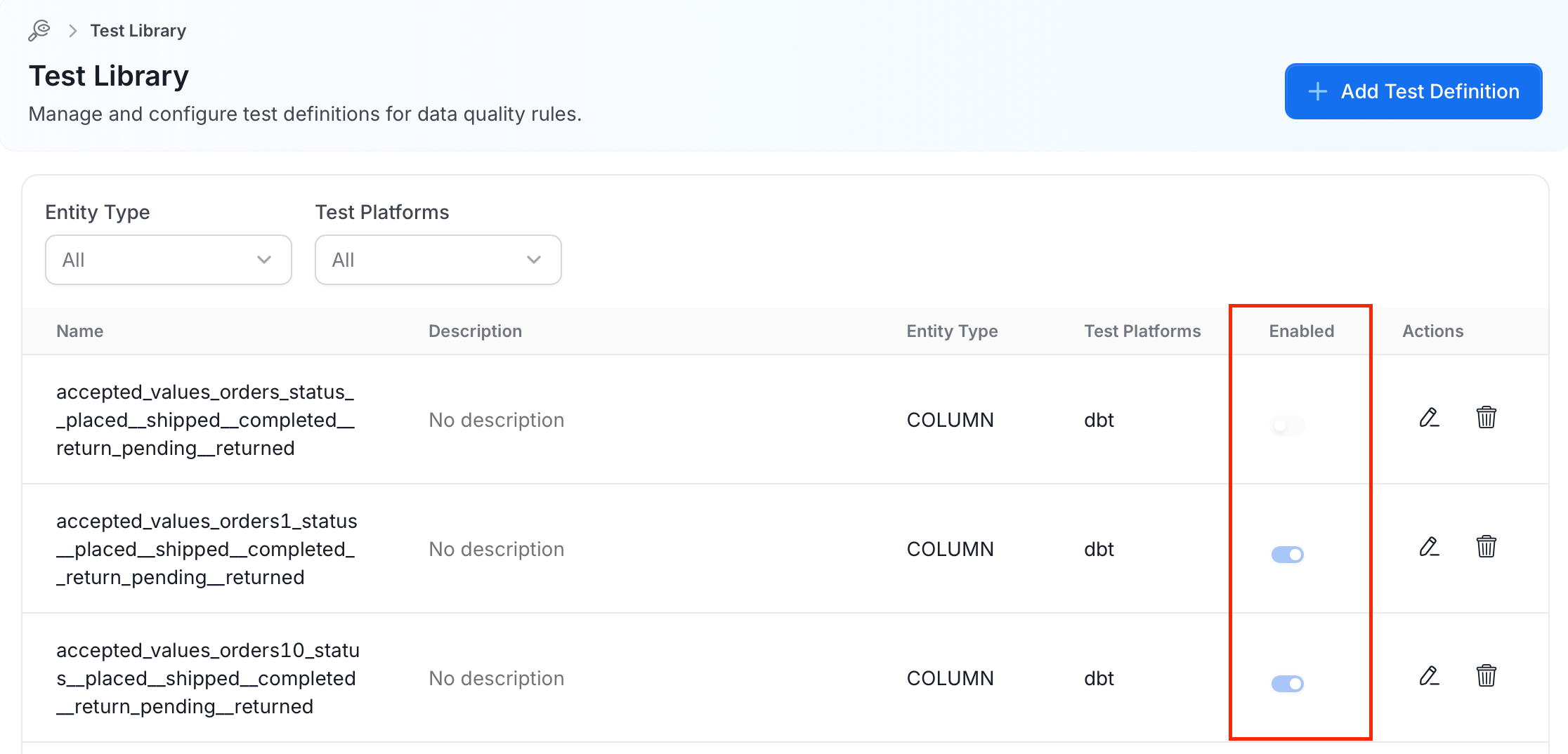
Enabling/Disabling Test Definitions
Enable or disable test definitions to control their availability using a toggle in the Enabled column.- Enabled: The test definition can be used to create new test cases.
- Disabled: The test definition is hidden from the test case creation flow, but existing test cases using it will continue to work.
Deleting a Test Definition
To delete a test definition, click the Delete icon next to it in the Actions column.Note: You cannot delete a test definition that has associated test cases.
Using Custom Test Definitions
Once you have created a test definition in the Test Library, it becomes available when creating test cases.Creating a Test Case from a Custom Definition
- Navigate to the table or column where you want to add a test.
- Go to the Data Quality tab.
- Click Add Test.
- Select your custom test definition from the list.
- Provide values for any user-defined parameters.
- Save the test case.
Best Practices
Follow these guidelines to write reliable, maintainable custom test definitions.Writing Effective SQL Expressions
- Return failing rows: Structure your query to return rows that fail the validation. An empty result set means the test passes.
- Be specific: Write targeted queries that check one specific condition.
- Consider performance: Use appropriate WHERE clauses and avoid full table scans when possible.
- Test your SQL: Validate your SQL expression manually before creating the test definition.
Naming Conventions
- Use descriptive names that indicate what the test validates (for example,
columnValuesInRange,noOrphanedRecords) - Follow a consistent naming pattern across your organization
Documentation
- Provide clear descriptions for test definitions and parameters
- Include examples of expected parameter values in descriptions
- Document any database-specific syntax requirements
Permissions
The Test Library is restricted to administrators. The following permissions apply:
Regular users can use enabled test definitions when creating test cases but cannot modify the definitions themselves.