
Test Suites
Test suites group test cases together. Collate has two kinds: Table Suites, which Collate creates for you, and Bundle Suites, which you create to group related test cases from different tables.Note: Make sure you have the right permission in Collate to create a test.
View Test Suites
-
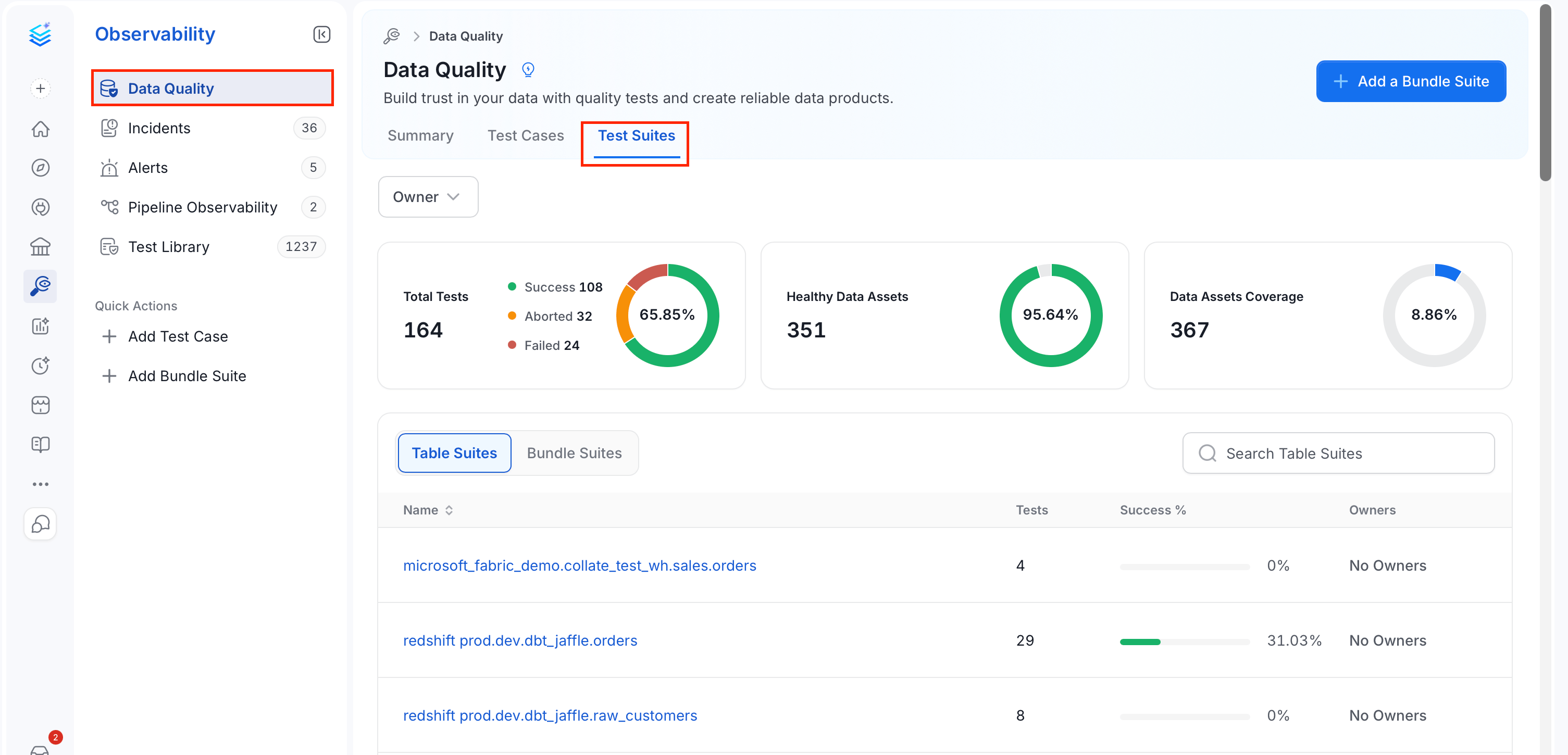
Go to Observability > Data Quality and select the Test Suites tab.
-
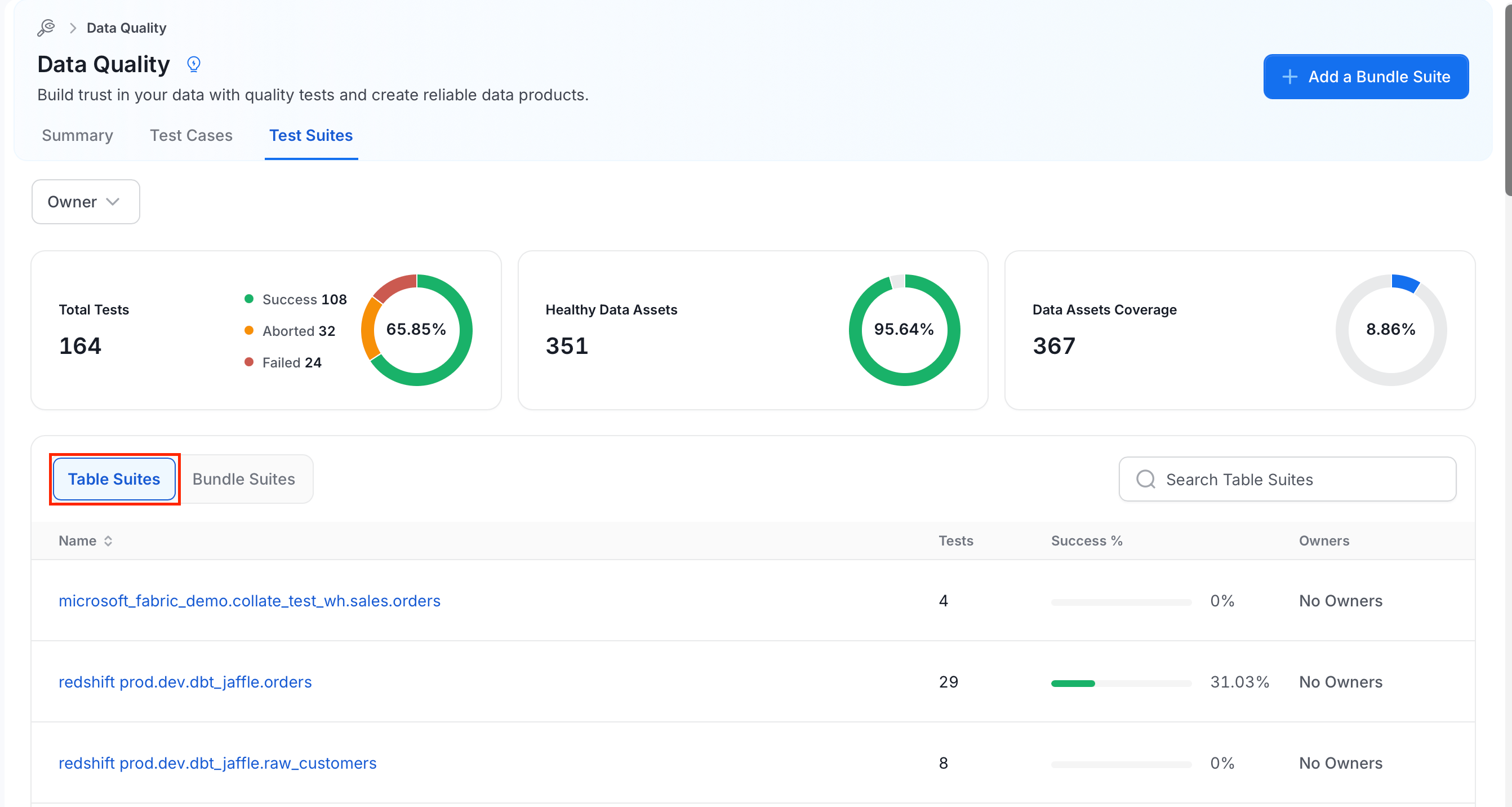
Select Table Suites to see the suite of each table.
-
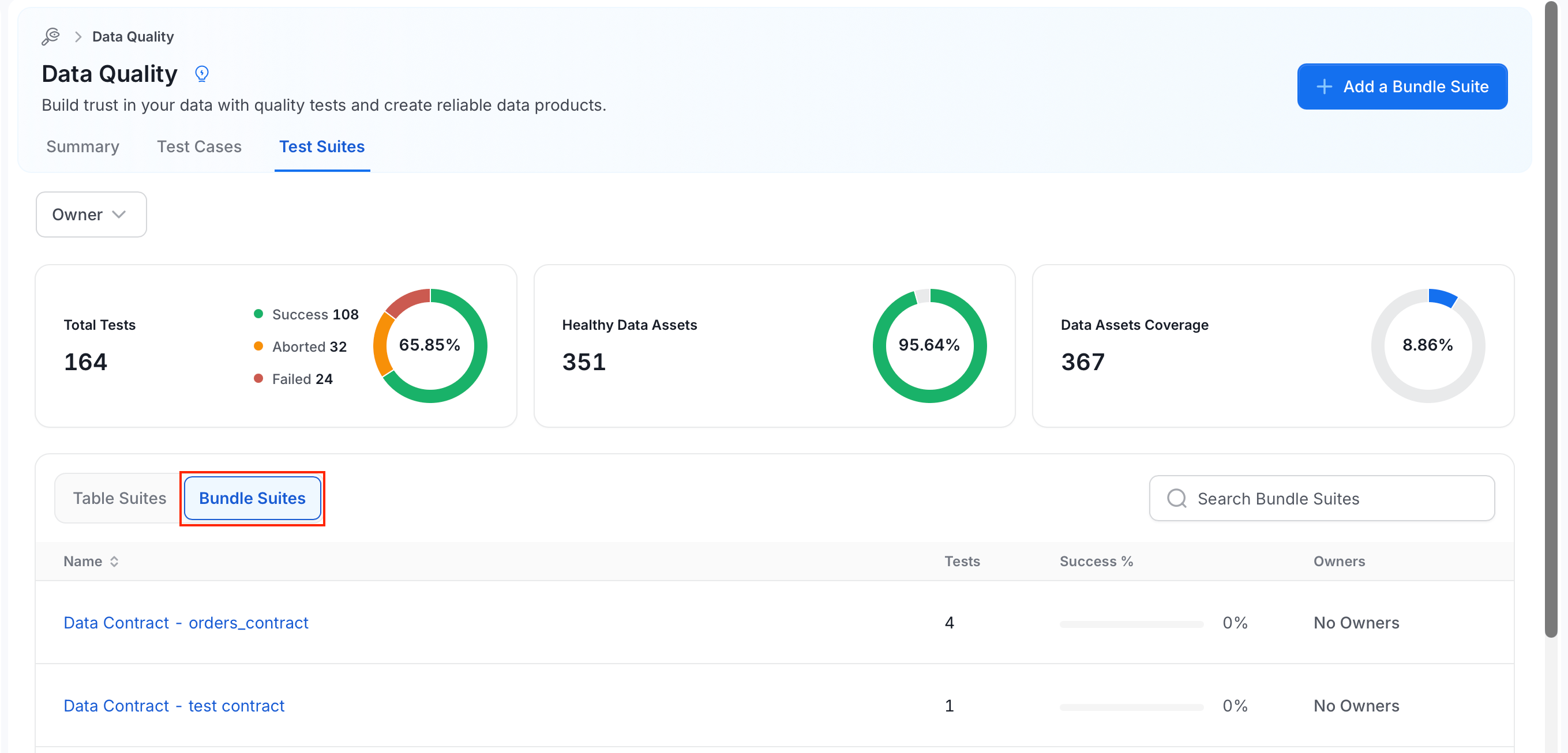
Select Bundle Suites to see the suites that you or your team created.
Create a Bundle Suite
-
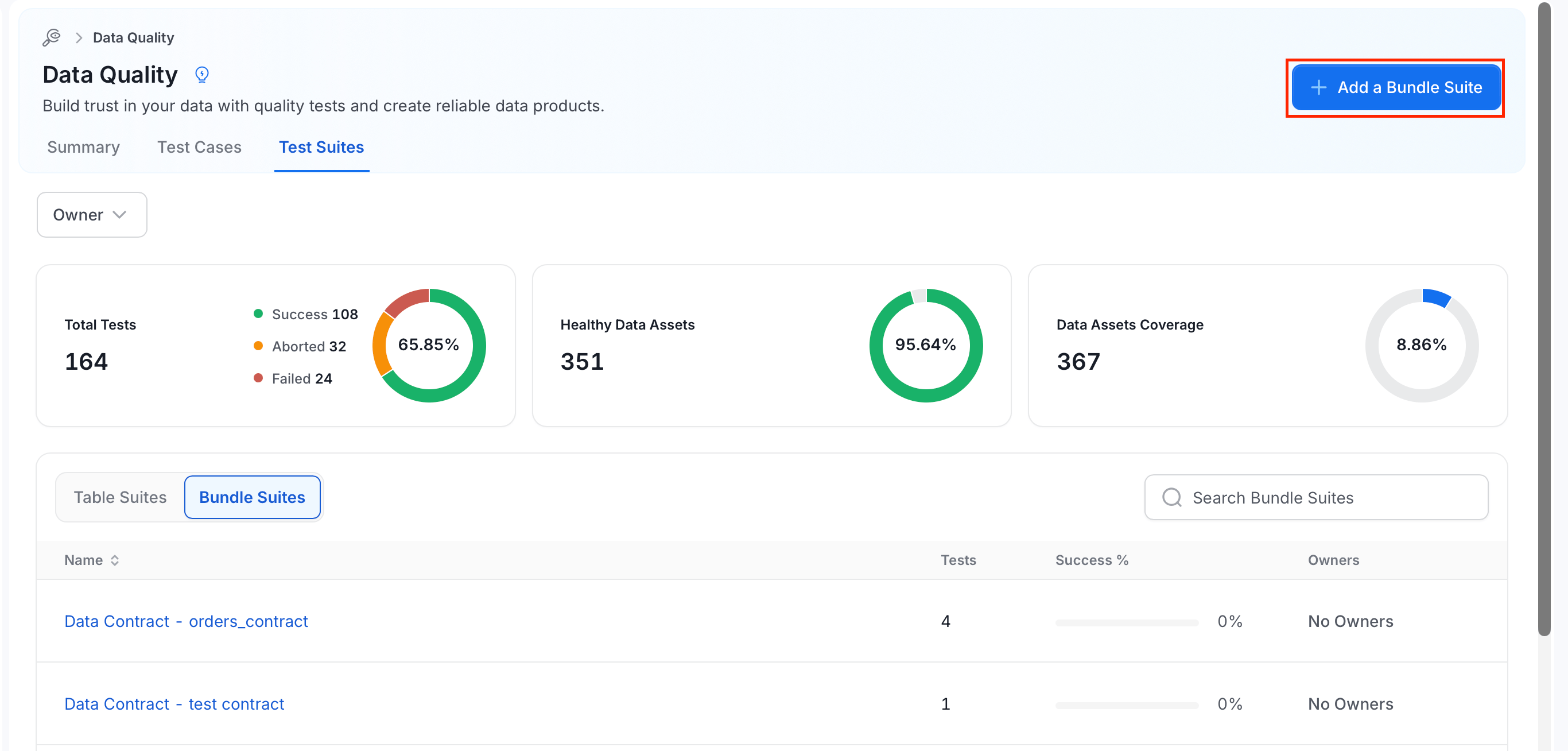
On the Test Suites tab, click Add a Bundle Suite. You can also click Add Bundle Suite under Quick Actions in the left navigation.
-
In the Add Bundle Suite window, enter the following details:
- Name: A name for the suite. This field is required.
- Description: Optionally, describe what the suite covers.
- Test Cases: Select the test cases to include. This field is required. Search for test cases by name, or narrow the list with the Status, Test Type, Table, and Column filters. Select the test cases one by one, or use Select All.
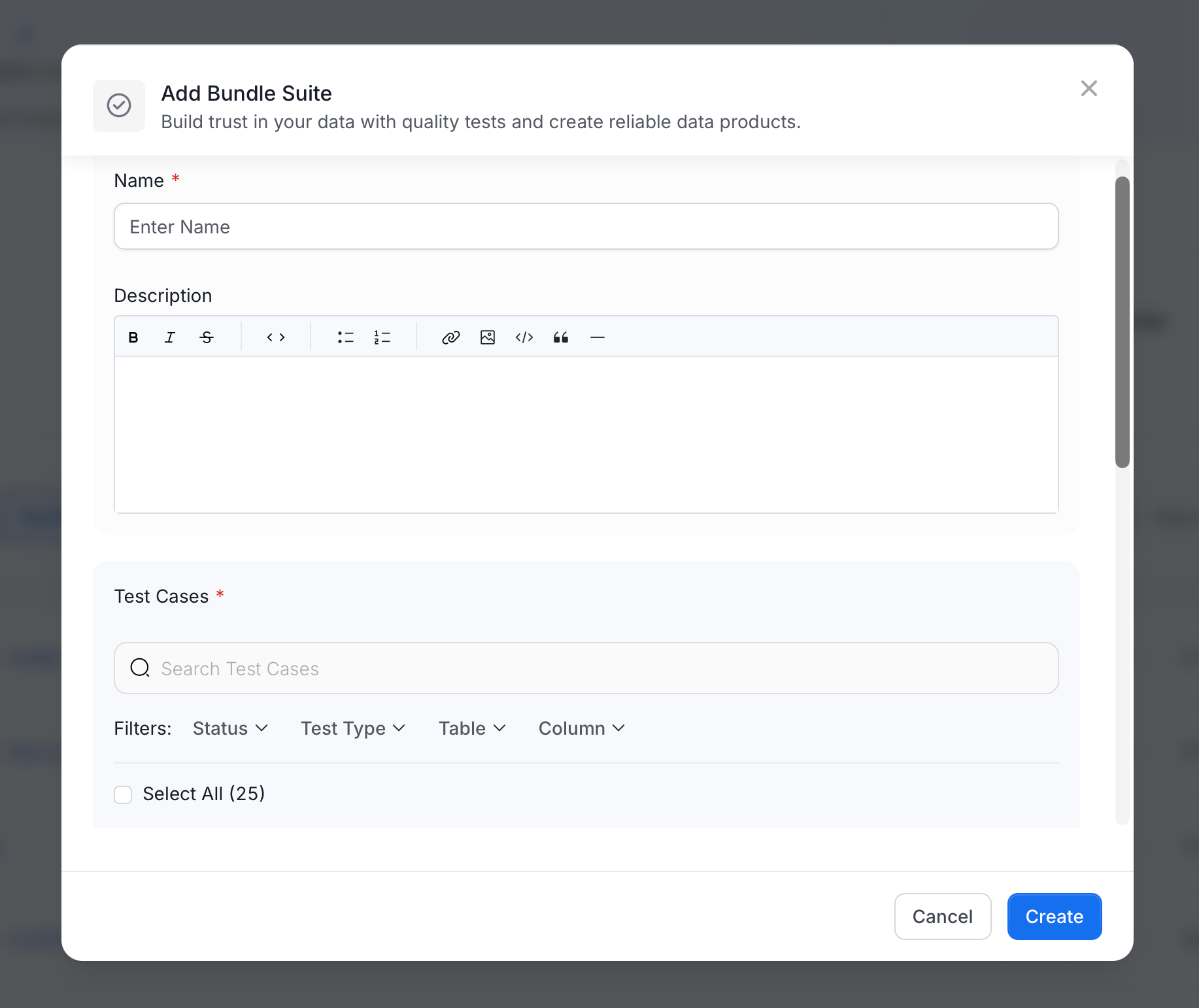
- Click Create. Click Cancel to close the window without saving.
Table Suites and Bundle Suites
The two kinds of suites differ in how they get their owners, which matters when you set up permissions.
Because of this, with the default policies the owner of a table can manage that table’s suite and test cases without extra setup. The owner of a Bundle Suite doesn’t get any rights on the tables of the test cases it contains.
Let Owners View and Manage Their Tables’ Tests
By default,OrganizationPolicy-Owner-Rule gives owners full access to the assets they own. For a test case, Collate checks the owners of the table that the test case belongs to. If you removed or narrowed that rule, use this recipe to let owners view and manage the tests of their own tables:
- Click the Profile icon and go to Settings > Access Control > Policies.
-
Click Add Policy. Name it
TableOwnerDataQuality. -
Add a rule with these settings:
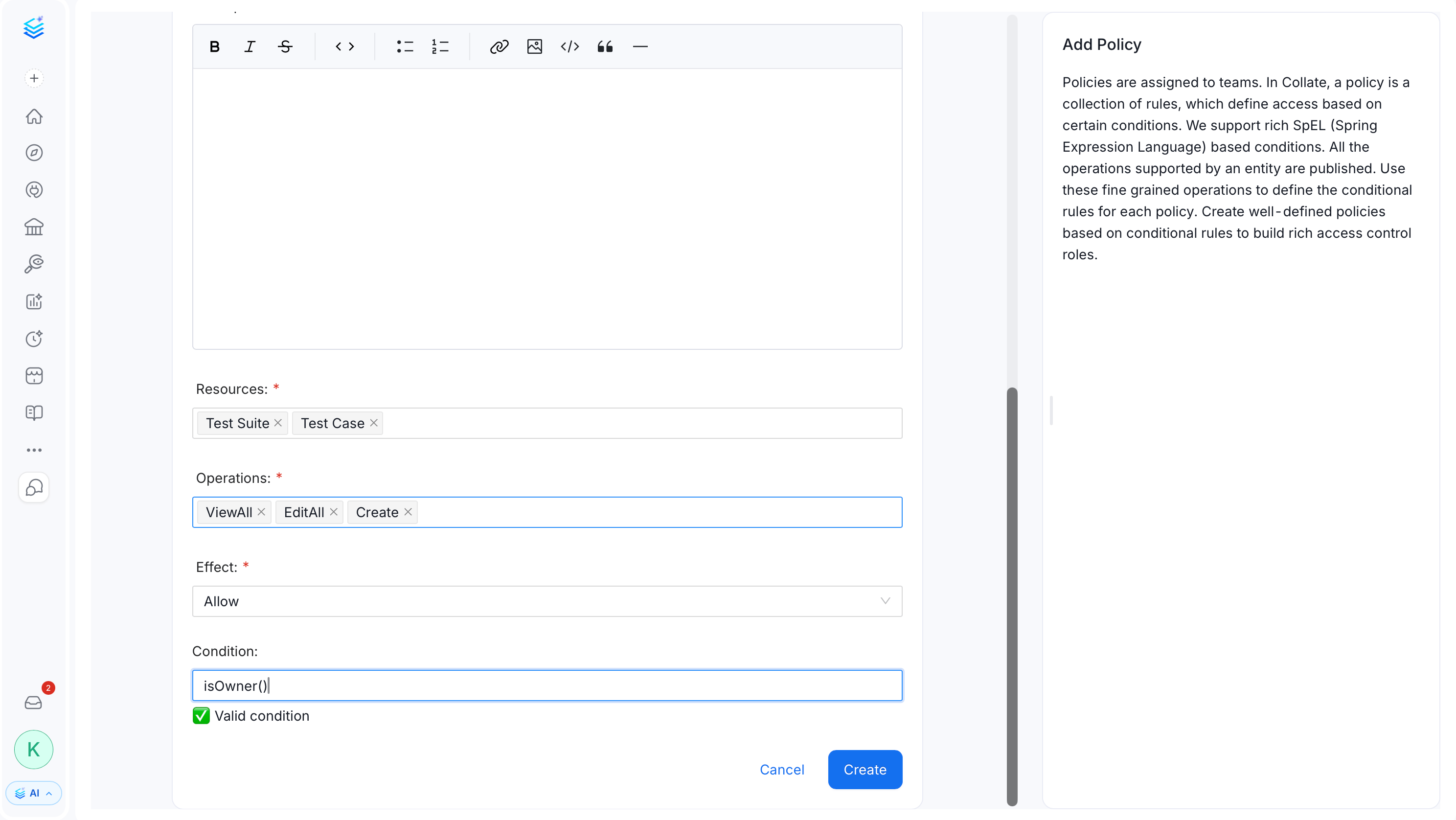
- Add the policy to a role, and assign the role to your data owners or their team.
- Sign in as an owner, open one of their tables, and confirm that they can view, add, and edit its test cases.
Note: The Permission Debugger doesn’t list the test case and test suite resources. To check these permissions, sign in as the user and try the action. For more information, see Permission Debugger.