
Getting Started with Data Quality as Code
This guide will help you install the Collate Python SDK and configure authentication to start running data quality tests programmatically.
Prerequisites
Before you begin, ensure you have:- Python 3.10 or higher installed
- pip package manager
- Access to a Collate instance (version 2.0.5)
- A JWT token for authentication (see Authentication below)
Installation
Install theopenmetadata-ingestion package with the necessary extras for your use case:
Basic Installation
Installation with Database Connectors
Install additional dependencies based on the databases you’ll be testing:Installation with DataFrame Support
If you plan to use DataFrame validation features:Installation with Multiple Features
Combine multiple extras as needed:Authentication
Data Quality as Code requires authentication with your Collate instance. The SDK supports JWT token authentication.Getting a JWT Token
Obtain a JWT token in one of two ways:Note: The Bots section of your Profile page is only visible to users with Admin privileges. If you don’t see it, ask your organization’s Collate Admin to generate a bot token for you or grant you Admin access.
Option 1: Using an Existing Bot Token
Collate provides pre-configured bots like theingestion-bot:
- Log in to Collate platform.
- Click the Profile icon and navigate to Settings > Bots.
- Find and click the ingestion-bot.
-
Copy and save the JWT token for later use.
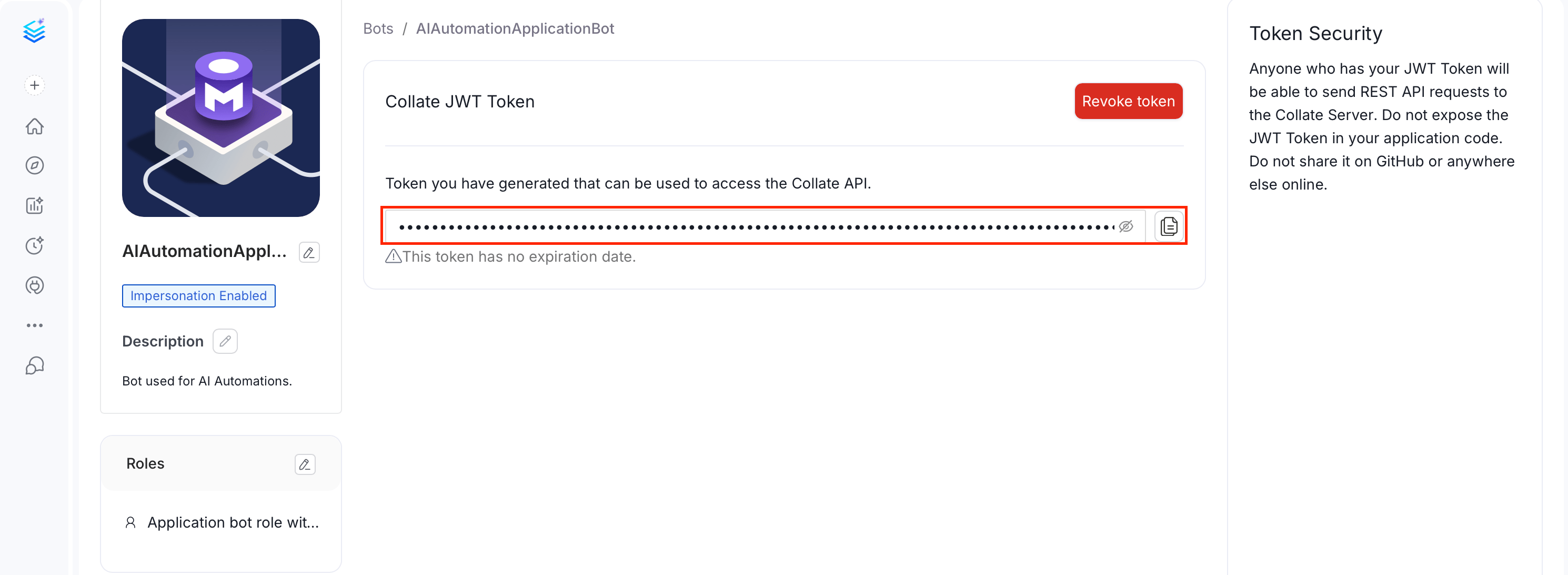
Option 2: Creating a Custom Bot
For production use, create a dedicated bot with specific permissions:- Log in to Collate platform.
- Click the Profile icon and navigate to Settings > Bots.
- Click Add Bot and fill in the following fields:
- Email (required): Enter the bot’s email address.
- Display Name: Enter a display name for the bot.
- Token Expiration (required): Select how long the JWT token should remain valid.
- Allow Impersonation: Leave this off unless the bot needs to act on behalf of users. This setting can only be changed at creation time.
- Description: Optionally add a description for the bot.
- Click Create and slect the bot you created from the list.
- Assign appropriate roles (typically
DefaultBotPolicyandIngestion Bot Policy).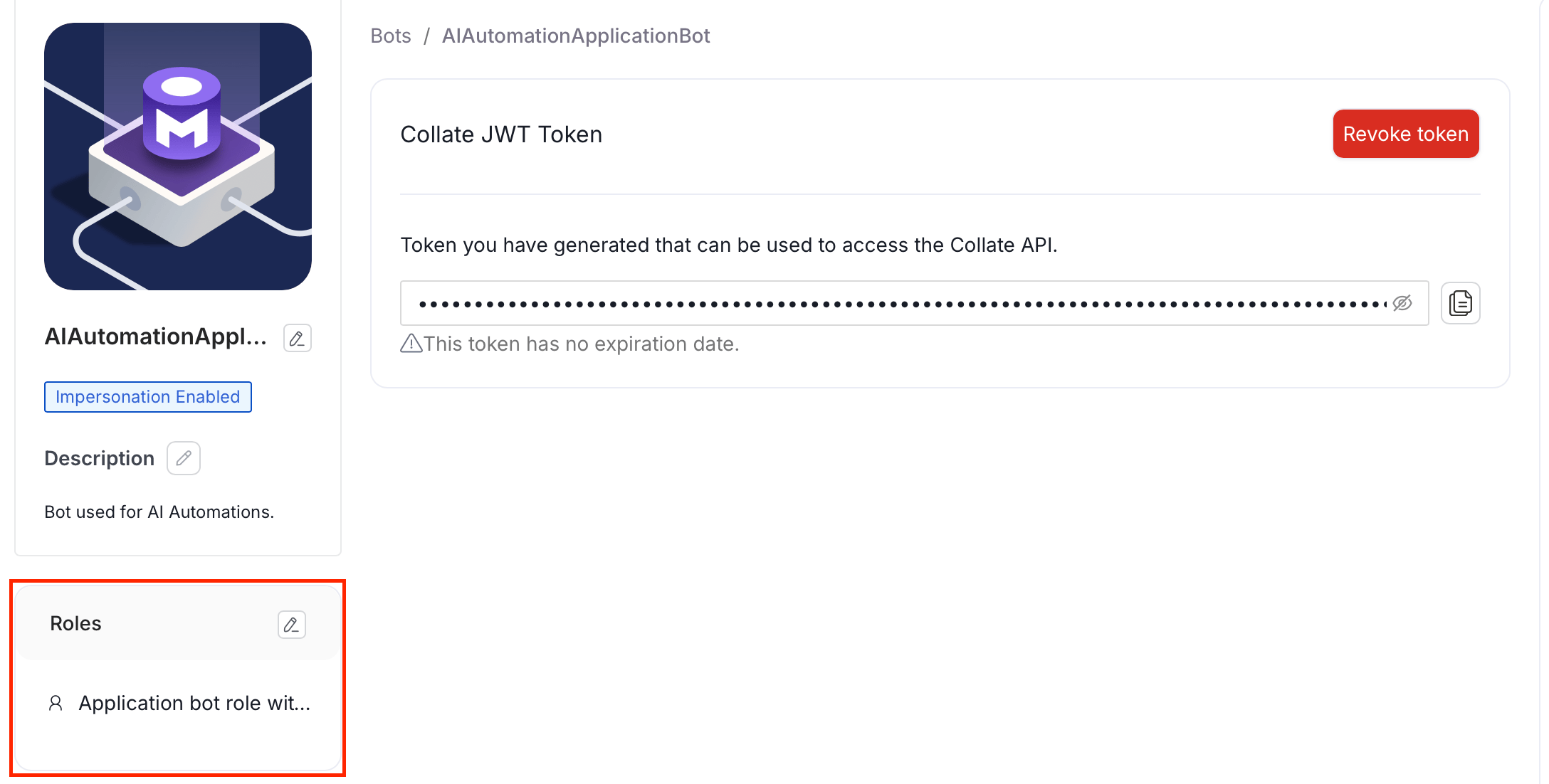
- Copy and save the generated JWT token.
Configuring the SDK
Once you have a JWT token, configure the SDK in your Python code.Using Environment Variables
For better security, letconfigure pick them up from environment variables:
Configuration Parameters
Theconfigure() function accepts the following parameters:
Using External Secrets Managers
The Test Runner guide also links here for reference while you’re testing.Why This is Required
TheTestRunner API executes data quality tests directly from your Python code (for example, within your ETL pipelines). To connect to your data sources, it needs to:
- Retrieve the service connection configuration from Collate.
- Decrypt the credentials stored in your secrets manager.
- Establish a connection to the data source.
- Execute the test cases.
Matching Your Collate Backend’s Secrets Manager
Configure TestRunner to match whatever secrets manager provider your Collate backend already uses. The SDK cannot discover this automatically.- Self-hosted Collate: your administrator already configured the secrets manager for your deployment. Use the same provider and loader values described in Configuration by Provider.
- Collate SaaS: the secrets manager is part of the managed platform, so you don’t configure or control it yourself. Contact your Collate administrator for the secrets manager provider, for example
SecretsManagerProvider.managed_aws. Also ask for the tenant’s region or vault name and access credentials scoped for your use. These details are tenant-specific, and you can’t find them in code or guess them.
General Setup Steps
-
Contact your Collate administrator to obtain:
- The secrets manager type (AWS, Azure, GCP, and so on).
- The secrets manager loader configuration.
- Required environment variables or configuration files.
- Any additional setup (IAM roles, service principals, and so on).
- Install required dependencies for your secrets manager provider.
- Configure environment variables with access credentials.
- Initialize the SecretsManagerFactory before using TestRunner.
- Authenticate with an ingestion-bot JWT instead of a personal user token. See Authentication for how to obtain one.
- Configure the SDK and run your tests.
Example Using AWS Secrets Manager
Required Dependencies:Configuration by Provider
Find the configuration details for your secrets manager provider below.AWS and AWS Parameter Store
Collate’s ingestion extras:aws (for example, pip install 'openmetadata-ingestion[aws]')
SecretsManagerProvider: (one of)
SecretsManagerProvider.awsSecretsManagerProvider.managed_awsSecretsManagerProvider.aws_ssmSecretsManagerProvider.managed_aws_ssm
AWS_ACCESS_KEY_IDAWS_SECRET_ACCESS_KEYAWS_DEFAULT_REGION
Azure Key Vault
Collate’s ingestion extras:azure (for example, pip install 'openmetadata-ingestion[azure]')
SecretsManagerProvider: (one of)
SecretsManagerProvider.azure_kvSecretsManagerProvider.managed_azure_kv
AZURE_CLIENT_IDAZURE_CLIENT_SECRETAZURE_TENANT_IDAZURE_KEY_VAULT_NAME
Google Cloud Secret Manager
Collate’s ingestion extras:gcp (for example, pip install 'openmetadata-ingestion[gcp]')
SecretsManagerProvider: SecretsManagerProvider.gcp
Environment variables:
GOOGLE_APPLICATION_CREDENTIALS: Path to the credentials JSON file.GOOGLE_CLOUD_PROJECT
Troubleshooting
-
Issue: “Cannot decrypt service connection”
Cause: Secrets manager not initialized or misconfigured.
Solution: Ensure
SecretsManagerFactoryis initialized before callingconfigure()or creating theTestRunner. -
Issue: “SecretsManagerFactory settings don’t take effect”
Cause:
SecretsManagerFactoryis a singleton. Only the first call in a Python process takes effect. Ifconfigure(),TestRunner, or anything else frommetadata.sdkruns first, even through an earlier import, the factory already initializes with defaults. LaterSecretsManagerFactory(...)calls are silently ignored. Solution: CallSecretsManagerFactory(...)as the first SDK-related statement in your script. Restart the session if you’re in a long-running or interactive environment, such as a notebook, where the SDK might already have been used. -
Issue: “Access Denied” or “Unauthorized”
Cause: Insufficient permissions to access secrets.
Solution:
- Verify IAM role/service principal has correct permissions.
- Check credentials are valid and not expired.
- Ensure correct region/vault name is specified.
-
Issue: “Module not found” for secrets manager
Cause: Missing dependencies for your secrets manager.
Solution: Install required extras:
-
Issue: Tests Fail with Connection Errors
Cause: Credentials not properly decrypted or secrets manager misconfigured.
Solution:
- Verify secrets manager provider matches your Collate backend configuration.
- Test credential access independently (for example, using AWS CLI, Azure CLI, and gcloud).
- Check network connectivity to secrets manager service.
-
Enable debug logging to see detailed error messages:
Contact Your Administrator
If you’re unsure about:- Which secrets manager your organization uses.
- Required environment variables or configuration.
- Access credentials or IAM roles.
- Permissions needed.
For More Information
These related pages provide more detail on secrets manager configuration:- Learn how self-hosted deployments configure a secrets manager in Enable Secrets Manager.
- Find provider-specific setup steps in Supported Implementations.
- See how the Hybrid Runner combines an ingestion-bot JWT with secrets manager configuration in Hybrid Runner Secrets Management.
Verify Installation
Create a simple test to verify your setup:"your_service.database.schema.table" with the fully qualified name of an actual table in your Collate instance.
Your First Data Quality Test
Now that you’re set up, let’s run your first data quality test:Common Installation Issues
Connection Timeout
If you experience connection timeouts, verify:- Collate instance is running and accessible
- API URL is correct (should end with
/api) - Network connectivity between your script and Collate
- Firewall rules allow the connection
Import Errors
If you encounter import errors:Next Steps
Now that you have the SDK installed and configured:- Learn how to run table-level tests using the TestRunner API
- Explore DataFrame validation for ETL pipelines
- Review the complete test definitions reference