
Persona Configuration and Precedence
Persona Precedence Logic
To clarify how Personas take effect:- User-level Default Persona (highest priority)
- Organization-level Default Persona (fallback)
Note: If a user has a Default Persona explicitly assigned at the user level, that Persona takes precedence. If no user-level Persona is defined, the system applies the Organization-level Default Persona associated with the user’s role.
Effective Persona Resolution Flow
Setting a Persona at the Organizational Level
This section explains how to configure a Default Persona for the entire organization.-
Select the Profile icon and navigate to Settings > Personas.
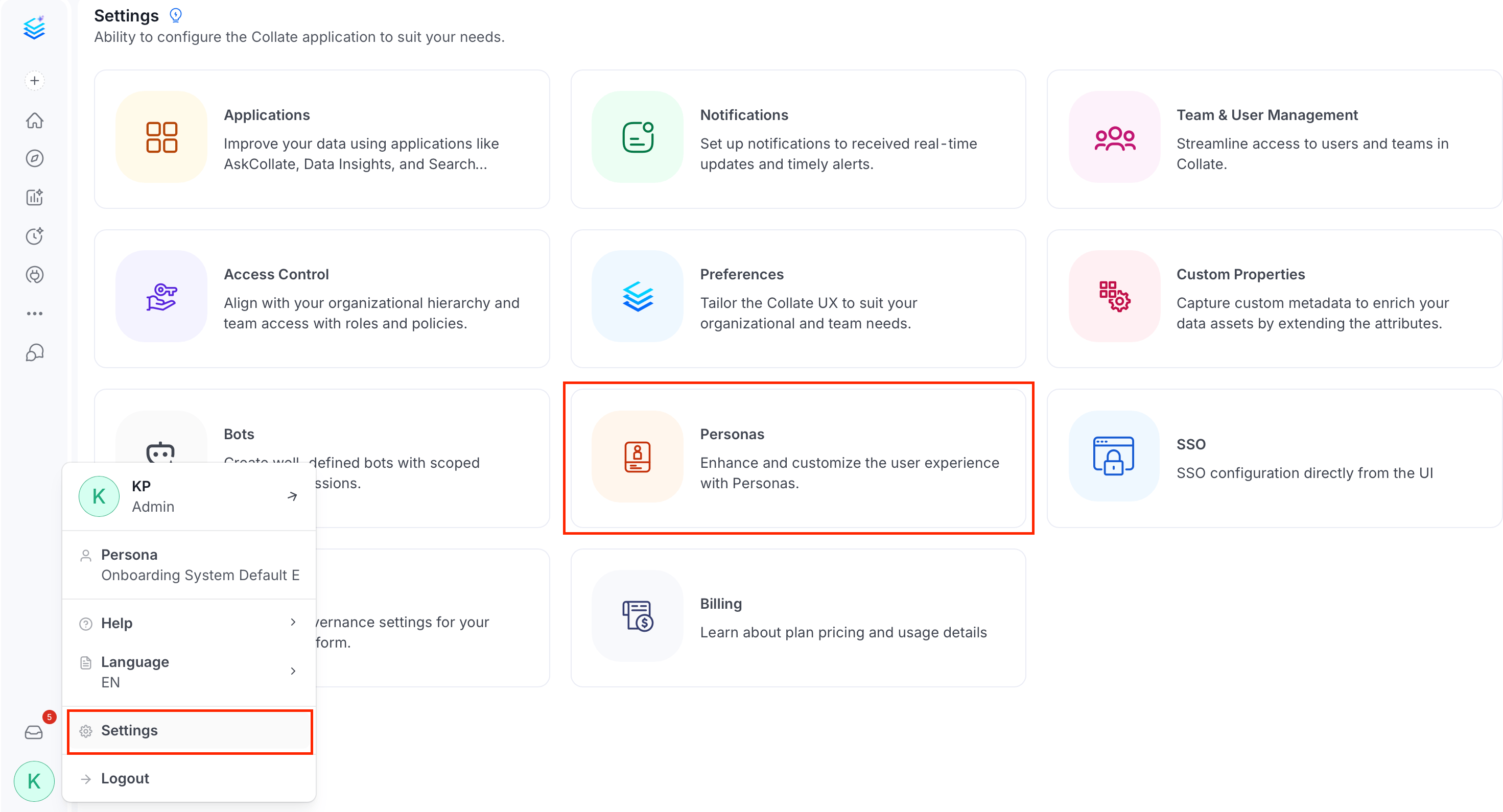
-
Select a persona.
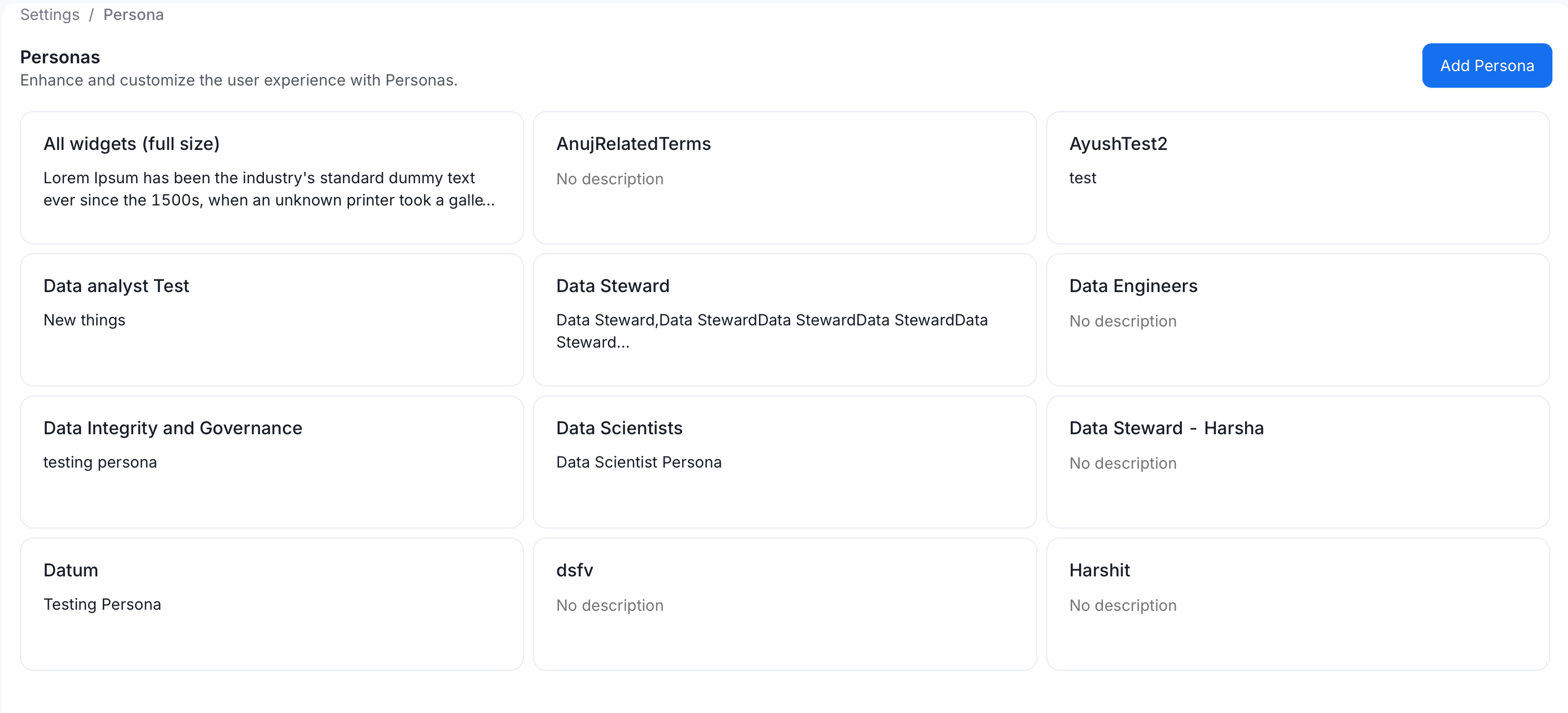
-
Select the ⋮ icon and click Set as Default
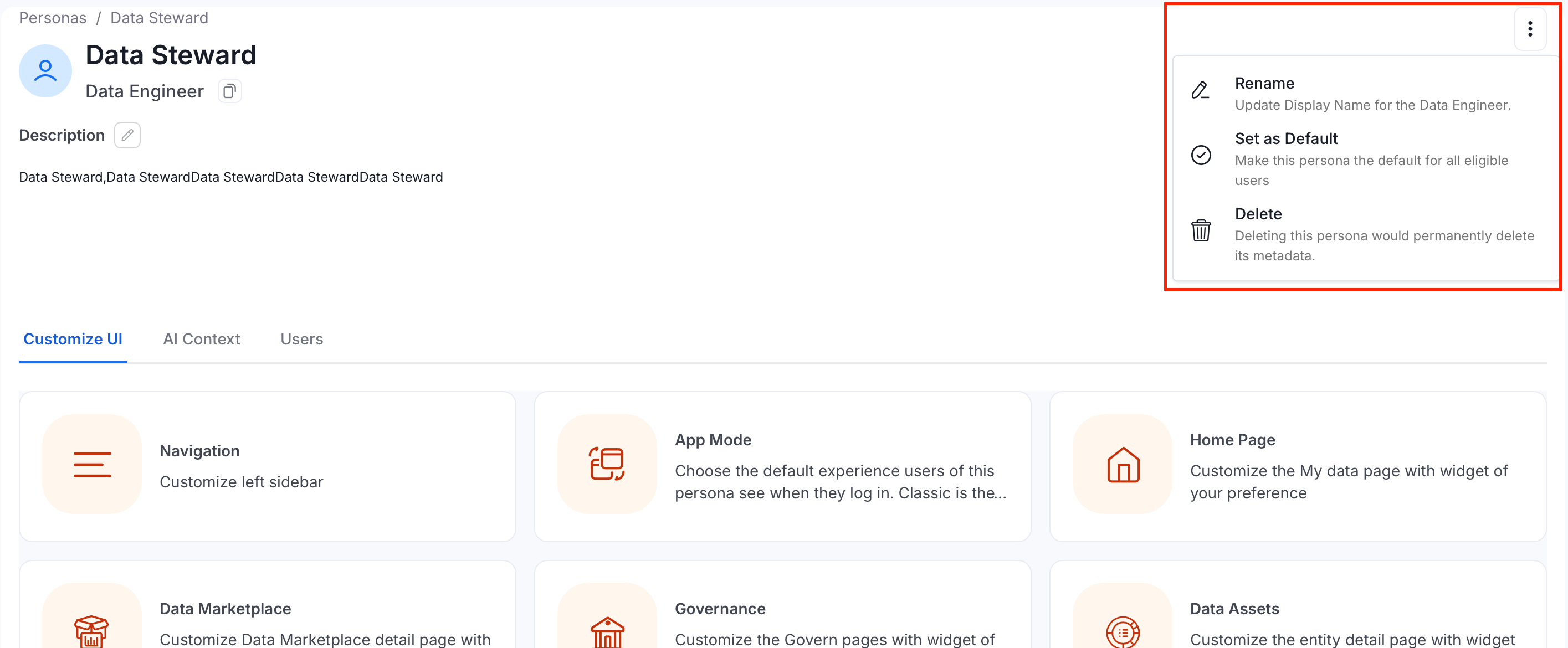
Customizing the Navigation Menu
You can customize the left-side navigation menu using Personas.-
Select the Profile icon and navigate to Settings > Personas.
-
Select a persona.
-
Click Navigation.
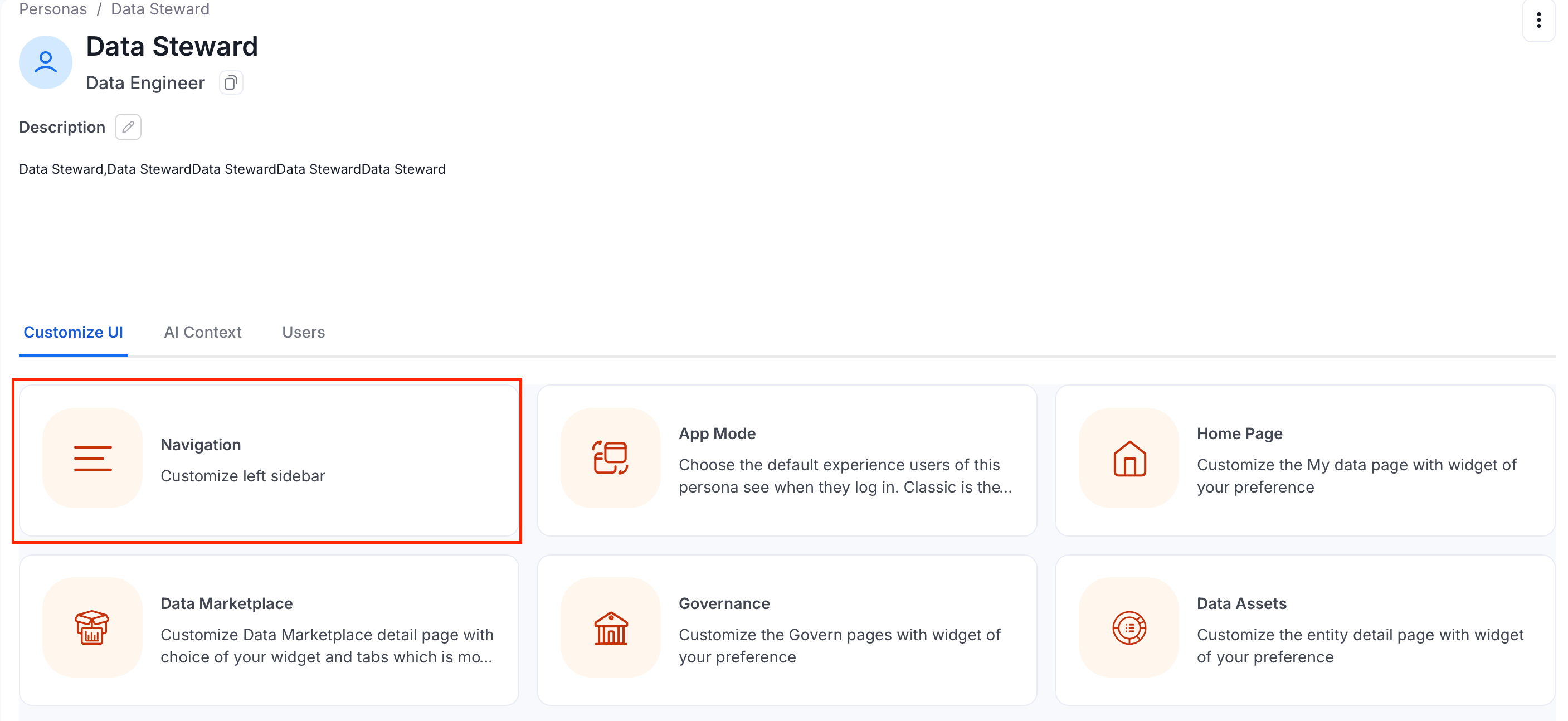
-
Enable or disable the options you want to display or remove from left navigation menu.
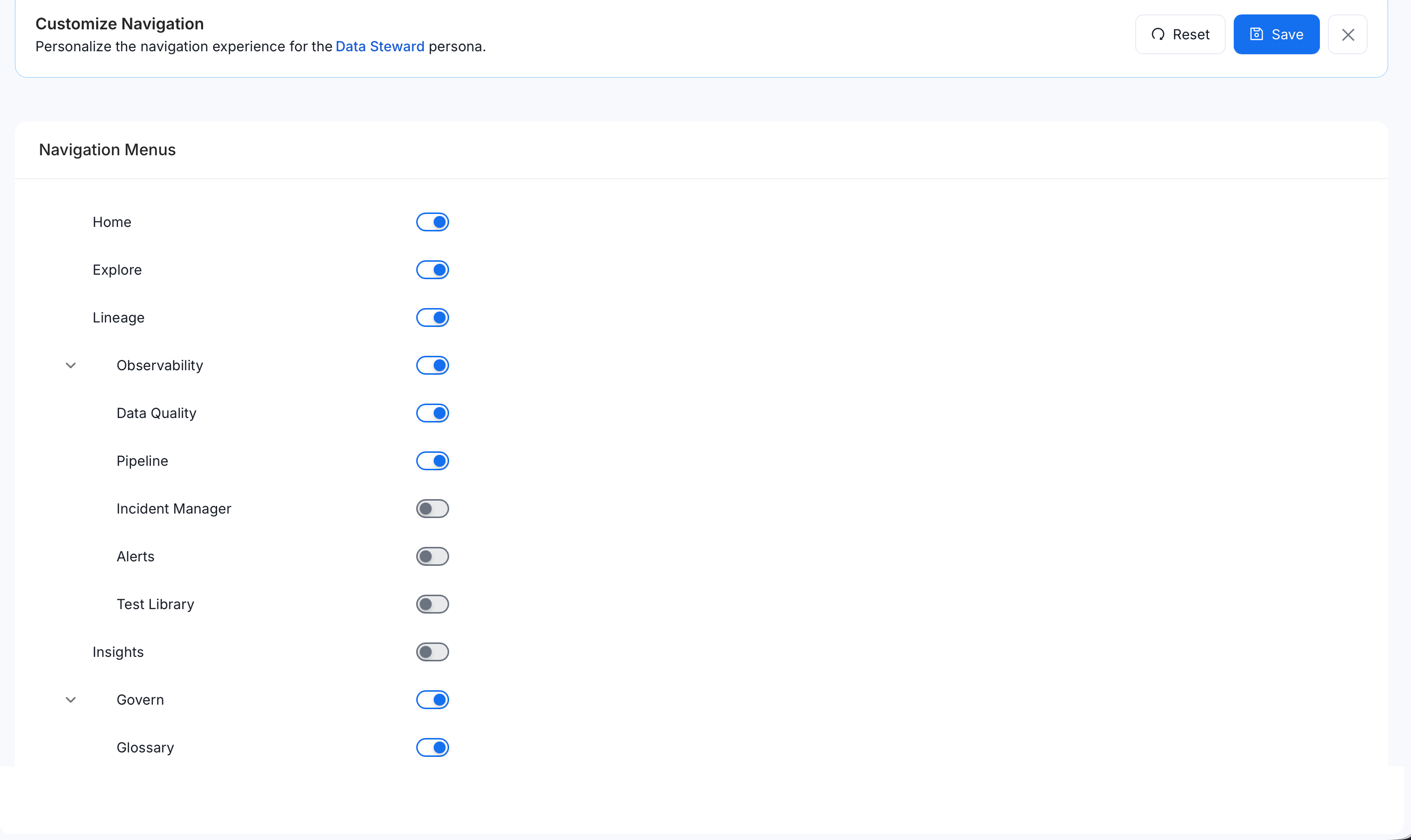
- Click Save.
Defining a User Persona
This section explains how to assign or override a Persona for an individual user.- Select the Profile icon and navigate to Settings > Team and User Management > Users.
- Search and select the user you want to configure.
- Configure the following fields and click Save:
- Persona — Assign a persona to the user.
- Default Persona — Set which persona is active by default for this user.
- Domain — Set the user’s domain.
- Roles — Assign roles to the user.
- Navigation visibility
- Feature access
- Permissions
- Overall user experience in Collate
Summary
A user-level Default Persona overrides the Organization-level Default Persona. If no user-level Persona is defined, the Organization-level Persona applies.