
Microsoft Teams Integration Setup Guide
This guide explains how to set up the Microsoft Teams bot integration with Collate.Prerequisites
- Azure subscription with admin access
- Collate instance with public HTTPS endpoint
- Microsoft Teams workspace
Step 1: Create Azure Bot Registration
- Go to Azure Portal
- Search for “Azure Bot” and click Create
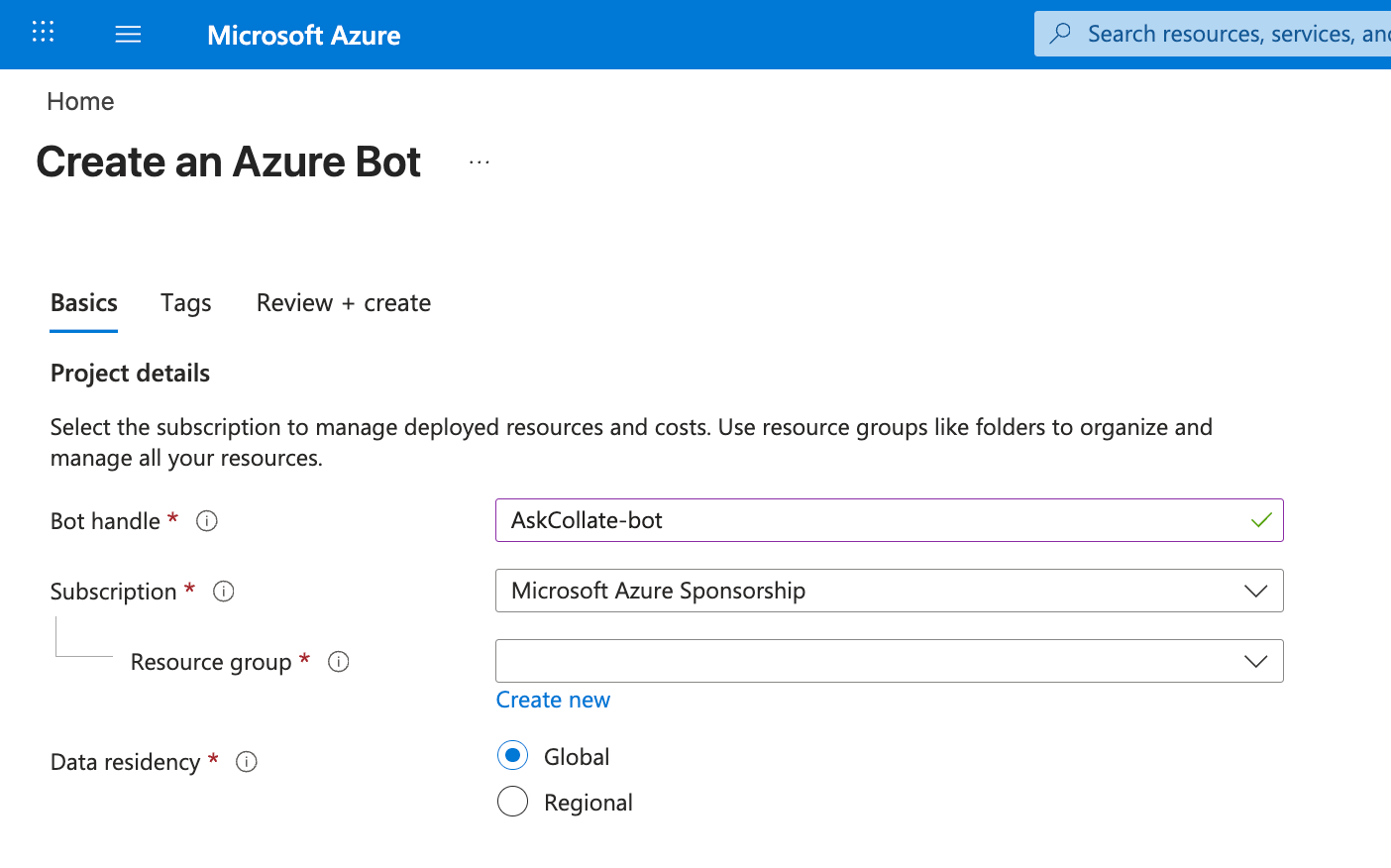
- Fill in the required fields:
- Bot handle:
collate-bot(or your preferred name) - Subscription: Select your Azure subscription
- Resource group: Create new or use existing
- Pricing tier: Free (F0) for testing, Standard for production
- Type of App: Multi Tenant (recommended) or Single Tenant
- Creation type: Create new Microsoft App ID
- Bot handle:
- Click Review + Create, then Create
Step 2: Get App Credentials
- After deployment completes, go to your Bot resource
- Click Configuration in the left menu
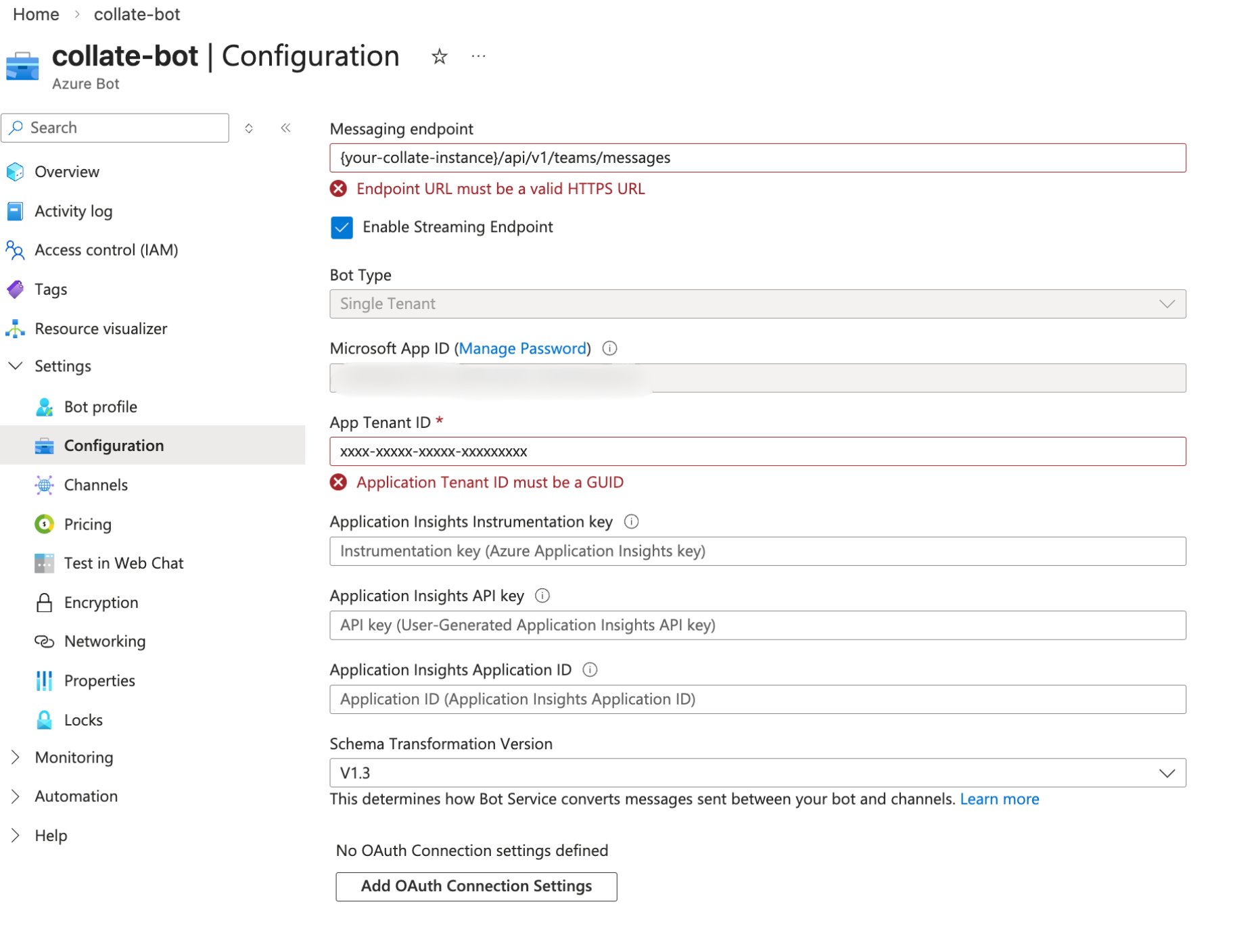
- Copy the Microsoft App ID - you will need this later
- Click Manage Password next to Microsoft App ID
- In the App Registration page, go to Certificates & secrets
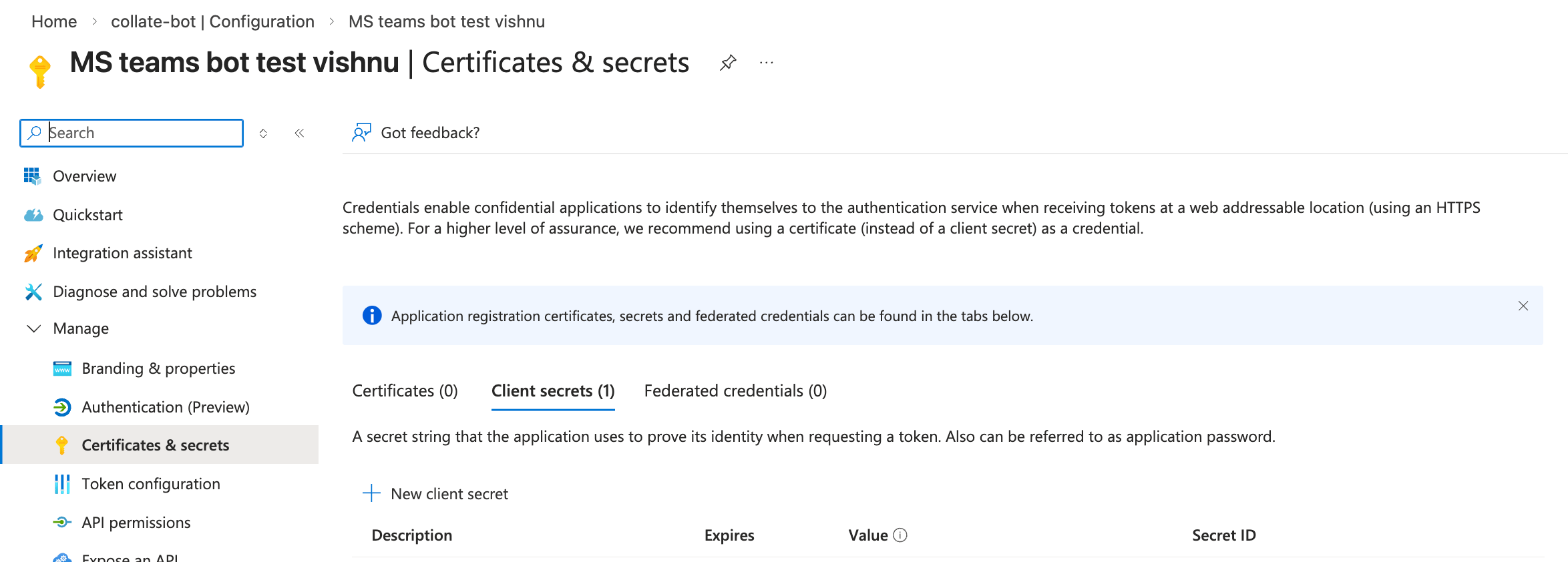
- Click New client secret
- Add a description (e.g., “Collate Bot Secret”) and set expiration
- Click Add and immediately copy the secret value (it’s only shown once)
Step 3: Configure Messaging Endpoint
- In your Azure Bot resource, go to Configuration
- Set the Messaging endpoint to:
Replace
<your-collate-domain>with your actual Collate server domain. - Click Apply
Step 4: Enable Teams Channel
- In your Azure Bot, go to Channels
- Click the Microsoft Teams icon
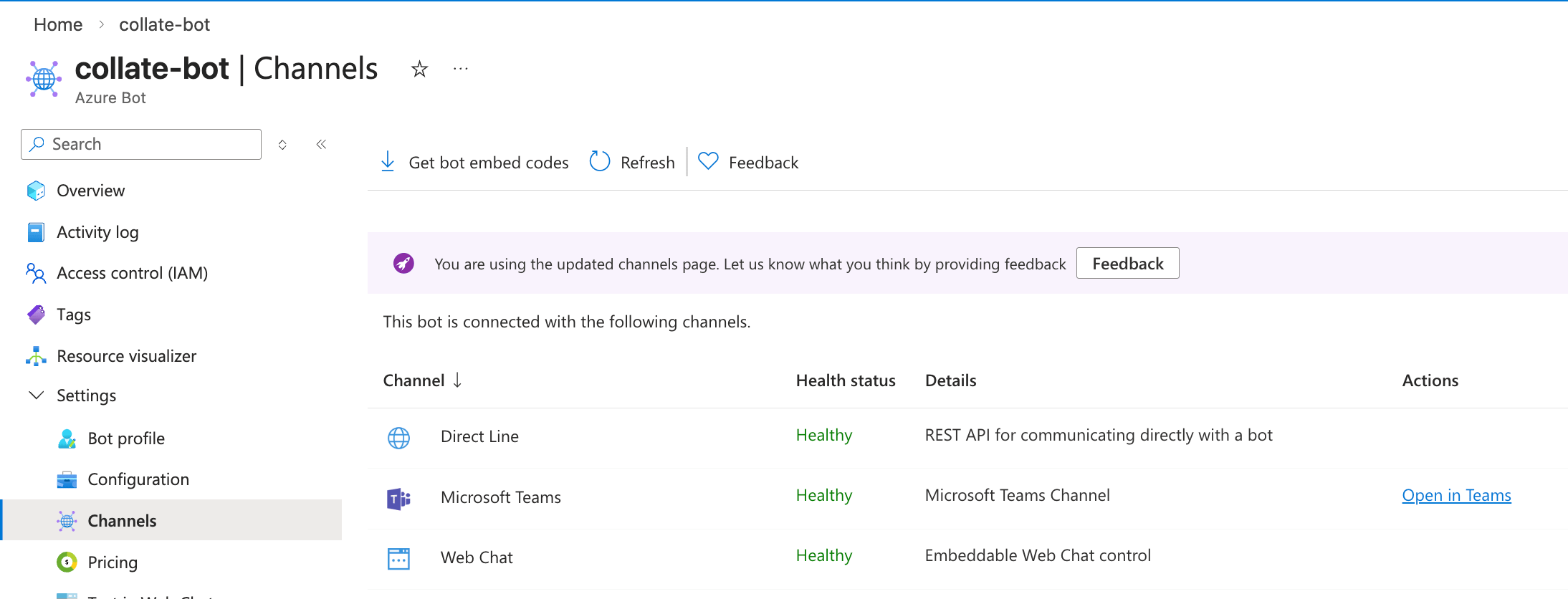
- Read and accept the terms of service
- Click Apply
- The Teams channel should now show status “Running”
Step 5: Configure in Collate
- Log into Collate as an Admin user
- Navigate to Settings > Applications
- Find Microsoft Teams in the application marketplace
- Click Install
- Enter the configuration:
- Microsoft App ID: The App ID from Step 2
- Microsoft App Password: The client secret from Step 2
- Microsoft App Tenant ID: Leave empty for multi-tenant bots, or enter your tenant ID for single-tenant
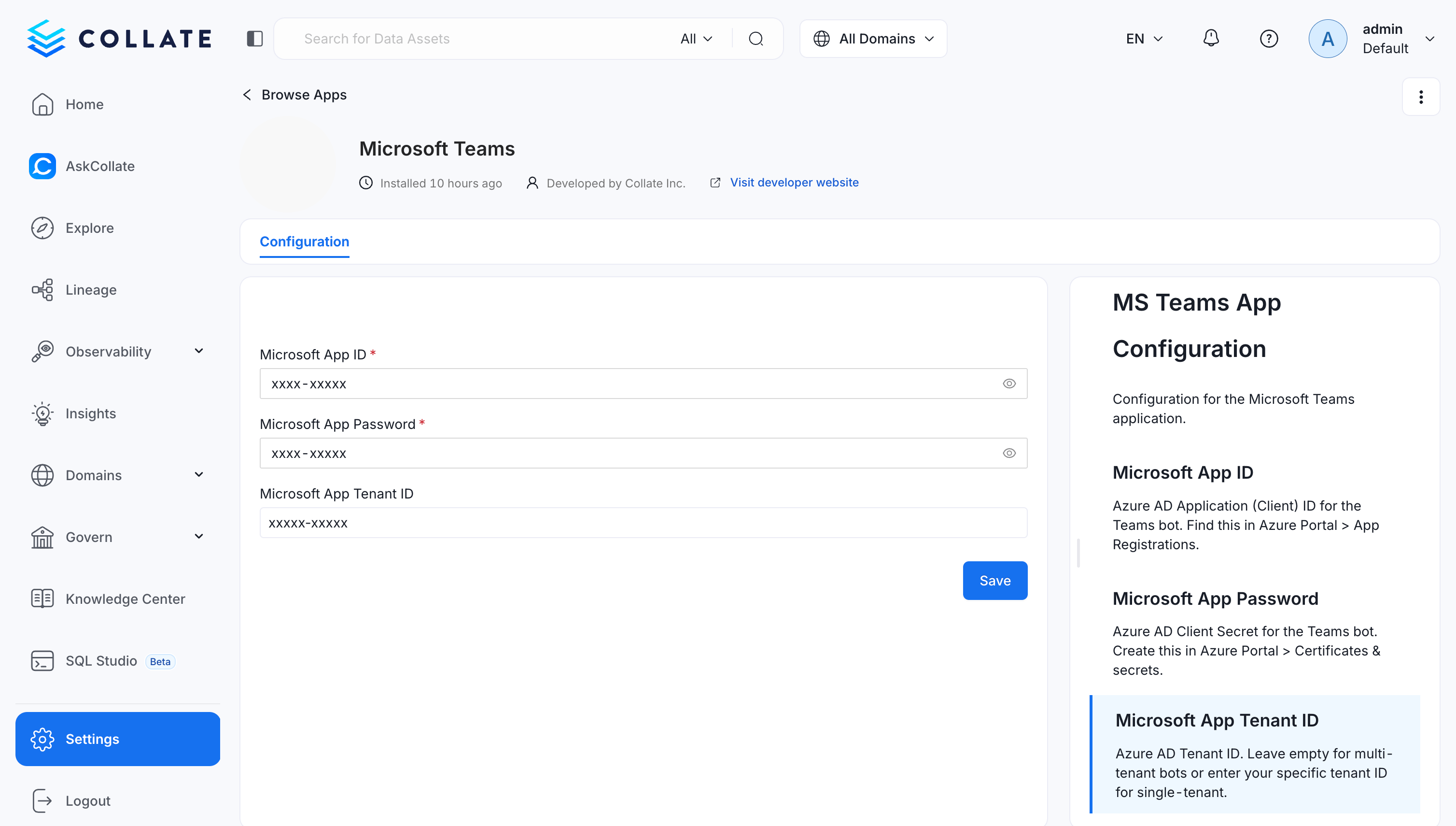
- Click Save
Step 5.b: Setup Microsoft App API permissions
- Click on API Permissions under Manage on left side bar in your Microsoft Registered App
- Click on add a Permission
- Select Microsoft Graph and under that Application permissions
- Search for User.Read.All or User.ReadBasic.All
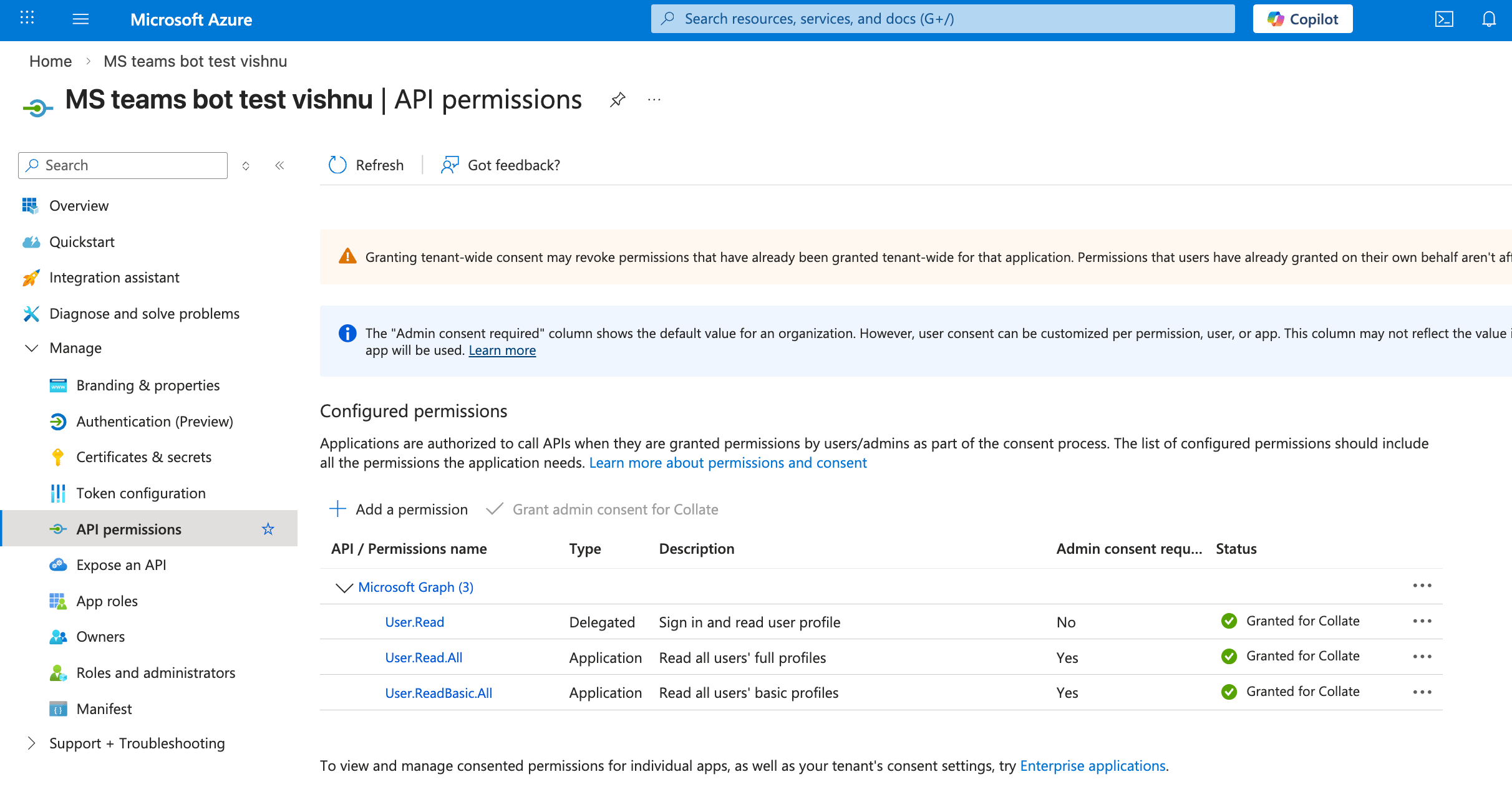
- Select any one of above permission and click add permissions
Step 6: Add Bot to Teams
Option A: Multi-tenant Bots (from Azure Portal)
- In Azure Bot > Channels > Teams, click Open in Teams
- Click Add to add the bot to your personal chat
Option B: Single-tenant Bots (requires App Package)
Single-tenant bots don’t appear in Teams app search. You must create and upload an app package.Create the App Package
-
Navigate to the app-package directory:
-
Generate the icons (if not already present):
-
Edit
manifest.json:- Replace
YOUR_MICROSOFT_APP_IDwith your Azure App ID (appears twice) - Replace
YOUR_COLLATE_DOMAINwith your Collate domain (e.g.,collate.example.com)
- Replace
- Create the zip package:
Upload to Teams
For personal use:- Open Microsoft Teams
- Click Apps in the left sidebar
- Click Manage your apps at the bottom
- Click Upload an app → Upload a custom app

- Select
collate-teams-bot.zip - Click Add
- Go to Teams Admin Center
- Navigate to Teams apps → Manage apps
- Click Upload and select your zip file
- Approve the app for your organization

Option C: Search in Teams (Multi-tenant only)
- In Microsoft Teams, go to Apps
- Search for your bot name
- Click Add to add to personal chat, or add to a specific channel
Step 7: Test the Integration
- Send a message to the bot: “Hello”
- The bot should respond with a welcome message
- Try some example queries:
- “Search for tables”
- “What dashboards do we have?”
- “Show me the lineage for [table name]“
Troubleshooting
| Issue | Possible Cause | Solution |
|---|---|---|
| Bot not found in Teams search | Single-tenant bot | Single-tenant bots require app package upload (see Step 6 Option B) |
| “You do not have permission” error | Single-tenant or org policy | Upload app package manually or contact Teams admin |
| Bot not responding | Messaging endpoint incorrect | Verify the endpoint URL in Azure Bot Configuration |
| 401 Unauthorized | Invalid credentials | Double-check App ID and Password match Azure configuration |
| No AI responses | AI Platform not enabled | Ensure AI Platform is enabled in Collate configuration |
| Timeout errors | Network issues | Check network connectivity between Teams and Collate server |
| Bot added but can’t message | Teams channel not enabled | Verify Teams channel is enabled in Azure Bot Channels |
| Can’t upload custom app | Sideloading disabled | Ask Teams admin to enable custom app uploads in admin center |
Security Considerations
- Credential Storage: The Microsoft App Password is stored encrypted in the Collate database
- HTTPS Required: The messaging endpoint must use HTTPS
- Secret Rotation: Consider rotating the client secret periodically
- Single-tenant: For enterprise deployments, consider using single-tenant bot registration