
Customize Collate Interface
Admins can customize the Collate interface to match their organization’s branding — including logos, favicon, and a full color palette.Setting Collate Theme
-
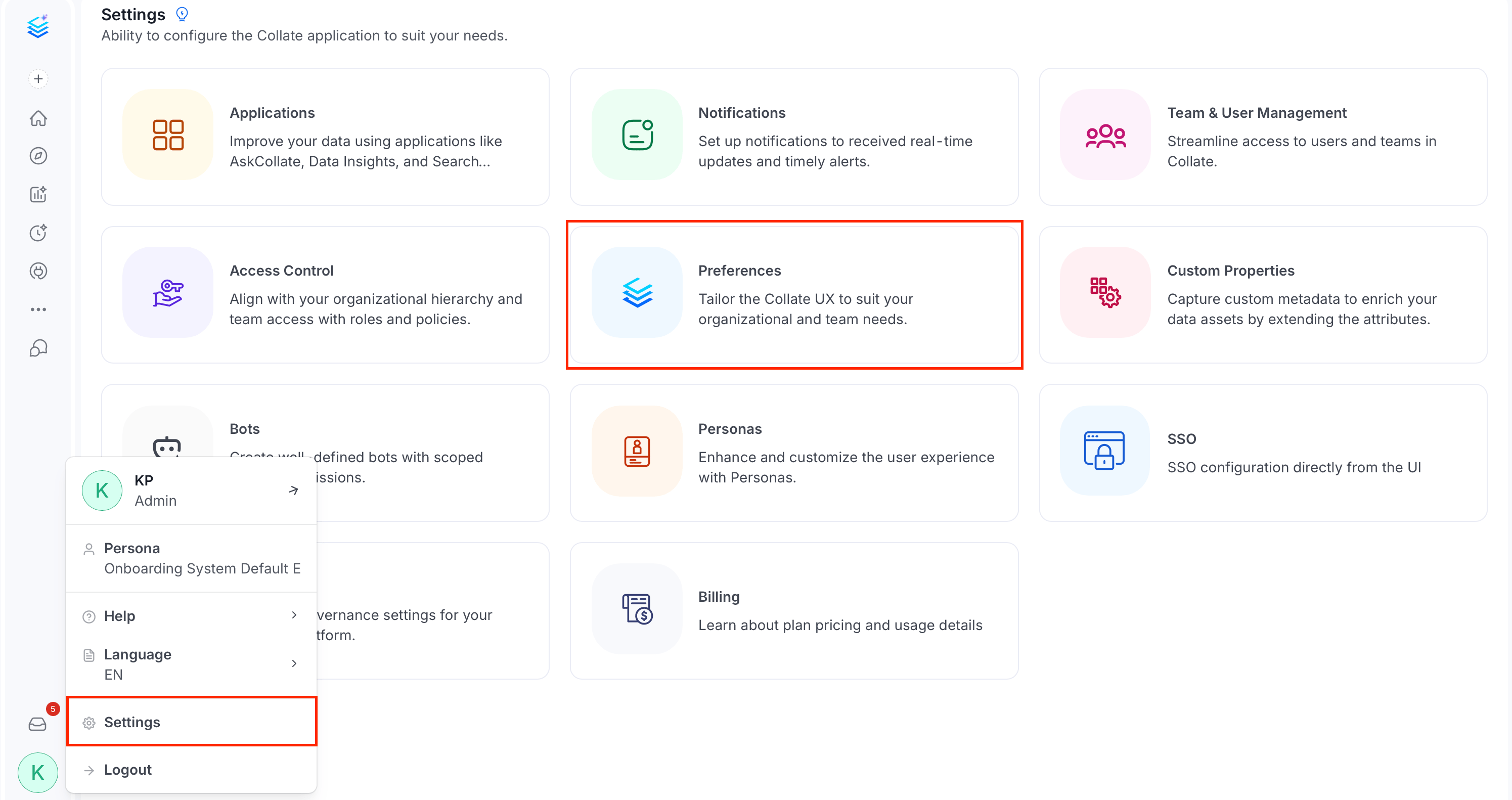
Click your Profile icon and navigate to Settings > Preferences.
-
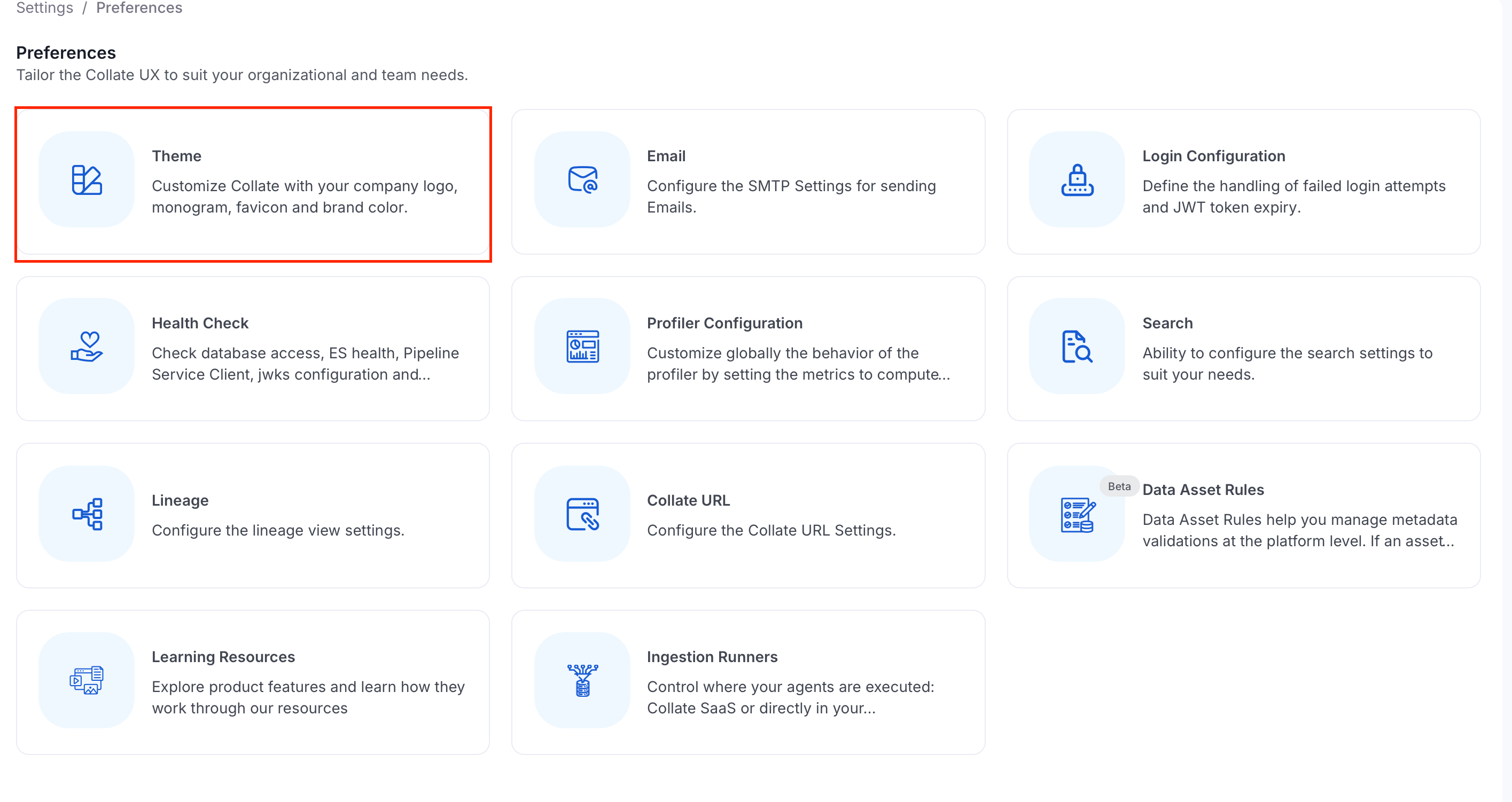
Click Theme.
- Customize your Collate interface.
Custom Logo
The Custom Logo section lets you replace the default Collate branding assets: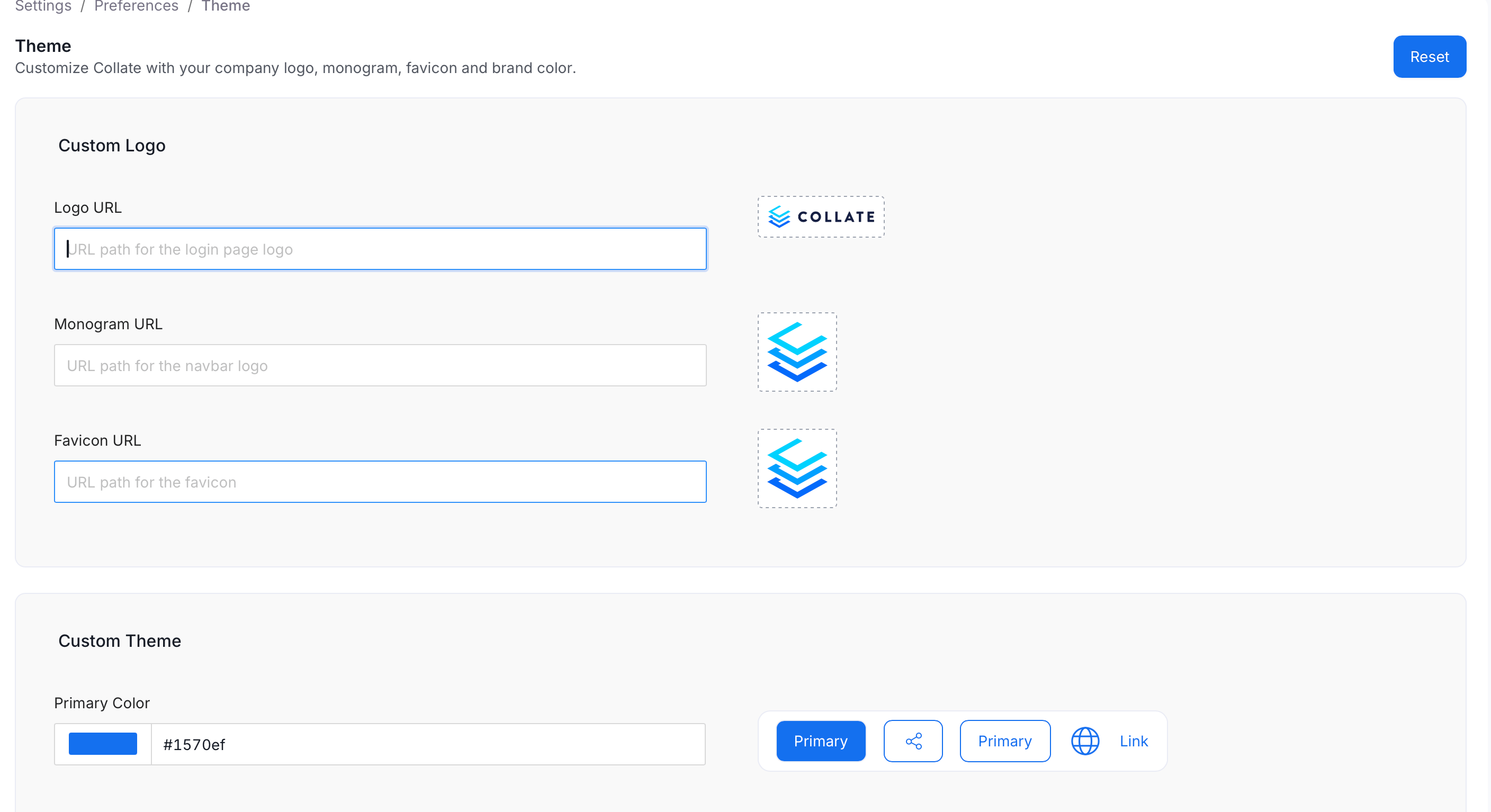
- Logo: Use a 16:9 aspect ratio.
- Monogram and Favicon: Use a 1:1 aspect ratio.
Custom Theme
The Custom Theme section lets you define brand colors used across the interface. Each field accepts a HEX color code or a color picker selection — the preview on the right updates in real time.
After configuring colors, click Save to apply.