
Standards & Rules
Note: Audit Hub is currently a Beta feature.
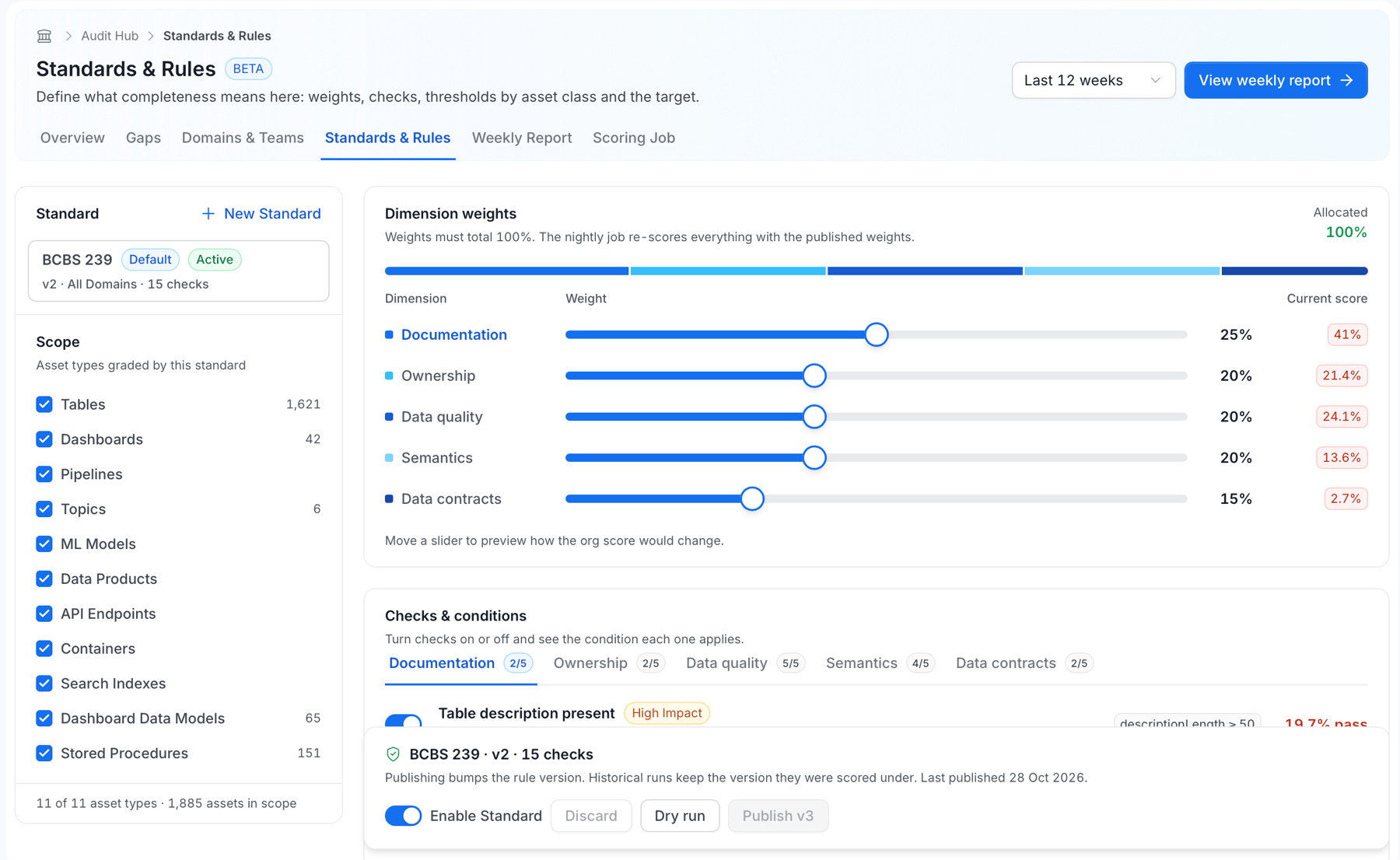
Standard Lifecycle
A standard moves through these states.
Each time you publish, the rule version increases by one. Past runs keep the version they were scored under, so historical scores remain reproducible.
Open the Standards List
The Standards & Rules tab lists every standard, including drafts.- In Audit Hub, click the Standards & Rules tab.
- Review the Standard list. Each entry shows the standard name, a status badge (Active, Published, Draft, or Archived), the rule version, the domain scope, and the number of enabled checks, for example v2 · All Domains · 15 checks. The built-in standard carries a Default badge.
- Select a standard to open it in the editor.
Create a Standard
Creating a standard copies the rules of the standard you have selected, so select the standard that is closest to what you need first. Prerequisites: TheCreate operation on the metadataStandard resource.
To create a standard, follow these steps:
- In Standards & Rules, select the standard to use as a template.
-
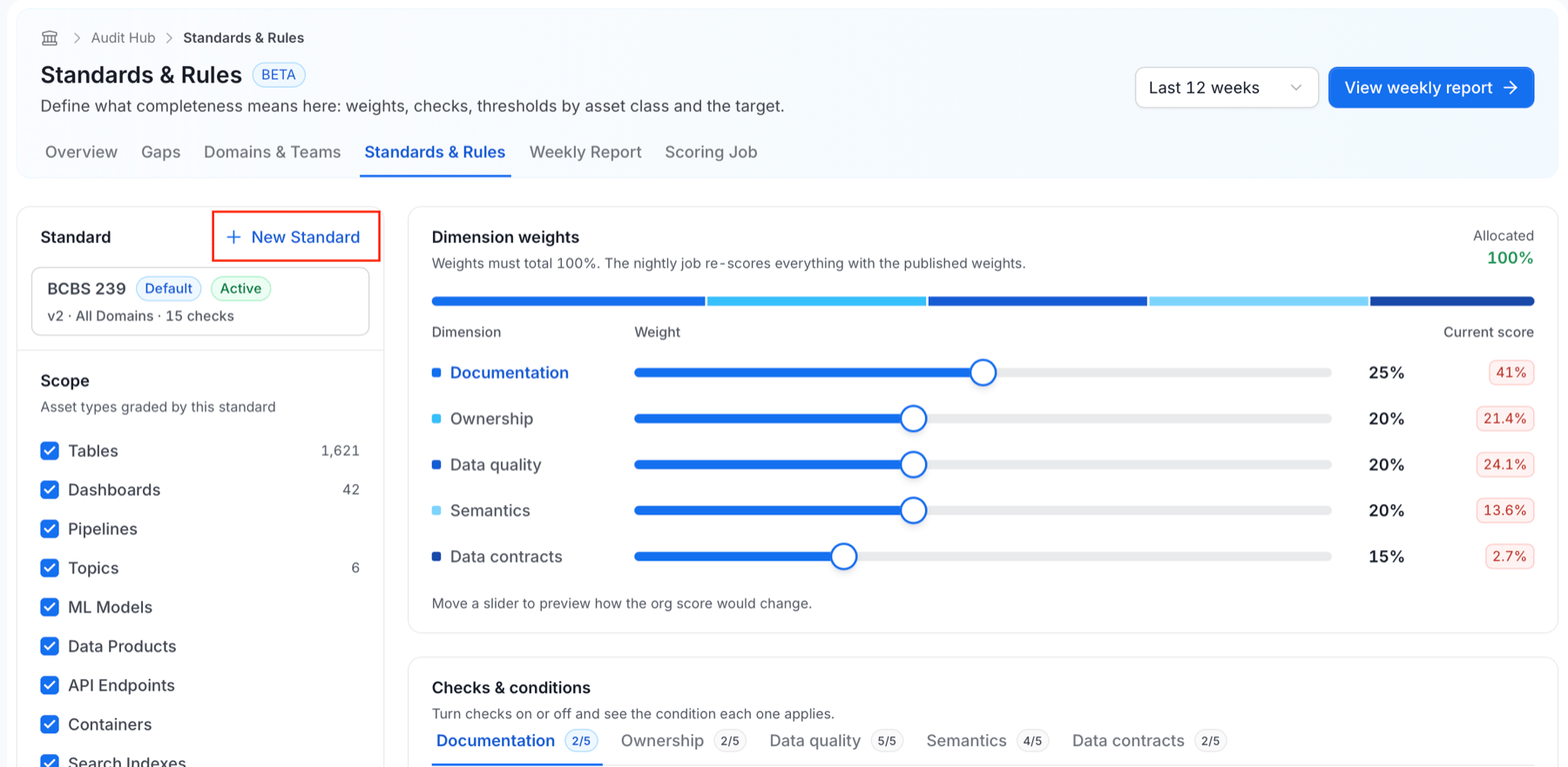
In the Standard list header, click New Standard.
-
In the dialog, review the Template name, then enter:
- Name: A unique identifier. This field is required.
- Display Name: The name shown in the interface.
- Description: A description of the standard.
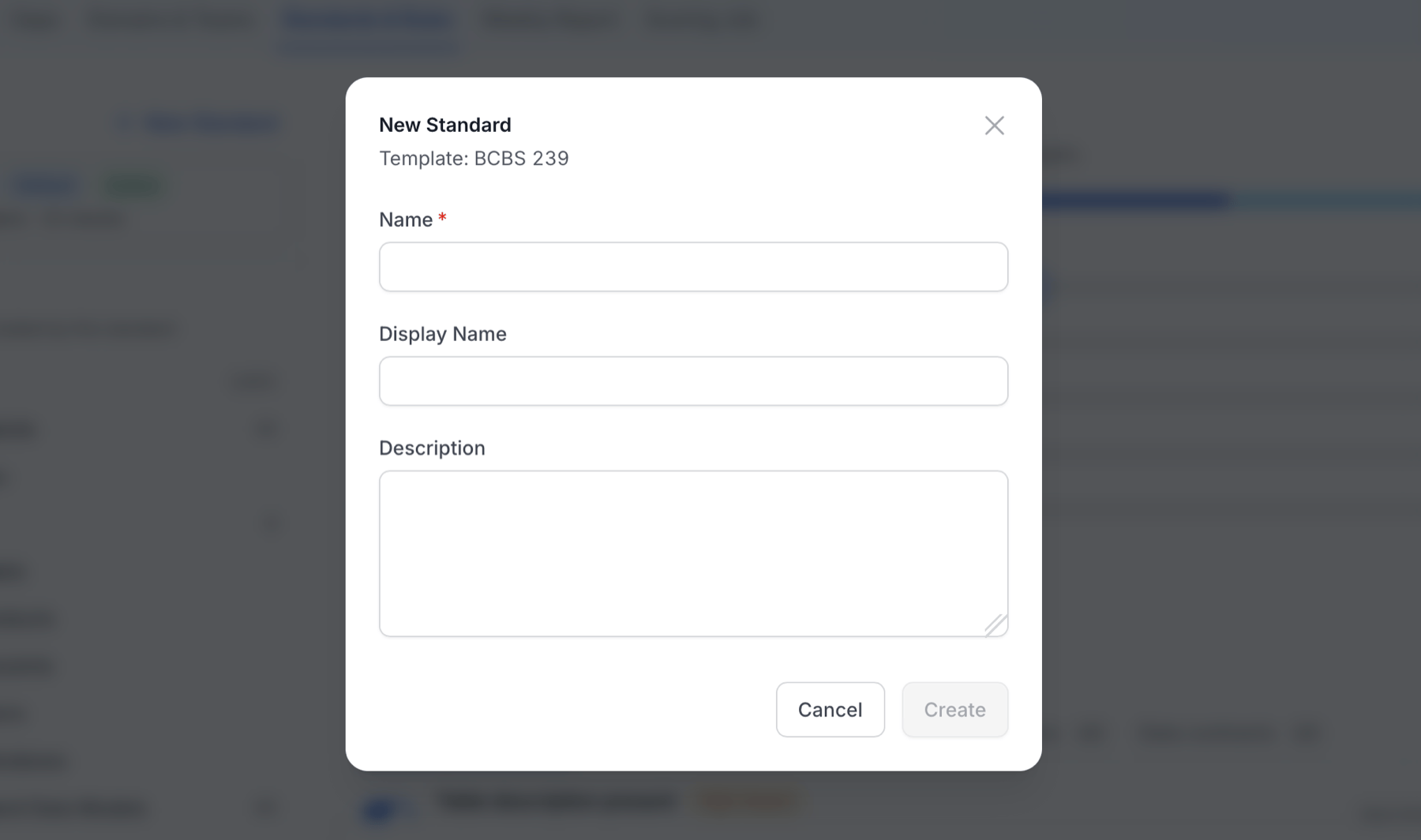
- Click Create.
Edit a Standard
Every user who can view Audit Hub can view every standard, but editing requires theEditAll operation on the metadataStandard resource. Without it, the editor controls are disabled.
The editor has the following cards.
Scope
Scope selects the asset types that the standard grades. Each asset type has a checkbox and shows the number of assets of that type. The card footer shows how many asset types are selected out of the total and how many assets are in scope.Dimension Weights
Dimension weights sets how much each dimension contributes to the overall score.- Move a slider to change a dimension weight. Weights change in steps of 5 points. The slider maximum is 50, or the current weight if it is higher.
- The weights must total exactly 100%. The card shows the Allocated total and flags the difference as unallocated or over. Publishing is disabled until the total is 100%.
- The card shows the Current score of each dimension and, after a dry run, a projection of the score under the new weights.
Checks & Conditions
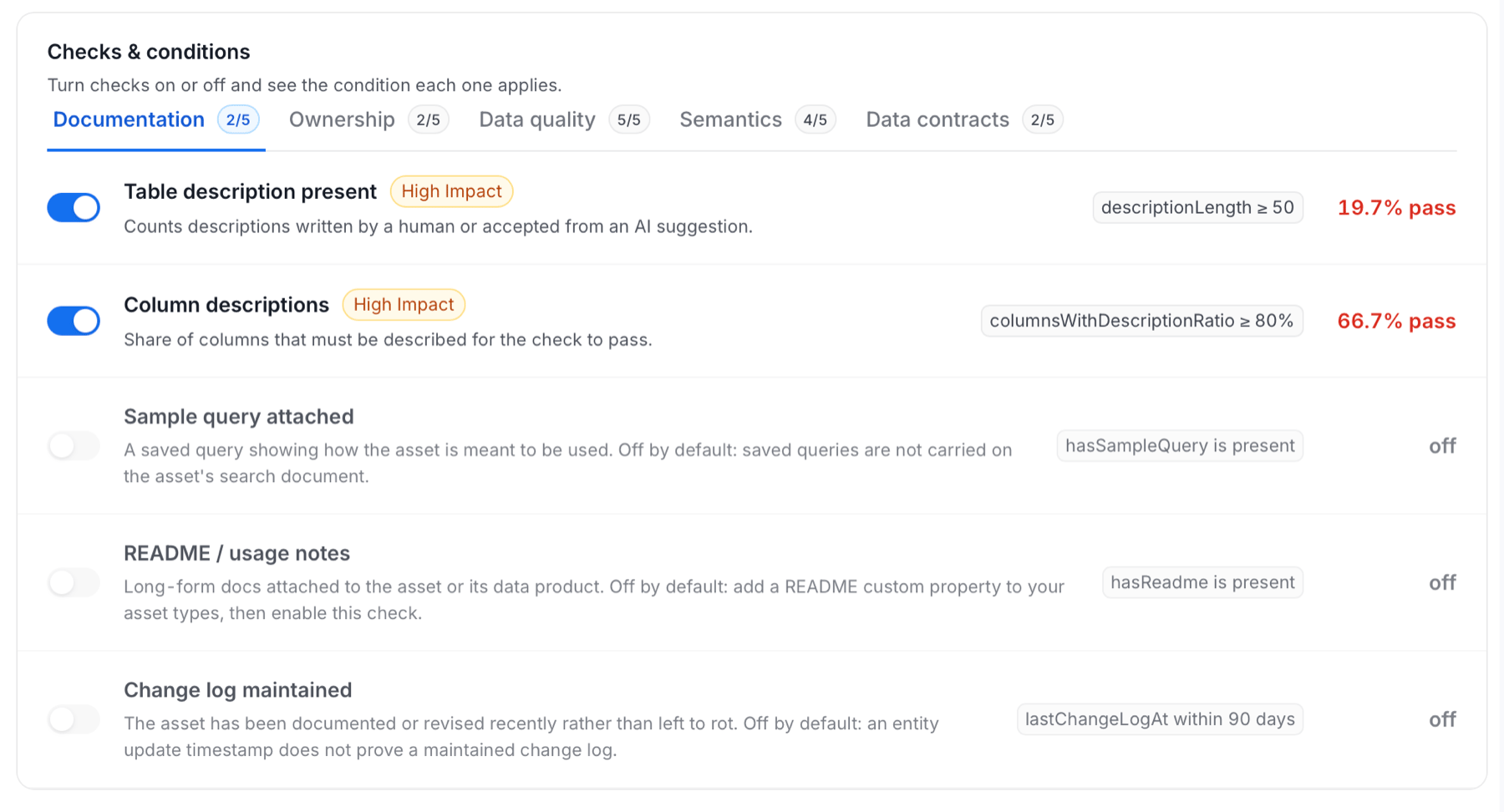
Checks & conditions lists every check in the standard. A tab for each dimension shows how many of its checks are enabled, for example 2/5.- Turn a check on or off with its toggle. Disabled checks aren’t evaluated and are shown as off.
- Each check shows its description and the condition it applies, as a badge. Examples are
descriptionLength ≥ 50,hasSampleQuery is present, andlastChangeLogAt within 90 days. - A check that carries a High Impact badge is among those that move the score the most.
- The current pass rate of each check appears next to it, for example 19.7% pass. A disabled check shows off, and a check that hasn’t been evaluated shows Not yet run.
Asset-Class Thresholds
Asset-class thresholds sets the minimum score an asset must reach for its tier or certification.- Move a slider to set the minimum score for an asset class, in steps of 5 points.
- Turn on Exclude from org score for a class to leave its assets out of the organization score. The minimum score shows as a dash for an excluded class.
Target
The Target card sets the organization-wide objective. Use the slider to set the target percentage. The card shows the due date, the current score, and the points to go, for example Current 22.5% · 62.5 pts to go. The due date is displayed but can’t be changed from this tab. The target also drives the progress bar on the Overview tab.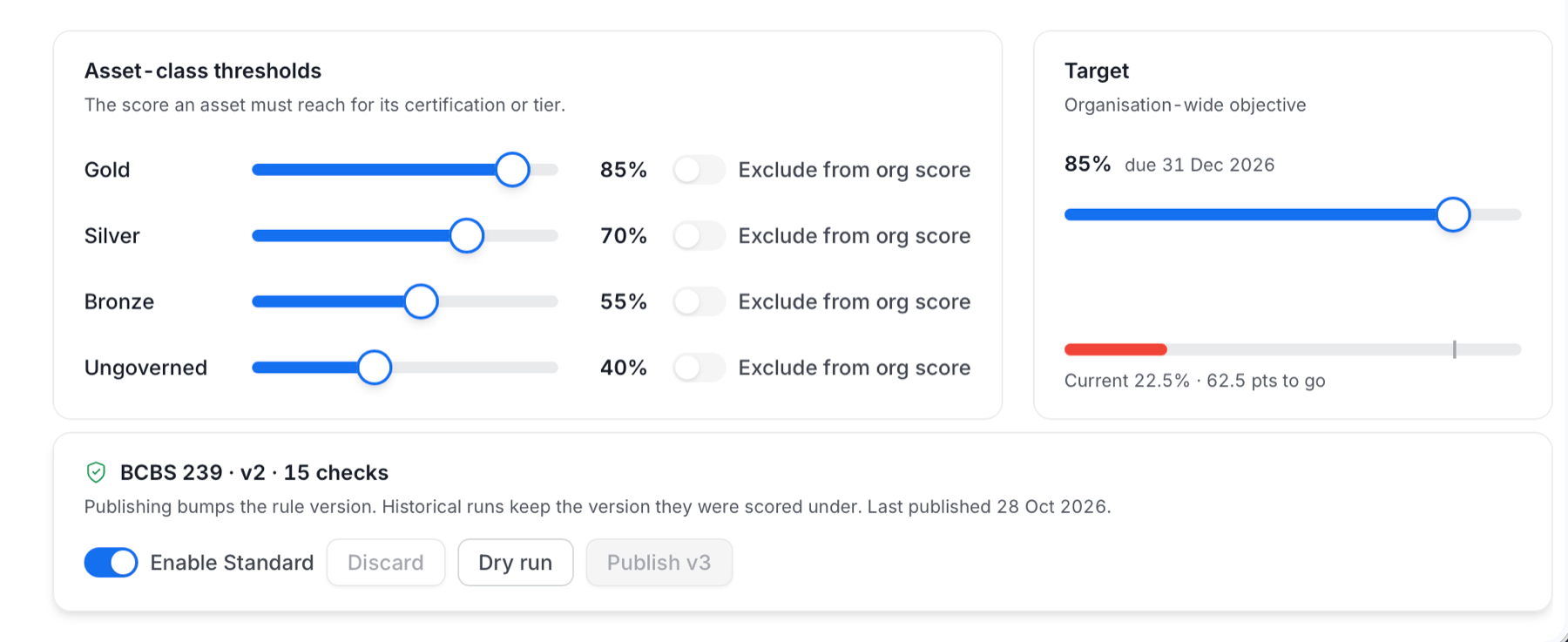
Preview Changes with a Dry Run
A dry run projects how your unpublished edits would change the scores, without publishing.- Edit weights, checks, thresholds, or the target.
- Click Dry run.
Publish a Standard
Publishing saves the edited rules as a new rule version that the next scoring run uses. Prerequisites: TheEditAll operation on the metadataStandard resource, and dimension weights that total 100%.
- Edit the standard.
- Optional: Click Dry run to preview the effect.
- Click the Publish button. Its label shows the next rule version, for example Publish v3.
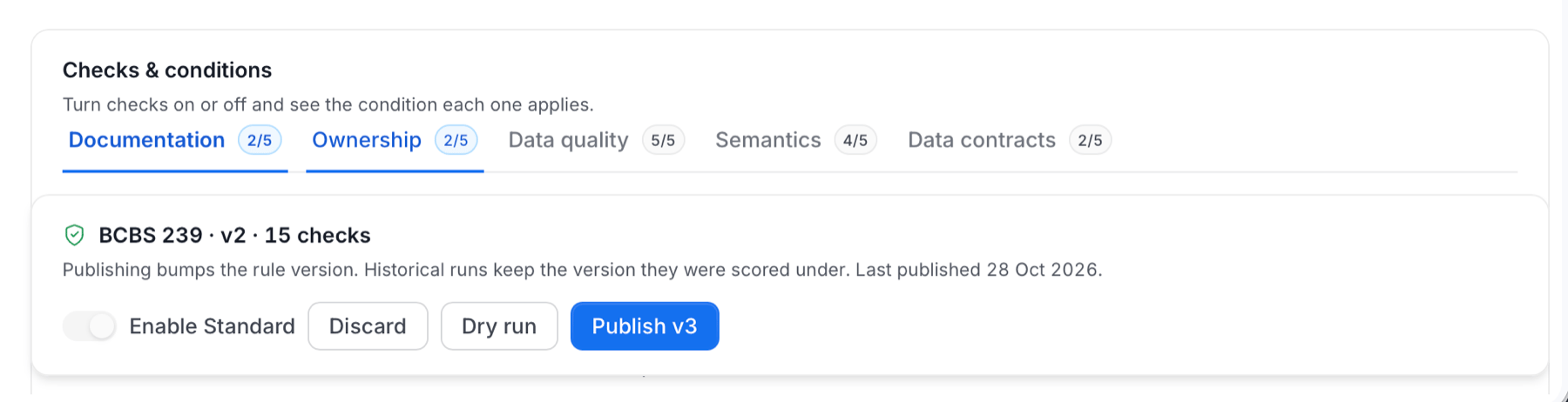
Important: Publishing changes the rule version used by the next scoring run. Historical runs keep the version they were scored under, so scores before and after a publication can differ only because the rules changed.
Enable or Disable a Standard
Only published standards can be enabled or disabled. Use the Enable Standard toggle in the editor.- Disable: Excludes the standard from the next scoring run. The published rules and all historical scores are kept. A run already in progress finishes with the standards it started with.
- Enable: Includes the standard in scoring again, using the existing published version. You don’t need to edit or publish it first.
EditAll operation on the metadataStandard resource.
Note: Each enabled standard evaluates every asset in scope and stores its own archive. Enable only the standards that need ongoing scoring. Disabling every standard stops scoring.