
Gaps
Note: Audit Hub is currently a Beta feature.
Open the Gaps Tab
Open the Gaps tab in any of these ways:- In Audit Hub, click the Gaps tab.
- On the Overview tab, click a dimension card to open Gaps filtered to that dimension.
- On the Overview tab, click an entry in Top Opportunities to open Gaps filtered to that check.
Select a Dimension
The dimension selector at the top of the tab has one button for each dimension: Documentation, Ownership, Data Quality, Semantics, and Data Contracts. Each button shows a count of failing assets for that dimension. A dimension that wasn’t collected in the latest run is disabled. Selecting a different dimension clears the check filter. Each dimension has its own checks panel and its own list of failing assets. The checks below are the checks of the built-in BCBS 239 standard at rule version 2. A custom standard, or a later version, can have different checks, conditions, and weights.Documentation
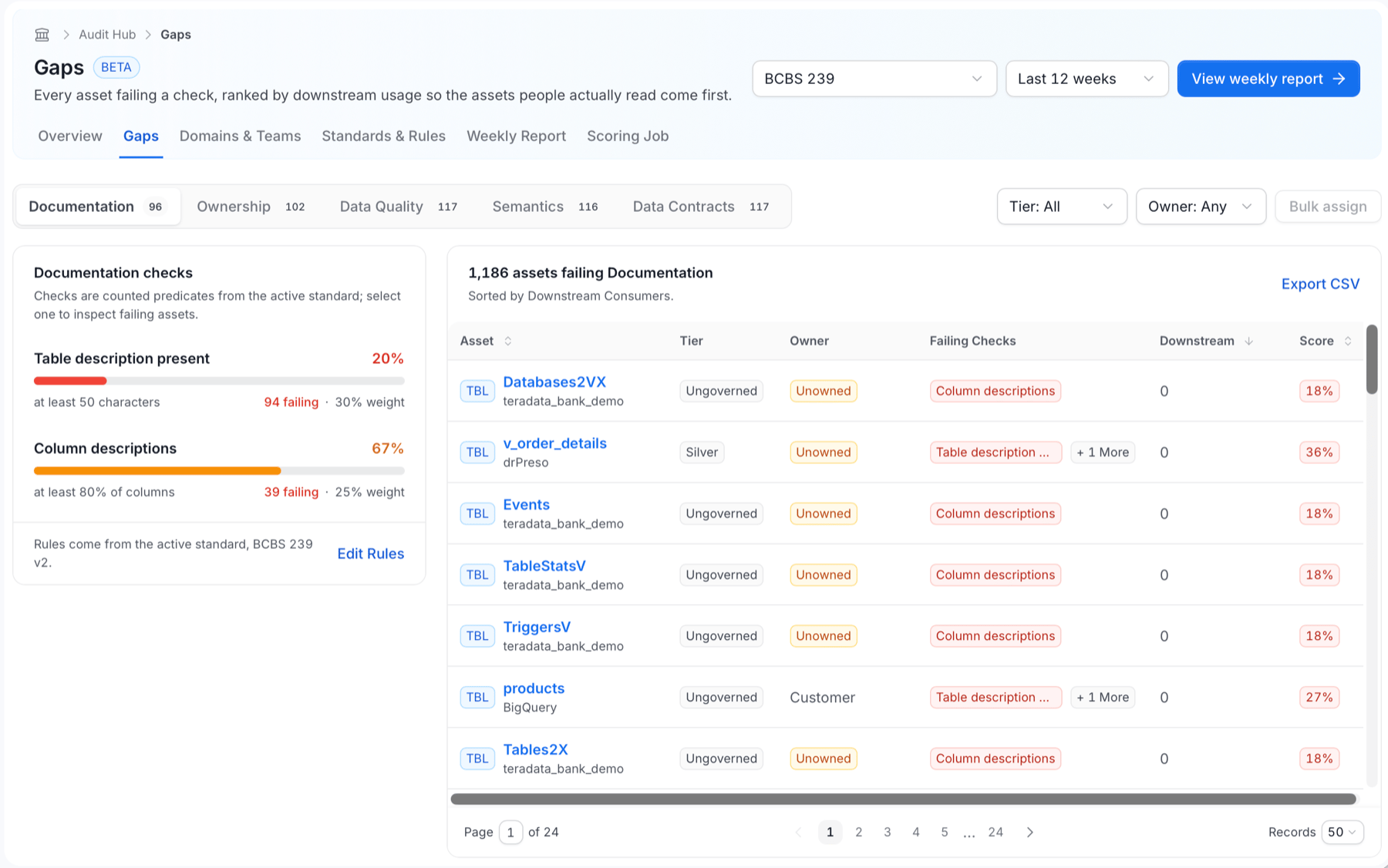
This dimension shows assets whose descriptions are missing or incomplete. It has the following checks:- Table description present: Passes when the description has at least 50 characters. Weight: 30%.
- Column descriptions: Passes when at least 80% of the columns have a description. Weight: 25%.
Ownership
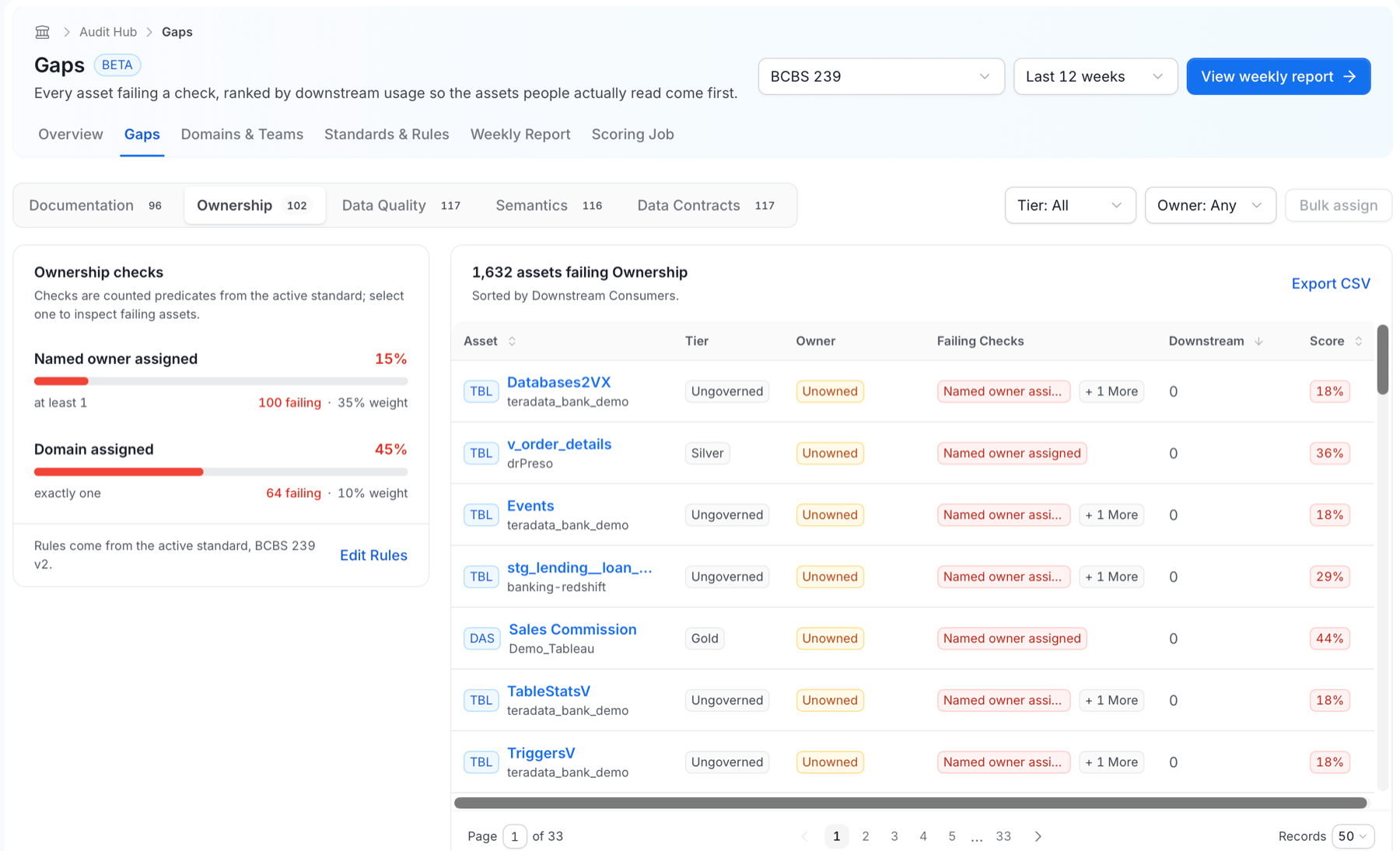
This dimension shows assets that have no accountable owner or no domain. It has the following checks:- Named owner assigned: Passes when the asset has at least one owner. Weight: 35%.
- Domain assigned: Passes when the asset belongs to exactly one domain. Weight: 10%.
Data Quality
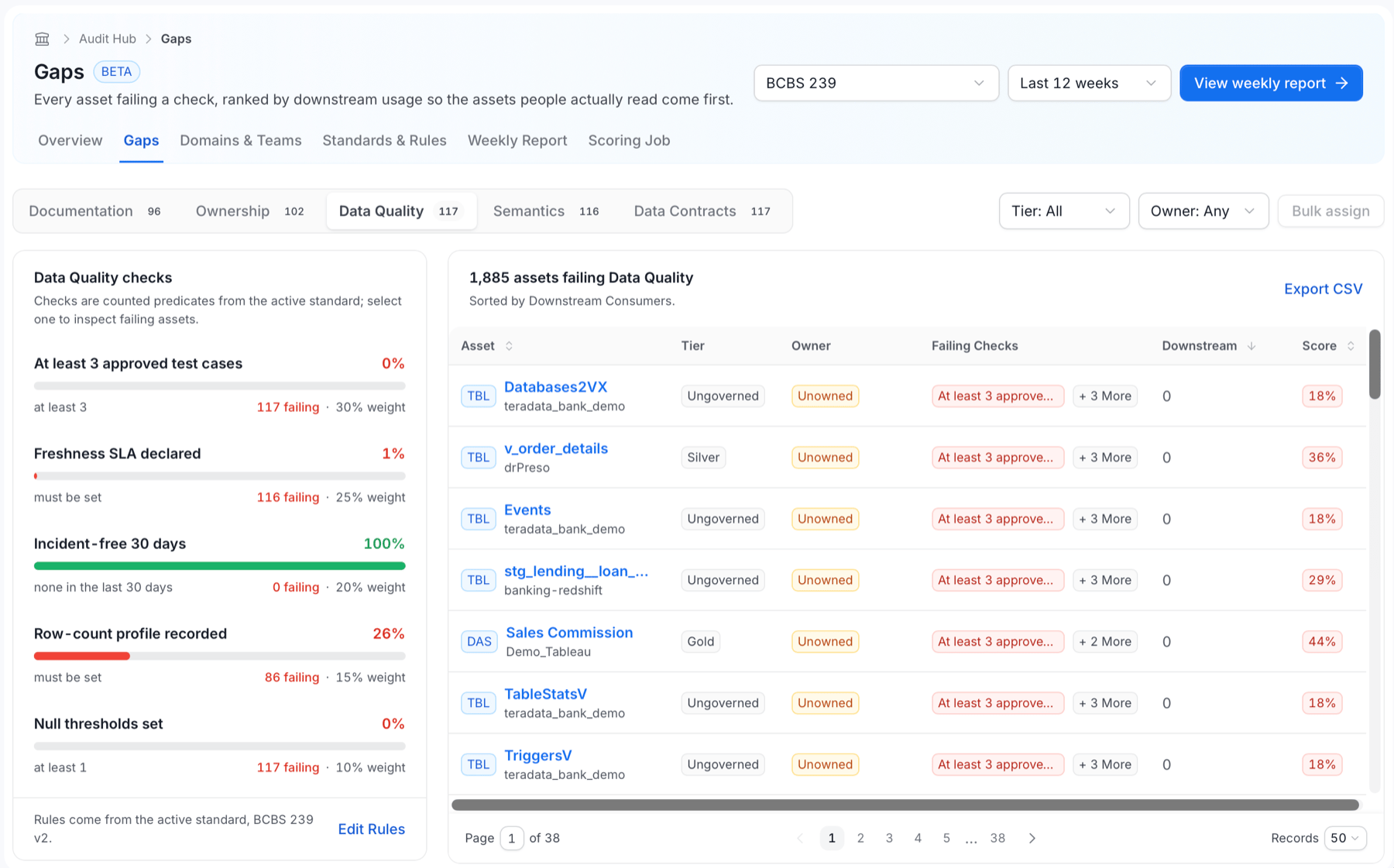
This dimension shows assets that lack the quality evidence the standard requires. It has the following checks:- At least 3 approved test cases: Passes when the asset has at least 3 approved test cases. Weight: 30%.
- Freshness SLA declared: Passes when a freshness service level agreement (SLA) is set. Weight: 25%.
- Incident-free 30 days: Passes when no incident was opened in the last 30 days. Weight: 20%.
- Row-count profile recorded: Passes when a row-count profile is recorded. Weight: 15%.
- Null thresholds set: Passes when at least one null threshold is set. Weight: 10%.
Semantics
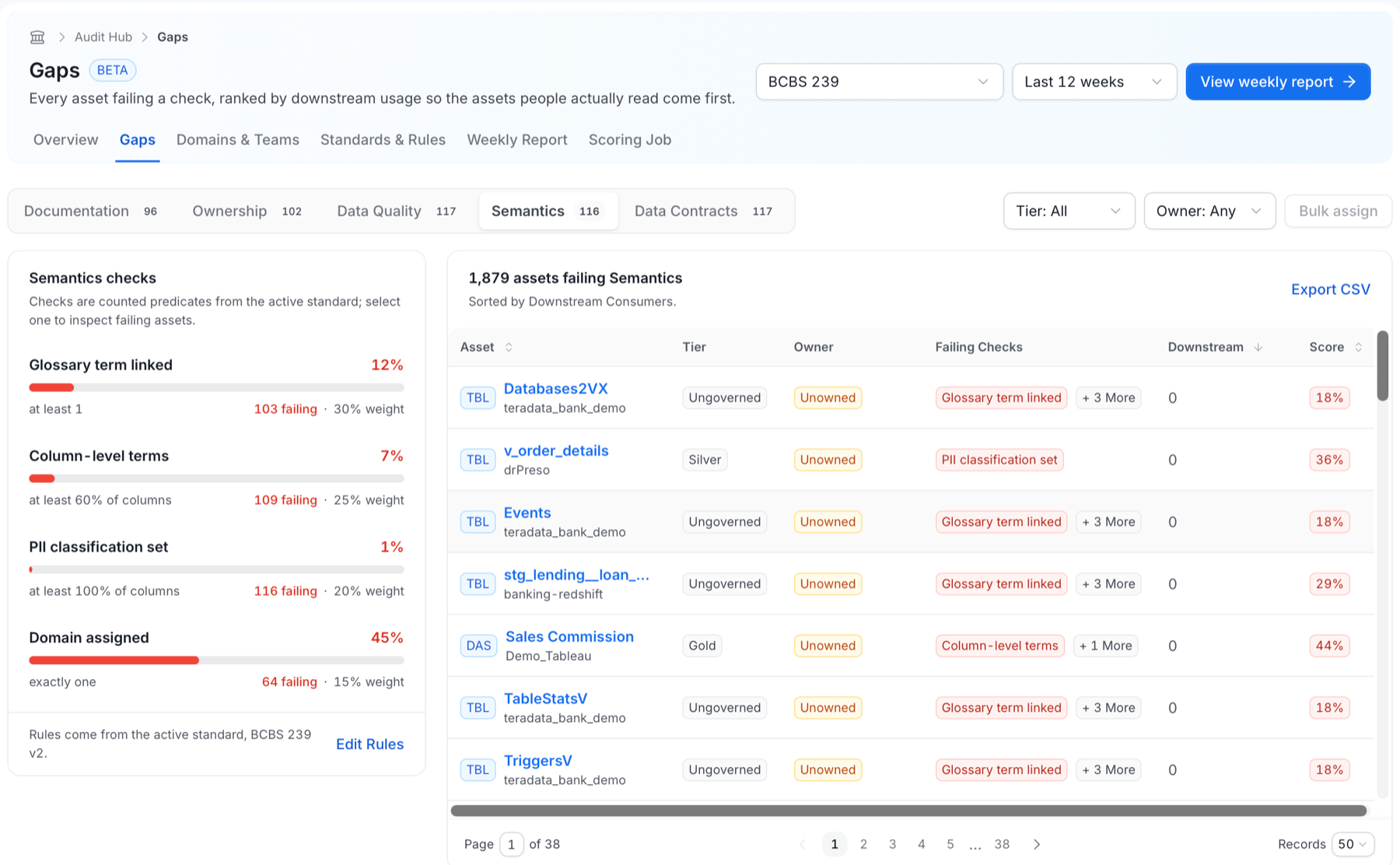
This dimension shows assets that lack business meaning, classification, or a domain. It has the following checks:- Glossary term linked: Passes when at least one glossary term is linked. Weight: 30%.
- Column-level terms: Passes when at least 60% of the columns have a glossary term. Weight: 25%.
- PII classification set: Passes when a personally identifiable information (PII) classification is set on 100% of the columns. Weight: 20%.
- Domain assigned: Passes when the asset belongs to exactly one domain. Weight: 15%.
Data Contracts
This dimension shows assets that have no published data contract, or a contract without a deprecation window. It has the following checks:- Schema contract published: Passes when a schema contract is published. Weight: 35%.
- Deprecation window set: Passes when the deprecation window is at least 30 days. Weight: 10%.
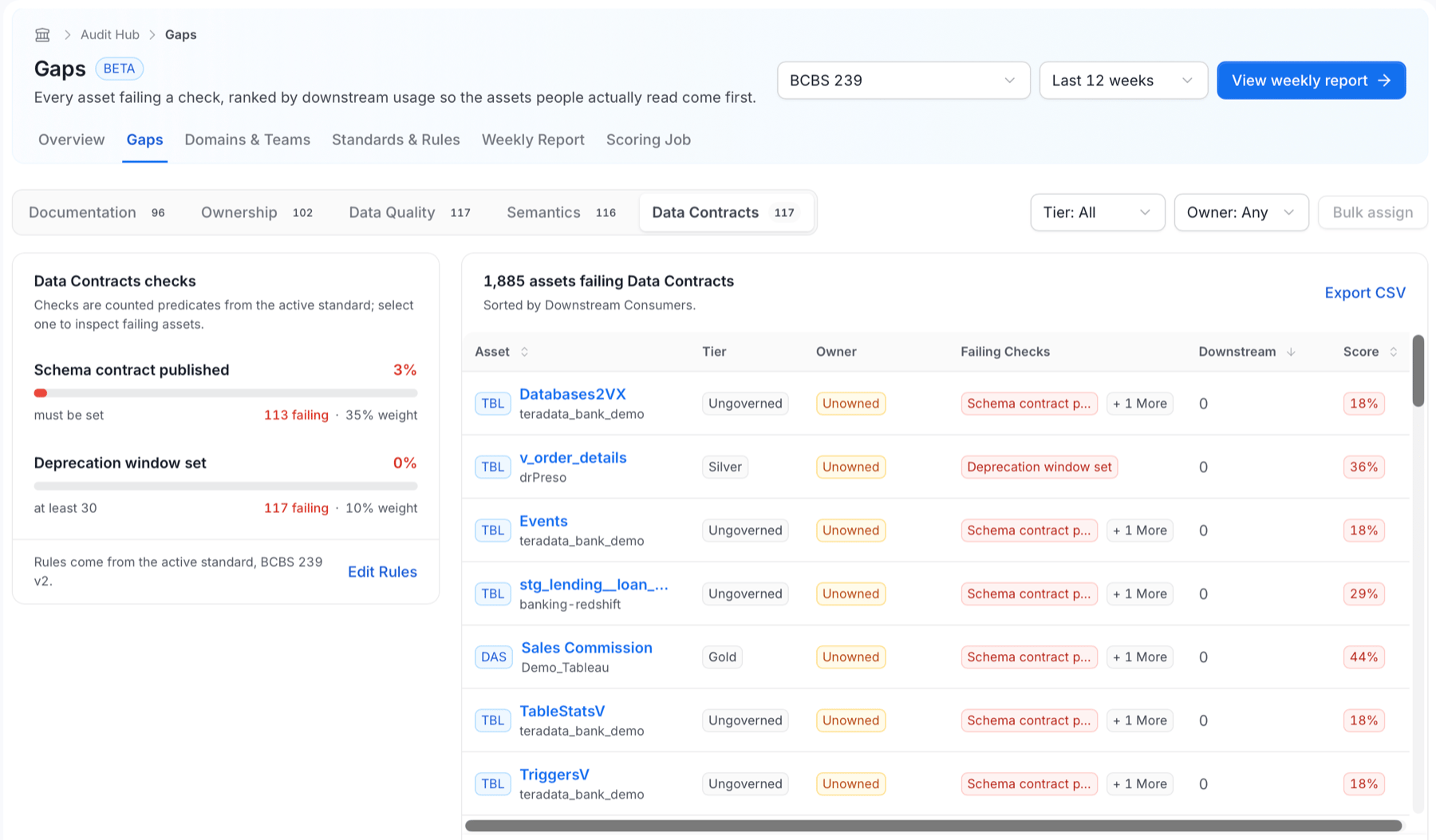
Filter the Results
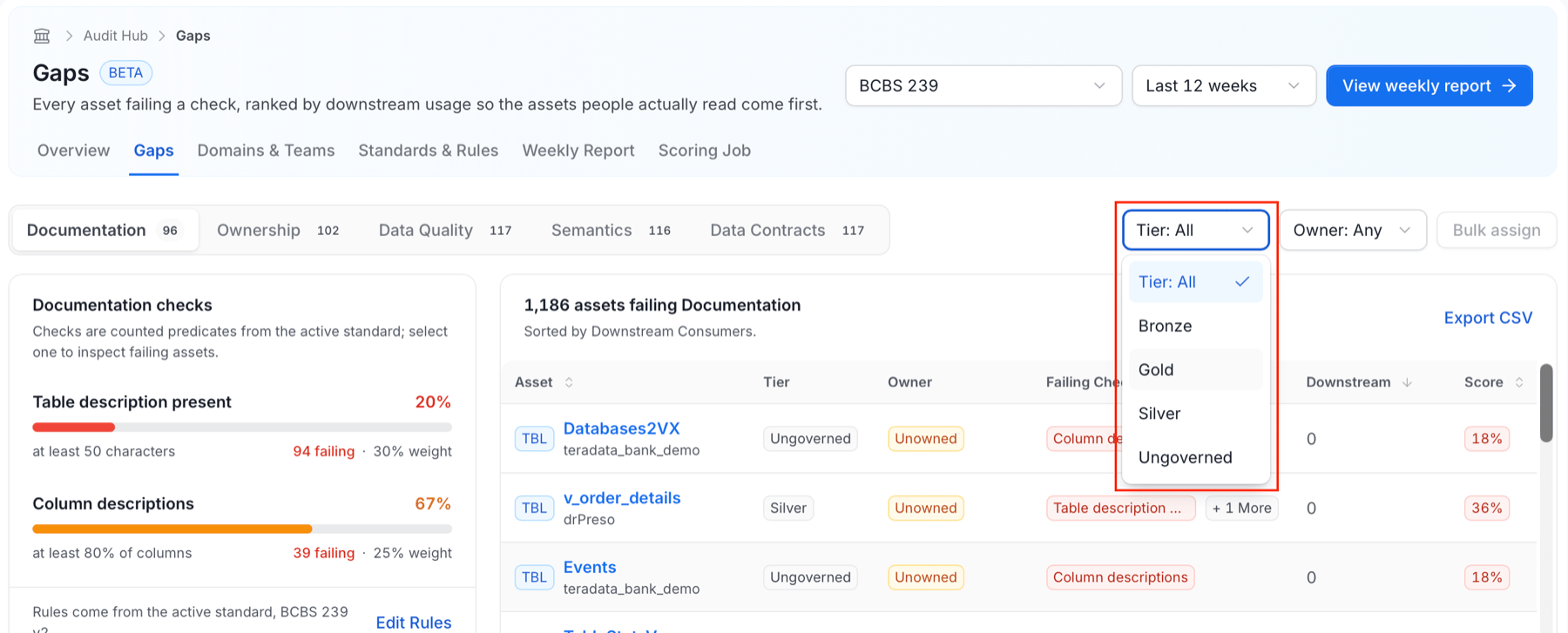
The filter bar narrows the results table.- Tier: Filters by asset class. The default is Tier: All. The list contains the asset classes defined by the selected standard. For BCBS 239, these are Bronze, Gold, Silver, and Ungoverned.
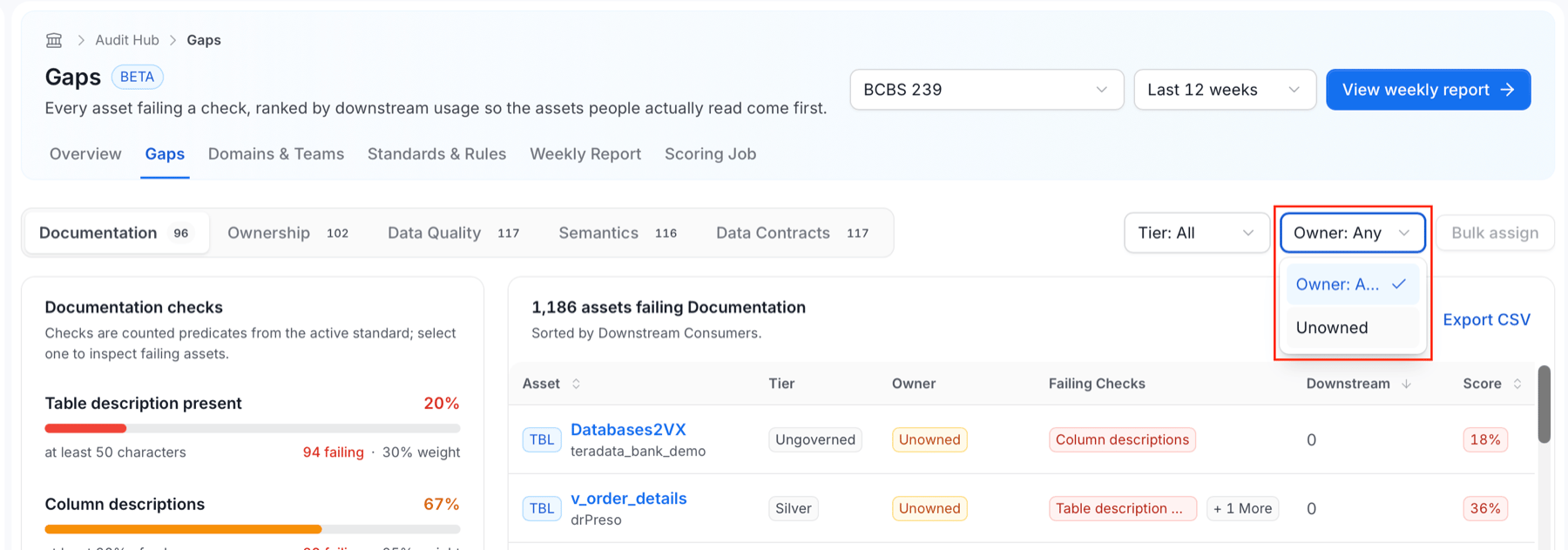
- Owner: Select Owner: Any to include every asset, or Unowned to show only assets that have no owner.
- Chips: When you arrive from a link that carries filters, such as a domain, team, service, or entity type, each active filter appears as a removable chip. Click the remove button on a chip to clear that filter.
Review the Checks
The checks panel is titled with the dimension, for example Documentation checks. It lists the enabled checks in that dimension. For each check, the panel shows:- The pass rate, as a percentage.
- The condition the check applies, for example at least 50 characters.
- The number of failing assets and the weight of the check, for example 94 failing · 30% weight.
- Click a check to filter the table to the assets that fail it. Click the same check again to clear the filter.
- The panel footer shows the standard name and rule version, for example Rules come from the active standard, BCBS 239 v2.
- Click Edit Rules to open the Standards & Rules tab at the selected dimension. This control is available to everyone who can view the page, but changing rules requires the permissions described in Audit Hub Permissions.
Read the Results Table
The results table lists the assets that fail checks in the selected dimension. The header shows the total number of failing assets.Sort the Table
Click a sortable column header to sort the table. The header arrow and the line above the table (for example Sorted by Downstream Consumers) show the active sort. Each column has one fixed direction.- Downstream: Highest number of downstream consumers first, so the most-used assets come first. This is the default.
- Score: Lowest score first, so the weakest assets come first, whatever their usage.
- Asset: A to Z by the asset’s fully qualified name. Use it to find an asset or group assets by service.
Page Through the Results
Use the pager below the table to move between pages. Use Records to change the page size. Audit Hub can page through only the first 10,000 results. When your filters match more than 10,000 assets, a message appears. Narrow the filters, or export the results to CSV to get the whole set.Export Gaps to CSV
Export the failing assets that match your current view to a CSV file.- Set the dimension and filters for the assets you need.
- Click Export CSV.
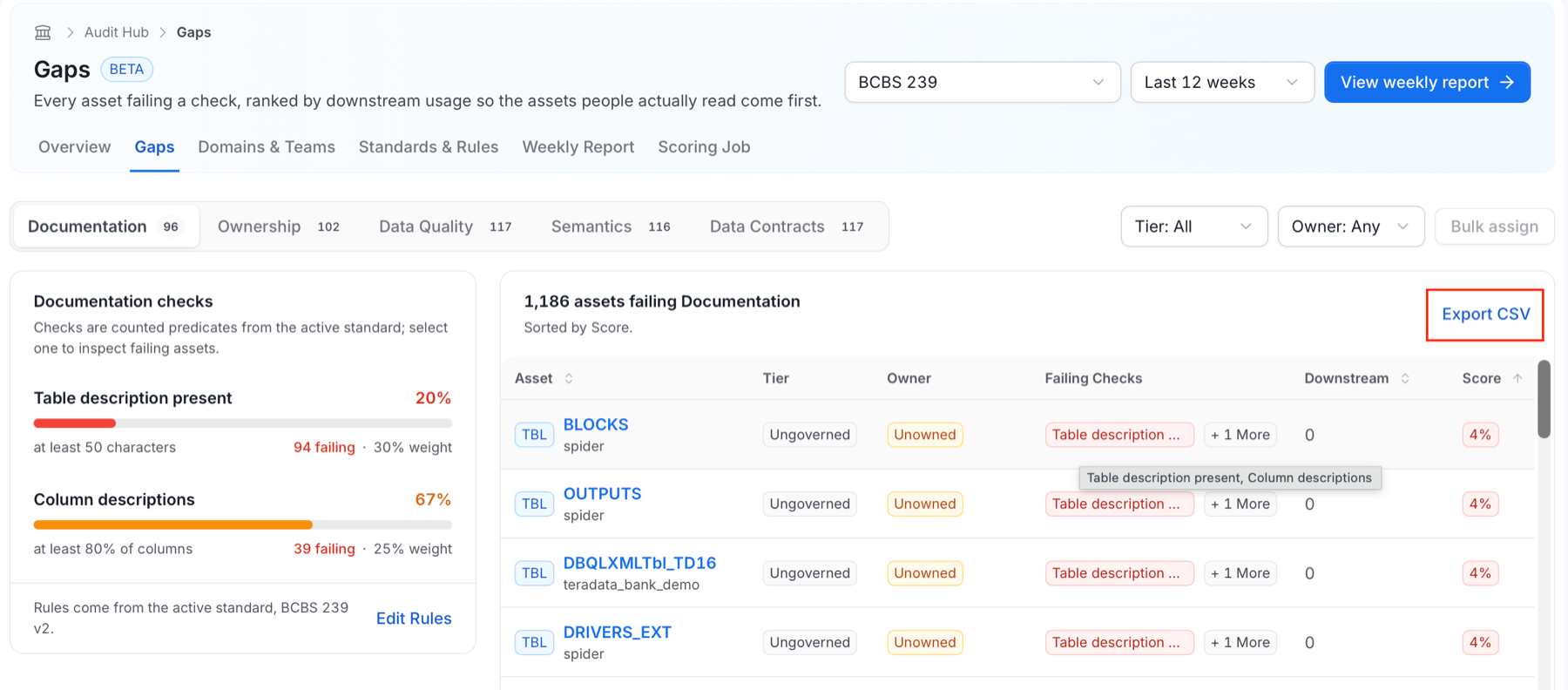
completeness-gaps-<runId>.csv and contains these columns:
Export CSV is disabled when no assets match.