
Scoring Job
Note: Audit Hub is currently a Beta feature.
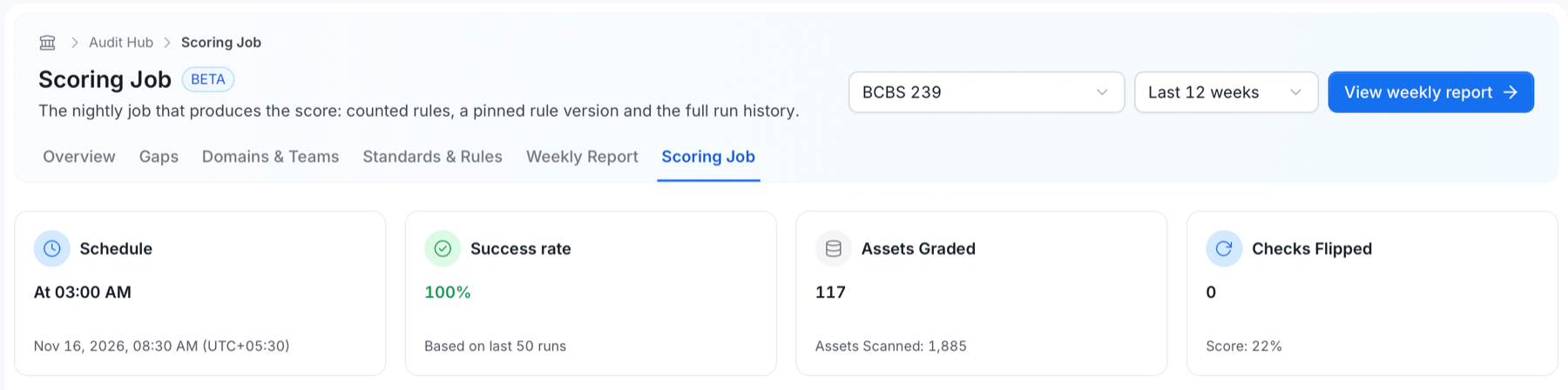
Job Metrics
Four cards summarize the job.
If the last Data Insights run failed, an error banner shows the failure message from Data Insights. The previous score stays visible until a run succeeds.
Run History
Run History lists the most recent scoring runs for the selected standard, with the latest first. The subtitle shows the number of runs the list is based on, for example Based on last 50 runs.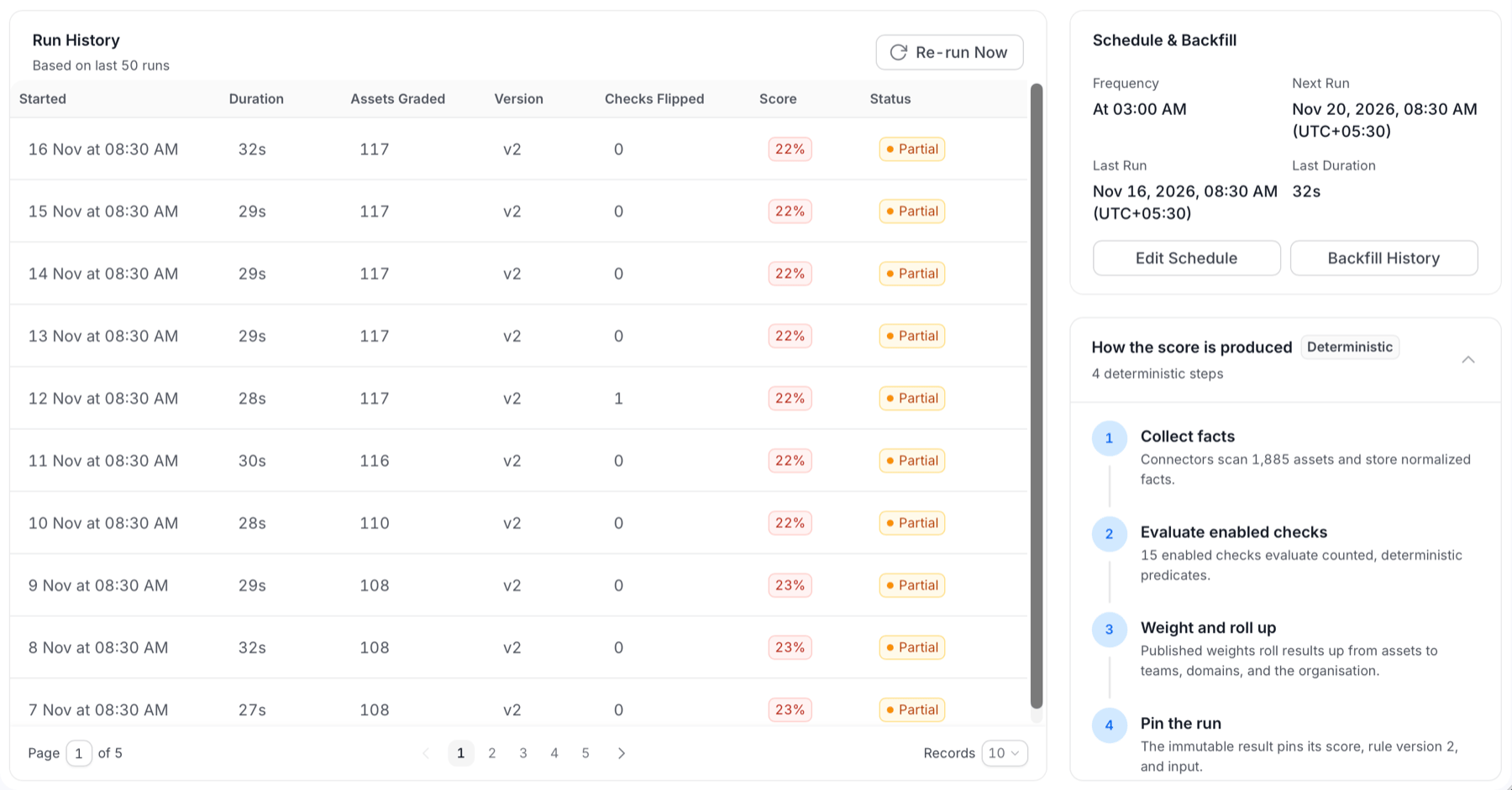
A run has one of the following statuses.
Use the pager to move between pages. Use Records to change the page size. The Started column shows the date and time, for example 16 Nov at 08:30 AM. Until the first run completes, the table shows No scoring runs yet.
Note: Checks Flipped is the change since the previous run. It isn’t the number of checks that were evaluated.
How the Score Is Produced
The How the score is produced panel describes the four deterministic steps of every run.- Collect facts: Data Insights scans the assets and stores normalized metadata facts.
- Evaluate enabled checks: The enabled checks evaluate counted, deterministic conditions.
- Weight and roll up: Published weights roll results up from assets to teams, domains, and the organization.
- Pin the run: The immutable result pins its score, rule version, and input.
Schedule & Backfill
The Schedule & Backfill card shows:- Frequency: The cadence of the Data Insights schedule. If the Data Insights application isn’t installed, the card shows that no schedule is running.
- Next Run: The next scheduled start time.
- Last Run: The start time of the last run.
- Last Duration: The duration of the last run.
Re-run the Scoring Job
Prerequisites: Administrator.-
In the Run History card, click Re-run Now.
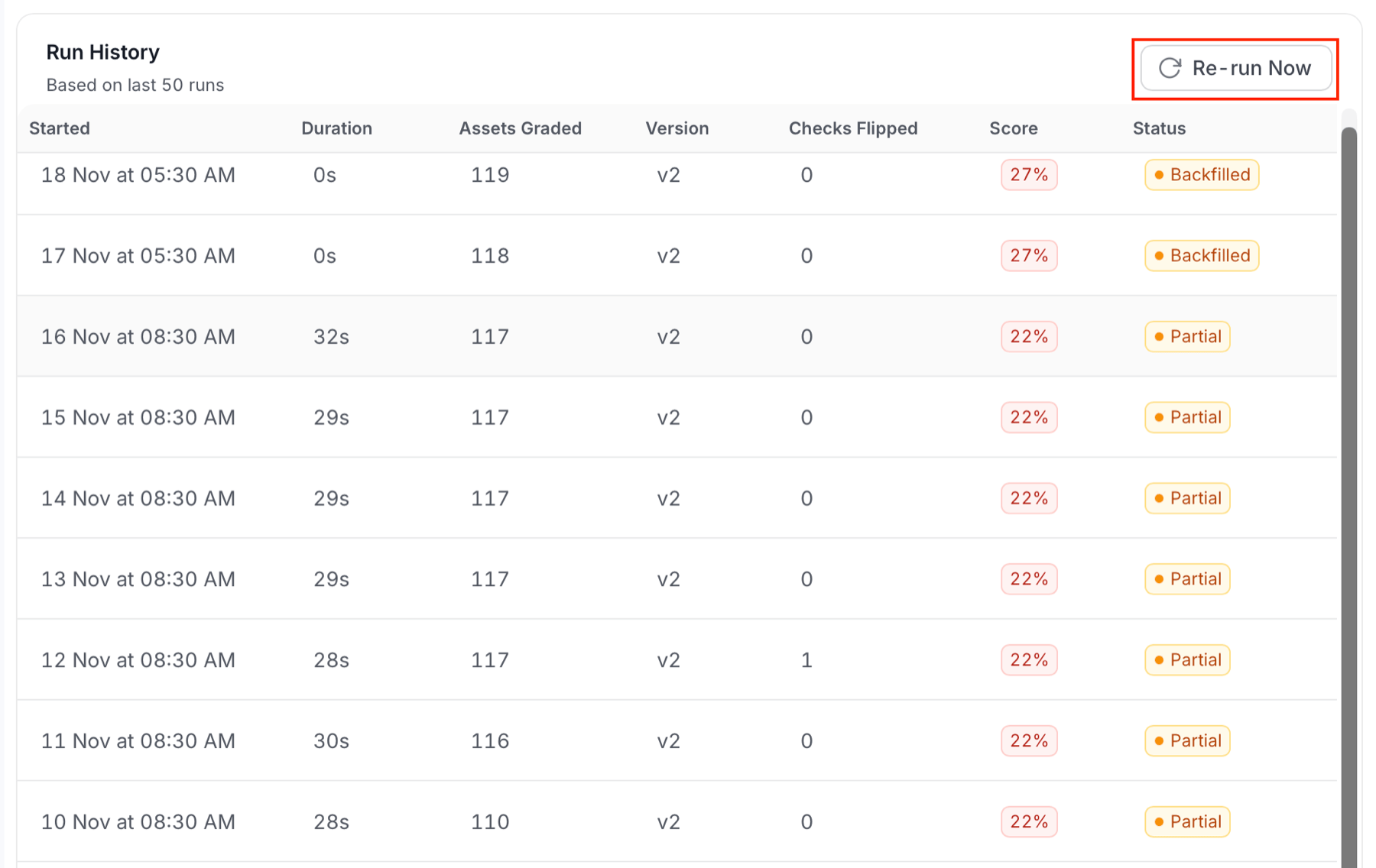
- Wait for the confirmation: Data Insights run queued. Scores will update when it finishes.
Change the Schedule
Prerequisites: Administrator. Click Edit Schedule to open the Data Insights application settings and change the schedule. The change affects Data Insights as a whole, not only Audit Hub.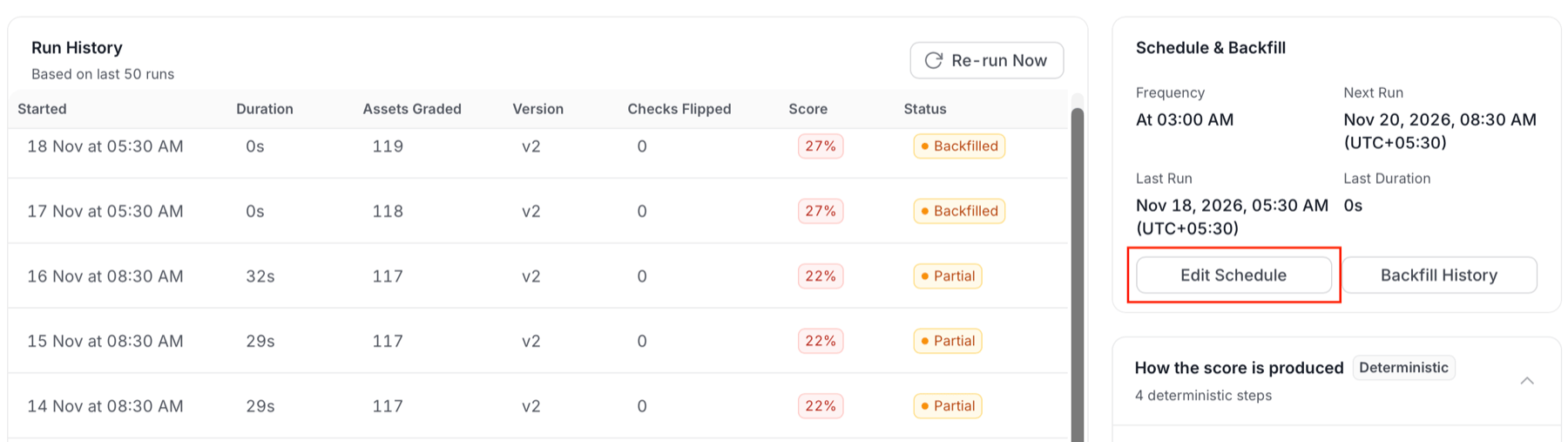
Backfill History
Backfill History reconstructs up to 90 days of past scores, so the trend chart on the Overview tab has history before your first live run. Prerequisites: Administrator.-
Click Backfill History.
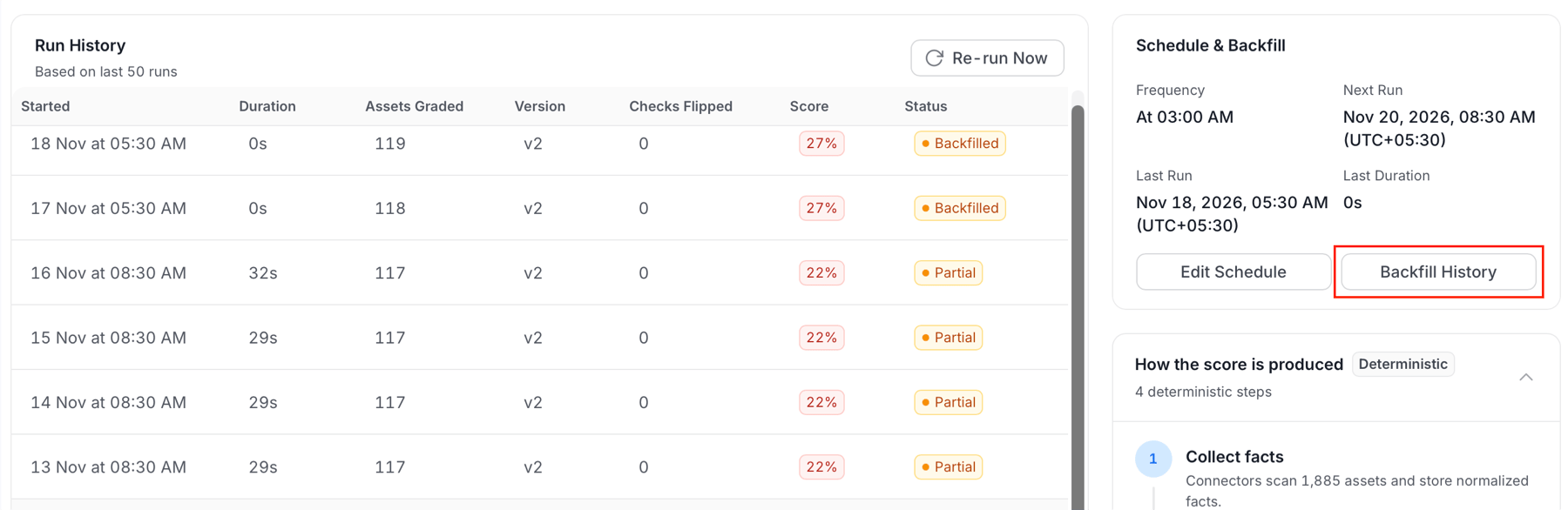
- Wait for the message Backfill complete. It reports how many days were written and how many were skipped because they already existed.
- A backfill uses only the metadata evidence that was preserved for each day. Older snapshots can contain checks that weren’t measured, so backfilled scores can read higher than live scores. They appear as lighter points on the trend chart and carry the Backfilled status.
- A backfill doesn’t replace the latest regular run.
- Backfill History is disabled while a run is in progress.