Documents and Archive
Documents let you upload files—reports, spreadsheets, compliance audits, and more—so their content becomes searchable by Collate AI Chat, without needing to rewrite them as an Article. Organize files into folders to keep related documents together.Upload a Document
-
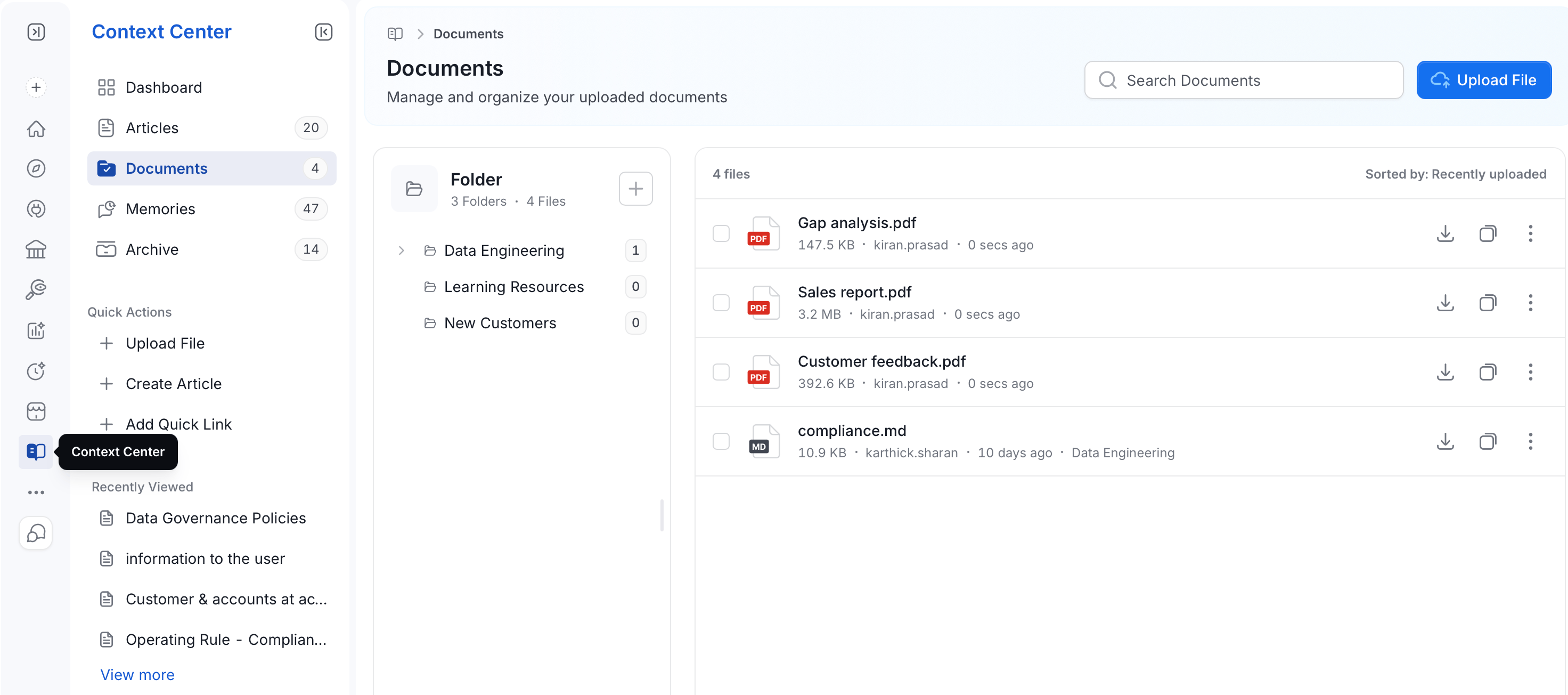
From the left navigation bar, navigate to Context Center > Documents.
-
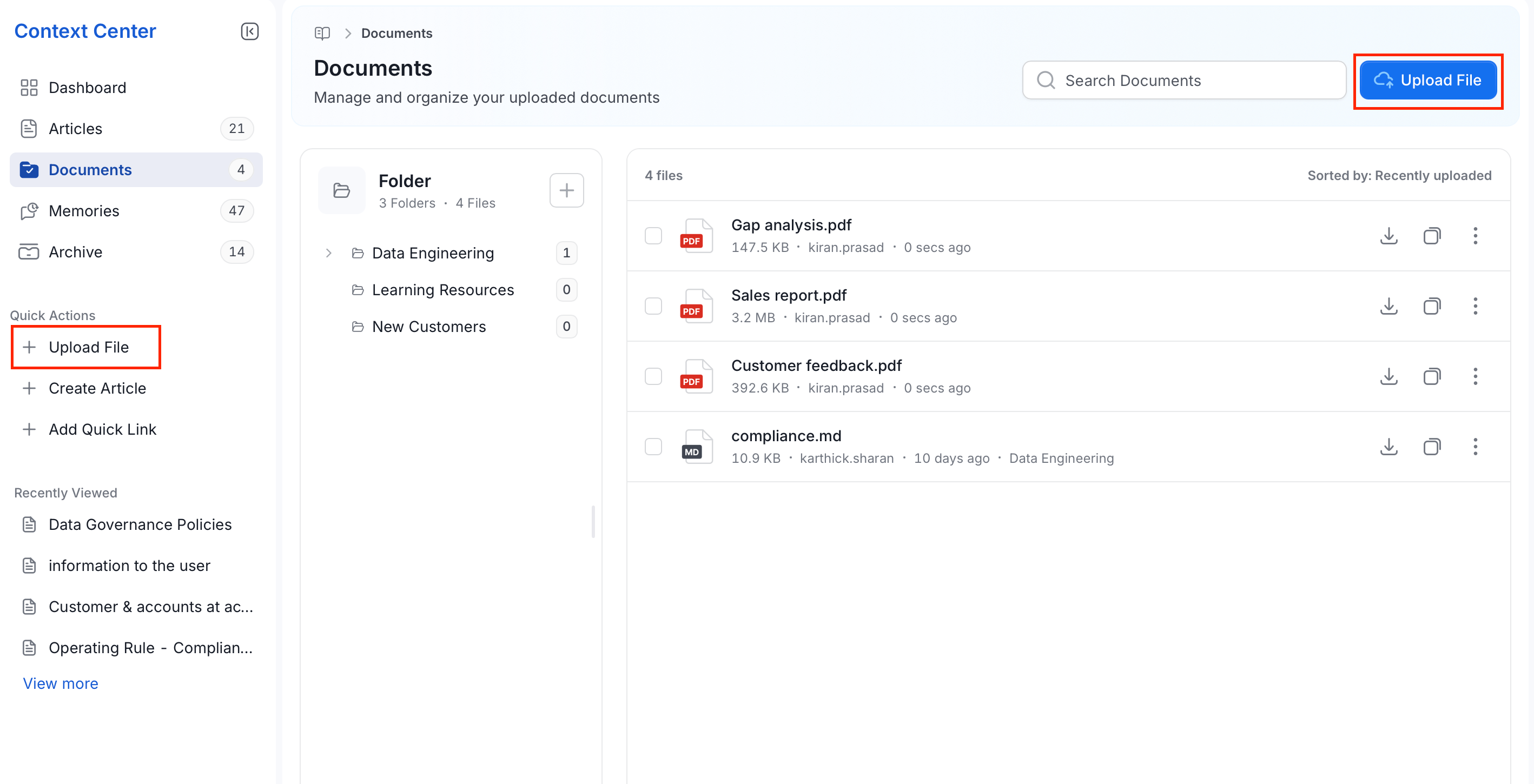
Click Upload File, or use Quick Actions in the sidebar.
- Browse to the files on your computer and upload them.
View and Manage Documents
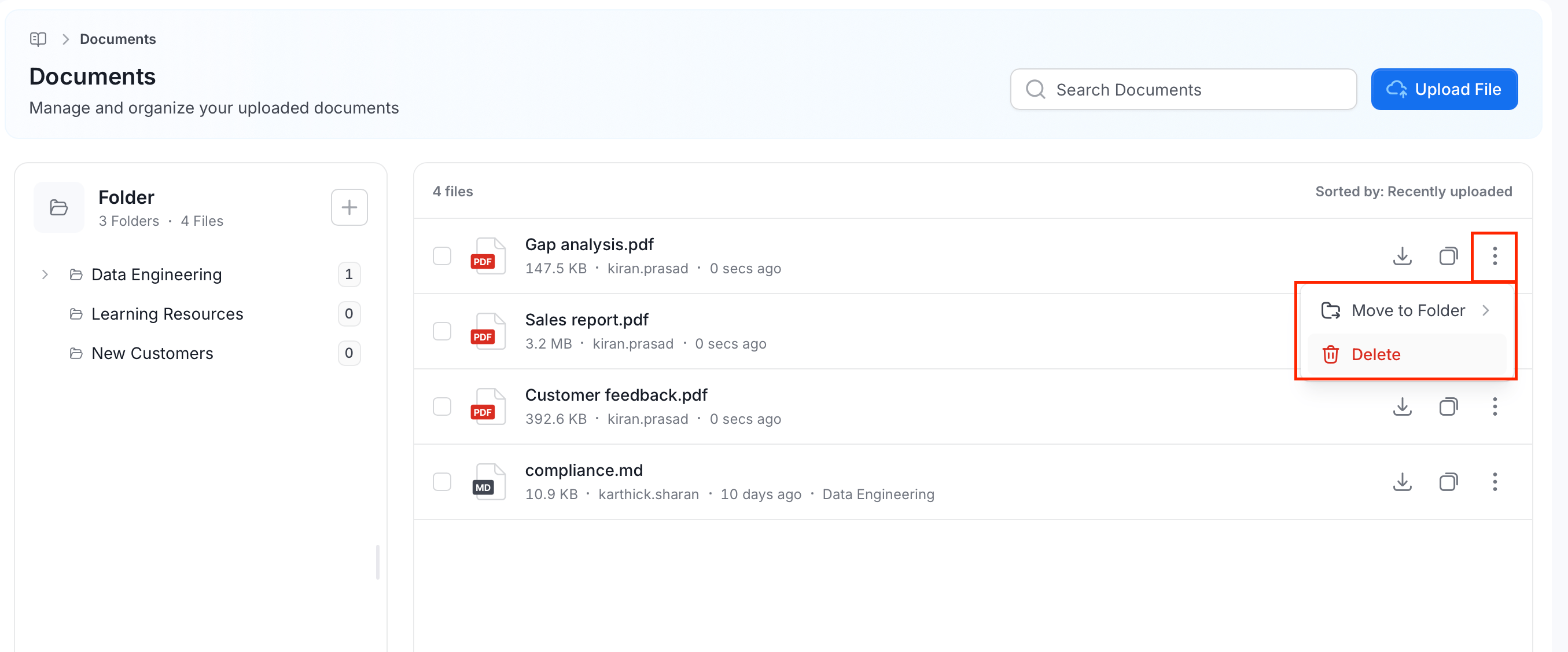
The Documents page shows:- Search bar: Search documents by file name.
-
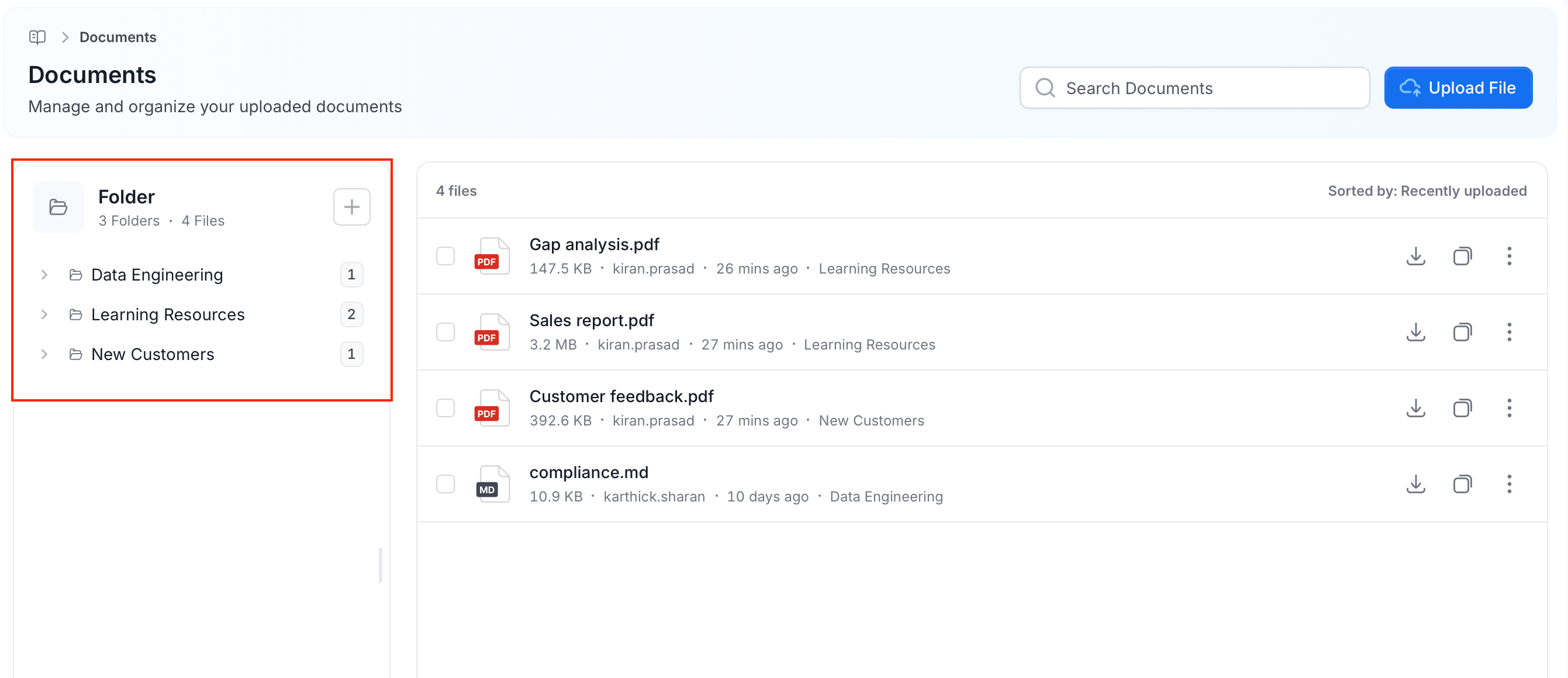
Folder panel: Lists your folders on the left, each showing how many files it contains.
- To create a new folder, click the
 icon next to Folder.
 - Click a folder to see only the files inside it.
- To create a new folder, click the
- File list: Shows the total number of files, sorted by Recently uploaded by default.
-
Each file row shows:
- The file name and type.
- Its size, who uploaded it, and when.
- Download: Save a copy of the file.
- Copy: Duplicate the file.
- Three-dot (⋮) menu:
- Move to Folder: Move the file into a different folder.
-
Delete: Remove the file from Documents. This doesn’t erase it immediately—see Archive.
Keep Uploaded Documents Up to Date
An uploaded document is a copy that Collate stores. Collate doesn’t sync it with the original file, and it doesn’t read files that are only linked from elsewhere. When the original file changes:- Upload the new version of the file.
- Delete the old version. Collate moves it to Archive.
Documents and MCP
MCP clients can’t download the original file. They read the question-and-answer notes that Collate extracts from the text of an uploaded file, through MCP. Collate extracts these notes from uploaded files starting with release 2.1. Collate doesn’t return the extracted text of very large files, about 100,000 characters or more. For more information, see the MCP reference.Archive
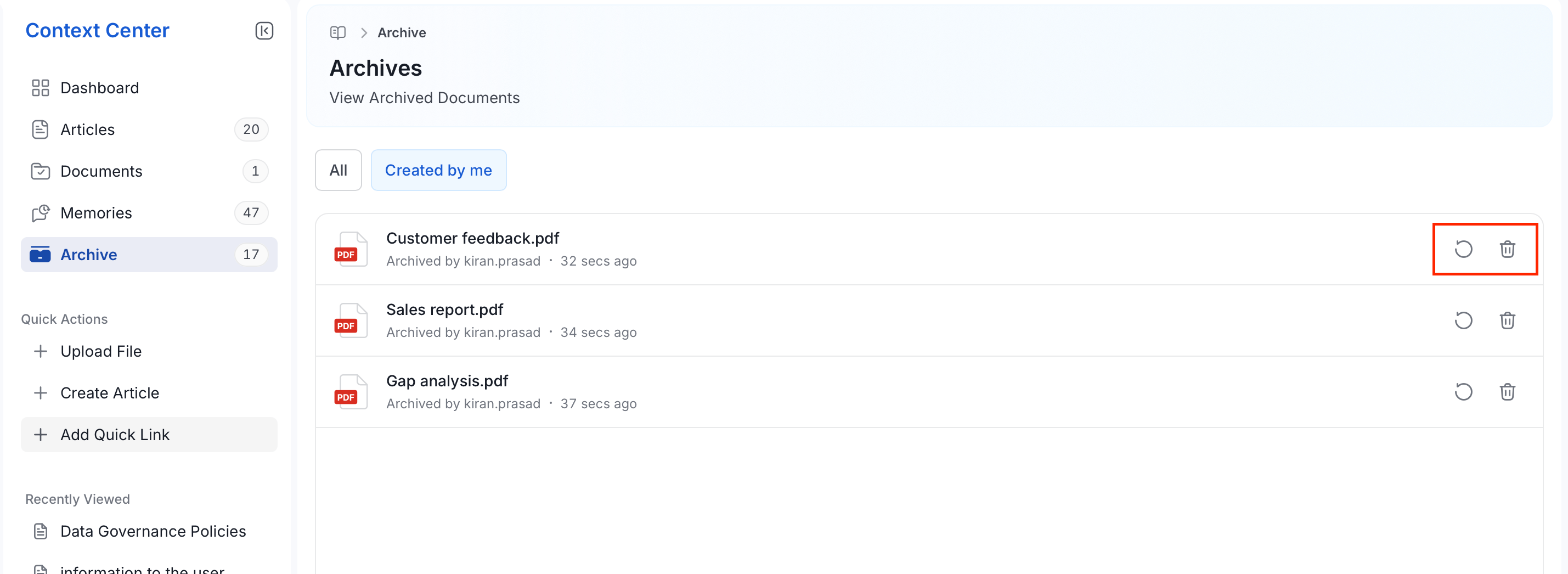
Deleting a document moves it to Context Center > Archive instead of erasing it right away. From Archive, you can:- To restore the document, click the Restore icon next to the document.
-
To remove the document permanently, click the Delete icon next to the document.