
Plugins
Plugins connect external tools and data sources to Collate AI agents via MCP servers. Each plugin imports the tools exposed by that server, which you can then attach to agents in AI Studio. When a plugin is connected, agents can pull in context from that external tool — for example, finding a Confluence page that describes a data model and linking it to the relevant tables in Collate, or checking whether a GitHub issue already covers a data quality failure you’re investigating. To manage your organization’s own knowledge — Articles, Documents, and Memories — instead of connecting an external tool, see Context Center.Supported Plugins
Add a Plugin
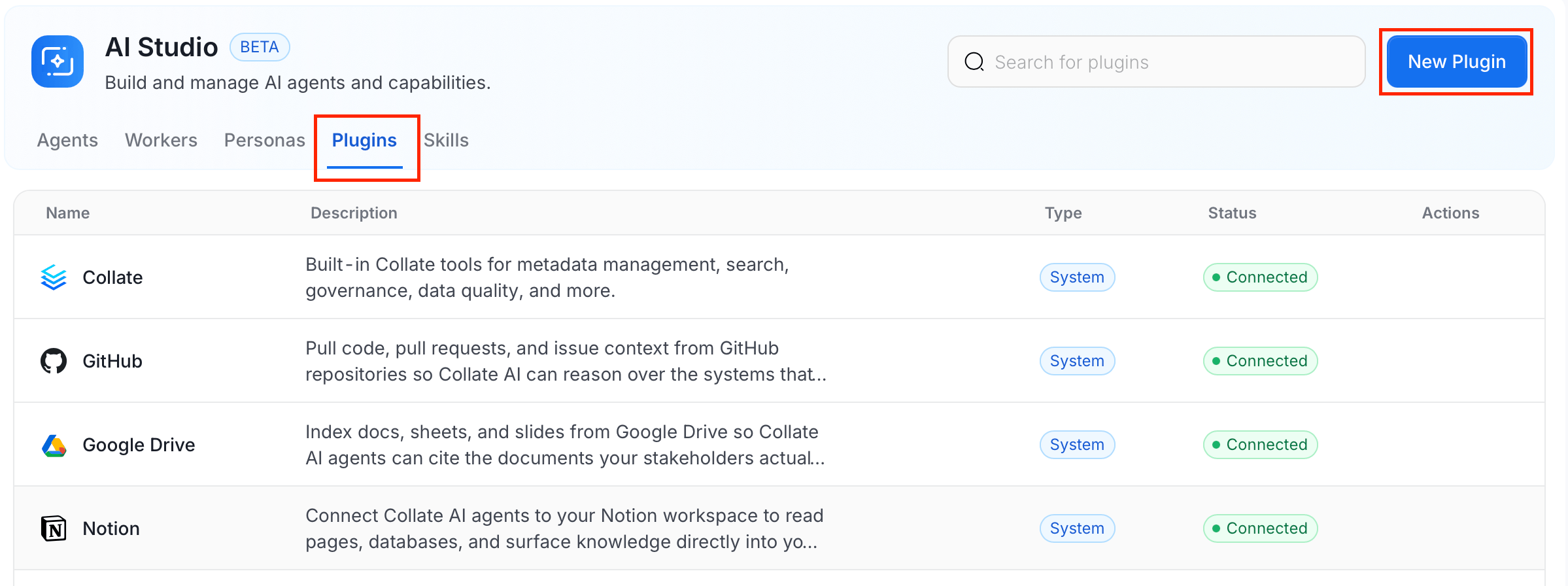
Follow the steps below to add a new plugin in AI Studio.Step 1: Navigate to the Plugins Tab
- In the left navigation menu, click More > AI Studio.
-
Navigate to the Plugins tab, and click New Plugin.
Step 2: Fill in Plugin Details
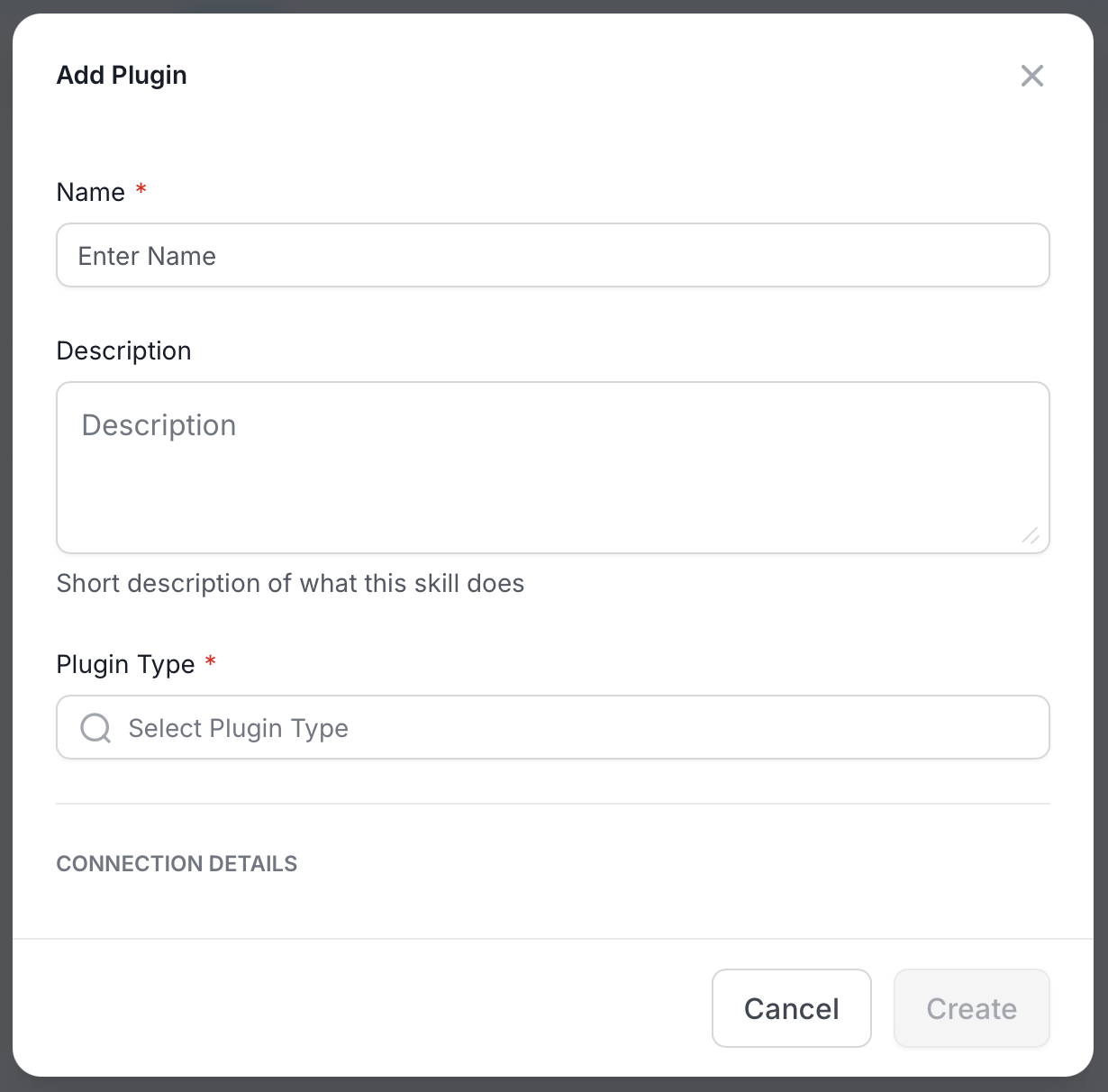
Enter the following details:- Name (required): A unique name for this plugin.
- Description (optional): A short description of what this plugin provides.
- Plugin Type (required): Select a plugin type. You can use Custom to add any other plugin if your plugin is not listed in dropdown.
Step 3: Fill in Connection Details
Connection fields vary by plugin type. Use the following settings to configure your plugin type:-
Confluence
-
GitHub
-
Notion
Notion’s MCP server accepts OAuth only, so there is no API token to enter. After you save the plugin, a window opens so you can sign in to Notion and authorize Collate to access your workspace. If your browser blocks the window, allow pop-ups for Collate and try again. Collate stores and refreshes the resulting credentials automatically.
-
Custom
Requirements for a Custom Plugin
Collate connects to the MCP server from its own infrastructure, so the server must be reachable from Collate. For Collate SaaS, the server must be reachable over the public internet. Authenticate with a Bearer token, a Basic token, or no authentication. OAuth sign-in isn’t available for Custom plugins. Use a Custom plugin to connect any tool that offers an MCP server and isn’t listed in the supported plugins, for example a documentation system that your organization hosts.Using Plugins
After a plugin is connected, agents automatically consider external context when formulating answers. You don’t need to explicitly invoke a plugin — agents determine when external context is relevant and fetch it as part of their reasoning. You can also ask explicitly in Collate AI Chat. For example:- “Find the Confluence page about our Q3 data model and link it to the relevant tables in Collate.”
- “Is there a GitHub issue open for the data quality failures on the orders table?”
Where Plugin Content Is Available
Plugins work only for agents inside Collate, such as Collate AI Chat and the agents that you build in AI Studio. Collate’s MCP server doesn’t expose plugin content, so an external MCP client, such as Claude Desktop, can’t read content through a plugin that you connected in Collate. Collate doesn’t copy the content of the external tool. When an agent needs it, the agent asks the external MCP server for the content at that moment, so the agent reads the current version from the source. An agent receives the full content of an item, not only a summary, up to about 20,000 characters for each call. To keep a document in its own system and still use it in Collate AI, connect that system as a plugin. To store a copy in Collate instead, see Context Center.Permissions
Plugins are shared resources, visible to everyone in your organization after connecting. Access follows the standard permission model:
Whoever has Edit access to a plugin can see and update its connection details, including rotating its token. After a plugin is connected, agents use it on behalf of any user asking a relevant question — it doesn’t check that individual user’s access in the external tool.