
Collate AI Chat
Collate AI Chat is the conversational AI interface inside Collate. Ask questions about your data in plain language and Collate AI returns charts, insights, and answers — without writing SQL or knowing where the data lives. Collate AI Chat runs with your permissions, so every action it takes — querying data, editing metadata, creating tests — respects your access level.Note: When Collate AI Chat queries your connected data sources, it uses read-only SQL operations such as
SELECT, WITH, SHOW, DESCRIBE, and EXPLAIN. Depending on your permissions, Collate AI Chat can still create or update metadata inside Collate, such as glossary terms, tags, owners, and data quality tests.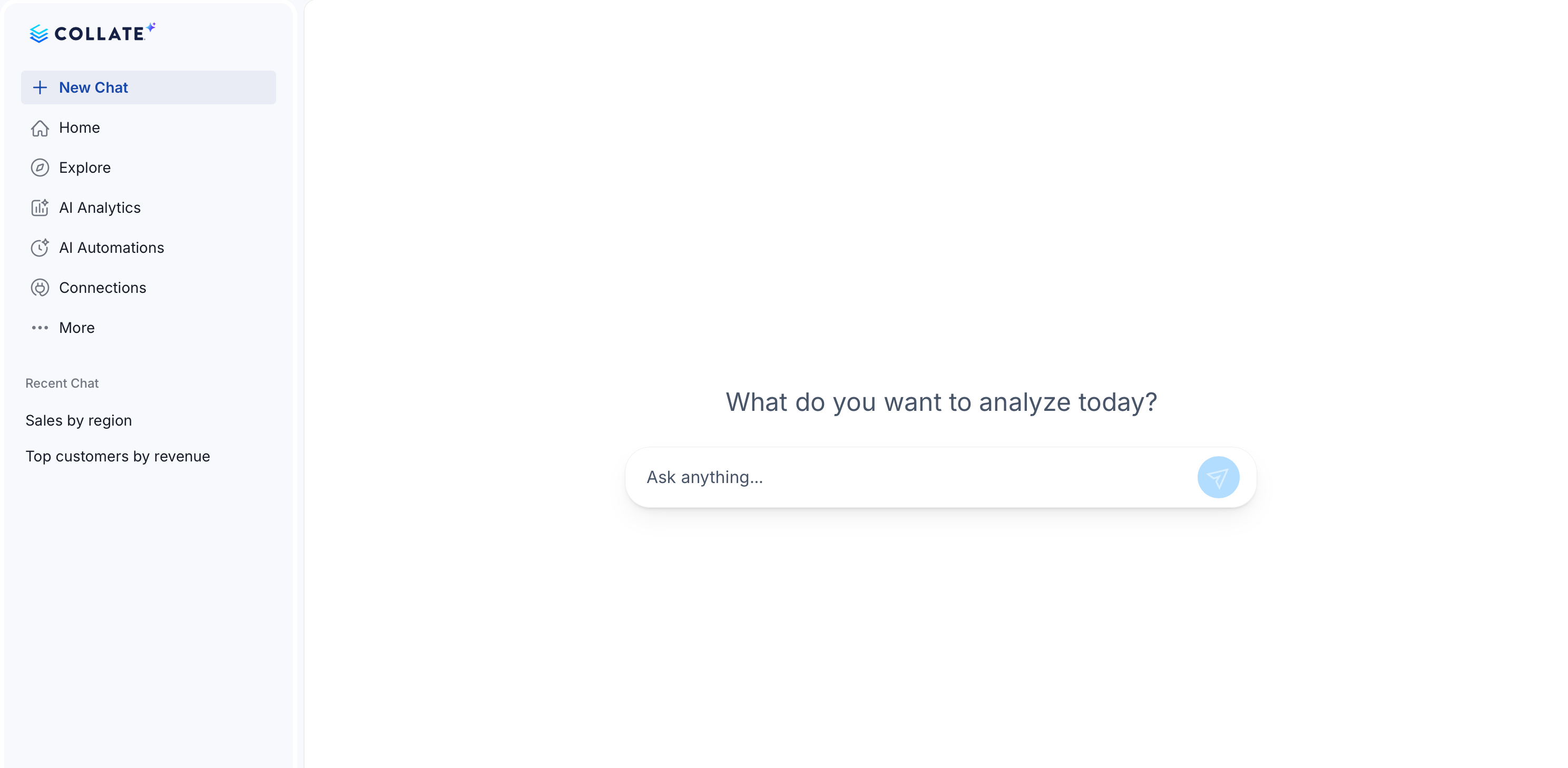
Core Capabilities
Collate AI Chat connects directly to your organization’s knowledge graph — the layer built from your metric definitions, glossary terms, lineage, table schemas, and profiling data. This gives it accurate, organization-specific answers rather than generic approximations. Here’s what happens when you ask a question:- It finds the right definition first. If you ask about customer lifetime value, Collate AI Chat looks up your organization’s agreed-upon formula from the business glossary — not a generic approximation. Every teammate who asks the same question gets the same canonical answer.
- It discovers the right tables and joins. Using lineage and schema metadata, Collate AI Chat figures out which tables to query and how to join them — including intermediate tables that aren’t obvious from the question.
- It filters using real data. Column value filters come from profiler agent execution results — not guesses — so results reflect what’s actually in your data.
- It shows its work. SQL queries appear inline as Collate AI Chat works through your question. You can see exactly what ran, which tables were used, and which definitions were applied.
What You Can Do
- Answer business questions: Ask in plain language — Collate AI Chat finds the right tables, joins, and definitions, then runs the query.
- Generate and show SQL: Every answer shows the SQL that ran, the tables used, and the definitions applied — so you can verify or hand it off to your data team.
- Build and refine charts: Bar, line, area, pie, donut, number, scatter, heatmap, Sankey, treemap, geo map, and table charts — generated from your data and refined with follow-up prompts.
- Pin to dashboards: Save any chart to an AI Analytics dashboard for recurring use, scheduled refresh, and team delivery.
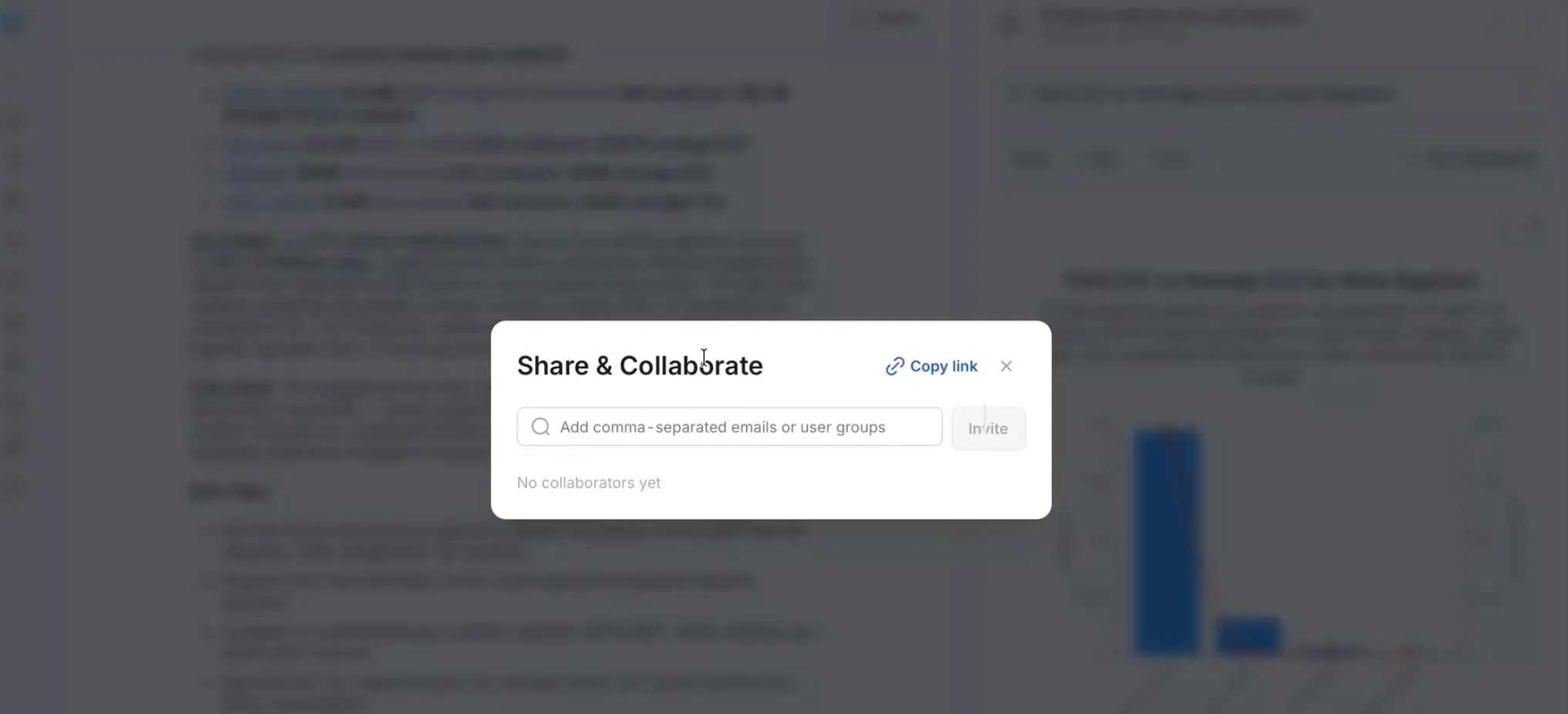
- Share conversations: Invite teammates as EDITOR or VIEWER so they see the same charts and reasoning and can continue the analysis together.
- Schedule reports: Deliver charts or dashboards via email or Slack on a recurring cadence.
- Explore assets: Browse and discover data assets from within Collate AI Chat without leaving the interface.
- Filter on large value lists: Paste a long list of values, like IDs copied from a spreadsheet, directly into the chat. Once the message passes a length threshold (8,000 characters by default, configurable), Collate AI Chat extracts and filters on every value instead of just the first hundred. If extraction fails, it falls back to answering the message as usual.
- Flag undocumented columns: When an answer relies on columns with no description in the catalog, the response ends with a Next steps suggestion offering to document the affected table, so you can ask for the descriptions on a follow-up turn. Nothing is written until you ask.
- Manage metadata: Create or edit glossary terms, assign owners, tag assets, and create data quality tests — from the chat.
- Manage your profile: Access your personal access tokens and connection settings directly from your Collate AI Chat profile.
Prerequisites
- Collate AI is enabled in your workspace. Contact your admin if you are unsure.
- Metadata, lineage, and usage ingestion jobs are running so Collate AI Chat has context.
- You have permissions to view and act on the assets you are asking about.
Use Cases
Data Analyst: Revenue Analysis
Ask a business question and Collate AI Chat finds the relevant certified tables, generates the SQL, and returns results with a chart.- Prompt: “Give me total market share for eco vs non-eco products by revenue. Only Tier 1 data.”
- Result: Finds certified Snowflake tables (
products,orders,customers), generates a join query, and returns the revenue split with a chart. - Follow-up: “Use a donut chart with dark green for eco.” — Collate AI Chat updates the chart style and summary.
Data Analyst: Customer Segmentation
- Prompt: “What percent of customers bought eco products, grouped by customer tier?”
- Result: Produces SQL, groups by tier, and surfaces the insight that higher-tier customers engage more with eco products.
Data Steward: Glossary and Tagging
- Prompt: “Do we have a definition for revenue?”
- Result: Searches glossary terms and suggests creating one if missing.
- Prompt: “Create a term for revenue calculation and tag relevant Snowflake tables.”
- Result: Adds the term, links it to assets such as
order_items, and records ownership.
Data Engineer: Lineage and Data Quality
- Prompt: “Show lineage for the customer report dashboard.”
- Result: Maps upstream tables (including
customer_360) and downstream impacts. - Prompt: “Search for anomalies in these tables: nulls, negatives, duplicates.”
- Result: Surfaces outliers such as negative
unit_pricevalues. - Prompt: “Create test cases for the products table.”
- Result: Suggests completeness, uniqueness, range, and integrity tests and records who requested them.
Working with Charts
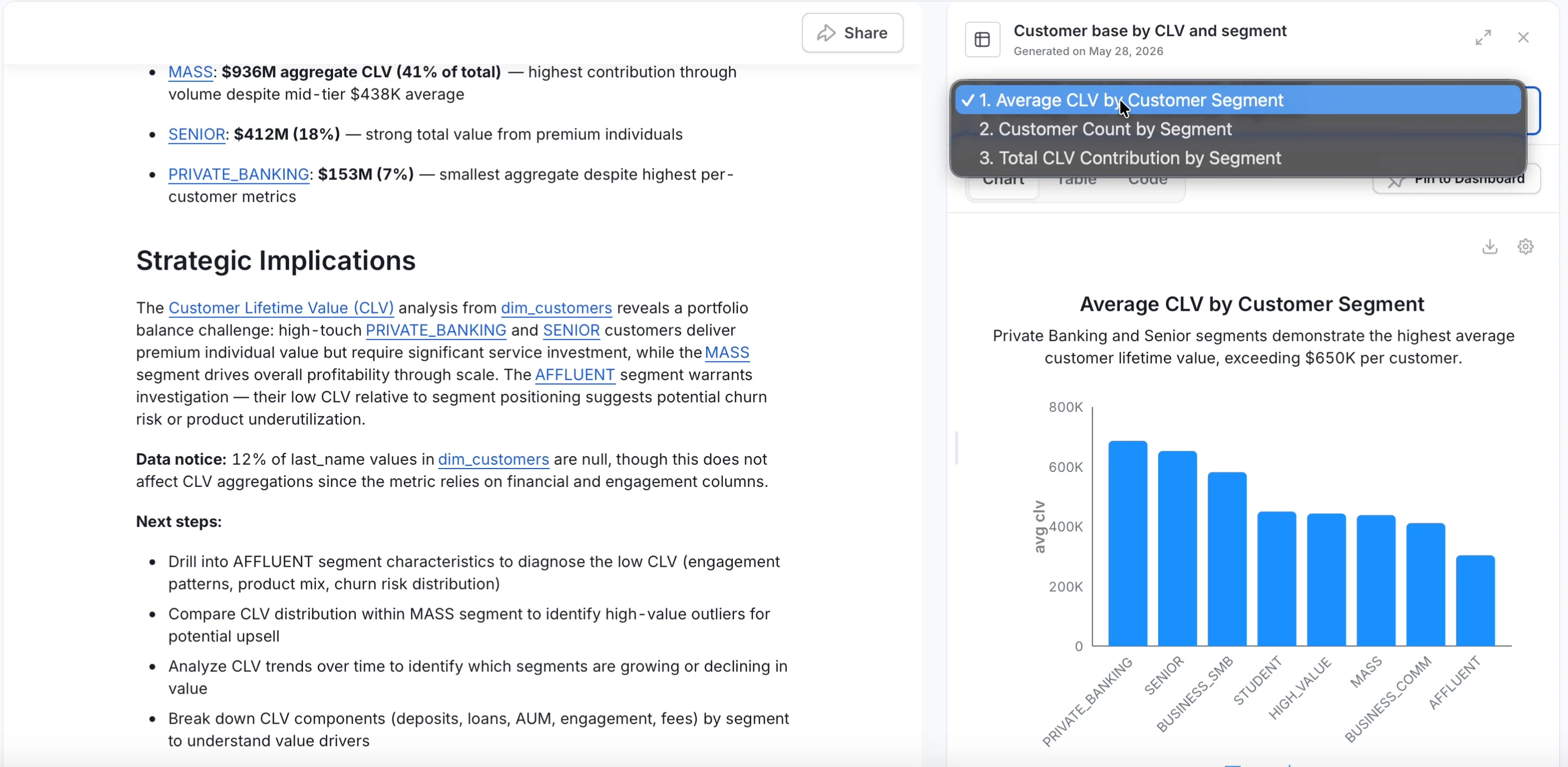
Ask a question and Collate AI returns results as charts automatically — no SQL, no BI tool, no configuration needed. Charts appear in the conversation as Collate AI works through your question.Explore a Chart
Each chart has three views: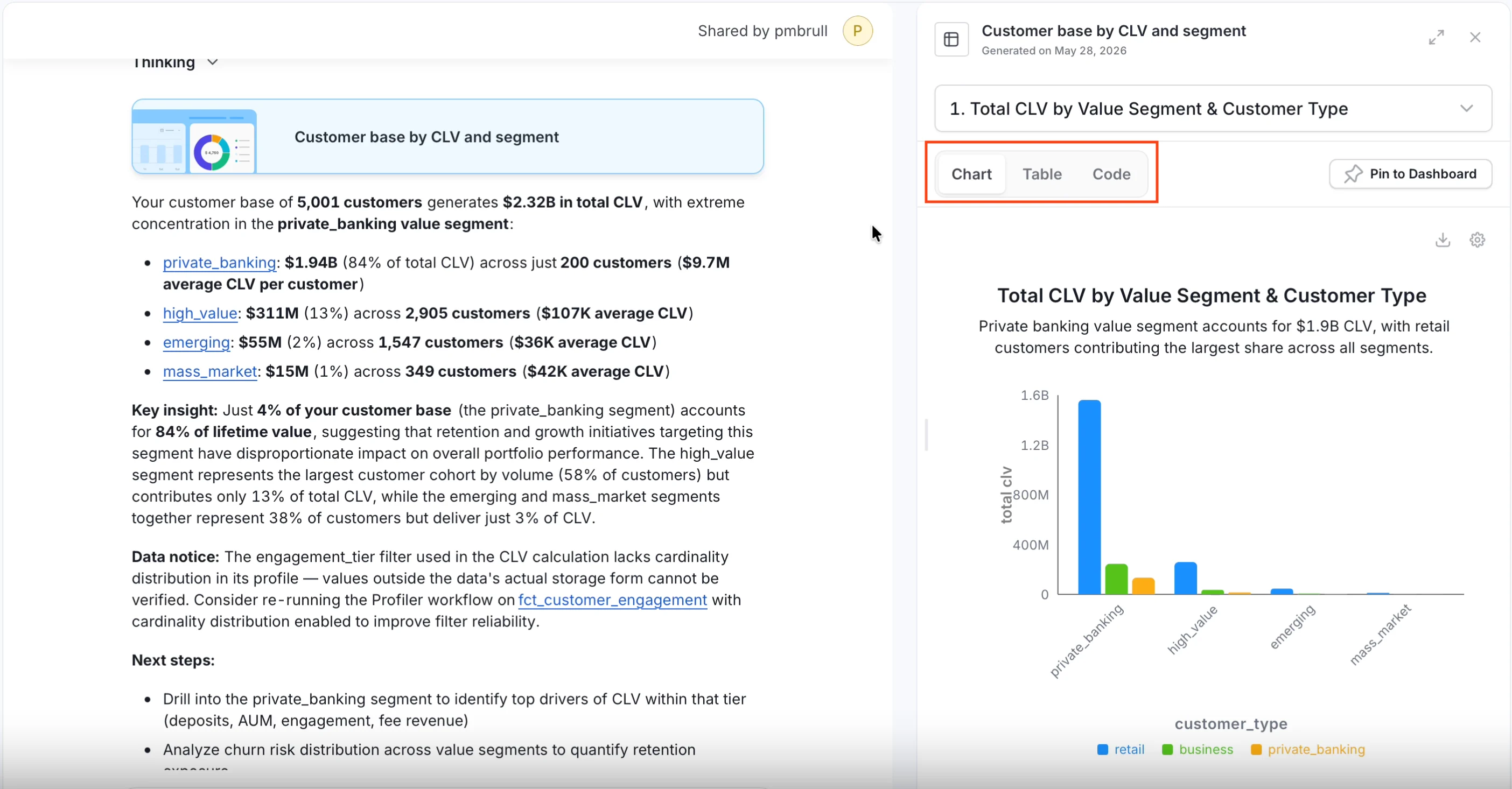
Customize a Chart
Use follow-up prompts to refine charts without starting a new conversation:- “Use a donut chart instead.”
- “Break this down by region.”
- “Only show the top 10 results.”
- “Add a filter for Tier 1 data only.”
Heatmap, Sankey, Treemap, and Geo Map Charts
Besides standard bar, line, and pie charts, Collate AI can draw these chart types. Ask for one by name in a prompt, or switch to it from the chart settings on the card.- Heatmap: Compares a value across two categories, with color showing the size of the value. For example, “Show failed test cases by table and day as a heatmap.”
- Sankey: Shows how a quantity flows from sources to targets. For example, “Show how data assets flow from each domain to each tier as a Sankey chart.”
- Treemap: Shows parts of a whole as nested blocks sized by value. For example, “Show storage by schema as a treemap.”
- Geo Map: Shades regions of a map by a value. Use Map Region to choose United States or World. For example, “Show customers by state on a map.”
Pin to a Dashboard
-
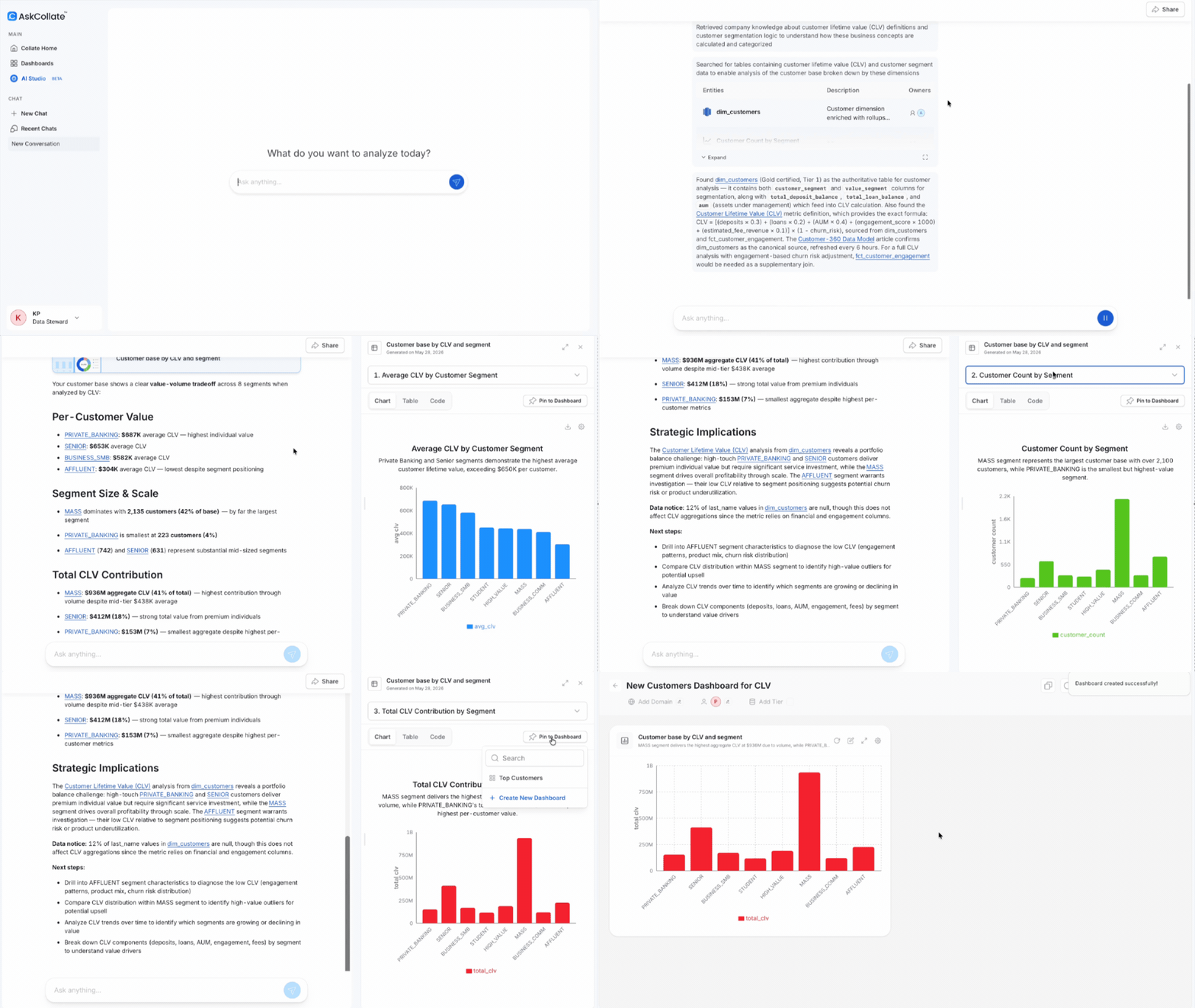
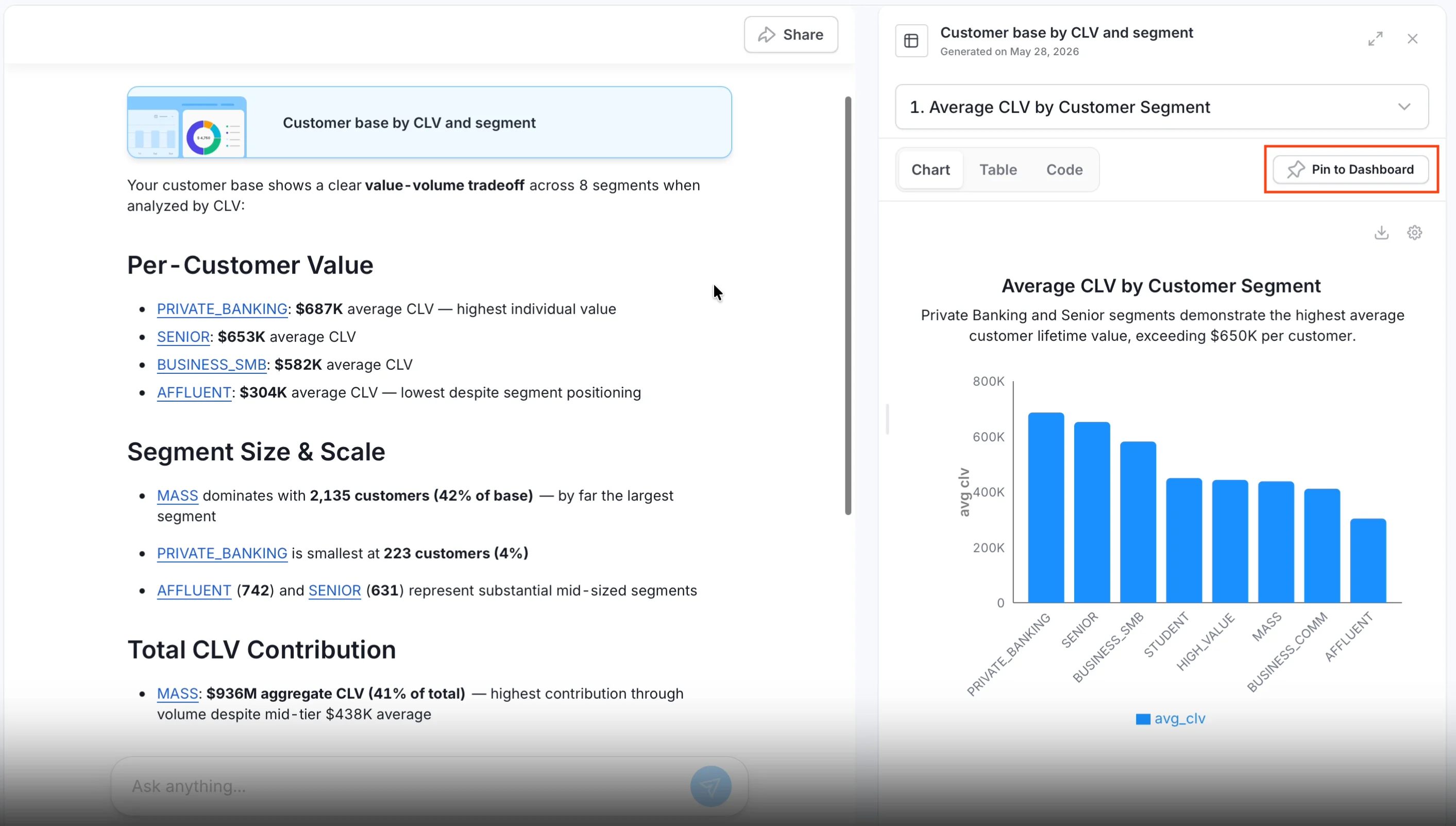
On any chart in the conversation, click Pin to dashboard.
-
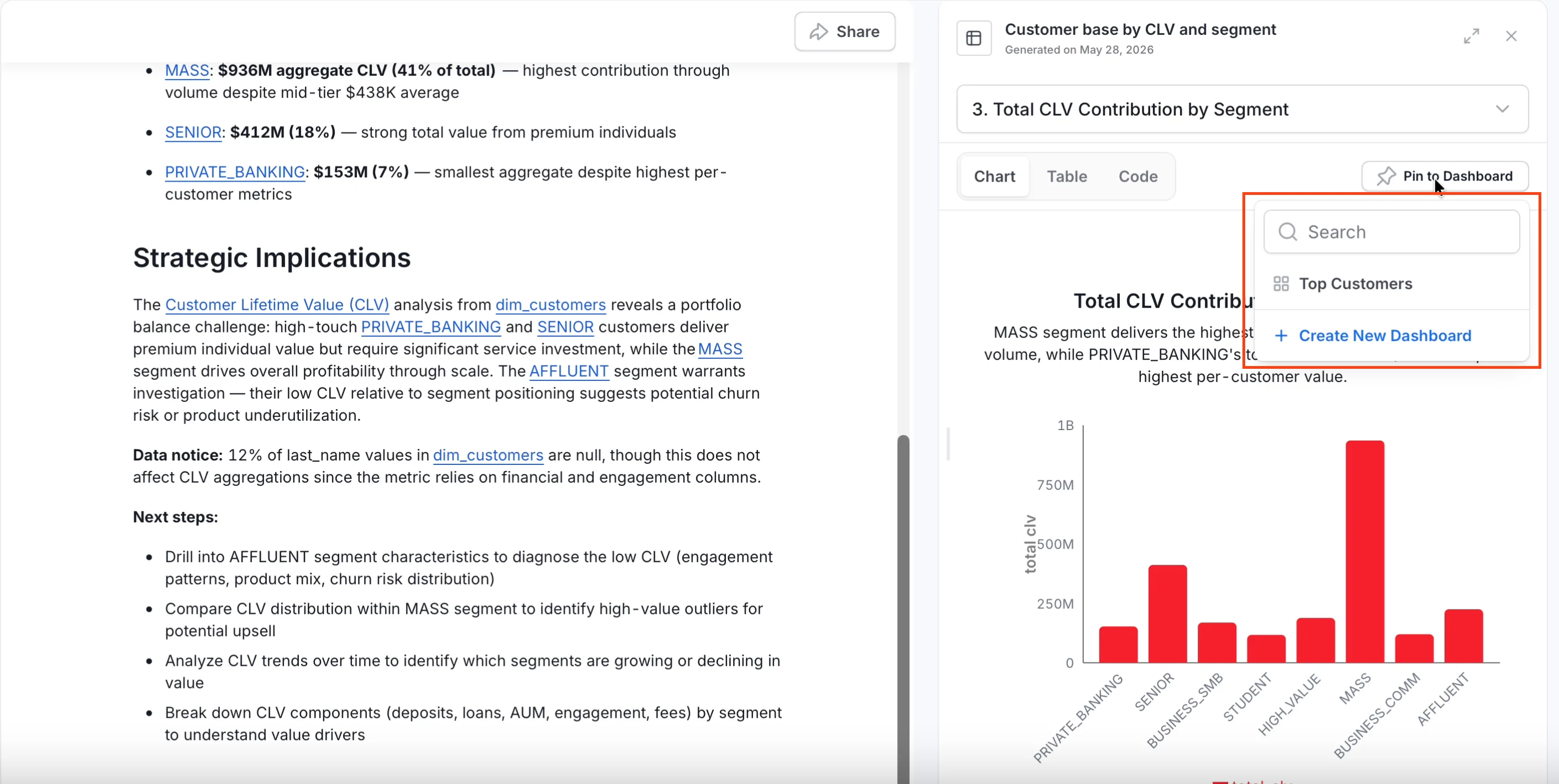
Choose an existing dashboard or create a new one. Use the search box to find a dashboard by name quickly.
- Open the dashboard from the AI Analytics page to see all your pinned charts.
Viewing Entity Details
When Collate AI Chat creates or looks up an entity, it opens a details panel on the right side of the screen, next to the conversation, showing the entity’s domain, owner, tags, and glossary terms. Below that, the panel offers a Summary tab, the same Lineage and Custom Properties tabs as the entity’s full details page (see Data Asset Tabs for what each shows), and an entity-specific tab:- Metrics show an Expression tab with the metric’s full SQL formula, formatted for readability, showing exactly how the number was calculated.
- Topics show the same Config tab as their full details page, with the topic’s technical configuration (partition count, replication factor, cleanup policy, retention settings).
- Pipelines show the same Executions tab as their full details page, with a history of pipeline runs: date, time, duration, and status (Success, Failure, Pending, or Aborted).
- Dashboard data models show a SQL tab with the model’s underlying query, when it has one.
Share a Conversation
You can share any Collate AI Chat conversation with teammates — they open it and see the exact same charts, SQL, and reasoning you saw, and can keep asking questions right where you left off.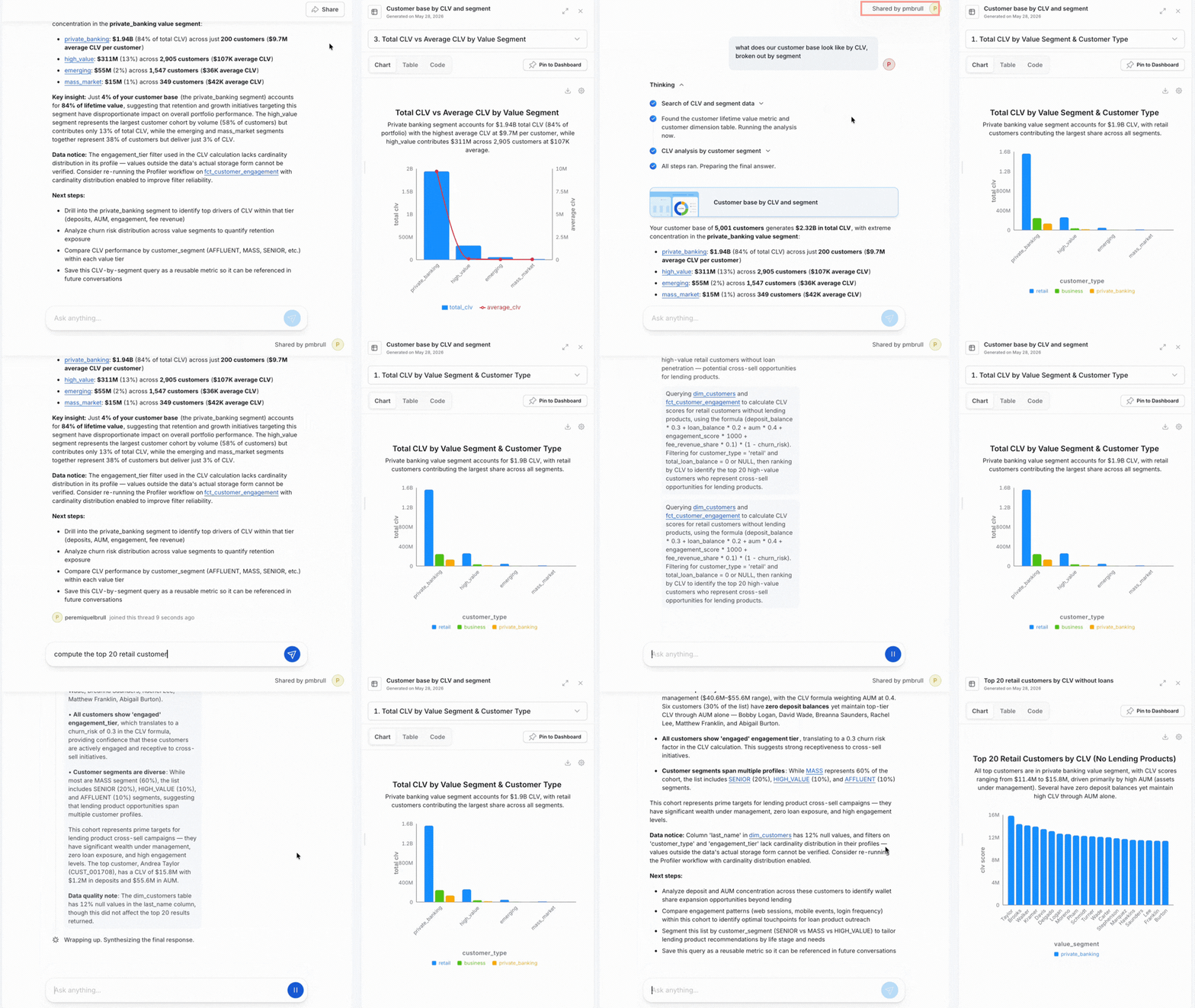
- Open the conversation you want to share.
-
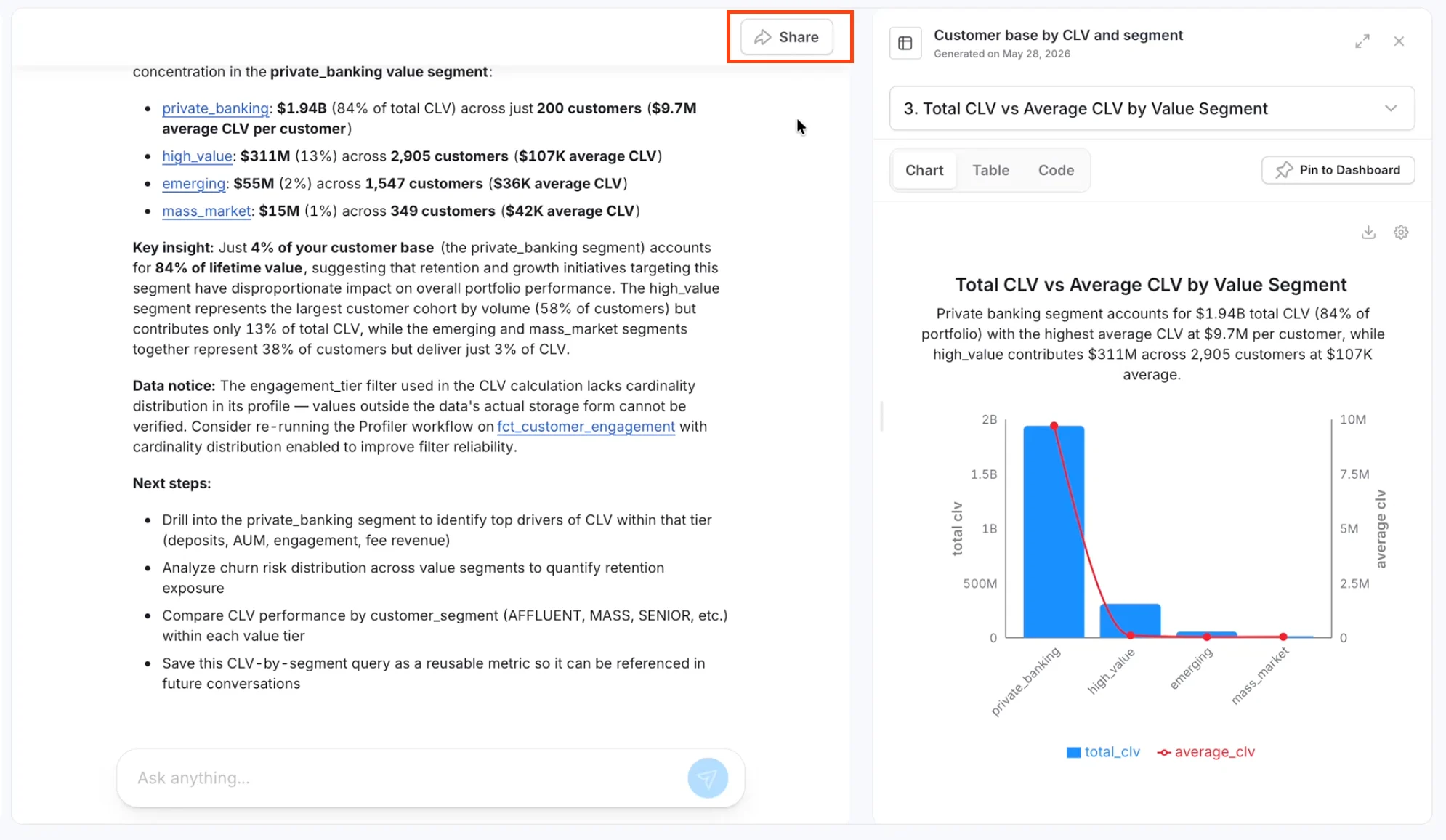
Click Share on the conversation.
-
Enter the email addresses or user groups, set their role — Editor (can ask follow-up questions) or Viewer (read-only) — and click Invite.
- Your teammate opens the shared chat and sees the same charts, SQL queries, and reasoning — not just a screenshot.
- Every chart you generated, in the same order.
- The SQL query behind each chart — so they can verify the logic themselves.
- The AI’s reasoning steps — so they understand how the answer was derived.
- A live input to continue the analysis with their own questions (Editors only).
Best Practices
- Be specific — include time ranges, owners, schemas, or tier levels to narrow results.
- Use follow-up prompts to refine charts rather than starting a new conversation.
- Review the SQL Collate AI Chat shows to confirm the query matches your intent before acting on the result.
- Pin useful charts to a dashboard and schedule a refresh so the numbers stay current without re-asking.
- Share conversations with teammates when collaborating so everyone sees the same charts and reasoning.
- Paste failing SQL or error context when asking for fixes so Collate AI Chat has what it needs to help.
Troubleshooting
- If answers seem incomplete, verify that recent metadata and lineage ingestion runs succeeded.
- If you cannot see certain assets, confirm your Collate permissions for those services.
- Collate AI responds in your UI language setting, not necessarily the language you typed your question in. To change it, click the Profile icon at the bottom of the left sidebar, then select Language.
- For inconsistent results, restate the question with the relevant schema or service name.
- For deeper issues — wrong formulas, wrong table surfacing, filters returning zero rows — see Improving AI Answers for catalog-level fixes.