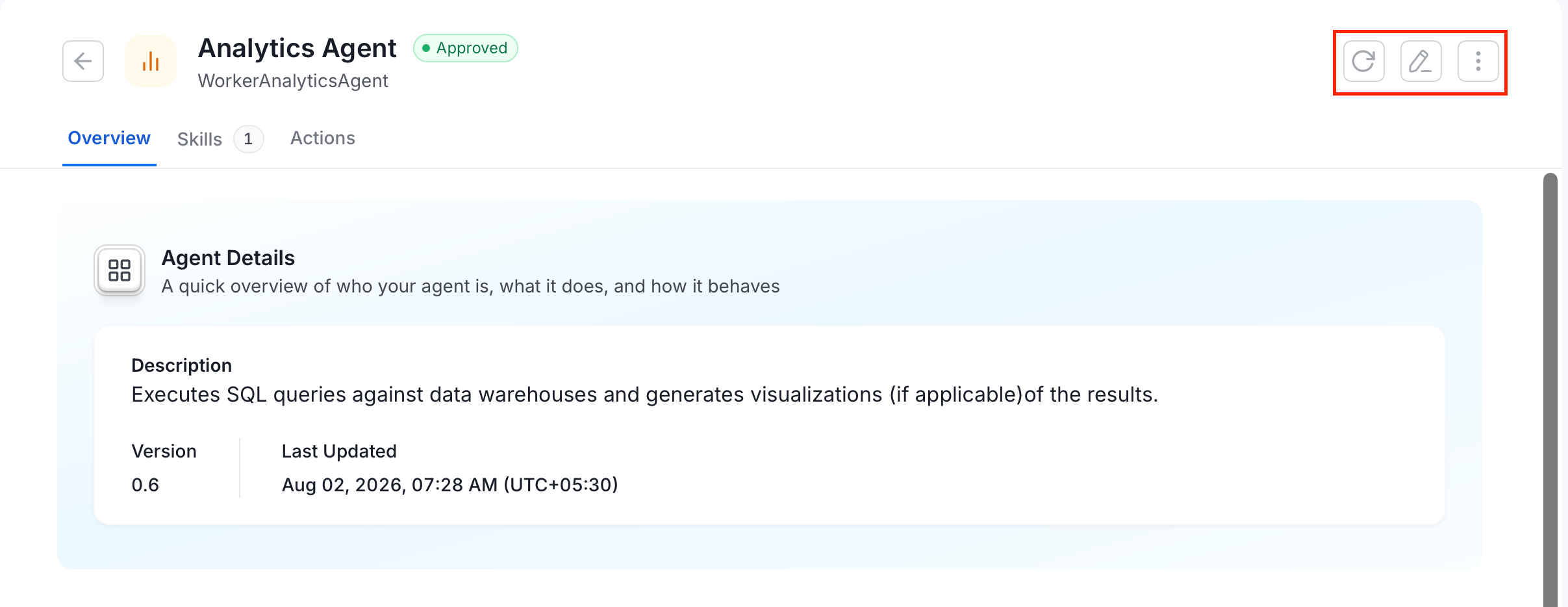
A worker is a specialized AI agent that handles a specific domain of tasks within Collate AI Chat — such as running analytics queries, managing governance metadata, or processing data marketplace requests. Workers are part of the Collate AI Chat agentic fleet: when you ask a question in chat, the planner routes your request to the right worker automatically. You interact with workers through chat, not through AI Automations.Workers differ from agents in one key way: instead of a Persona step, workers use Planner Routing — which controls how the worker decomposes and routes tasks to the right tools and environments.
Select the Skills this worker can use. Skills define the specific actions the worker is allowed to take — for example, reading asset metadata, running queries, or sending notifications.Search for skills by name and select the checkboxes next to the ones you want to attach. To create or manage skills, go to the Skills tab.Click Save and Next to continue.
The Planner Routing step configures how the worker decomposes incoming tasks and routes them to the right tools or sub-agents. This replaces the Persona step used in agent creation — workers use routing logic rather than a conversational persona to decide how to handle each request.
Tip: The recommended approach is to click Auto-fill with AI and let Collate AI suggest the planner configuration based on your worker’s name and description. Only configure it manually if you have a specific routing requirement — the AI-generated configuration is a reliable starting point for most use cases.