
Articles
Articles are Context Center’s internal knowledge base—long-form pages your team writes, organizes, and maintains, authored for people and indexed for Collate AI Chat to search. Use them for durable, structured knowledge that’s worth maintaining as a page: data governance policies, classification standards, incident playbooks, internal API documentation, or any reference material a team writes once and keeps up to date.Create an Article
-
From the left sidebar, navigate to Context Center > Articles.
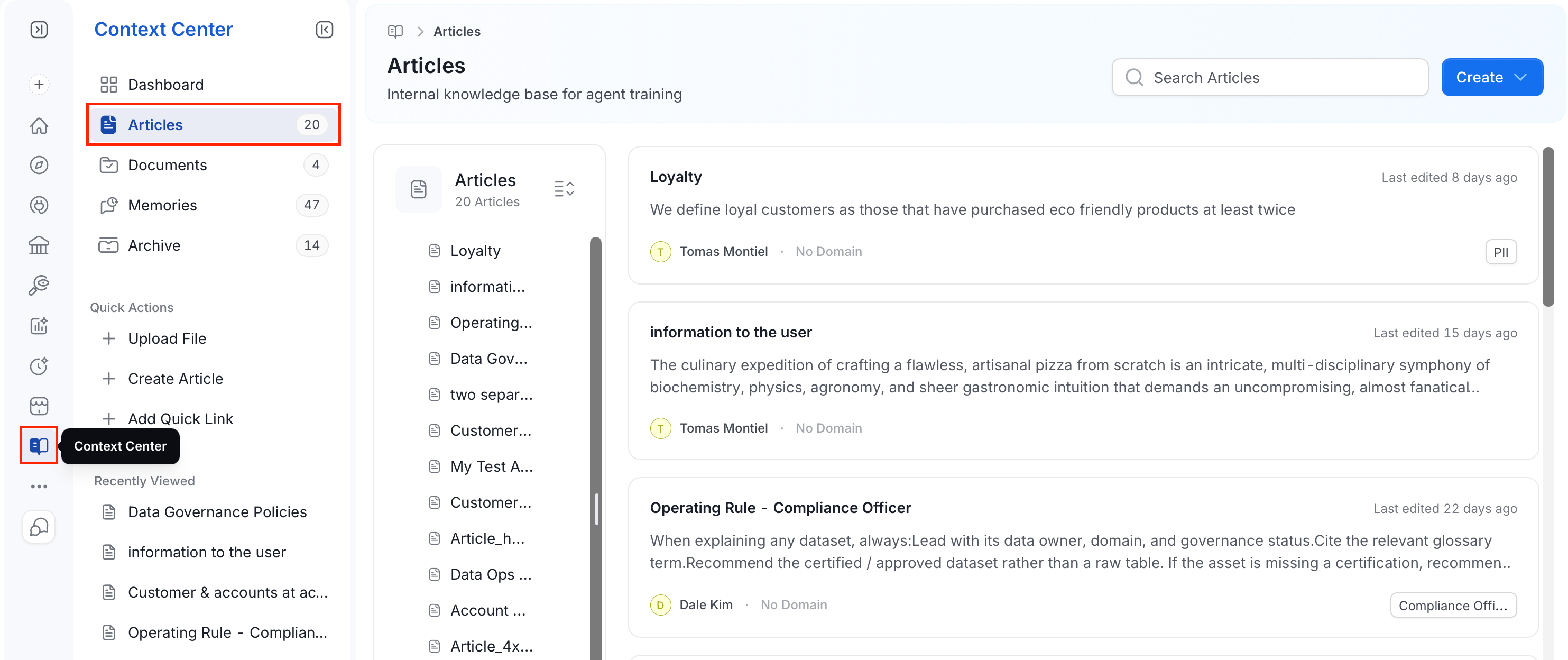
-
Do any of the following to create or add an article:
-
Click Create and choose:
- Article: Opens a blank page in the rich text editor. Give it a title and start writing—slash commands, text formatting, and nested lists are all supported.
- Quick Link: Bookmarks an external URL as an article instead of writing new content. Add a title, description, the target URL, an owner or team, and tags. Collate stores only the link and its details. Collate AI and MCP don’t read the content behind the URL.
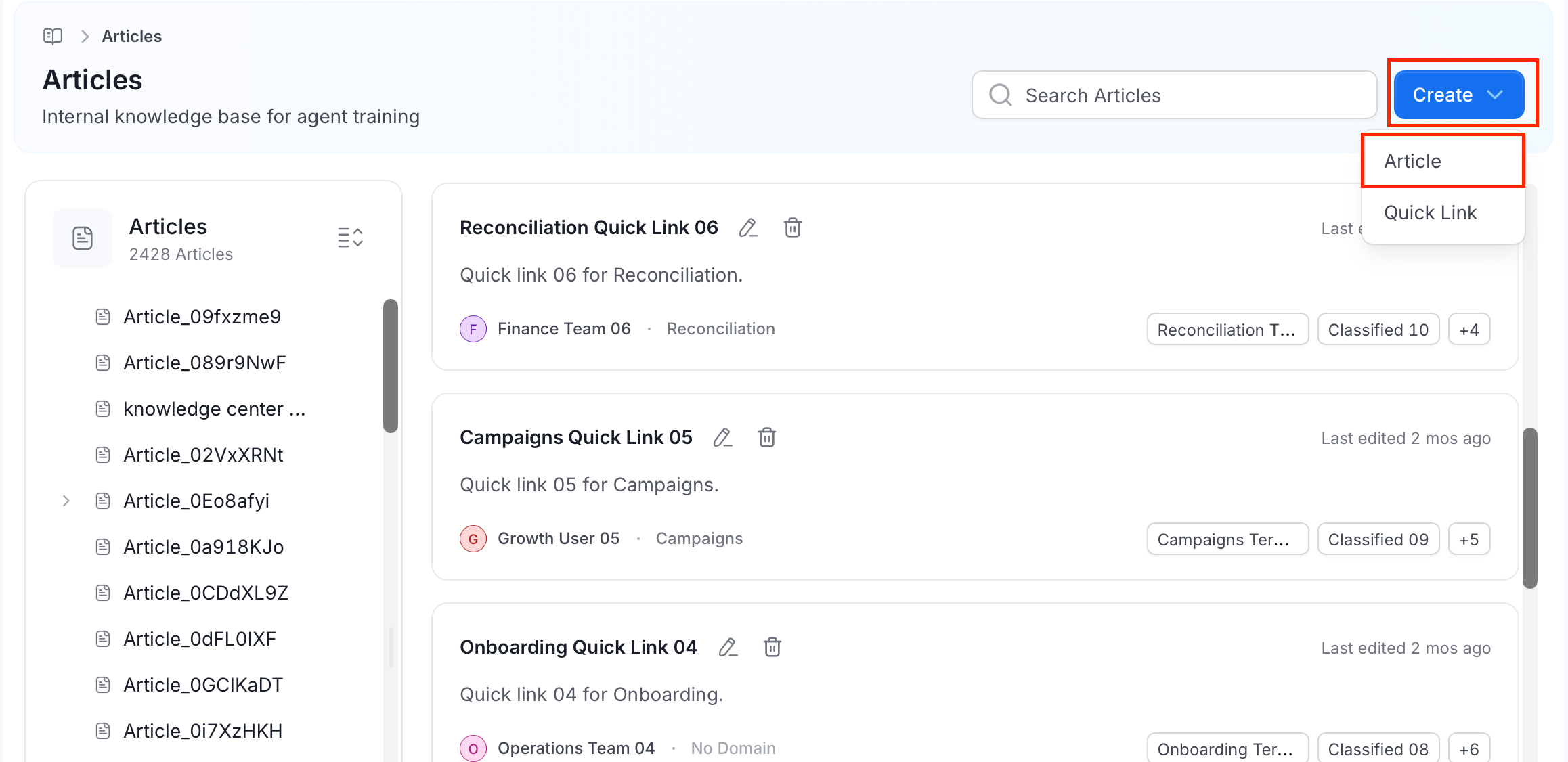
-
Use Quick Actions in the sidebar: Create Article or Add Quick Link do the same thing from anywhere in Context Center.
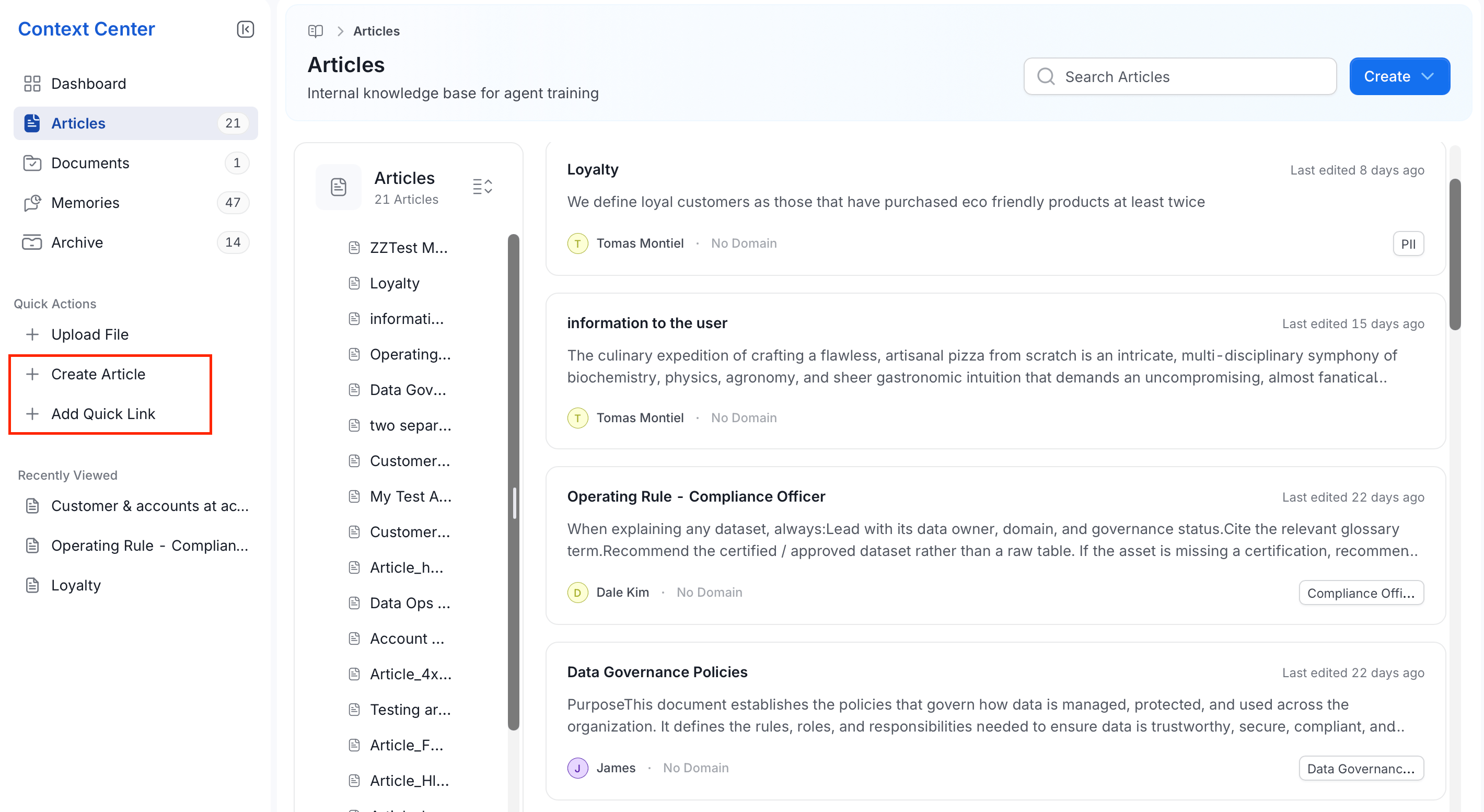
-
Click Create and choose:
Viewe and Manage Articles
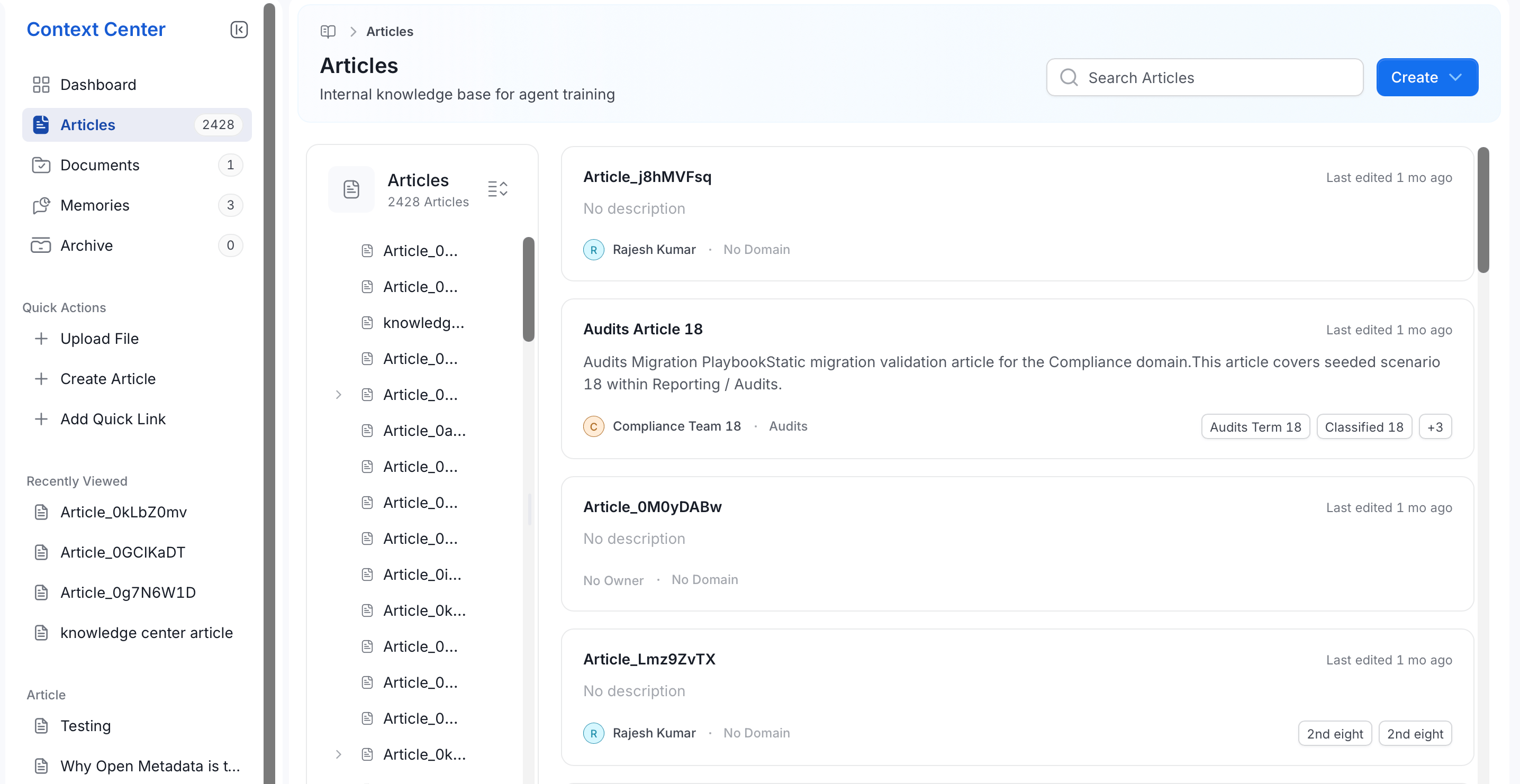
The Articles list page helps you find and browse existing articles:- A search bar to look up articles by title.
- A left-hand hierarchy panel that organizes articles into folders, so related articles—for example, everything under a “Compliance” or “Engineering” folder—stay grouped together.
- A card for each article, showing its title, a short description (or “No description” if none is set), when it was last edited, its owner, its domain, and any tags applied to it.
- Header information: The article’s domain, owner, and reviewer (once one is assigned), each shown as a chip you can edit inline by clicking the pencil icon next to it.
- Save status and version: A Saved indicator confirms your latest edit was captured automatically, and a version number—for example,
0.2—increases each time the article is updated, so you can track how much it’s changed over time. - Status badge: If the article has an open review request, a badge such as In Review appears next to its title.
- Toolbar actions, next to the Saved indicator:
- Feedback: Thumbs up or thumbs down on the article.
- Conversation: Open a comment thread on the article.
- Favorite: Bookmark the article so it’s easy to find again later.
- Copy: Use the copy icon to copy and paste the article.
- Delete: Open the ⋮ menu and select Delete to remove the article.
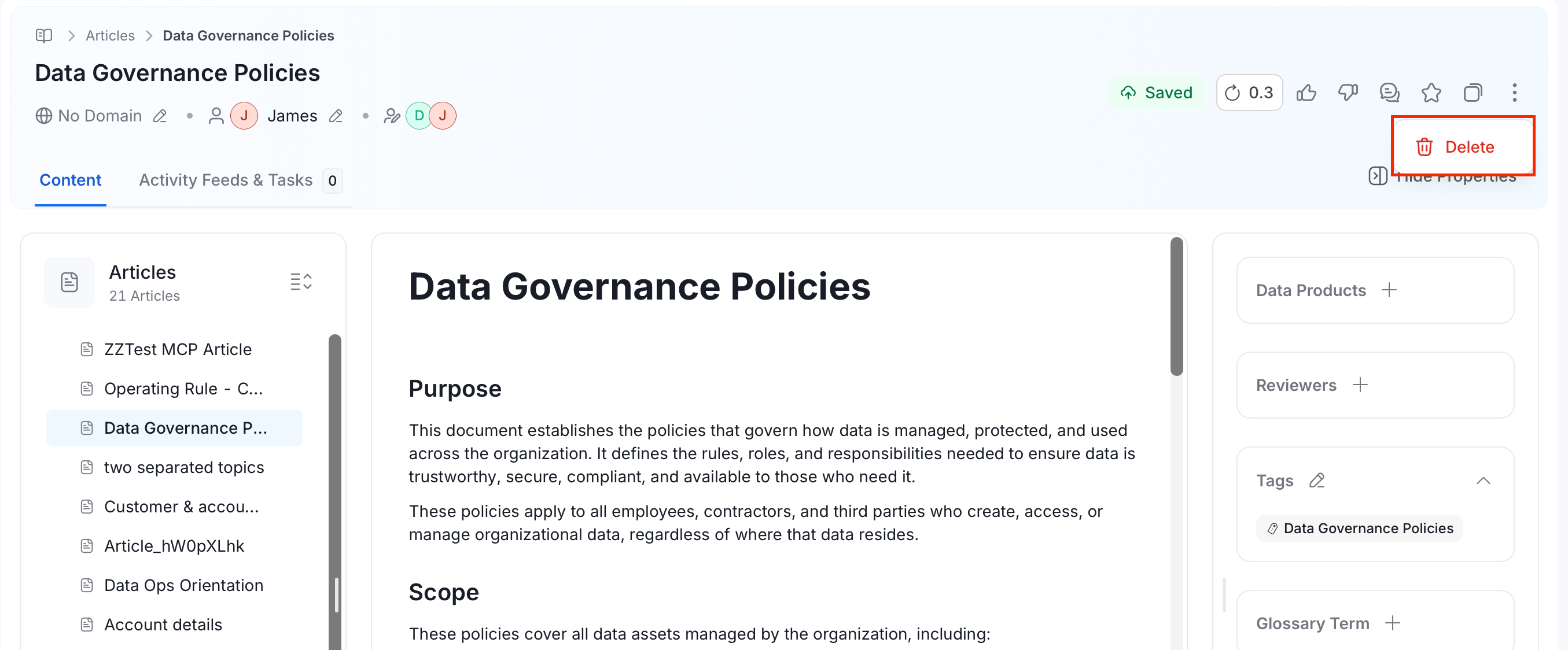
- Content and Activity Feeds & Tasks tabs:
- Content is the article body itself, where you write and edit using the rich text editor.
-
Activity Feeds & Tasks tracks everything that’s happened on the article, split into two views:
- All: A chronological feed of every change—who created or updated the article and when—with a short description of what changed. React to an entry with an emoji, or reply to start a thread on it.
- Tasks: Request-driven items on the article, such as an open review request, tracked separately from the general activity feed.
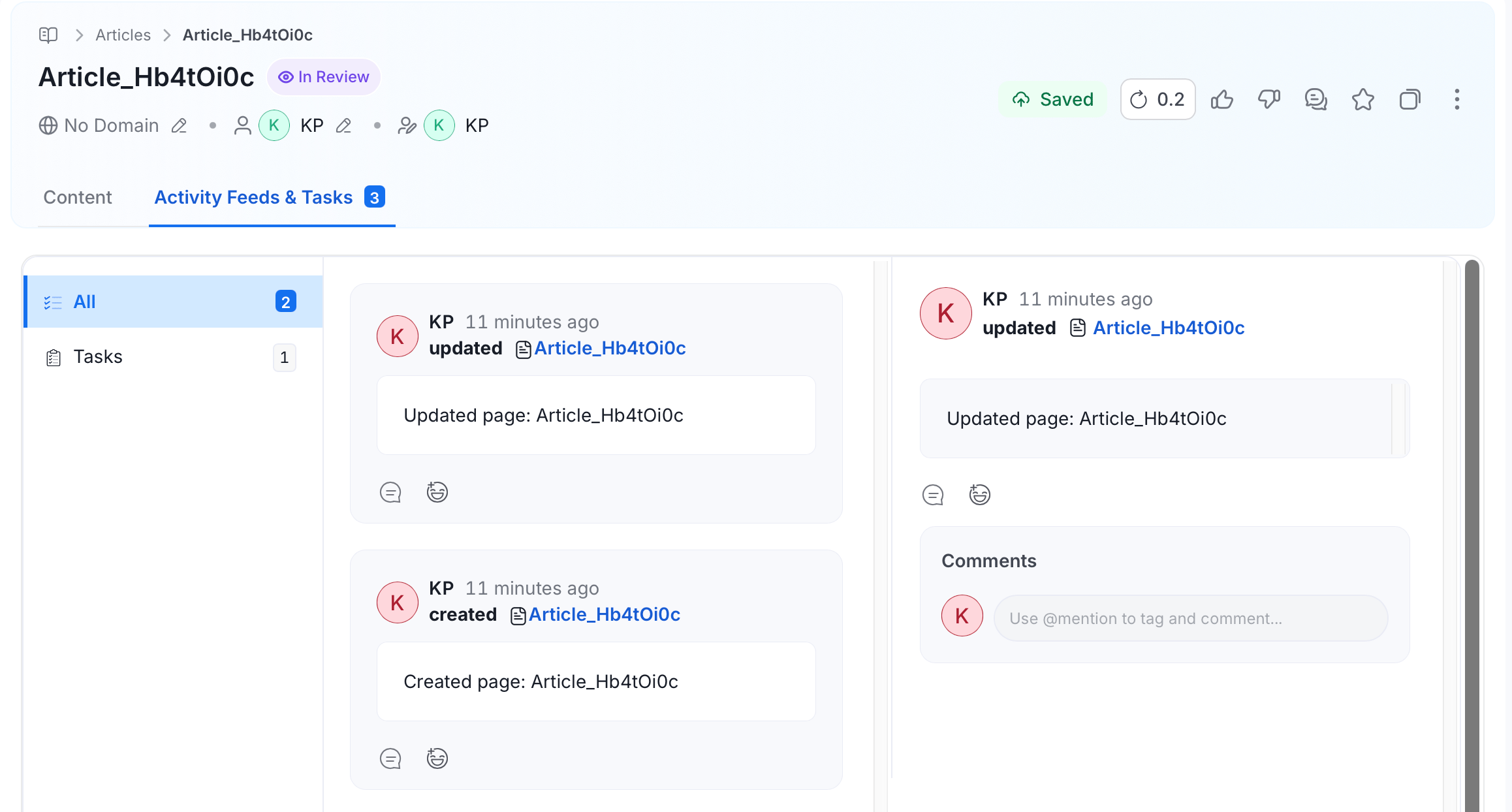
- Selecting an entry opens its details on the right, along with a Comments panel where you can add a comment and use
@mentionto tag a teammate.
- Properties panel: Attach Data Products, Reviewers, Tags, a Glossary Term, related Data Assets, or Attachments to the article, each with its own
+button.