Memories
Memories are short, atomic facts—definitions, preferences, and answers to recurring questions—captured by your team while chatting with Collate AI Chat, or added manually. Unlike Articles, Memories aren’t meant to be full pages: They’re quick, reusable pieces of context Collate AI Chat can recall in future conversations.Create a Memory
To create a memory, follow these steps:-
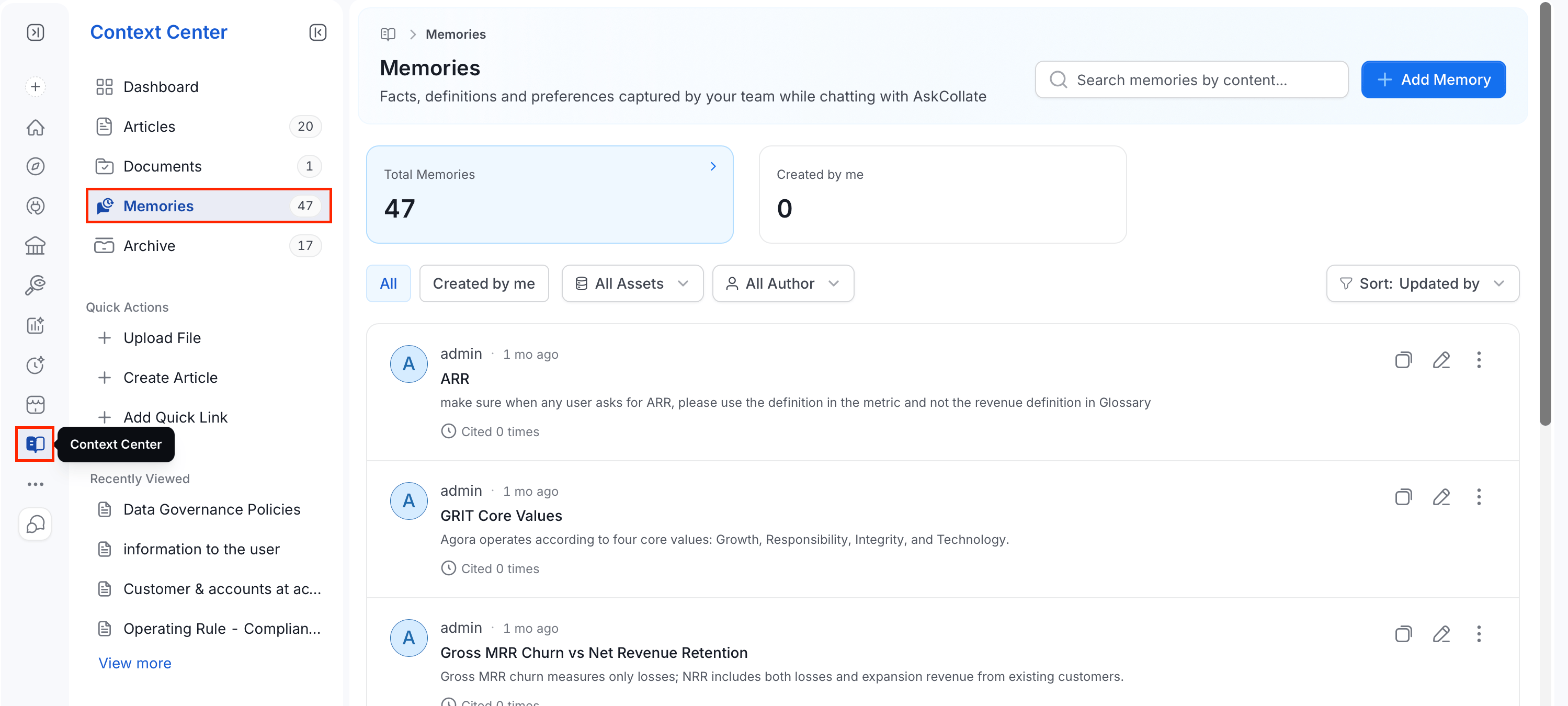
From the left navigation bar, navigate to Context Center > Memories.
-
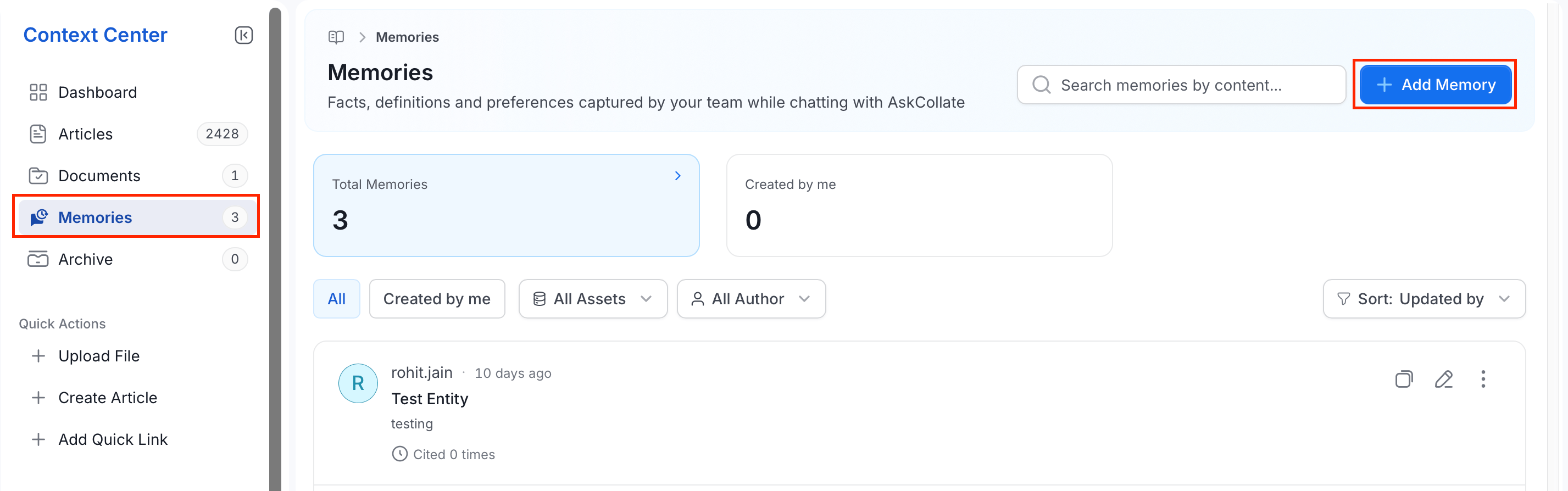
Select Add Memory, or use Quick Actions in the sidebar. In the Add Memory dialog:
-
In the Add Memory dialog, fill in the following details:
- Title: An optional label for the memory.
- Memory: Required. Describe what Collate AI Chat should remember, written in plain markdown. Click Preview to see how the formatted content will look. Create Memory stays disabled until this field has content.
- Type: Optional. Choose the kind of memory:
- FAQ: A recurring question and its answer.
- Note: A general fact worth remembering.
- Preference: A personal preference for how Collate AI Chat should behave for you.
- Runbook: A step-by-step procedure.
- Use Case: A specific scenario and how to handle it.
- Linked Data Assets: Optionally link the memory to one or more data assets using Link an Asset.
- Metadata:
- Visibility: Choose who can see the memory. Defaults to Private.
- Shared: Visible to specific people or teams you choose.
- Entity: Visible to anyone viewing the linked data asset.
- Private: Visible only to you.
- Tags: Optionally tag the memory using Add Tag.
- Visibility: Choose who can see the memory. Defaults to Private.
- Click Create Memory to save it.
View and Manage Memories
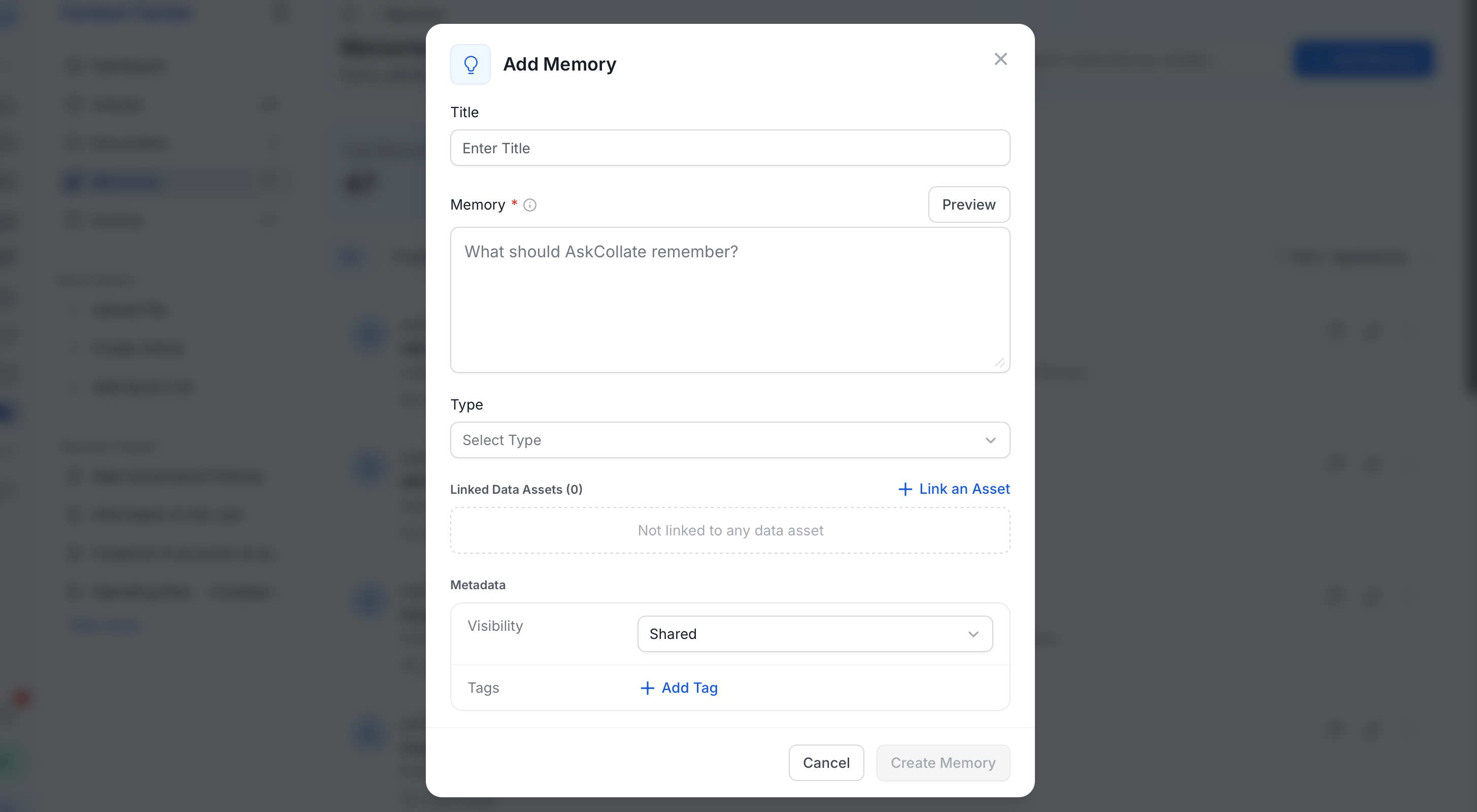
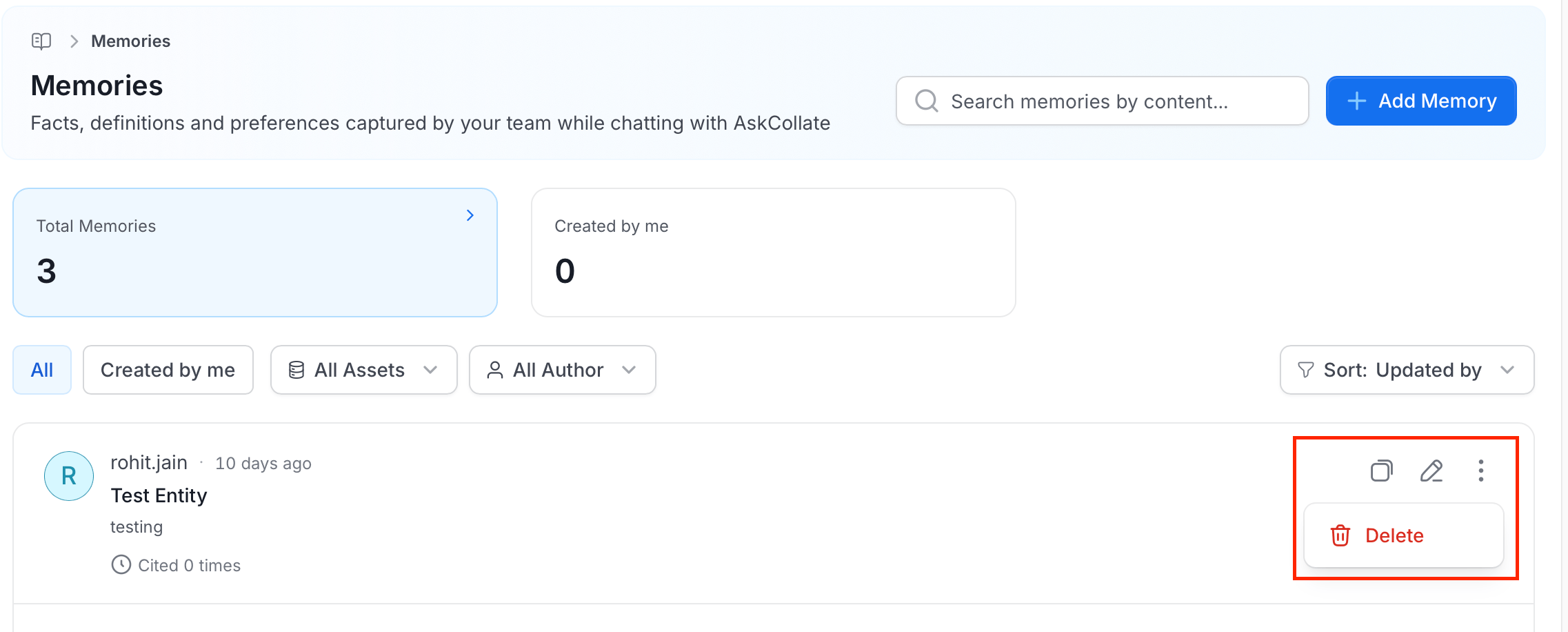
The Memories page shows:- Search bar: Search memories by their content.
- Summary cards: Total Memories and Created by me, each showing a count.
- Filters: Switch between All and Created by me, or narrow the list by All Assets or All Author.
- Sort: Order the list—for example, by Updated by.
- Memory list: Each row shows the author’s name and avatar, when it was last updated, the memory’s title, its content, and how many times it’s been Cited—that is, how often Collate AI Chat has actually used it to answer a question.
- Row actions:
- Copy: Duplicate the memory.
- Edit: Open the memory to change its title, content, type, visibility, tags, or linked assets.
- Delete: Open the ⋯ menu and select Delete to remove the memory.
Control Access to Memories with Roles and Policies
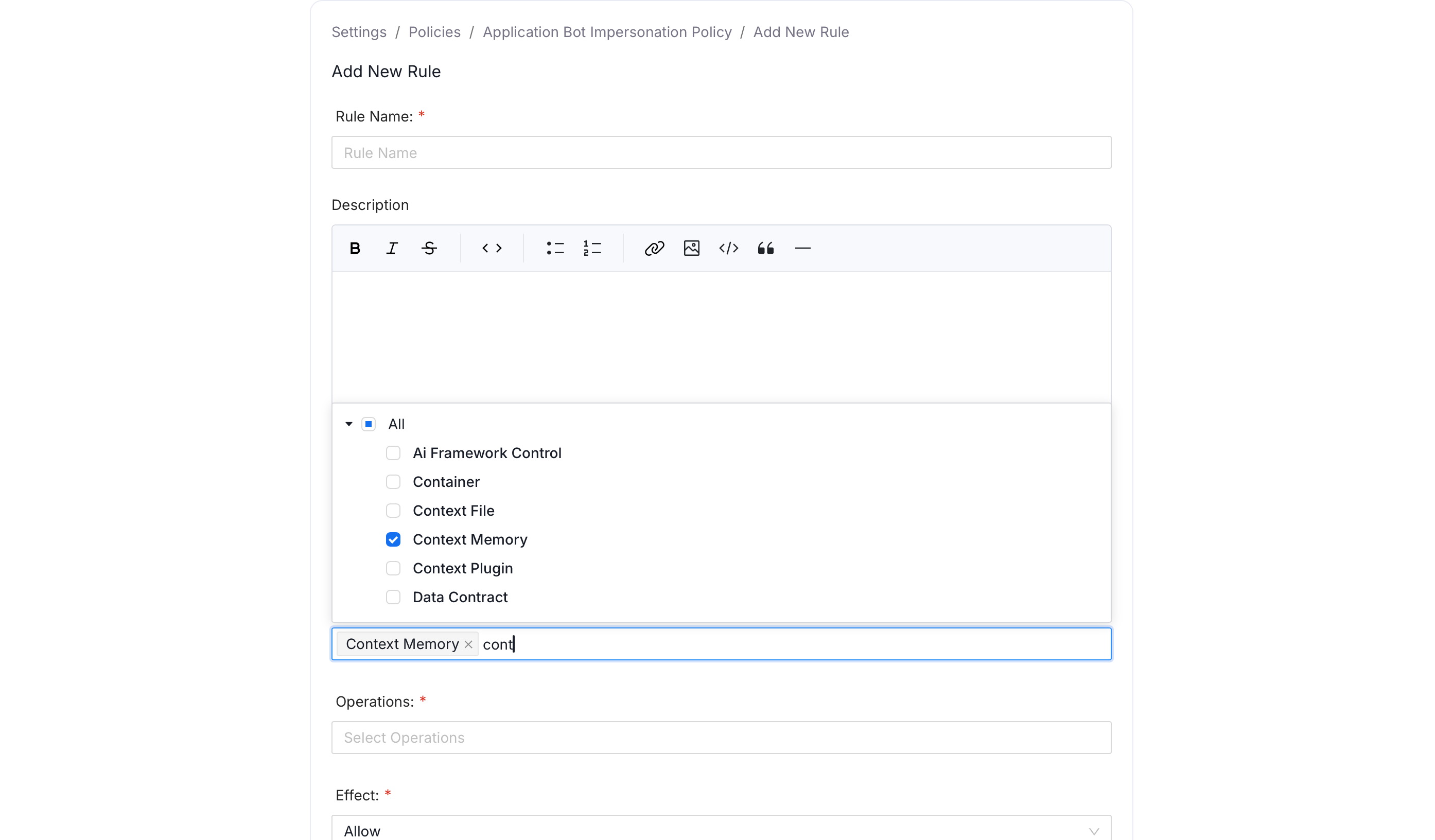
Memories are a governed resource in Collate’s role-based access control system, listed as Context Memory under the Misc resource category. Admins control who can view, create, edit, or delete memories platform-wide by adding a rule to a policy that targets the Context Memory resource.- Click the Profile icon and navigate to Settings > Access Control > Policies.
- Open an existing policy and click Add Rule.
-
Fill in the following details:
- Name: Enter a unique rule name.
- Description (optional): Add a note explaining what this rule does and why, so other admins reviewing the policy later understand its intent.
- Resources: Select
Context Memory. - Operations: Set the actions to allow or deny, for example
Allto cover every operation, or a specific set such asCreateandEditAll. - Effect: Select from
AlloworDeny. - Condition (optional): A CEL expression to scope the rule further, such as restricting it to a domain.
-
Click Save, then attach it to the roles that should have this access.