AI Asset Registry
The AI Asset Registry is the single inventory of every AI system your organization uses: AI Applications, LLM Models, and MCP Servers. Instead of AI usage being scattered across teams, cloud accounts, and personal experiments with no central record, every asset lives in one list with its owner, risk classification, compliance status, and data exposure visible at a glance.Why It Matters
Most organizations can’t answer basic questions about their own AI usage: which systems touch sensitive data, who’s responsible for them, or whether they were ever reviewed. The registry exists to make those questions answerable without a manual audit:- One inventory, not a spreadsheet someone forgets to update. Assets stay current because registration is tied into how Collate already tracks data, lineage, and ownership.
- Compliance becomes a byproduct of registration, not a separate fire drill. Registering an asset captures the information (data access, deployment region, risk factors) that frameworks like the EU AI Act need, so you’re not scrambling to reconstruct it when an audit comes up.
- Risk is visible before it’s a problem. High-risk and unowned assets are surfaced on the registry and the Overview dashboard, not discovered after something goes wrong.
- Review doesn’t stop at a name and description. Because Collate already models your data estate, an asset’s registry entry connects to real lineage: what tables and tools it actually touches. This lets reviewers assess actual exposure, not just a self-reported summary.
Access AI Asset Registry
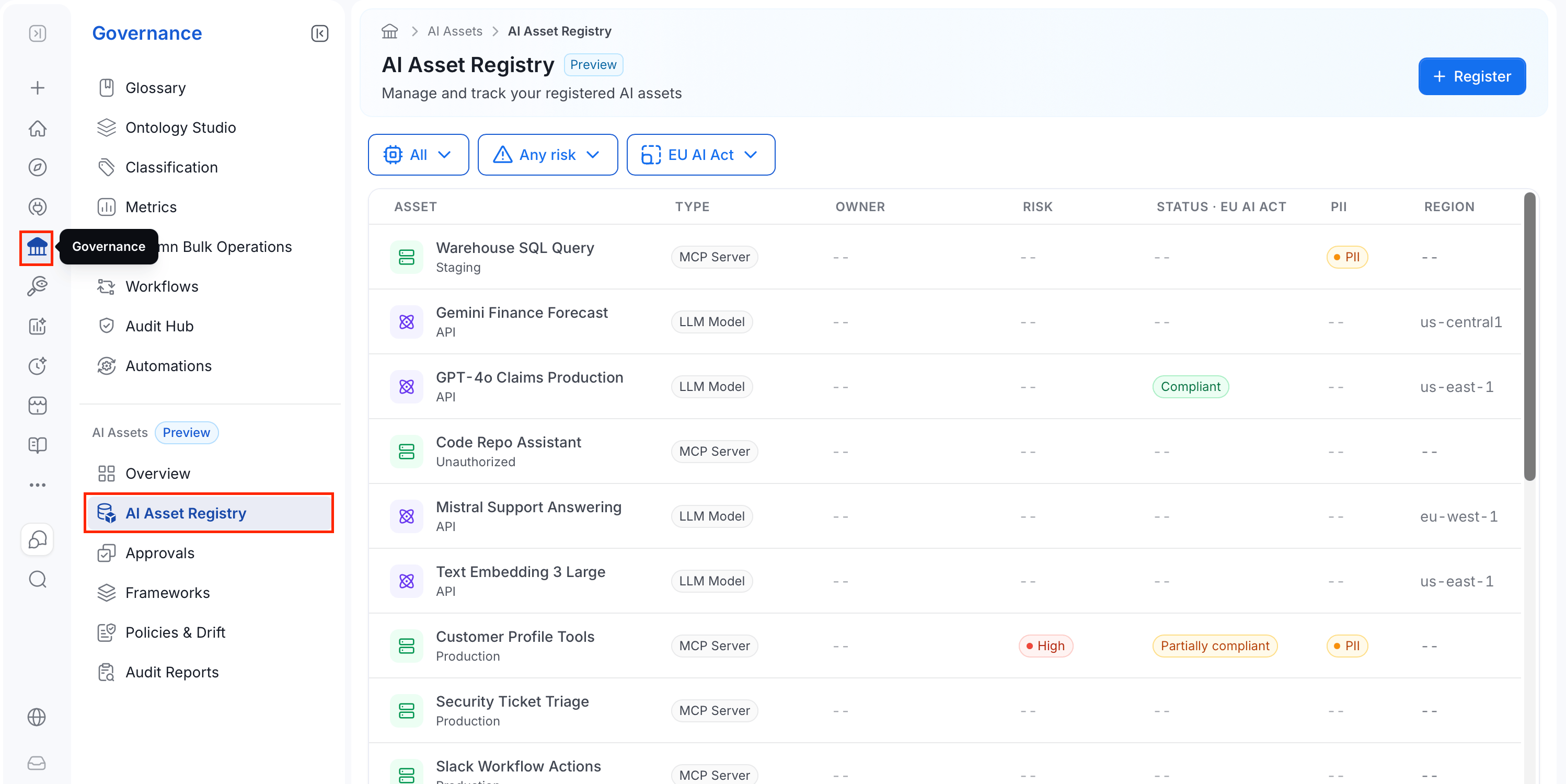
- In the left navigation bar, select Governance.
-
Under the AI Assets section, select AI Asset Registry.
Register an AI Asset
Registering an asset brings it under governance:- It becomes visible in the inventory.
- It gets classified against your compliance frameworks.
- It routes into the approval process. For more information, see Approvals.
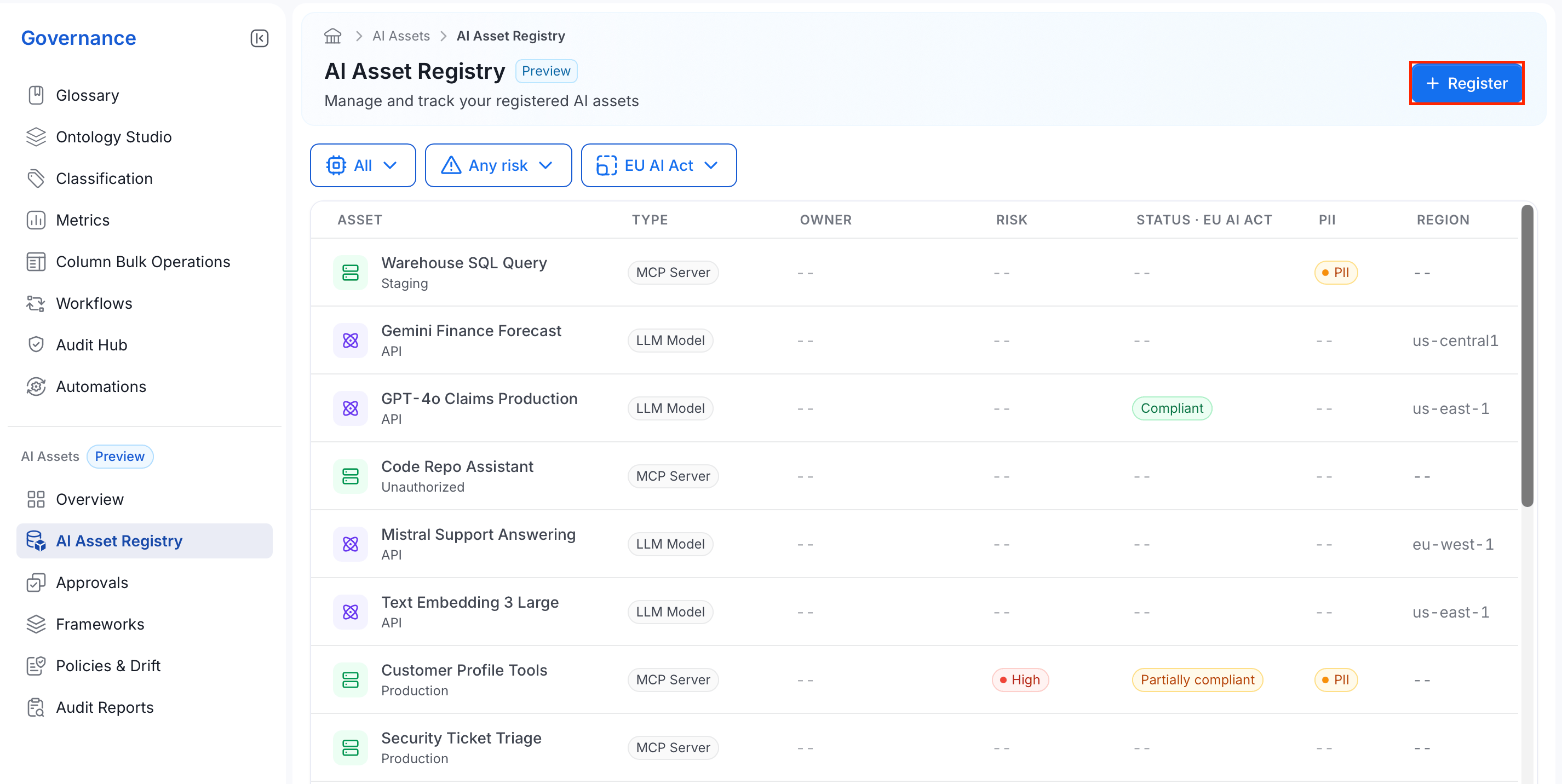
Note: This wizard registers an AI Application specifically. LLM Models and MCP Servers appear in the registry through other parts of the product rather than through this wizard.
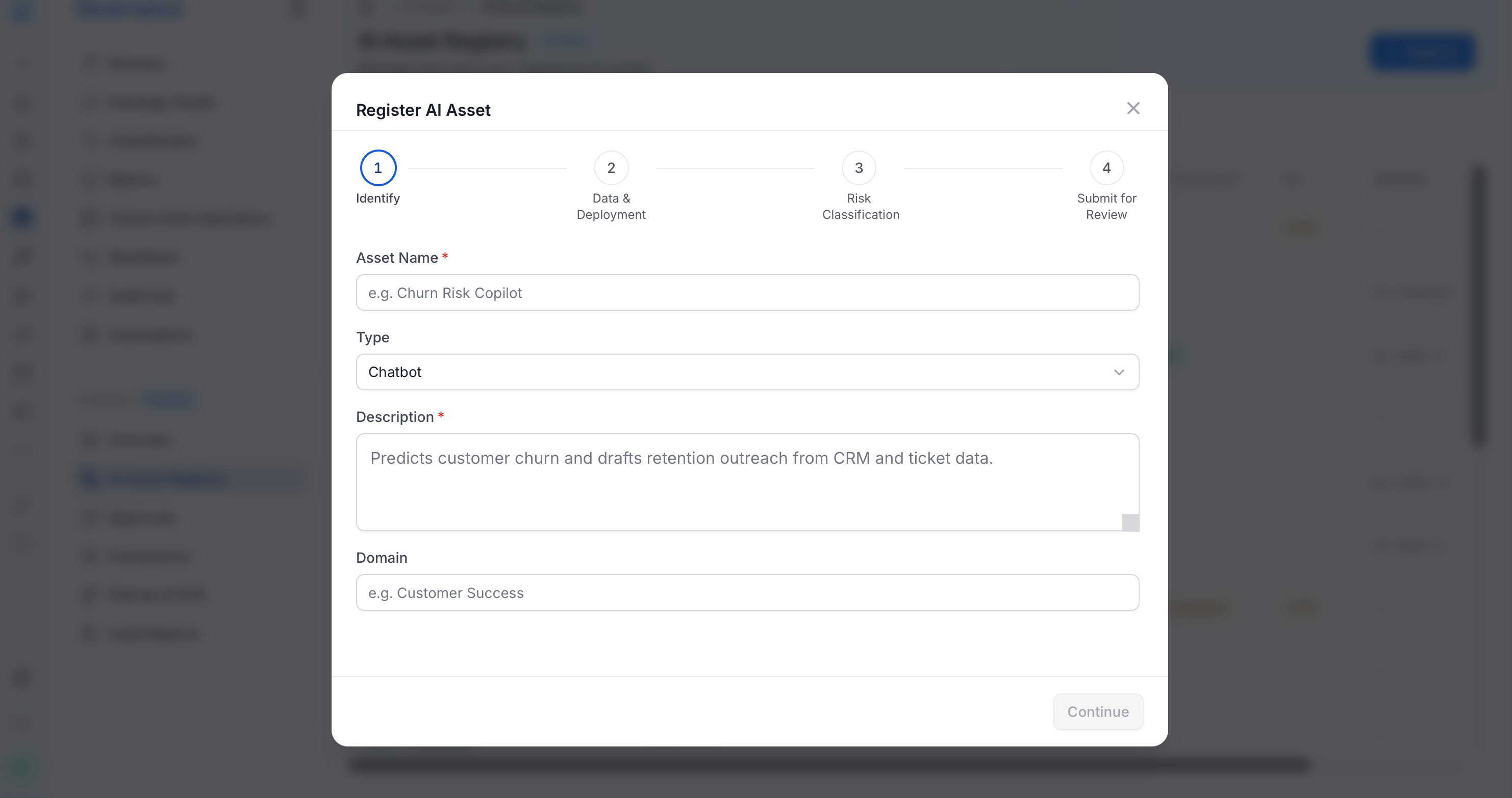
Step 1: Identify
Start by naming and describing the asset:- Enter a unique Asset Name.
-
Select a Type:
- Enter a Description of what the asset does.
- Optional: Enter a Domain to link the asset to the same domain your data already uses, so you’re not maintaining a second, parallel structure just for AI.
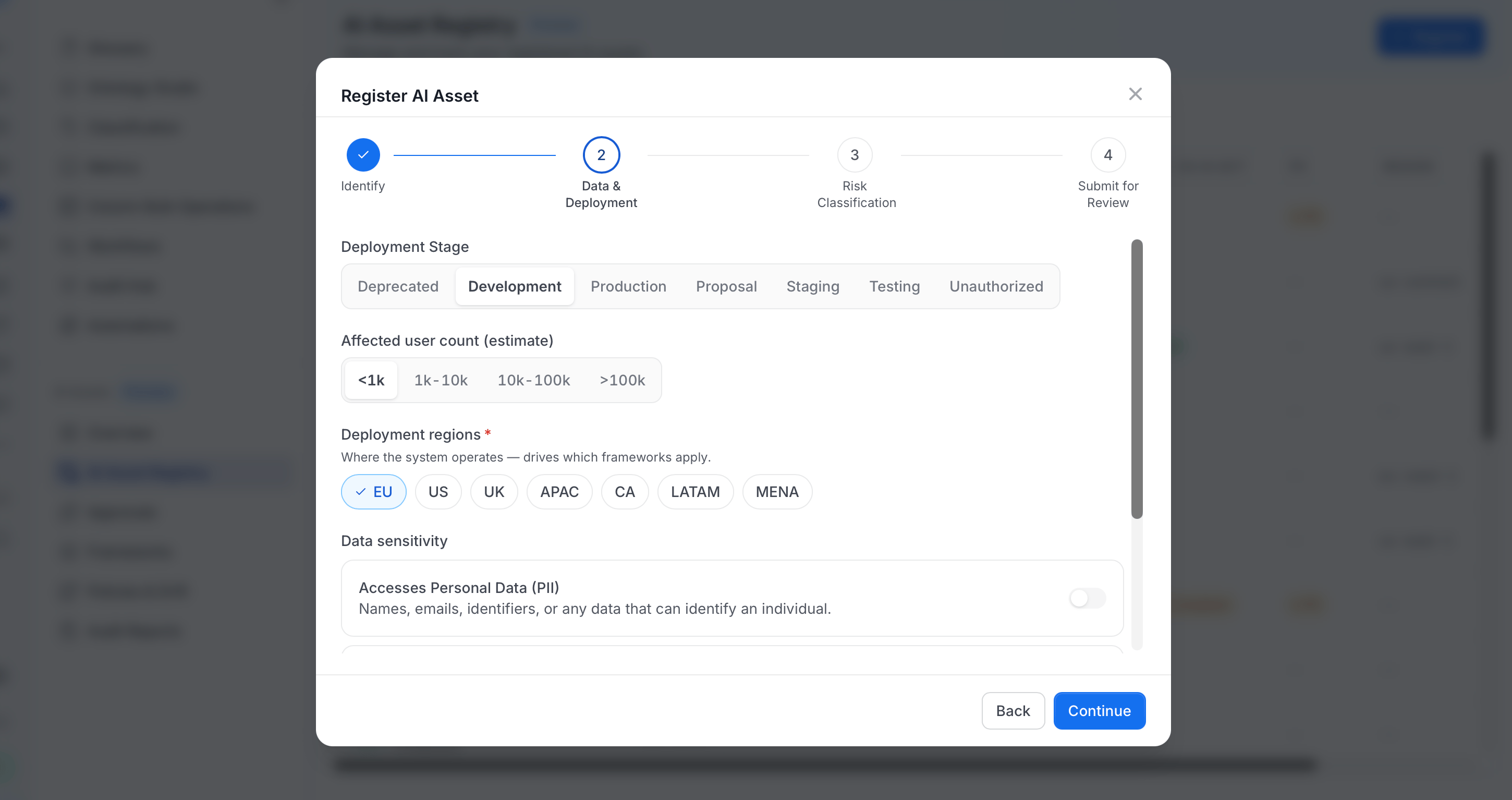
Step 2: Data & Deployment
Next, describe where the asset runs and what data it touches:-
Select a Deployment Stage:
-
Select the Affected user count (estimate):
<1k,1k-10k,10k-100k, or>100k. -
Select one or more Deployment regions (required). Each region has its own AI regulations, so this determines which compliance frameworks apply to the asset later.
- Turn on Accesses Personal Data (PII) if the asset processes names, emails, identifiers, or any other data that can identify an individual.
- Turn on Accesses Sensitive data if the asset processes health, financial, biometric, location, or special-category data.
-
Select any applicable Data Categories:
Step 3: Risk Classification
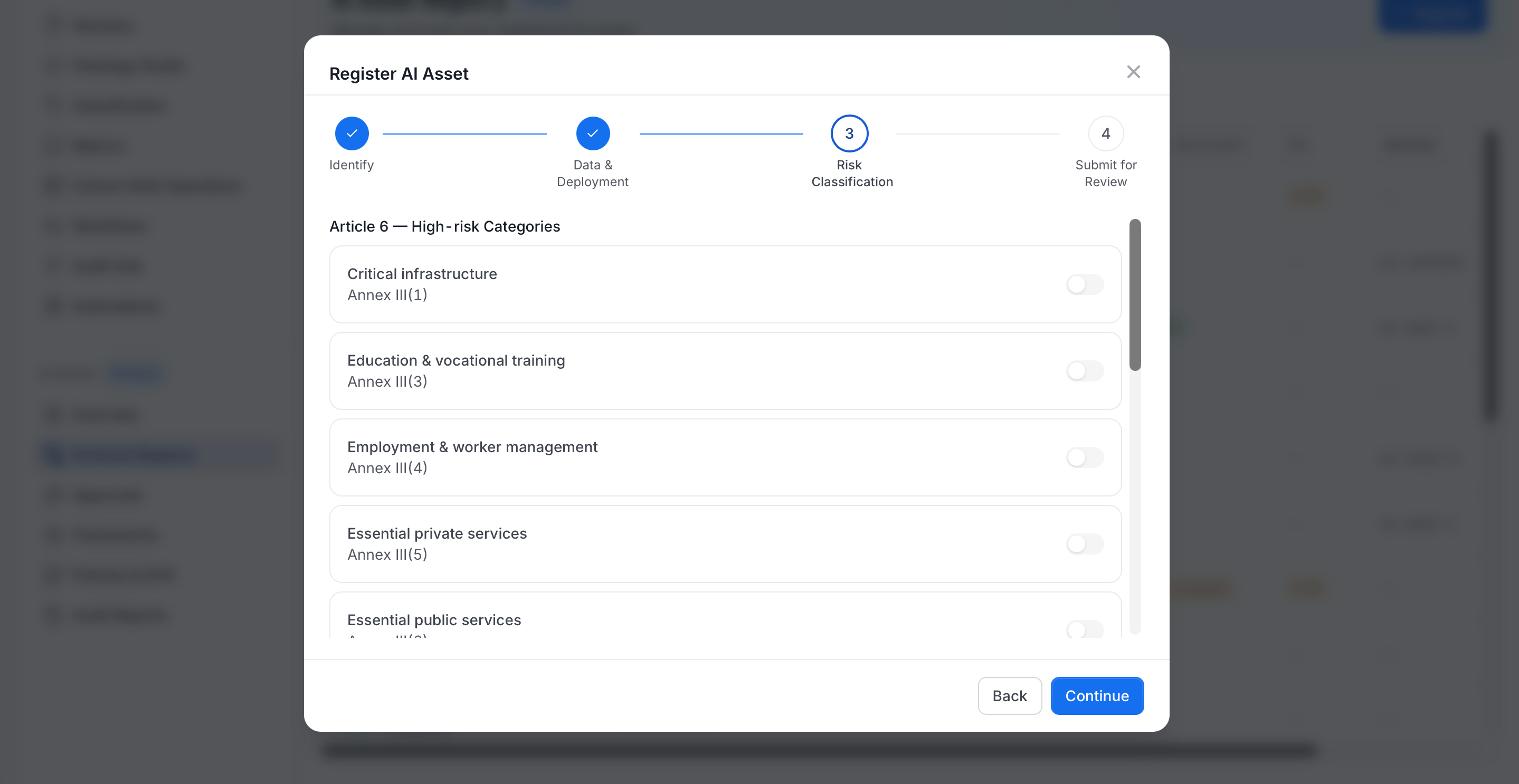
This step walks through the EU AI Act’s risk criteria and suggests a risk tier. Override it with your own rationale if needed.-
Turn on any applicable Article 6 (High-risk Categories) (EU AI Act Annex III high-risk use categories). Turning any of these on suggests a High risk classification.
-
Turn on any applicable Article 5 (Prohibited Practices). The wizard warns, “None of these may be true. If any are, the system is prohibited.” Turning any of these on suggests an Unacceptable classification.
-
Select a Final classification. The wizard pre-selects a suggestion based on your answers above (including whether the asset accesses PII or sensitive data categories from Step 2). Override it if needed.
Step 4: Submit for Review
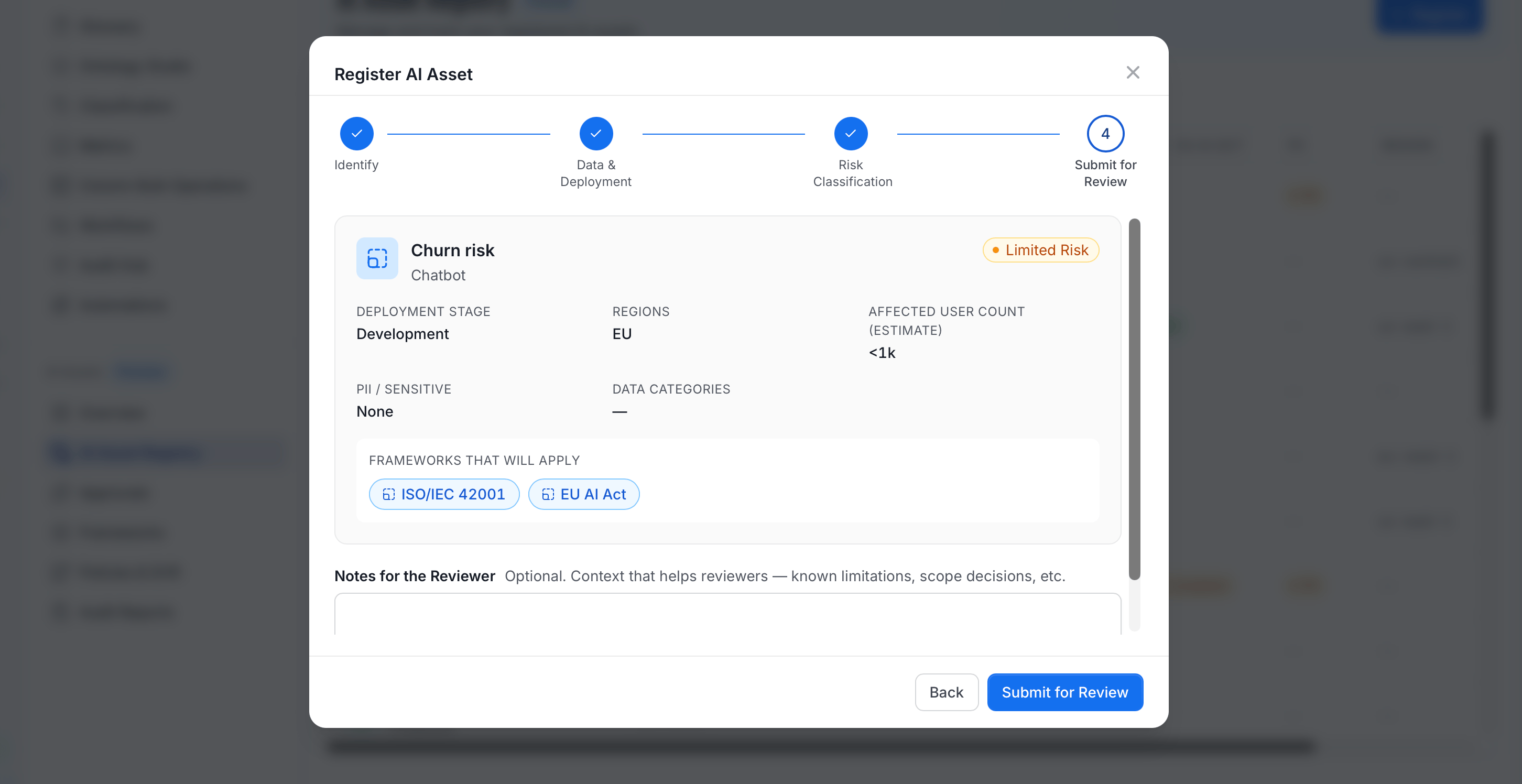
Finish by reviewing the summary and submitting:- Review the summary of everything entered: Deployment Stage, Regions, Affected user count, PII/Sensitive data, and Data Categories.
- Review the Frameworks that will apply to this asset, computed from the regions you selected in Step 2. ISO/IEC 42001 always applies, and region-specific frameworks like the EU AI Act are added based on your selection.
- Optional: Enter Notes for the Reviewer: context like known limitations or scope decisions.
- Click Submit for Review.
Explore the AI Asset Registry
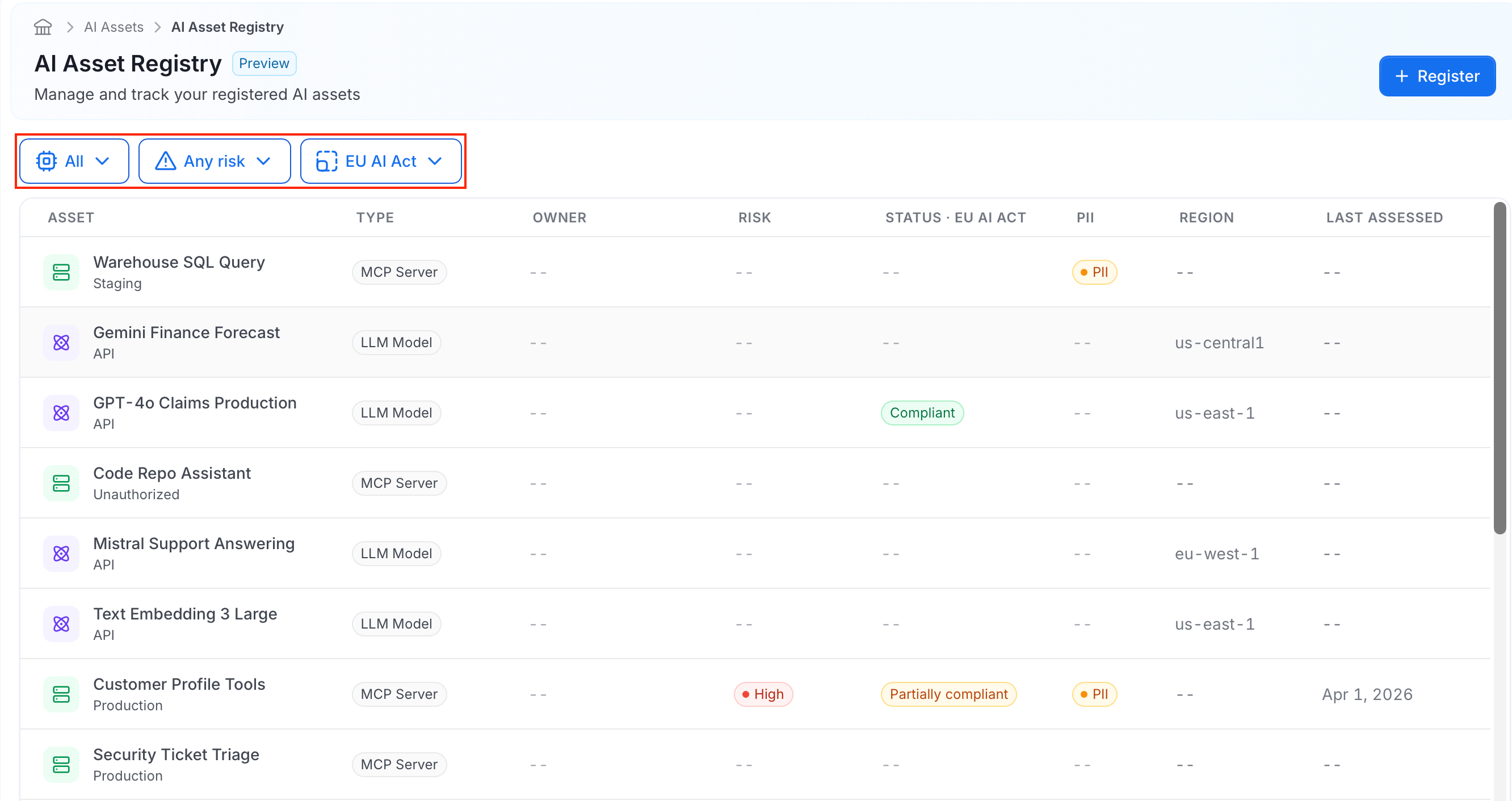
The AI Asset Registry home page shows the list of all registered assets in a table, with the following columns:- Asset: Shows the asset’s name, with its deployment stage or connection type displayed underneath.
- Type: Indicates which kind of asset it is: an AI Application, LLM Model, or MCP Server.
- Owner: Shows the name of the asset’s owner.
- Risk: Shows the asset’s current risk classification.
- Status: Shows the asset’s compliance status for the currently selected framework.
- PII: Indicates whether the asset accesses personal data.
- Region: Shows where the asset is deployed.
- Last Assessed: Shows the date the asset was last evaluated against the selected framework.
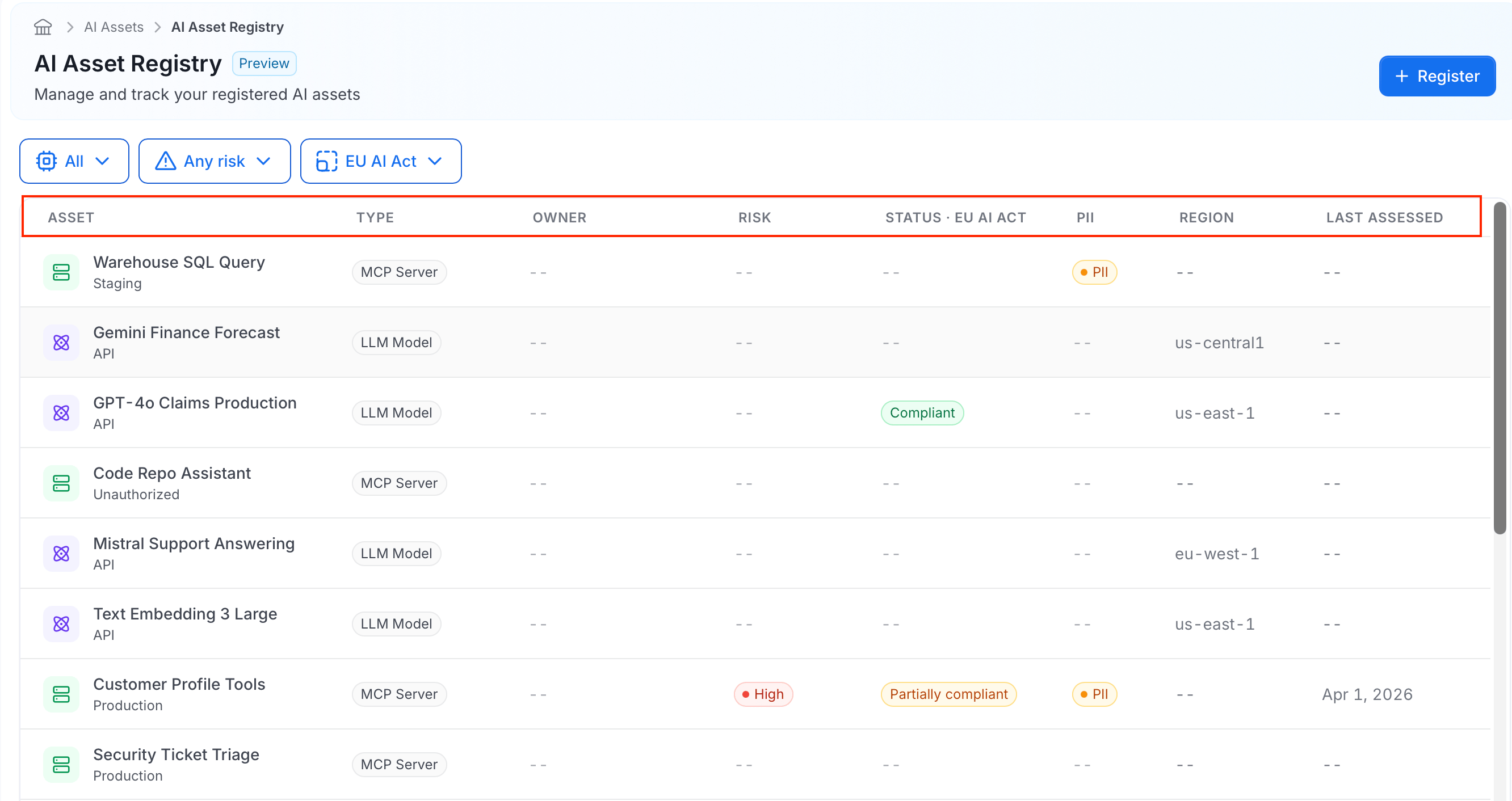
For example, select High risk and the EU AI Act framework to see every asset that needs review under that framework.
The Asset Detail Page
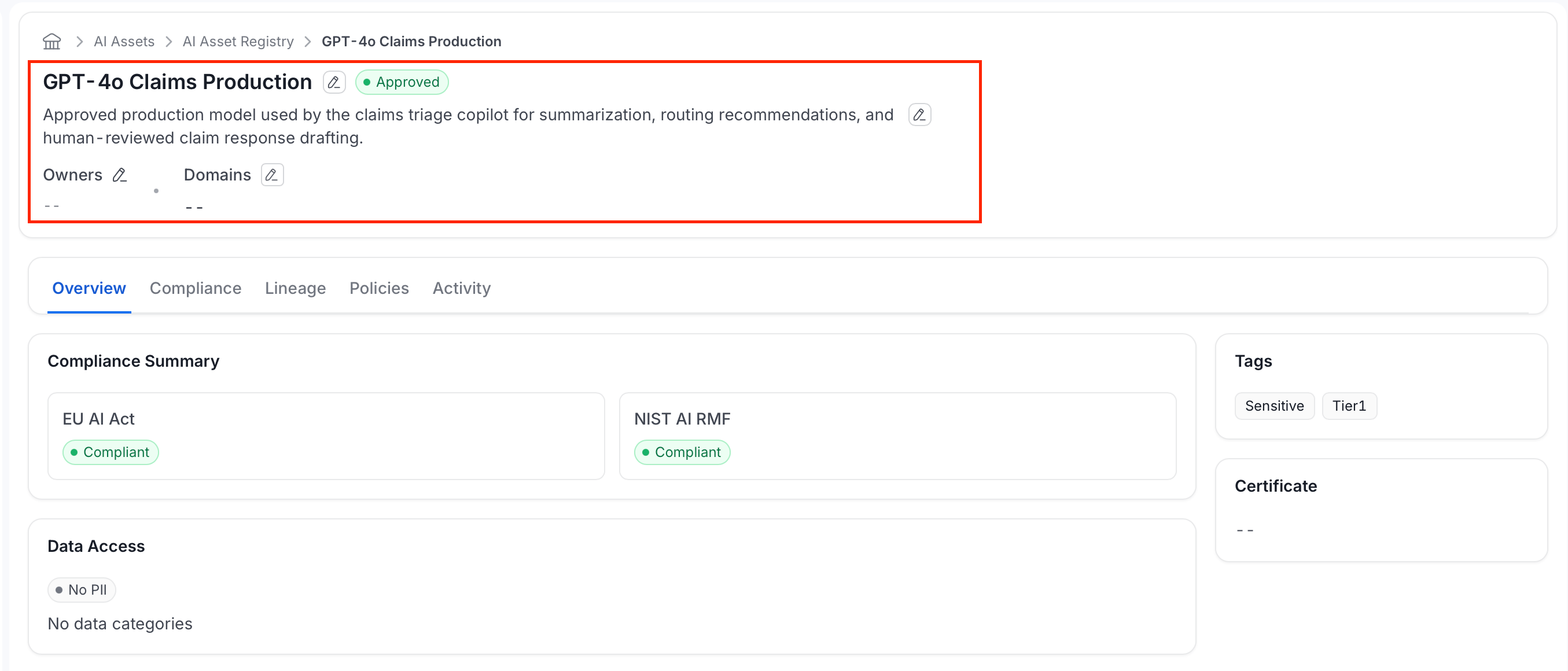
Selecting any asset from the registry opens its detail page, a single place to see everything about that one asset:- Its compliance status across every applicable framework.
- Its real data lineage.
- How it’s tracking against your organization’s policies.
- A history of everything that’s happened to it.
- The asset’s name and description (both inline-editable if you have edit permission on that asset type).
-
A registration-status badge:
- Its Owners and Domains.
Overview Tab
The Overview tab is a quick snapshot of the asset’s standing, split across four cards: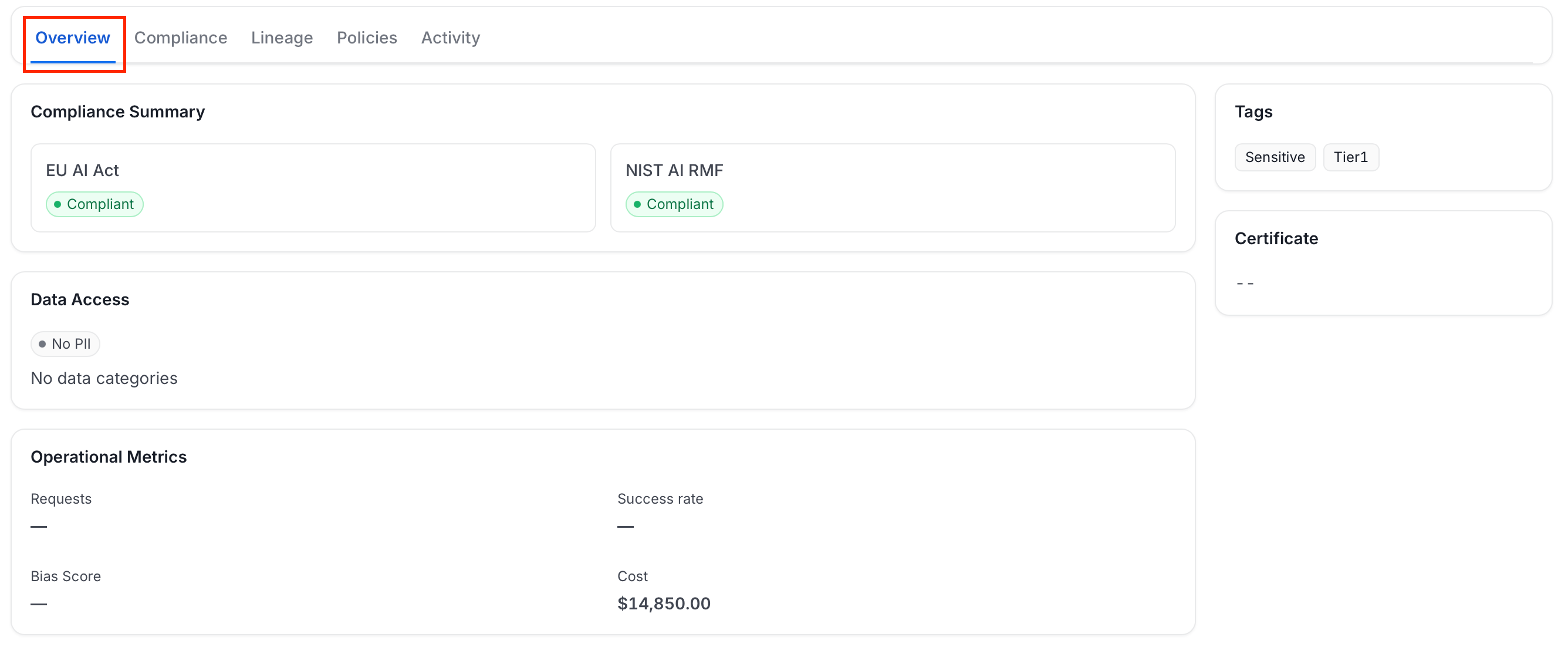
- Compliance Summary: One card per framework that applies to this asset, each with a status badge such as Compliant.
- Data Access: Whether the asset accesses PII, and its data categories.
- Operational Metrics: Requests, Success rate, Bias Score, and Cost.
- Tags and Certificate (right rail): Any tags applied to the asset, and its compliance certificate once one has been issued.
Compliance Tab
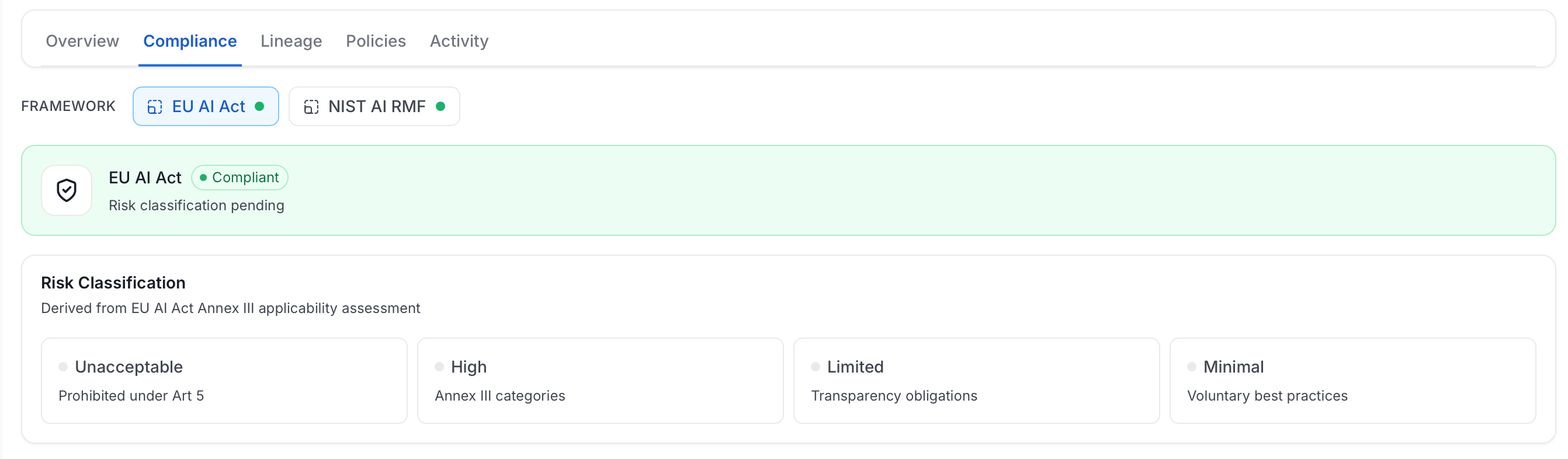
The Compliance tab shows this asset’s full compliance detail against each regulatory framework that applies to it, from its EU AI Act risk classification down to individual Article 5 and Article 6 checklist results.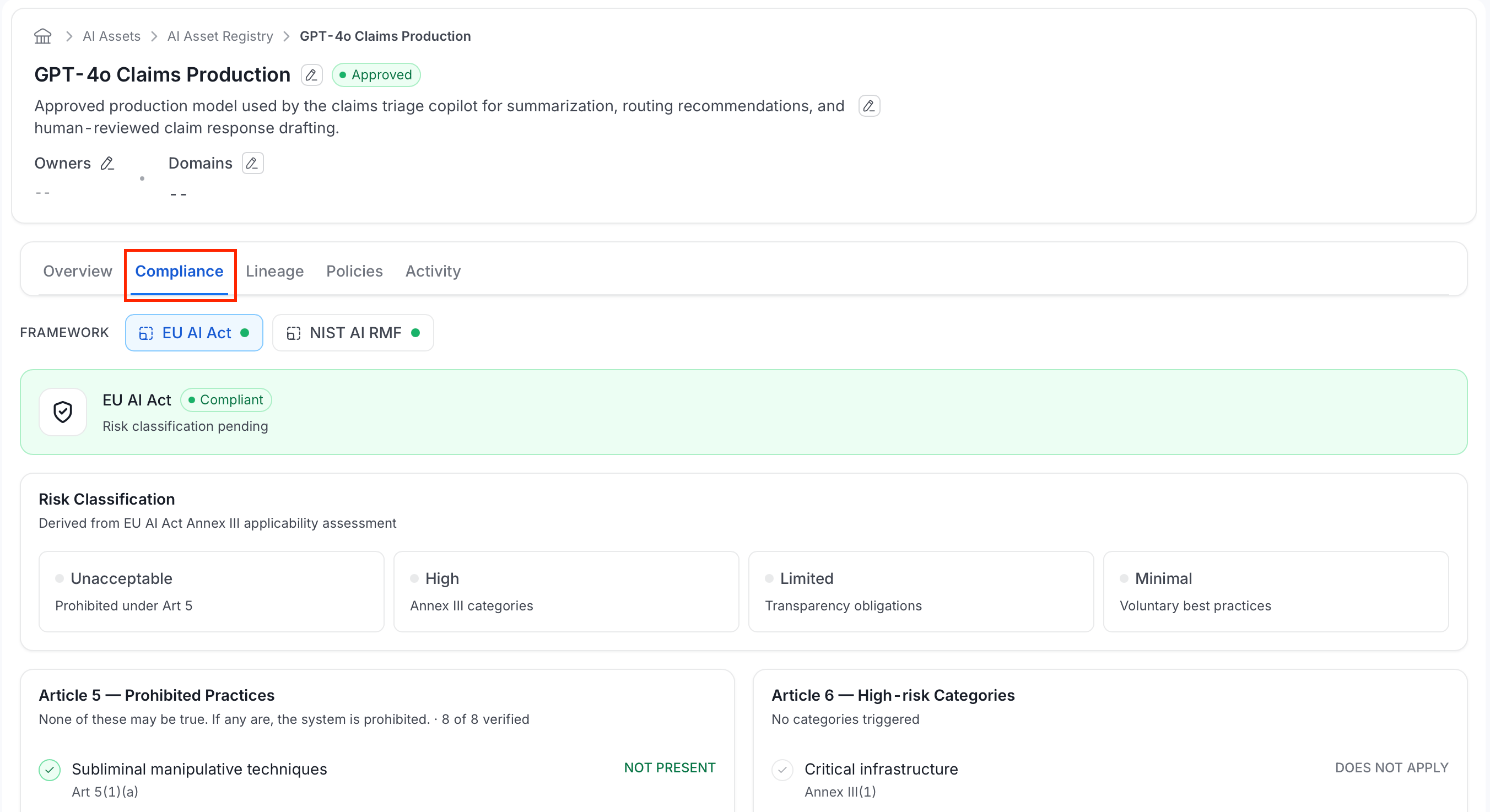
-
Status band: The selected framework’s name and overall status:
This status reflects the assessor’s own conclusion, not an automatic pass/fail count of the checklists below. Underneath it, a note appears based on the asset’s risk tier:
- High or Unacceptable: A reminder that conformity assessment is required.
- Limited: A note about Article 50 transparency obligations.
- Minimal: A note that only voluntary best practices apply.
- No tier set: “Risk classification pending.”
-
Risk Classification: A reference strip showing what each of the four EU AI Act risk tiers means: Unacceptable (prohibited under Article 5), High (an Annex III category), Limited (transparency obligations), Minimal (voluntary best practices). This asset’s own tier is highlighted.
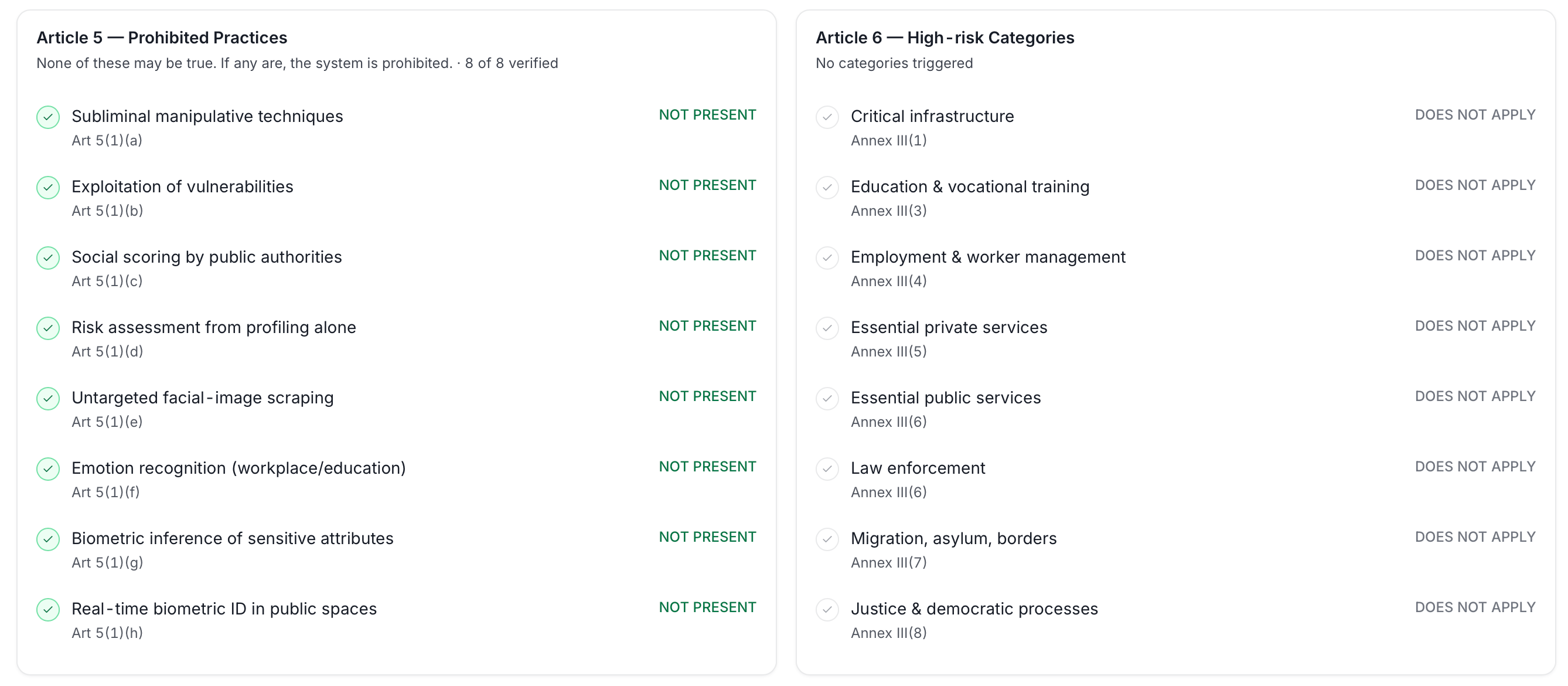
- Article 5 (Prohibited Practices): The same eight practices from the registration wizard, each shown with its article citation (Art 5(1)(a) through (h)) and a Not Present or triggered status for this specific asset.
-
Article 6 (High-risk Categories): The same eight categories from the registration wizard, each shown with its Annex III citation and a Does Not Apply or triggered status for this specific asset.
- Conformity Assessment: Required for High-risk systems before they can be placed on the market. Tracks whether an assessment is required, its type, the assessment body, certificate, validity date, and supporting documentation.
-
Transparency Obligations: Article 50 disclosures to end users: whether users are informed they’re interacting with AI, whether AI-generated content is labeled as such, and, optionally, whether emotion recognition or biometric categorization is disclosed.

-
Ethical AI Assessment: A cross-framework evaluation across six areas:

Lineage Tab
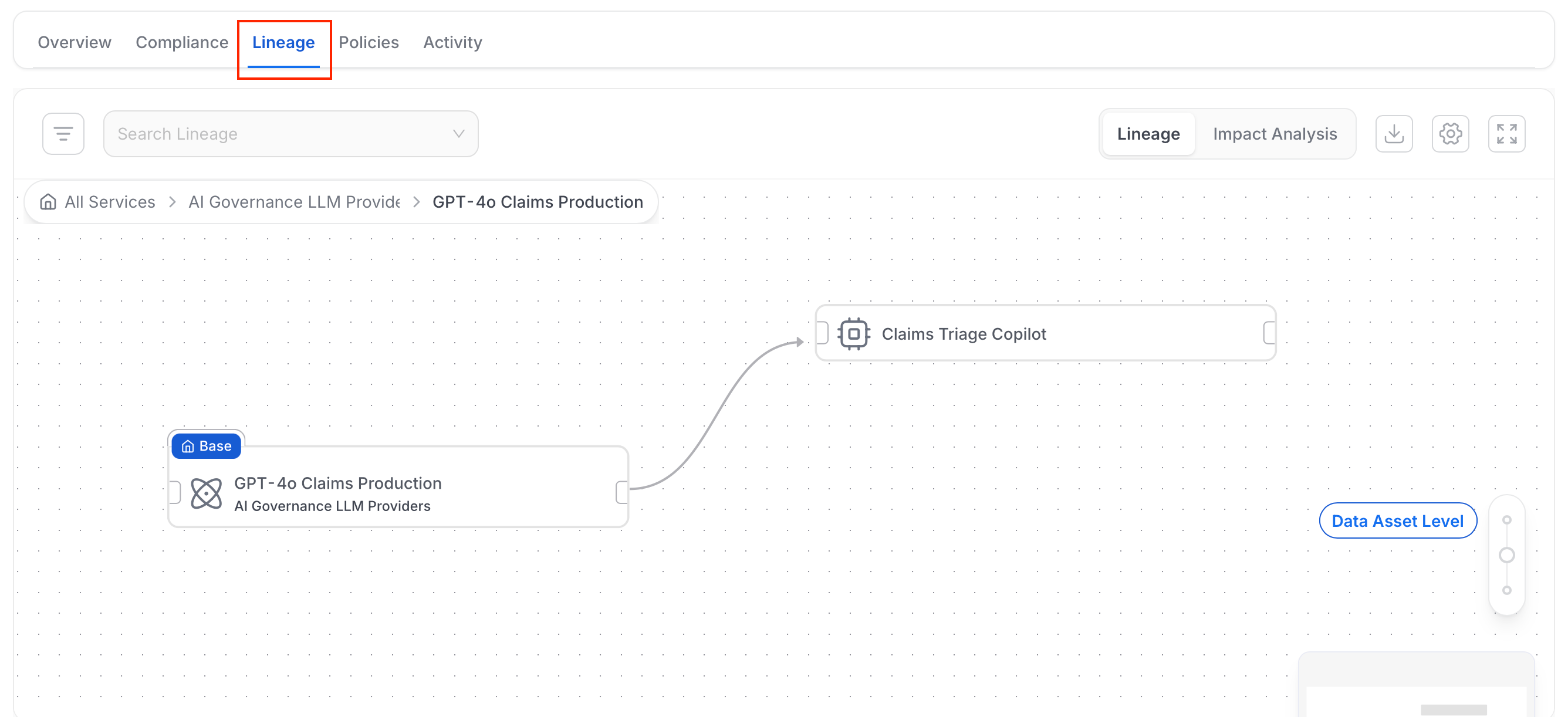
The standard Collate lineage graph, anchored on this asset. This is the same lineage experience used across the rest of the catalog. For an AI asset, it traces the full chain:- Which tables and data products feed the MCP tools or SDKs the asset uses.
- Which downstream assets depend on it in turn.
Policies Tab
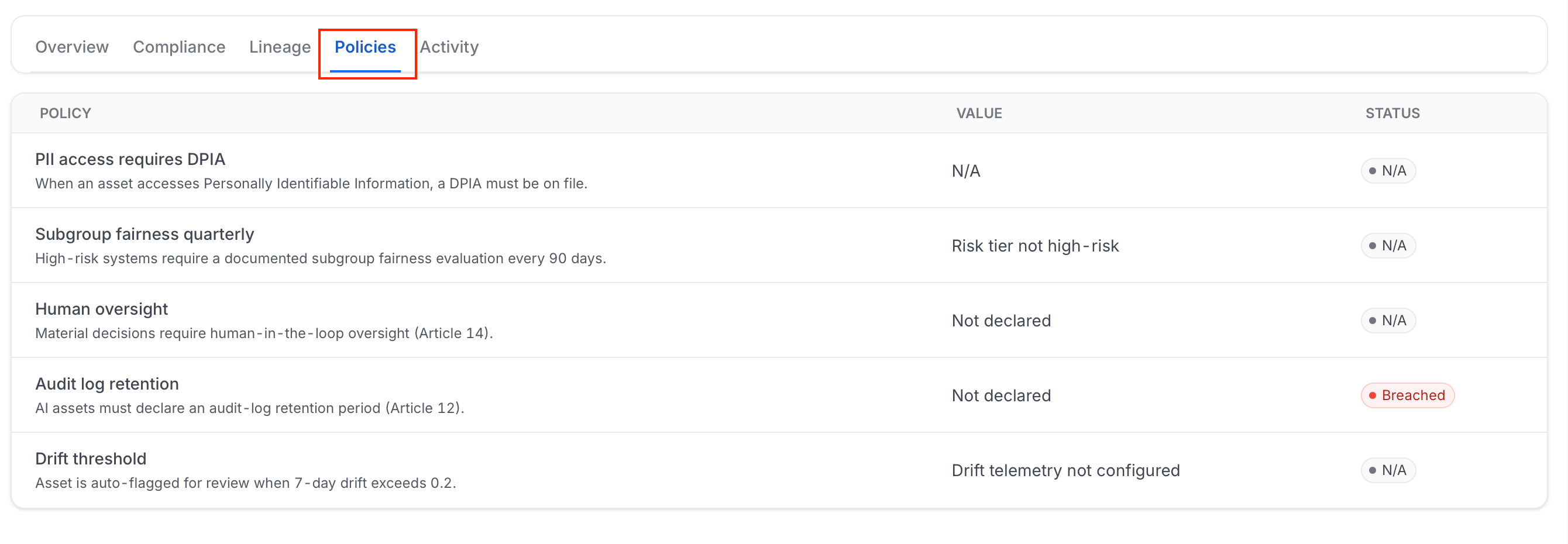
A table of this asset’s AI Governance Policies status: policy name and description, current value, and a Passing, Breached, or N/A (Not Applicable) status badge.Note: Policy evaluation currently checks a fixed set of governance criteria (for example, whether PII access has a data protection impact assessment (DPIA) on file, and whether human oversight is documented) rather than every rule defined in your organization’s custom policies. Full evaluation against custom policy rules is planned but not yet available.
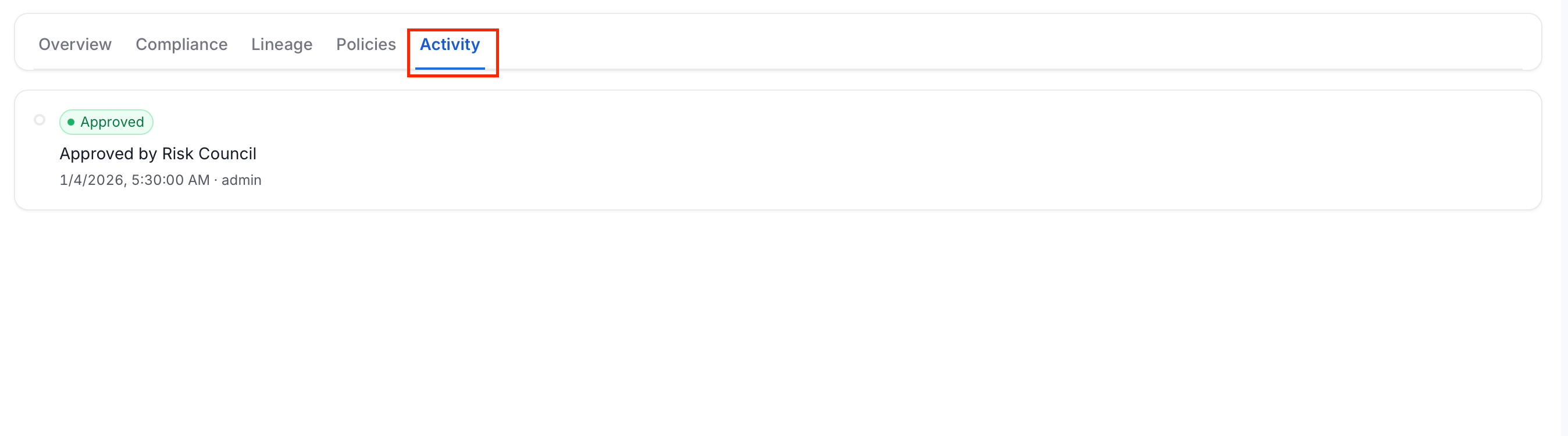
Activity Tab
A timeline of events for this asset: