
Approvals
The Approvals page lists every AI Application, LLM Model, and MCP Server waiting on a decision after being submitted through the registration wizard. Anyone with edit access to that asset type can approve or reject it from here.Why It Matters
Registration only gets an asset into the inventory. Approval is what decides whether it’s actually cleared for use:- One queue for every pending asset awaiting a decision.
- Intake checks up front, so a reviewer can see at a glance what’s missing (an owner, a risk classification, fairness evidence) before deciding.
- A decision, not just a review. Approve or reject directly from the queue, with a required reason when rejecting.
Access Approvals
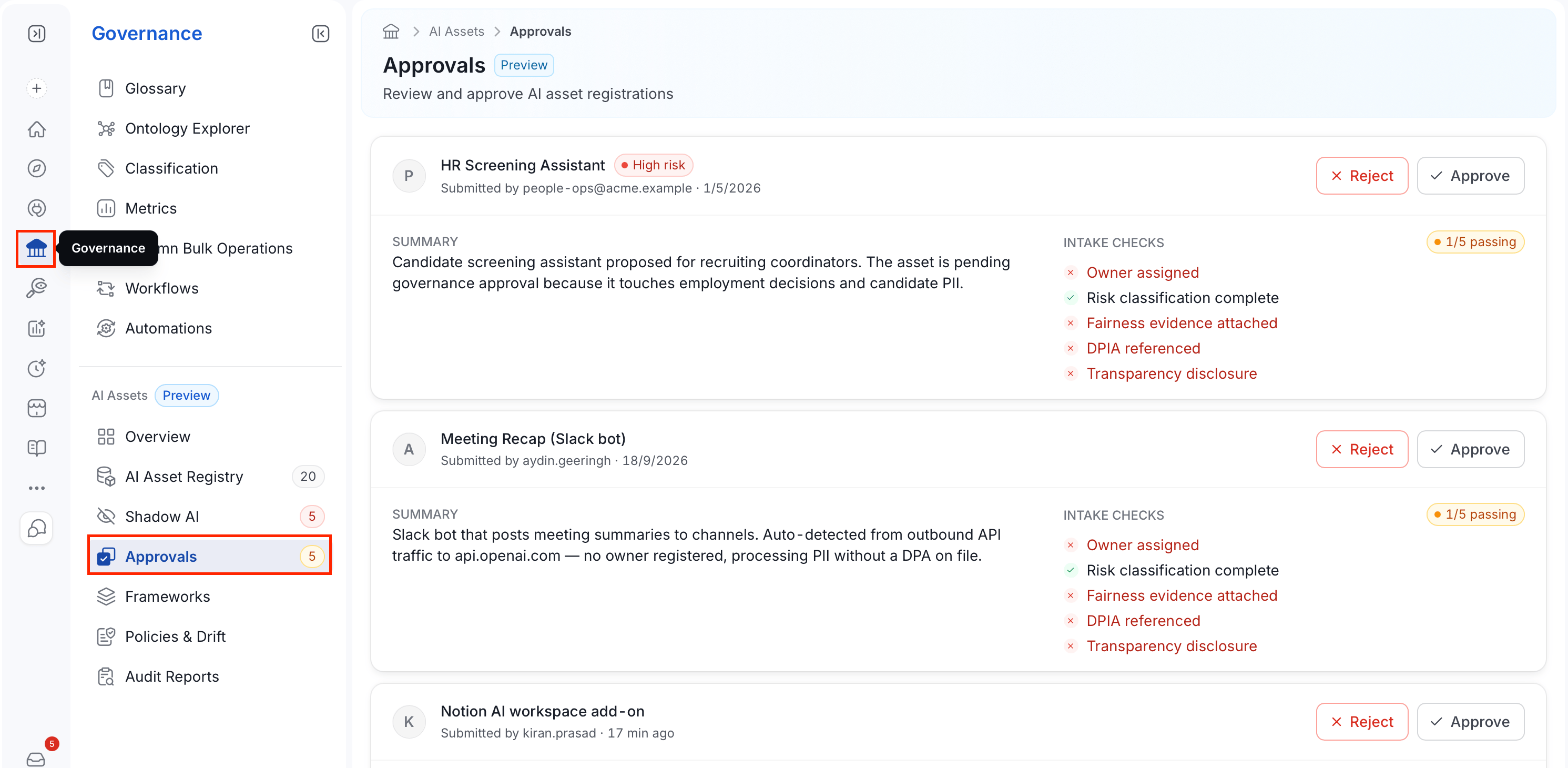
- In the left navigation bar, select Governance.
-
Under the AI Assets section, select Approvals.
Reviewing a Submission
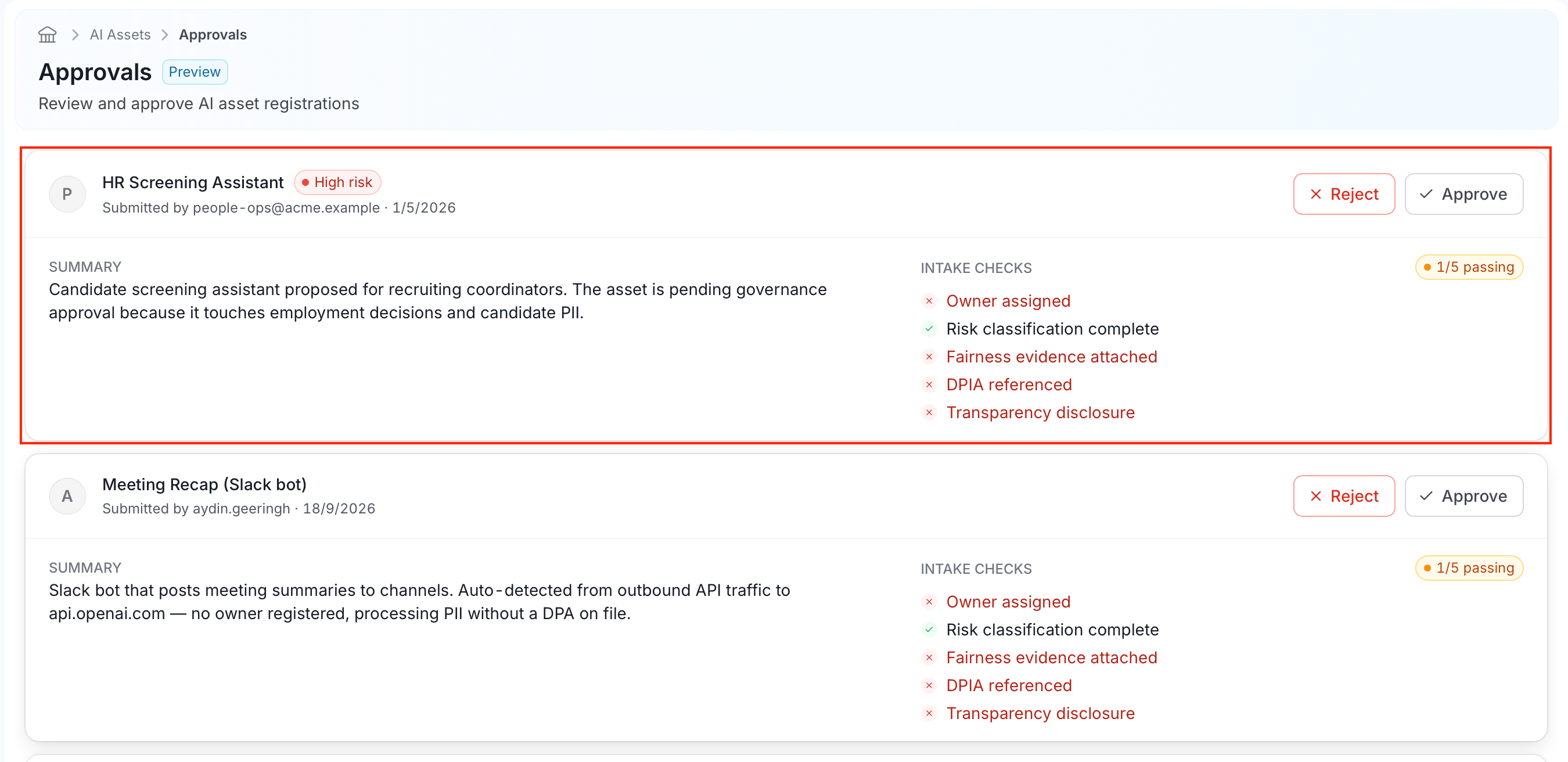
Each pending asset appears as a card:- The asset’s name, with a risk badge (for example, High risk) if it was classified High or Unacceptable during registration.
- Submitted by the user who registered it, and when.
- A Summary of what the asset does and why it needs approval.
-
Intake Checks, with a passing count (for example, “1/5 passing”) and five individual checks:
Approving or Rejecting
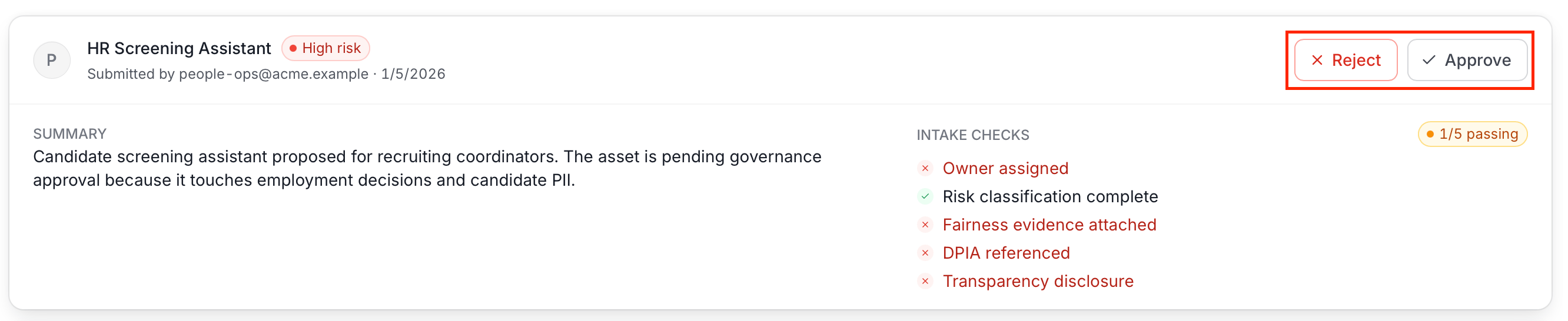
- To approve an AI asset, click Approve on its card.
- To reject an AI asset:
-
Click Reject on its card.
-
In the reject dialog, add a comment explaining why, so the submitter knows what to fix before registering again.
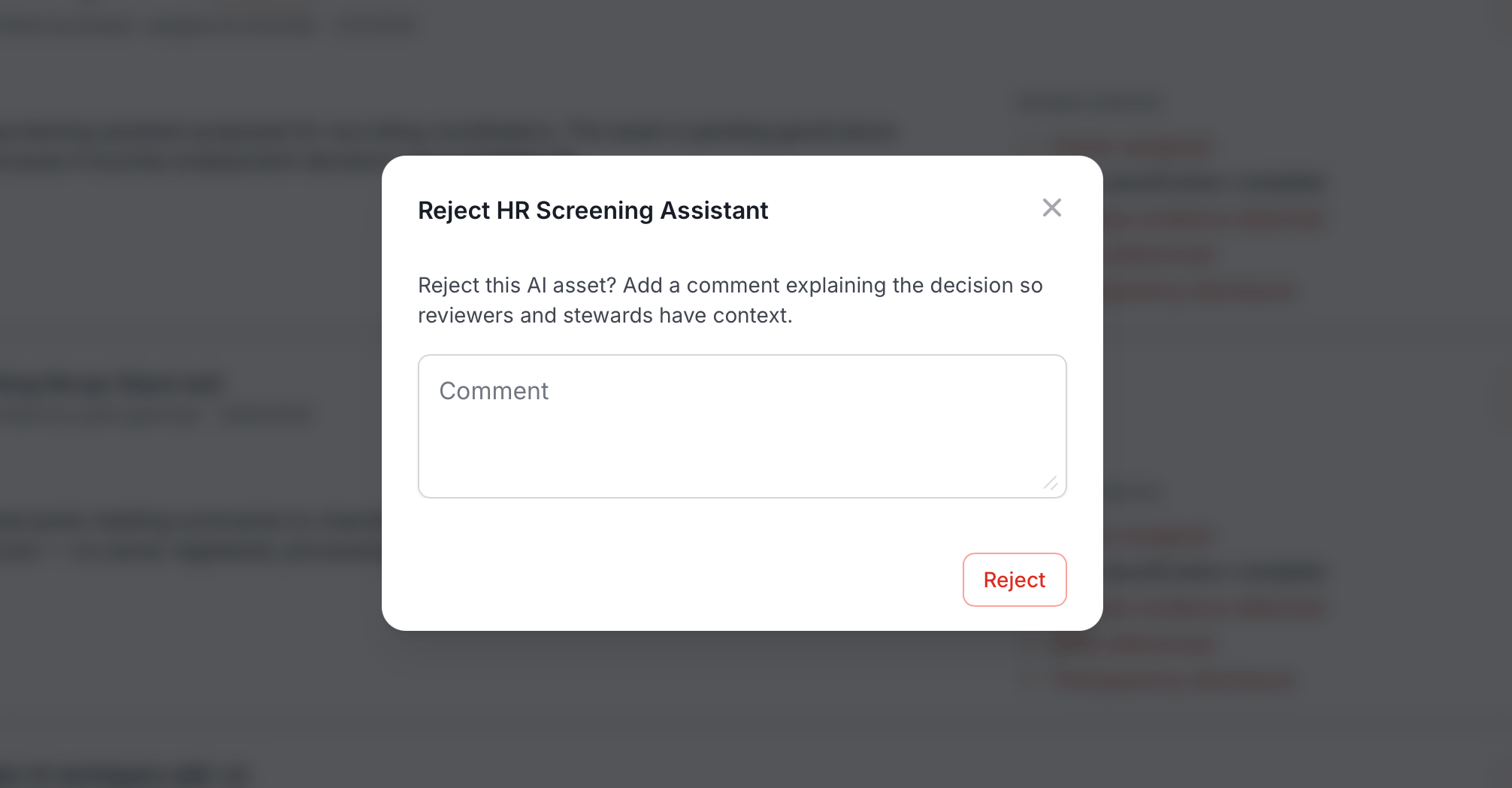
- Click Reject.
-
Click Reject on its card.