
Microsoft Teams Integration Setup Guide
This guide explains how to set up the Microsoft Teams bot integration with Collate.Prerequisites
- Azure subscription with admin access.
- Collate instance with public HTTPS endpoint.
- Microsoft Teams workspace.
Step 1: Create Azure Bot Registration
- Go to Azure Portal.
-
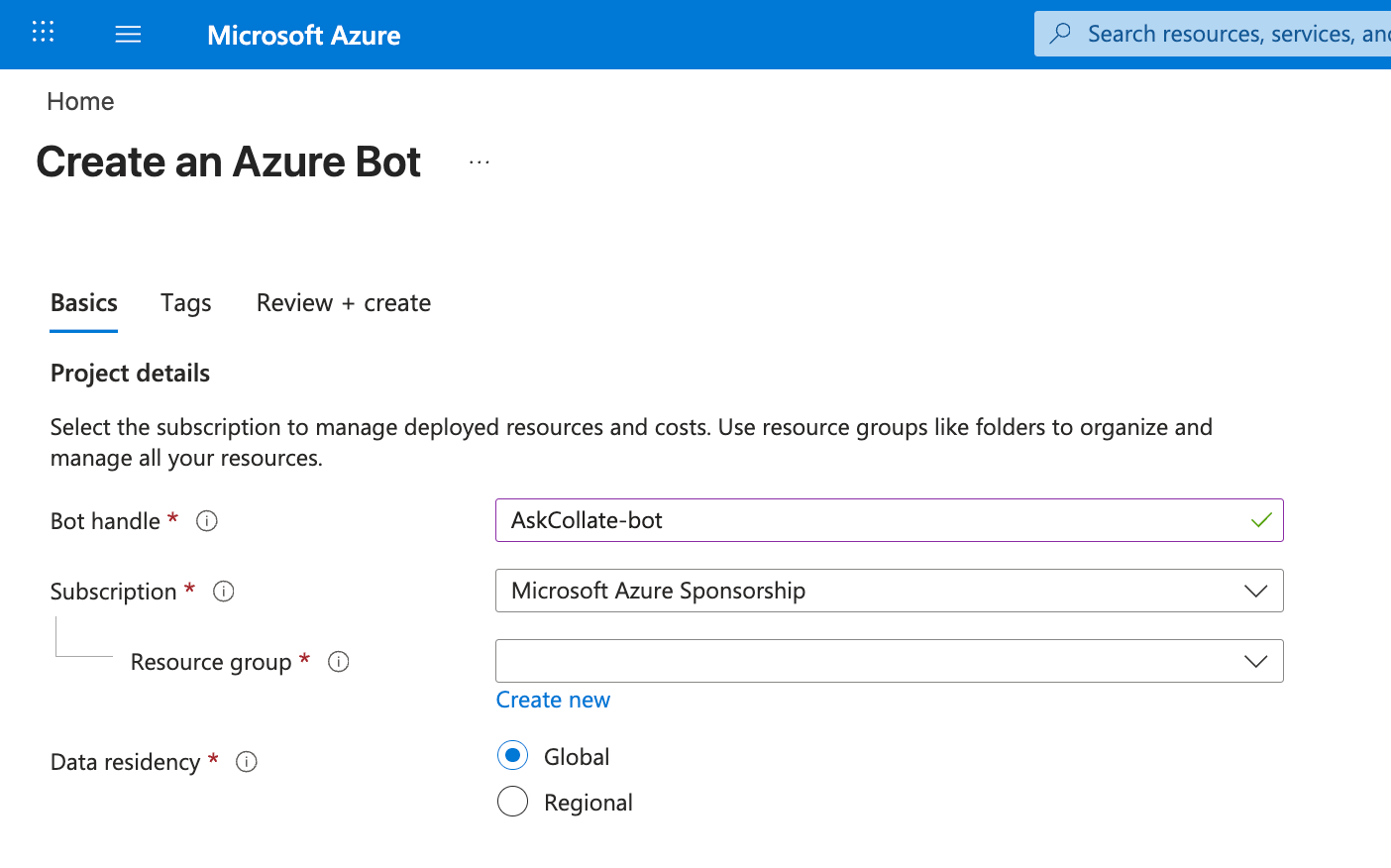
Search for “Azure Bot” and click Create
-
Fill in the required fields:
- Bot handle —
collate-bot(or your preferred name). - Subscription — Select your Azure subscription.
- Resource group — Create new or use existing.
- Pricing tier — Free (F0) for testing, Standard for production.
- Type of App — Multi Tenant (recommended) or Single Tenant.
- Creation type — Create new Microsoft App ID.
- Bot handle —
- Click Review + Create, then Create.
Step 2: Get App Credentials
- After deployment completes, go to your Bot resource.
-
Click Configuration in the left menu.
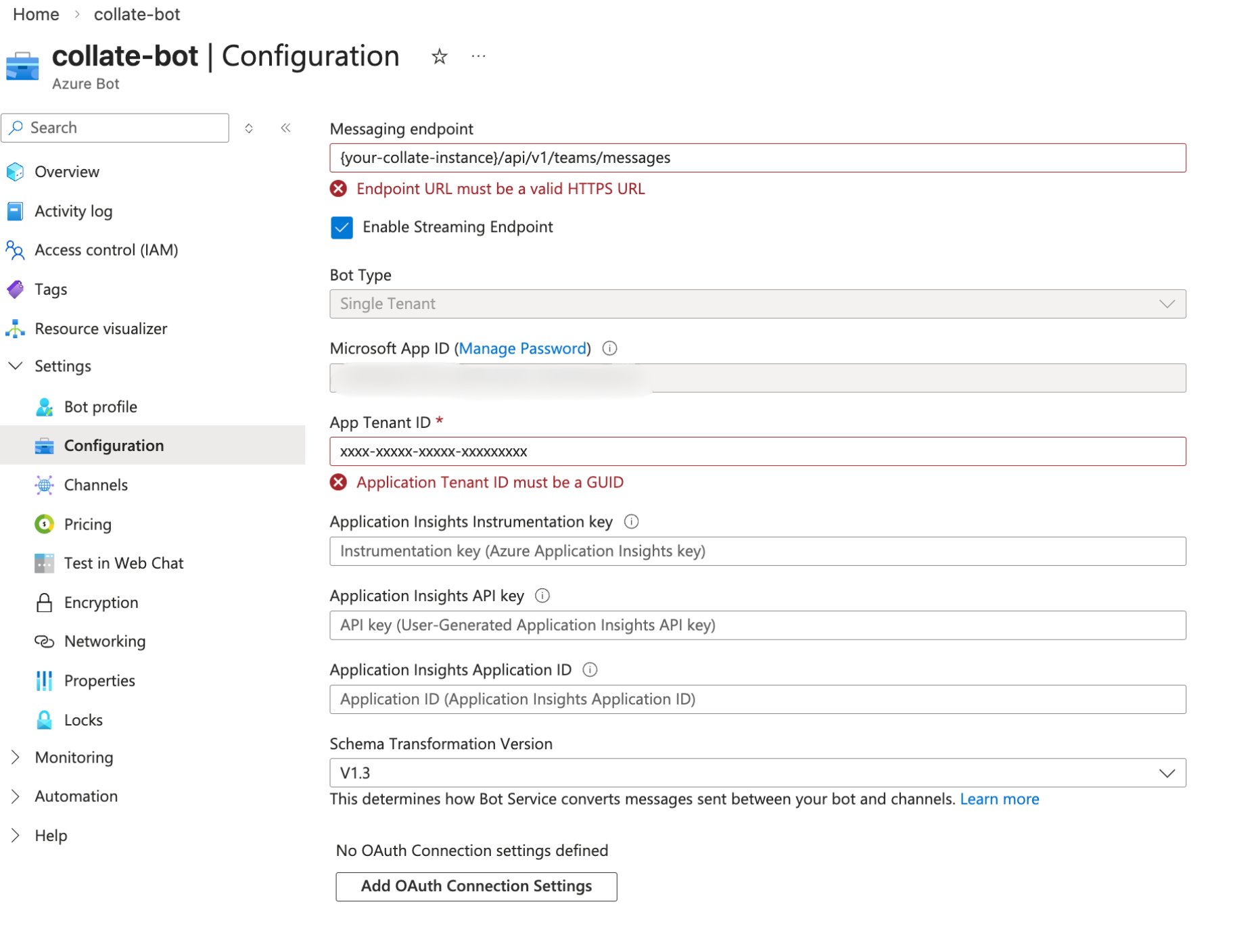
- Copy the Microsoft App ID - you will need this later.
- Click Manage Password next to Microsoft App ID.
-
In the App Registration page, go to Certificates & secrets.
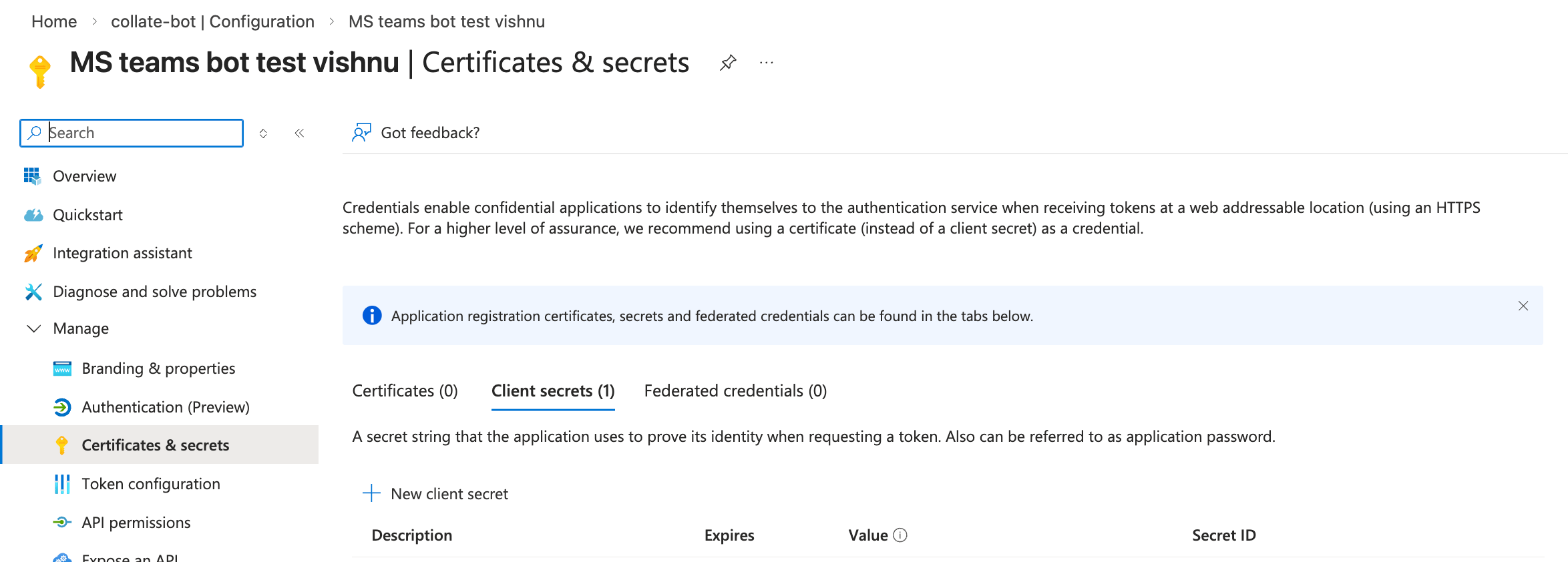
- Click New client secret.
- Add a description (e.g., “Collate Bot Secret”) and set expiration.
- Click Add and immediately copy the secret value (it’s only shown once).
Step 3: Configure Messaging Endpoint
-
In your Azure Bot resource, go to Configuration.
-
Set the Messaging endpoint to:
Replace
<your-collate-domain>with your actual Collate server domain. - Click Apply.
Step 4: Enable Teams Channel
- In your Azure Bot, go to Channels.
-
Select the Microsoft Teams icon.
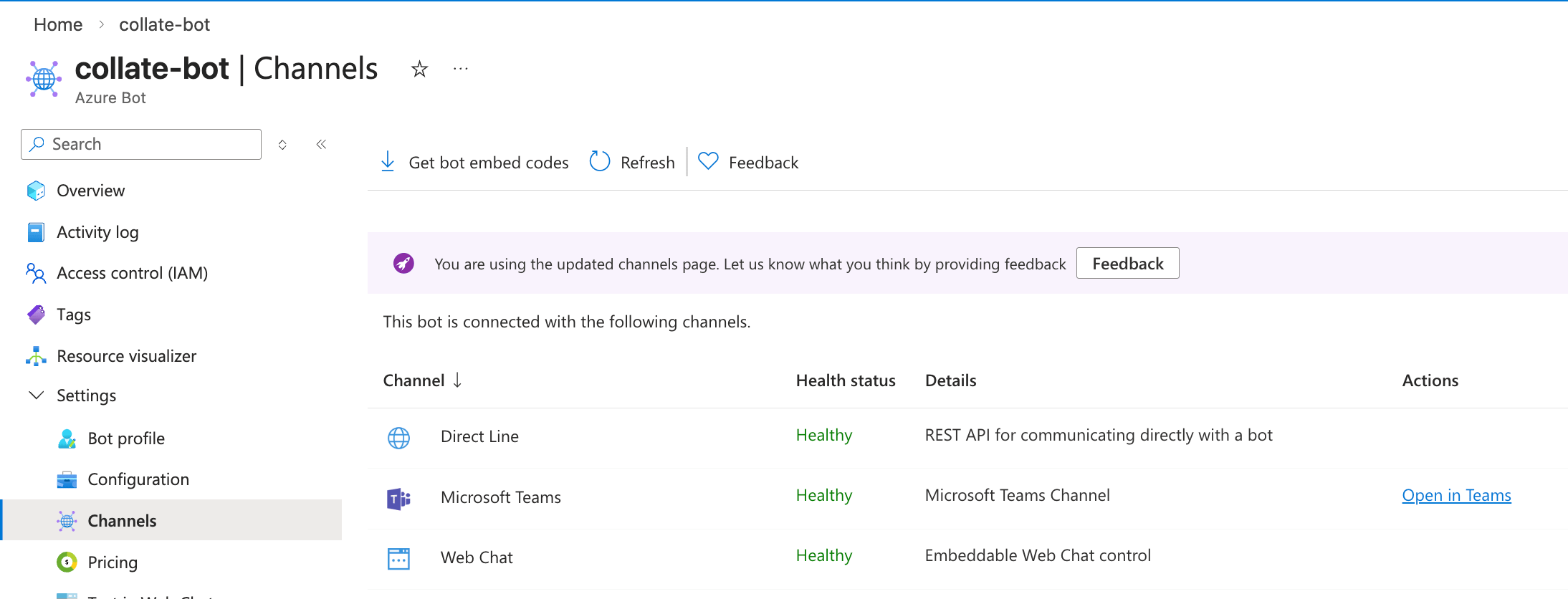
- Read and accept the terms of service.
- Click Apply.
- The Teams channel should now show status Running.
Step 5: Configure in Collate
- Log into Collate as an Admin user.
- Select the Profile icon and navigate to Settings > Applications.
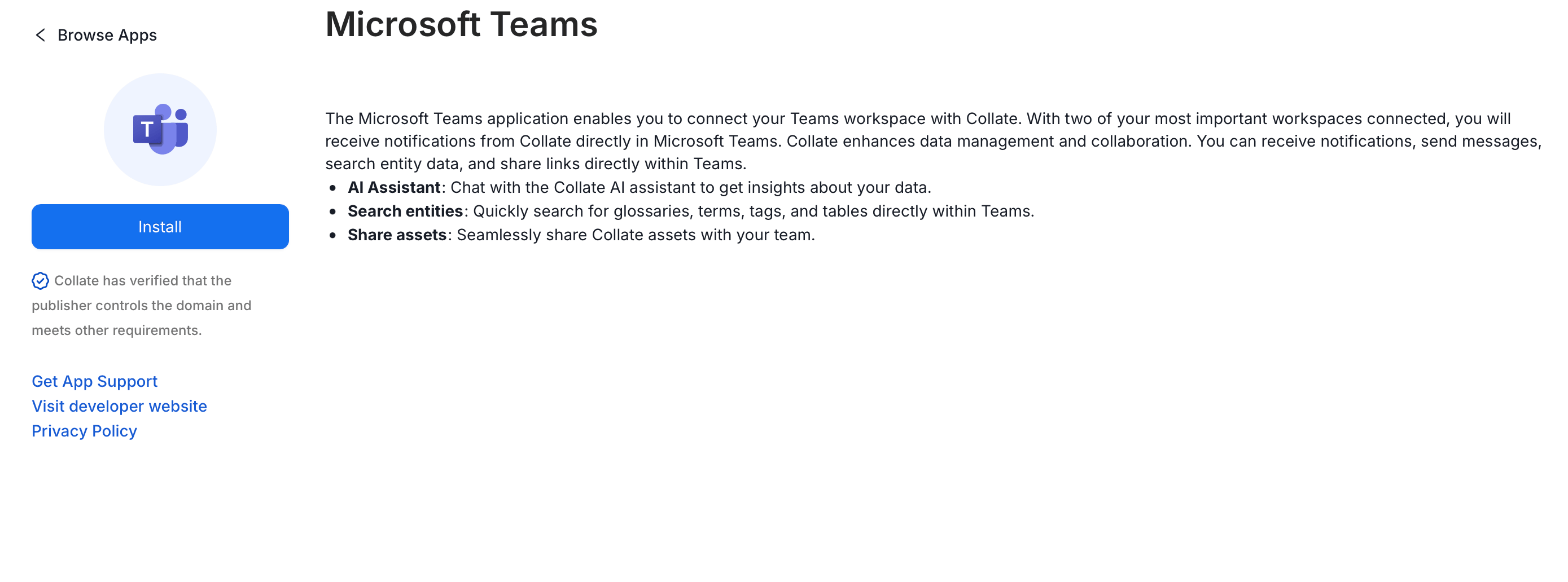
- Click Add App abd select the Microsoft Team application.
-
Click Install.
-
Click Configure and enter the configuration details:
- Microsoft App ID — The App ID from Step 2
- Microsoft App Password — The client secret from Step 2
- Microsoft App Tenant ID — Leave empty for multi-tenant bots, or enter your tenant ID for single-tenant

- Click Save.
Step 6: Setup Microsoft App API permissions
- Open the Microsoft registere application.
- In the laeft navigation bar, click Manage > API permission.
- Click Add a Permission.
- In the Application permissions, click Microsoft Graph.
-
Search an select the User.Read.All or User.ReadBasic.All permission.
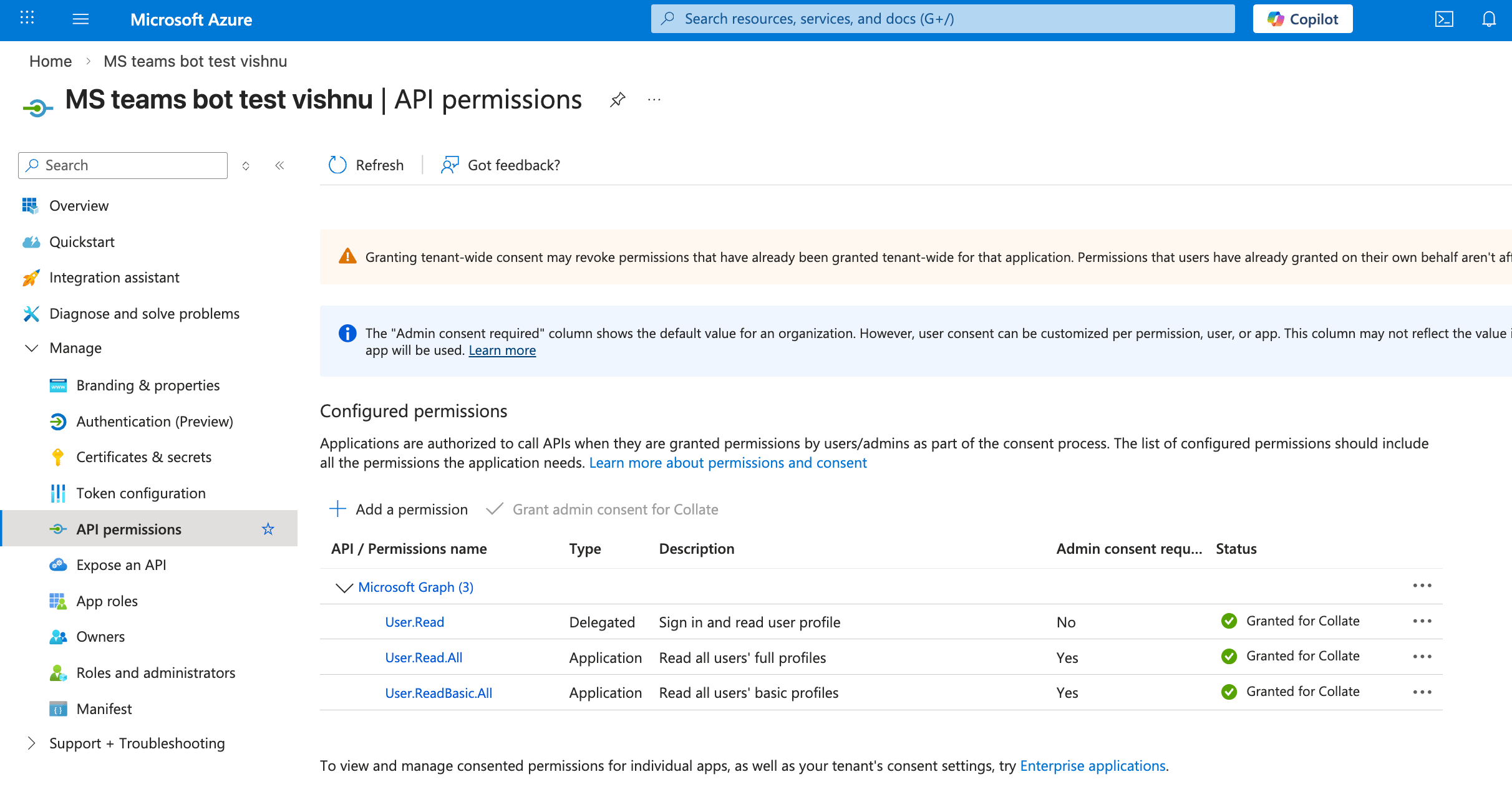
- Select any one of above permission and click add permissions
Step 7: Add Bot to Teams
Option A: Multi-tenant Bots (from Azure Portal)
- In Azure Bot > Channels > Teams, click Open in Teams
- Click Add to add the bot to your personal chat.
Option B: Single-tenant Bots (requires App Package)
Single-tenant bots don’t appear in Teams app search. You must create and upload an app package.Create the App Package
-
Navigate to the app-package directory:
-
Generate the icons (if not already present):
-
Edit
manifest.json:- Replace
YOUR_MICROSOFT_APP_IDwith your Azure App ID (appears twice) - Replace
YOUR_COLLATE_DOMAINwith your Collate domain (e.g.,collate.example.com)
- Replace
-
Create the zip package:
Upload to Teams
For personal use:- Open Microsoft Teams.
- Click Apps in the left sidebar.
- Click Manage your apps at the bottom.
-
Click Upload an app > Upload a custom app.

-
Select
collate-teams-bot.zip. - Click Add.
- Go to Teams Admin Center.
- Navigate to Teams apps > Manage apps.
- Click Upload and select your zip file.
-
Approve the app for your organization.

Option C: Search in Teams (Multi-tenant only)
- In Microsoft Teams, go to Apps.
- Search for your bot name.
- Click Add to add to personal chat, or add to a specific channel.
Step 7: Test the Integration
- Send a message to the bot: “Hello”.
- The bot should respond with a welcome message.
- Try some example queries:
- “Search for tables”
- “What dashboards do we have?”
- “Show me the lineage for [table name]“
Troubleshooting
Security Considerations
- Credential Storage — The Microsoft App Password is stored encrypted in the Collate database
- HTTPS Required — The messaging endpoint must use HTTPS
- Secret Rotation — Consider rotating the client secret periodically
- Single-tenant — For enterprise deployments, consider using single-tenant bot registration