
Theme and Branding
Theme and Custom Logo are organization-wide settings that require Admin access. The setting lives in Settings > Preferences > Theme, and has two panels:- Custom Logo: Images and icons (logo, monogram, favicon)
- Custom Theme: The color palette
- Purpose: Customize the platform’s logo, icons, and color palette to match your brand.
- Benefits: Makes Collate feel like an internal tool built for your organization instead of an off-the-shelf product.
How to Access
- Navigate to Settings > Preferences.
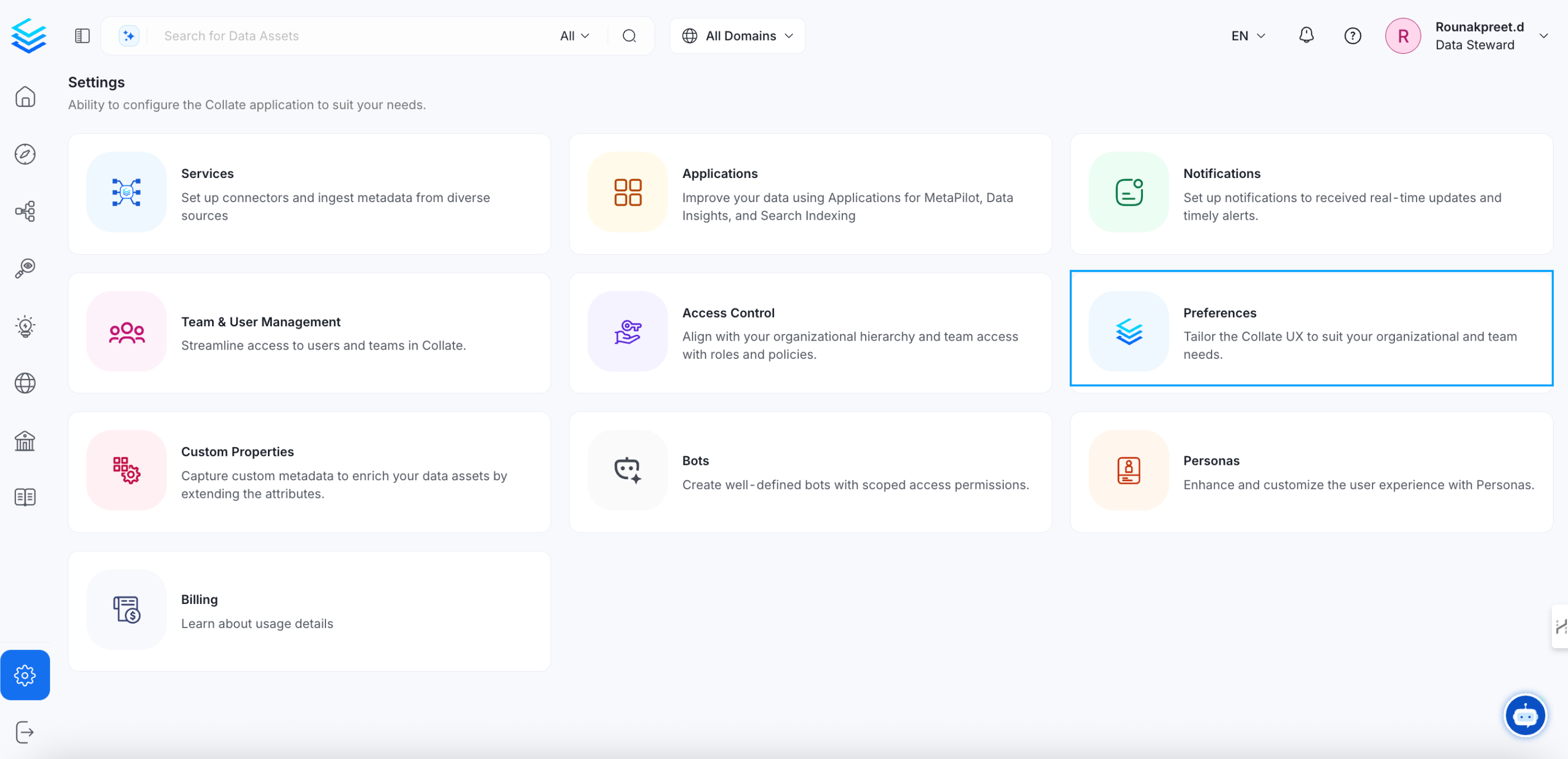
- Click Theme.
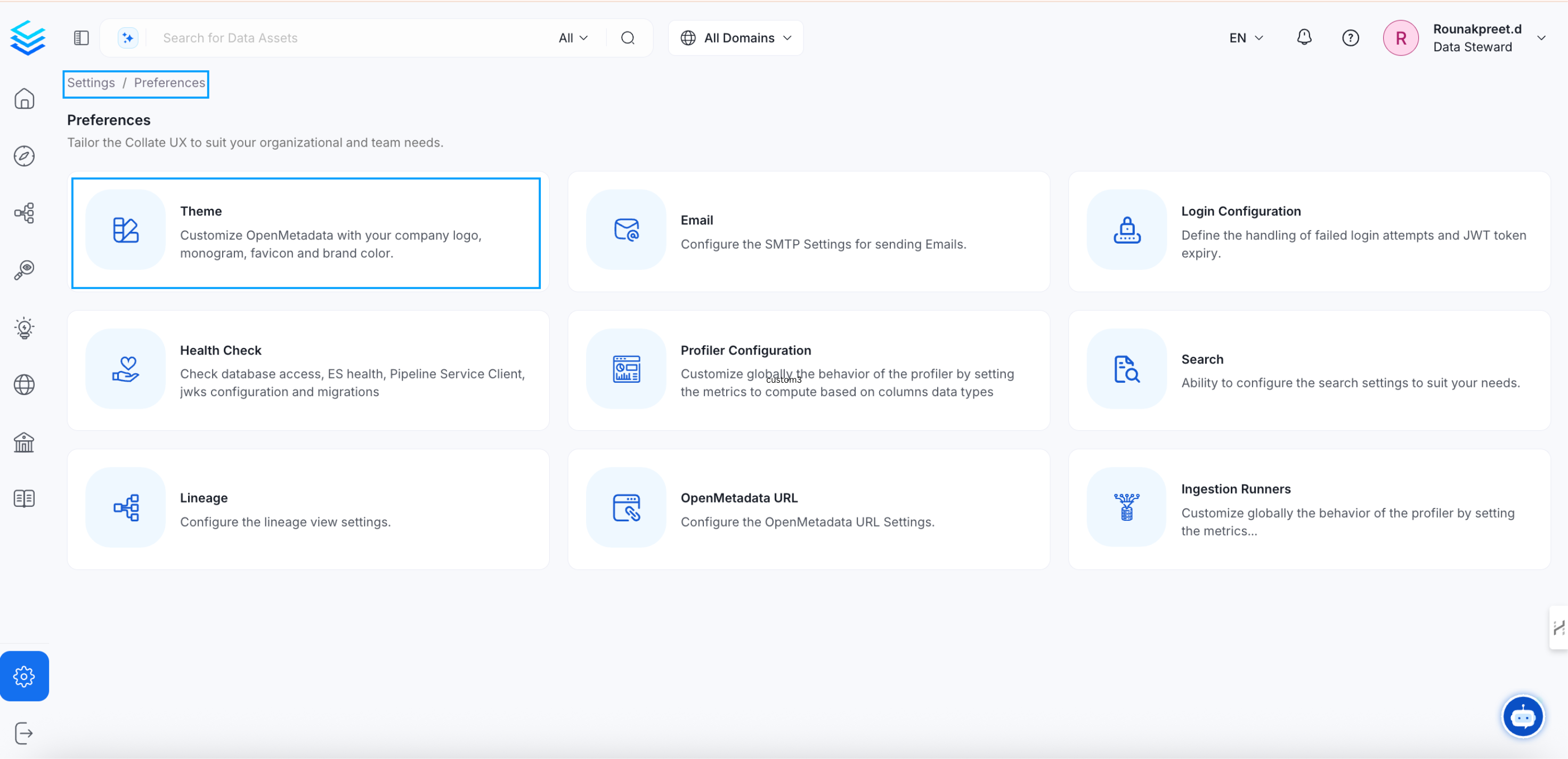
Custom Logo
The Custom Logo panel replaces the default Collate branding assets with your organization’s own images. Each field takes a URL rather than a file upload, so the image needs to already be hosted somewhere reachable by anyone loading the Collate UI, such as your own CDN or object storage: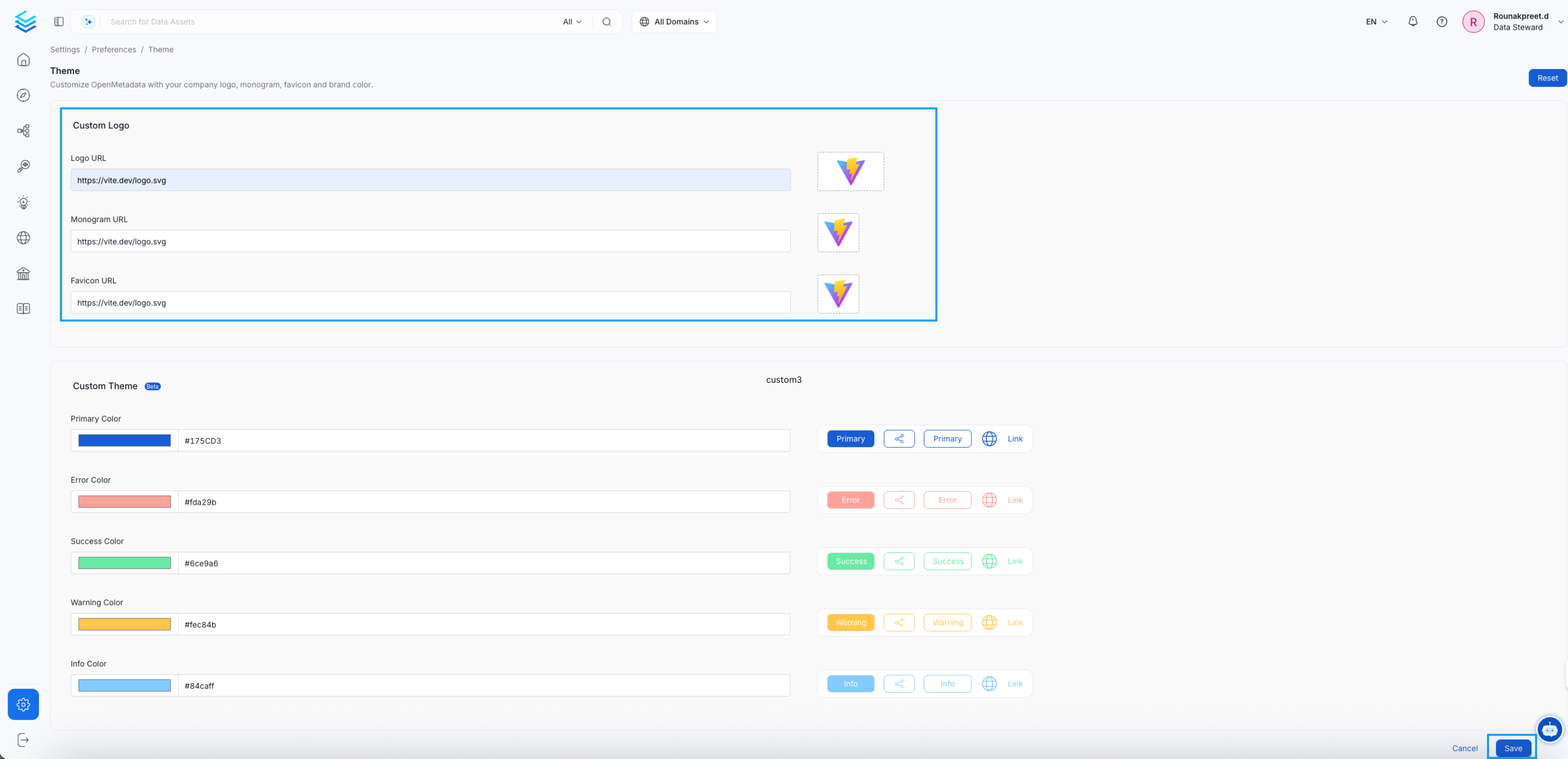
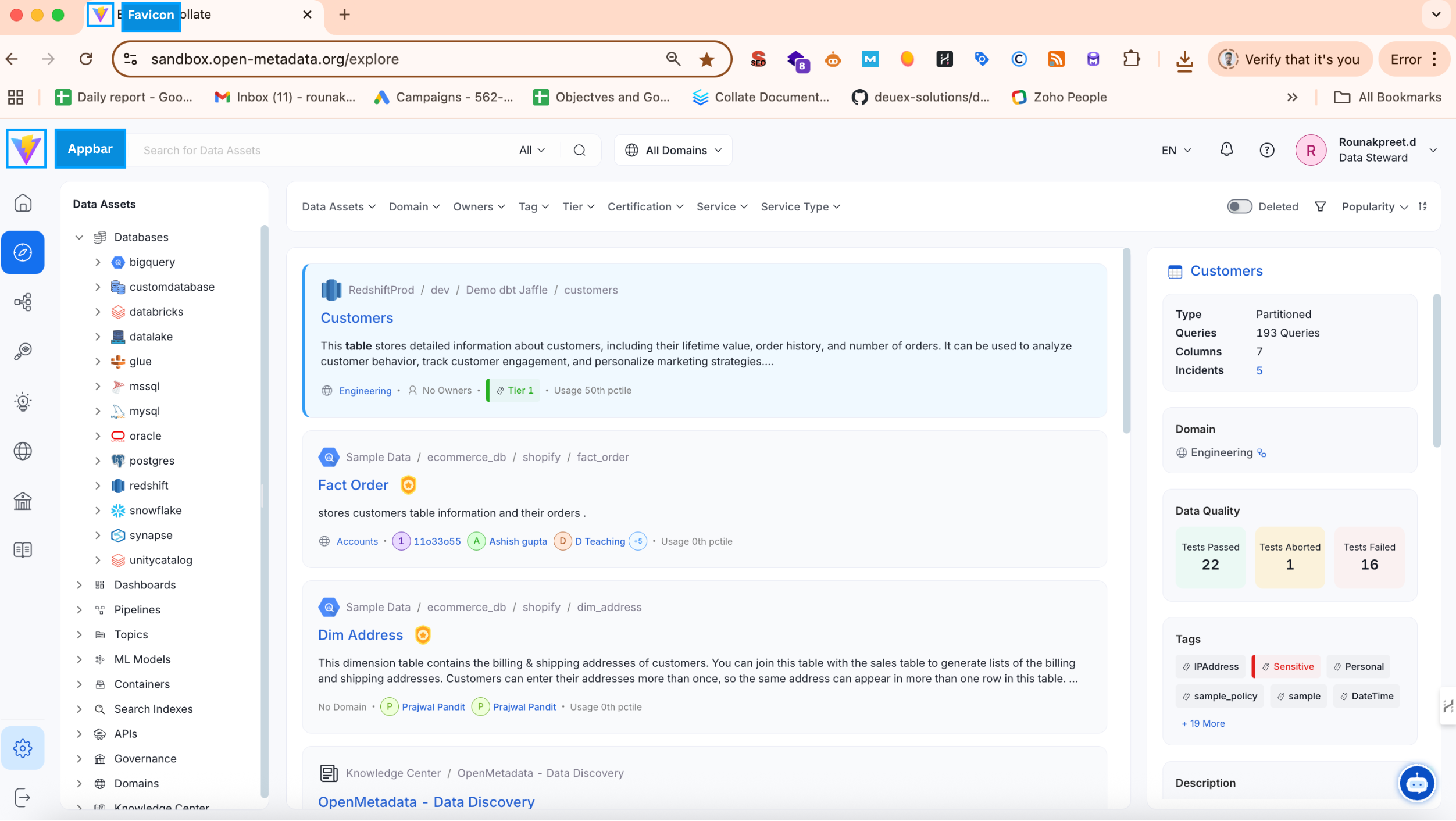
Custom Theme
The Custom Theme panel defines the brand colors used across buttons, links, and status indicators throughout the interface, so the whole product reads as consistent with the rest of your brand rather than just the parts with a logo on them. Each field accepts a HEX color code or a color picker selection, and the preview on the right updates in real time to show the effect before you save. Leaving a field blank keeps Collate’s own default for that color, shown below.
After configuring colors, select Save to apply them.