
Add a Glossary
To create a glossary, perform the following steps:-
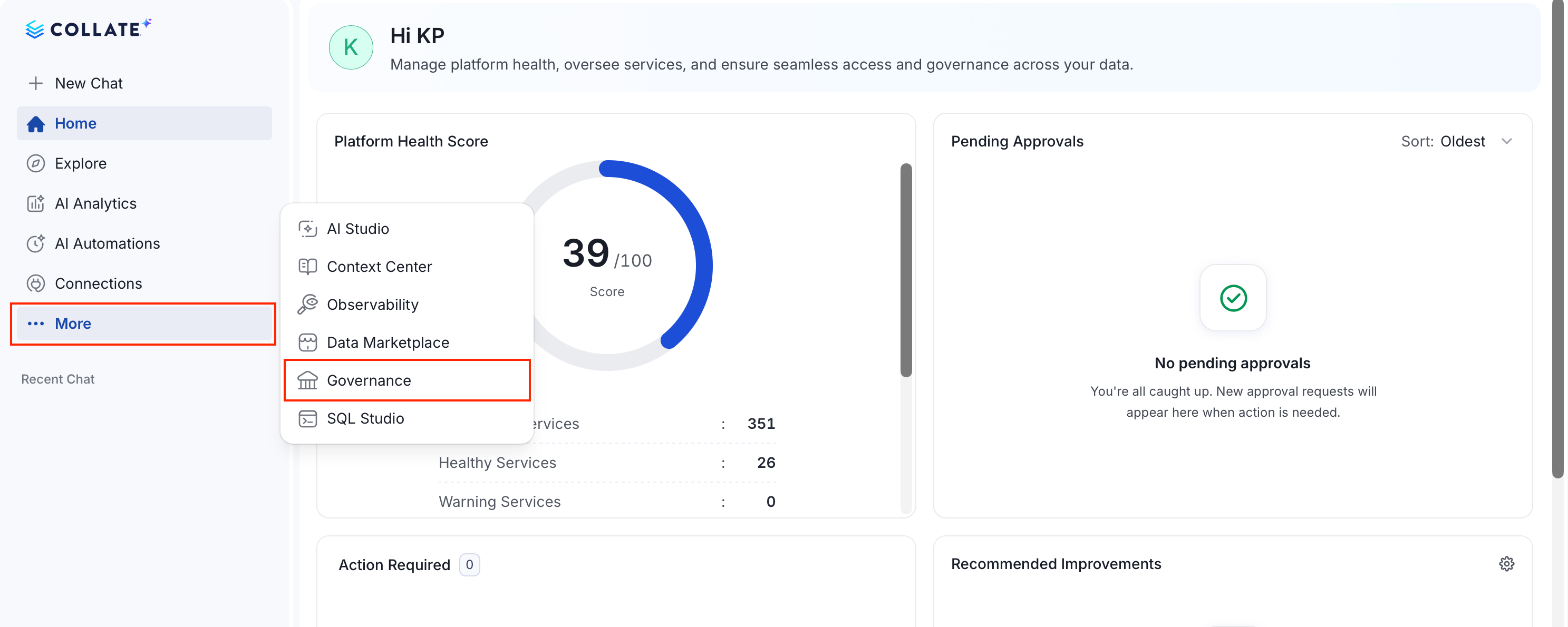
In the left navigation bar, click Governance.
-
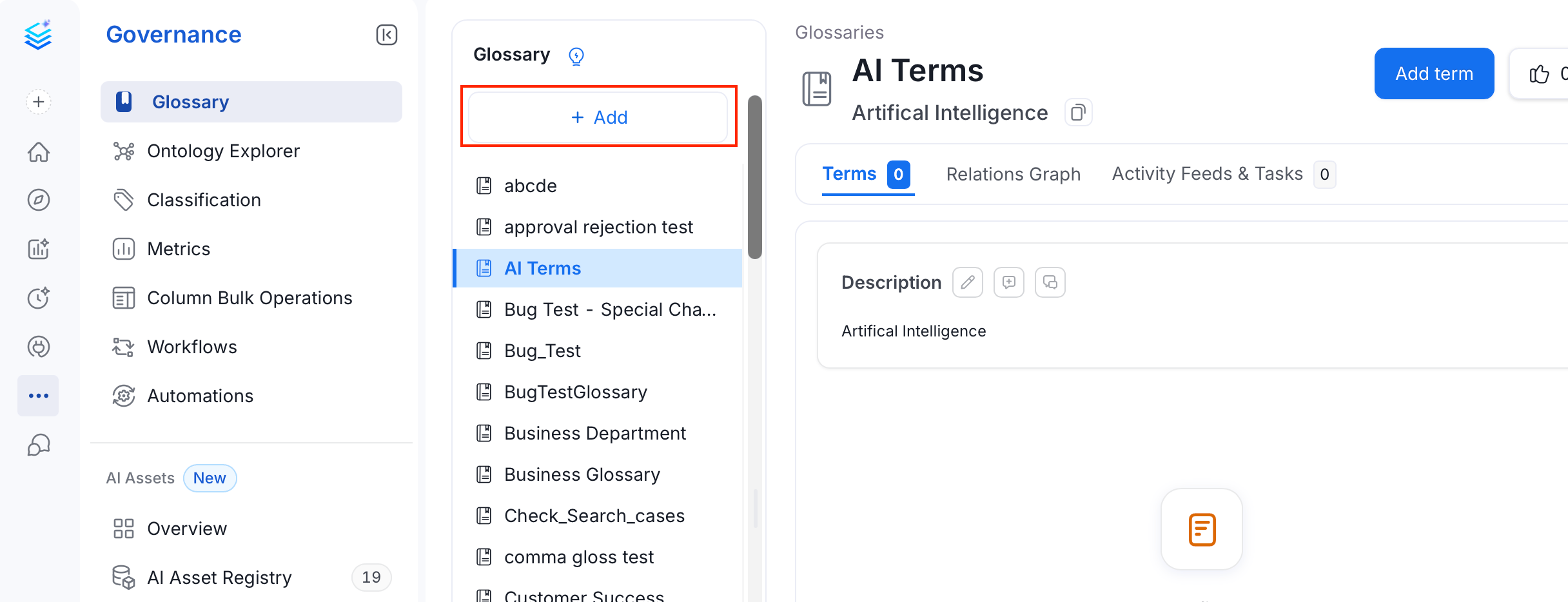
Select Glossary and click Add.
-
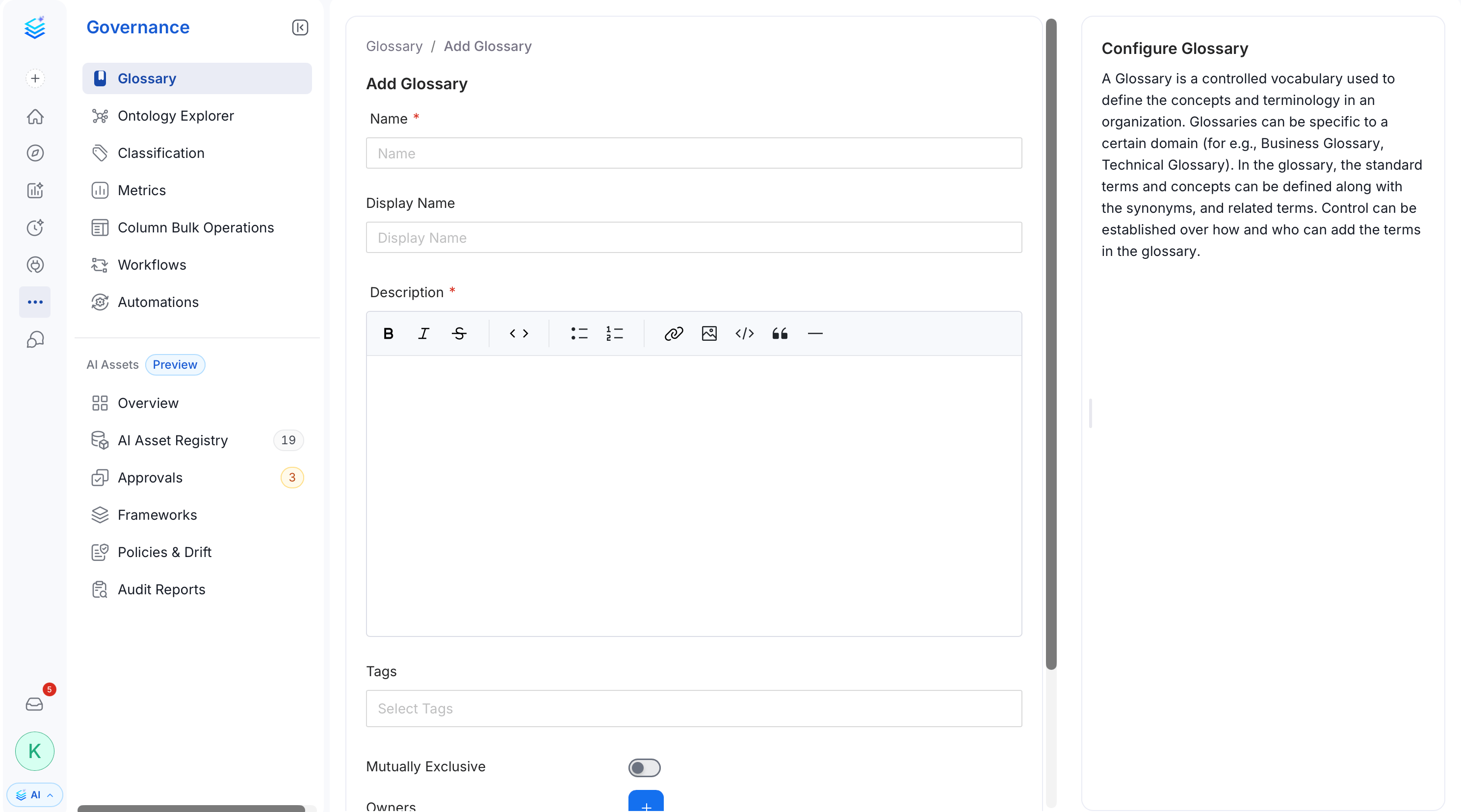
Fill the following details to configure the glossary:
- Name (required) — A unique name for the glossary.
- Display Name — A human-friendly label shown in the UI.
- Description (required) — Describe the context or domain of the glossary.
- Tags — Add classification tags to the glossary.
-
Mutually Exclusive — When enabled, only one term from this glossary can be assigned to a data asset at a time. For example, an asset can be tagged as either
PII-SensitiveorPII-NonSensitive, but not both. - Owners — Assign one or more teams or users as owners of the glossary.
-
Reviewers — Add multiple reviewers who approve changes to glossary terms.
Add Owners and Reviewers to a Glossary
- On the Glossary page, select a glossary from the left Glossary panel.
-
The options to add owners and reviewers appears in the right panel.
- To add the owners, click + next to Owners to assign one or more teams or users.
- To add the reviewers, click + next to Reviewers to add multiple users who will review and approve changes to glossary terms.

How to Create Glossary Terms
Set up Glossary Terms to define the terminology. Add tags, synonyms, related terms, links, etc.
How to Bulk Import a Glossary
Save time and effort by bulk uploading glossary terms using a CSV file.
How to Add Assets to Glossary Terms
Associate glossary terms to data assets making it easier for data discovery.