
Create Glossary Terms
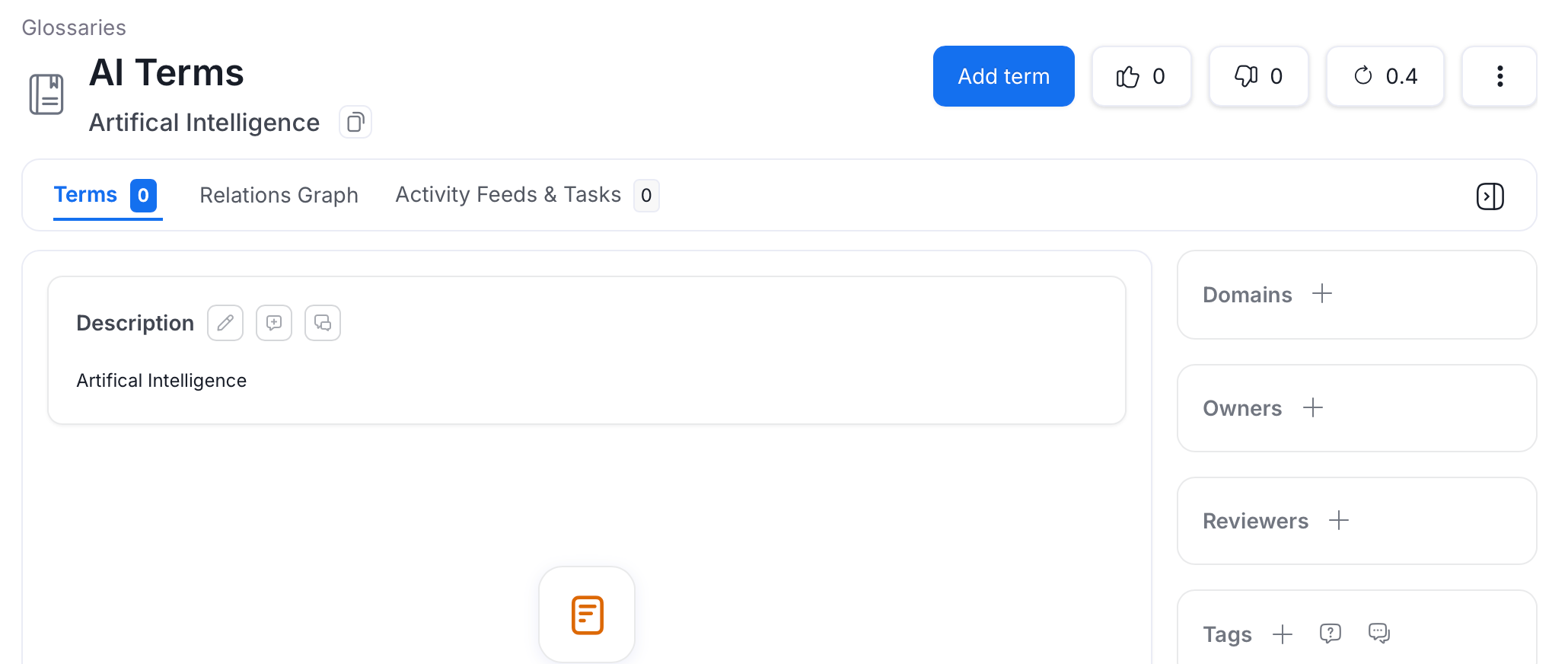
After creating a glossary, you can add multiple Glossary Terms and Child Terms to it. To add a glossary term:- Select the glossary to add a glossary term.
-
Click Add Term.
-
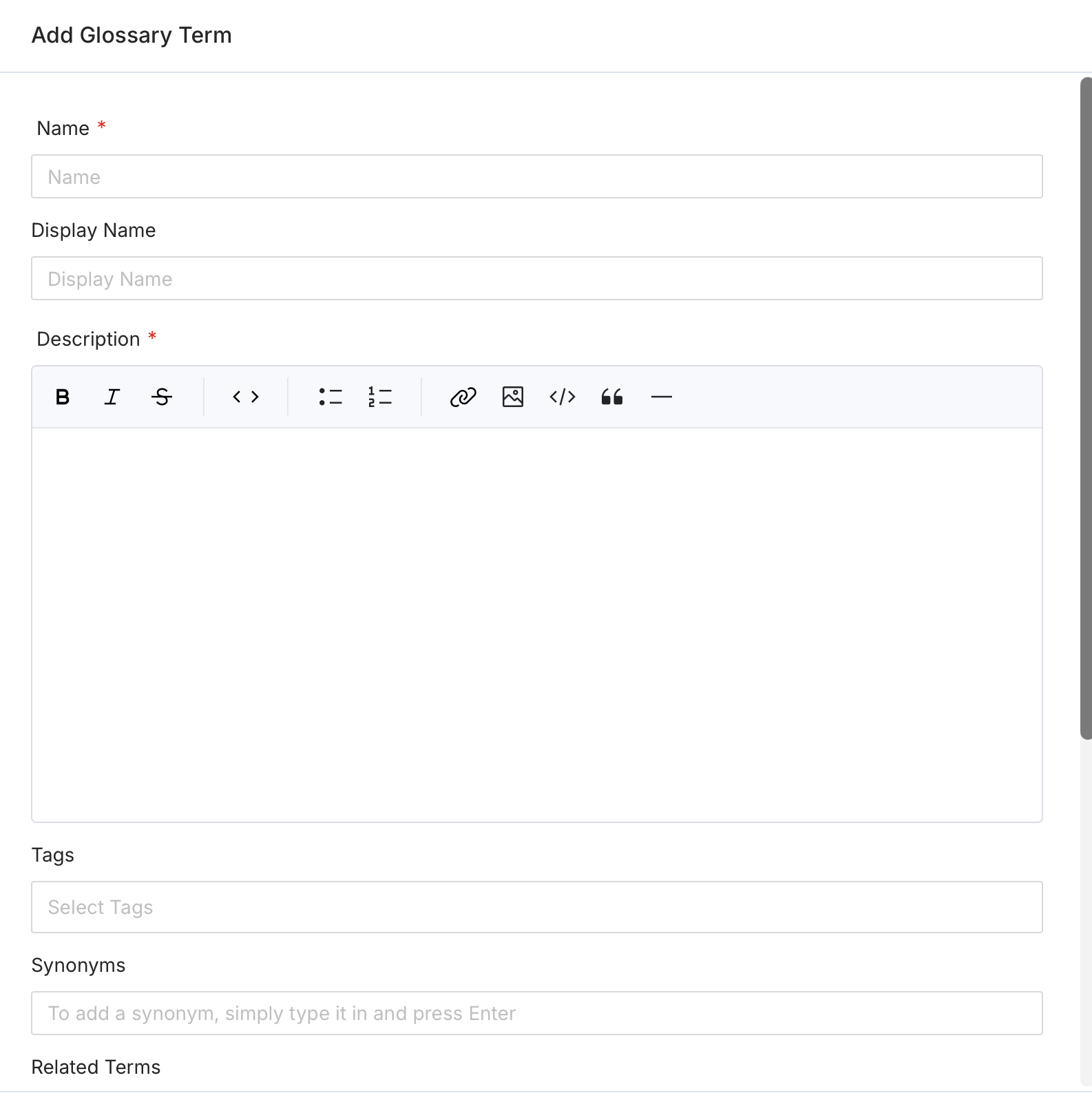
Fill the following details:
- Name (required) — The name of the glossary term.
- Display Name — A human-friendly label shown in the UI.
- Description (required) — A unique and clear definition to establish consistent usage and understanding of the term.
- Tags — Add classification tags to the term. When a glossary term is added to an asset, its associated tags are also applied to that asset.
- Synonyms — Other terms used for the same concept. For example, for a term ‘Customer’, synonyms can be ‘Client’, ‘Shopper’, or ‘Purchaser’.
- Related Terms — Terms that capture an associative relationship. For example, for a term ‘Customer’, related terms can be ‘Customer LTV (LifeTime Value)’ or ‘Customer Acquisition Cost (CAC)’.
- Mutually Exclusive — When enabled, only one child term from this glossary term can be assigned to a data asset at a time.
- References — Add external links to sources where this term originated or is defined.
- Owners — Assign one or more teams or users as owners of the glossary term.
-
Reviewers — Add multiple reviewers who approve changes to this term.
How to Bulk Import a Glossary
Save time and effort by bulk uploading glossary terms using a CSV file.
How to Add Assets to Glossary Terms
Associate glossary terms to data assets making it easier for data discovery.