
dbt Workflow
Run in Collate SaaS or BYOC
Configure the dbt Workflow.
Run in Collate Hybrid SaaS
Configure the dbt Workflow from the CLI.
Auto Ingest dbt Artifacts (dbt-core)
Configure the auto dbt ingestion for dbt-core.
dbt Integration
Requirements
Collate supports ingestion from both dbt Core and dbt Cloud.The requirements vary depending on how dbt is deployed and executed.
Why dbt Artifacts Are Needed
To bring your dbt project into Collate, the connector reads the metadata that dbt generates about your transformations. dbt automatically creates JSON files (called “artifacts”) whenever you run commands likedbt run, dbt test, or dbt docs generate.
These artifacts allow Collate to:
- Build lineage graphs: See how your models connect to sources and each other
- Sync documentation: Keep table and column descriptions in sync with your dbt project
- Track data quality: Monitor test results and show pass/fail status
- Import metadata: Bring over tags, ownership, domains, and custom properties
Understanding dbt Artifact Files
dbt generates JSON files in thetarget/ directory. Here’s what each file provides:
manifest.json (Required)
The manifest is the heart of dbt metadata. This file is required for the integration to work. What it contains:- Model definitions and SQL code
ref()andsource()dependencies for lineage- Descriptions from
schema.ymlfiles - dbt tags and meta properties
- Test configurations
- Column definitions
- Creates Data Model entities linked to your tables
- Builds lineage graphs showing data flow between models
- Syncs table and column descriptions
- Creates classification tags
- Assigns ownership and domains
- Creates test cases for data quality monitoring
dbt run, dbt build, dbt compile)
catalog.json (Recommended)
The catalog provides database-level details that the manifest doesn’t have. What it contains:- Actual column data types from the database
- Database-level ownership information
- Column ordering as it exists in the database
- Statistics about tables and columns
- Provides accurate column data types (more reliable than schema.yml declarations)
- Fallback owner information if not specified in meta properties
- Maintains column position from your database
dbt docs generate
Note: Without catalog.json, you’ll still get lineage and model information, but column types will only include what’s declared in your
schema.yml files.run_results.json (Recommended)
Run results capture the outcome of your most recent dbt execution. What it contains:- Test pass/fail/warn status for each test
- Execution timestamps
- Error messages and stack traces
- Model build success/failure status
- Updates test case results showing pass/fail status
- Tracks when tests last ran
- Shows failure details for debugging
dbt run, dbt test, dbt build
Generating Your dbt Artifacts
Run these commands after your dbt models execute:dbt Core Artifact Storage
Artifact Accessibility
Since dbt Core runs within your infrastructure (for example, using Airflow or similar schedulers), Collate does not have direct access to the local file system where dbt executes. To enable ingestion, the dbt artifacts must be made accessible to Collate by storing them in a supported cloud storage service. Collate currently supports the following storage systems:- Amazon S3
- Google Cloud Storage (GCS)
- Azure Data Lake / Azure Blob Storage
- HTTP/HTTPS servers
- Local or shared filesystem
Configuration Steps
To configure dbt Core artifact ingestion:- Generate artifacts: Ensure dbt generates required files (manifest.json, catalog.json, run_results.json)
- Choose storage method: Select from S3, GCS, Azure, HTTP, or Local (see options below)
- Upload artifacts: Configure your workflow to upload artifacts to chosen storage
- Configure Collate: Provide storage path and credentials during ingestion setup
dbt Core Artifact Configuration
When using dbt Core, artifacts must be accessible to Collate. Choose your storage method:AWS S3
AWS deployments (ECS, EKS, EC2)
Google Cloud Storage
GCP deployments (GKE, Compute)
Azure Blob Storage
Azure deployments (AKS, VMs)
HTTP Server
Cloud-agnostic, static file servers
Local/Shared Filesystem
Single-server or Docker deployments
dbt Cloud Requirements
When using dbt Cloud, Collate integrates directly with dbt Cloud using APIs to retrieve metadata and execution details. See the dbt Cloud API Configuration Guide for complete setup instructions.Prerequisites
To configure dbt Cloud ingestion, you must have:- An active dbt Cloud account
- At least one dbt Cloud job configured to generate dbt artifacts
- A valid dbt Cloud API token with sufficient permissions
Supported Metadata
Using dbt Cloud integration, Collate can ingest:- dbt models and sources
- Column-level metadata
- Model and source lineage
- dbt test results (when tests are executed as part of the job)
Note:
- No external cloud storage configuration is required for dbt Cloud ingestion.
- Ensure that your dbt Cloud job is configured to generate documentation artifacts.
Metadata Collate Integrates from dbt
1. dbt Queries
Queries used to create the dbt models can be viewed in the dbt tab.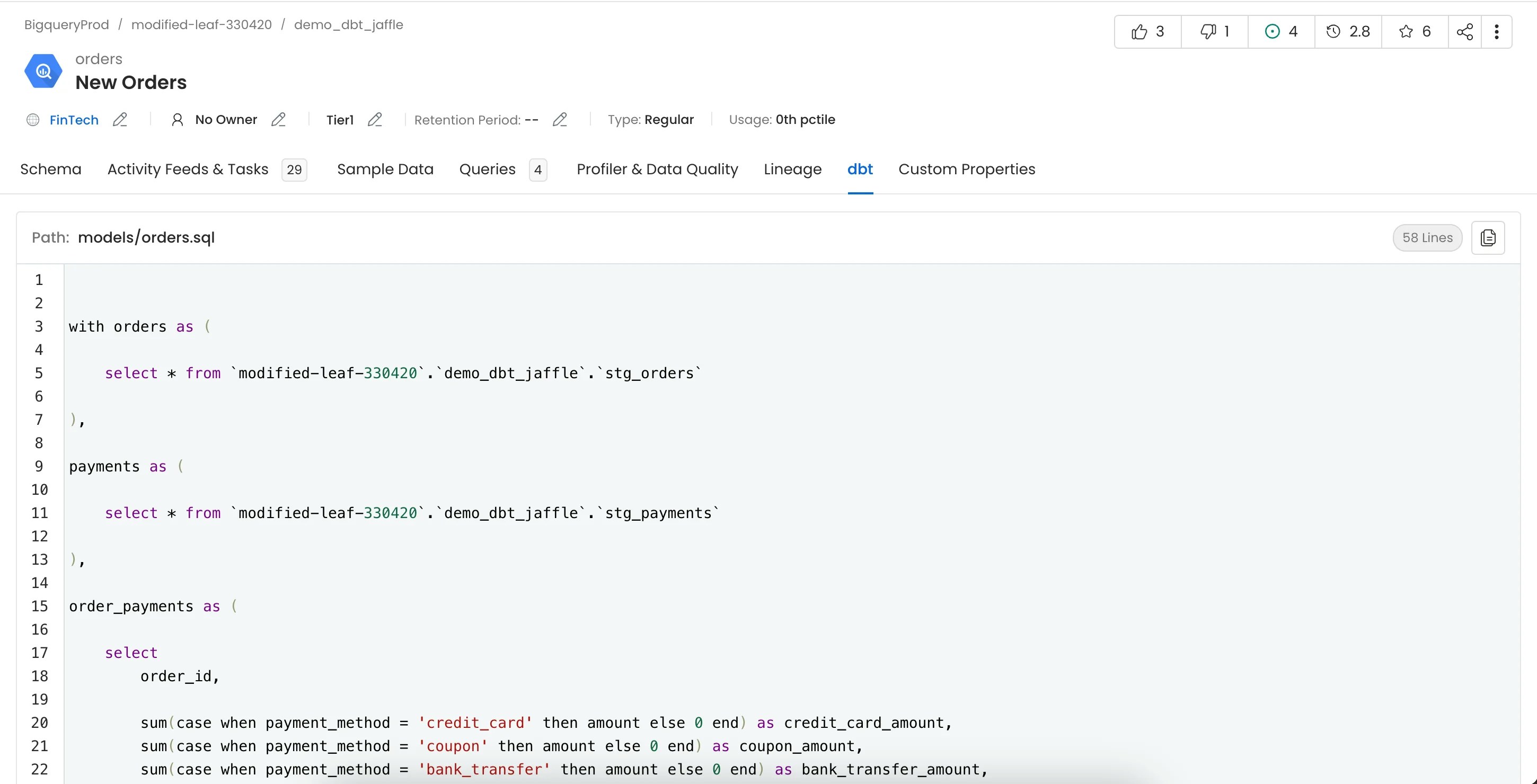
2. dbt Lineage
Lineage from dbt models can be viewed in the Lineage tab. For more information, see Ingest dbt Lineage.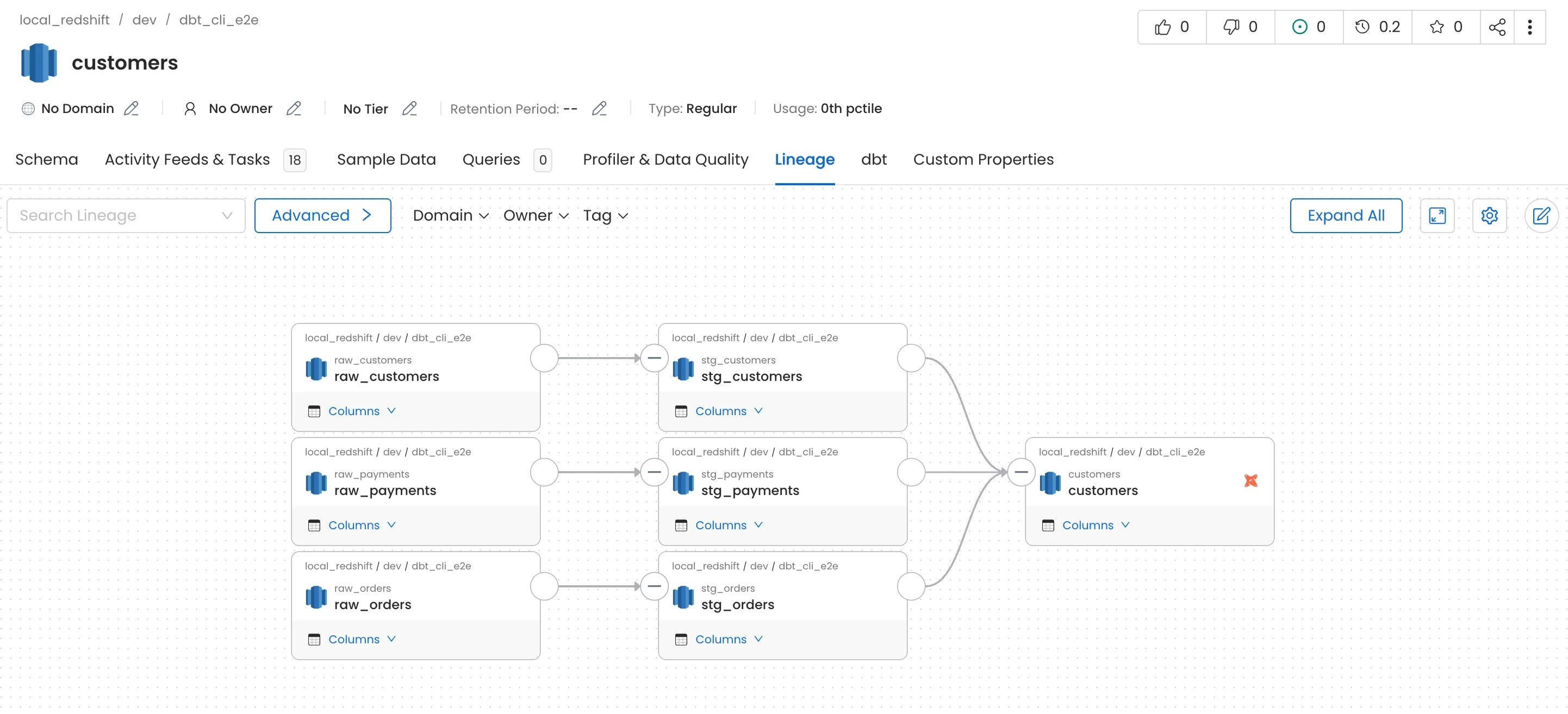
Note: To capture lineage, the
compiled_code field must be present in the manifest.json file.- If
compiled_codeis missing, lineage will not be captured for that node. - To ensure
compiled_codeis populated in your dbt manifest, run the following commands in your dbt project:dbt compiledbt docs generate
3. dbt Tags
Table and column level tags can be imported from dbt. See Add dbt Tags.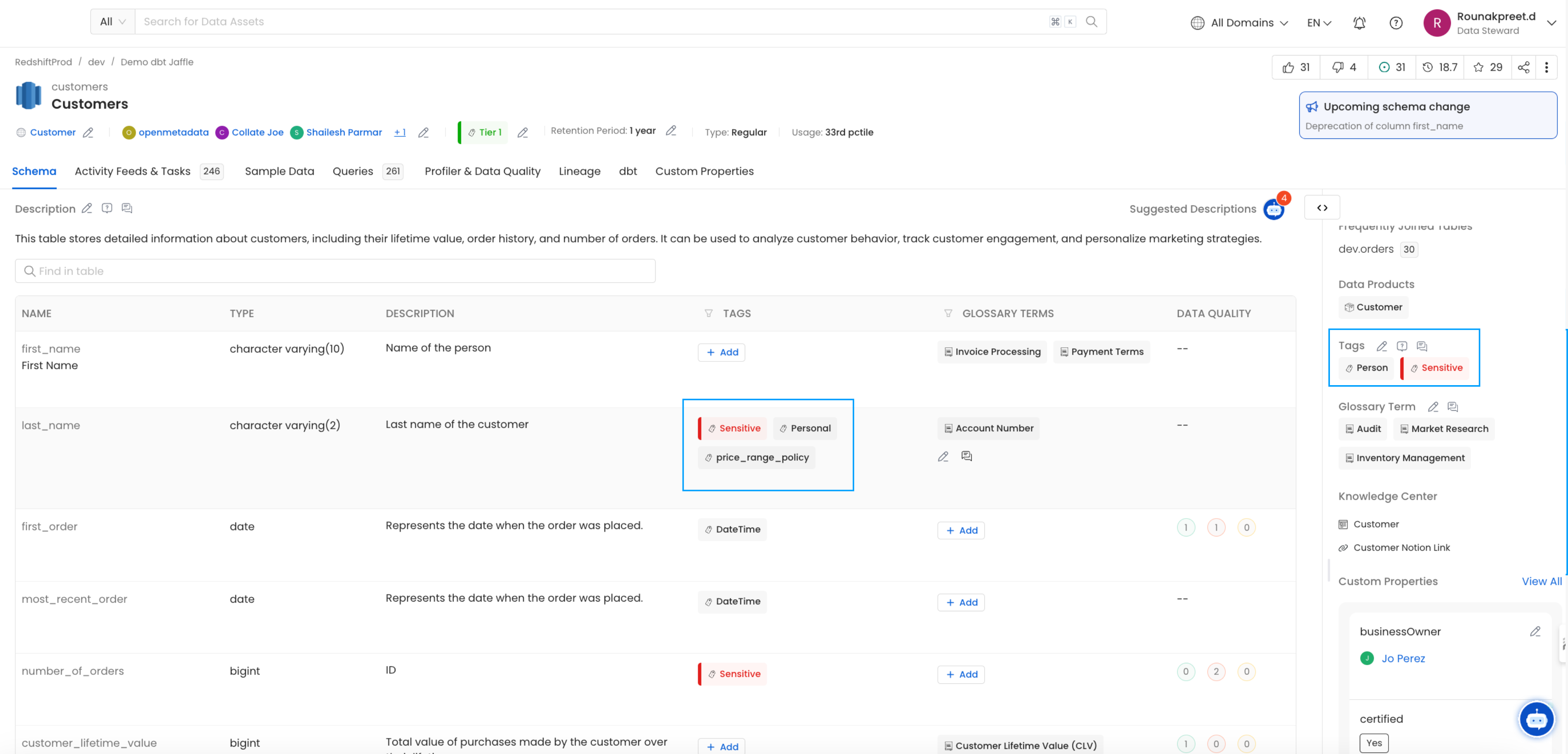
4. dbt Owner
Owner from dbt models can be imported and assigned to respective tables. See Add dbt Owner.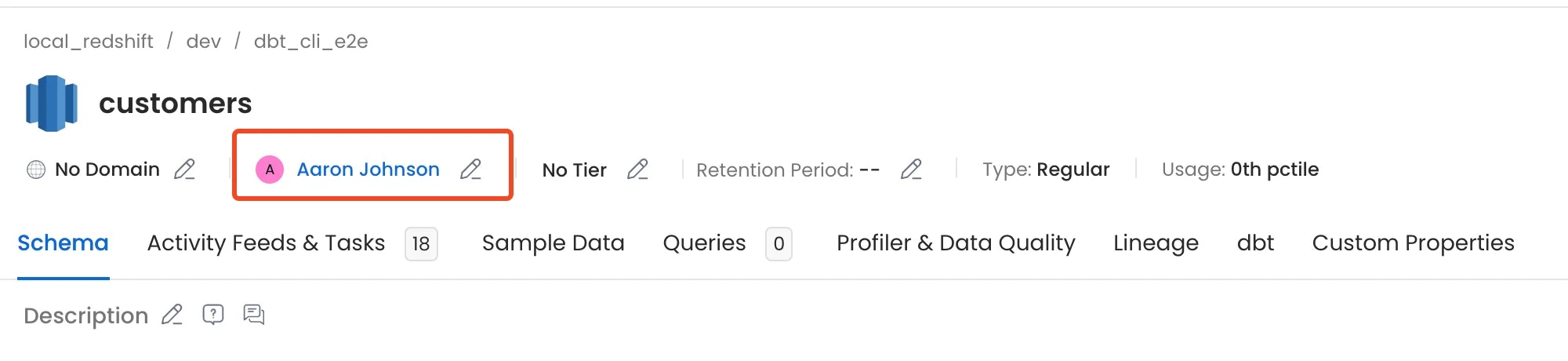
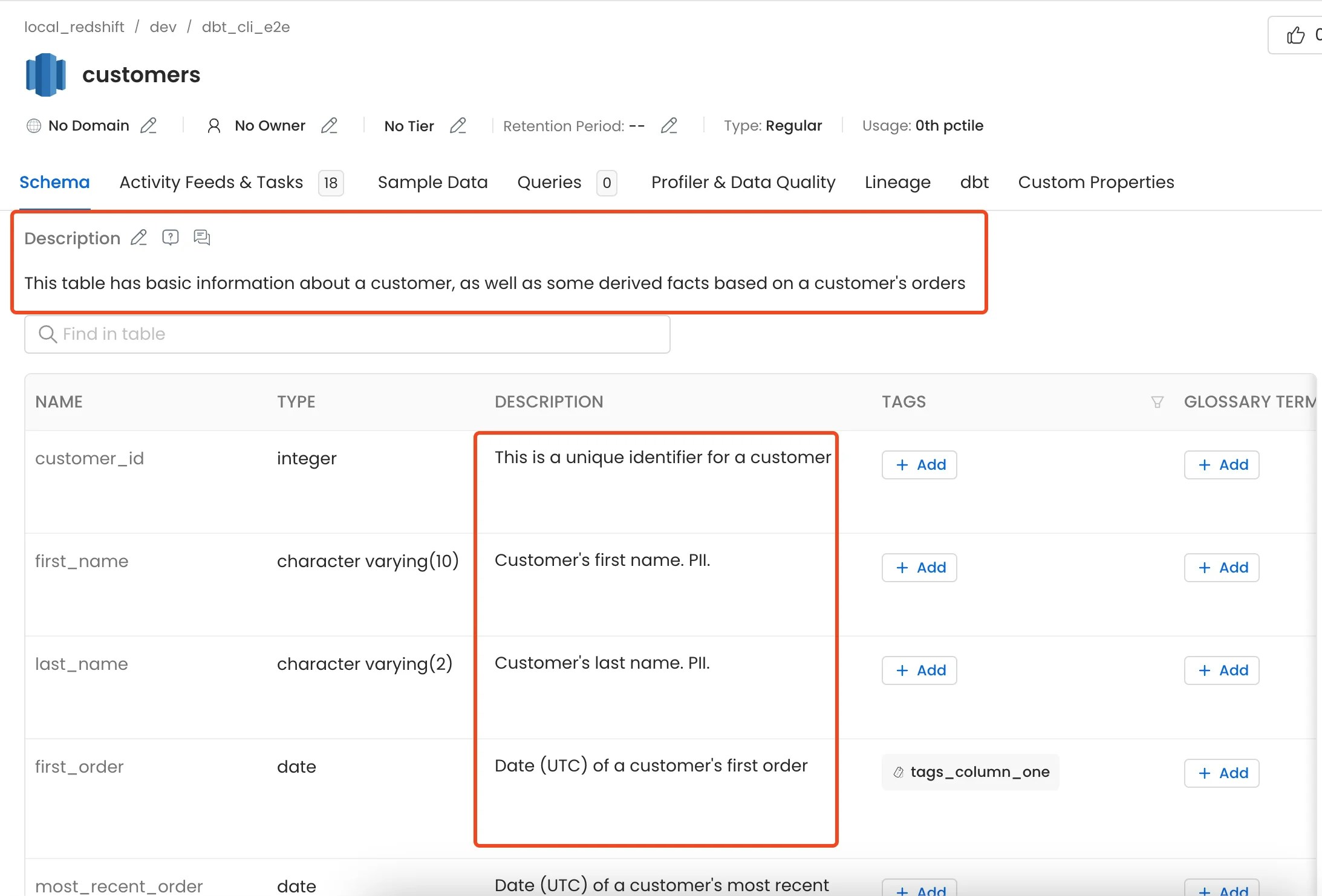
5. dbt Descriptions
Descriptions from dbtmanifest.json and catalog.json can be imported and assigned to respective tables and columns.
For more information, see Ingest dbt Descriptions.
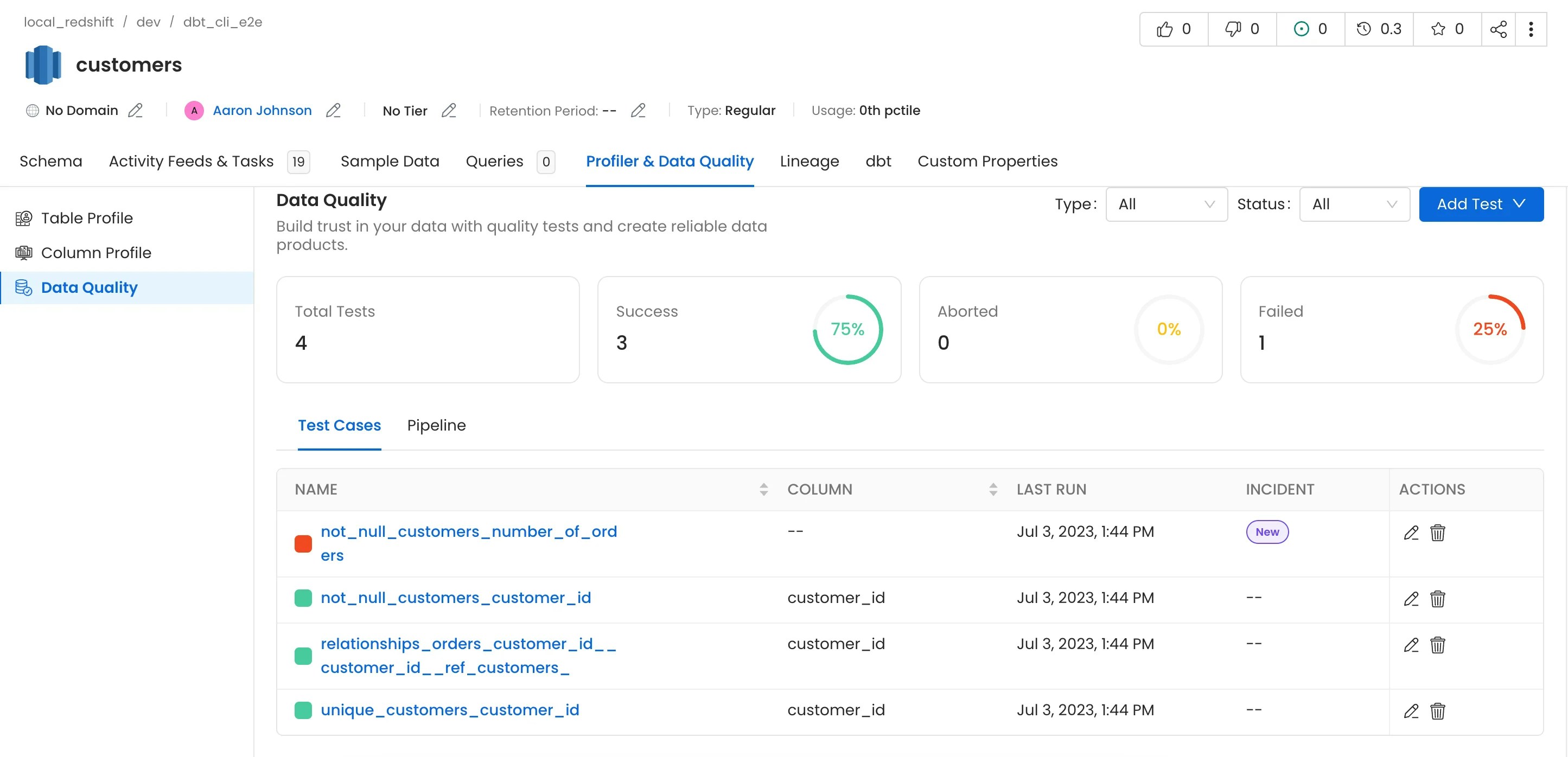
6. dbt Tests and Test Results
Tests from dbt will only be imported if therun_results.json file is passed.
7. dbt Tiers
Table and column level Tiers can be imported from dbt. See Add dbt Tiers.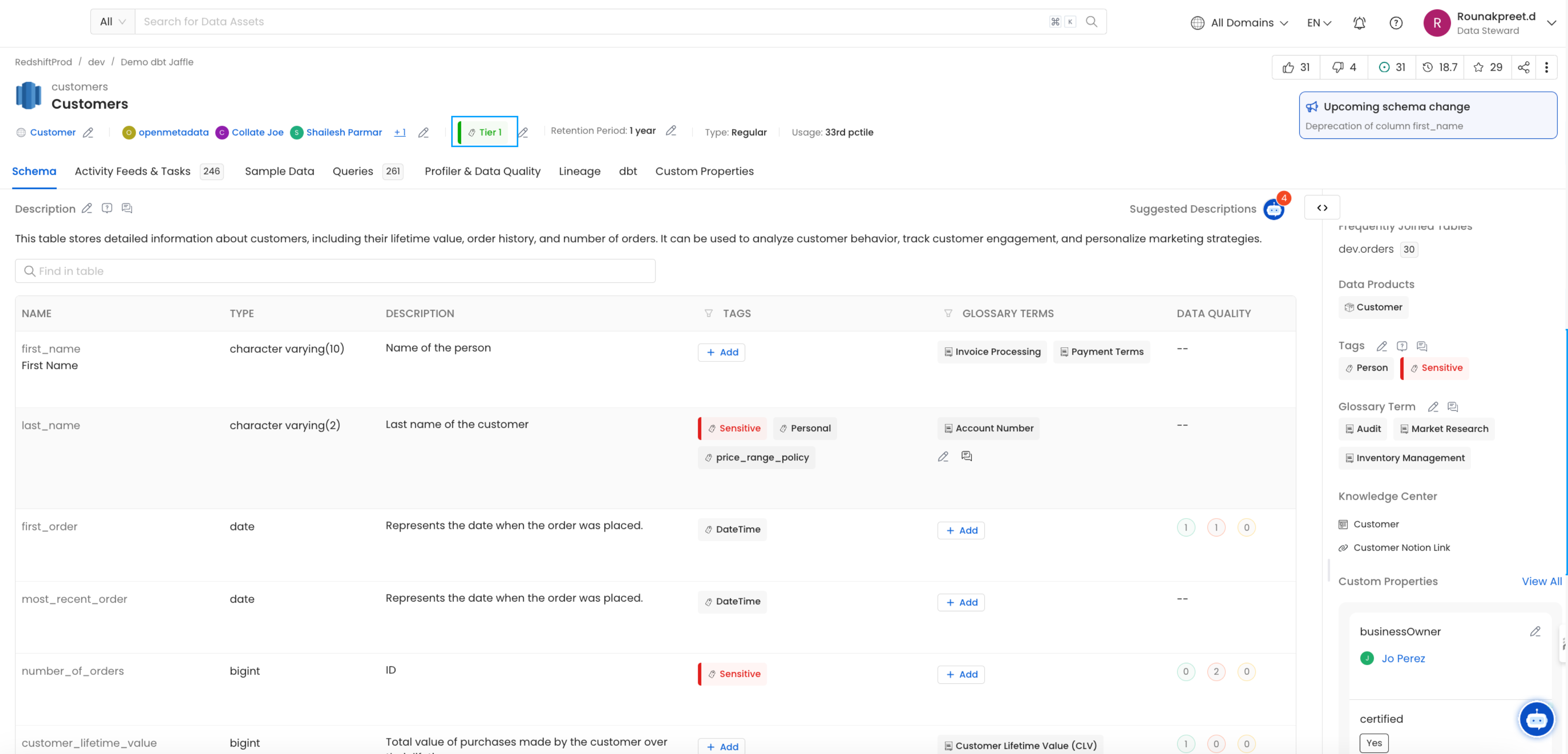
8. dbt Glossary
Table and column level Glossary can be imported from dbt. See Add dbt Glossary.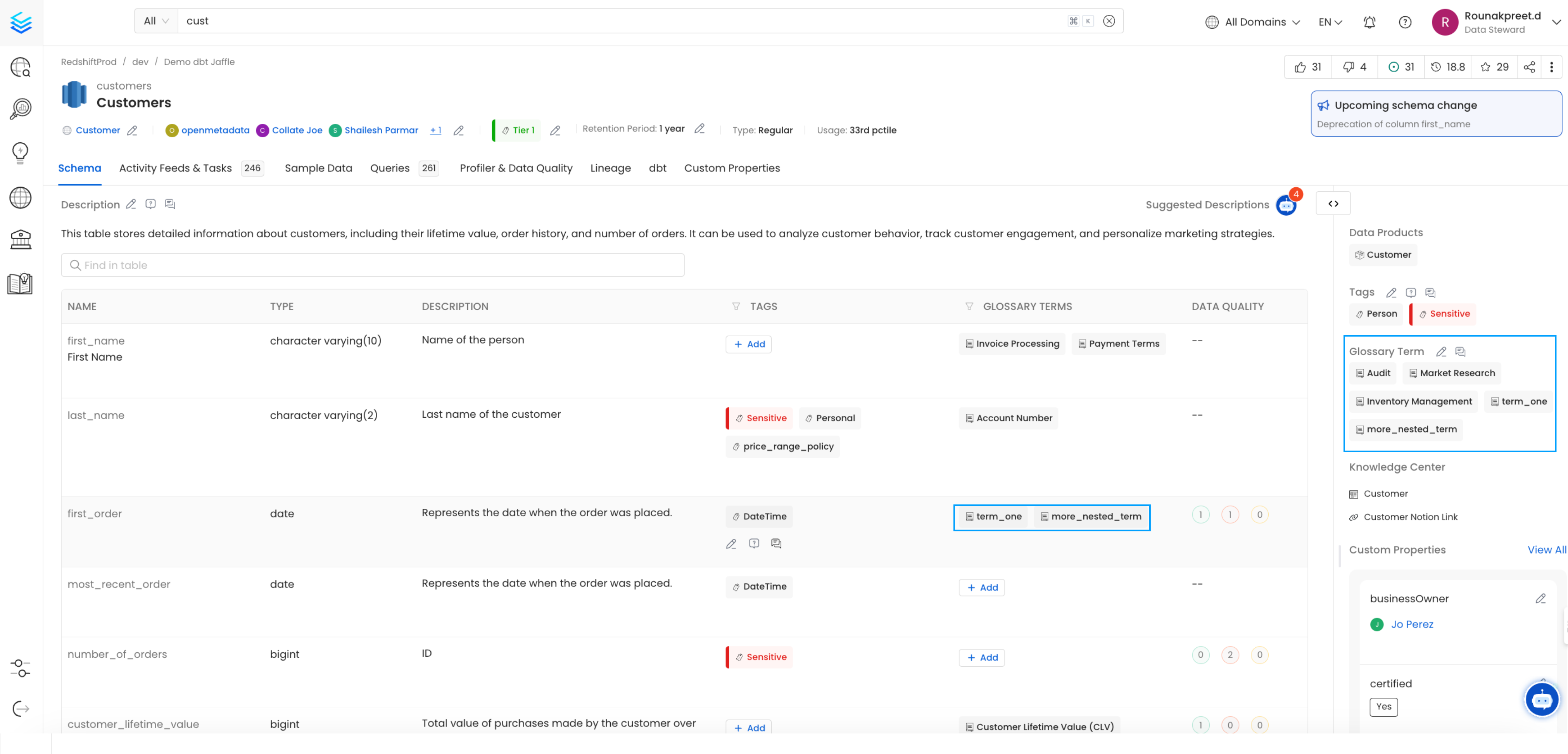
9. dbt Domain
Table level Domain can be imported from dbt to assign tables to organizational domains. See Add dbt Domain.10. dbt Custom Properties
Custom property values can be imported from dbt to enrich table metadata with organization-specific attributes. See Add dbt Custom Properties.11. dbt Exposures
Exposures let you extend lineage from your dbt models to the dashboards, ML models, and API endpoints that consume them. For more information, see Ingest Exposures from dbt.Configure Metadata Agent and Schedule Ingestion
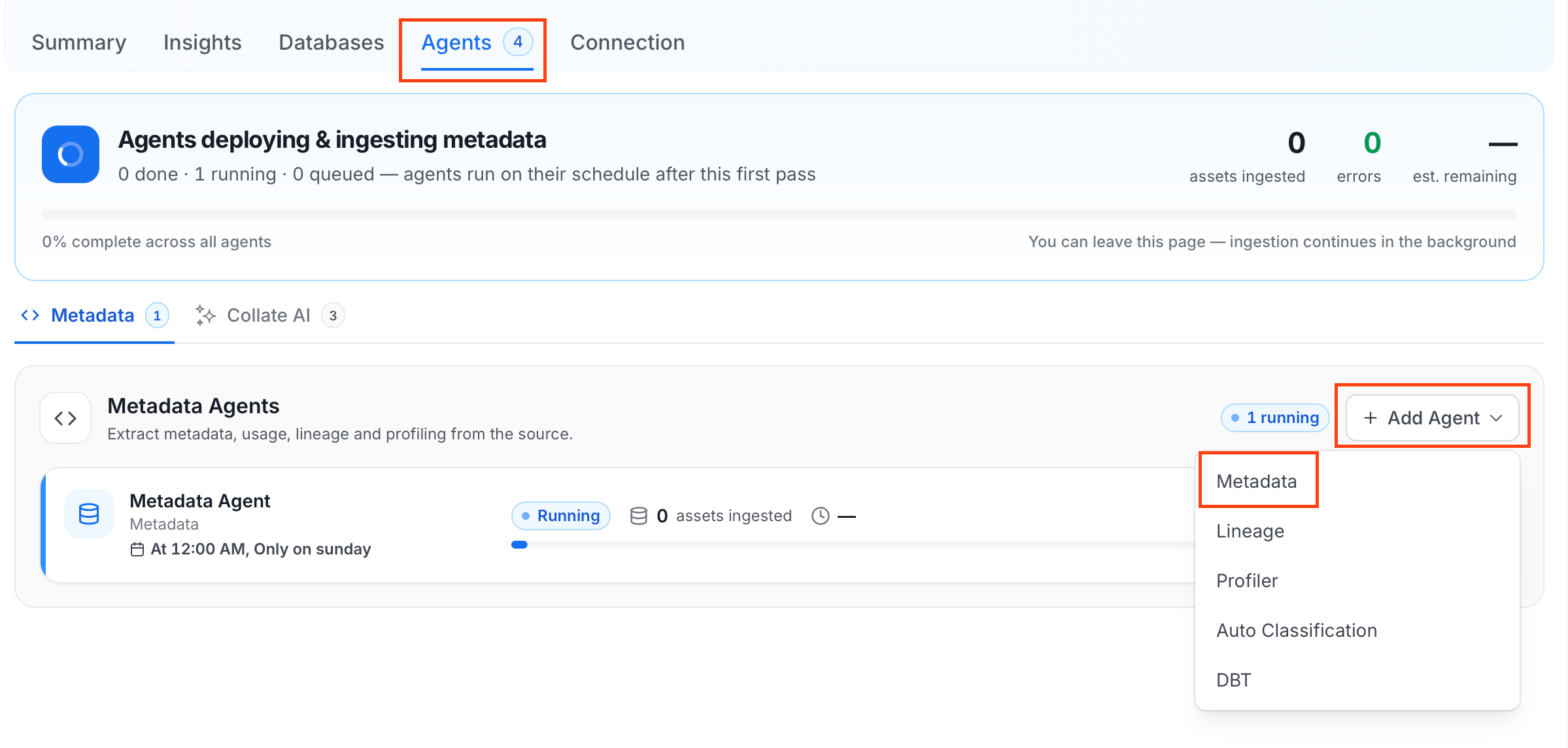
The Metadata Agent extracts schemas, tables, columns, and other structural metadata from your source and keeps your Collate catalog in sync. It powers discovery, lineage, and governance across your data assets. When you click Create & Deploy, Collate automatically deploys a Metadata Agent for this service and triggers the first ingestion run. View its status and run history from the Agents tab on the service detail page. To configure the additional Metadata Agent and schedule ingestion, follow these steps:- In the left navigation, click Connections and select your service.
- Click the Agents tab.
-
Click Add Agent and select Metadata from the dropdown.
-
On the Configure Ingestion page, do the following and click Next.
-
Name this Ingestion: Enter a unique, recognizable name for this ingestion pipeline.

-
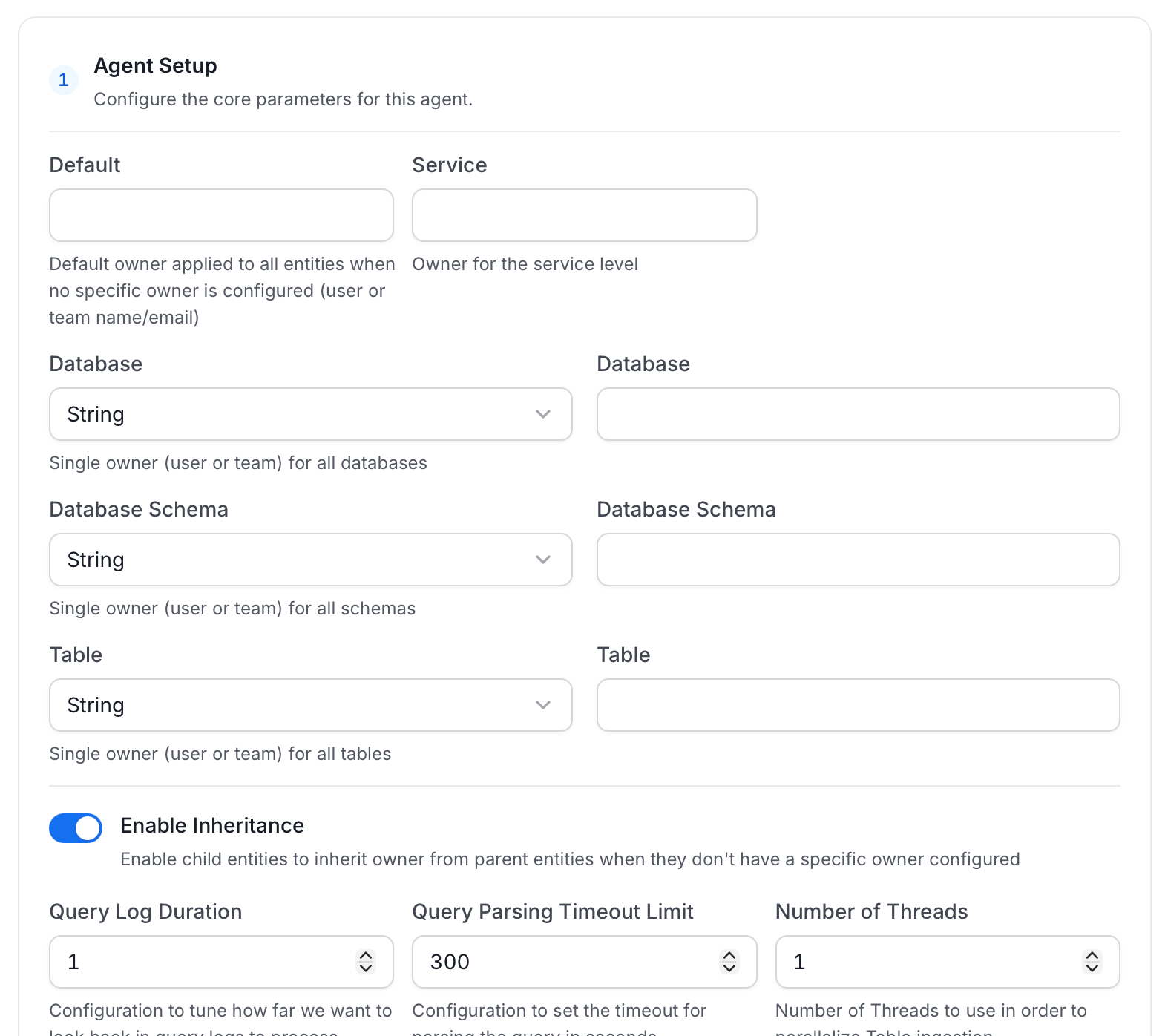
Agent Setup: Configure core parameters for metadata extraction. The following fields are available:
For more information, see Hierarchical Owner Configuration.
-
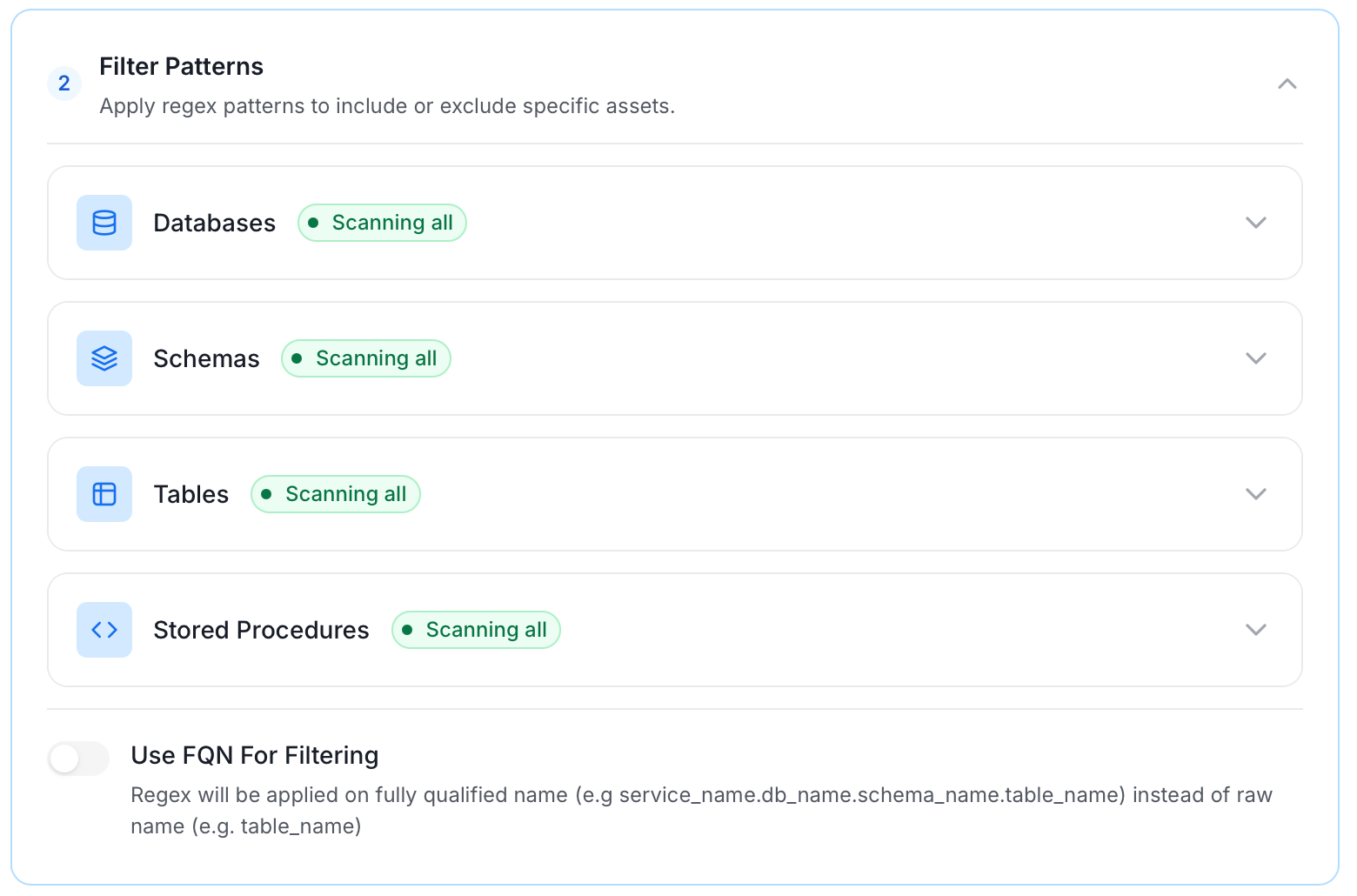
Filter Patterns: Apply include or exclude rules to scope which databases, schemas, tables, and stored procedures this agent ingests. These follow the same filter options described in Step 5.
-
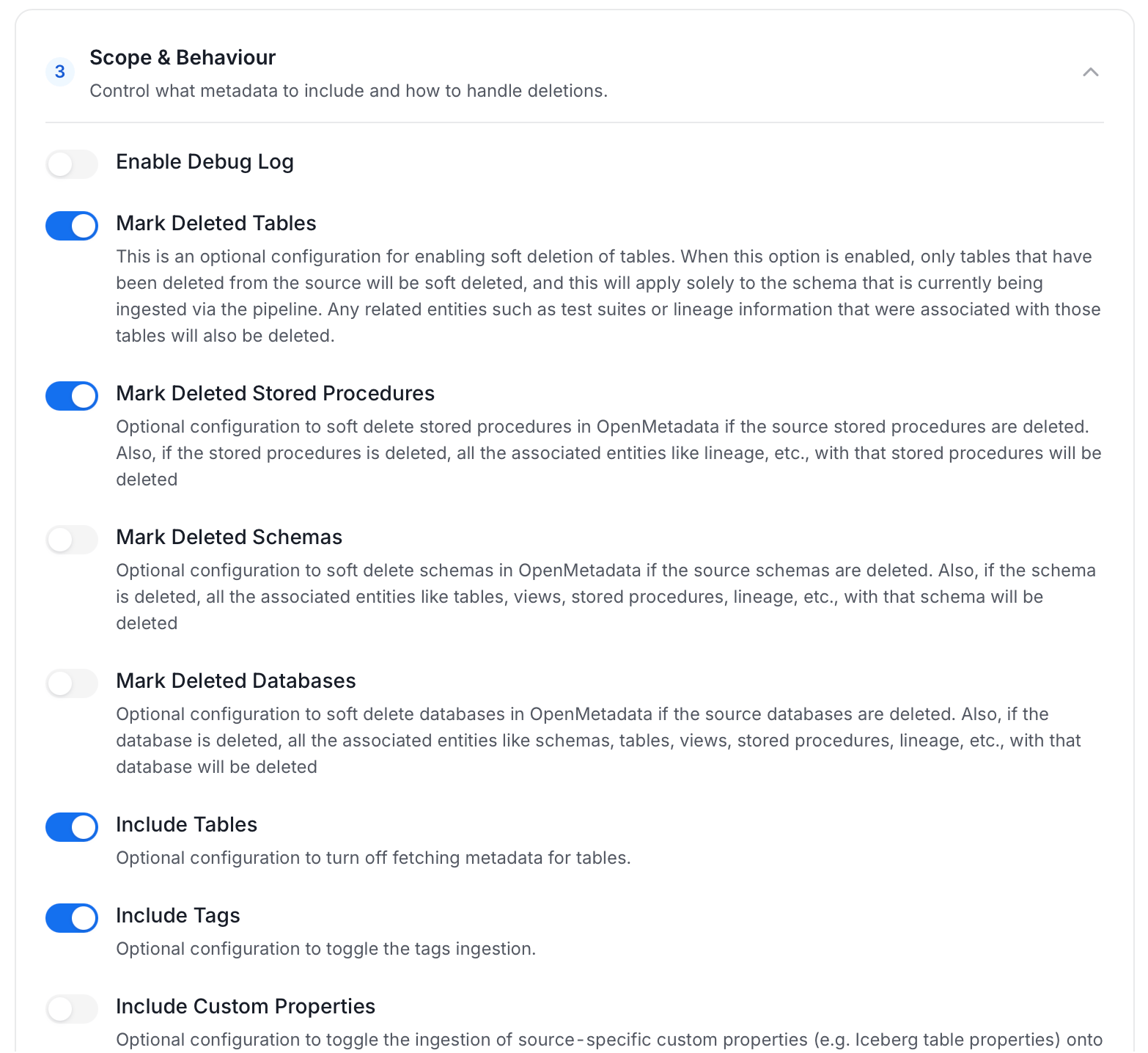
Scope & Behaviour: Control how the agent handles metadata during ingestion. Toggle each option on or off based on your needs:
Note: Available toggles vary by connector. Stored procedure options only appear for connectors that support stored procedures.
-
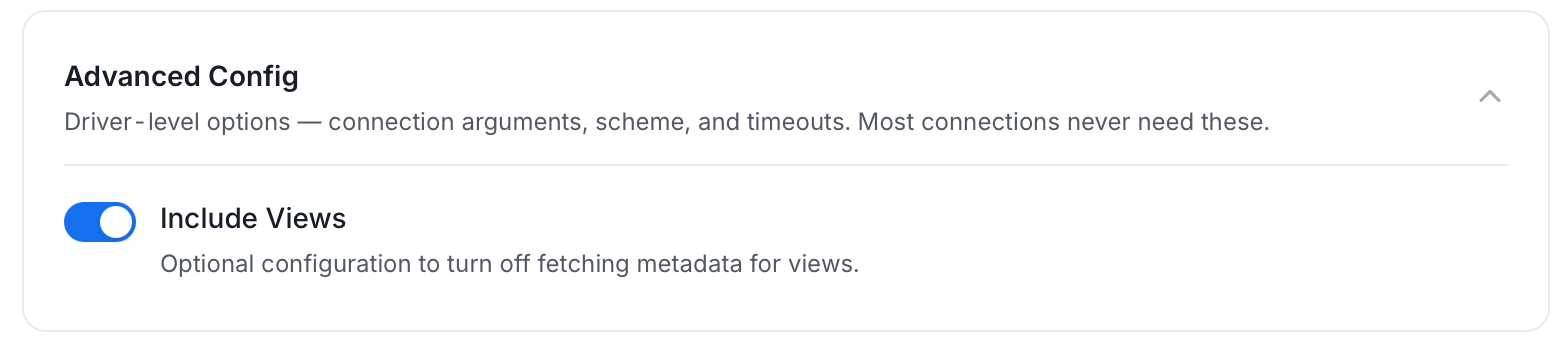
Advanced Config: Driver-level options (connection arguments, scheme, and timeouts). Most connections never need these, and they vary by connector. This section also has one ingestion-scope toggle:
-
Name this Ingestion: Enter a unique, recognizable name for this ingestion pipeline.
-
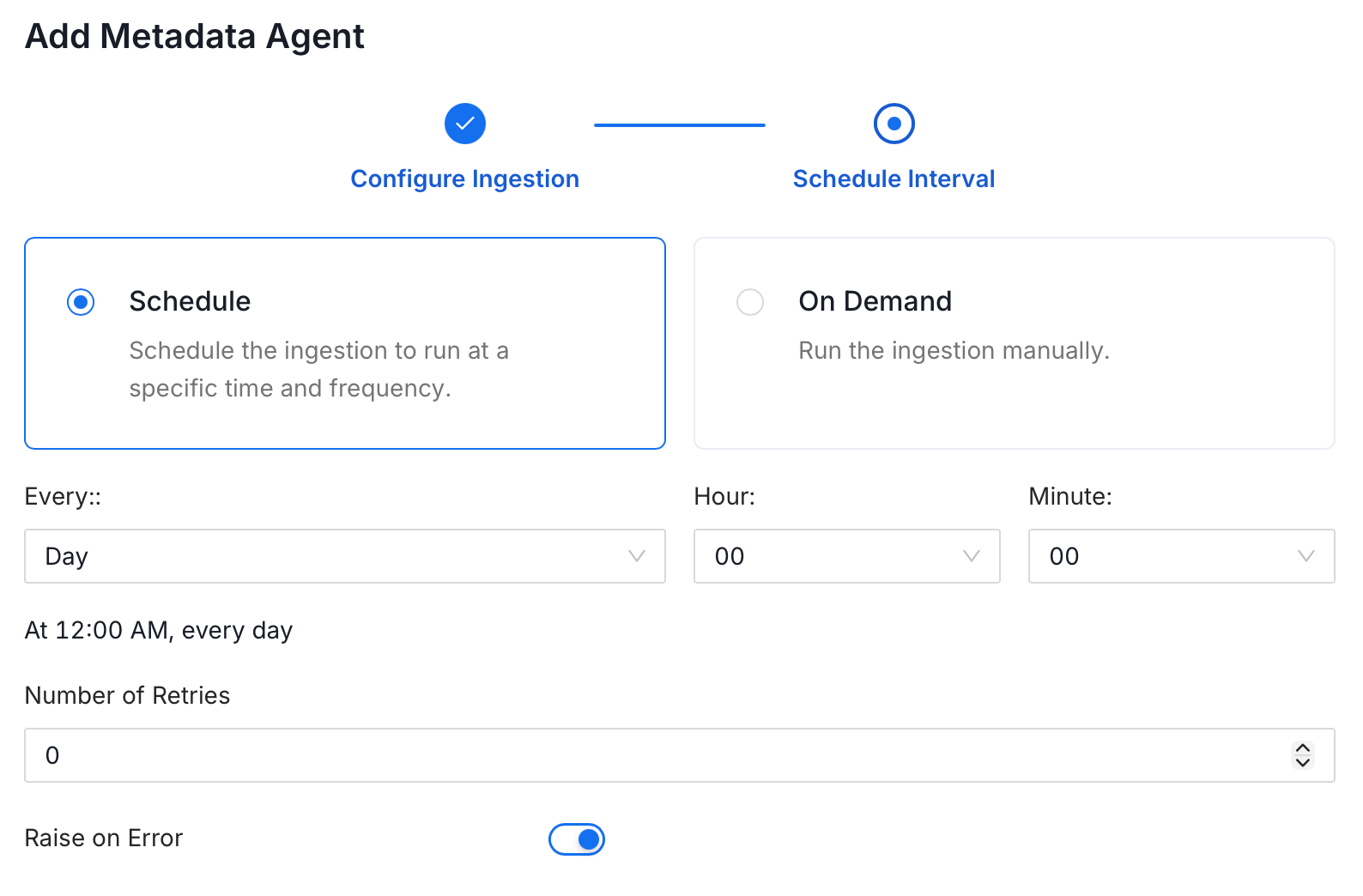
On the Schedule Interval page, set when the agent runs:
- Schedule: Choose a preset interval (Hourly, Daily, Weekly, Monthly) or enter a custom cron expression.
- On-Demand: No automatic schedule. Trigger the agent manually when needed.
- Click Add to deploy the agent.