
AI Context
AI Context in Context Center lets admins define rules for each persona. The rules select which metadata is compiled into a context document for that persona. When a user with that persona asks a question in Collate AI or uses an MCP client, Collate includes the compiled context alongside the query. Answers are then grounded in the metadata that’s most relevant to the user’s role, not just whatever the relevance ranking surfaces at query time. Think of it as persona-scoped prompt engineering: instead of tuning prompts, you curate a context layer that shapes every AI interaction for that role.- A business analyst persona gets the gold and certified tier of tables preloaded — Collate AI defaults to the trusted layer.
- A data engineer persona gets broad coverage across all services — nothing is deprioritized.
- A compliance persona gets regulatory glossary terms and policy articles always in context — the AI always has the right definitions and constraints available.
Note: For how these rules affect AI answers—and how end users can improve results by curating their catalog—see Context Engineering.
Open AI Context
Use the persona list to open the AI Context settings for a persona.- From the left sidebar, navigate to Context Center > AI Context. The page lists every persona.
- Select a persona to open its AI Context settings and rules.
- Persona: The persona name.
- Users: How many users have the persona.
- Rules: How many rules the persona has.
- Entities: How many entities the compiled context includes.
- Context budget used: A bar that shows how much of the persona’s budget the compiled context uses, as estimated tokens out of the total. It shows No context generated until Collate compiles the context.
- Freshness: The state of the compiled context. See Freshness.
- Enabled: A toggle that turns AI Context on or off for the persona, without opening it.
Global Settings
At the top of the persona’s AI Context page, configure the overall behavior before adding rules.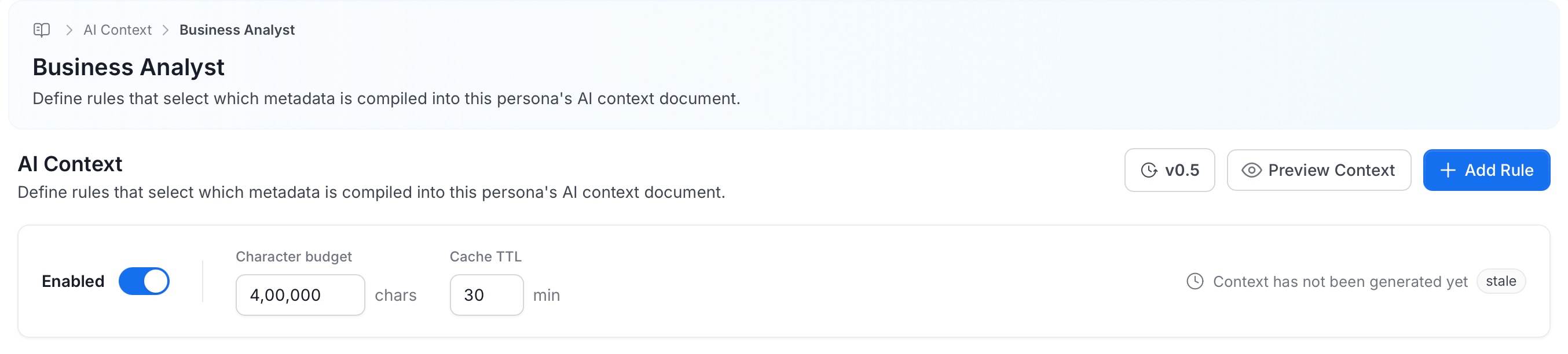
Freshness
Next to the settings, a status shows when Collate last compiled the context for the persona.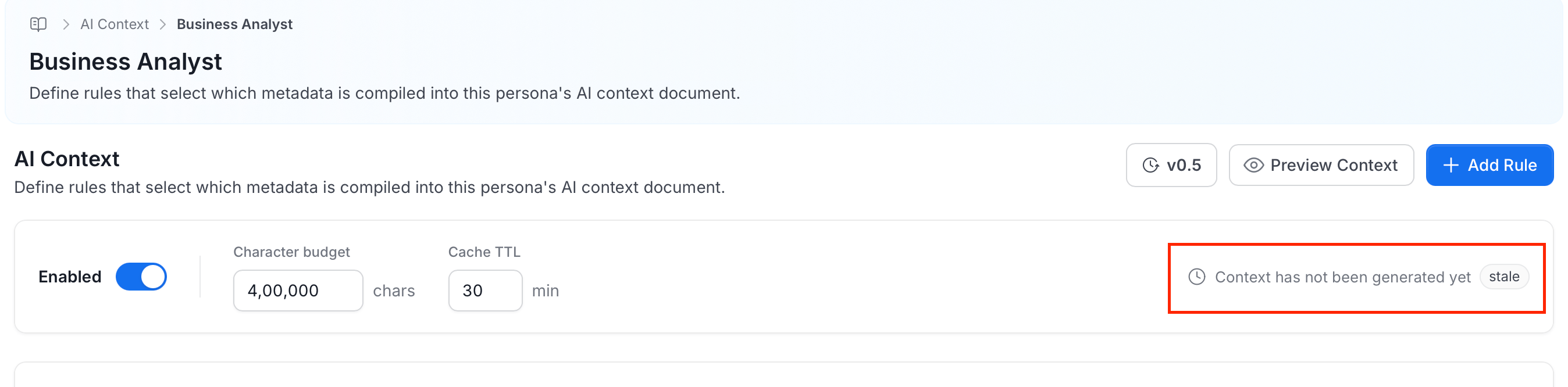
- Fresh: The compiled context is current. The badge also shows when it was generated.
- Stale: The compiled context is out of date. If it was never generated, the state is Not generated instead.
- Not generated: The persona has rules, but Collate hasn’t compiled the context yet.
- Generating: Collate is compiling the context.
- Failed: Collate couldn’t compile the context.
- Not configured: The persona has no rules yet.
Add a Prompt
Optional: Use the Prompt box to tell Collate AI who the users of this persona are and what they are responsible for. For example: You are assisting business users at Acme. They understand revenue and churn metrics and are responsible for quarterly planning.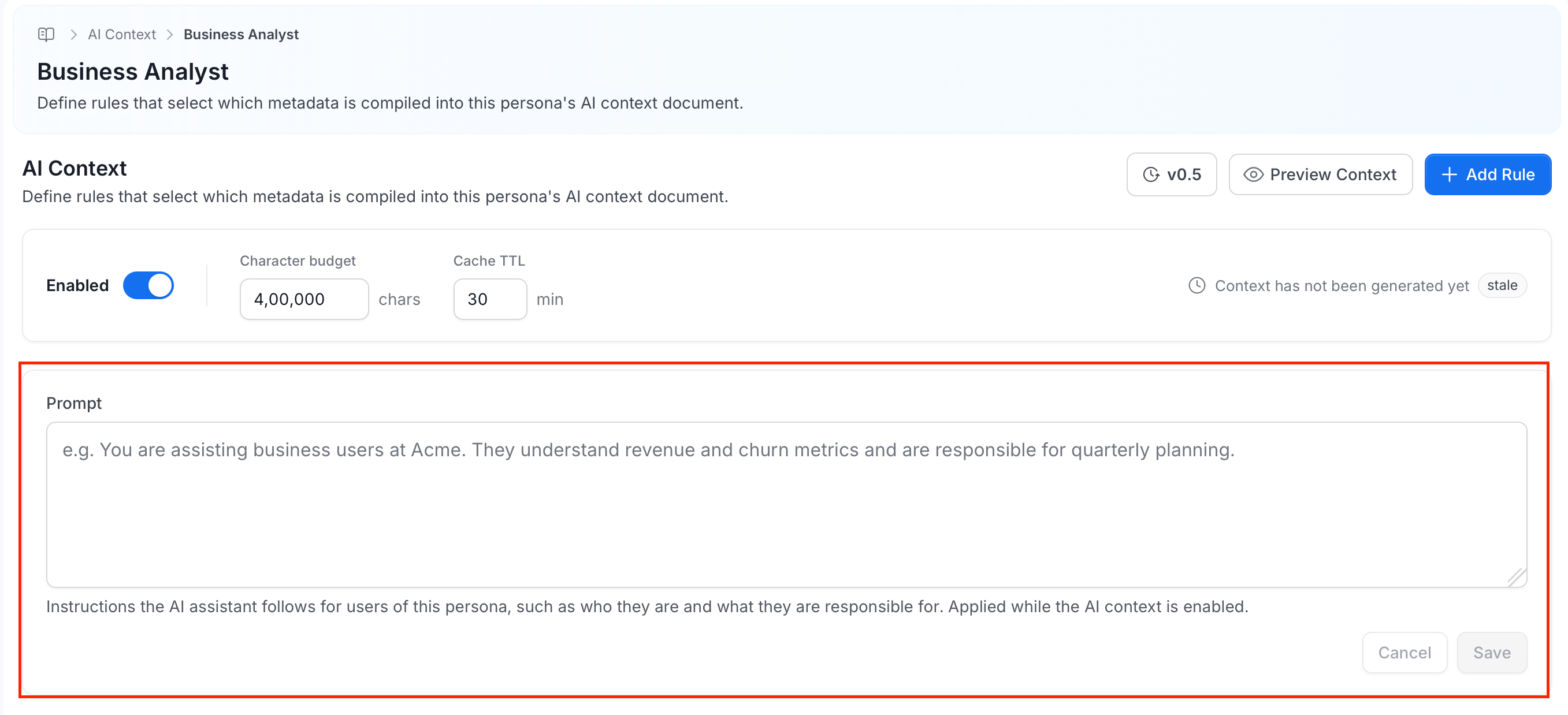
- Enter the instructions in Prompt. The prompt can be up to 8,000 characters.
- Click Save. Click Cancel to discard your changes.
Add a Rule
Each rule defines a set of entities whose metadata is compiled into the context document. Add multiple rules to build up the full context for a persona — one rule for core tables, another for glossary terms, another for policy articles.- Click + Add Rule.
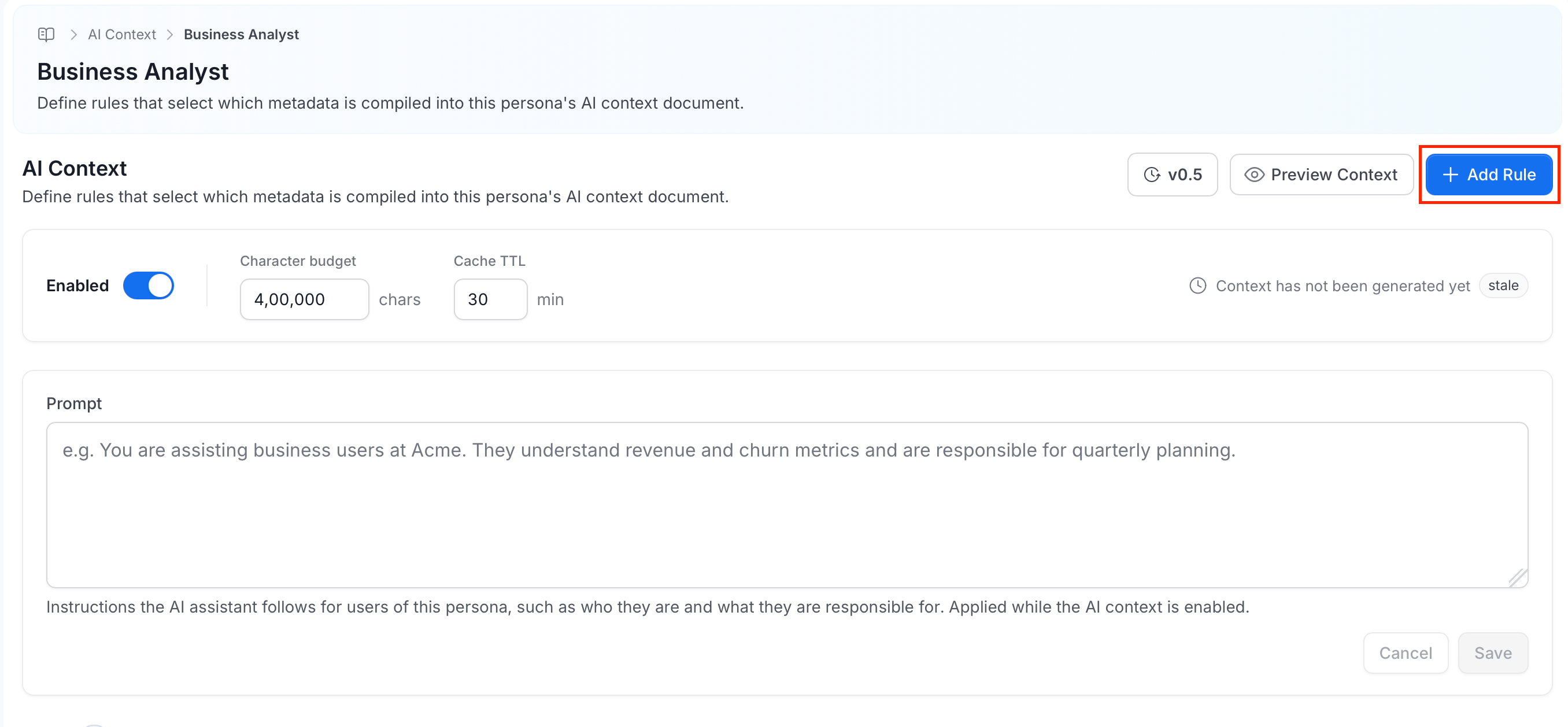
- Configure the rule fields. See Configuration Fields.
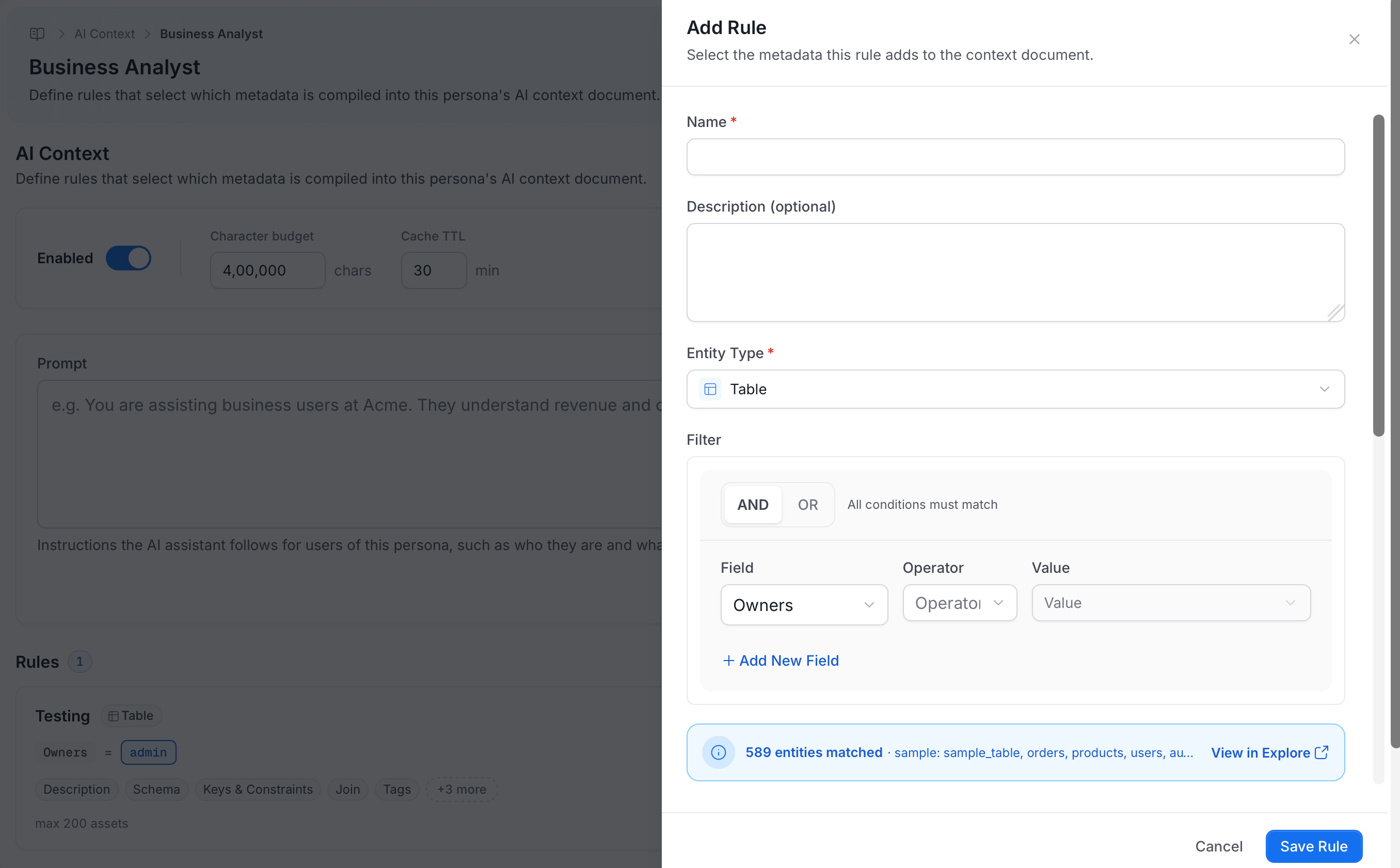
- Click Save Rule.
Configuration Fields
Name and Description
Give the rule a clear name that describes what it selects — for example, Core finance tables or Compliance policy articles. The description is optional but useful when managing many rules.Entity Type
Choose which type of entity this rule selects. Options include Table, Glossary Term, Article, and Metric, among others. Each rule targets one entity type. Create separate rules to preload different types into the same context.Filter
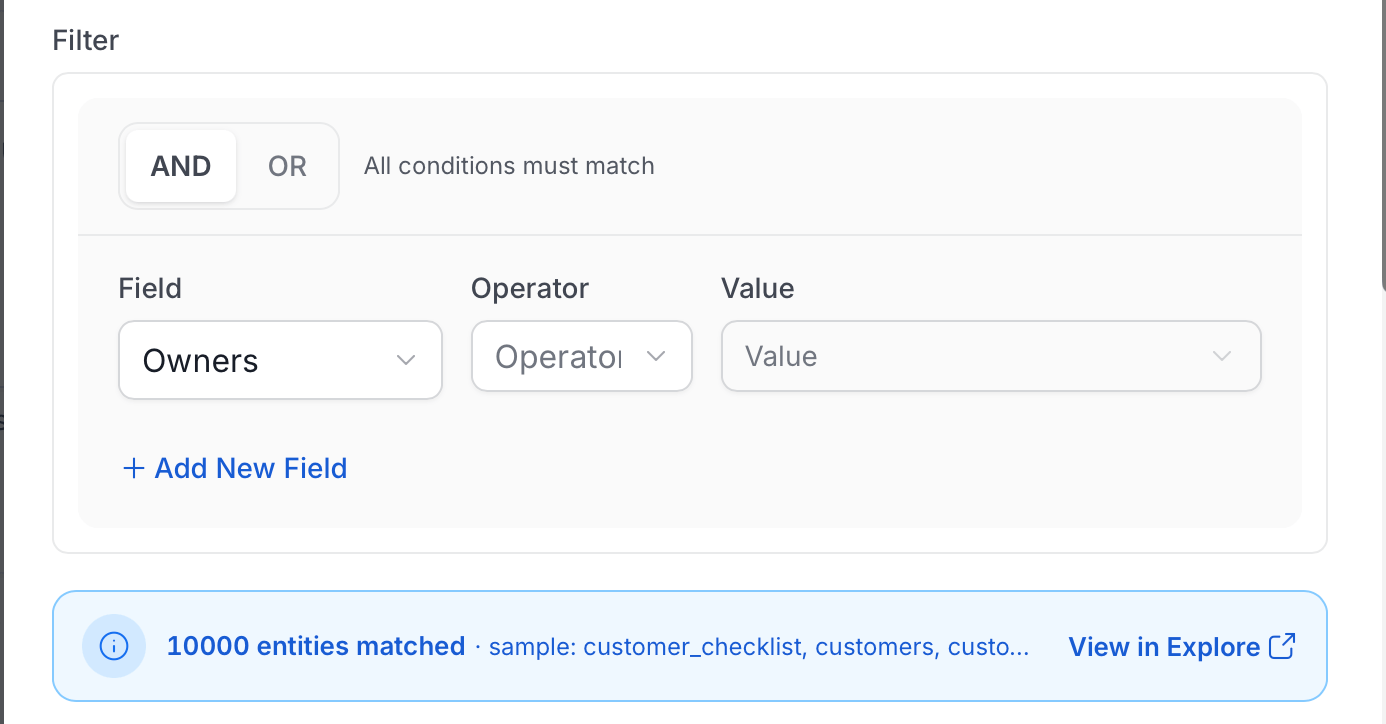
Add conditions to narrow which entities this rule includes. Filter by attributes such as:- Owners — include assets owned by a specific team or user
- Domain — scope to a specific business domain
- Tier — select only Tier 1 or Tier 2 assets
- Tags — match assets by classification or custom tags
- Certification — include only certified or gold assets
Always in Context
When enabled, this rule’s content is added to every Collate AI request for this persona — regardless of what the user is asking about. This is the most effective setting for knowledge articles: enable Always in context on a rule that selects articles covering domain conventions, business definitions, or team standards. The AI will always have that material available, regardless of the specific query. Use this to inject persona-level instructions or terminology that should shape every answer. To give the persona standing instructions about who its users are, use the prompt.Filtered in Search
When enabled, Collate doesn’t preload the entities this rule selects. Instead, it applies the rule as a default filter on every Collate AI search for this persona, so the persona sees only the assets the rule selects. Because nothing is preloaded, the rule doesn’t use the character budget, which keeps the budget from growing with the size of your catalog. Rules that select Glossary Terms, Articles, or Metrics are always preloaded and rendered with their full content. Filtered in search isn’t available for these rules.Fully Rendered
When enabled, each matched entity’s entire documentation is compiled into the context. When off, only the sections selected under Context sections are included. Enable Fully rendered only when the persona genuinely needs complete entity documentation. It uses significantly more of the character budget.Context Sections
When Fully rendered is off, choose which parts of each entity’s documentation are compiled. All lightweight sections are on by default.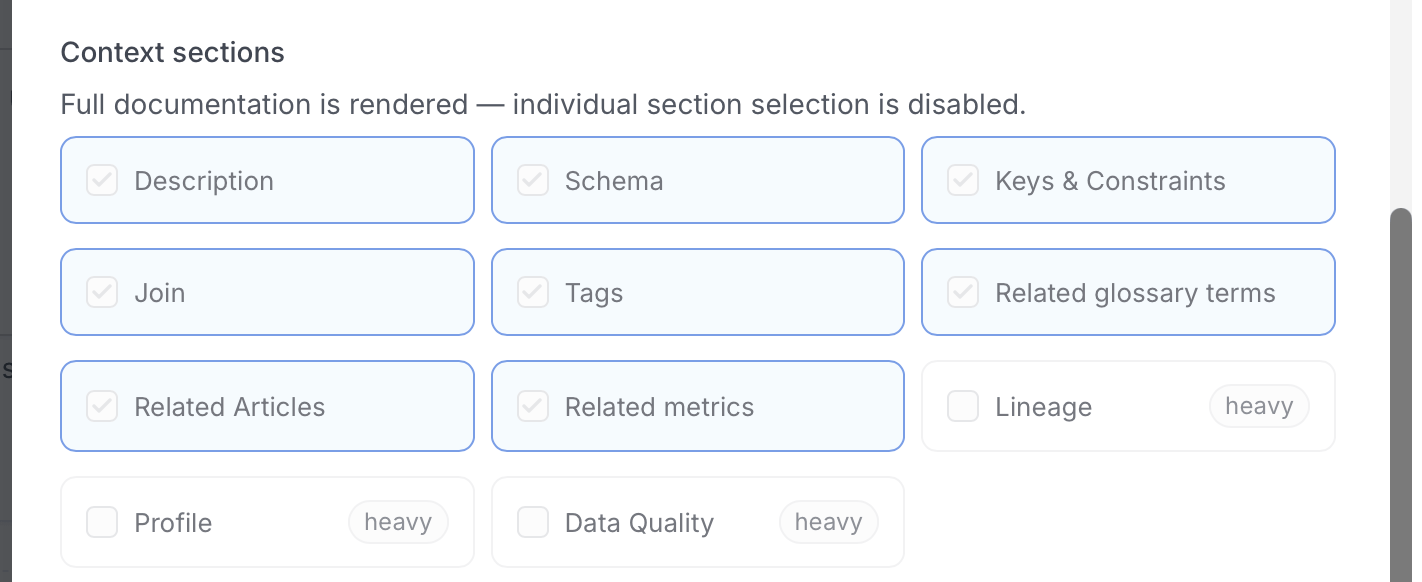
Enable heavy sections only when the persona specifically needs that depth. They consume a significant portion of the character budget and can crowd out other rules.
Max Assets
The maximum number of matched entities compiled from this rule. Default: 200. When more entities match than the cap allows, Collate compiles the highest-priority ones first — ranked by tier, certification, and usage. Lower this value to leave more budget for other rules.Preview the Compiled Context
After adding rules, click Preview Context to see the full document exactly as Collate AI will receive it. Use the preview to confirm that the right tables, terms, articles, and metrics are included and that the character budget is being used efficiently — before enabling the context for real users.Example Configurations
Business analyst persona- Rule 1: Tables — filter by Tier 1 and certification = Gold — only the most trusted, business-critical assets
- Rule 2: Glossary terms — filter by the analyst’s domain — so Collate AI uses agreed business definitions
- Rule 3: Articles — filter by tag
analyst-conventions, Always in context — domain conventions and preferred answer formats are always available
- Rule 1: Tables — no filter, high max assets — broad coverage across all services
- Rule 2: Articles — filter by tag
pipeline-runbooks, Always in context — operational runbooks always in the AI’s view
- Rule 1: Tables — filter by PII tag — surfaces sensitive data assets
- Rule 2: Glossary terms — filter by regulatory classification — correct legal definitions always available
- Rule 3: Articles — filter by tag
compliance-policy, Always in context — policy documents injected into every interaction