
Azure AD SSO Authentication – Confidential Client Configuration
Overview
Azure Active Directory (Azure AD) Single Sign-On (SSO) allows users to log in securely using their Microsoft 365 / Entra ID accounts via OAuth 2.0 and OpenID Connect (OIDC). This guide covers the Confidential Client configuration, intended for web applications and backend services that can securely store secrets. Collate supports Single Sign-On (SSO) integration with various identity providers, enabling secure, centralized user authentication.-
Navigate to Settings > SSO.
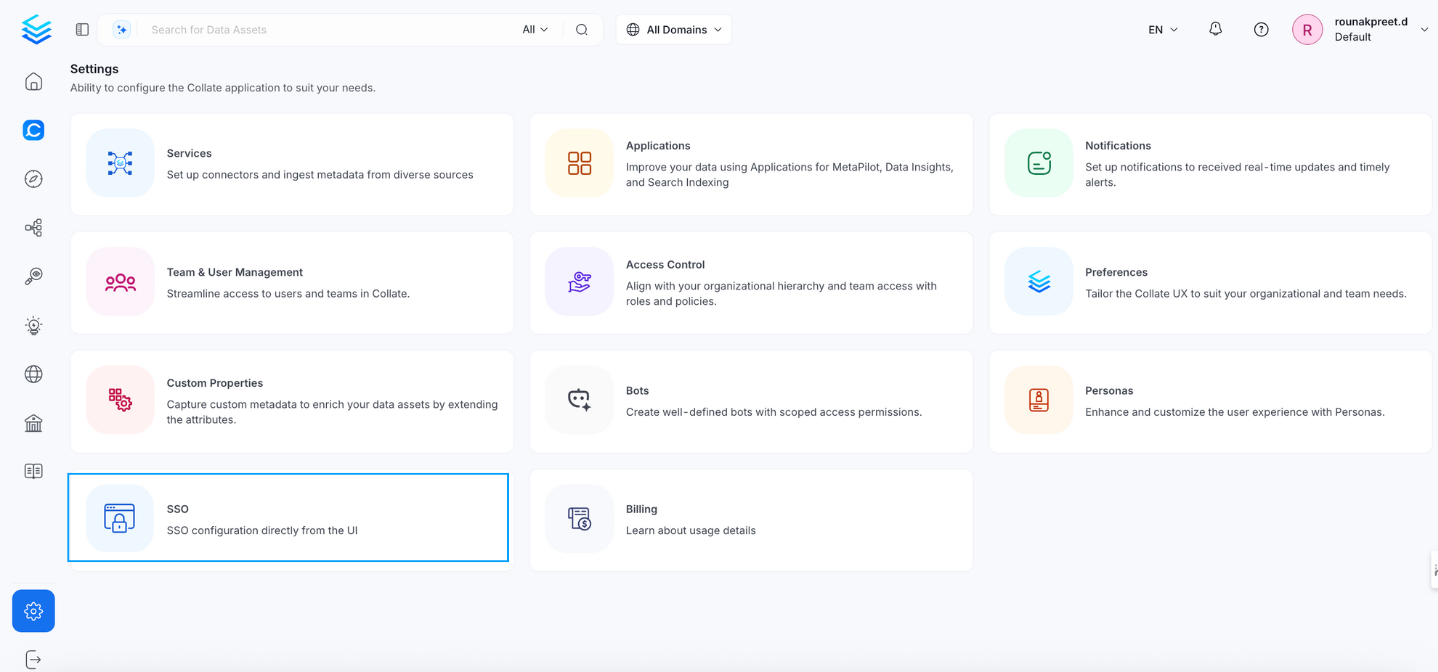
-
Select the service provider.
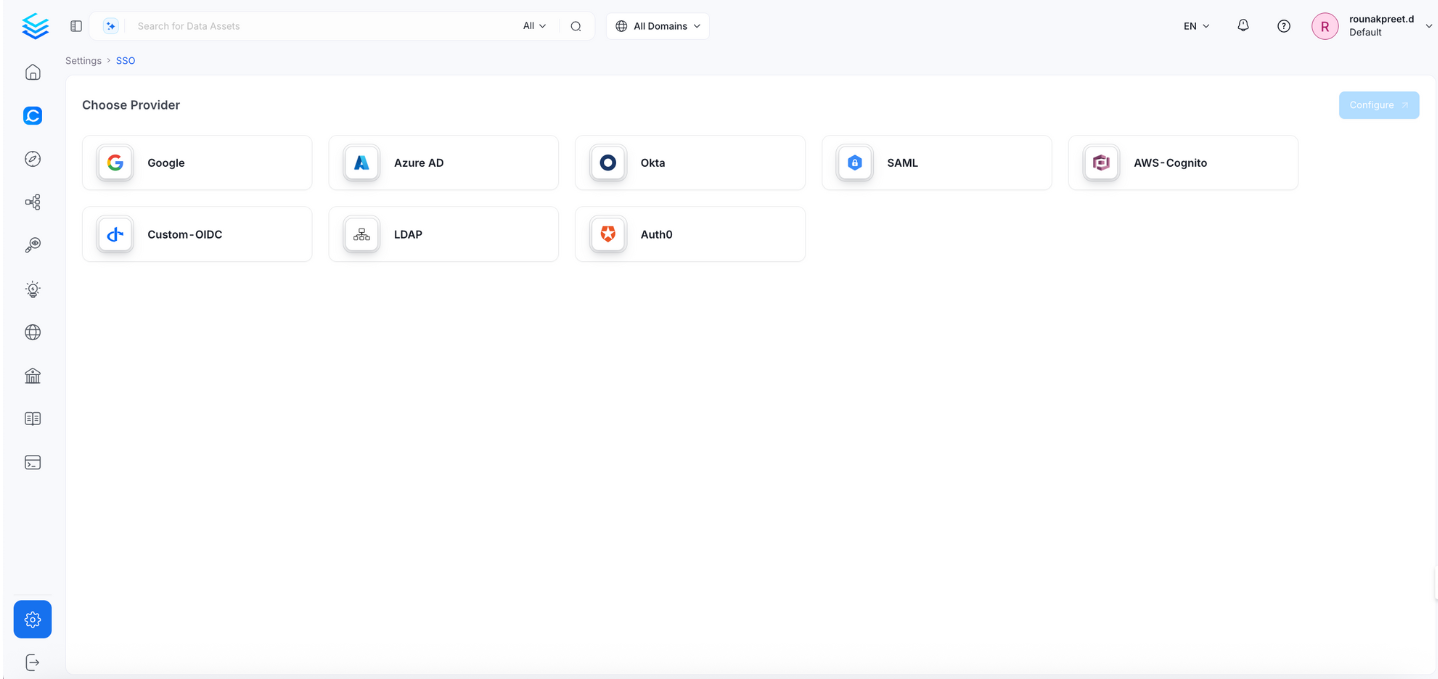
-
Click Configure to set up Single Sign-On (SSO). See Confidential Configuration Fields.
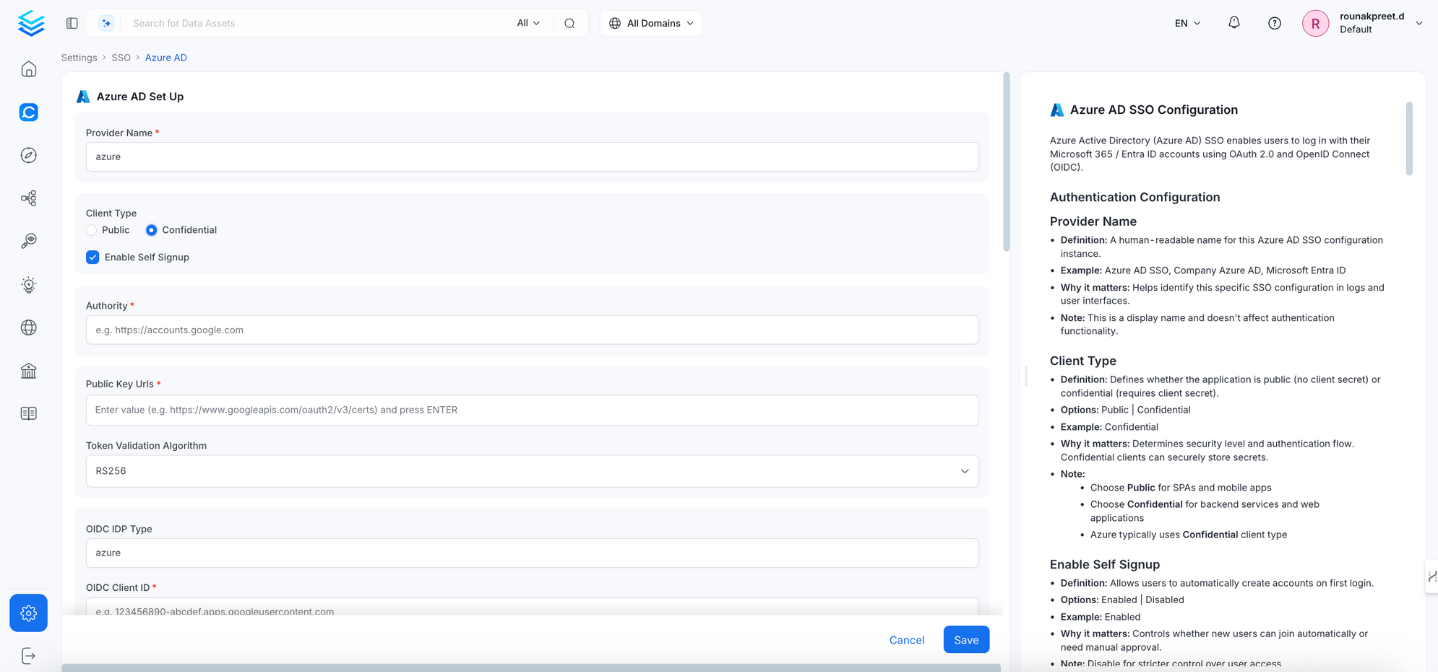
- Click Save to finish the SSO configuration.
Confidential Configuration Fields
This section lists all fields in the order they appear in the Collate SSO configuration form.Authentication Configuration
Configure the identity provider connection and basic authentication behavior.Provider Name
- Definition: A human-readable name for this Azure AD SSO configuration.
- Example:
Azure AD SSO,Company Azure AD,Microsoft Entra ID - Why it matters: Helps identify this SSO configuration in logs and user interfaces.
Client Type
- Definition: Defines whether the application is public (no client secret) or confidential (requires a client secret).
- Options:
Public|Confidential - Example:
Confidential - Why it matters: Determines the security level and OAuth flow.
- Note:
- Use
Confidentialfor backend services and web applications. - Use
Publicfor SPAs and mobile apps. - Azure AD typically uses
Confidentialclient type.
- Use
Enable Self Signup
- Definition: Allows users to automatically create Collate accounts on their first SSO login.
- Options: Enabled | Disabled
- Example: Enabled
- Why it matters: Controls whether new users join automatically or need manual provisioning.
- Note: Disable for stricter control over user access.
Authority
- Definition: Azure AD endpoint that issues tokens for your tenant.
- Example:
https://login.microsoftonline.com/your-tenant-id - Why it matters: Tells Collate which Azure AD tenant to authenticate against.
- Note:
- Replace
your-tenant-idwith your actual Azure AD tenant ID. - Use
commonfor multi-tenant applications.
- Replace
OIDC Configuration
Configure the OIDC client credentials and token handling; these fields appear when Client Type is set to Confidential.OIDC Client ID
- Definition: The Application (client) ID for OIDC authentication with Azure AD.
- Example:
12345678-1234-1234-1234-123456789012 - Why it matters: Identifies your application to Azure AD in OIDC flows.
- Note: Found in Azure AD → App registrations → Your app → Overview → Application (client) ID.
OIDC Client Secret
- Definition: Secret key for confidential client authentication.
- Example:
abc123def456ghi789jkl012mno345pqr678st - Why it matters: Required to securely authenticate with Azure AD.
- Note:
- Generate in Azure AD → App registrations → Certificates & secrets.
- Store securely and rotate periodically.
OIDC Request Scopes
- Definition: Permissions requested from Azure AD during authentication.
- Default:
openid email profile - Example:
openid email profile offline_access - Why it matters: Defines what user information Collate can access and whether Azure AD returns a refresh token.
- Note: For Azure authorization code flow with MCP OAuth, include
offline_accessso Azure AD can issue refresh tokens. Microsoft Entra ID returns refresh tokens only when the request includes theoffline_accessscope.
OIDC Discovery URI
- Definition: Azure AD’s OpenID Connect metadata endpoint.
- Example:
https://login.microsoftonline.com/your-tenant-id/v2.0/.well-known/openid-configuration - Why it matters: Allows Collate to automatically discover Azure AD’s OIDC endpoints.
- Note: Replace
your-tenant-idwith your actual Azure AD tenant ID.
OIDC Custom Parameters
- Definition: Additional parameters to include in OIDC authentication requests.
- Example:
{"prompt": "select_account", "domain_hint": "company.com"} - Why it matters: Allows customization of Azure AD authentication behavior.
- Note: Common parameters include
prompt,domain_hint,login_hint.
OIDC Tenant
- Definition: Azure AD tenant identifier.
- Example:
your-tenant-idorcompany.onmicrosoft.com - Why it matters: Specifies which Azure AD tenant to authenticate against.
- Note: Use
commonfor multi-tenant applications.
OIDC Callback URL
- Definition: URL where Azure AD redirects after authentication.
- Example:
https://yourapp.company.com/callback - Why it matters: Must be registered in your Azure AD app configuration.
- Note:
- This field is read-only — it is auto-populated as
{your-domain}/callback. - Copy this URL and add it to Azure AD → App registrations → Authentication → Redirect URIs.
- This field is read-only — it is auto-populated as
OIDC Prompt
- Definition: Controls Azure AD’s authentication prompt behavior.
- Options:
none,login,consent,select_account - Example:
select_account - Why it matters: Defines how the login experience behaves for users.
- Note:
login: Always prompt for credentials.consent: Prompt for permissions.select_account: Show account picker.
Advanced Configuration
The following fields are grouped under Advanced Config in the UI (collapsed by default):OIDC Use Nonce
- Definition: Prevents replay attacks in OIDC flows.
- Default:
false - Why it matters: Enhances security by ensuring each authentication request is unique.
OIDC Disable PKCE
- Definition: Disables Proof Key for Code Exchange.
- Default:
false - Why it matters: PKCE adds security to the authorization code flow.
- Note: Should remain
false(enabled) in most cases.
OIDC Max Clock Skew
- Definition: Maximum allowed time difference in seconds between systems when validating tokens.
- Example:
0 - Why it matters: Prevents token validation failures due to minor clock differences between servers.
OIDC Token Validity
- Definition: Duration in seconds that tokens remain valid.
- Default:
3600 - Example:
3600 - Why it matters: Balances token lifetime against security requirements.
OIDC Max Age
- Definition: Maximum authentication age in seconds before re-authentication is required.
- Example:
3600 - Why it matters: Controls how frequently users must re-authenticate.
OIDC Session Expiry
- Definition: How long user sessions remain valid in seconds.
- Default:
604800(7 days) - Example:
604800 - Why it matters: Controls session timeout for confidential clients.
JWT Claims
Map identity token claims to Collate user identities and team assignments.JWT Principal Claims
- Definition: JWT fields used to identify users in Collate. The first claim that returns a value is used.
- Default:
["preferred_username", "email", "upn", "sub"] - Example:
["preferred_username", "email", "sub"] - Why it matters: Determines how users are matched to their Collate accounts.
- Note:
- At least one claim in this list must correspond to the user’s email address. Collate uses this to identify and match authenticated users to their Collate accounts.
- Common Azure AD claims:
email,preferred_username,upn,sub. - Order matters — the first matching claim is used.
JWT Principal Claims Mapping
Definition: Maps JSON Web Token (JWT) claims to Collate user profile fields. Supported keys: Onlyemail and username are valid mapping targets in jwtPrincipalClaimsMapping.
Example:
collate_field:jwt_claim (for example, "email:email").
Note: The display name is derived automatically from standard OIDC/JWT claims — you don’t need to configure it using
jwtPrincipalClaimsMapping. If you need richer name handling, make sure Azure’s app registration includes given_name and family_name as optional claims in the ID token.JWT Team Claim Mapping
- Definition: Azure AD claim containing team or department information for automatic team assignment in Collate.
- Example:
department,jobTitle,groups - Why it matters: Automatically assigns users to existing Collate teams based on their Azure AD attributes at login.
- Note:
- Common Azure AD attributes:
department,jobTitle,companyName,officeLocation. - To use the
groupsclaim, configure group membership claims in Azure AD → App registrations → Token configuration. - The team must already exist in Collate for assignment to work.
- Only teams of type Group can be auto-assigned. Team names are case-sensitive.
- Common Azure AD attributes:
Authorizer Configuration
Control which users and domains are permitted to access Collate.Admin Principals
- Definition: Users granted admin access in Collate.
- Example:
["admin", "superuser"] - Why it matters: Grants full admin privileges in Collate.
- Note: Enter usernames only — not email addresses. Use the part of the email before
@(for example, foradmin@company.com, enteradmin). The value must match what Azure AD returns for the claim configured in JWT Principal Claims.
Principal Domain
- Definition: Default domain for user principals.
- Example:
company.com - Why it matters: Used to construct full user identifiers when only a username is provided.
Enforce Principal Domain
- Definition: Restricts login to users belonging to the configured Principal Domain.
- Default:
false - Example:
true - Why it matters: Adds an extra layer of security by limiting access to a specific domain.
Enable Secure Socket Connection
- Definition: Enables SSL/TLS for all SSO communication.
- Default:
false - Example:
true - Why it matters: Ensures encrypted communication between Collate and Azure AD.
- Note: Recommended in production environments.
Allowed Domains
- Definition: List of email domains permitted to authenticate with Collate.
- Example:
["company.com", "subsidiary.com"] - Why it matters: Provides fine-grained control over which email domains can log in via Azure AD.
- Note:
- Works in conjunction with Enforce Principal Domain.
- Useful for multi-tenant scenarios or when allowing specific external domains.
- Leave empty if you only use a single domain configured in Principal Domain.
Use Roles From Provider
- Definition: Use roles returned by Azure AD in the token to assign Collate roles.
- Default:
false - Why it matters: Enables role-based access control driven by your Azure AD role assignments.
- Note: Roles must be included in the Azure AD token and must match existing Collate role names.
Default OAuth Role
- Definition: Default role assigned to new users when they first sign in via SSO self-signup.
- Example:
DataConsumer - Why it matters: Controls the starting permission level for new users who join through self-signup.
- Note: Leave empty to create users without any role. Requires Enable Self Signup to be active. The role must already exist in Collate.
Summary
Quick reference of all configuration fields and their example values.Troubleshooting
If users are automatically logged out and unable to log in again due to a bad authentication configuration, you can reset the security setup using the following command:Docker Security
Configure Auth0 SSO to access the UI and APIs.
Bare Metal Security
Configure Azure SSO to access the UI and APIs.
Kubernetes Security
Configure a custom OIDC SSO to access the UI and APIs.
Google SSO
Configure Google SSO to access the UI and APIs.
Okta SSO
Configure Okta SSO to access the UI and APIs.
Amazon Cognito SSO
Configure Amazon Cognito SSO to access the UI and APIs.
SAML
Configure SAML SSO to access the UI and APIs.
LDAP
Configure LDAP SSO to access the UI and APIs.