
Persona Configuration and Precedence
Persona Precedence Logic
To clarify how Personas take effect:- User-level Default Persona (highest priority)
- Organization-level Default Persona (fallback)
If a user has a Default Persona explicitly assigned at the user level, that Persona will take precedence. If no user-level Persona is defined, the system will apply the Organization-level Default Persona associated with the user’s role.
Effective Persona Resolution Flow
1. Setting a Persona at the Organizational Level
This section explains how to configure a Default Persona for the entire organization.Steps
- Navigate to Settings
- Select Persona
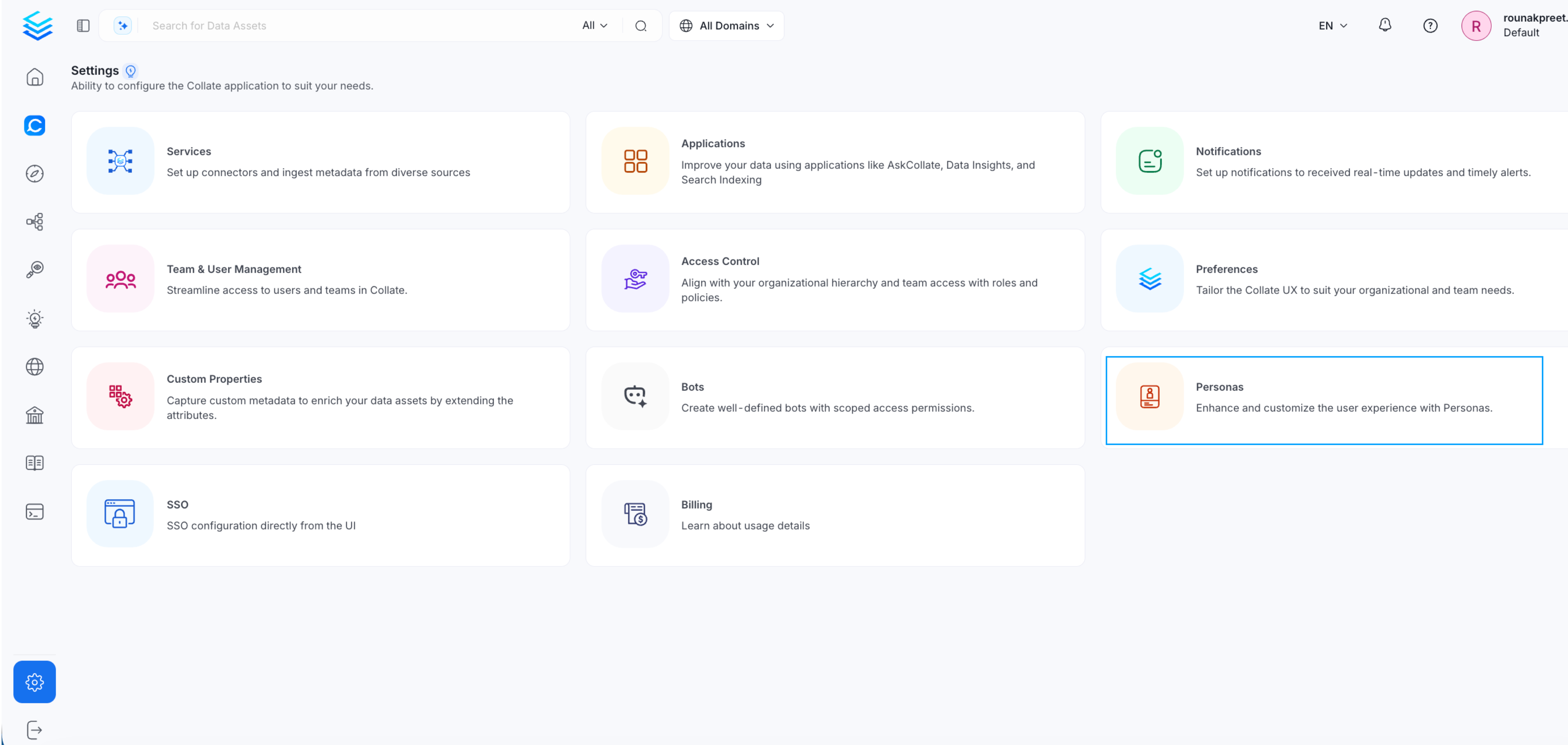
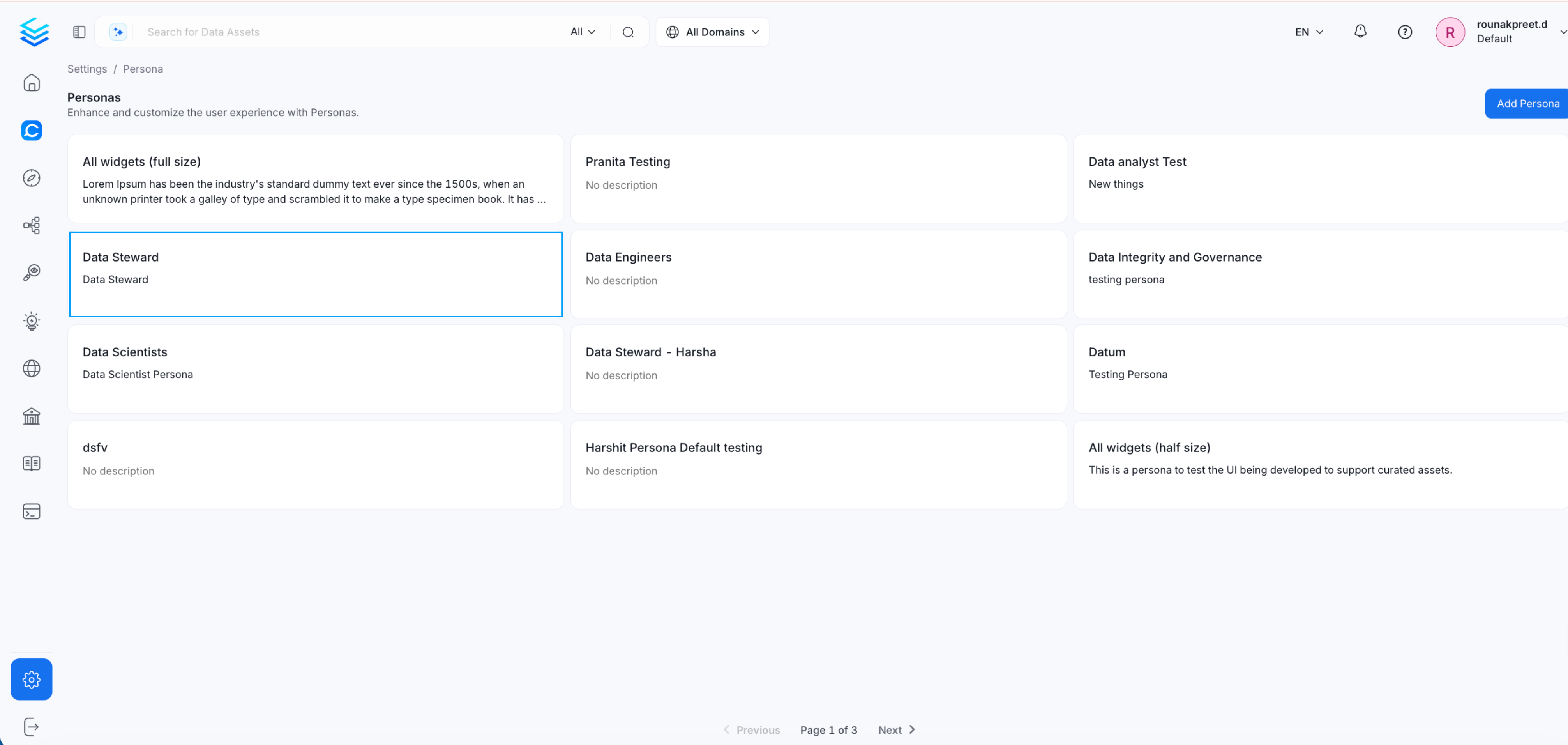
- From the list of available roles, select the role you want to configure
- Example: Data Steward
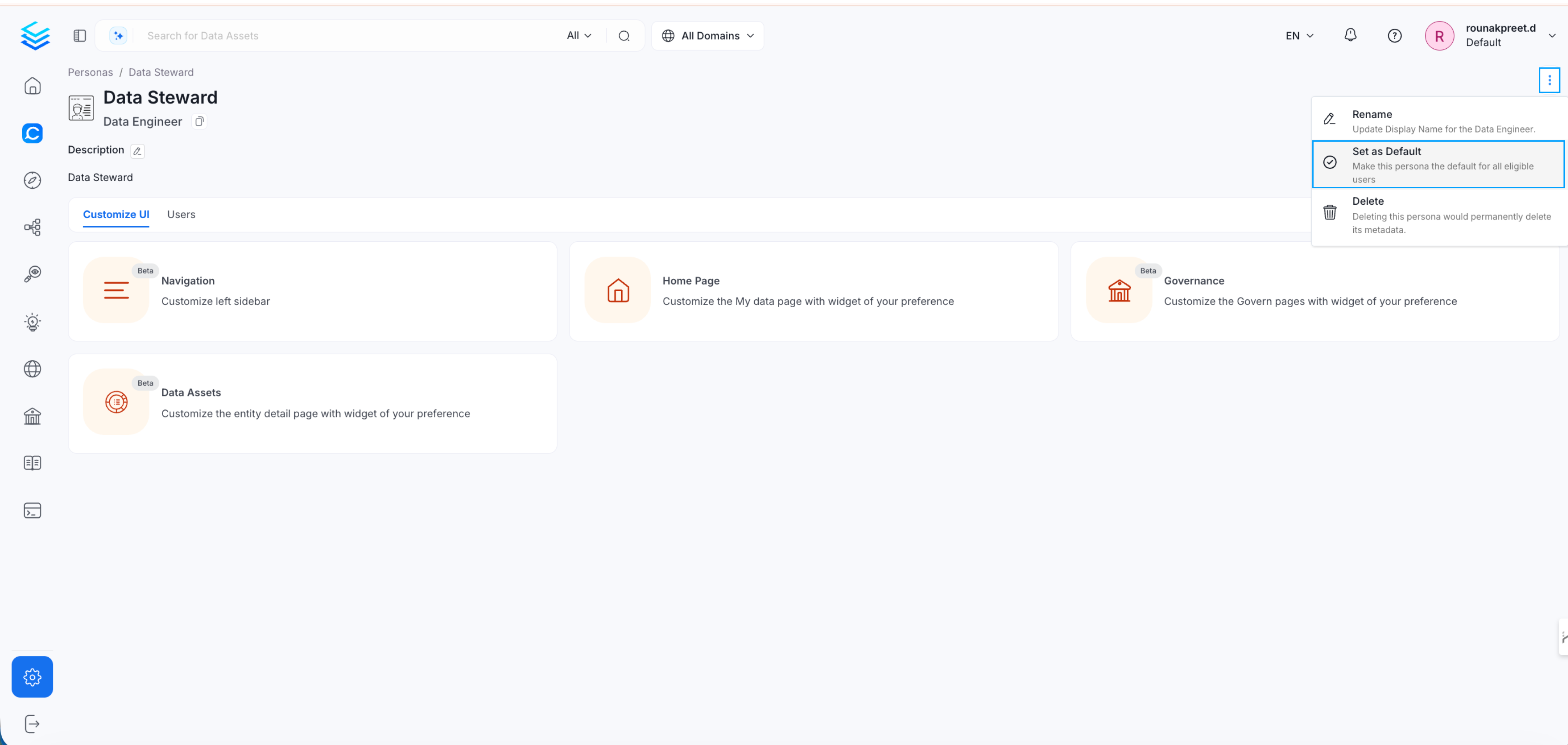
- Click the three dots (⋮) at the top-right corner of the selected role
- Select Set as Default
Example: Customizing the Navigation Menu
You can customize the left-side navigation menu using Personas.Steps
- Navigate to Settings
- Select Persona
- Open the Persona you want to edit
- Go to Navigation Settings
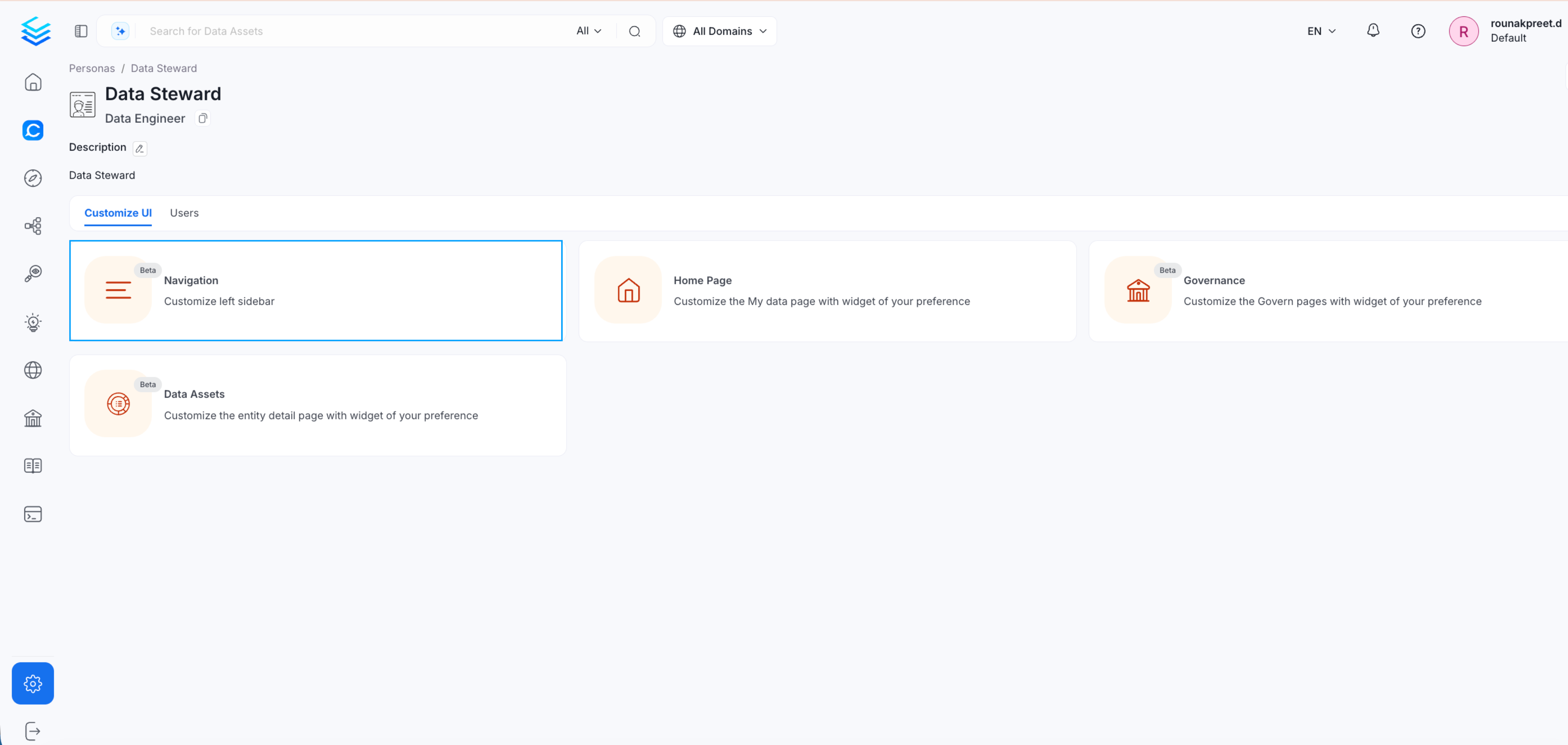
- Enable the options you want to display in the left sidebar
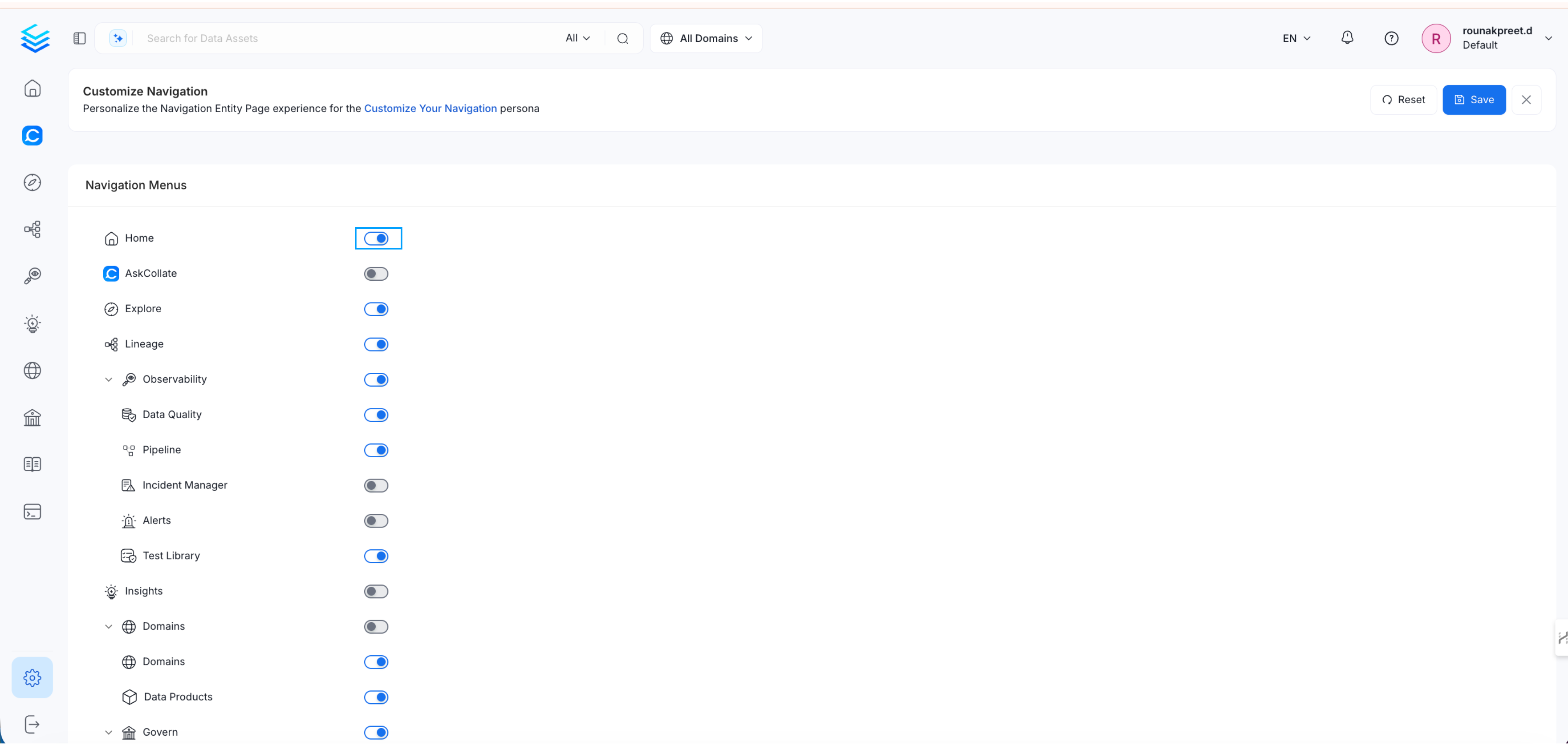
2. Defining a User Persona
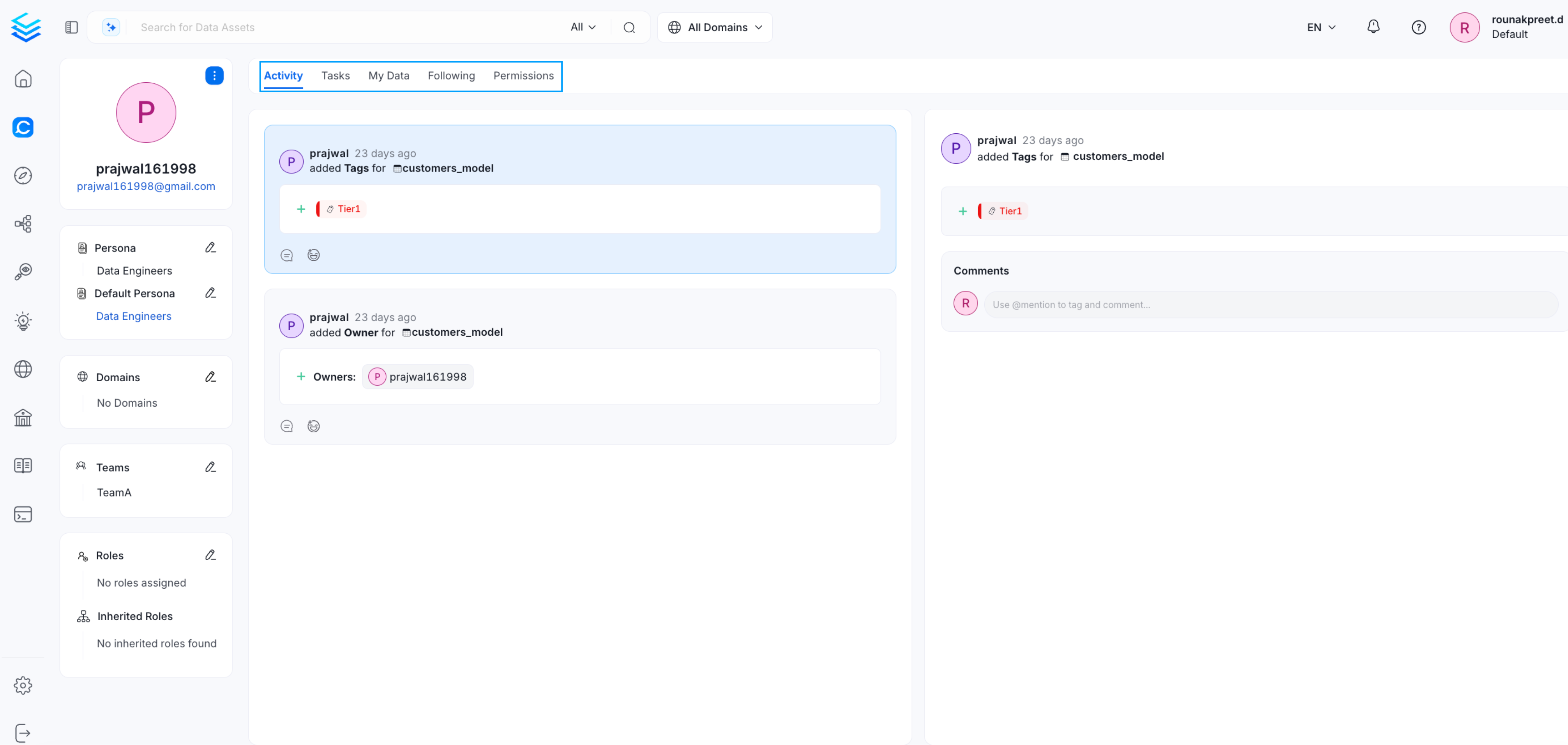
This section explains how to assign or override a Persona for an individual user.Steps
- Navigate to Settings
- Go to Team and User Management
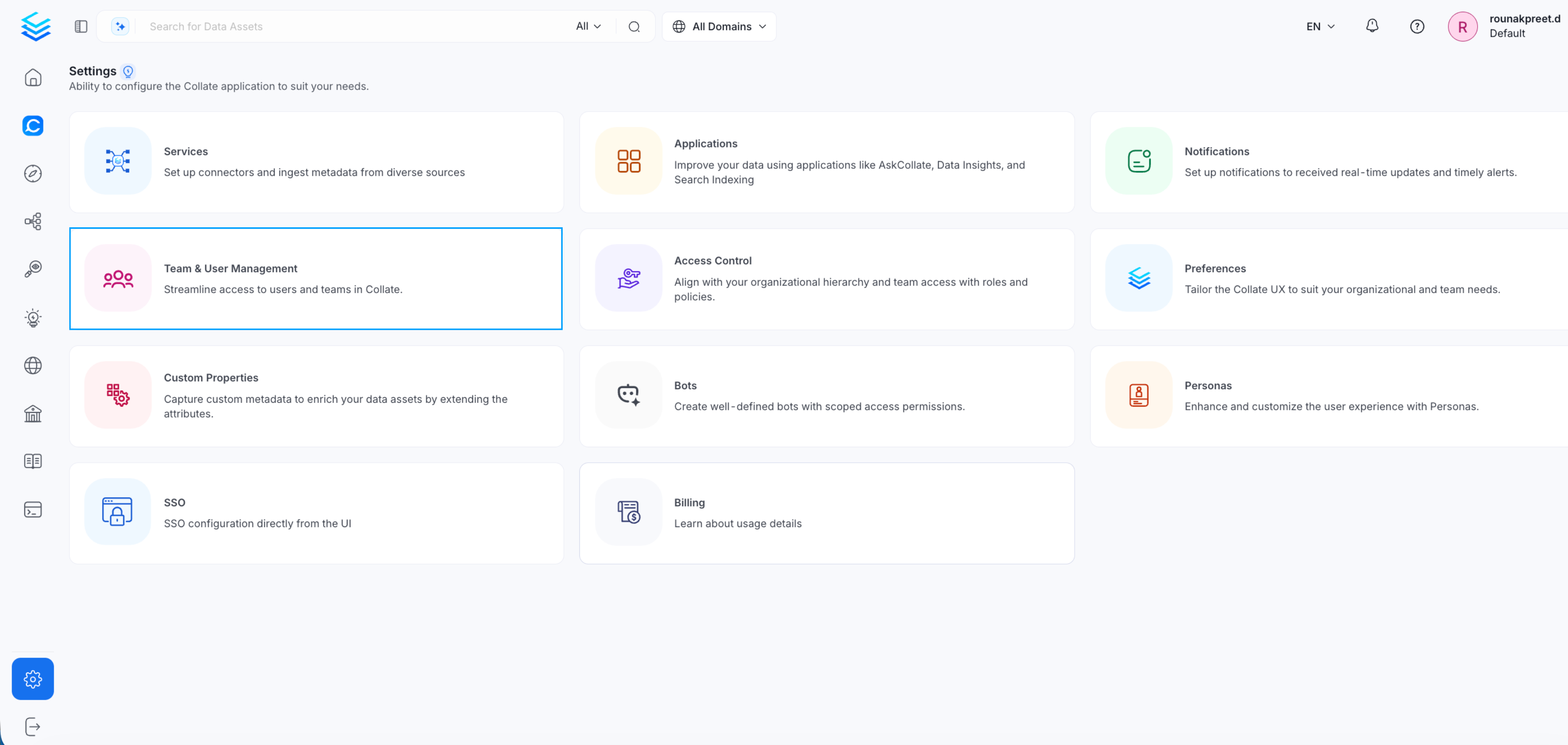
- Select Users
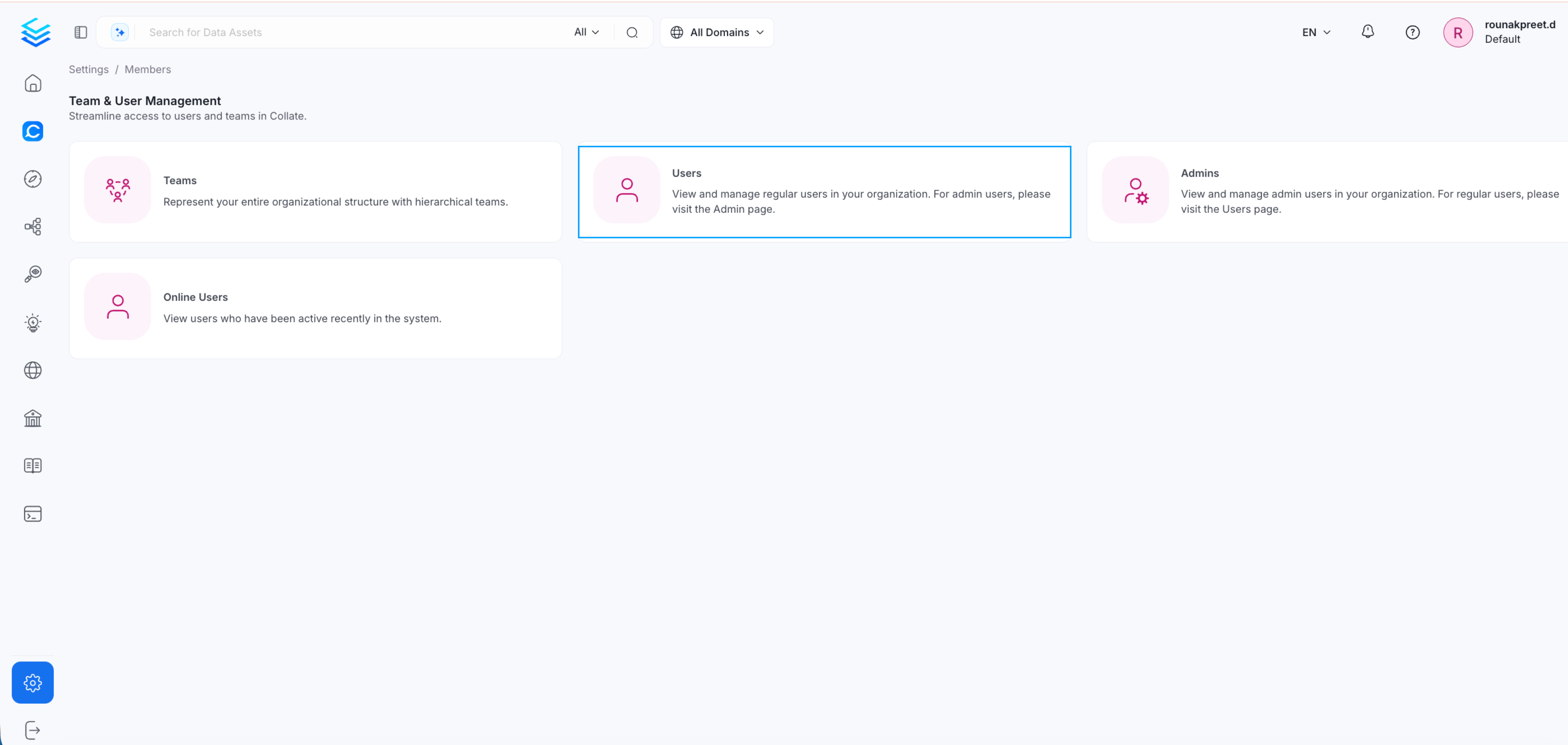
- Search for the user you want to update
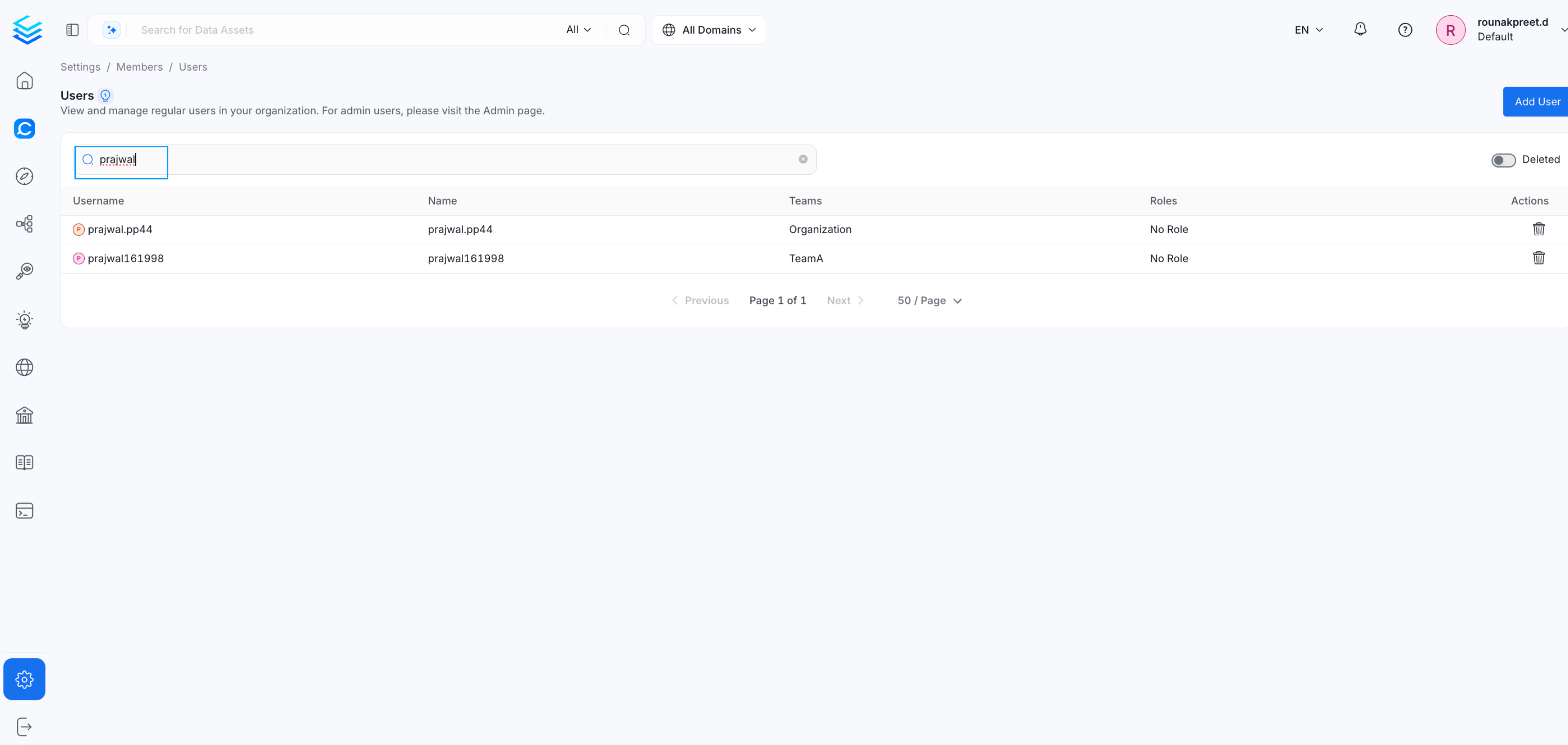
- Open the user profile
- Default Persona
- Organization
- Domain
- Roles
- Navigation visibility
- Feature access
- Permissions
- Overall user experience in Collate
Summary
A user-level Default Persona overrides the Organization-level Default Persona. If no user-level Persona is defined, the Organization-level Persona applies.