
Customizable Landing Page with Pluggable Panels
Collate’s customizable landing page allows admins to tailor the layout based on the user’s persona, providing a more relevant and enriched experience. The landing page is built using pluggable panels, which can be added, removed, or rearranged to meet the unique needs of different personas, such as data scientists, data engineers, or data stewards.Customize App Layout
Use the Customize UI tab on a persona to set the app mode, default landing page, and default views for every user assigned to that persona. To open these settings:- Navigate to Settings > Personas.
- Select a persona.
- Click the Customize UI tab.
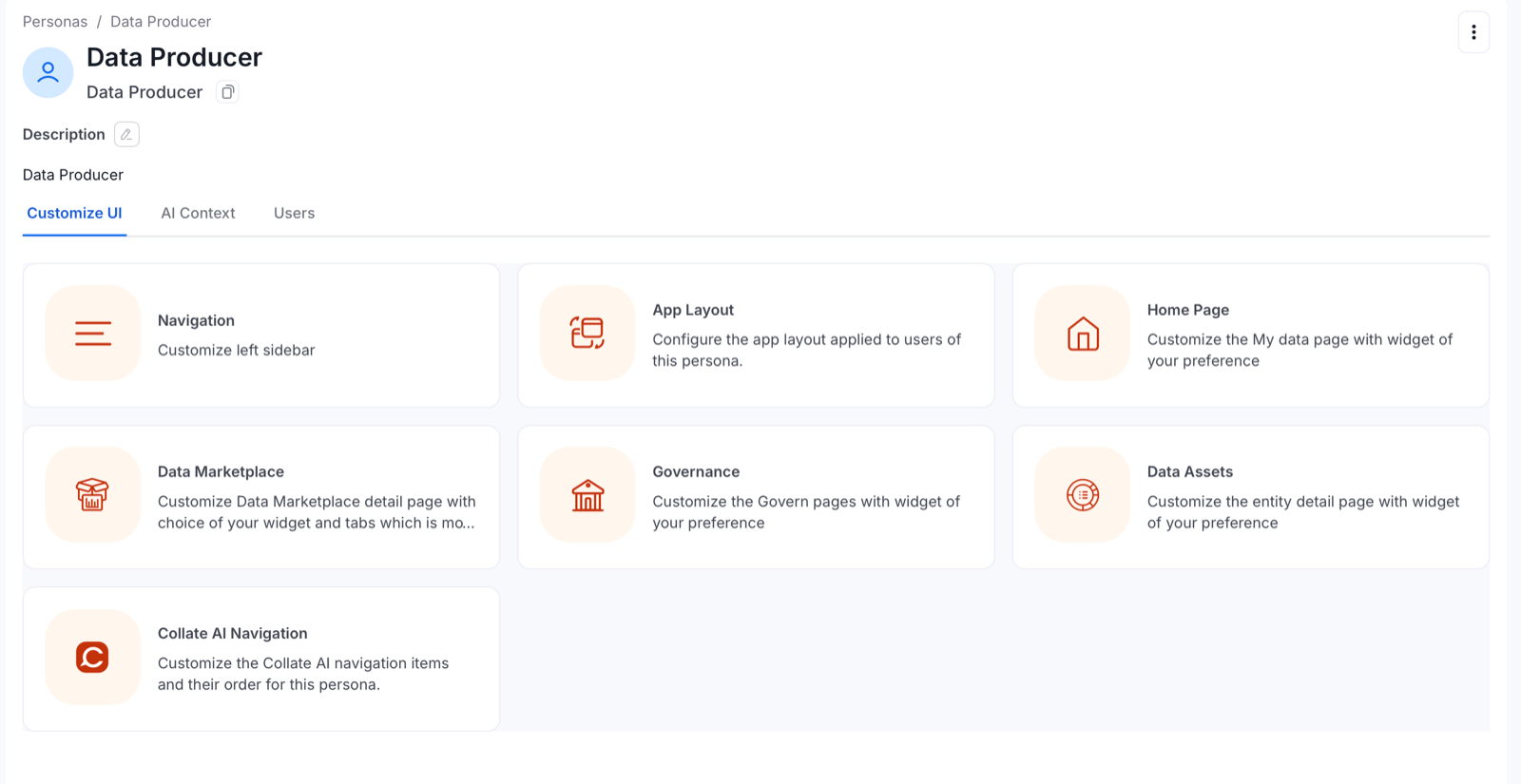
- Click the App Layout card.
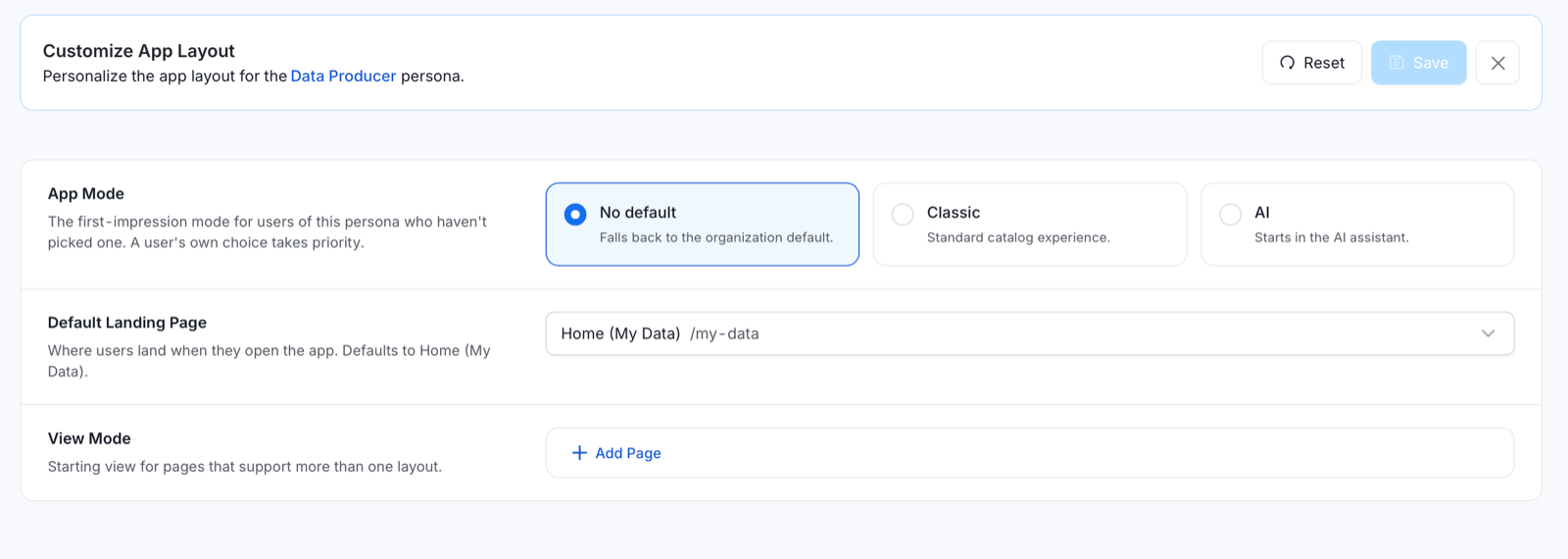
App Mode
Choose the default experience users of this persona see when they log in. A user’s own app mode choice takes priority over the persona setting.- No default: Falls back to the organization default.
- Classic: The standard catalog experience, with a My Data, Domain, and My Tasks home page. Use this when a team prefers the pre-2.0 experience or relies on Classic-only widgets.
- AI: Starts in the AI assistant, with the Collate 2.0 home page and AI-powered dashboard: Platform Health, Action Required, Recommended Improvements, Pending Approvals, and more. Recommended for most personas in Collate 2.0.
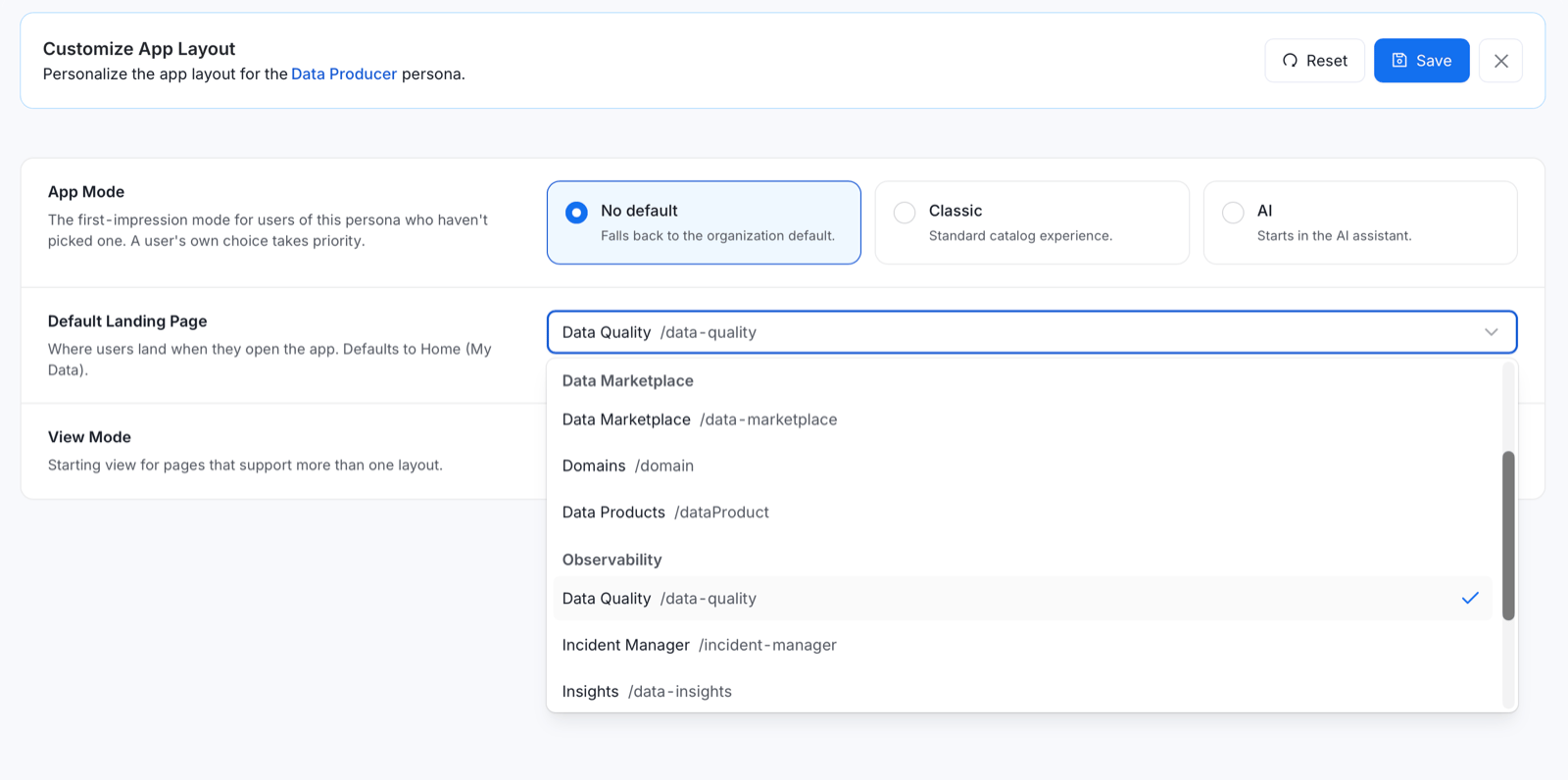
Default Landing Page
Use Default Landing Page to choose where users of this persona land when they open the app. The default is Home (My Data). Select one of the following pages from the dropdown:- General: Home (My Data), Explore, and Lineage.
- Data Marketplace: Data Marketplace, Domains, and Data Products.
- Observability: Data Quality, Incident Manager, and Insights.
- Govern: Glossary, Classification, and Metrics.
View Mode
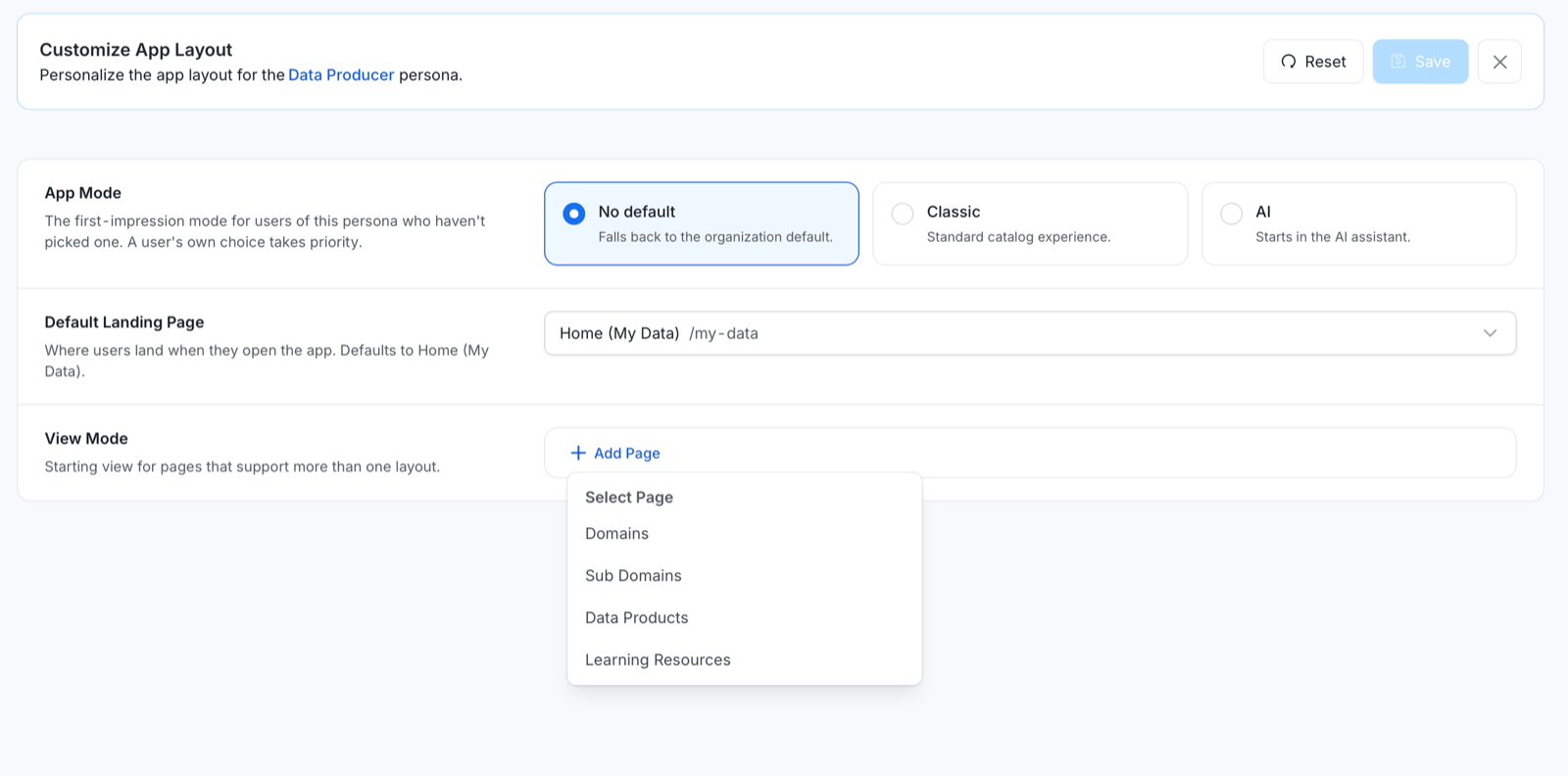
Use View Mode to set the starting view for pages that offer more than one layout. Pages without a setting open in Table view. To set a starting view, click Add Page, select a page, and choose its view:- Domains: Table, Grid, or Tree.
- Sub Domains: Table or Grid.
- Data Products: Table or Grid.
- Learning Resources: Table or Grid.
How to Customize a Landing Page:
- Set Up Personas: After defining personas, navigate to Settings > Persona.
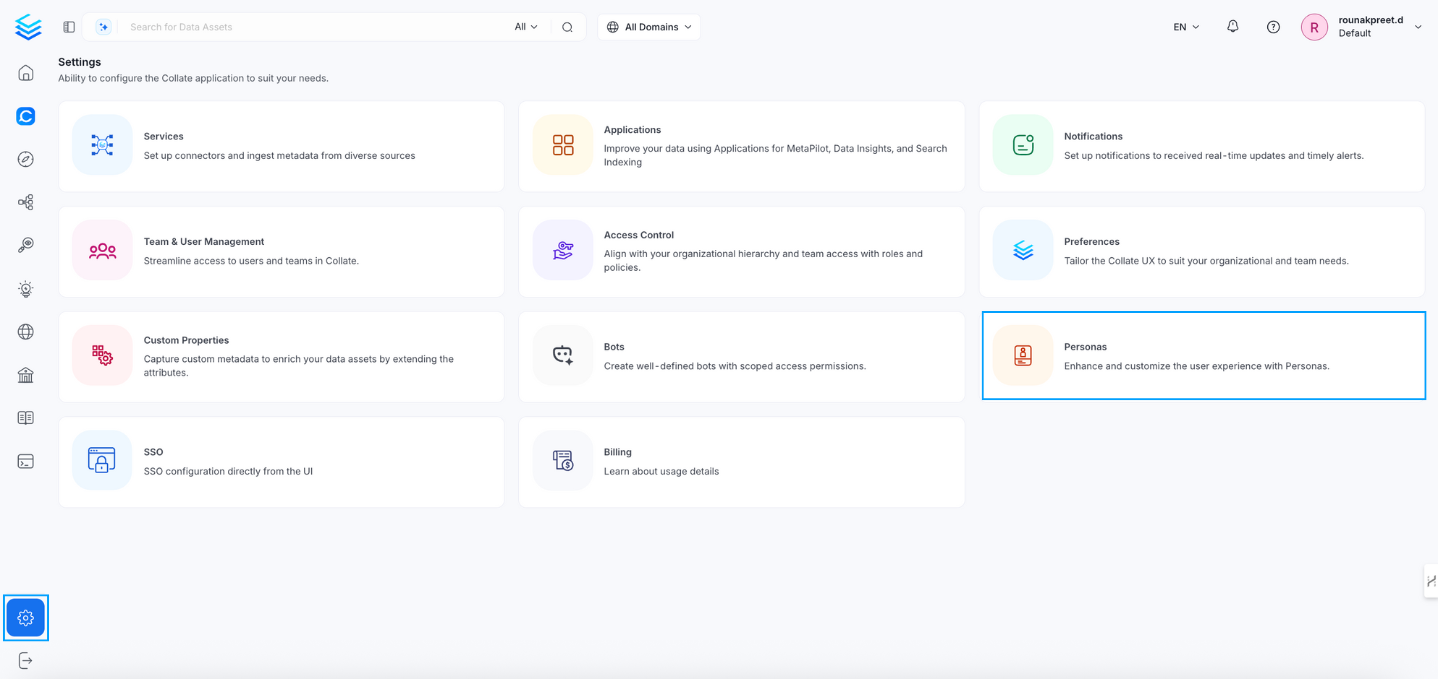
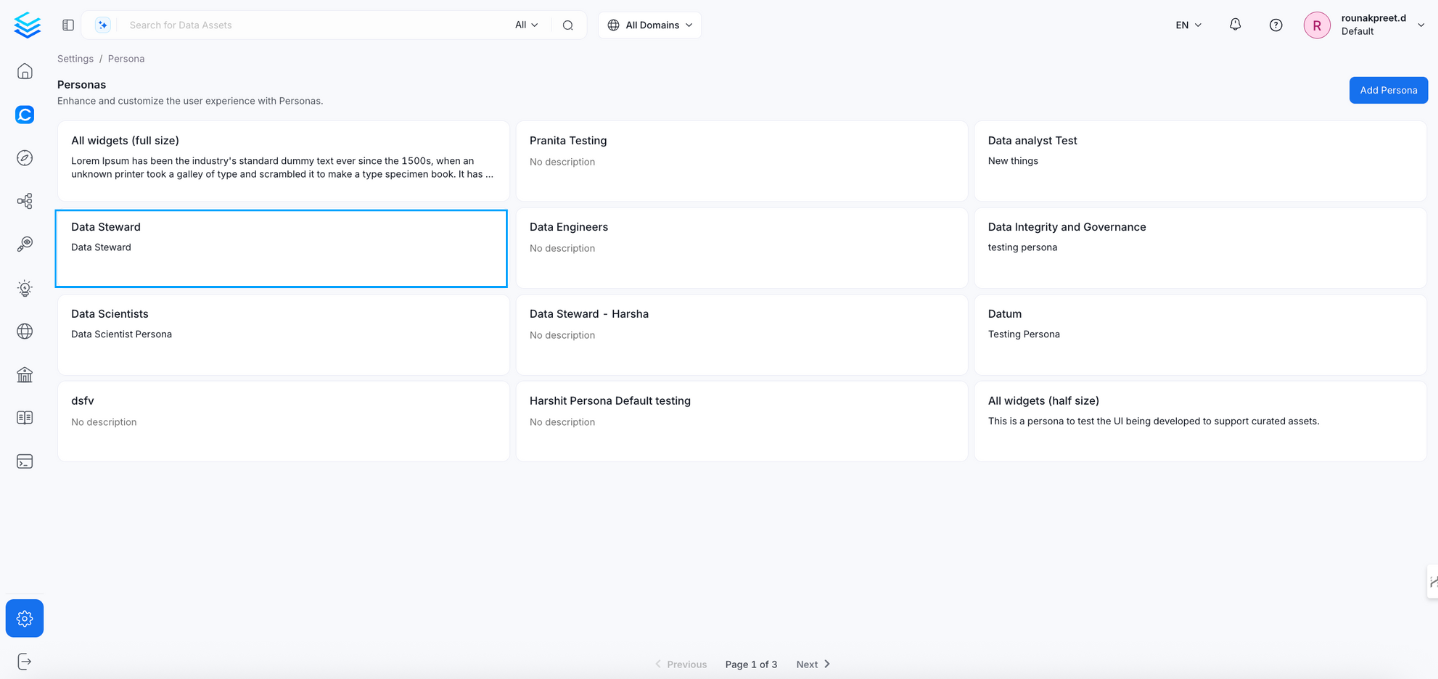
- Select a Persona: Customize a landing page for a specific persona (e.g., data steward) and then select homepage to customize it.
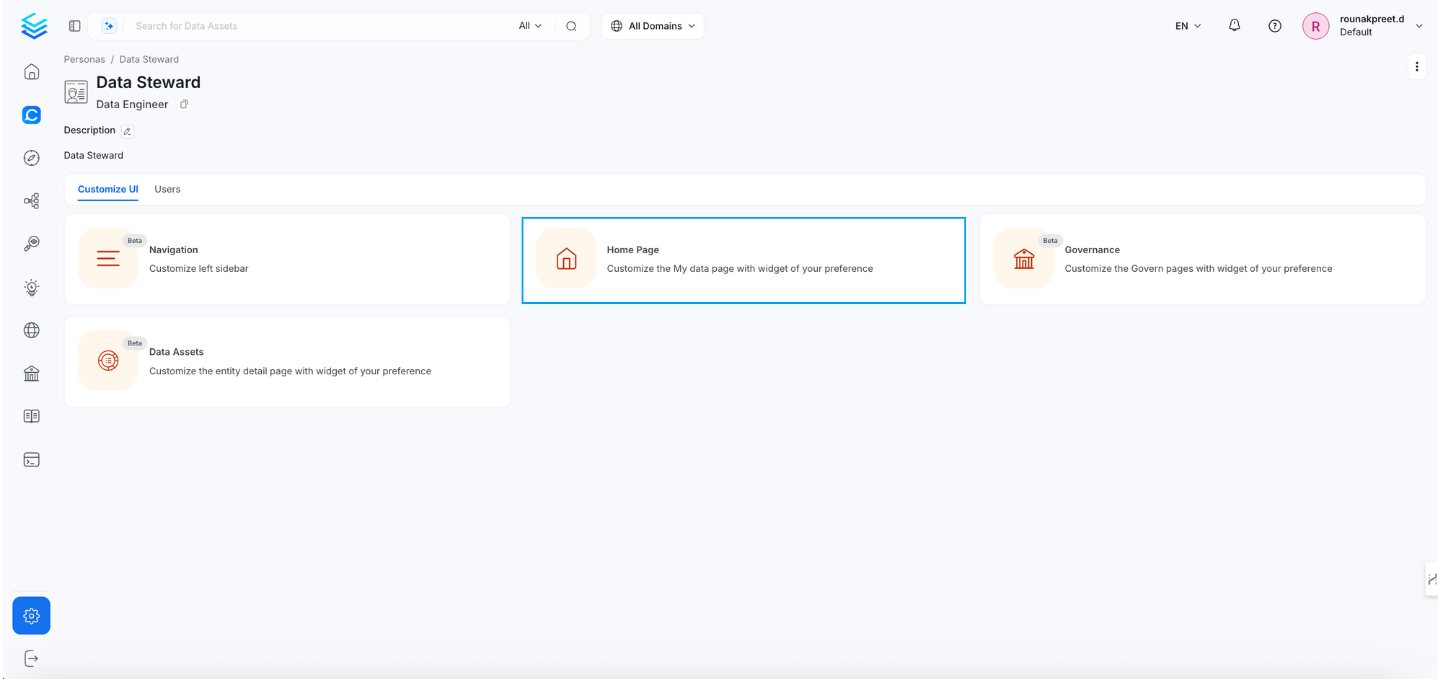
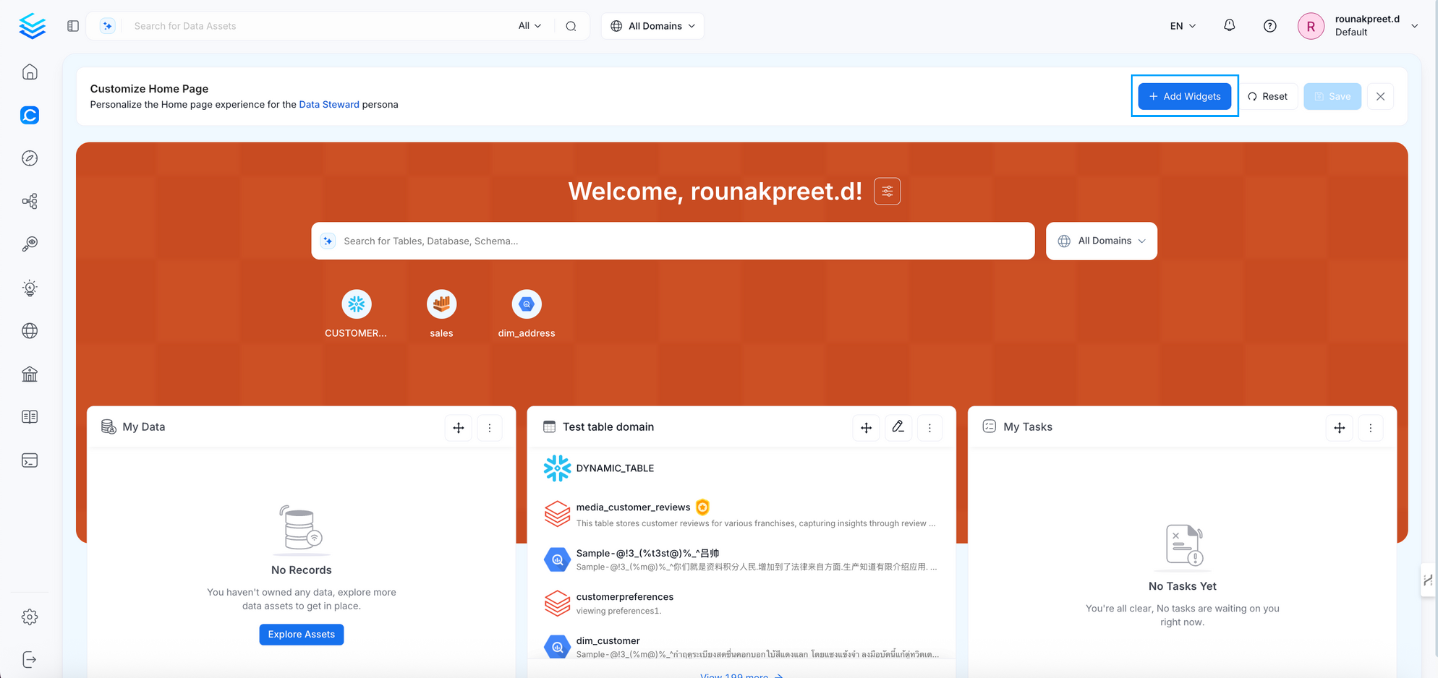
- Click on Add widget
- Pluggable Panels:
Configure panels based on the needs of each persona by adding widgets as required and then click on apply. Panels can include:
- Activity Feed
- Key Performance Indicators (KPIs)
- Recent Announcements
- Tasks
- Recently Viewed and more
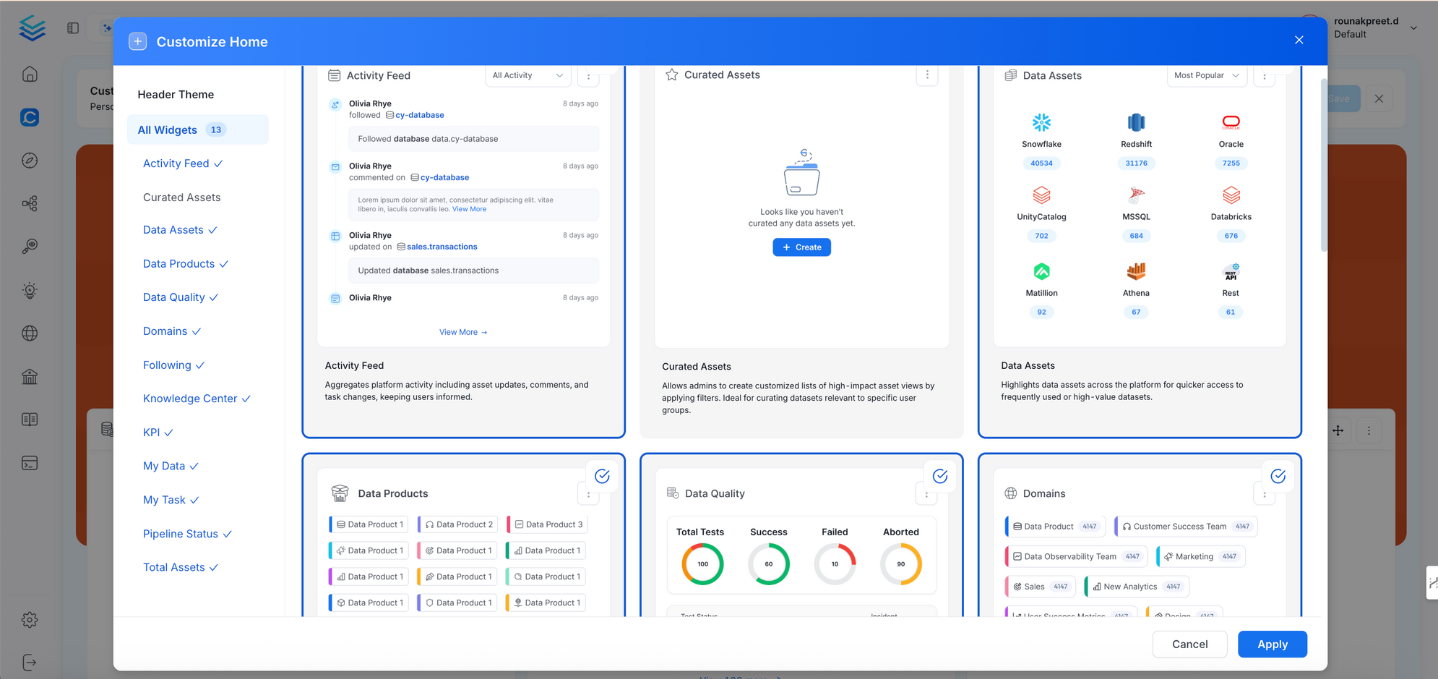
- Rearrange and Save: Adjust the layout based on user preferences and save the configuration.
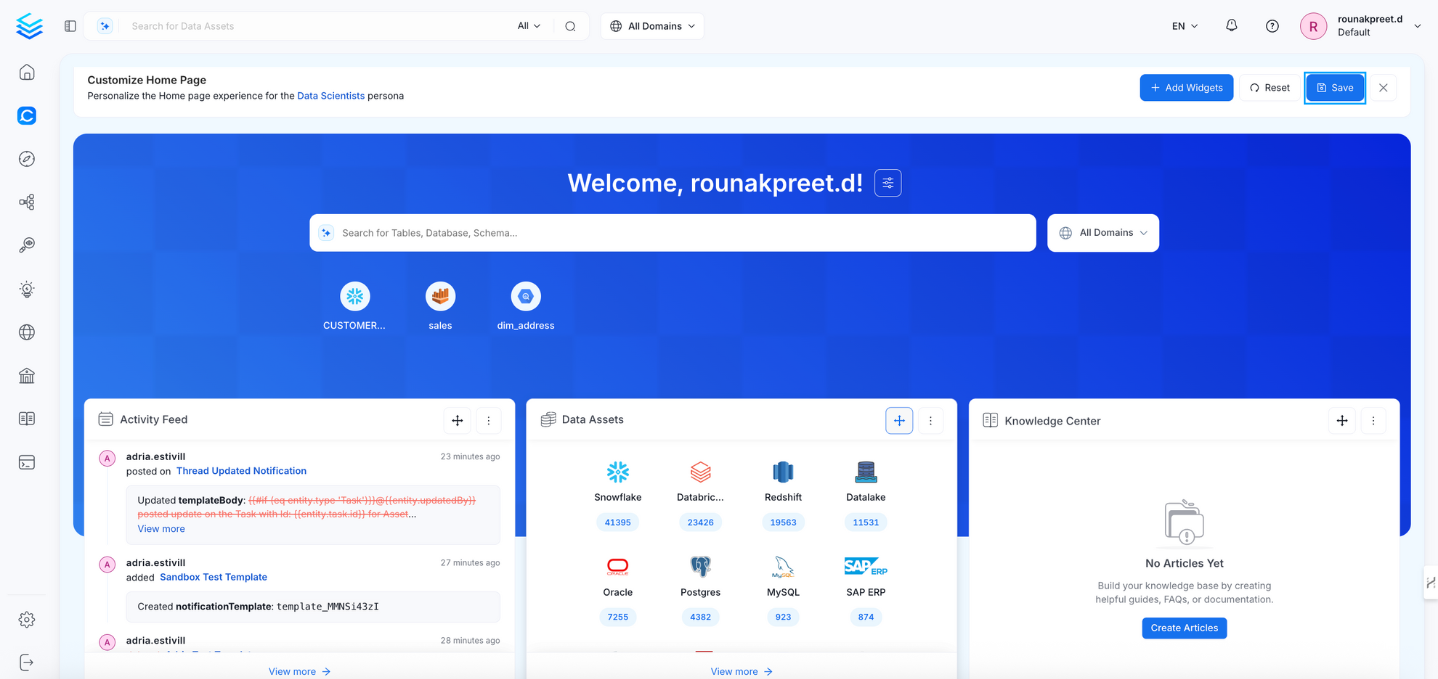
Example Use Case:
For a data scientist, the KPI panel may be removed, while prioritizing recent announcements and recent views. A data engineer might add a Pipeline Status panel, while a data steward might include panels focused on data governance.Future Enhancements:
Additional panels, such as Data Quality Status or Knowledge Articles, can be added to further personalize and enhance the user experience. By leveraging pluggable panels, the customizable landing page can be tailored to enrich each user’s experience, making the platform more relevant and effective for different personas.Switching Between Personas
Users can switch between different personas without logging out or reconfiguring the platform. Upon switching, the application’s landing page and configuration adjust automatically to reflect the new role.Setting a Default Persona:
Users can set a default persona, so the system displays the layout and settings relevant to that role every time they log in.Use Case Examples:
1. Data Engineer
- Needs: Data pipeline monitoring, data quality, and task management.
- Customized Landing Page: Includes panels for pipeline status, data quality metrics, and recent tasks related to pipeline execution. Announcements and Insights KPIs might be deprioritized.
- Persona-Specific Panels: Add a Pipeline Status panel for real-time updates on data workflows.
2. Data Steward
- Needs: Access to recent data views, performance indicators, and analysis tools.
- Customized Landing Page: Prioritizes recent data views and KPI dashboards, while removing unnecessary panels such as pipeline status.
- Persona-Specific Panels: Data stewards might add panels related to KPIs or recently viewed data assets.