Approval-Gated Changes
When an event-based governance workflow uses Approval Mode set to Enforce, an edit to a watched field isn’t written to the asset. The edit becomes a change request with a review task. The asset keeps its approved value until a reviewer approves the change. This page describes how change requests behave for the person who makes the edit, the reviewer, and API clients. For more information on setting up the workflow, see Approval Mode.Lifecycle Workflows and Enforce Workflows
Collate has two kinds of governance workflow that involve approvals. They do different jobs.
For more information on lifecycles, see Lifecycle Workflows.
Using both together is optional. For an end-to-end setup, pair them:
- Use the lifecycle workflow, for example the Data Product Onboarding Playbook, as the rulebook for status changes.
- Add an Enforce workflow on the same asset type to stage edits to the fields you watch.
Set Up an Enforce Workflow
An Enforce workflow is an event-based workflow with Approval Mode set to Enforce and a User Approval task. The watched fields depend on your use case.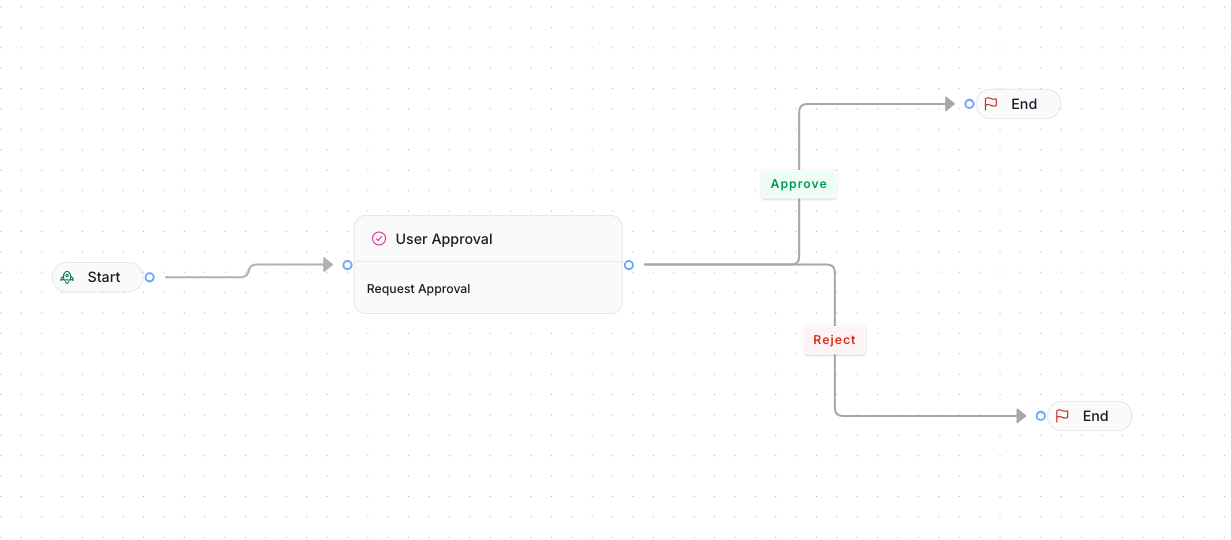
Stage Edits Only for Approved Assets
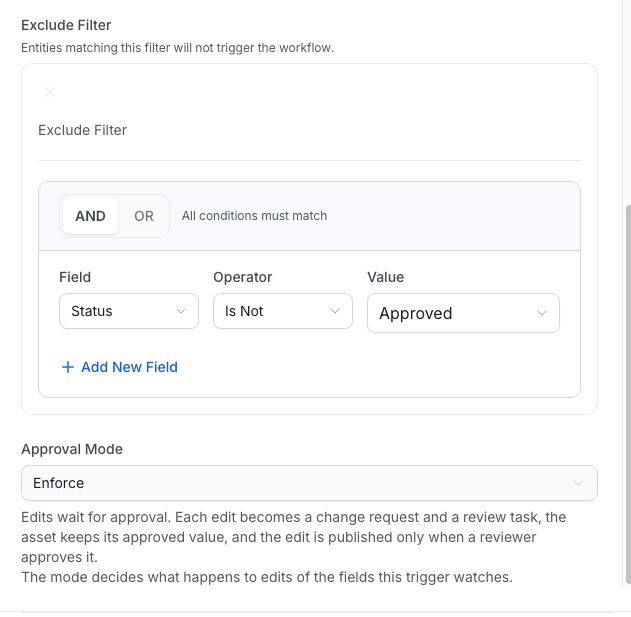
To hold edits only while an asset is in the Approved status, add an exclude filter to the Start node. The workflow doesn’t trigger for assets that match the filter, so edits to assets in any other status publish immediately.- In the Start node, find Exclude Filter.
- Set Field to Status, Operator to Is Not, and Value to Approved.
- Set Approval Mode to Enforce.
What Happens When You Edit a Watched Field
- Edit a field that the workflow watches, then save.
- The save returns the unchanged asset, and a toast reads “Your change was submitted for approval. It will be published once it is approved.”
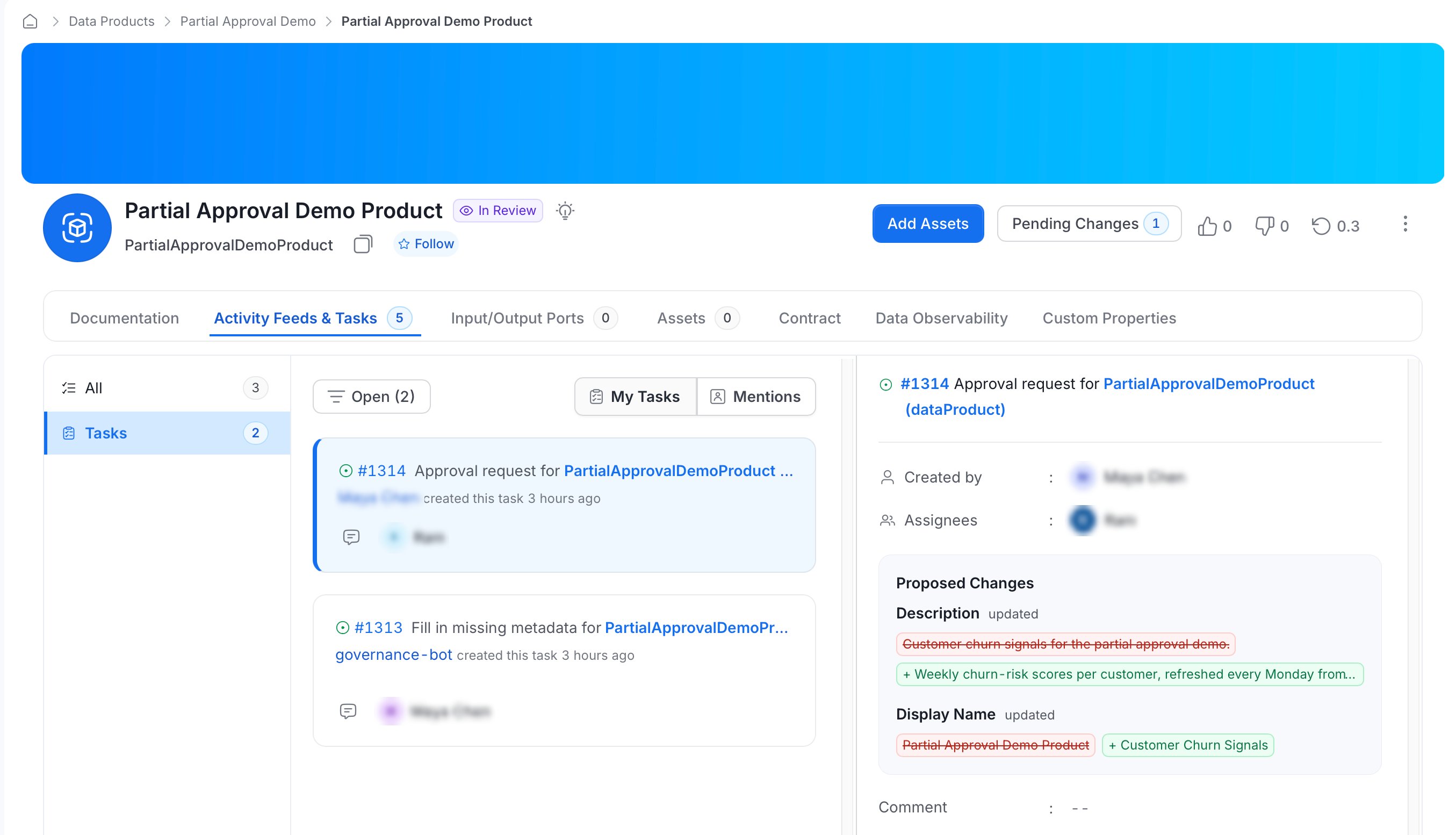
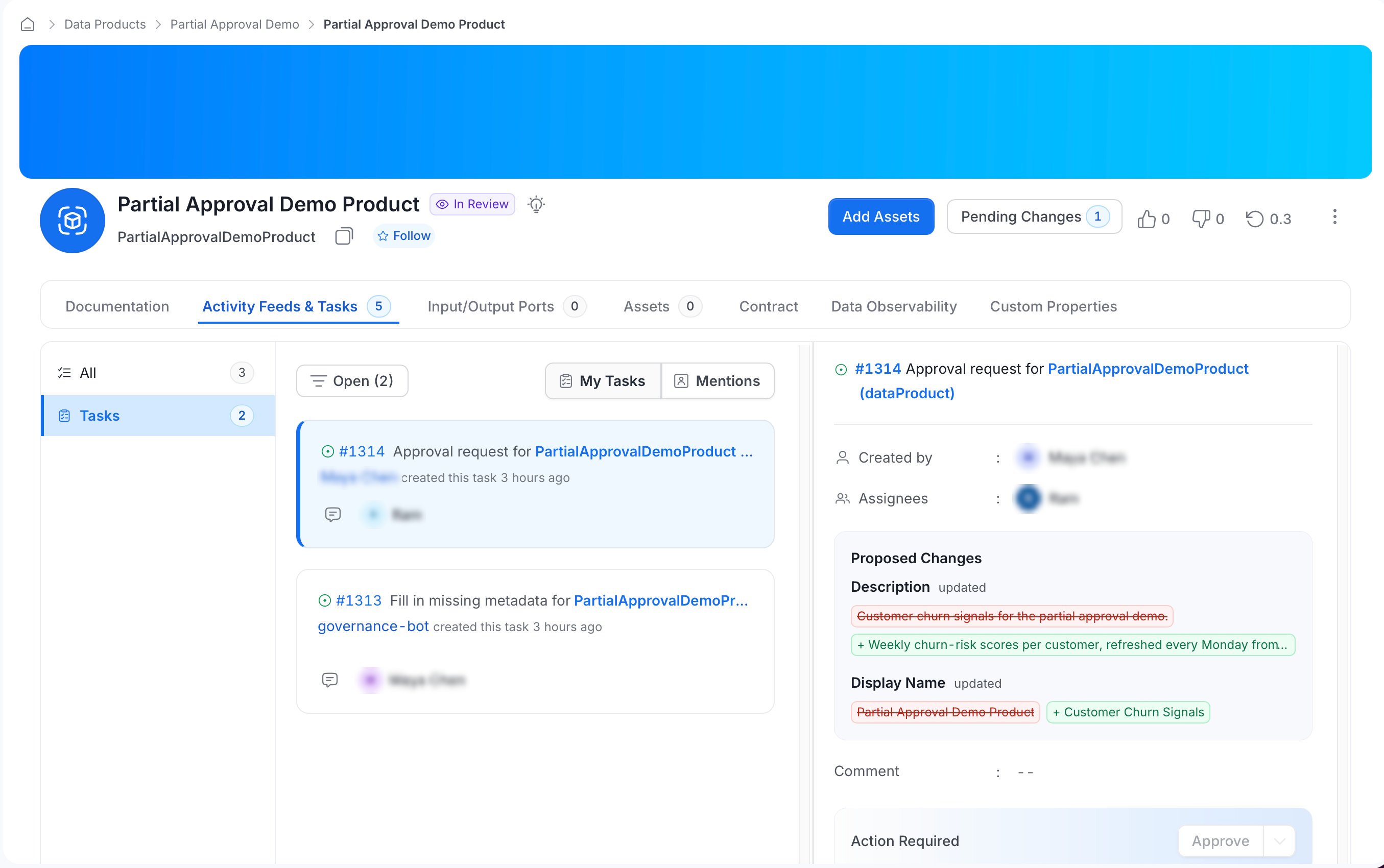
- A Pending Changes button with a count appears in the header of the asset, glossary term, domain, or data product.
- Click Pending Changes to open the Review pending changes window, where you can see the exact proposed change.
Move a Glossary Term
Moving a glossary term with Change Parent Term goes through the same approval gate as dragging the term. When an Enforce workflow watches theparent or glossary field, Collate holds the move as a change request.
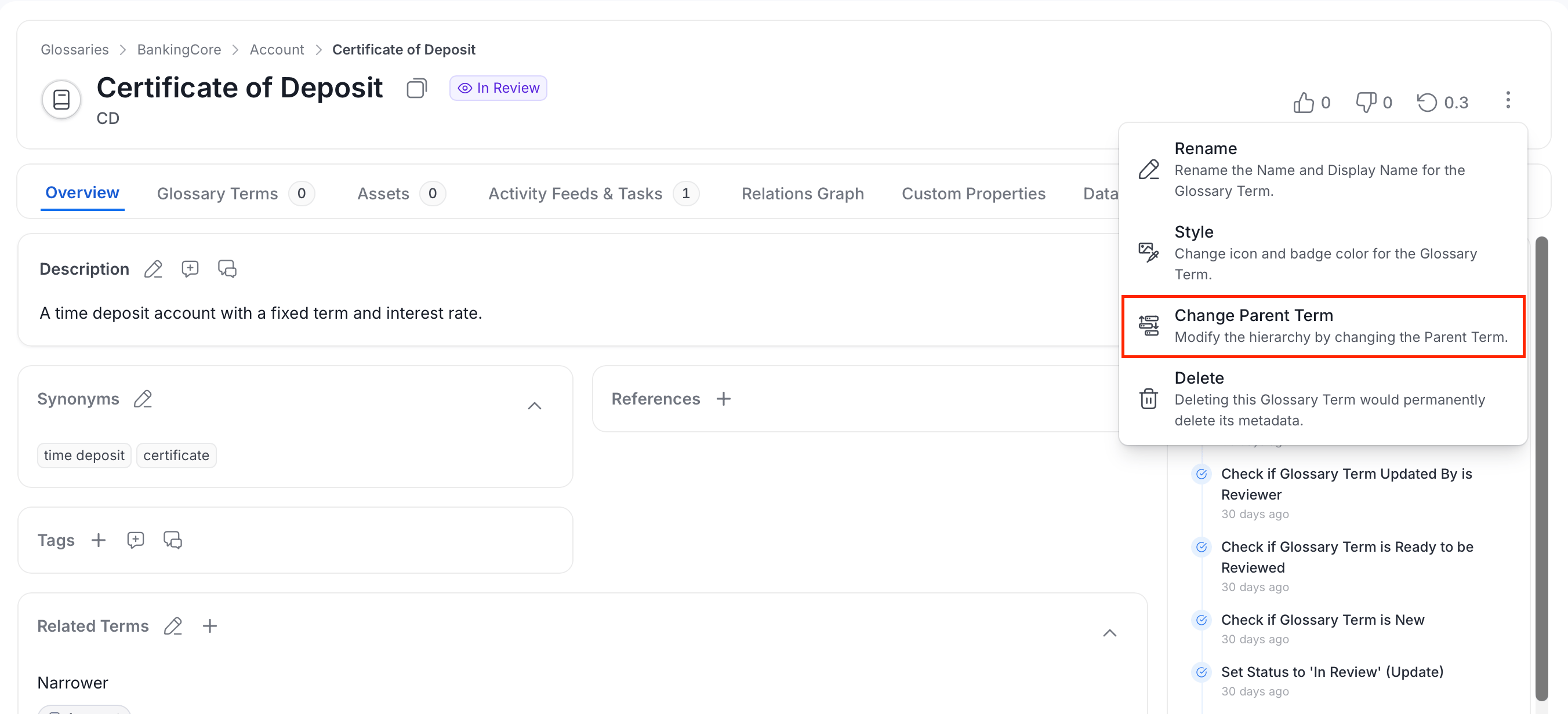
- Open the glossary term and click the ⋮ menu in the header.
-
Click Change Parent Term.
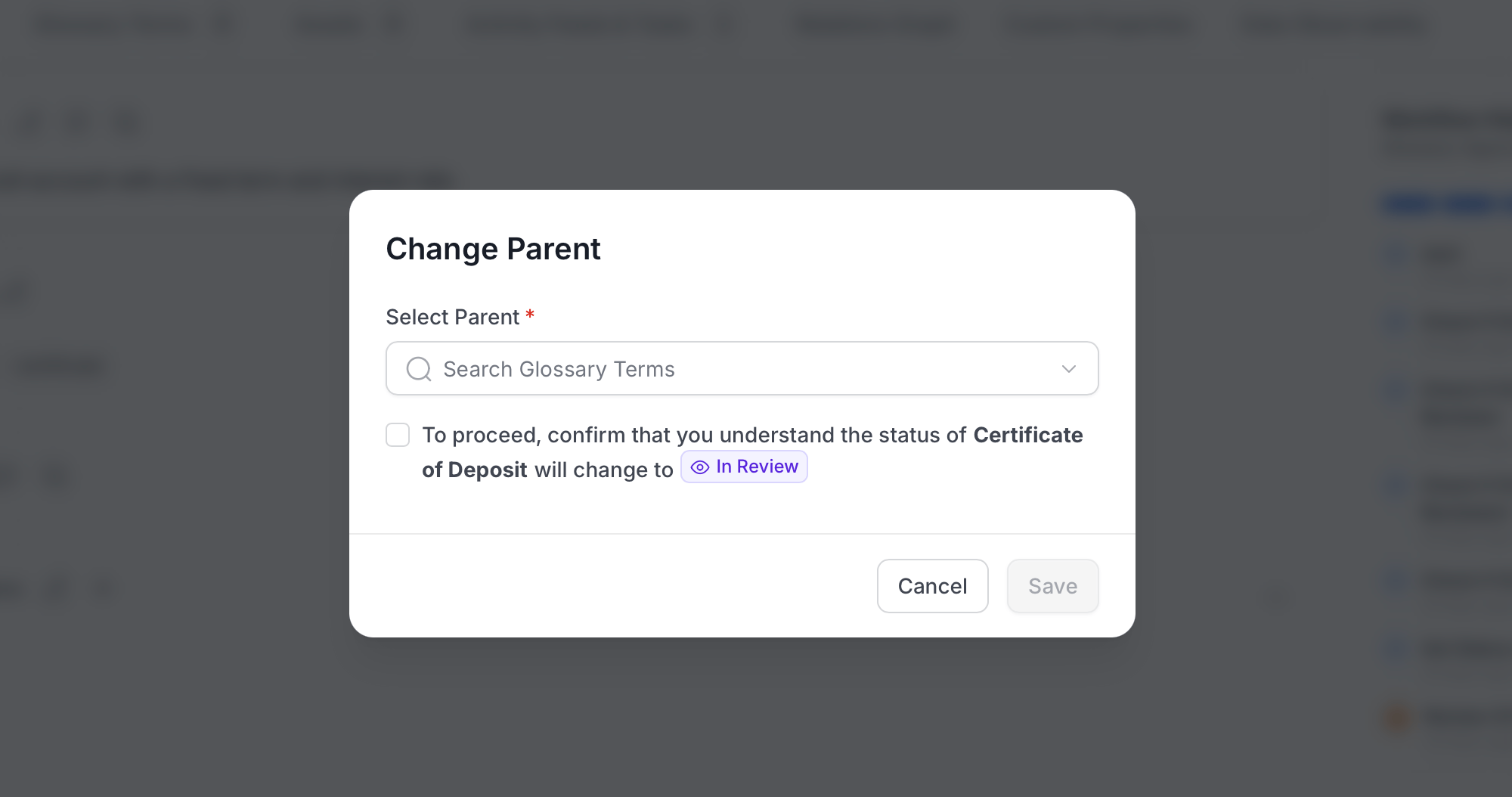
- In the Change Parent dialog, search for the new parent under Select Parent.
-
Select the checkbox that confirms the term’s status will change to In Review. This dialog appears every time you move a glossary term, not only for Approved terms. Then click Save.
- The Change Parent dialog closes, a toast reads “Your change was submitted for approval”, and the Pending Changes indicator refreshes.
- The term stays where it is until a reviewer approves the change. After approval, Collate moves the term and re-parents its child terms, so their names update as they do for a drag.
- If a reviewer rejects the change, the term stays in place.
- If no Enforce workflow watches
parentorglossary, the move runs as a background job, as before.
Withdraw a Change Request
Only the requester can withdraw a change. To cancel your own pending change, use the Withdraw revision action. Collate confirms with “Change request withdrawn.”Edit Again While a Change Is Pending
- Second edit by the same requester: The new edit becomes a new revision of the change request and re-opens the review task. Approvals given on the earlier revision don’t carry over.
- Edits by two requesters: Each requester’s change is independent. If another approved change already touches the same field, Collate flags the request as conflicted when it is approved, and the requester must submit an updated change.
CSV Import
When a CSV import includes rows that the workflow holds, the import reports them with the messageN row(s) are waiting for approval and are not published yet.
Approve or Reject
Reviewers act on the User Approval task that the workflow creates. For more information, see User Approval Task.- Approve: The held edit is published to the asset.
- Reject: The held edit is discarded.
Review Changes One at a Time
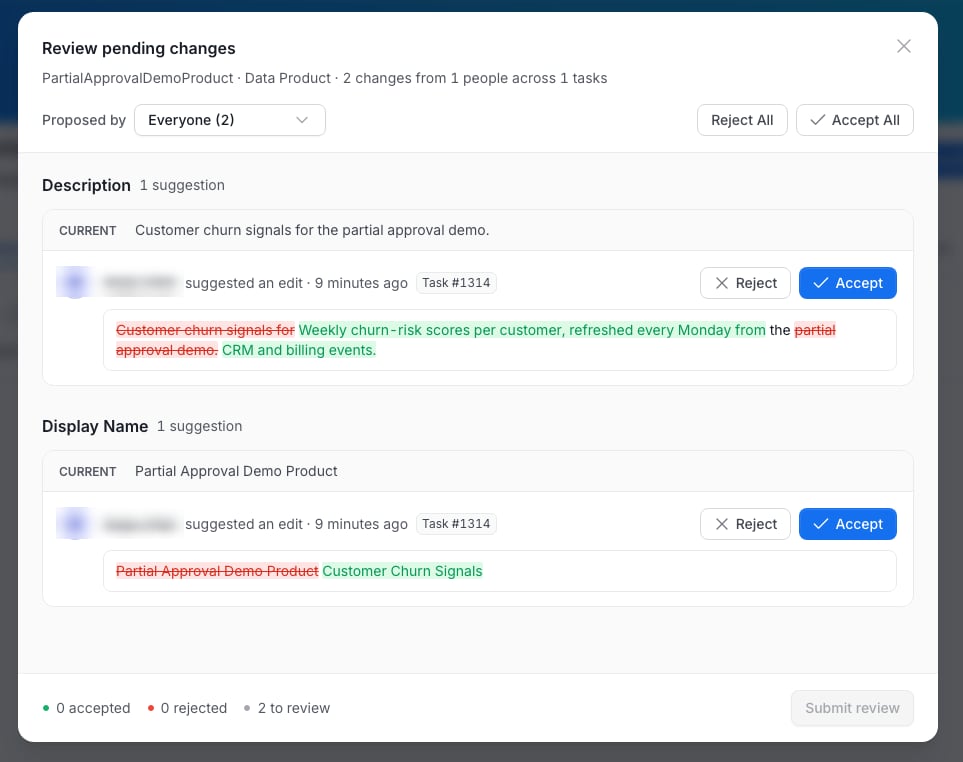
Click Pending Changes on the asset to open the Review pending changes window. It groups the proposed changes by field, such as Description and Display Name. Each field shows the CURRENT value and the suggestion, with removed text struck through and added text highlighted.- Use Proposed by to filter the changes by requester.
- For each field, click Accept or Reject. To decide everything at once, click Accept All or Reject All.
- Check the counts at the bottom of the window: accepted, rejected, and to review.
- Click Submit review. Collate publishes the changes that you accepted. Changes that you didn’t decide on stay pending on the same task.