
Export Data Assets
Exporting a Data Asset is simple. Below are the steps to bulk export various data assets, such as Database Services, Databases, Schemas, and Tables.How to Bulk Export a Database Service
- Click the Profile icon and select Settings > Services > Database.
-
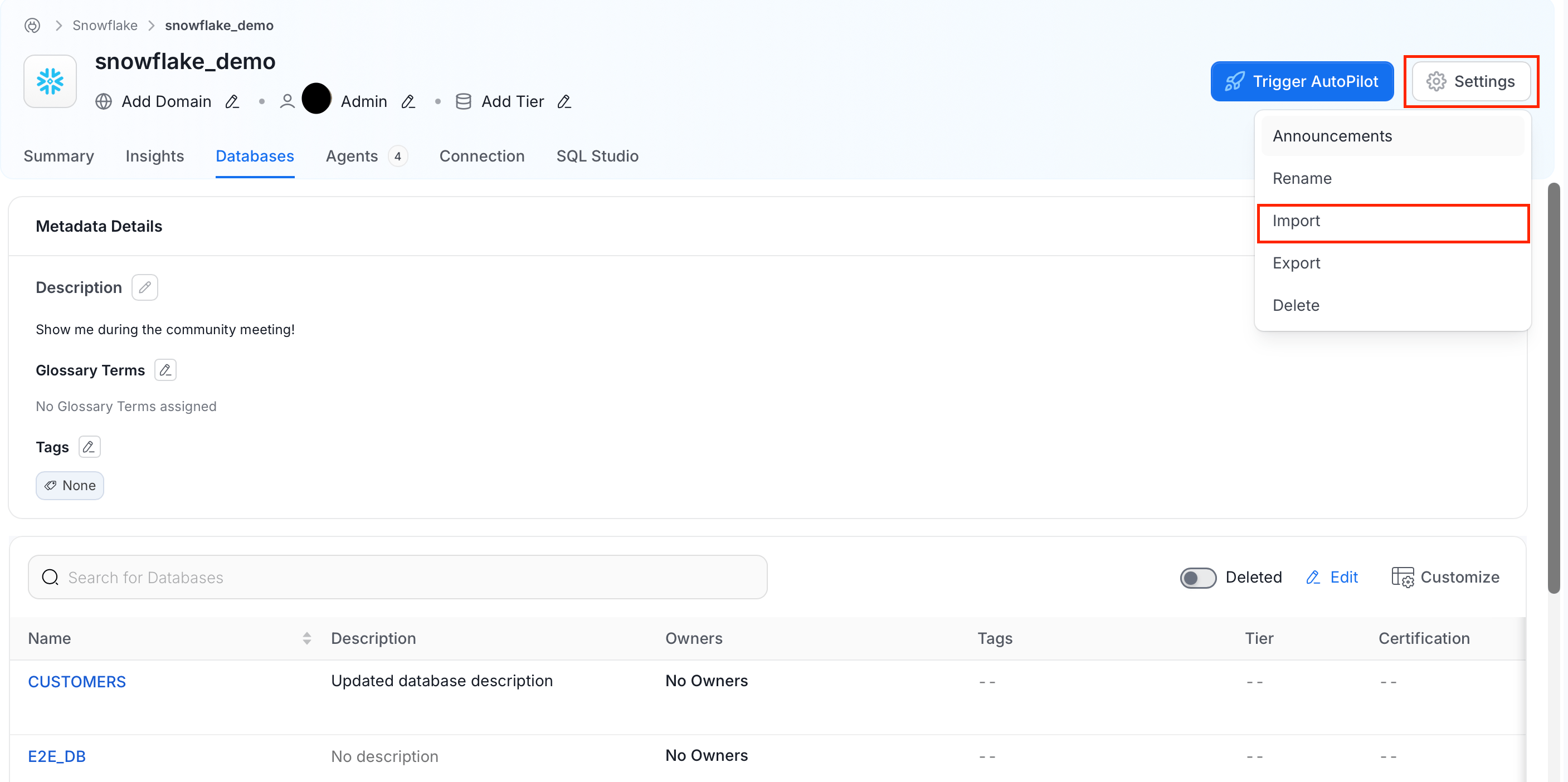
Select a database service you want to export. For example, we are exporting the
Snowflakeservice. -
Click Settings and select Export to export the database service.
How to Bulk Export a Database
- Click the Profile icon and select Settings > Services > Database.
- Select a database service whose database you want to export.
-
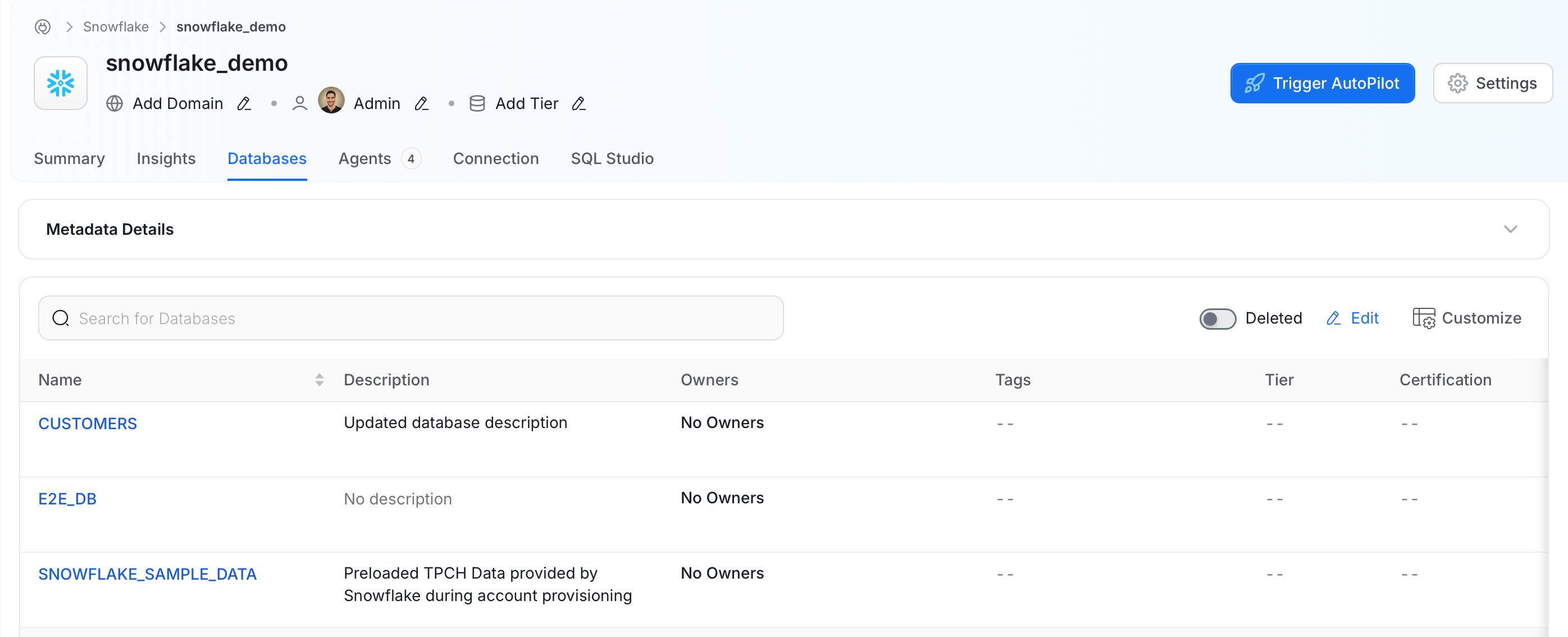
Click the Databases tab and select the database you want to export.
-
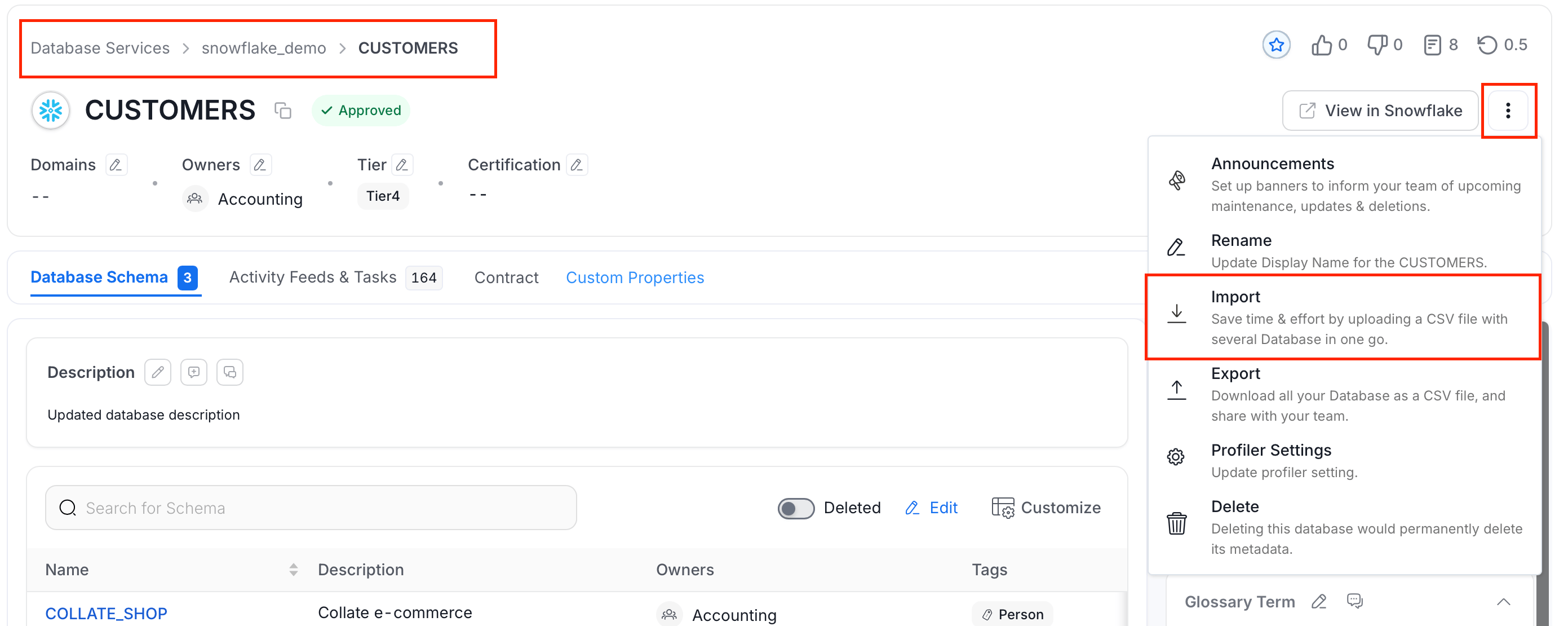
Click the ⋮ icon and select Export to export the database.
How to Bulk Export a Database Schema
- Navigate to the database whose schema you want to export.
-
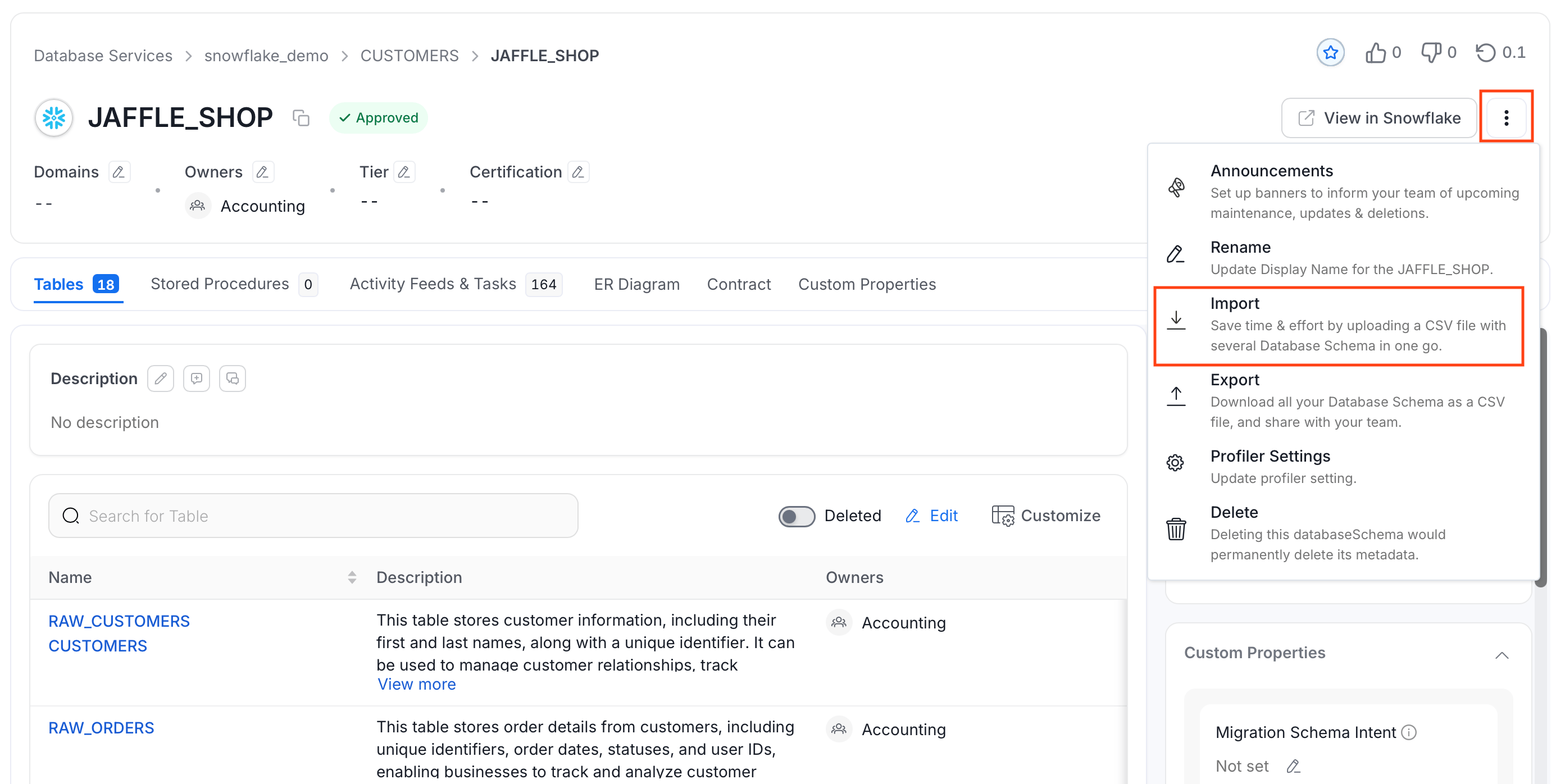
In the Database Schema tab, select the schema you want to export. For example,
JAFFLE_SHOPin the following image.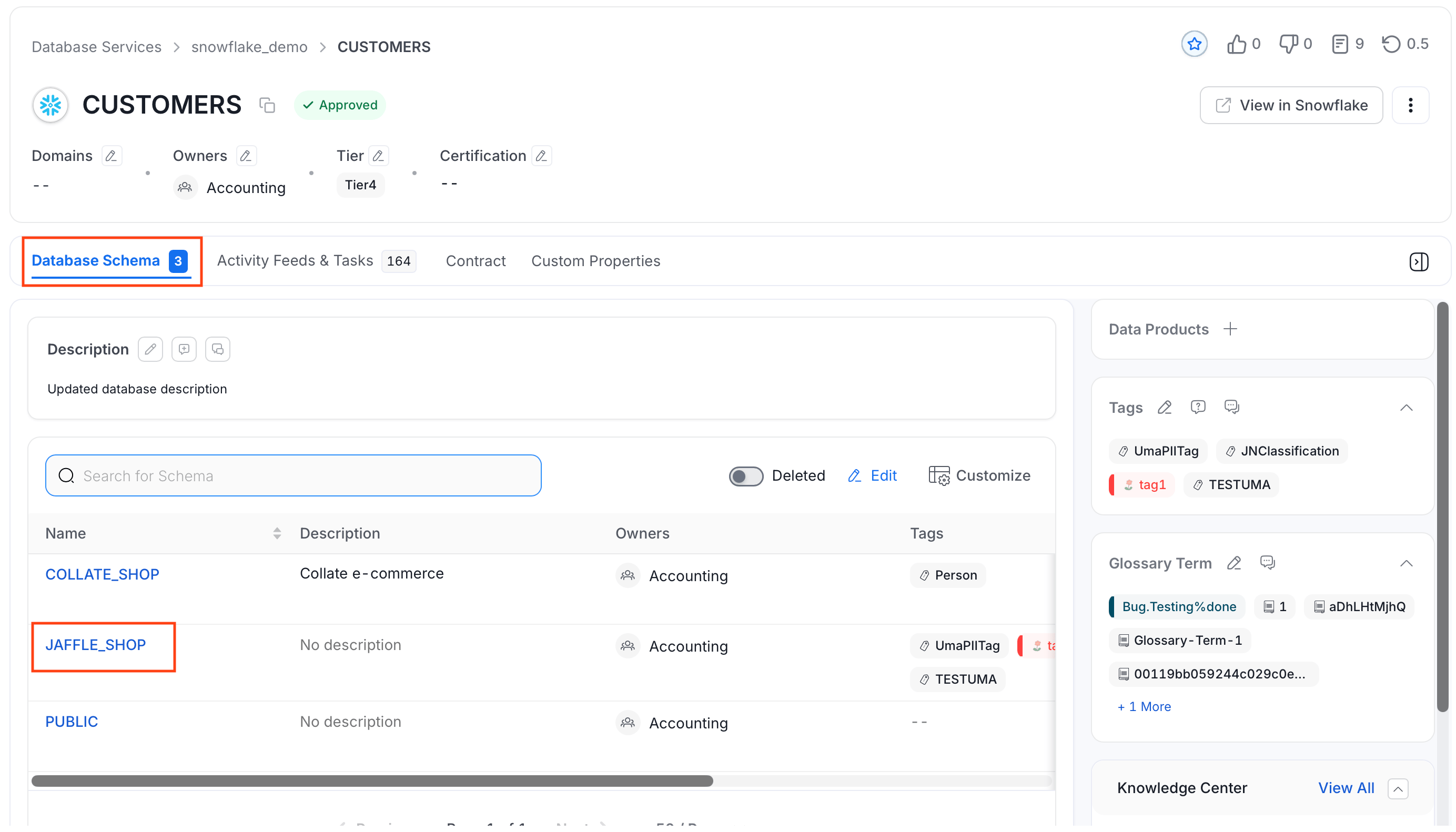
-
Click the ⋮ icon and select Export to download the database schema.
How to Bulk Export Tables
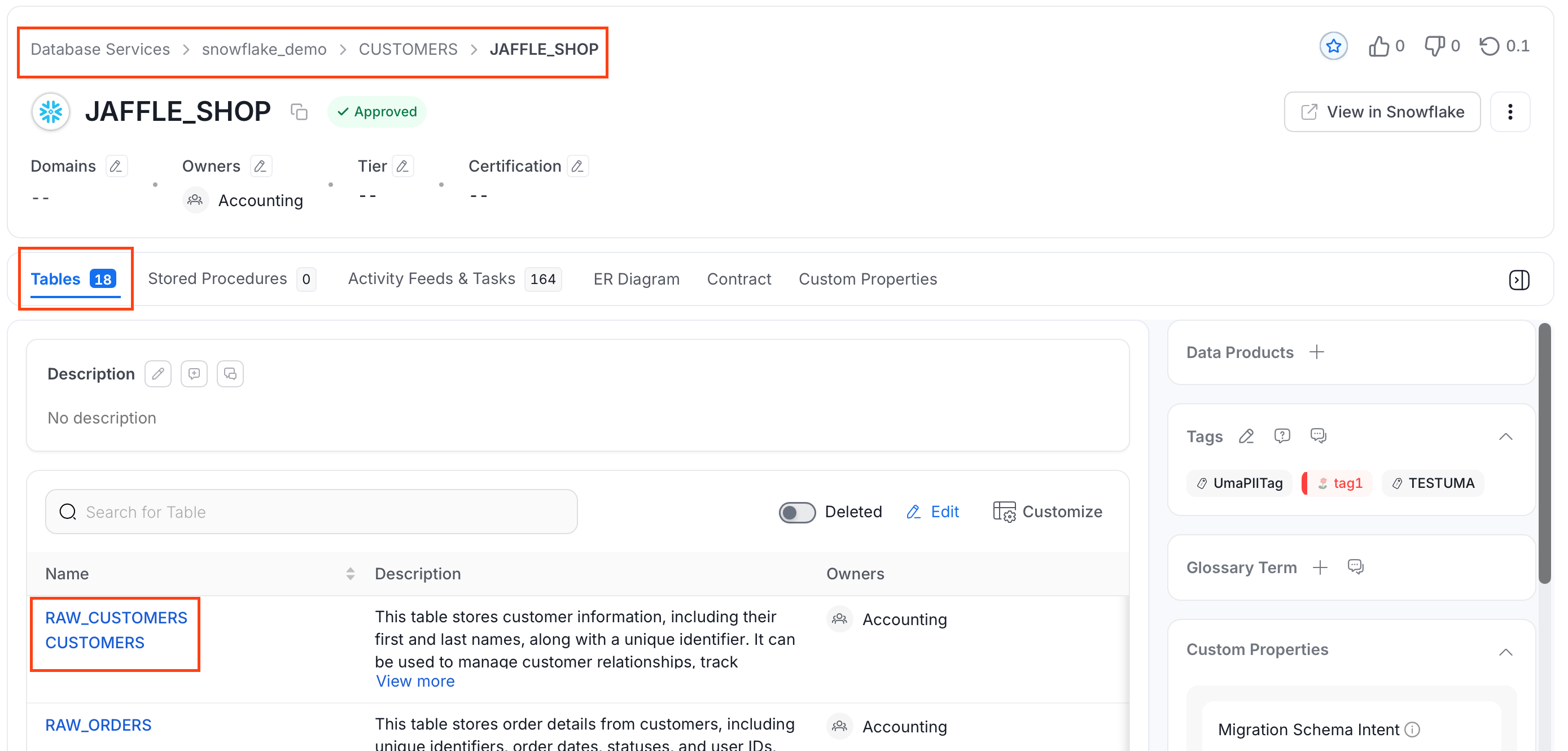
- Navigate to the database schema whose table you want to export.
- In the Tables tab, select the table you want to export.
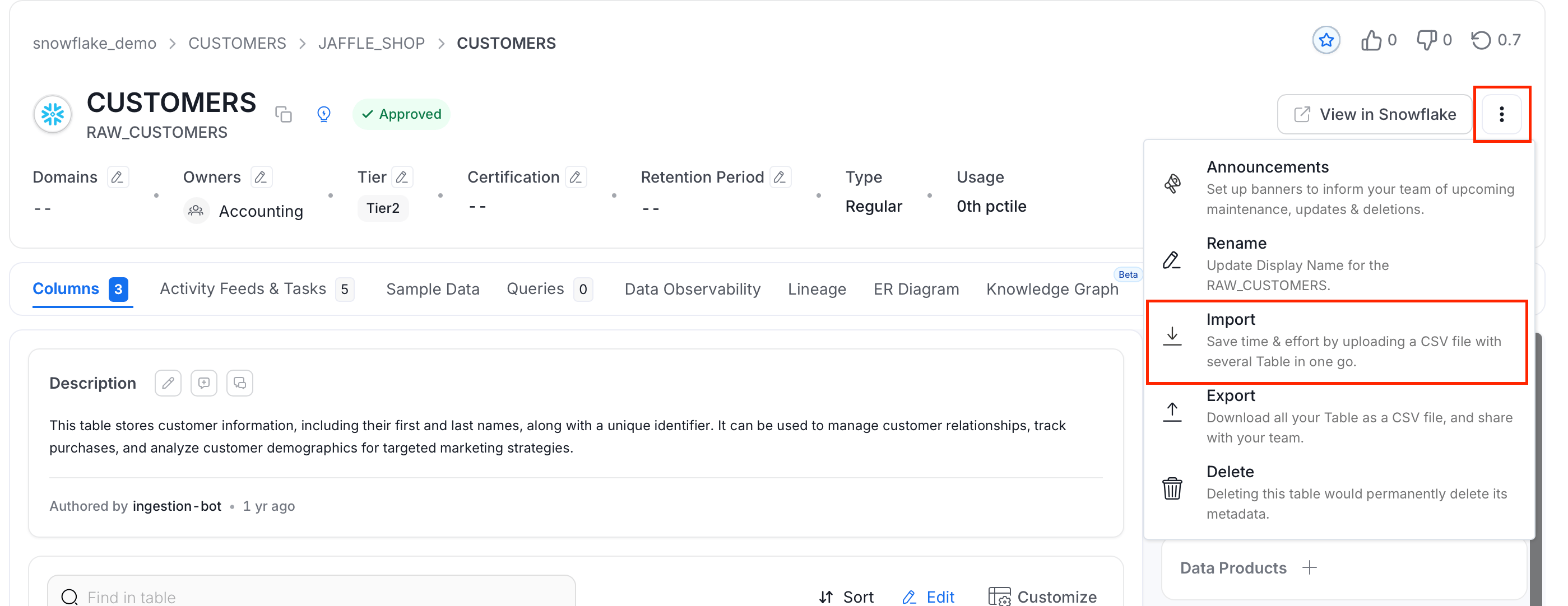
- Click the ⋮ icon and select Export to download the table CSV file.
Data Asset Import
Quickly import data assets from a CSV file.