
Steps for Searching Using Hierarchy
Browse your data estate the way it’s actually organized — by service, database, and schema — instead of relying on search alone.Step 1: Browse the Data Hierarchy
On the Explore Assets page, the Browse Estate panel on the left organizes your data as a tree, grouped by service, database, and schema. Each node shows a live count of the assets beneath it, so you can gauge the size of a branch before drilling in.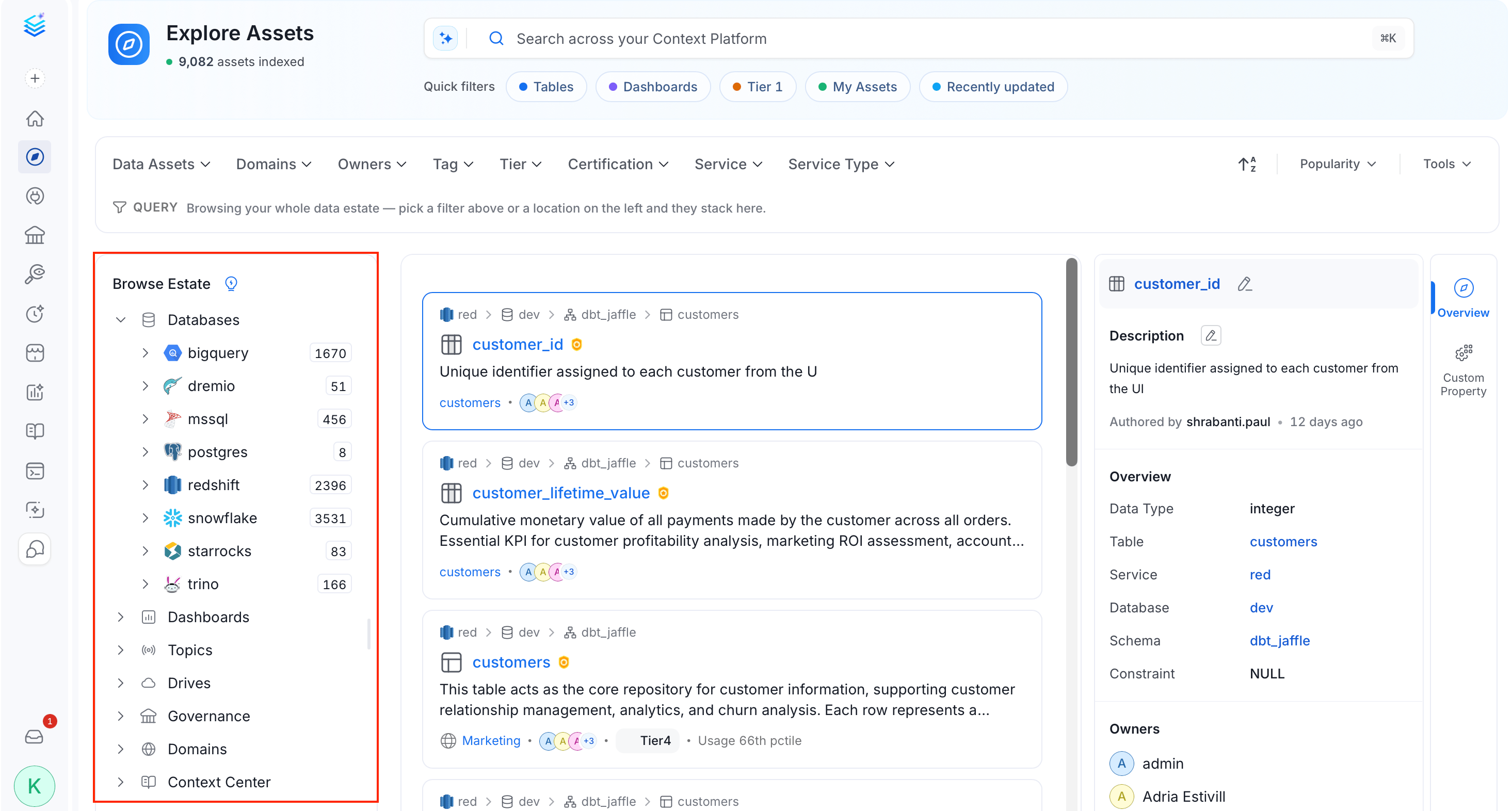
Step 2: Expand, Collapse, and Filter
- Click the arrow next to a node to expand it and reveal the next level down, or collapse it to step back up.
- Click a node to filter the Explore results to that location — the results panel updates to show only the assets it contains.
- Repeat, drilling down through services, databases, and schemas, until you reach the specific tables or assets you’re looking for.