
Discover Assets
Collate simplifies data discovery with the following strategies.Search
Search is at the front and center of Collate and is available in the top Menu bar across all the different pages. Users can also start searching by invoking the Keyboard shortcut Ctrl + K in Windows or Cmd + K in Mac OS. The Search APIs are backed by Elasticsearch.Keyword Search
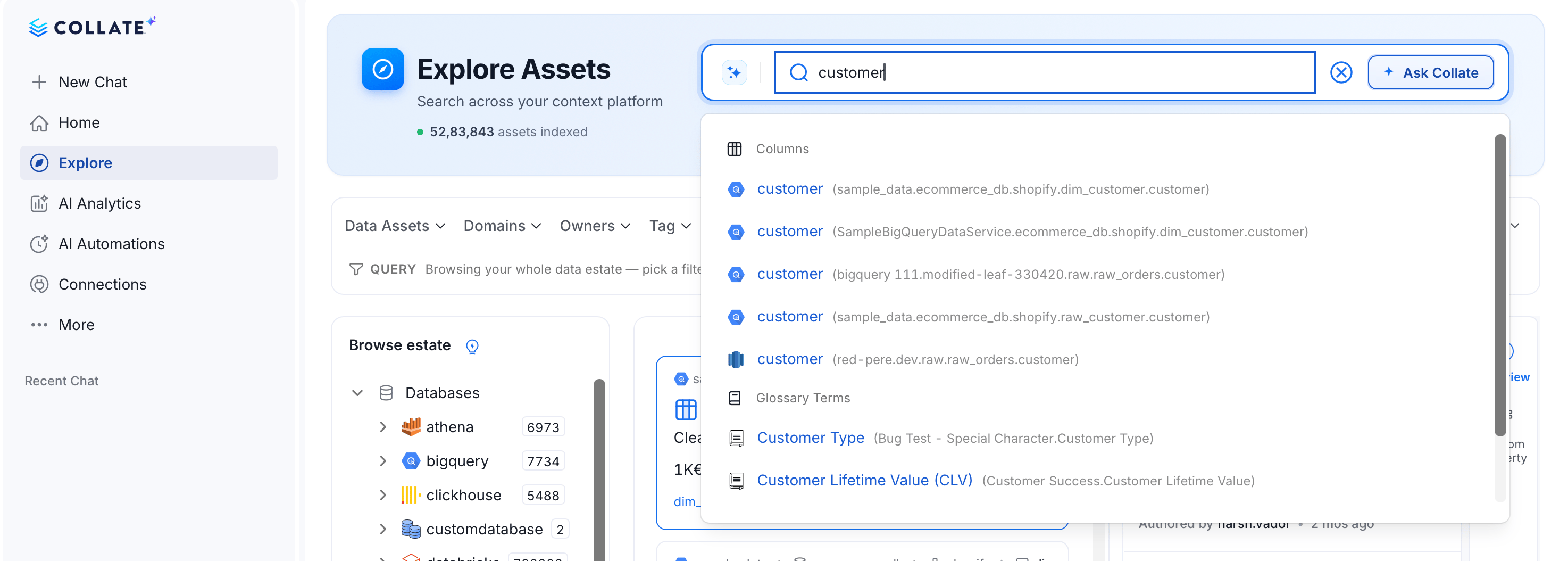
The fastest way to find an asset is to type a name, description, or column name into the search bar. As you type, Collate surfaces live suggestions grouped by type — Columns, Tables, Glossary Terms, and more — each shown with its fully qualified name (for example,sample_data.ecommerce_db.shopify.dim_customer.customer) so you can tell similarly named assets apart at a glance. A query matches not just the asset name but also nested components, such as column names on tables, and their descriptions.
If keyword search alone doesn’t get you there, turn on natural language search to ask the same question in plain English and let Collate AI find the answer for you. For more information, see Natural Language Search.
Quick Filters
Directly below the search bar, one-click Quick filters — such as Tables, Dashboards, Tier 1, My Assets, and Recently Updated — jump straight to the most common views. For more granular filtering, the filter bar underneath lets you narrow results by Data Assets, Domains, Owners, Data Products, Tag, Tier, Certification, Service, and Service Type. Each dropdown opens a searchable, multi-select list with a live count next to every value, and filters combine — for example, Owner + Tier + Service Type — to narrow down to exactly the assets you need.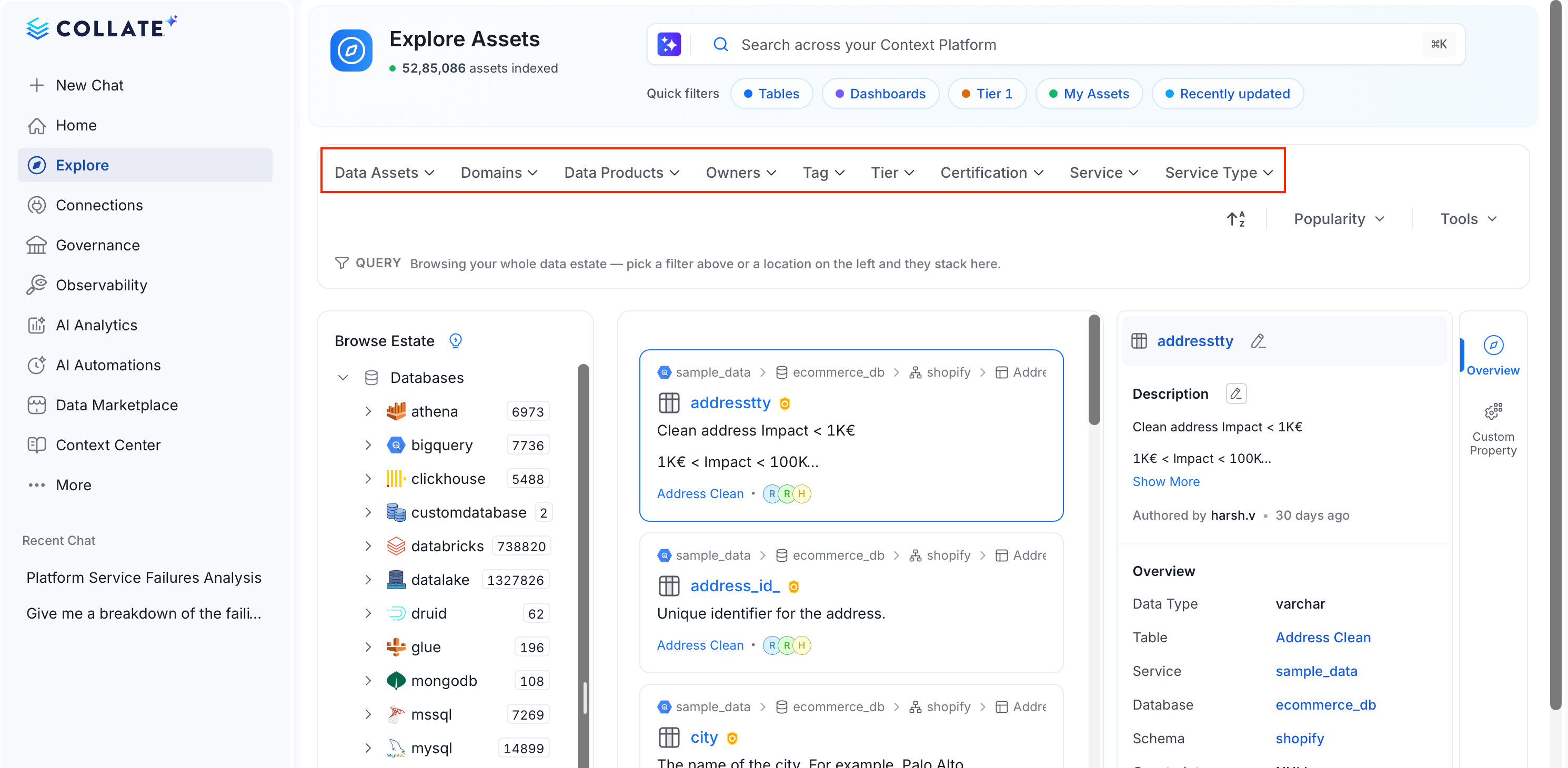
Filter by Data Asset
Click Data Assets to narrow results down to one or more specific asset types — Table, Column, Database Schema, Chart, Glossary Term, Knowledge Page, and more. A search box at the top helps you jump to a type quickly in long lists, and each option shows a live count of matching assets. Selecting a value refines the results shown while keeping your current browse location intact.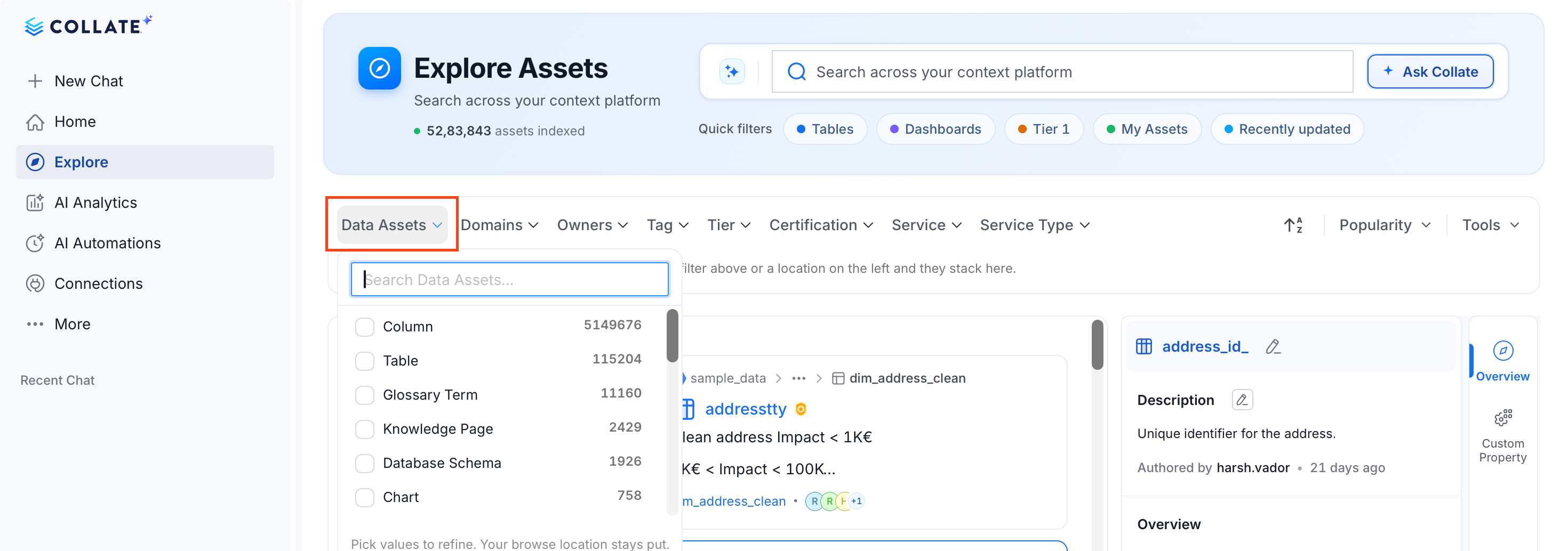
Filter by Asset Owner
Every asset in Collate can be owned by an individual or a team. Click Owners to filter by one or more owners — use the search box to find a specific person or team quickly, or select No Owners to surface assets that still need an owner assigned. Each match shows how many assets that owner is responsible for, making it easy to direct questions to the right person or team.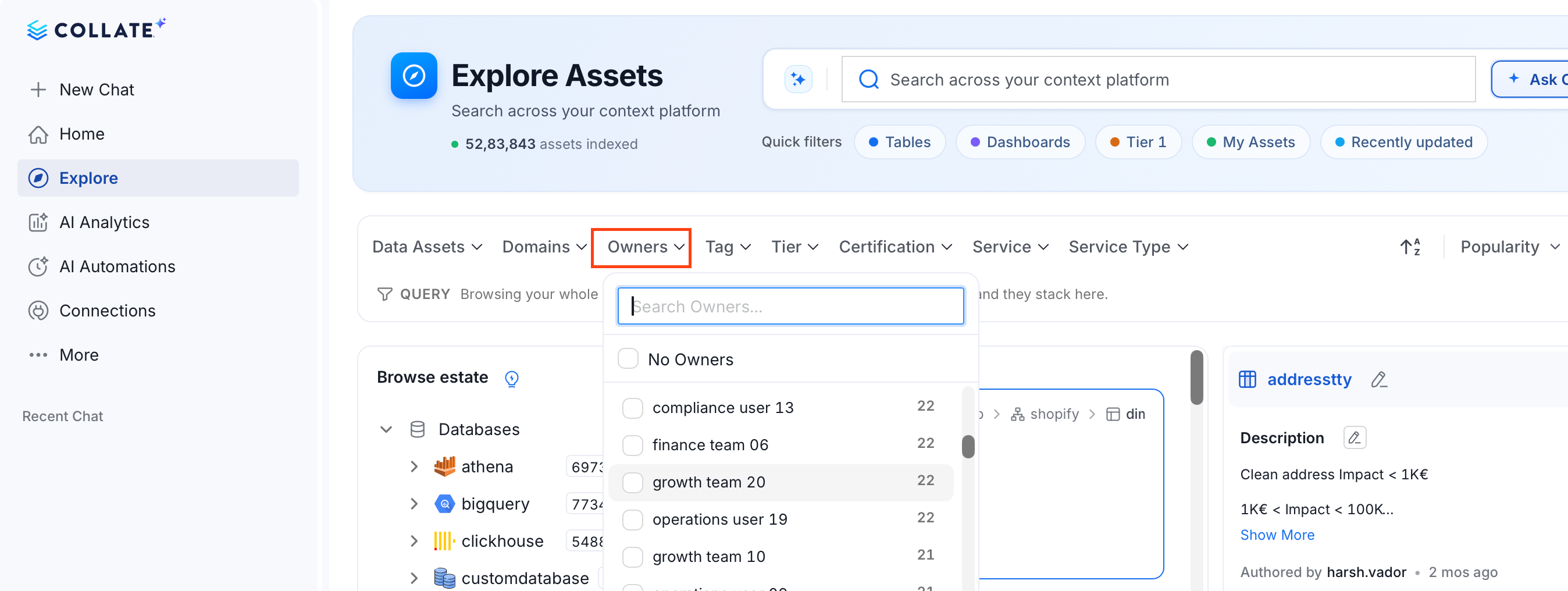
Filter by Tiers
Tiers indicate how critical a data asset is to your organization, from Tier 1 (most critical) downward. Click Tier to filter by one or more tier levels, or select No Tier to find assets that haven’t been classified yet. As with the other filters, each tier shows a live count of matching assets so you can gauge how much of your estate has been tiered.
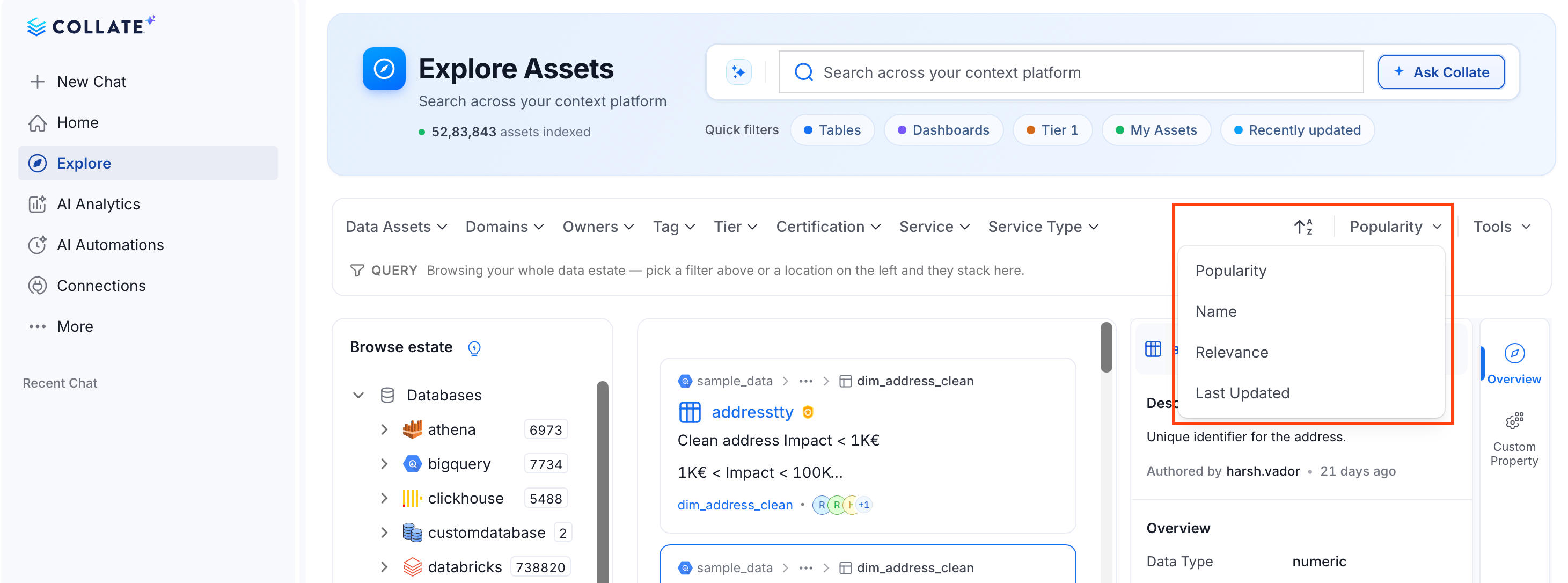
Sort by Popularity and Relevance
Use the sort control at the top right of the Explore page, next to the A–Z toggle, to reorder search results by:- Popularity: based on how frequently other users view and query the asset.
- Name: alphabetical order.
- Relevance: how closely the asset matches your search query.
- Last Updated: most recently modified assets first.
Discover Data through Association
Collate surfaces the tables most frequently joined with the one you’re viewing, as measured by the data profiler, in a Frequently Joined Tables panel — helping you find related data you might not have thought to search for. You can also discover assets through relationships based on data lineage.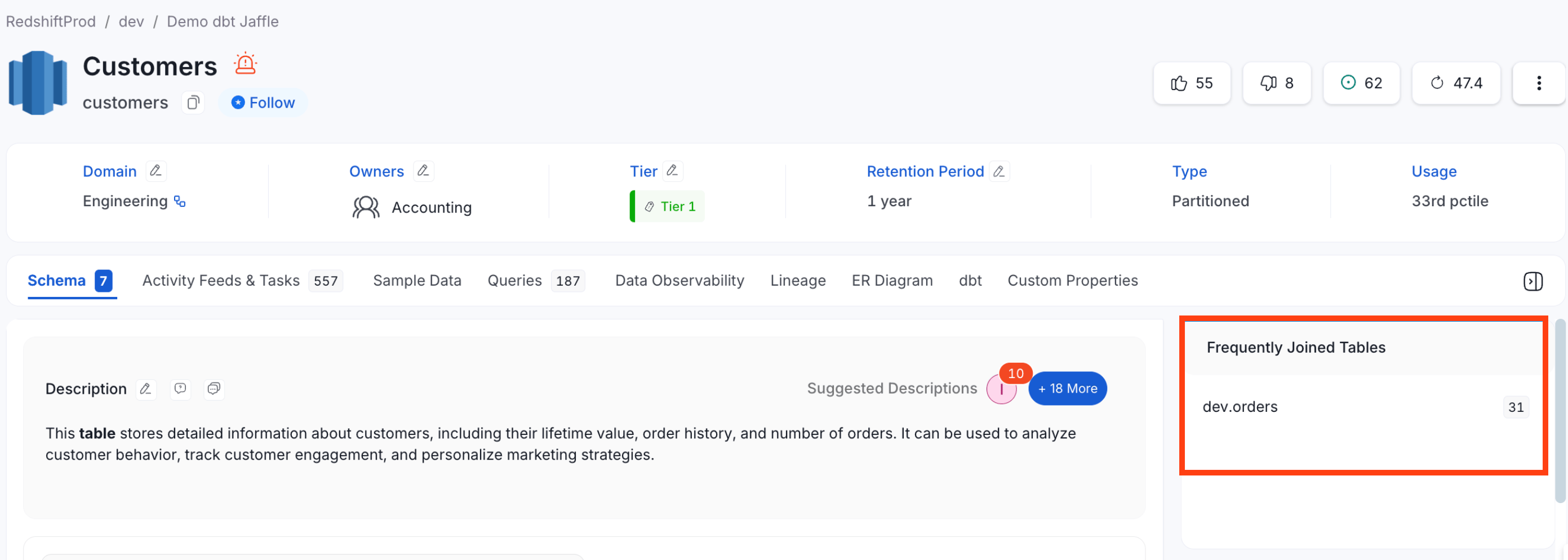
Discover Assets through Relationships
Collate helps to locate assets of interest by tracing data lineage. You can view the upstream and downstream nodes to discover the sources of data and learn about the tables, pipelines, and more. The table and column descriptions help to decide if the data is helpful for your use case. Similarly, the pipeline description helps to uncover the transformation and more data of interest.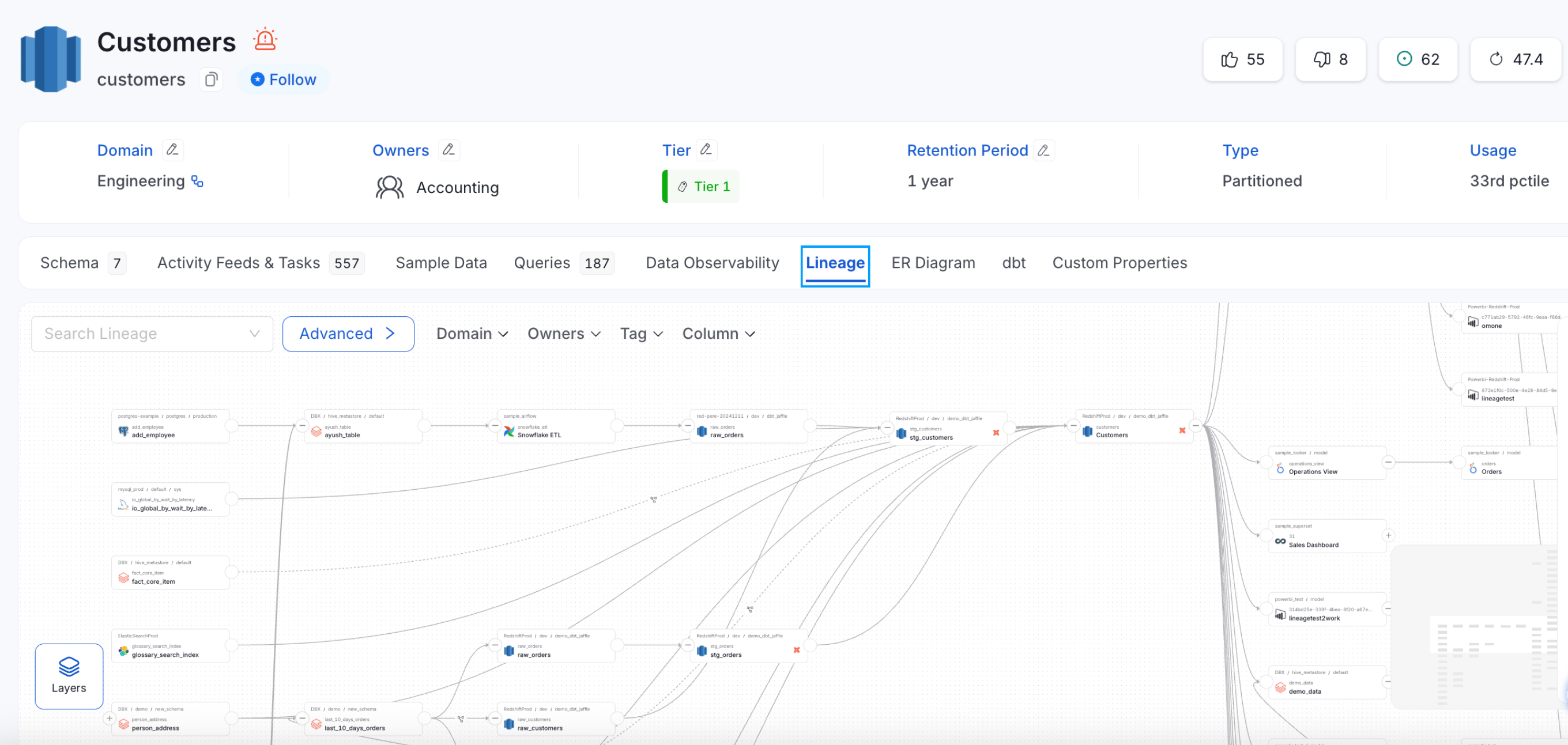
Advanced Search
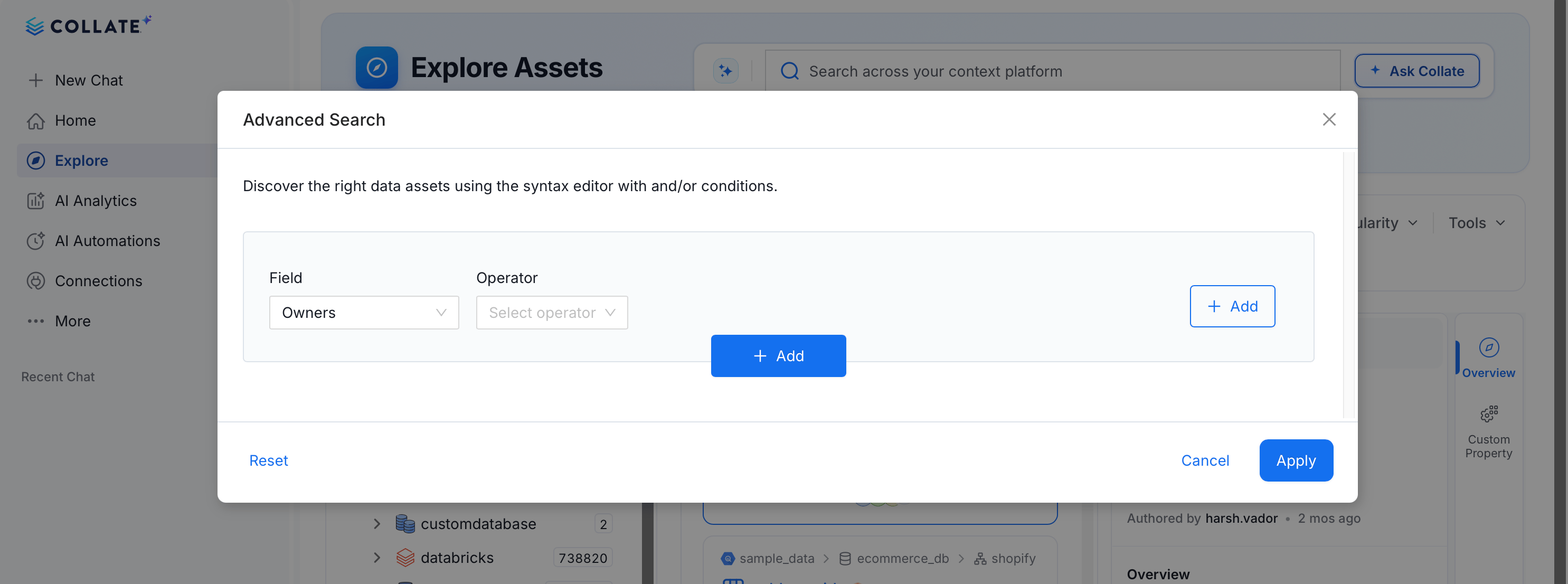
Advanced Search gives you precise control over discovery by letting you build multi-condition queries with a visual query builder — no raw syntax needed. Combine filters on metadata properties with AND/OR logic and Boolean operators to match exactly the assets you’re looking for, with a dedicated set of fields tailored to the asset type you’re currently viewing. Advanced search is available across every asset type in Collate, including:- Tables, Database Schemas, Databases, and Stored Procedures
- Dashboards, Dashboard Data Models, and Charts
- Pipelines, Topics, and ML Models
- Containers, Search Indexes, Directories, Files, Spreadsheets, and Worksheets
- Glossary Terms, Tags, and Data Products
- API Collections and API Endpoints
- Metrics
Discover Data Evolution
By viewing lineage and metadata versioning, users can discover the data evolution of data assets.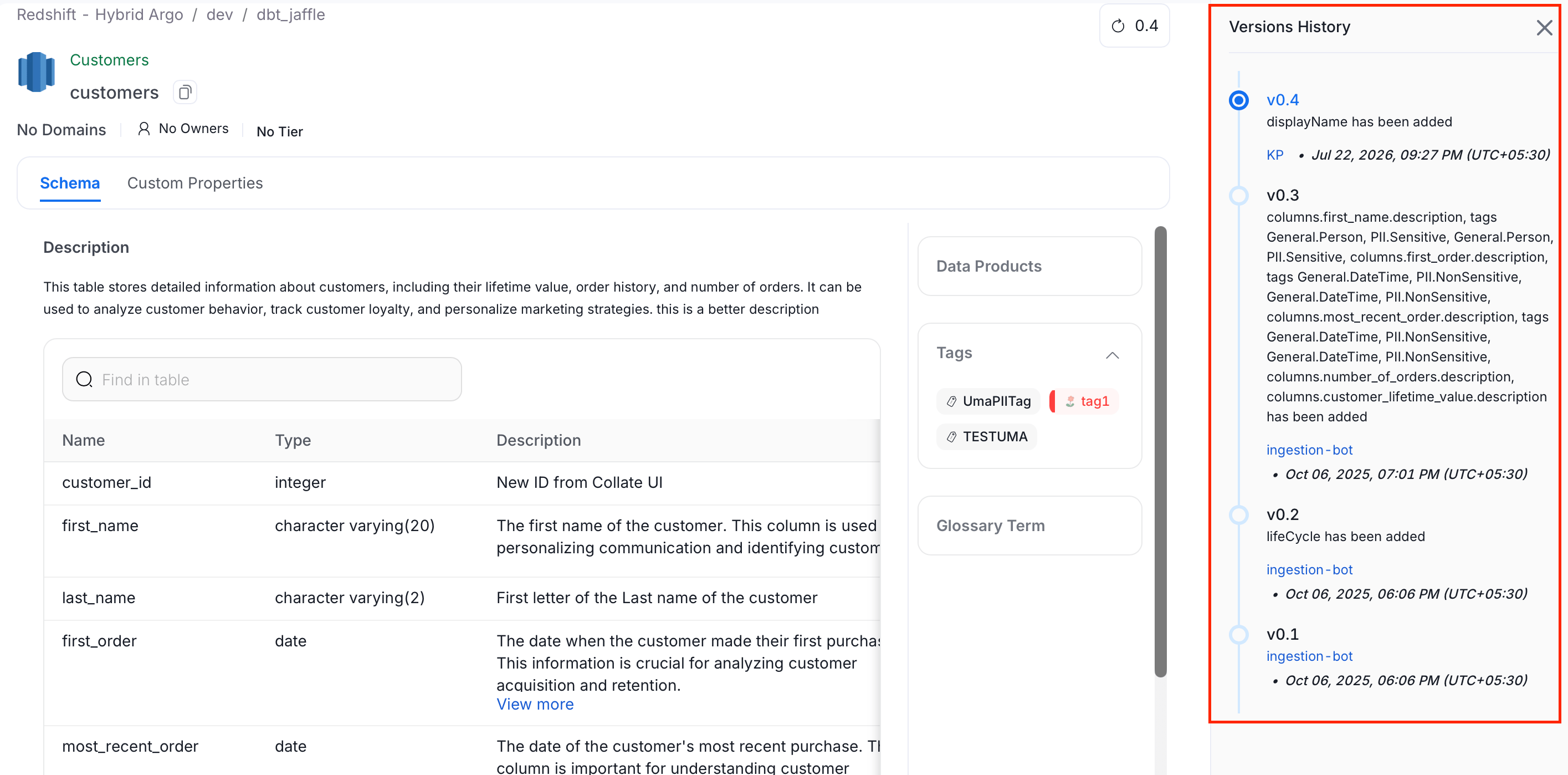
Filter by Deleted Data Assets
Collate soft-deletes assets rather than removing them outright, so you can still find them later if needed. To include soft-deleted assets in your search results, click Tools at the top right of the Explore page and switch on Show Deleted. Deleted assets are read-only until they’re restored.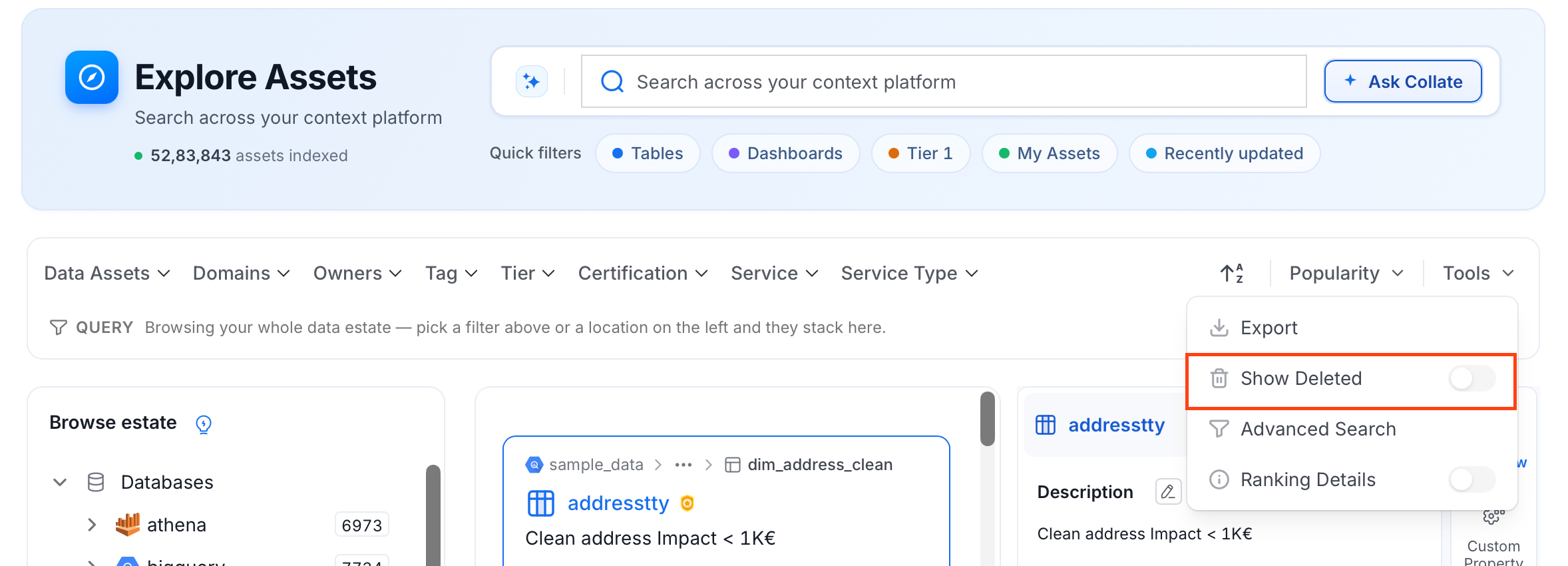
Get a Quick Glance of the Data Assets
Quick preview of the selected data asset.