
Natural Language Search
Natural language search lets you ask Collate a question the way you’d ask a colleague—“Tables owned by marketing” or “Tier 1 pipelines in the Snowflake service”—instead of typing keywords and clicking through filter dropdowns. Collate AI reads your question, works out which filters you mean, and combines them with a semantic search across your assets so the results reflect what you’re actually looking for, not just which words happen to match.Turn On Natural Language Search
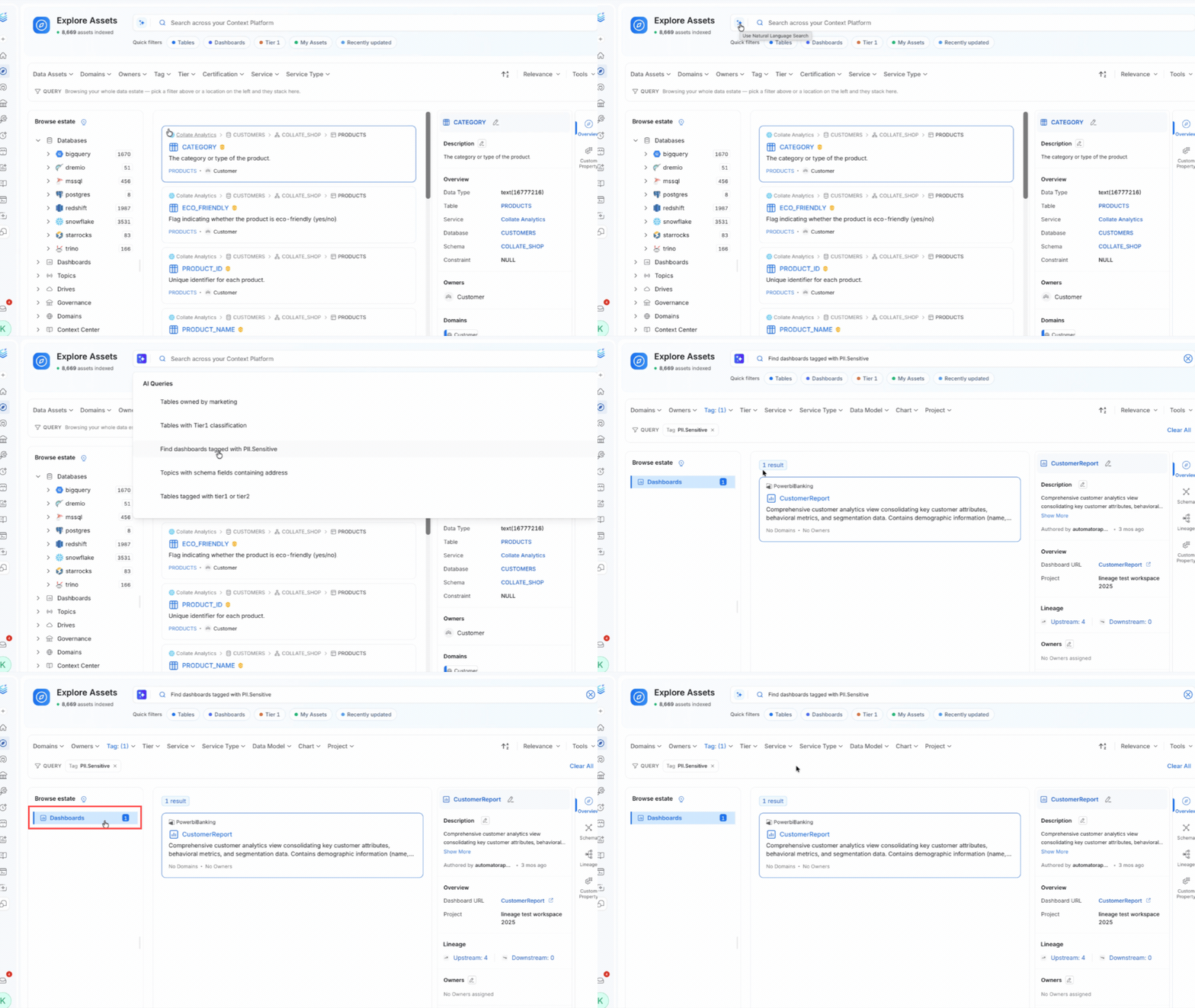
- The toggle lives inside the Explore Assets search card at the top of the Explore page, as an icon next to the search field.
- Hover over the icon to see its current state: Use natural language search when it’s off, and Natural language search is active once you’ve turned it on.
- Click the icon to switch modes. With it on, the search box switches from keyword suggestions to natural-language prompts.
- Your choice is remembered—Collate keeps natural language search on or off for you the next time you visit Explore.
- This toggle only appears if your deployment has natural language search enabled. If you don’t see it, check with your Collate admin.
Ask a Question
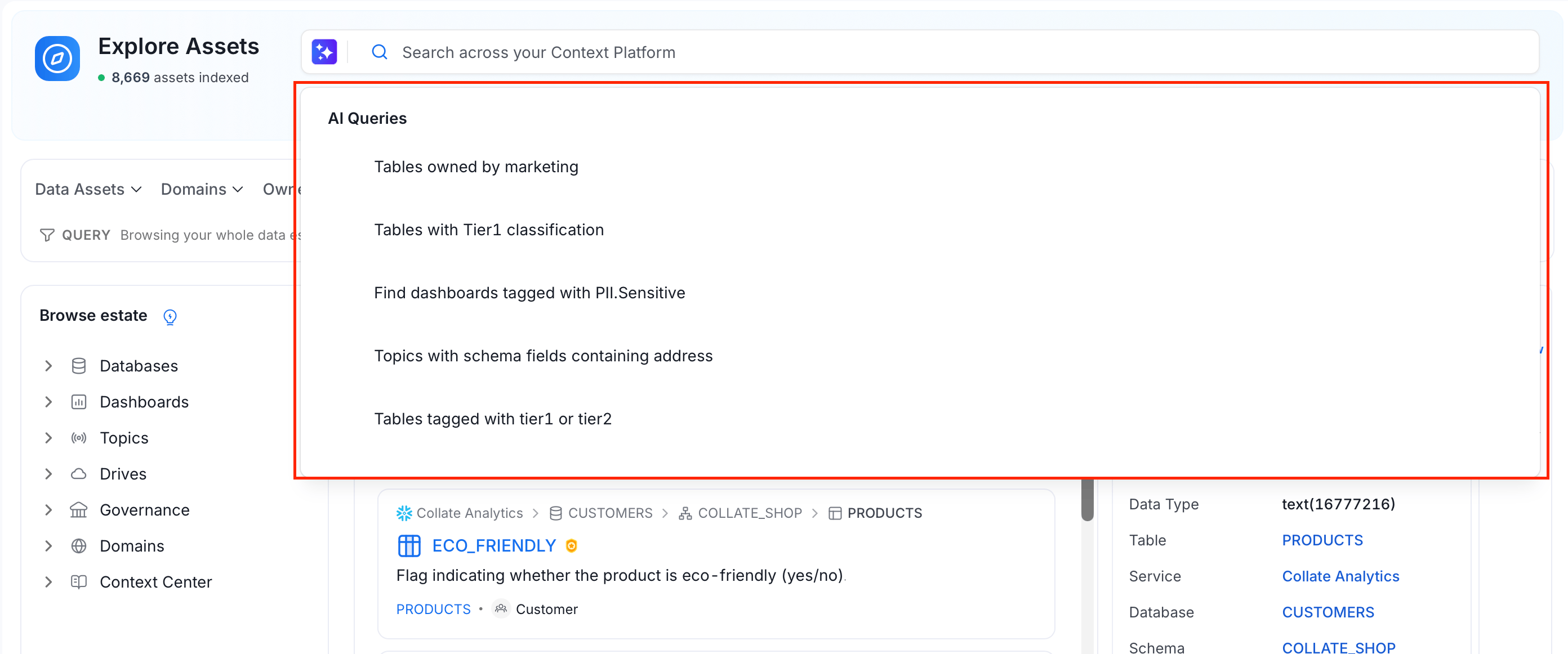
- With natural language search active, click into the search box to see a list of example questions to ask or use as a starting point.
- Type your own question and press Enter, or click one of the suggested prompts to run it immediately.
- Collate AI can pick out the following from your question and turn them into filters automatically:
- Owner—for example, “Tables owned by marketing”.
- Tag—for example, “Dashboards tagged PII.Sensitive”.
- Tier—for example, “Tier 1 pipelines”.
- Certification—for example, “Gold certified tables”.
- Domain—for example, “Assets in the Finance domain”.
- Data Product—for example, “Tables in the Customer Analytics data product”.
- Service and Service Type—for example, “Tables in the Snowflake service”.
- Database and Database Schema—for example, “Schemas in the analytics database”.
- Entity Type—for example, “Pipelines”, “Dashboards”, or “ML models”.
- Combine several of these in one question—for example, “Tier 1 tables owned by marketing in the Snowflake service”—and Collate applies all of the matching filters together.
- If your question doesn’t map to a specific filter, Collate falls back to a semantic search over asset names, descriptions, and other metadata, so you still get relevant results instead of none.
Reading Your Results
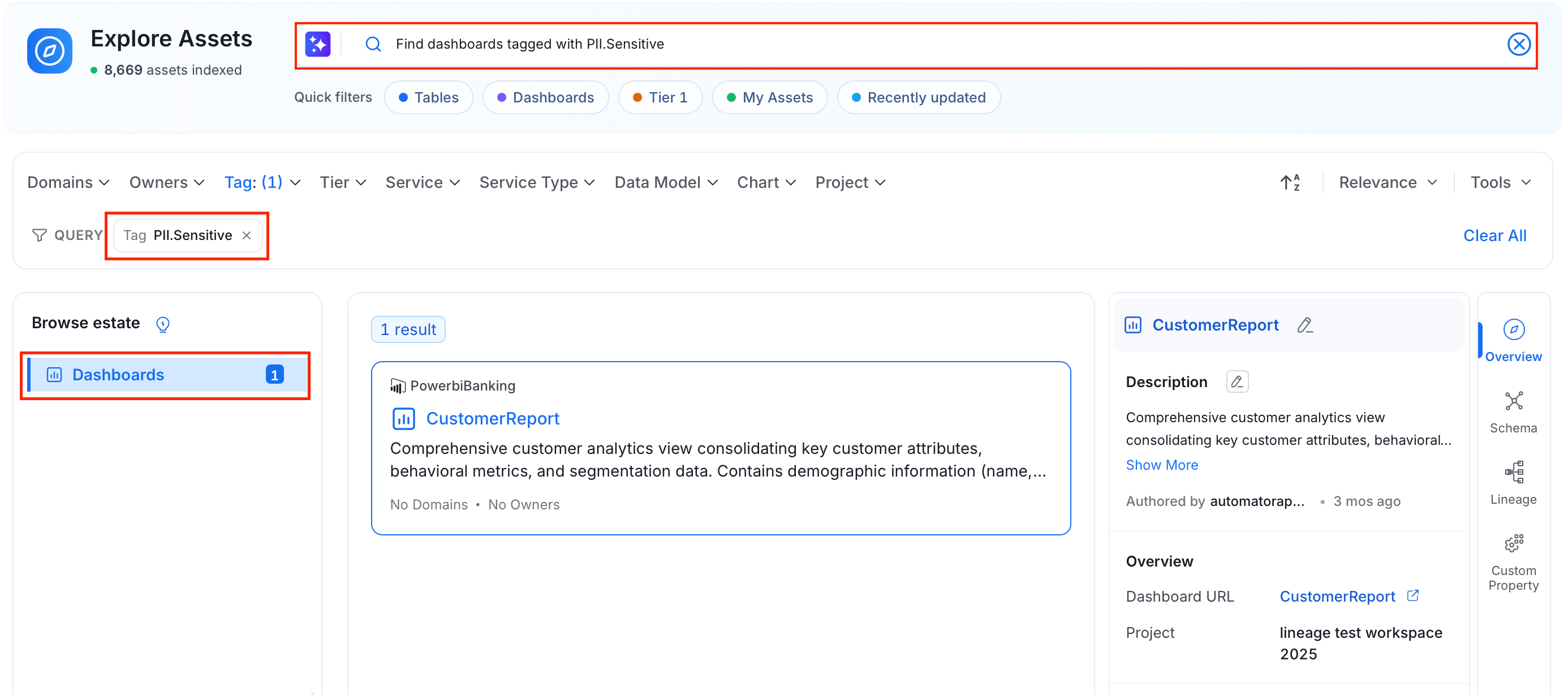
- Submitting a natural language question takes you to the same Explore results page you’d see from a keyword search—your question stays visible in the search box, and results are sorted by relevance.
- Any filters Collate AI extracted from your question appear as removable chips in the filter bar below the search box. Click the × on a chip to drop just that filter, or Clear All to reset every filter at once. Example: Searching “Find dashboards tagged with PII.Sensitive” adds a Tag: PII.Sensitive chip to the filter bar, and the Browse estate panel on the left updates to show Dashboards.
- The quick filter chips above the search results—Tables, Dashboards, Tier 1, My Assets, Recently Updated—work independently of natural language search. Clicking one clears your natural language question and applies that filter instead.
Troubleshooting
Search filters are unavailable: If your deployment’s natural language search service isn’t fully set up, you might see a banner reading Search filters are unavailable. This means Collate AI couldn’t extract filters from your question, but keyword and semantic search still work normally. Check the Settings > Preferences > Health Check page, or ask your Collate admin to review the server logs.Discover Assets of Interest
Find data assets using keyword search, quick filters, and advanced search.