
Tasks
Tasks let you formally request updates to data asset metadata — such as descriptions or tags — and assign them to the right person or team. Tasks are tracked with a status and can be approved, rejected, or reassigned directly from the Inbox.Creat a Task
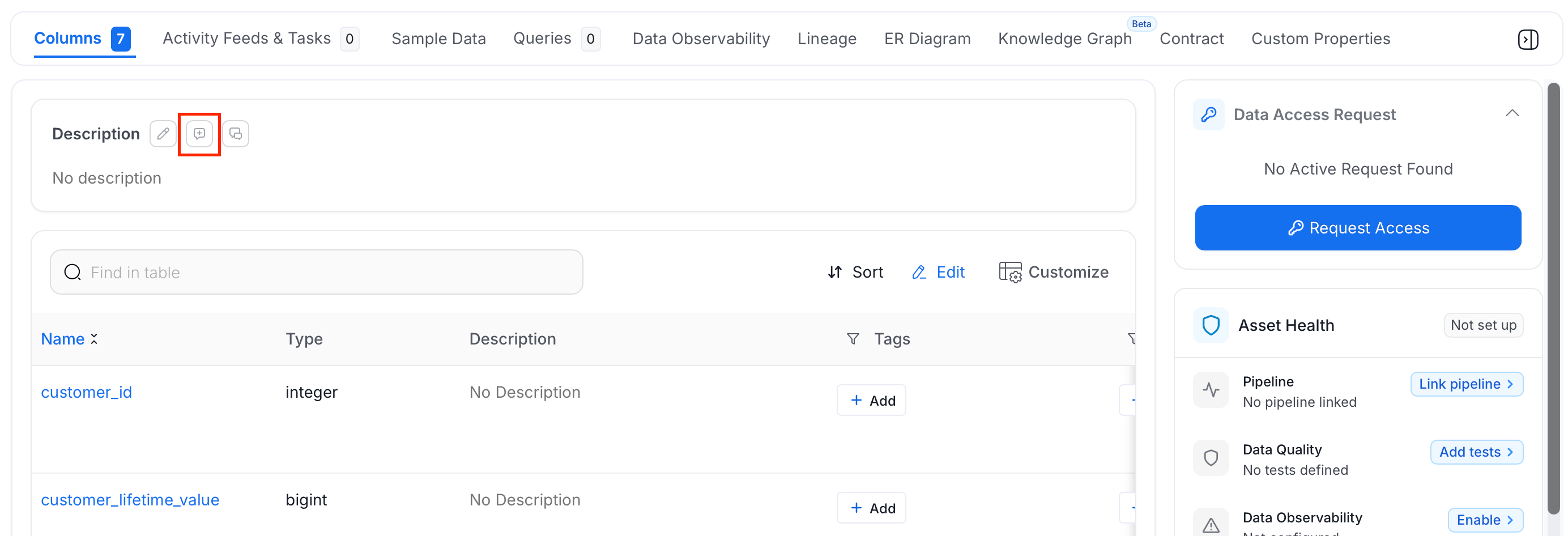
Tasks are created from the data asset page.- Click the request
 icon next to a Description or Tags field to open the Create Task form.
-
Fill in the following details:
- Title — Auto-populated from the request type
- Assignees — One or more users or teams responsible for resolving the task
- Description or Tags — The proposed update, with a diff view showing current vs. new value
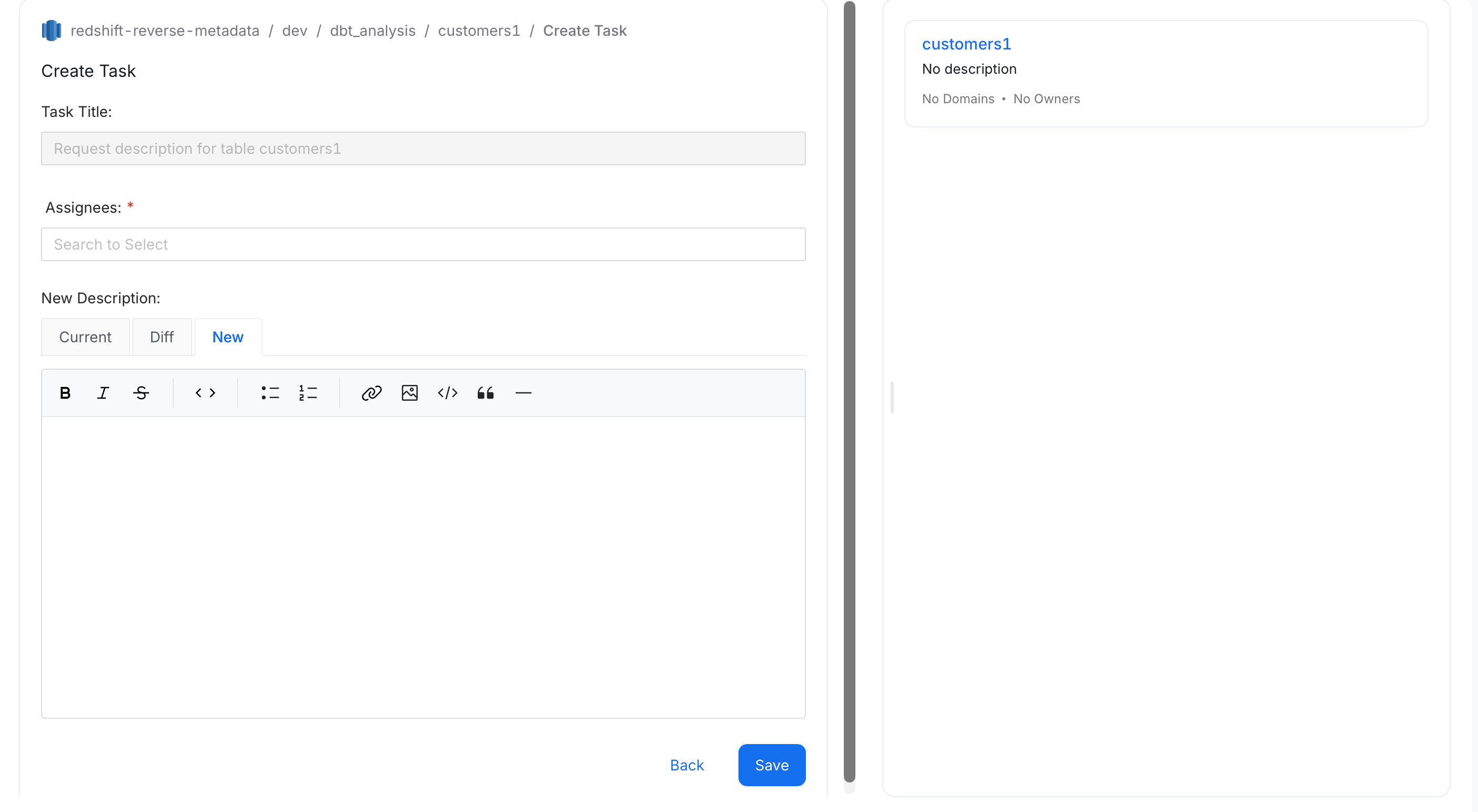
- Select Submit to create the task.
Request Description Update
Request a new or updated description for a data asset
Request Tag Update
Request tags to be added or updated on a data asset
Managing Tasks in the Inbox
All tasks assigned to you or created by you are available in Inbox > Tasks.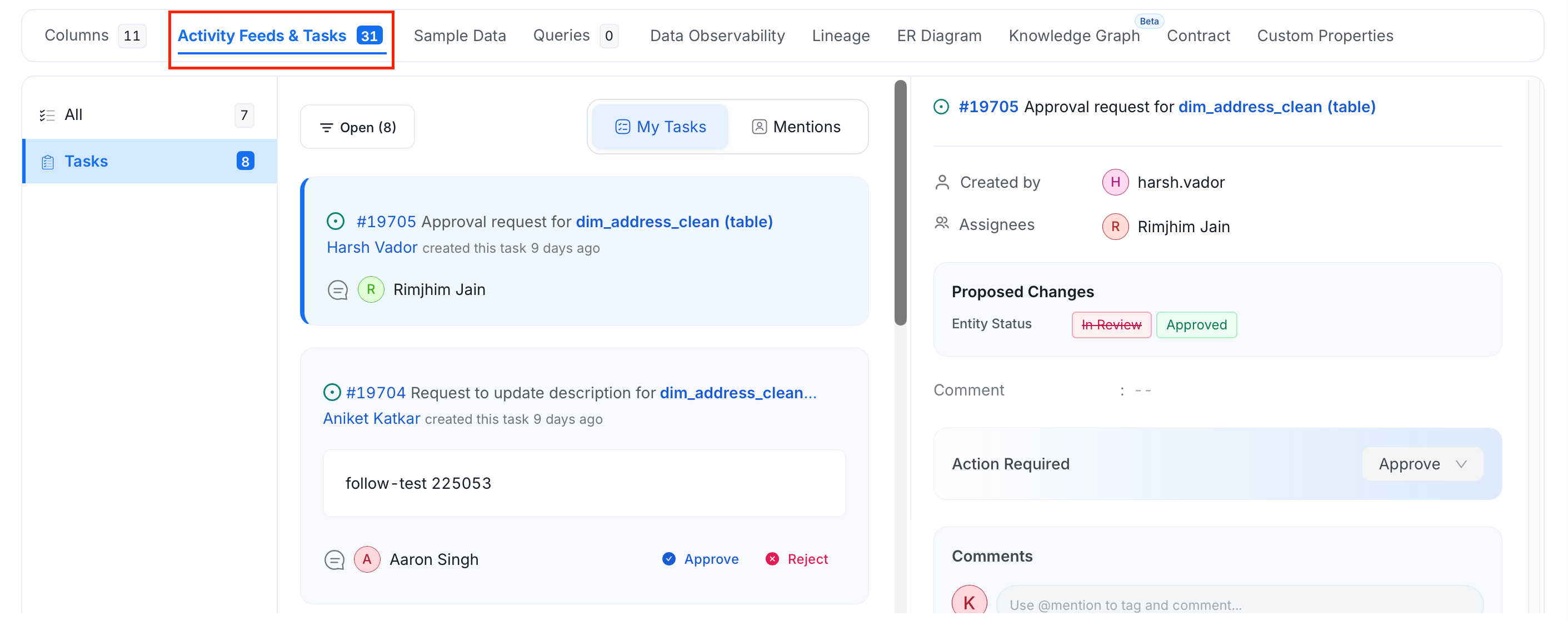
- All — every task regardless of status
- Open (default) — tasks that still need action
- Closed — resolved or rejected tasks
Task Detail Panel
The detail panel shows:- Status — current state of the task
- Assignees — who is responsible for resolving it
- Description — the proposed change with a diff view
Acting on a Task
From the task detail panel, assignees can:- Approve — accept the proposed change and close the task
- Reject — decline the request and close the task
- Reassign — transfer the task to a different user or team
- Comment — add a note to discuss the request further