Request Description and Conversation
Request to Update Description
Apart from adding a description to the data assets directly, users can also request to update description. This is typically done when the user wants another opinion on the description being added, or if the user does not have access to edit the description. Requesting a description will create a Task in Collate.-
Click the
 icon next to the Description header.
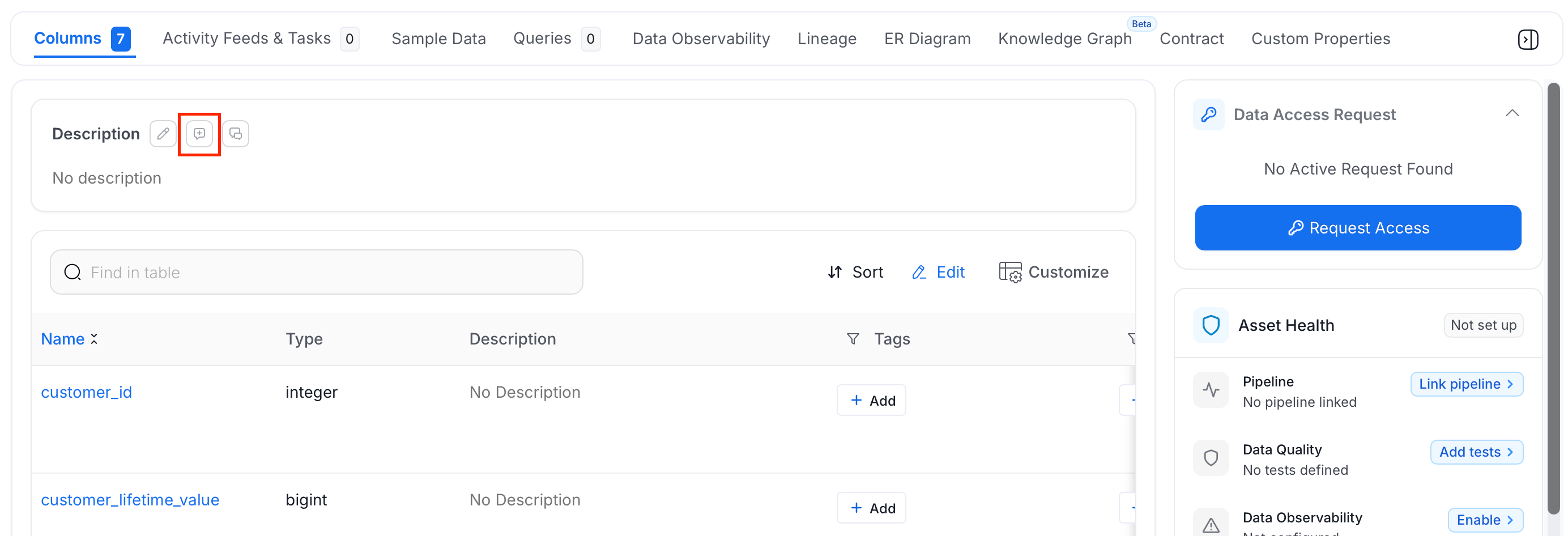
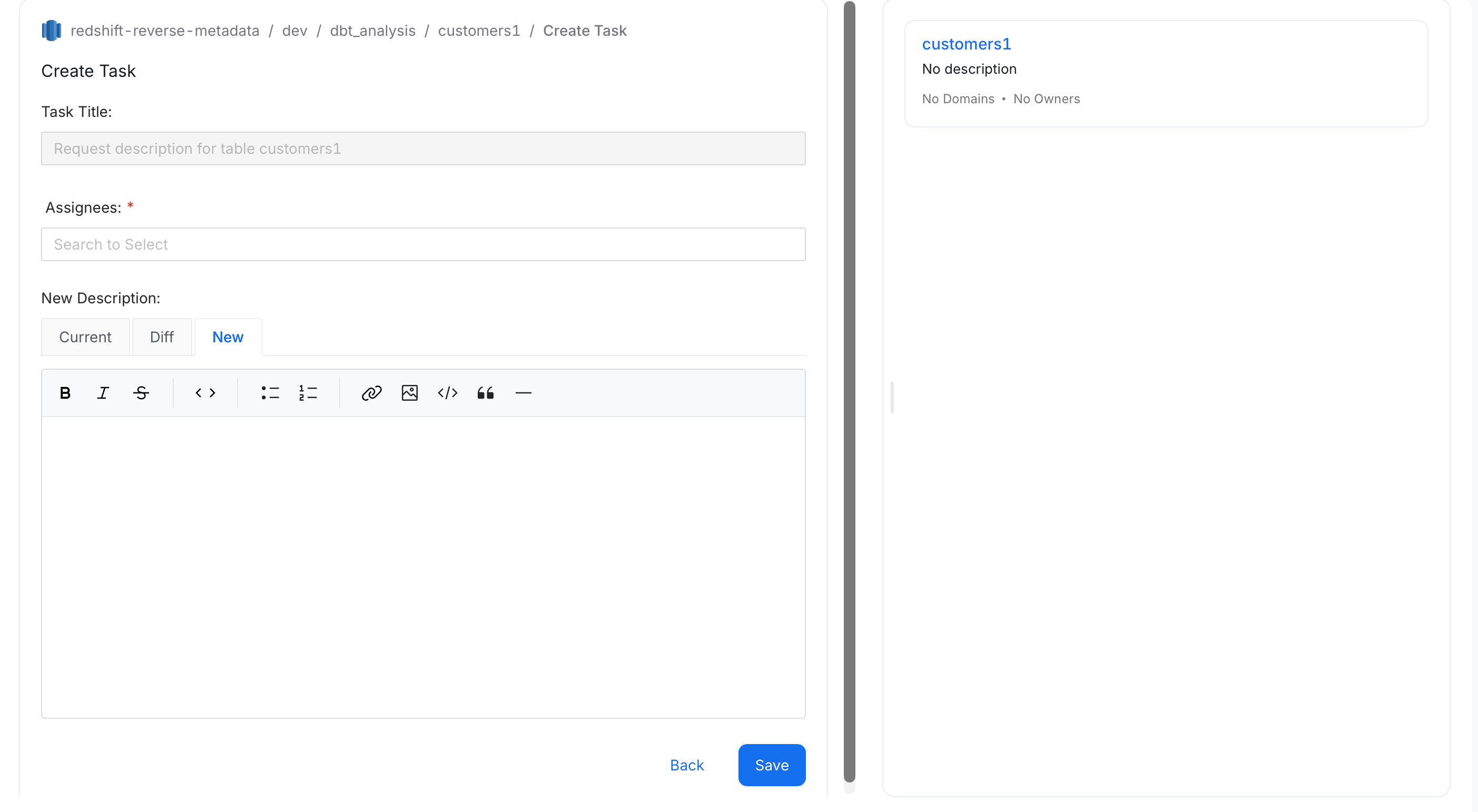
- A Create Task page appears with pre-populated Task Title. Fill the other important information:
- Title - This is auto-populated
- Assignees - Multiple users or teams can be added
- Description - Add the new description.
- You can view the Current description.
- You can add the New description.
- It will display the Difference as well.
- Click on Submit to create the task.
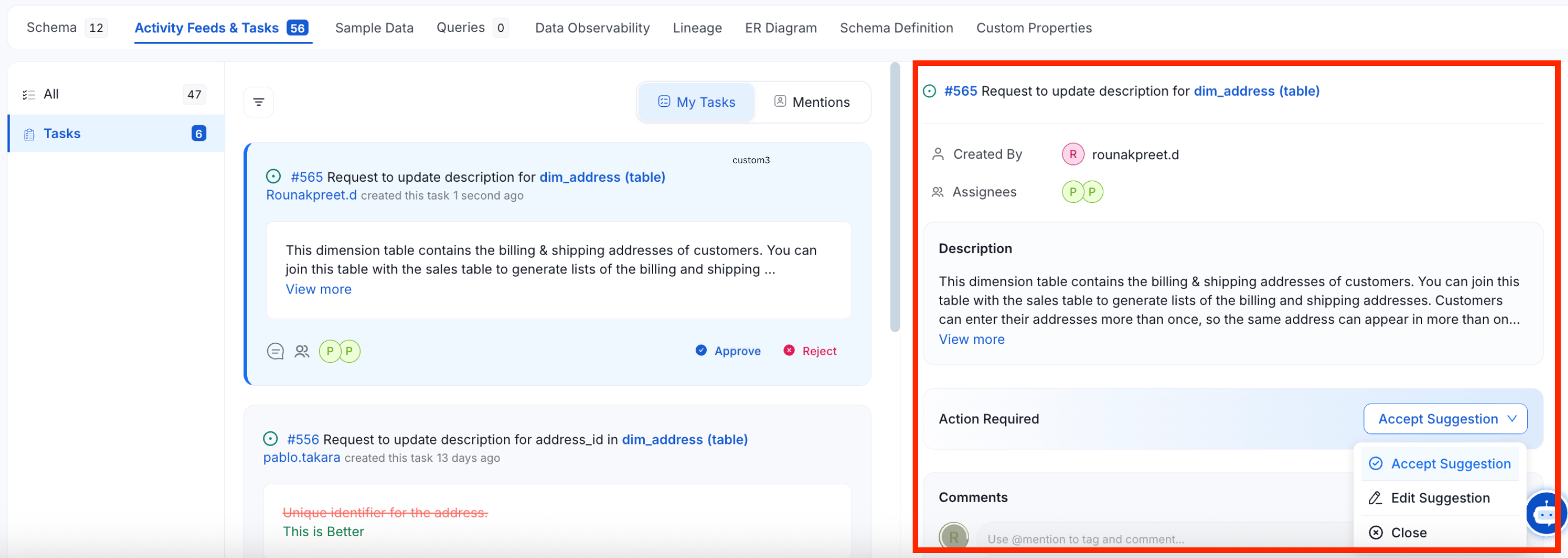
Accept the Suggestion or Edit and Accept the Suggestion. Assignees can also add a Comment. They can also add other users as Assignees.
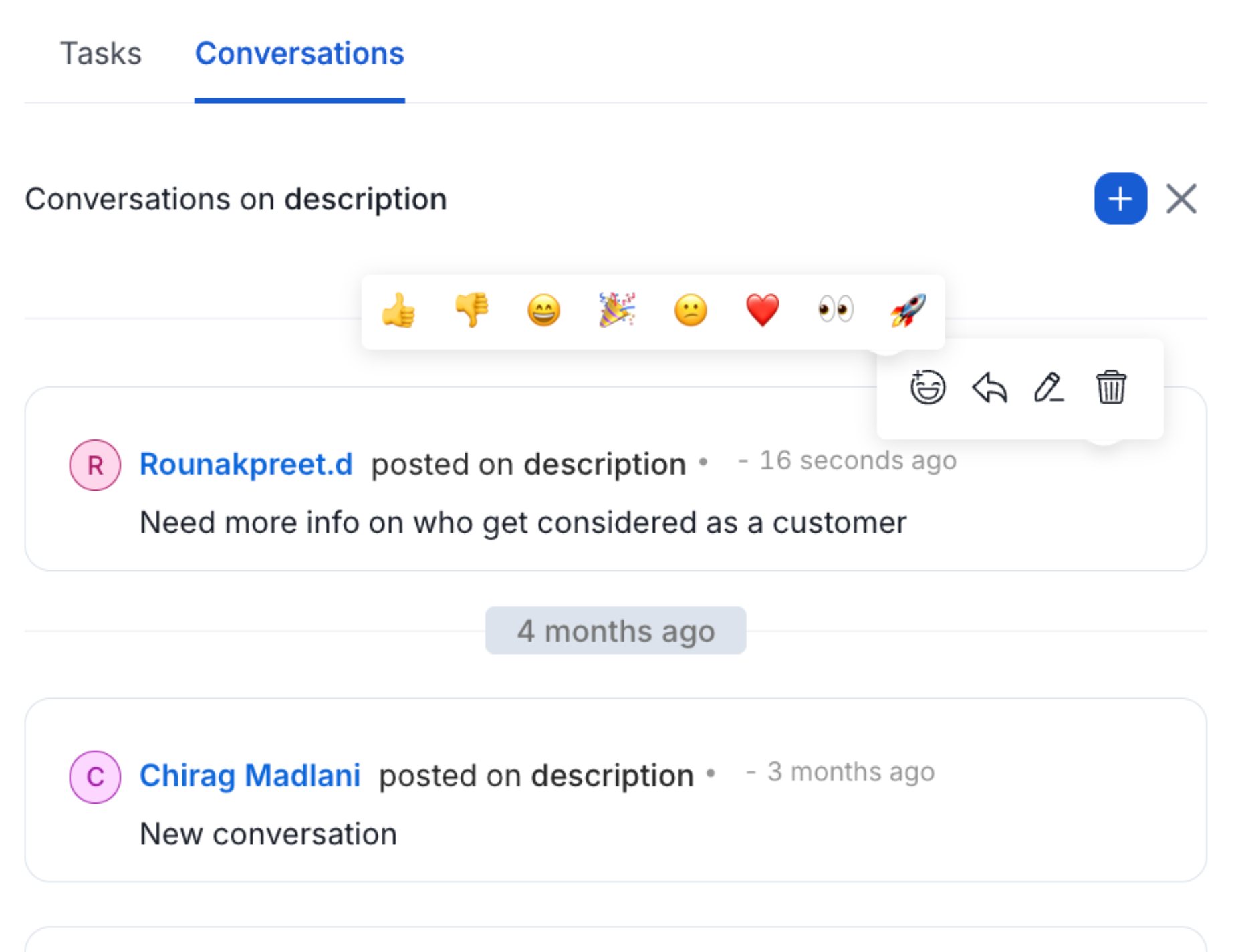
Conversations around the Data Asset Description
Apart from requesting a description, users can also create a Conversation around the description of a data asset.-
Click the Conversation icon next to the description.
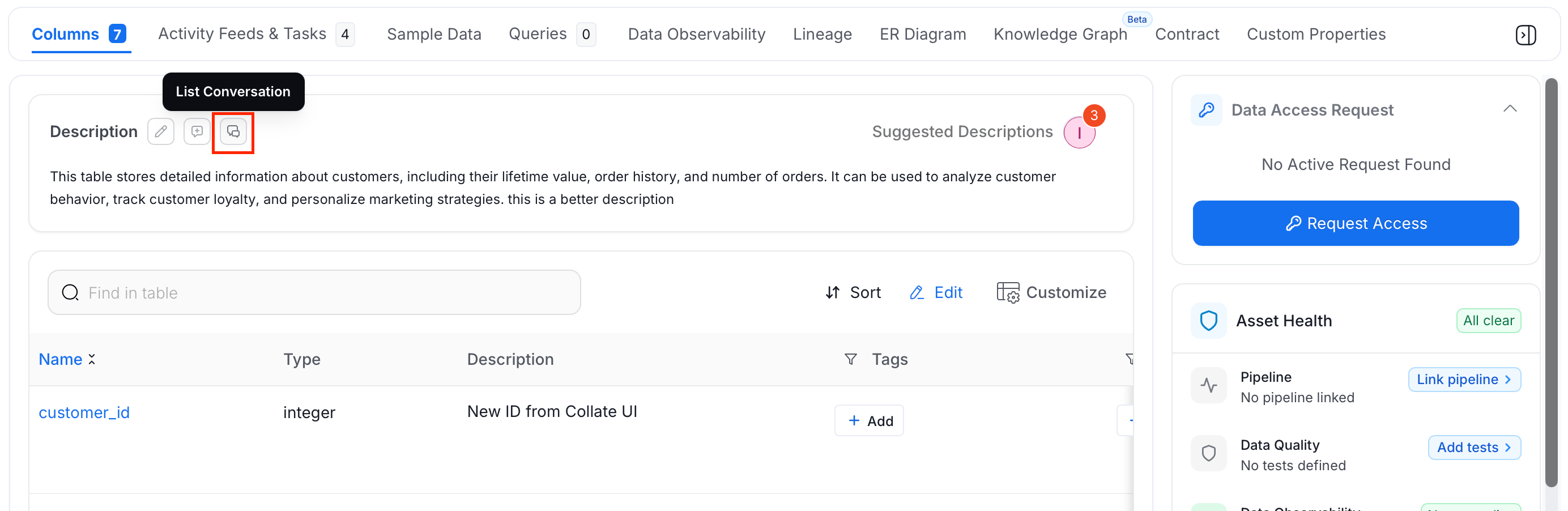
-
Start a conversation right within the data asset page. Add @mention to tag a user or team. Add a #mention to tag a data asset.
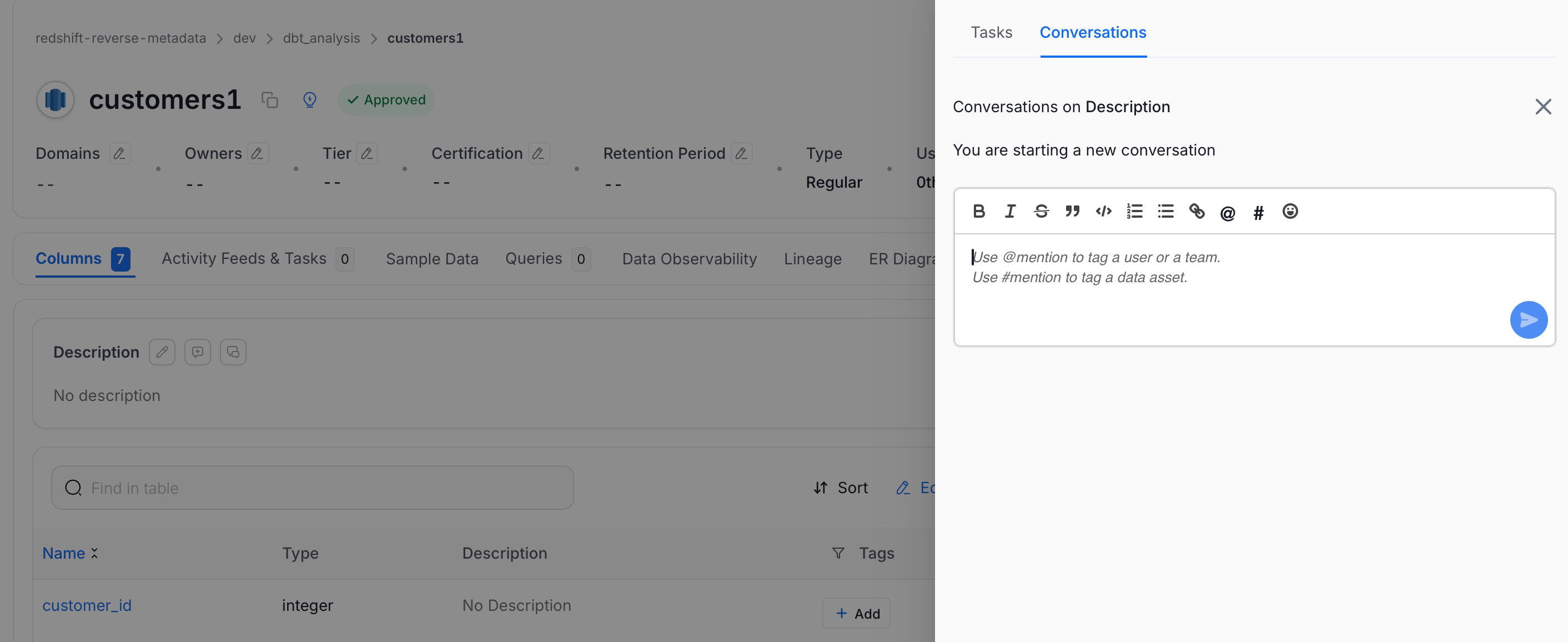
-
Further in the conversation, users can Reply to discuss further as well as add Reactions, Edit, or Delete.